 UPDF
UPDF
 UPDF for Windows
 UPDF for Mac
 UPDF for iPhone/iPad
 UPDF for Android
 UPDF AI Online
 UPDF Sign
 Edit PDF
 Annotate PDF
 Create PDF
 PDF Form
 Edit links
 Convert PDF
 OCR
OCR PDF to Word
 PDF to Image
 PDF to Excel
 Organize PDF
 Merge PDF
 Split PDF
 Crop PDF
 Rotate PDF
 Protect PDF
 Sign PDF
 Redact PDF
 Sanitize PDF
 Remove Security
 Read PDF
 UPDF Cloud
 Compress PDF
 Print PDF
 Batch Process
 About UPDF AI
 UPDF AI Solutions
 AI User Guide
 FAQ about UPDF AI
 Summarize PDF
 Translate PDF
 Chat with PDF
 Chat with AI
 Chat with image
 PDF to Mind Map
 Explain PDF
 Scholar Research
 Paper Search
 AI Proofreader
 AI Writer
 AI Homework Helper
 AI Quiz Generator
 AI Math Solver
 PDF to Word
 PDF to Excel
 PDF to PowerPoint
 Enterprise Solution
 Enterprise Sign
 Enterprise AI
 Enterprise Plan
 Enterprise User Guide
 Enterprise Webinar
 Banking
 Healthcare
 Insurance
 Legal
Legal Manufacturing
 Government
 Education Solution
 Customer Stories
 User Guide
 UPDF Tricks
 FAQs
FAQs UPDF Reviews
 Download Center
 Blog
Blog Newsroom
 Tech Spec
 Updates
 UPDF vs. Adobe Acrobat
 UPDF vs. Foxit
 UPDF vs. PDF Expert

If you search around and will find it is not easy to convert PDF to Latex as there are few ways can do that. So we tested all methods provided online and have shortlisted the top 3 ways that you can try for the best reliability. You can choose any method you like after checking the guide. And for those who want to edit the PDF before converting it to Latex, you can download UPDF here to edit them directly.
Windows • macOS • iOS • Android 100% secure
Part 1. How to Convert PDF to Latex Via Mathpix?
Mathpix is an online tool that converts PDF documents into Latex code. It leverages cutting edge OCR technologies to accurately translate and transcribe mathematical expressions, tables, text off PDFs into the Latex format.
It is especially helpful for academics, researchers and students who require the use of complicated mathematical equations or scientific numbers in their Latex files.
The process is straightforward where users only upload a PDF file to Mathpix, and the software scans this content and converts it into editable Latex code. Mathpix can interact with a vast array of mathematical symbols and can work well on complex documents.
Step 1: As you log into the Mathpix platform you will see multiple tools under its QuickStart section. You must pick the "Snip Webapp" option to proceed. It will take you to the Snip Webapp homepage where you can upload a PDF file by clicking "PDF" button and selecting a file from your offline storage.
It will ask you for page range and some other optional settings that you may leave as default or set according to your requirements.
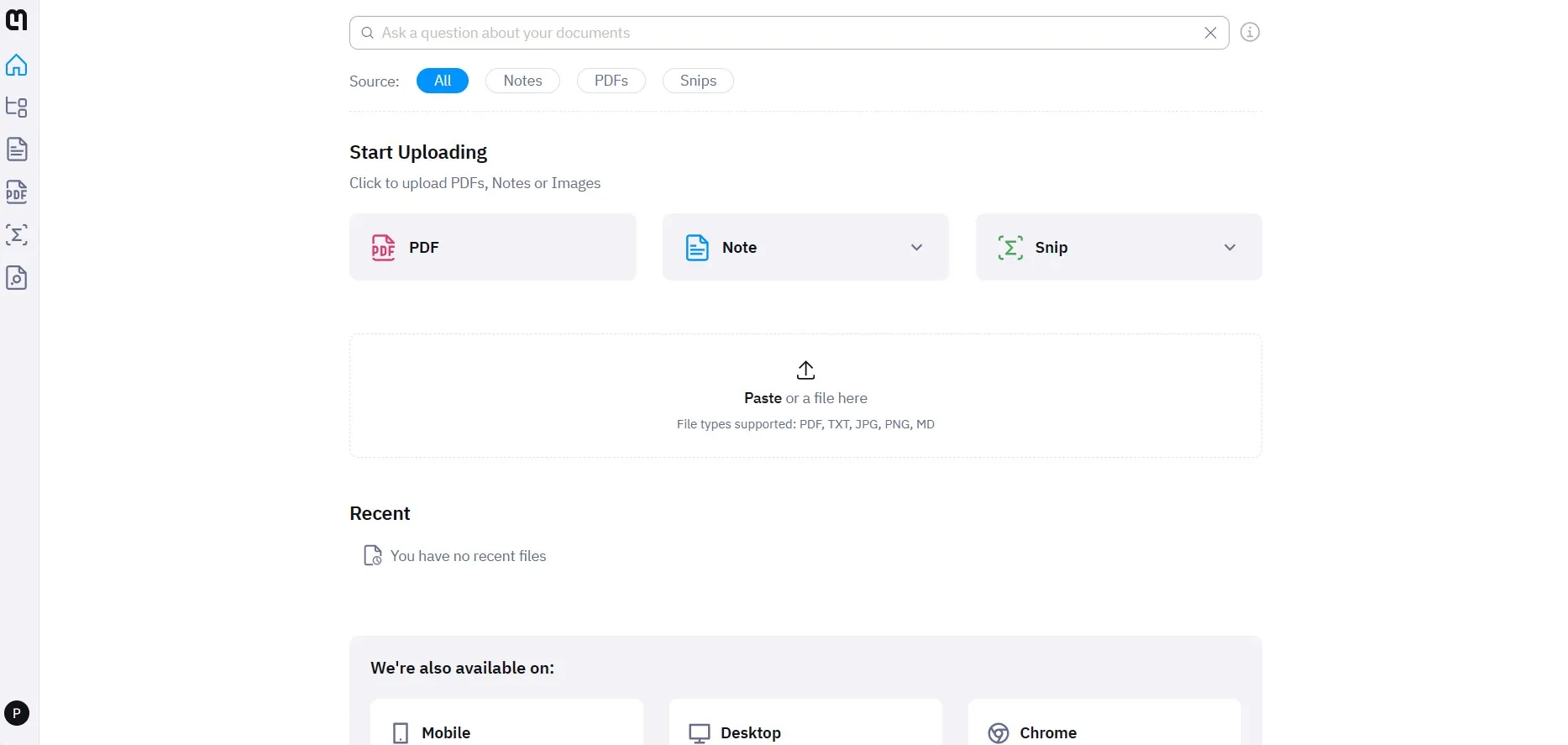
Step 2: PDF file uploading progress can be seen in the left side menu and you must wait until the uploading completes. When the uploading finishes, you can click "Export" > "LaTeX" and your file will be automatically completed, and the download will begin on your PC. You can now locate the Latex file on the default/set download location.

Part 2. How to Convert PDF to Latex Online Free Via Vertopal?
Vertopal is another online converting tool that allows users to transform PDF files into Latex format. With Vertopal, the user uploads a PDF document, and it automatically identifies and extracts text and symbols, etc., before converting all these into Latex code. Vertopal's intuitive user interface and effective operations make it a beneficial tool for everyone.
Step 1: The conversion process is very simple as you head to Vetropal website and start without registering or logging in. You can click "Choose File" button or pick the option of cloud storage or URL to upload your file in your desired manner.
Remember that the maximum file limit is 50MB that can be increased when you go for the pro version of this tool.
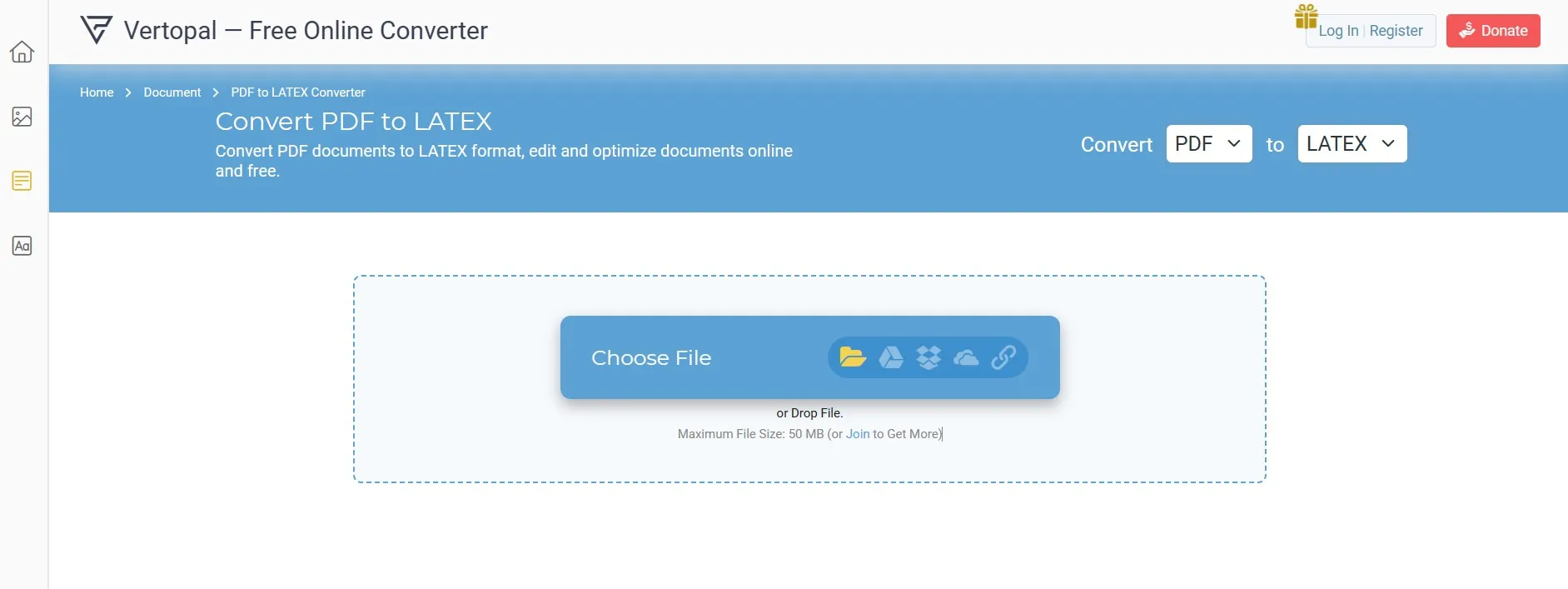
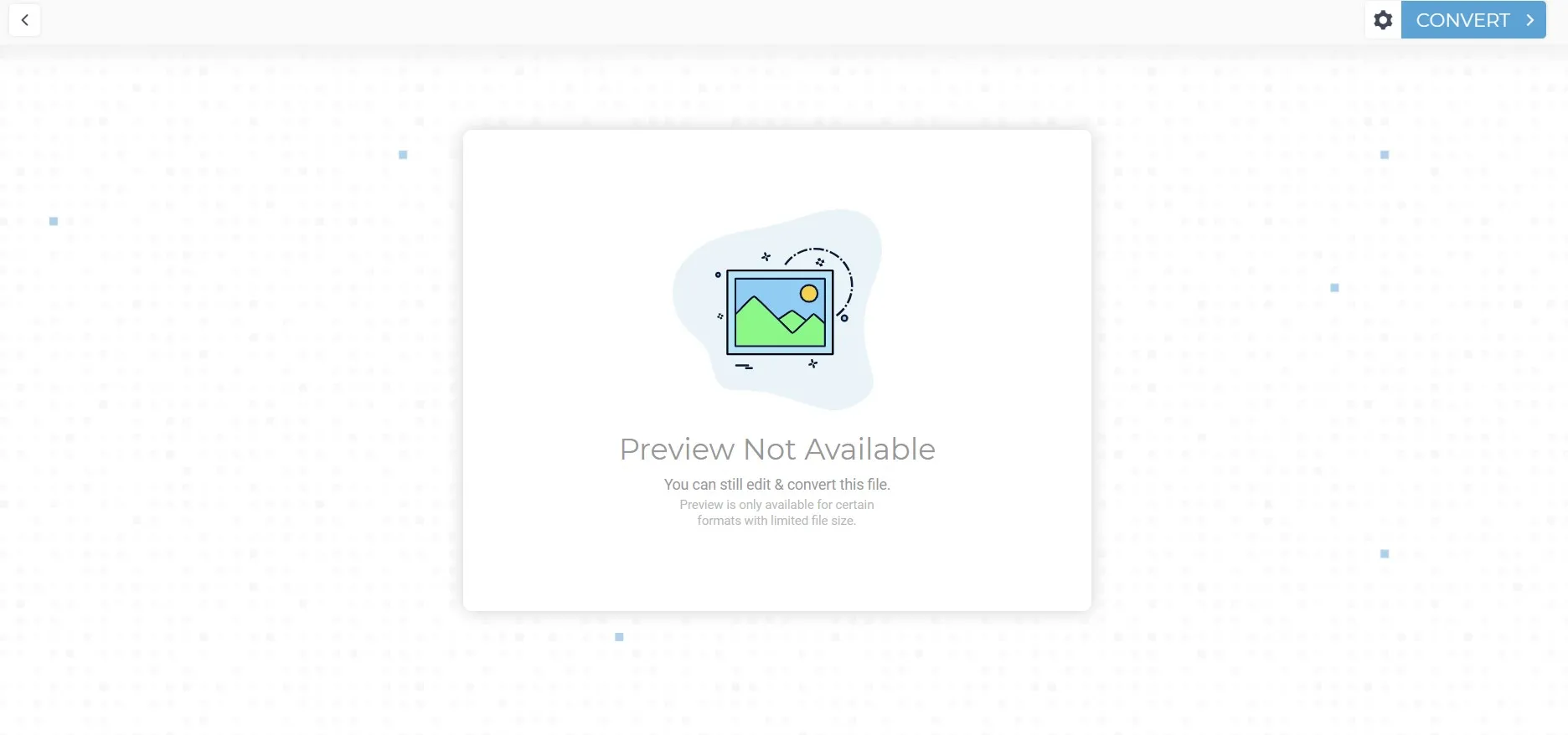
Step 2: Your uploading progress will begin and when it completes, Vertopal will tell you if the file is good for conversion or not. You can proceed by clicking "Continue" and it will take you to the preview page. Here you may click "Convert" from the top right and your conversion will begin.
Now you only need to wait for your conversion to be completed. When it is completed, you may click "Download" and save your Latex file.
Part 3. How to Convert PDF to Latex Online Free Via Converter APP?
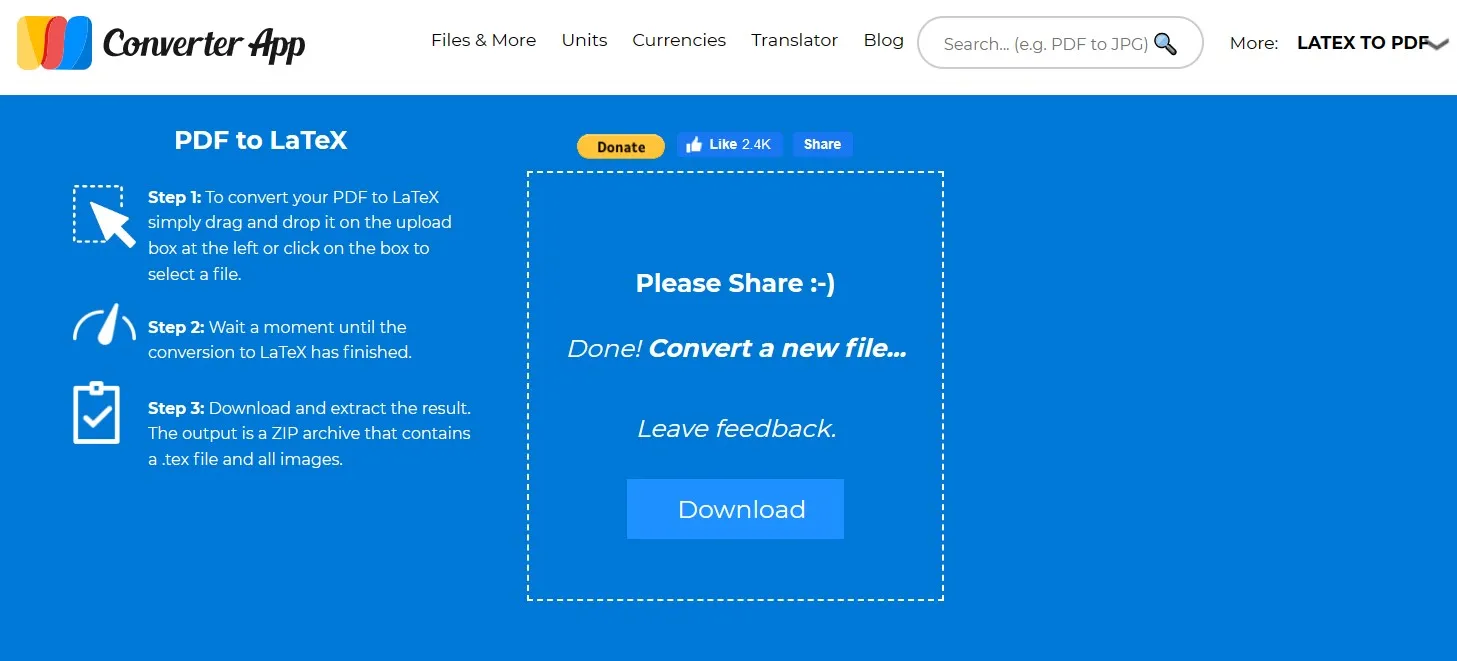
Converter App is a simple and fast tool for converting PDF files to Latex. Users can easily upload their PDF file, wait for the conversion process to finish and then download a ZIP archive comprised of Latex file (.tex) and all extracted images.
Its free service is very helpful for editing PDFs in Latex since it creates a .tex file that can be edited automatically and retains all images from the original PDF. The app provides privacy and safety features by automatically removing files from their servers after conversion.
Step 1: Head to Converter App PDF to Latex conversion page on your browser and click in the designated area to choose a file. Alternatively, you may upload your file by dragging and dropping it in Converter App interface. Now its uploading and conversion process will begin.
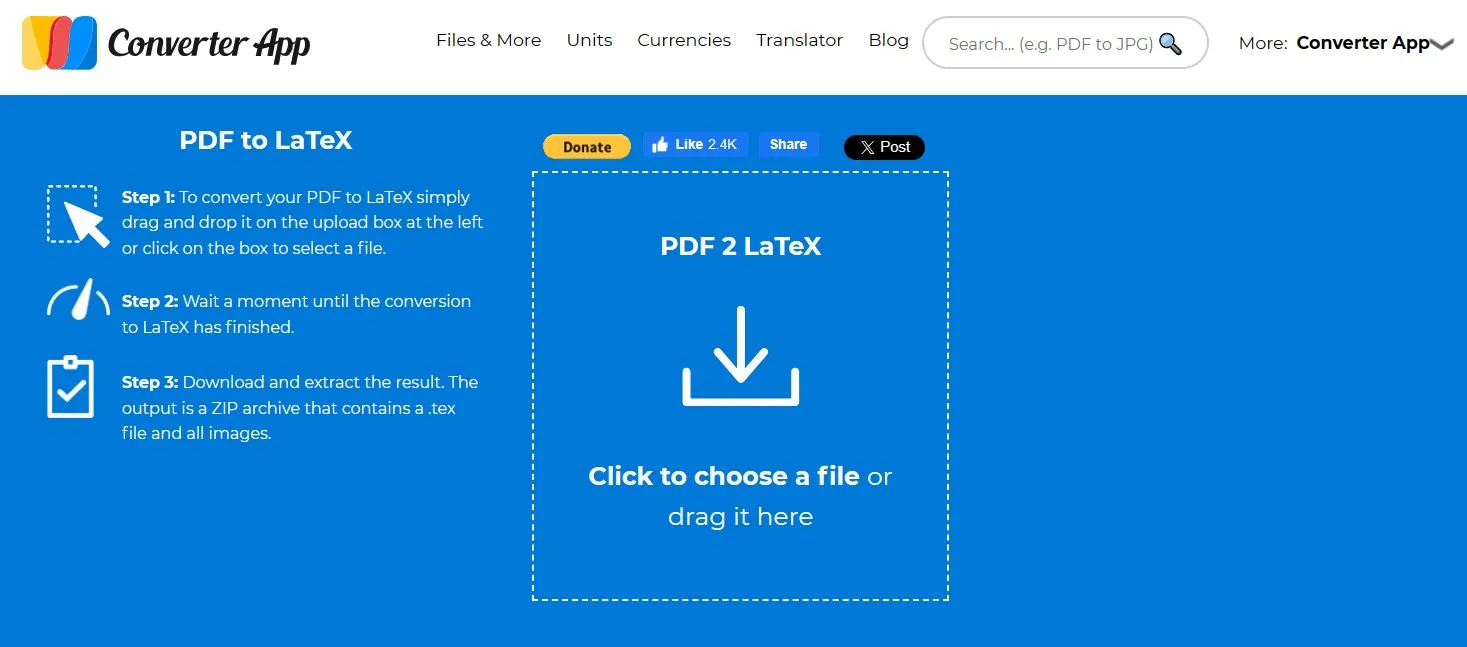
Step 2: Wait for a few seconds until you see the download button. Once this button appears it means that your PDF has been successfully converted to Latex format and you may click "Download" to save this file on your device. It will output a Zip file that you can unzip to extract Latex file and other components including images.
Part 4. Bonus Tip: How to Edit PDF Before Converting to Latex
So, if you are looking for the right solution to edit PDF files before converting to Latex, you must try UPDF. UPDF not only lets you edit the existing content, but also add new ones.
Apart from these, there are many other useful features available in UPDF that you can explore after downloading it via the below button. And follow the below guide to edit PDF files.
Windows • macOS • iOS • Android 100% secure
Step 1: Start your UPDF app by using its desktop shortcut then click "Open File" to open the PDF that you are about to convert to Latex. To get editing features, you must click "Edit" button in "Tools" from left pane.
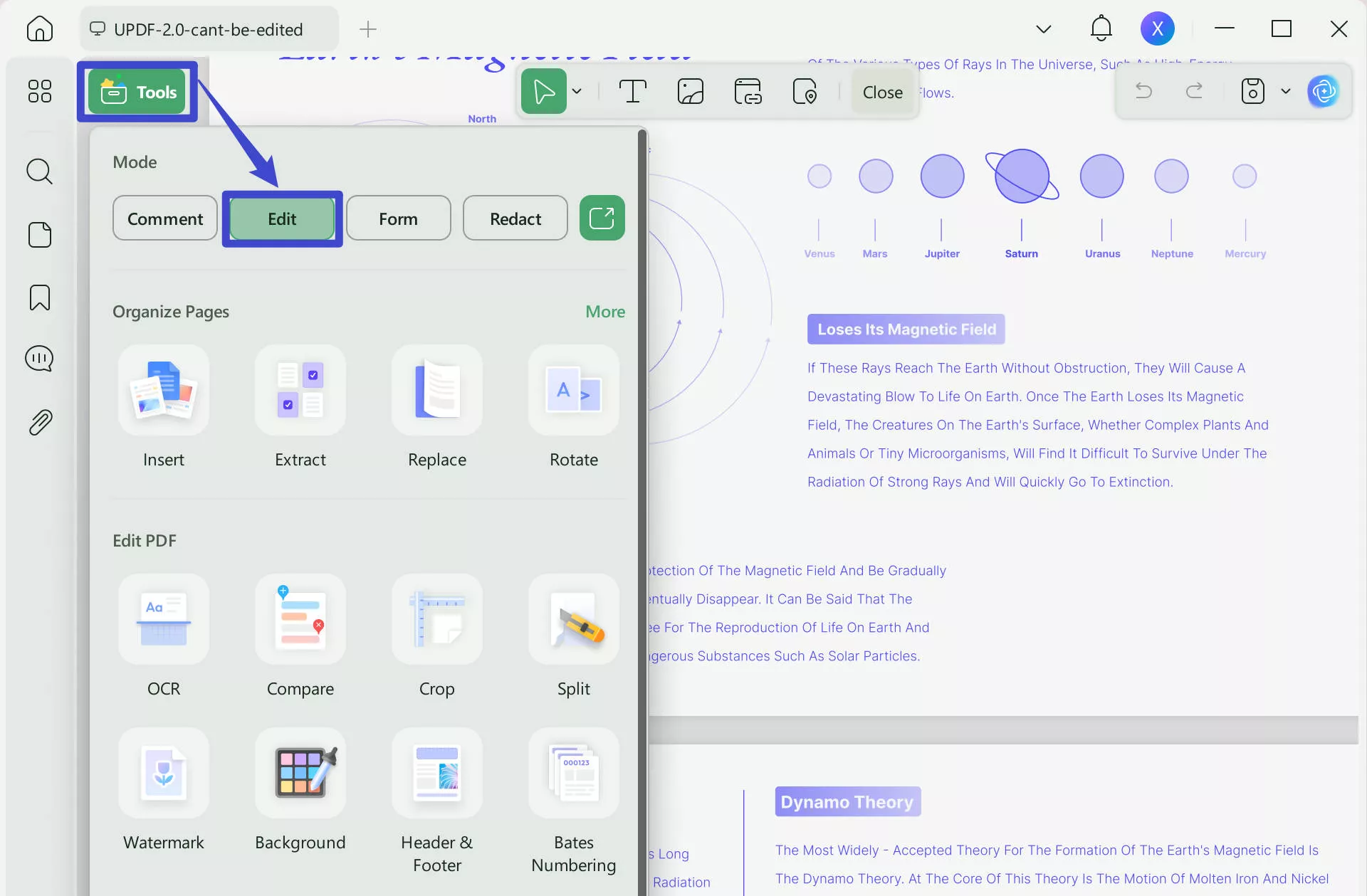
Step 2: Once you are in the editing screen, you may double-click any existing element like text or image to make it editable and get all editing options. For adding new elements in PDF, you can click buttons on top to select features and click anywhere in PDF to add them. Once you are done editing you can save progress by pressing "Ctrl + S"
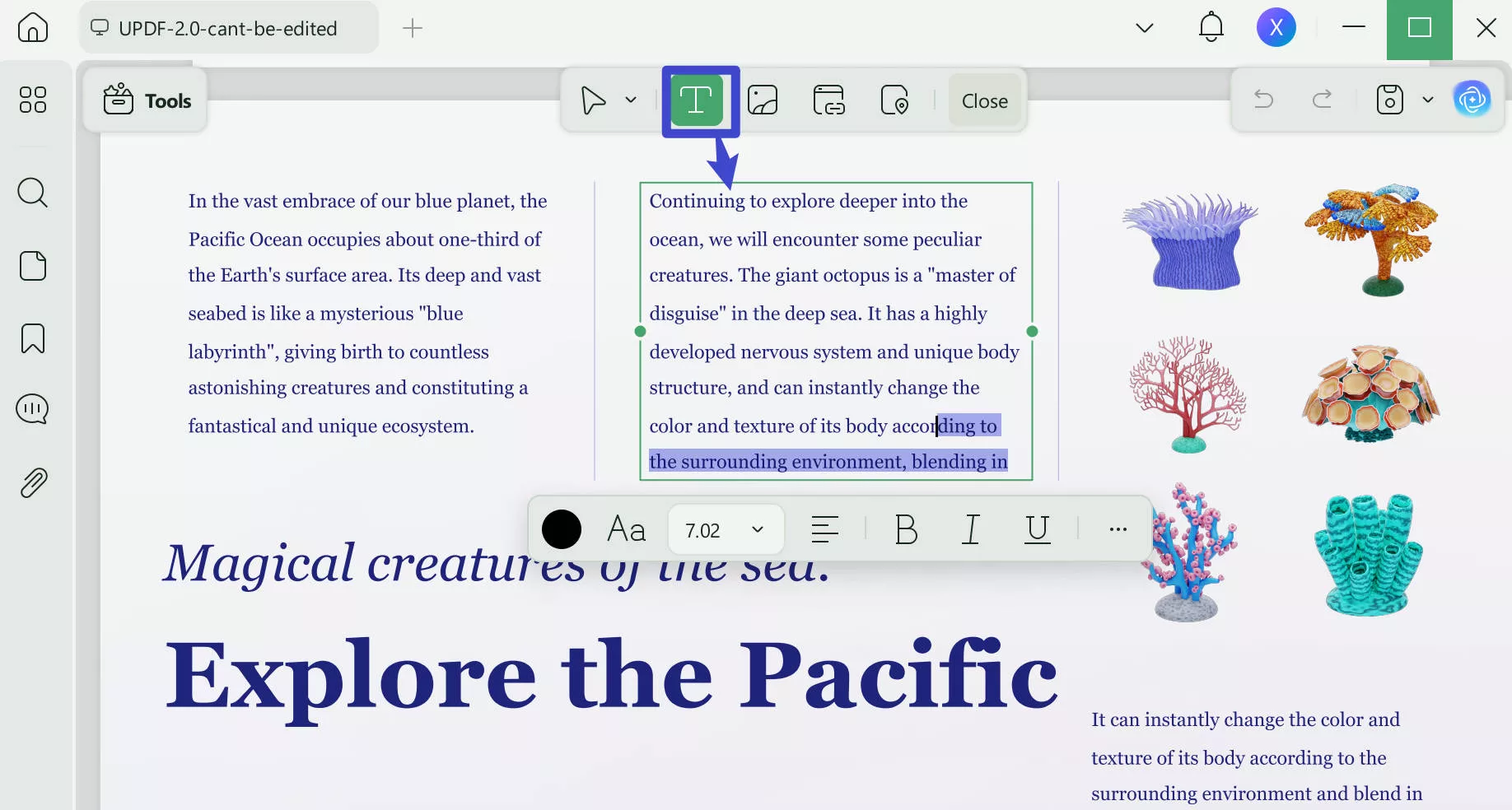
Editing PDF documents with UPDF is very easy. Apart from this, it has many other features as well. For example:
- PDF Creation: Effortlessly create stunning PDFs from Word, images, or even clipboard content. You can also merge files or create a PDF Portfolio.
- OCR Feature: It can extract the texts and images in the scanned PDF and convert it to a searchable and readable PDF without damaging its layout.
- Cloud Storage: You can upload your files to UPDF Cloud so that you can access your files on any platform anytime.
- UPDF AI: It comes with a ChatGPT-powered AI assistant that can assist in reading and consuming PDF content by providing summaries, translations. It can even search academic papers for you.
This Laptopmedia review of UPDF covers in-depth details about everything you can do with UPDF. Also, you can watch this video below to gain deeper understanding.
Actions always speak louder than words. Why not download UPDF on macOS, Windows, iOS, and Android operating system devices to try its features?
Windows • macOS • iOS • Android 100% secure
If your exported and edited PDF files contain watermarks, consider upgrading to UPDF Pro! It’s currently available at an unprecedented discount. With a one‑time purchase, you can unlock unlimited features and enjoy free lifetime updates.
Final Words
If you were also finding it hard to convert your documents from PDF to Latex format, then we hope that this guide has been helpful enough. With the 3 different online methods we discussed here, anyone with any device and any operating system can easily perform this conversion. However, the most important thing you must consider is editing your PDF documents before converting.
UPDF allows you to edit PDF documents with complete control over editing existing content and adding new ones. So, download UPDF to edit content in it before converting it to Latex format.
Windows • macOS • iOS • Android 100% secure






 Enrica Taylor
 Enid Brown
 Grace Curry