 UPDF
UPDF
 UPDF for Windows
 UPDF for Mac
 UPDF for iPhone/iPad
 UPDF for Android
 UPDF AI Online
 UPDF Sign
 Edit PDF
 Annotate PDF
 Create PDF
 PDF Form
 Edit links
 Convert PDF
 OCR
OCR PDF to Word
 PDF to Image
 PDF to Excel
 Organize PDF
 Merge PDF
 Split PDF
 Crop PDF
 Rotate PDF
 Protect PDF
 Sign PDF
 Redact PDF
 Sanitize PDF
 Remove Security
 Read PDF
 UPDF Cloud
 Compress PDF
 Print PDF
 Batch Process
 About UPDF AI
 UPDF AI Solutions
 AI User Guide
 FAQ about UPDF AI
 Summarize PDF
 Translate PDF
 Chat with PDF
 Chat with AI
 Chat with image
 PDF to Mind Map
 Explain PDF
 PDF AI Tools
 Image AI Tools
 AI Chat Tools
 AI Writing Tools
 AI Study Tools
 AI Working Tools
 Other AI Tools
 AI Bookmark Generation
 AI Bookmark Summary
 AI Watermark Generation
 AI Background Generation
 AI Sticker Generation
 AI Stamp Generation
 AI Editing Suite
 UPDF Copilot
 AI Page Management
 AI Semantic Search
 PDF to Word
 PDF to Excel
 PDF to PowerPoint
 Enterprise Solution
 Enterprise Sign
 Enterprise AI
 Enterprise Plan
 Enterprise User Guide
 Enterprise Webinar
 Banking
 Healthcare
 Insurance
 Legal
Legal Manufacturing
 Government
 Education Solution
 Customer Stories
 User Guide
 UPDF Tricks
 FAQs
FAQs UPDF Reviews
 Download Center
 Blog
Blog Newsroom
 Tech Spec
 Updates
 UPDF vs. Adobe Acrobat
 UPDF vs. Foxit
 UPDF vs. PDF Expert

Adobe accessibility checker in Acrobat Pro DC helps detect PDF issues (like missing tags or alternate text) to improve accessibility. When problems are found, the checker lists them and provides fix options (adding structure tags or alt text).
Even though Adobe Acrobat Pro resolves fully image-based PDF fails, this tool comes at a hefty price. As an affordable alternative, you can use a tool like UPDF (with built-in OCR) to convert images to editable PDF text.
This article explains how Adobe Acrobat’s checker works, along with its strengths and limitations. We will also cover a detailed usage guide and introduce UPDF as an alternative OCR solution for image-only PDFs.
Windows • macOS • iOS • Android 100% secure
What Adobe Accessibility Checker Can Help?
Adobe Acrobat Pro Accessibility Checker automates PDF review for common compliance issues. In particular, this tool can help with:
- Automated Scanning: Its checker inspects the PDF and identifies issues like missing tags, images lacking alt text, undefined language, absence of a document title, and other compliance failures.
- Automated Fixes: The Accessibility Checker panel lists each problem and offers a Fix command. Using this feature, you can add missing structure tags or prompts for alt text, repairing issues automatically.
- Reading Order Tools: Acrobat highlights content regions (text, images, tables) with numbered areas. Users can rearrange these tags so page elements are read in the proper order by screen readers.
- Tag Tree Editing: Its Tags panel displays the PDF’s complete structure. Authors can add, delete, or rearrange tags (such as headings or artifacts) to correct structural issues.
- Alternate Text Editor: This checker provides a dialog to add or edit descriptions for each image or figure. Using the Accessibility pane or context menu, you can supply meaningful alternate text for graphics.
Limitations
Despite these tools, the Adobe Acrobat Pro DC accessibility checker has notable limits:
- Limited Coverage: It detects only a subset of issues (roughly 30% of potential problems). Many structural or contextual errors (improperly nested headings, table tags) still require manual inspection.
- Manual Flags: The tool always flags “reading order” and “color contrast” as needing manual review. Acrobat cannot automatically determine if text flows logically or if color contrast meets guidelines.
- Alt-text Quality: This checker only verifies that alt text exists, not whether the description is accurate or appropriate. An image marked with alt text might still need a meaningful caption or should be decorative.
- Not Comprehensive: No automated checker ensures full PDF/UA compliance. Acrobat’s checker is useful for pointers, but manual review (and sometimes additional tools) is essential.
In summary, Acrobat’s checker is a helpful starting point for accessibility, but it has gaps. We will now review its key features and real-world feedback, then compare costs. If you want affordable or even free options, read this article to find the best PDF accessibility checkers.
Adobe Accessibility Checker Overview: Features, Review, and Price
Acrobat Pro DC accessibility checker has a comprehensive PDF audit and supporting tools. Key features include:
- Accessibility Checker: This tool runs a full check of the PDF against WCAG/PDF/UA rules. It detects issues like missing tags, unreadable images, undefined language, and missing titles, reporting all failures.
- Autotag Feature: Instantly applies a basic tag structure to an untagged PDF. Clicking this command generates paragraph, heading, and list tags automatically for pages that still have no existing tags.
- Tags Panel: With this tool, you can see the PDF’s complete tag tree. Authors can also easily add, delete, or rearrange tags (such as headings or artifacts) to correct structural issues and improve document navigation.
- Document Properties Editor: It provides easy access to set PDF metadata like Title, Author, and Primary Language. Specifying these ensures screen readers correctly identify the document’s purpose and pronounce text accurately.
- Scan & OCR: Acrobat Pro converts scanned image-based PDFs to editable text. Once recognized, the content becomes fully searchable and taggable, enabling full accessibility checks.
To verify its usability, we went through some Reddit threads and collected some real user reviews. Some of them are as follows:
“I actually find Acrobat Pro easier and quicker (aside from complex tables)” - Tiny_Tsuruta
“I use it in auditing and there’s so much documentation on how to use it for accessibility - you’d be starting off in a better place than with other software.” - Bumfinity
“Do not rely solely on the Acrobat accessibility tool for checking your PDFs. It misses a lot of errors.” Surlybaby
As seen from the reviews, the Adobe Acrobat accessibility checker is often trusted, yet some users find issues in its error detection.
Pricing
| Plan / Product | Pricing | Billing Type |
| Acrobat Pro | $19.99 / month | Annual Plan (billed monthly) |
| Acrobat Studio | $24.99 / month | Annual Plan (billed monthly) |
| Acrobat Pro | $23.99 / month | Monthly |
| Creative Cloud All Apps (Includes Acrobat Pro) | $59.99 / month | Monthly |
Before choosing a plan, consider how often you will use the Adobe Acrobat accessibility checker and related PDF tools. The annual Acrobat Pro plan is ideal for users who frequently run accessibility audits and create tags.
If you already use other Adobe apps, the Creative Cloud All Apps plan may offer better value. For occasional accessibility checks, the monthly Acrobat Pro subscription provides flexibility without a long-term commitment.
Adobe Accessibility Checker Step by Step Guide and Solutions
To check accessibility and resolve the issues with Adobe Acrobat, follow these steps:
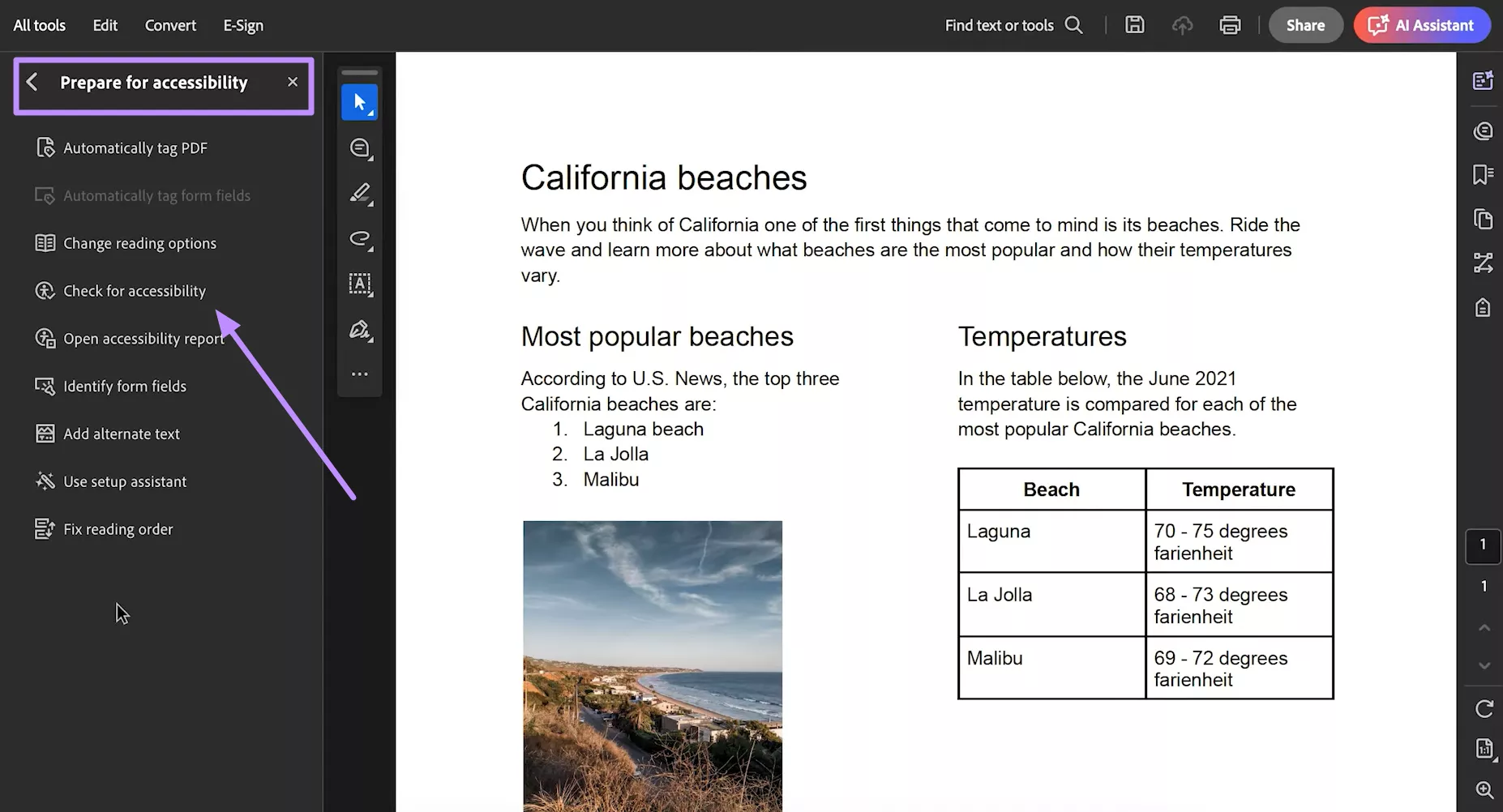
1. Upon importing the PDF to the tool, access the Tools side window and enter the Prepare for Accessibility screen. From here, tap Check for Accessibility to proceed.
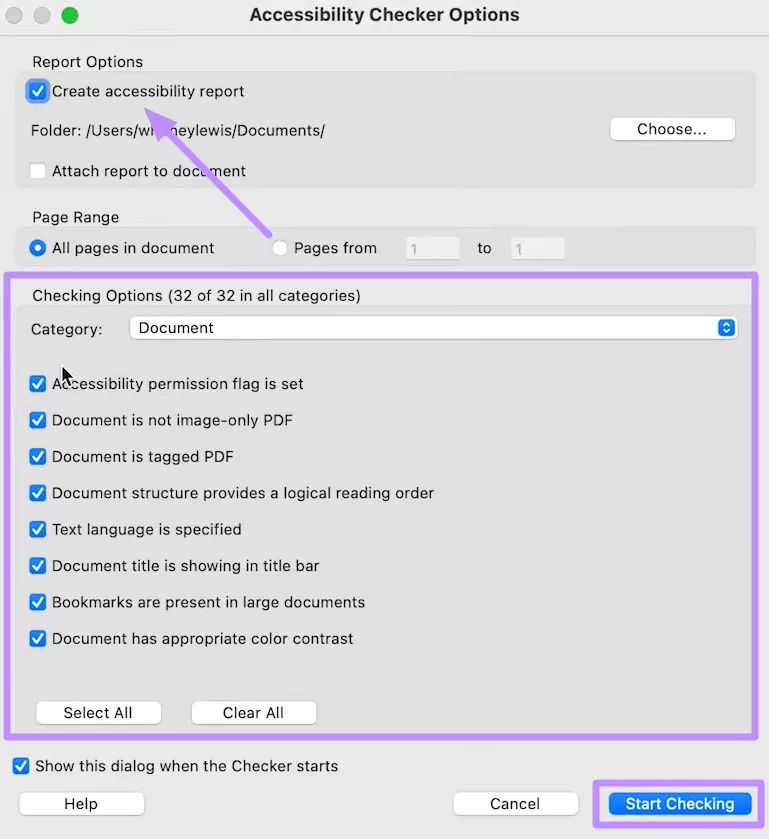
2. Within the next screen, check the Create Accessibility Report box and choose a location. Now, select all the options you want to check from the relevant category. Finally, hit the Start Checking button to let Adobe perform the check.
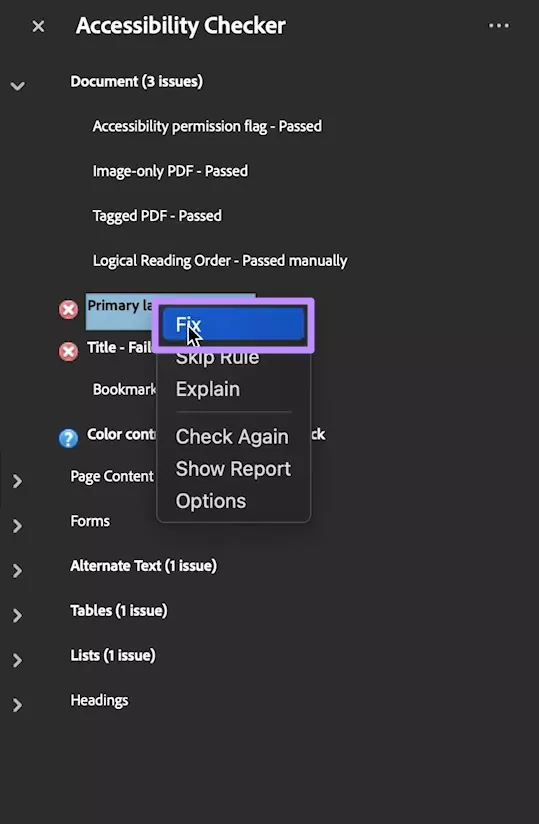
3. After processing, you will see all the errors in the Accessibility Checker window on the right. Expand the Document error and right-click on the issue to tap Fix in order to solve the problem.
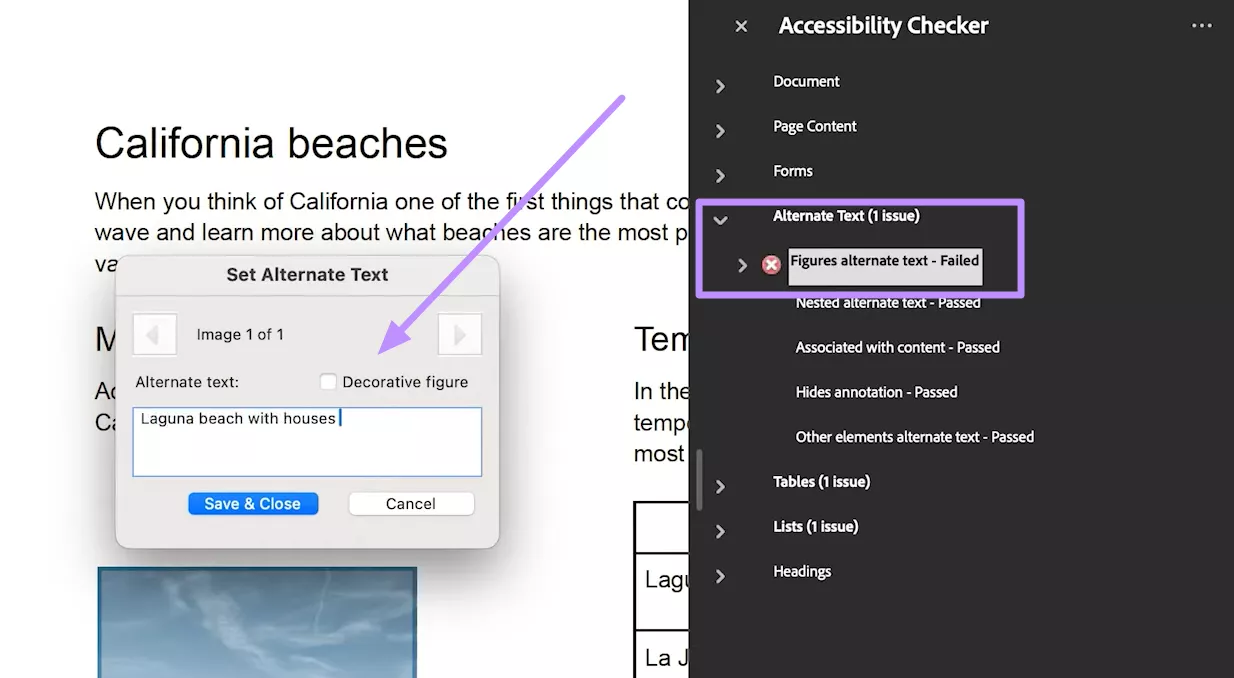
4. Now, expand the Alternate Text issues and start fixing the “Figures Alternate Text - Failed” error. Within the new dialog box, type the alternate text and save changes.
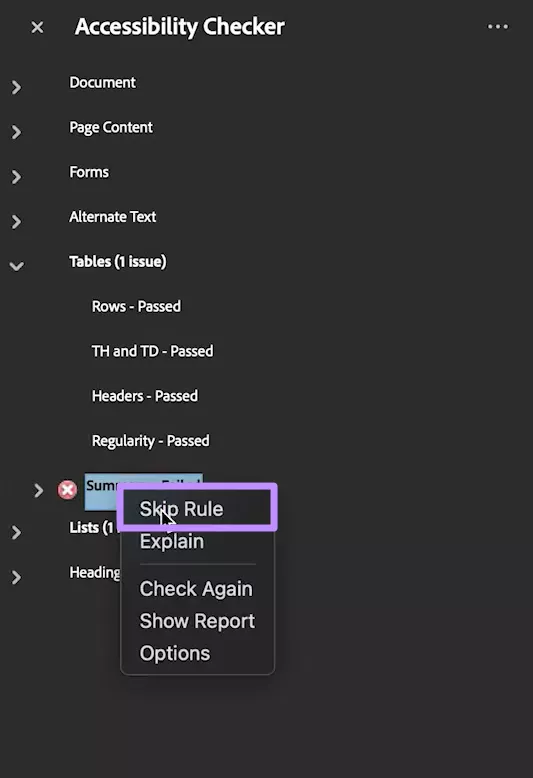
5. If some errors can be ignored, such as Summary Failed, right-click on them and tap on the Skip Rule option.
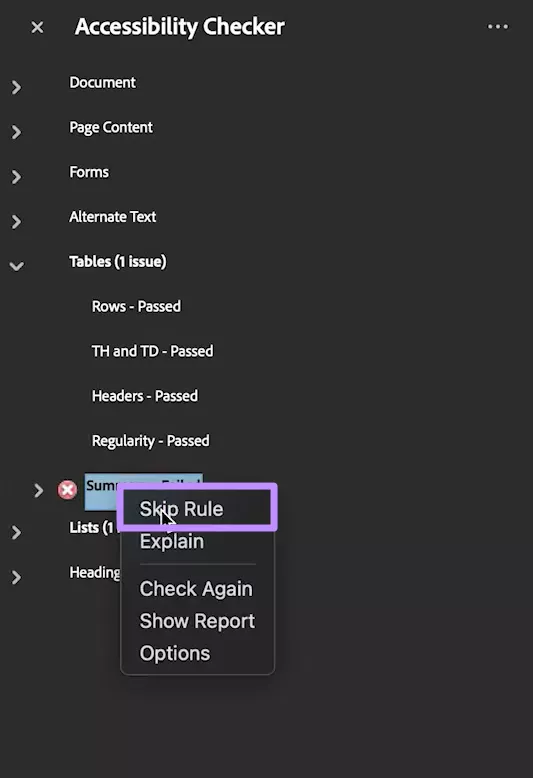
5. If some errors can be ignored, such as Summary Failed, right-click on them and tap on the Skip Rule option.
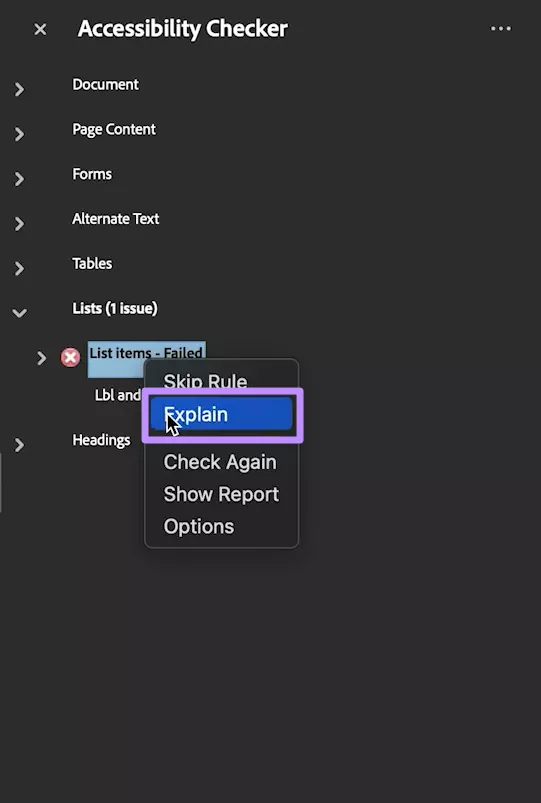
6. To fix errors requiring manual fixes (List Item - Failed), right-click on them and pick the Explain option. Now, Adobe will guide you through the complete procedure through its detailed explanation.
Bonus: Adobe Acrobat Pro Alternative
For scanned or image-only PDFs, the Acrobat Pro accessibility checker isn’t the only option. You can find a more cost-effective tool - UPDF, which is a multi-platform PDF editor and UPDF Pro costs $79.99 for lifetime use, and if you want to add AI functions with unlimited use then just add $79 annually. UPDF has a built-in OCR feature that converts scanned images into editable text.
If a checker flags a PDF with an “Image-only PDF – Failed” error, you can use the OCR feature to convert it into a searchable one. After that, UPDF allows you to add missing alt text and adjust the reading order manually to improve accessibility. If this problem occurs on too many pages of a document and it's difficult to search page by page, AI can help us find and fix it with a single click.
Apart from that, it’s an all-in-one PDF tool supporting editing, annotation, batch operations, and OCR in one interface. To use its OCR functionality after checks, follow these steps:
Windows • macOS • iOS • Android 100% secure
1. Launch UPDF first and click the Open File button to upload the PDF that contains accessibility problems. After the document loads, tap the Organize Pages icon to begin the process.
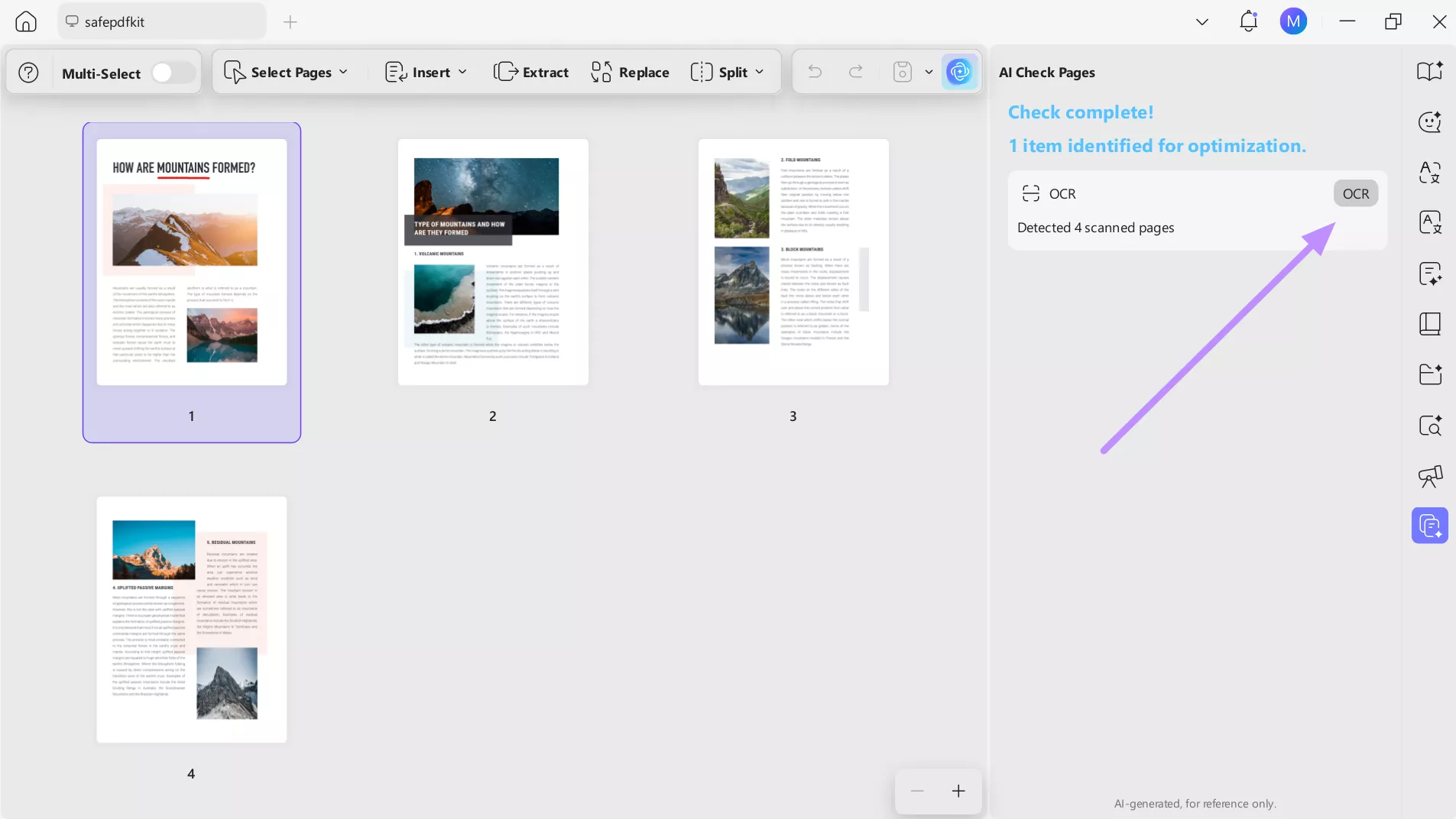
2. On the following screen, choose the AI Check Pages option so UPDF can automatically scan the document and identify accessibility issues.
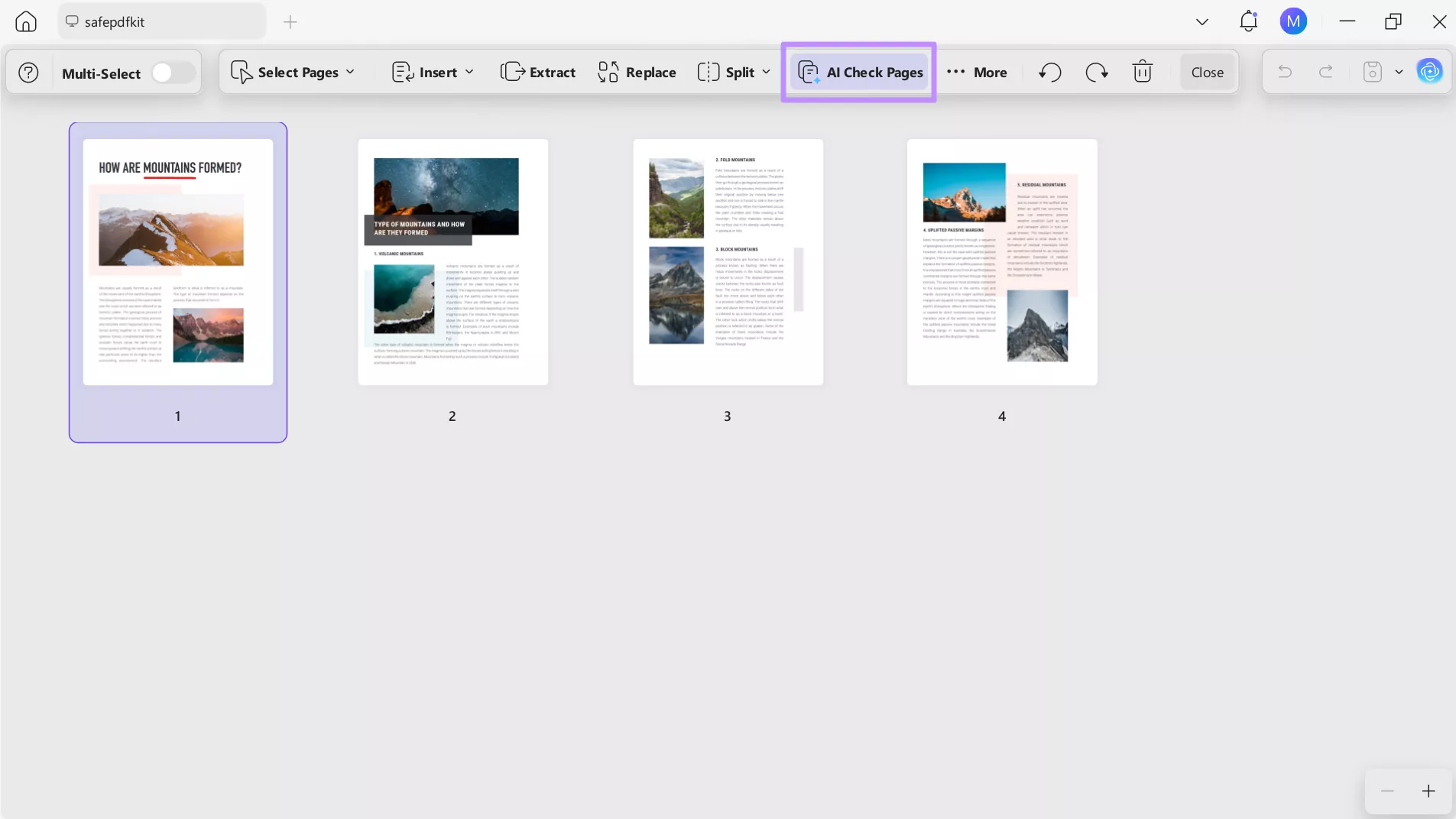
3. Once the analysis is complete, all detected issues will appear in the AI Check Pages panel. From this sidebar, select the OCR option to start fixing the problem.
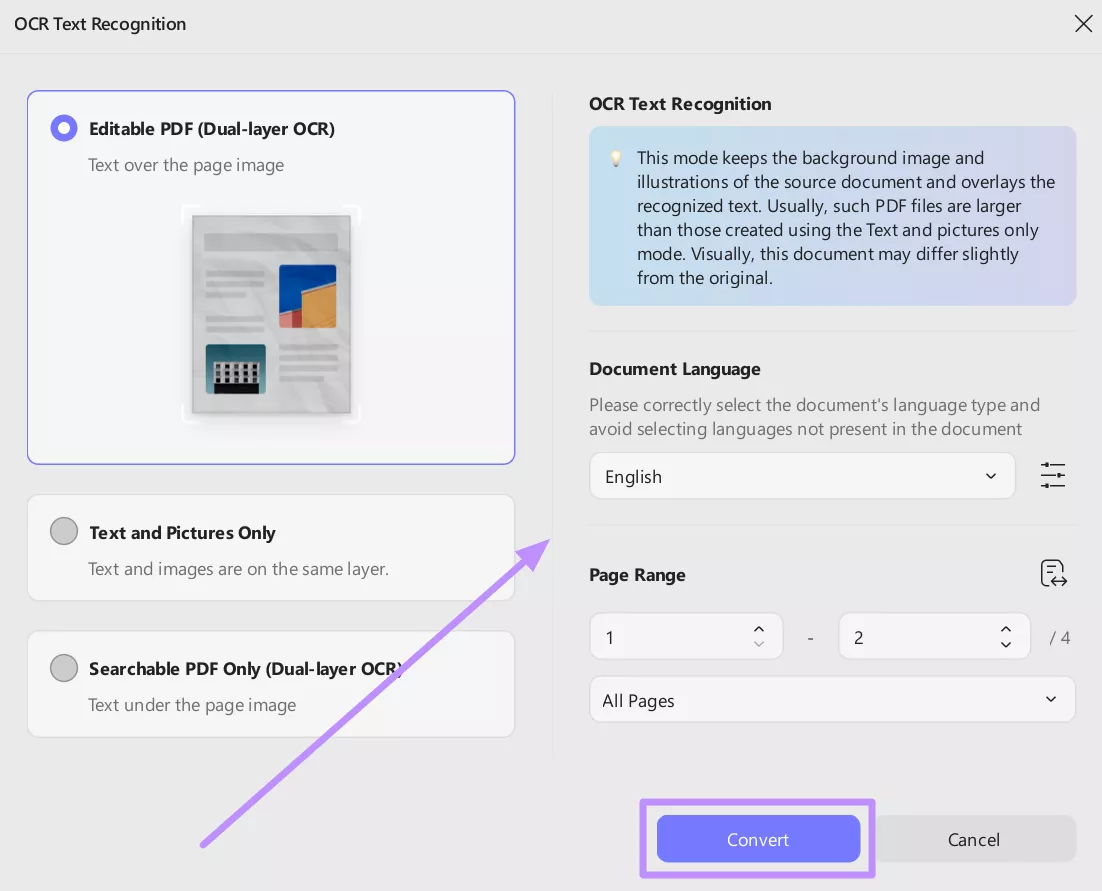
4. In the OCR Text Recognition window, set the document language and choose the page range you want to process. After configuring these options, click Convert to resolve the “Image-only PDF” accessibility issue.
Conclusion
For best results, the Adobe accessibility checker is a useful first step in spotting common PDF issues, but it cannot guarantee full compliance. Users should follow its guidance on tags and alt text while manually verifying complex problems.
When a PDF is image-only, you can use UPDF in addition to Adobe Acrobat to get better results. Ultimately, combining automated checks with manual review and supplemental tools gives more complete PDF accessibility coverage.
Windows • macOS • iOS • Android 100% secure








 Enrica Taylor
 Enola Miller
 Enola Davis
 Delia Meyer
 Lizzy Lozano