UPDF
UPDF
 UPDF for Windows
 UPDF for Mac
 UPDF for iPhone/iPad
 UPDF for Android
 Nomostar
 UPDF AI Online
 UPDF Sign
 IvyCraft
 Edit PDF
 Annotate PDF
 Create PDF
 PDF Form
 Edit links
 Convert PDF
 OCR
OCR PDF to Word
 PDF to Image
 PDF to Excel
 Organize PDF
 Merge PDF
 Split PDF
 Crop PDF
 Rotate PDF
 Protect PDF
 Sign PDF
 Redact PDF
 Sanitize PDF
 Remove Security
 Read PDF
 UPDF Cloud
 Compress PDF
 Print PDF
 Batch Process
 About UPDF AI
 UPDF AI Solutions
 AI User Guide
 FAQ about UPDF AI
 Summarize PDF
 Translate PDF
 Chat with PDF
 Chat with AI
 Chat with image
 PDF to Mind Map
 Explain PDF
 PDF AI Tools
 Image AI Tools
 AI Chat Tools
 AI Writing Tools
 AI Study Tools
 AI Working Tools
 Other AI Tools
 AI Bookmark Generation
 AI Bookmark Summary
 AI Watermark Generation
 AI Background Generation
 AI Sticker Generation
 AI Stamp Generation
 AI Editing Suite
 UPDF Copilot
 AI Page Management
 AI Semantic Search
 PDF to Word
 PDF to Excel
 PDF to PowerPoint
 Enterprise Solution
 Enterprise Sign
 Enterprise AI
 Enterprise Plan
 Enterprise User Guide
 Enterprise Webinar
 IT
IT Education
 Construction
 Financial Service
 Healthcare
 Insurance
 Legal
Legal Manufacturing
 Government
 Researchers & PhDs
 Solopreneurs & Freelancers
 Lawyers & Legal Professionals
 Real Estate Agents & Brokers
 Education Solution
 Customer Stories
 User Guide
 UPDF Tricks
 FAQs
FAQs UPDF Reviews
 Download Center
 Blog
Blog Newsroom
 Tech Spec
 Updates
 UPDF vs. Adobe Acrobat
 UPDF vs. Foxit
 UPDF vs. PDF Expert

Quick answer:
PDF Joiner and UPDF solve different versions of the same job. PDF Joiner keeps an occasional merge in your browser; UPDF gives you a Windows or Mac desktop workflow when you also need to work on the resulting PDF. The useful choice depends on file count, document sensitivity, and what you need to do after the merge.
Part 1. PDF Joiner Review: What It Does Well and Where It Stops
What is PDF Joiner?
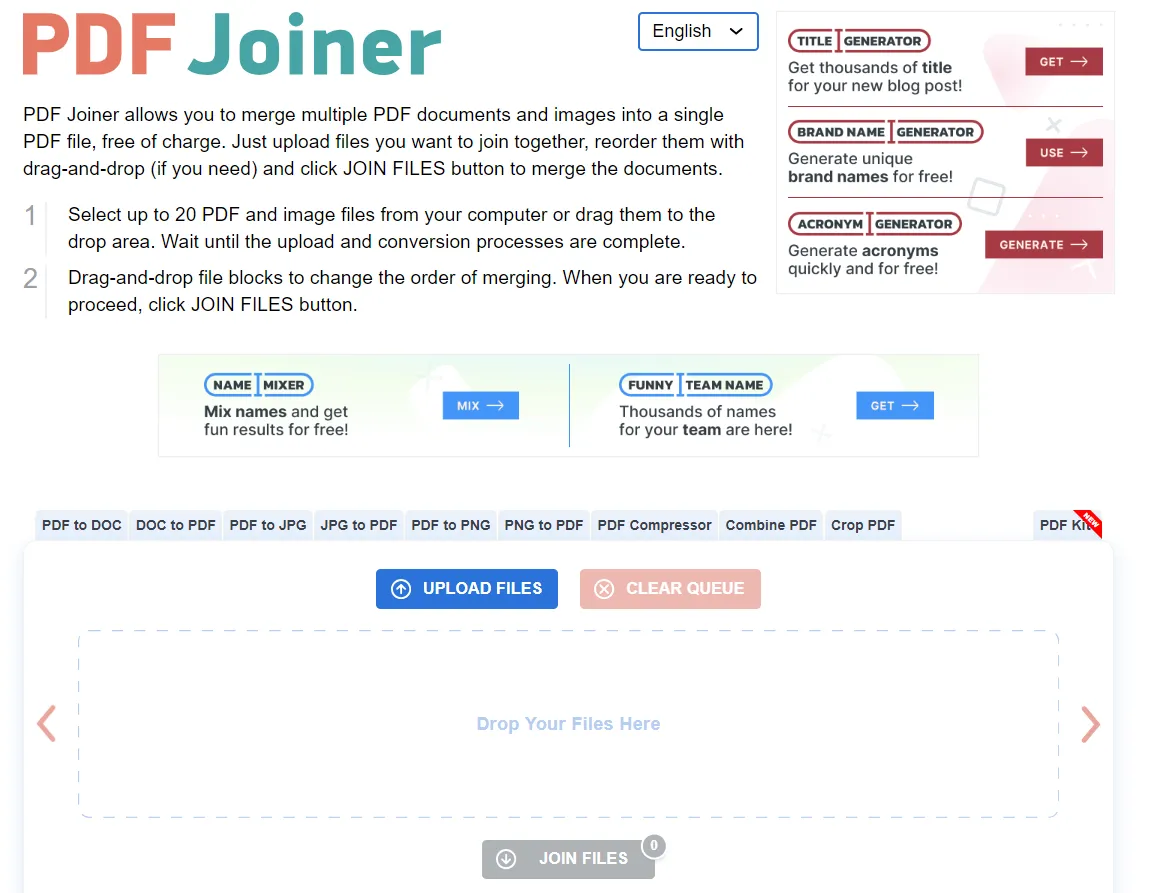
PDF Joiner is a browser-based tool for combining PDFs and images into one PDF. Add your files, drag them into the desired order, and start the merge. Its strength is a straightforward workflow without installing software. Check the file order before creating the output; if individual pages need changes afterward, use a PDF editor on the downloaded file.
Is PDF Joiner free?
Yes. Its official site says you can join up to 20 PDFs in one run at no charge. For more files, it suggests merging a first batch, downloading the result, and combining that result with the remaining files in another run. This works, but adds another upload-and-download pass.
Is PDF Joiner safe to use?
PDF Joiner says it deletes uploads and conversions after 60 minutes. That is the service's stated retention policy, not an independent security audit. Because files are sent to an online service for processing, check your organization's document-handling rules before uploading contracts, IDs, medical records, or other confidential material. For documents that should remain in a local desktop workflow, consider merging them in UPDF on Windows or Mac.
How does PDF Joiner work?
Its core workflow is short:
- Open PDF Joiner.
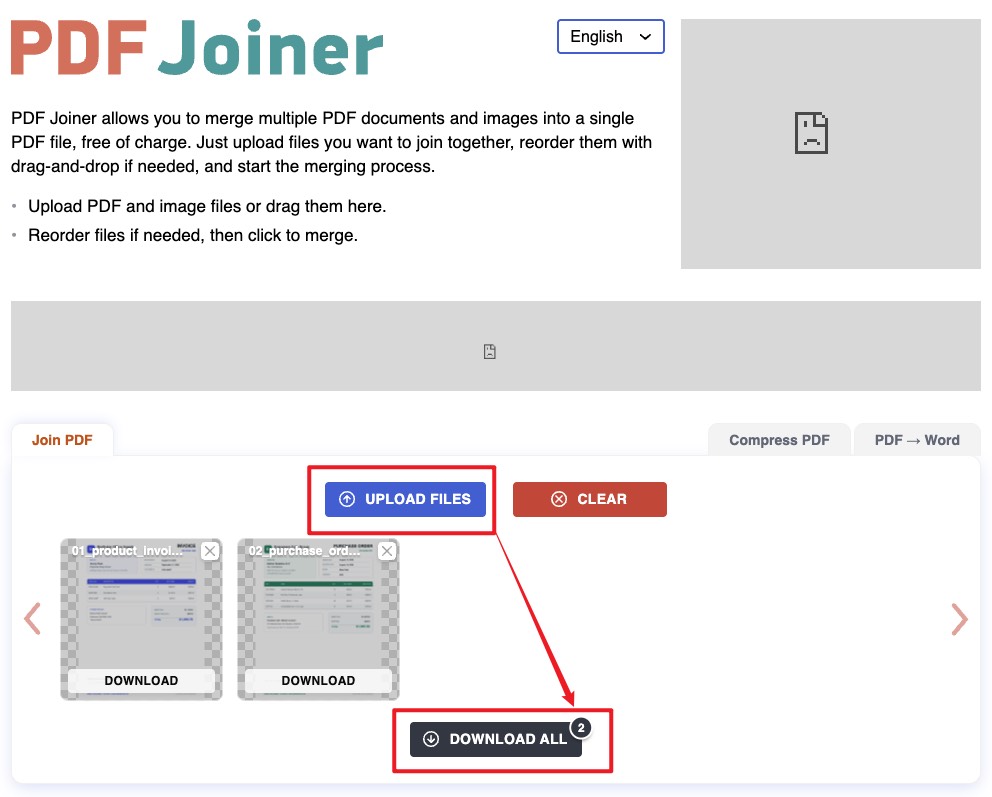
- Drag your PDFs or images onto the page, or select Upload Files.
- Drag the file tiles into the final order, then click DOWNLOAD ALL to download the joined PDF.
For page-level changes after the merge, see the separate guide to merging and organizing PDFs.
PDF Joiner is suitable when a browser-based merge and pre-merge file ordering are enough. The deciding difference is whether you also need local processing and page-level work after the merge.
Part 2. When UPDF Is a Better Fit Than PDF Joiner
Choose PDF Joiner for an occasional, non-sensitive online merge of up to 20 PDFs. Choose UPDF on Windows or Mac when you need to add files or folders to a desktop batch, set their order, save a local merged PDF, and then inspect or organize its pages. Unlike the online workflow, the desktop merge uses local files. UPDF's free version lets you test batch processing with two files; saved output carries a trial watermark, which Pro removes. See the current UPDF free-version limits before starting a larger job.
If your files need more than a one-off online merge, test the desktop workflow on two sample files first.
Windows • macOS • iOS • Android 100% secure
Merge files in UPDF on Windows or Mac
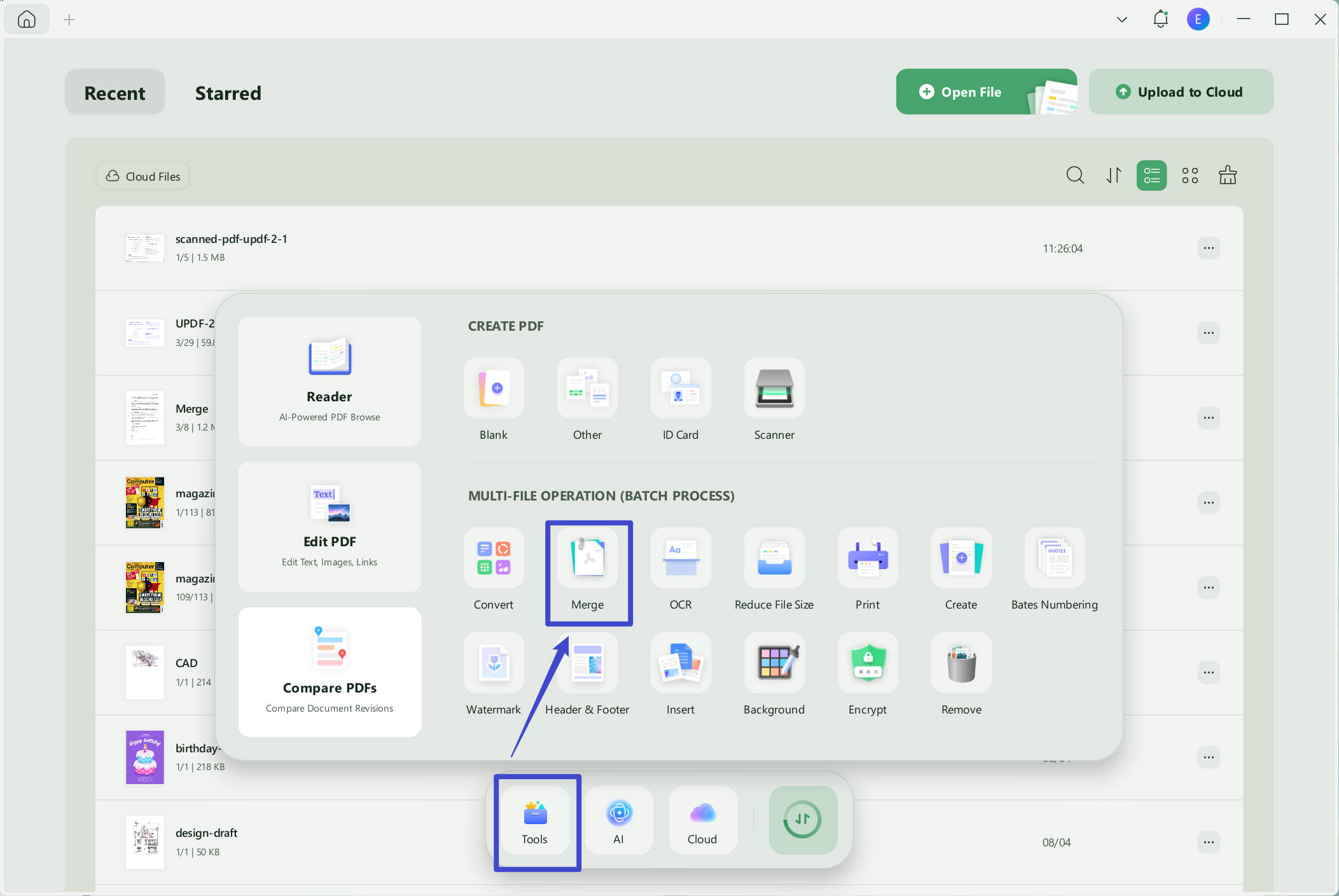
Step 1. Open UPDF on your computer. From the home screen, choose Tools → Merge under the batch PDF tools.
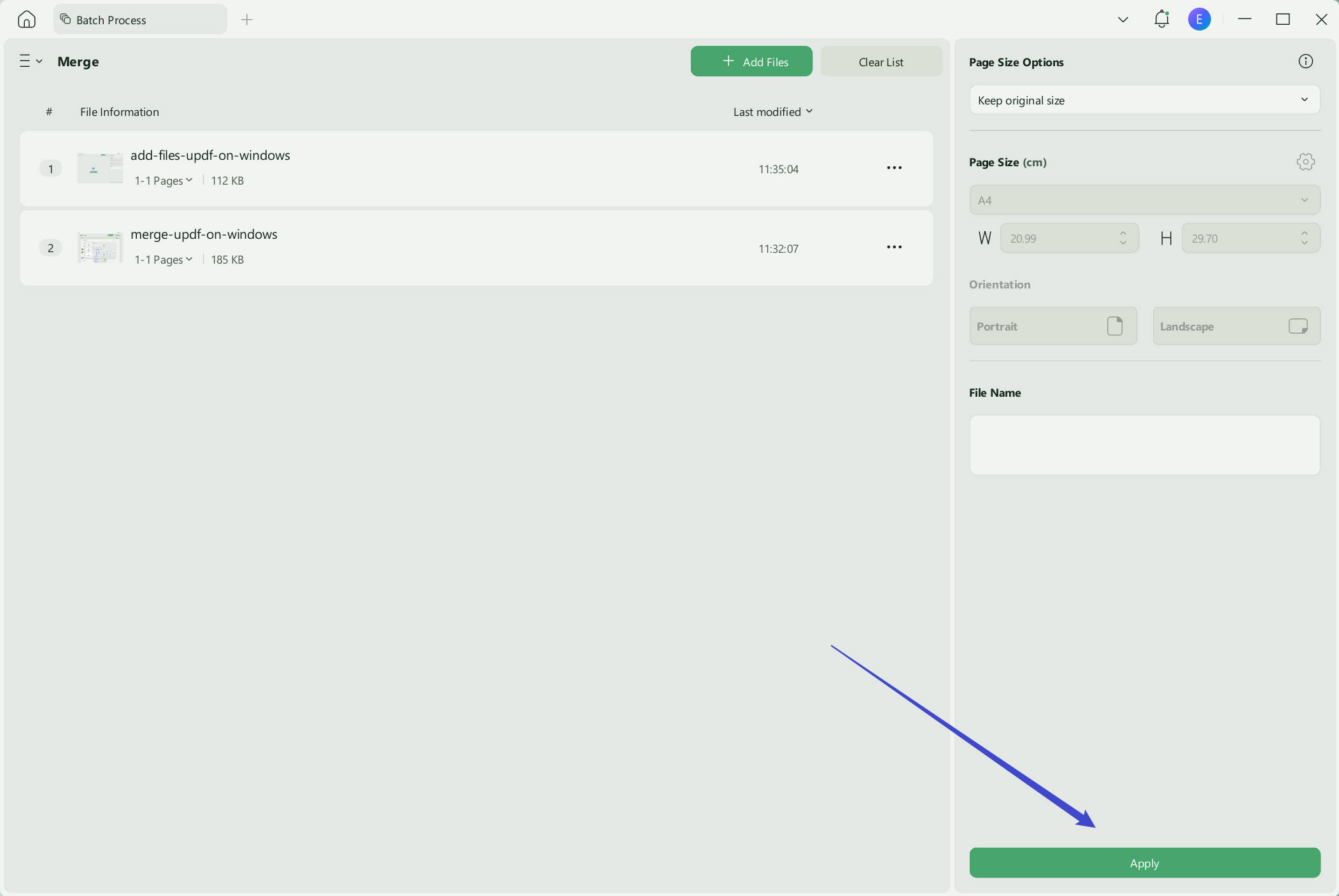
Step 2. Select Add Files to choose PDFs or supported images. You can also add opened files or a folder from the menu beside Add Files.
Step 3. Drag the files into the order you want. Review the available page-size and orientation settings, then select Apply.
Step 4. Choose a location and save the merged PDF. Open the result to inspect it. If you need to change individual pages afterward, use UPDF's page-organizing tools rather than repeating the entire merge.
Want to check the merged output and keep working on its pages? Try the workflow on your own sample files. Follow the steps in the video below to try it out for yourself.
Windows • macOS • iOS • Android 100% secure
Part 3. PDF Joiner vs. UPDF: Which Fits Your Merge?
| Decision point | PDF Joiner | UPDF |
|---|---|---|
| Main workflow | Online browser tool | Desktop Merge on Windows and Mac |
| Files in one run | Up to 20 PDFs | Free batch: two files; check the applicable plan for larger jobs |
| Reorder files before merging | Yes, drag and drop | Yes, drag and drop |
| Change individual pages afterward | Requires another PDF editor | Open the result in UPDF's page-organizing tools |
| File handling | Upload to an online service; stated deletion after one hour | Desktop merge using local files |
| Free output | Free online merge | Saved output carries a trial watermark |
Both tools let you order files before merging. The practical differences are the online-versus-desktop workflow, PDF Joiner's 20-file limit, UPDF's two-file free batch limit and trial watermark, and whether you want to adjust pages after creating the PDF. If the job is only a quick browser merge, PDF Joiner may be enough. If the result needs further work, the UPDF merge guide covers the related page workflows.
Conclusion
PDF Joiner handles a simple online merge well: it is free, accepts up to 20 PDFs per run, and lets you set file order before joining. UPDF is the more relevant choice when the job continues after merging, especially if you need a desktop workflow and page-level changes. Try UPDF with two files first, then decide whether its Pro output and batch capacity match your regular workload.
Need to combine files and keep working on the resulting PDF? Test the merge on your own files; installation is free, and Pro removes the trial watermark from saved output.
Windows • macOS • iOS • Android 100% secure





 Enola Miller
  Enid Brown
 Enrica Taylor
 Lizzy Lozano