 UPDF
UPDF
 UPDF for Windows
 UPDF for Mac
 UPDF for iPhone/iPad
 UPDF for Android
 Nomostar
 UPDF AI Online
 UPDF Sign
 IvyCraft
 Edit PDF
 Annotate PDF
 Create PDF
 PDF Form
 Edit links
 Convert PDF
 OCR
OCR PDF to Word
 PDF to Image
 PDF to Excel
 Organize PDF
 Merge PDF
 Split PDF
 Crop PDF
 Rotate PDF
 Protect PDF
 Sign PDF
 Redact PDF
 Sanitize PDF
 Remove Security
 Read PDF
 UPDF Cloud
 Compress PDF
 Print PDF
 Batch Process
 About UPDF AI
 UPDF AI Solutions
 AI User Guide
 FAQ about UPDF AI
 Summarize PDF
 Translate PDF
 Chat with PDF
 Chat with AI
 Chat with image
 PDF to Mind Map
 Explain PDF
 PDF AI Tools
 Image AI Tools
 AI Chat Tools
 AI Writing Tools
 AI Study Tools
 AI Working Tools
 Other AI Tools
 AI Bookmark Generation
 AI Bookmark Summary
 AI Watermark Generation
 AI Background Generation
 AI Sticker Generation
 AI Stamp Generation
 AI Editing Suite
 UPDF Copilot
 AI Page Management
 AI Semantic Search
 PDF to Word
 PDF to Excel
 PDF to PowerPoint
 Enterprise Solution
 Enterprise Sign
 Enterprise AI
 Enterprise Plan
 Enterprise User Guide
 Enterprise Webinar
 IT
IT Education
 Construction
 Financial Service
 Healthcare
 Insurance
 Legal
Legal Manufacturing
 Government
 Researchers & PhDs
 Solopreneurs & Freelancers
 Lawyers & Legal Professionals
 Real Estate Agents & Brokers
 Education Solution
 Customer Stories
 User Guide
 UPDF Tricks
 FAQs
FAQs UPDF Reviews
 Download Center
 Blog
Blog Newsroom
 Tech Spec
 Updates
 UPDF vs. Adobe Acrobat
 UPDF vs. Foxit
 UPDF vs. PDF Expert

When managing a 50-page joint venture proposal, the challenges of collaboration became immediately clear. In collaborative settings, the biggest headache is gathering each team's contributions into a single final document. Project Leads collect reports, annexes, and financial charts for stakeholder review and the creation of the final master. Bringing multiple contributions together requires careful organization to maintain clarity and professional document structure.
However, version confusion, inconsistent formatting, and large file sizes often slow team collaboration. Multiple revisions from contributors create messy file names and unclear ownership across departments. Unsecured web tools' sensitive data is the reason why teams prefer ISO 27001-compliant solutions. Professional environments require control, consistency, and secure workflows to support contributions and the integrity of final documents.
UPDF acts as a collaborative hub, simplifying merging while preserving formatting, structure, and data integrity. Its Admin Console (available in the Enterprise plan) helps IT managers deploy across teams, ensuring workflows and controlled document access. In this guide, we will explain how to collaborate PDF files into one shared document. Streamline your team collaboration with UPDF and eliminate confusion about merging across projects and departments.
Windows • macOS • iOS • Android 100% secure
Method 1: The UPDF Way — Speed, Security & AI Intelligence
Teams often struggle with scattered files, delayed inputs, and difficulty assembling everything into one structured final document. This is where UPDF comes in, giving teams a fast and reliable way to combine PDF files. Users can open UPDF, choose the merge or batch PDF tool, add files, and then apply to create one final PDF.
With ISO 27001 security and UPDF Cloud, teams safely manage files without relying on risky online tools. The UPDF Admin Console allows IT managers to deploy secure PDF workflows across departments with full control. Moving forward, we will share multiple options for different team merging needs.
Option A: Batch Combine
Batch Combine helps teams gather documents from 10+ departments into one organized file. It supports Project Leads who must manage every contribution and keep one clear, structured master document. Now, follow the steps below to learn how to collaborate multiple PDF files into one using UPDF:
Step 1. Access Batch Merge Tool
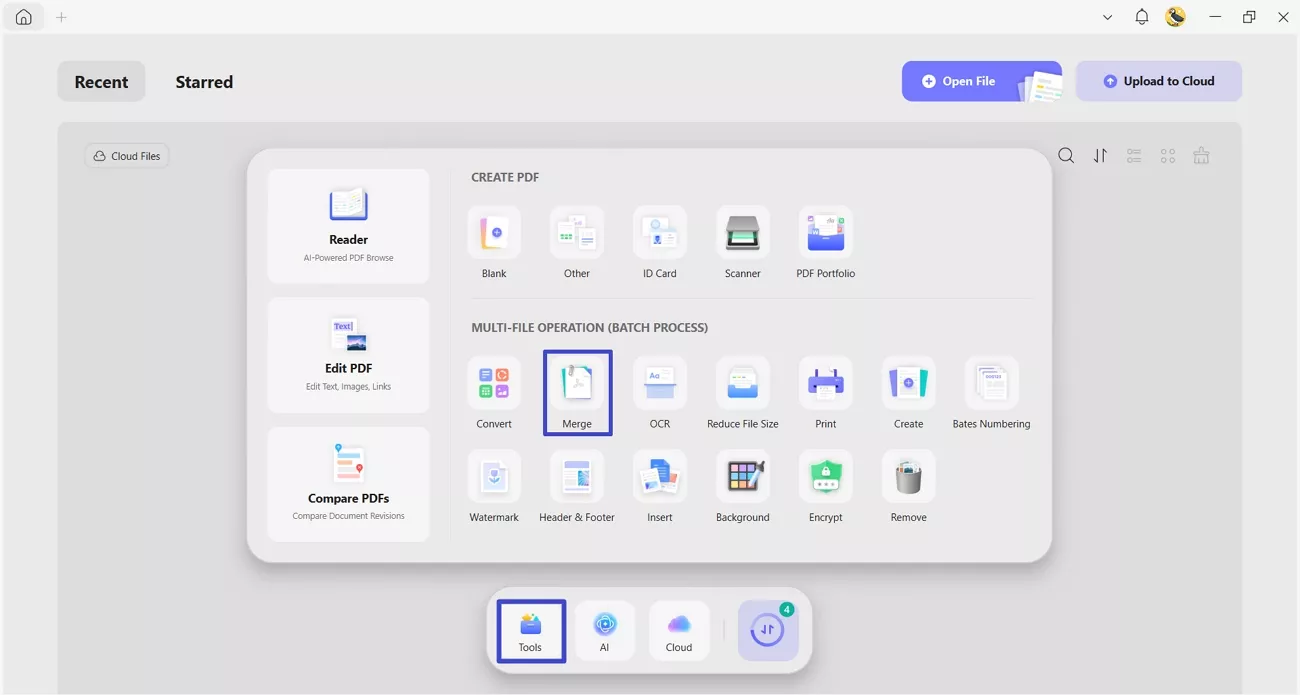
On the main interface, click the "Tools" option and press the "Merge" option under the "Batch Process" section to enter the feature's interface.
Step 2. Import PDF File
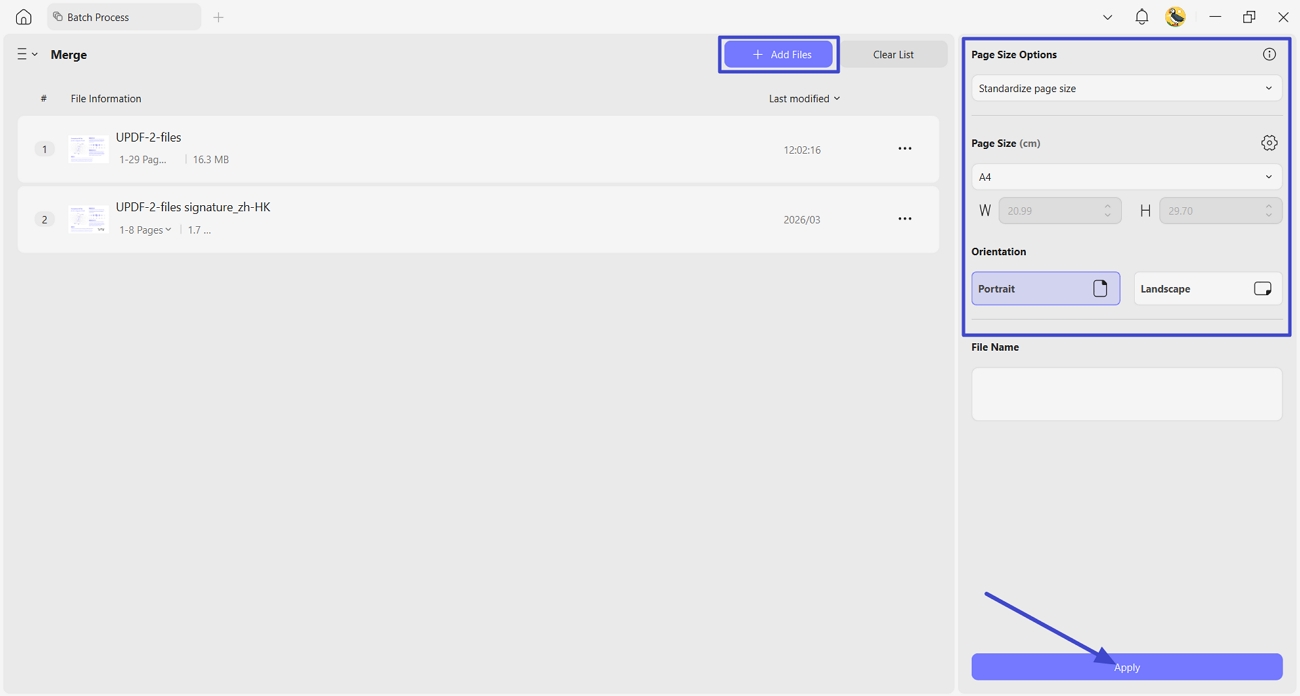
Following this, click the "Add Files" option to import PDF files. You can import as many PDF or Image-based files as you want to combine. Next, choose a "Page Size Option" and set the "Page Size" and "Orientation". Afterward, click the "Apply" button and select the location of the merged PDF.
Option B: Inserting from a File
This method in UPDF is ideal for adding late signature pages or revised annexes into your master document. So, follow the steps below to learn how this precision method supports collaboration:
Step 1. Open Final PDF in UPDF
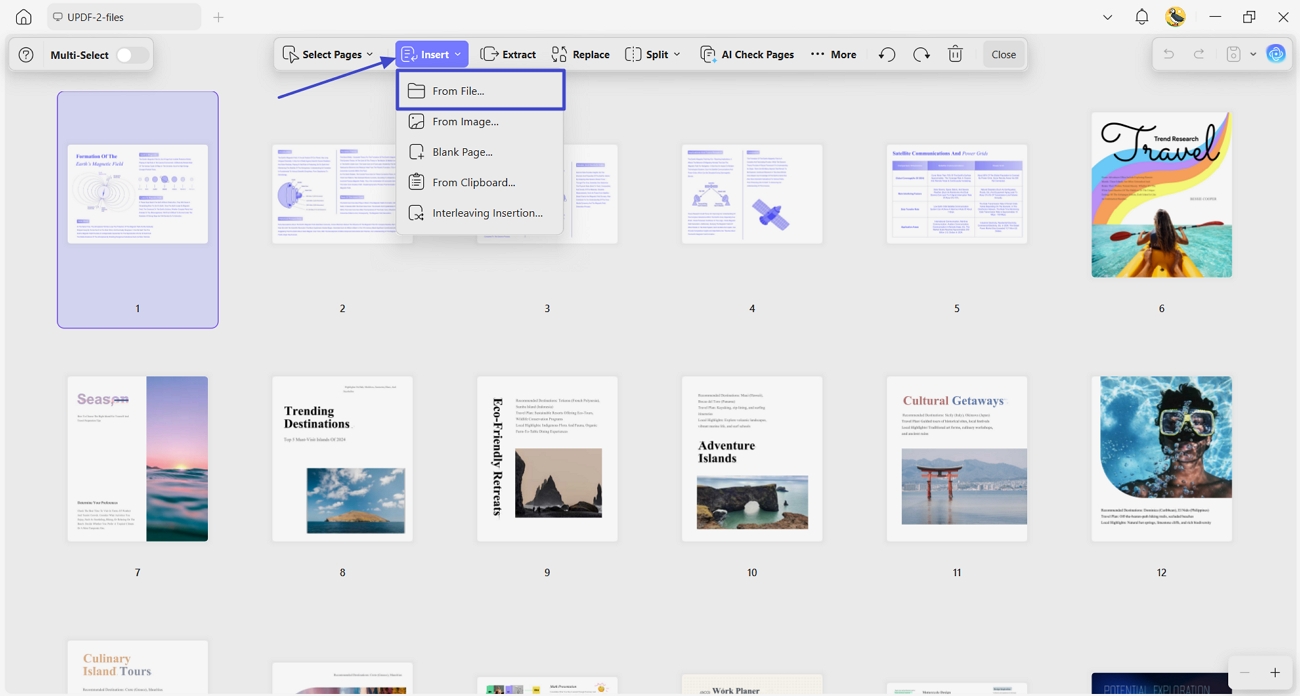
Once you import the final PDF into UPDF, access the "Organize Pages" feature. Next, click the "Insert" option in the upper bar and press the "From File" option.
Step 2. Import PDF to be Merged
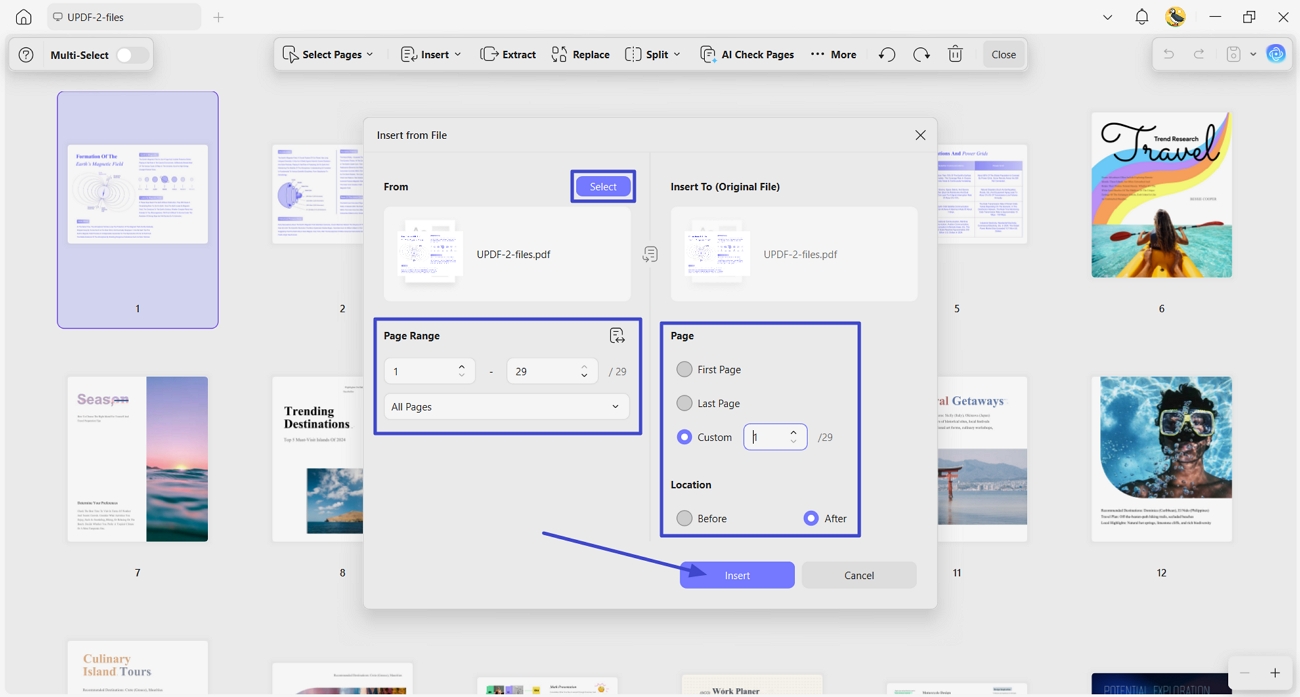
Afterward, click the "Select" button to import the new PDF, then choose the page range to insert. Next, select the page positioning from the original file, then click the "Insert" button to merge the PDF pages.
Option C: Multi-Page Organization
Multi-Page Organization helps teams control structure when arranging every contribution into a clear final document. Go through the steps below to learn how to collaborate PDF files into one using UPDF:
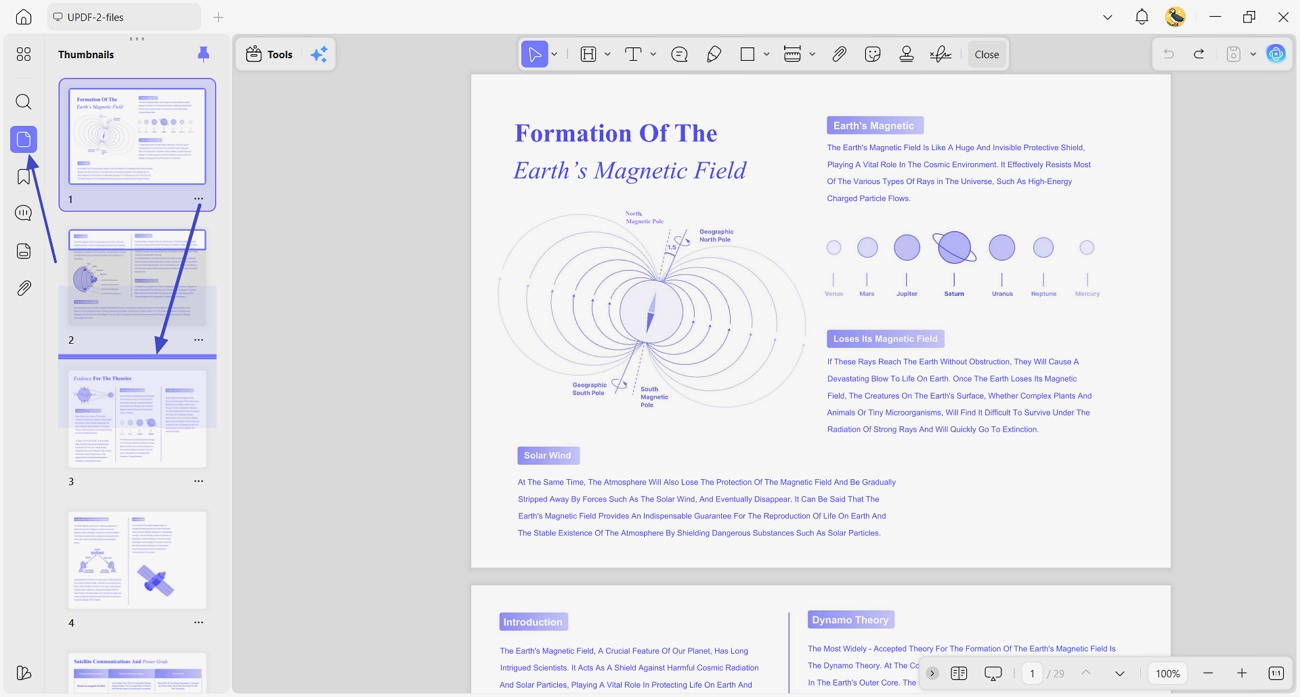
Step 1. Re-order The PDF Pages Directly
First, click the "Thumbnails" option in the left side panel. Next, click and hold the PDF page you want to move, then drag it to the location where you want to place it. This way, move all pages that need to be re-positioned.
Maximize Efficiency with UPDF AI: Summarize Merged Documents in Seconds
Bonus Tip: Create a PDF Portfolio in UPDF
A PDF portfolio in UPDF helps teams store reports, annexes, and presentations in different formats inside one organized container. Follow the steps below to learn how this portfolio approach supports complex project collaboration:
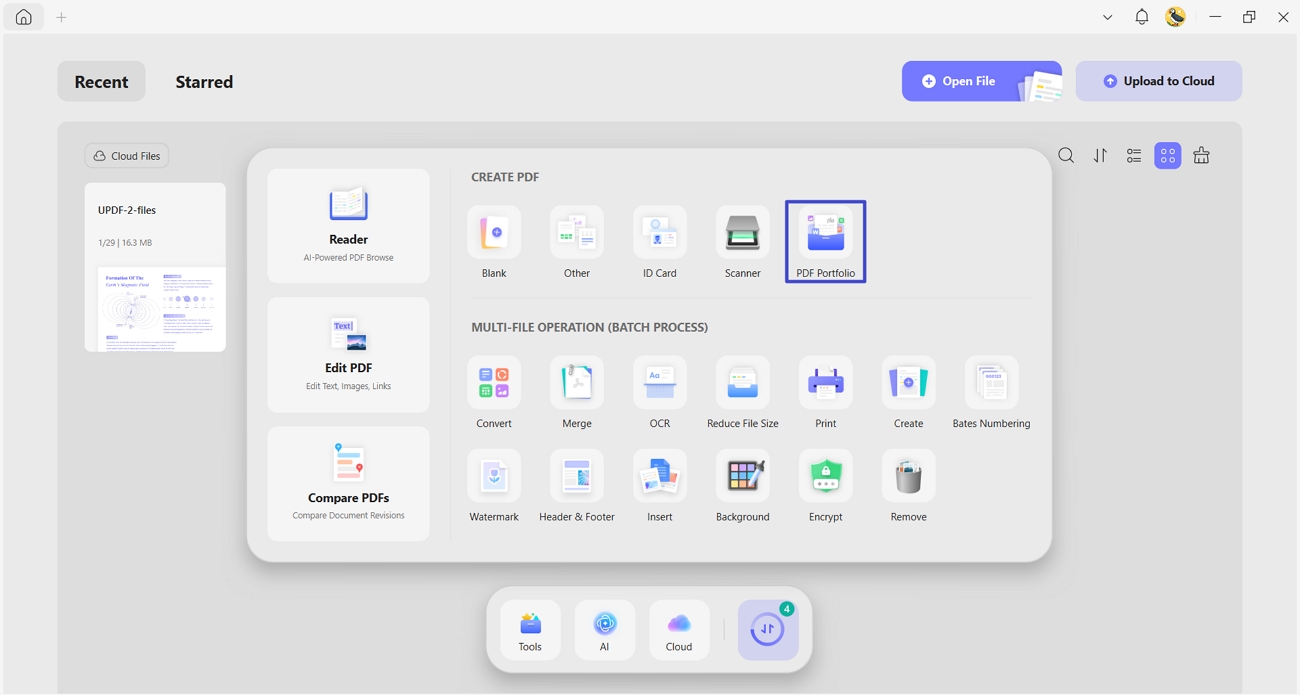
Step 1. Access PDF Portfolio Tool
First, click the "PDF Portfolio" option in the Tools section.
Windows • macOS • iOS • Android 100% secure
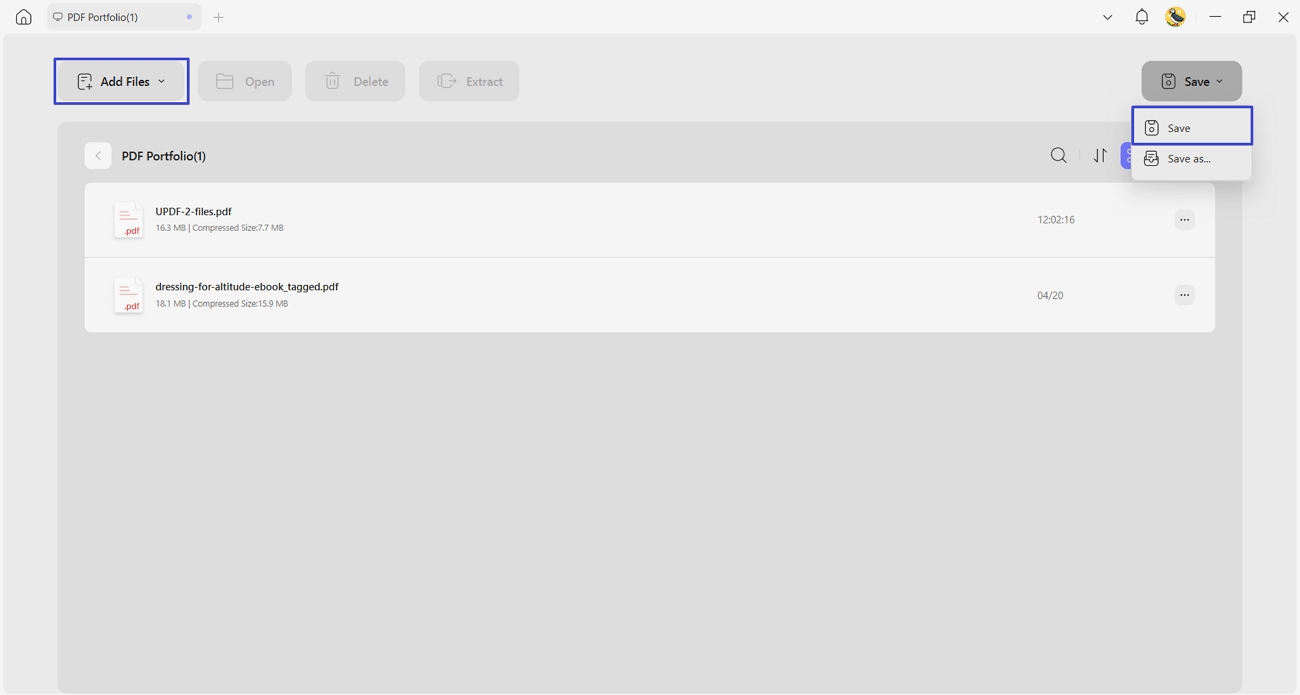
Step 2. Add PDFs or Images to Portfolio
Next, click the "Add File" option to import all files. You can import PDFs, Word/Excel/PPT/JASON/MP4 files, images, and even folders. Afterward, click the "Save" option and select the location for the PDF Portfolio.
To explore the technical details of these features, see our comprehensive guide on merging PDF files.
Method 2: The Adobe Acrobat Approach (The Enterprise Giant)
A long-standing enterprise tool that many organizations already use for handling PDFs. Adobe Acrobat provides a professional environment for users to review, comment on, and prepare documents before final delivery. For teams, it helps bring different reports and attachments into a single, polished file within a familiar ecosystem. So, go through the steps below to learn how to collaborate multiple PDF files into one:
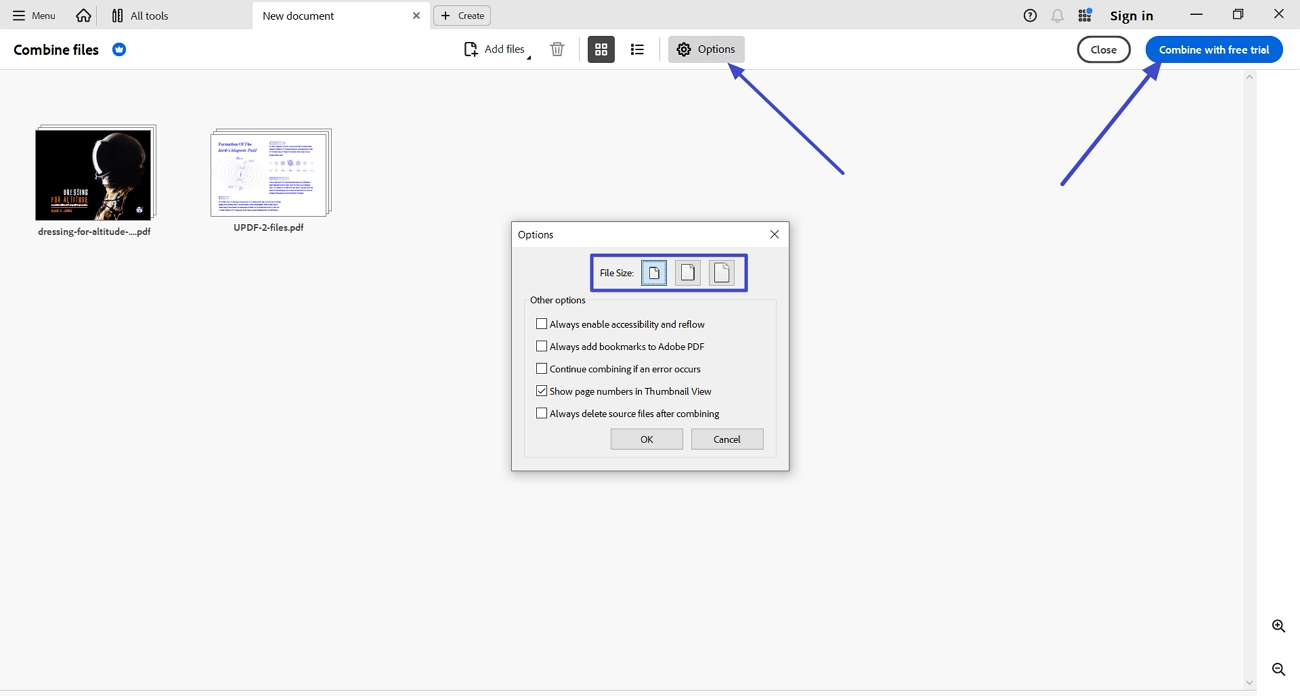
Step 1. First, access the "Combine Files" tool in Acrobat and press the "Add Files" button to import PDF files.
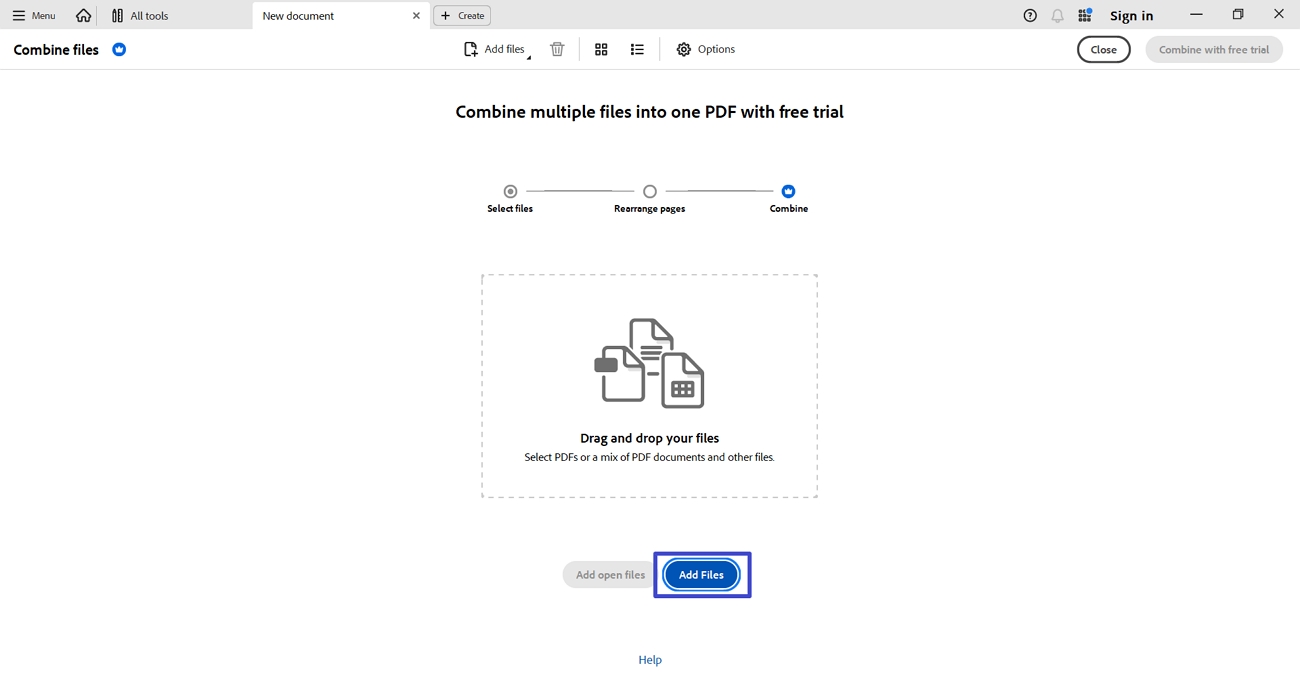
Step 2. After the files are imported, click the "Options" button and choose the targeted file size. Next, click the "Combine" button to start the merge process. Afterward, save the merged file.
Adobe Acrobat remains a powerful and trusted choice, but its interface can feel heavy for non-technical collaborators. For growing teams, subscription costs can also add up quickly. While it handles file combining well, its workflows are not as focused on fast, page-level collaboration as UPDF. It also lacks the straightforward admin console experience that project leads get with UPDF when rolling out tools to entire departments.
Method 3. The Smallpdf Approach (The Quick Web Fix)
Smallpdf is a lightweight online tool that lets users merge PDFs directly in their browser. It is useful for quick, one-off merges when someone needs a combined file without installing software. Many individuals appreciate its simple interface and fast results for basic document tasks. Now, follow the steps below to understand how to collaborate PDF files into one using this web-based option:
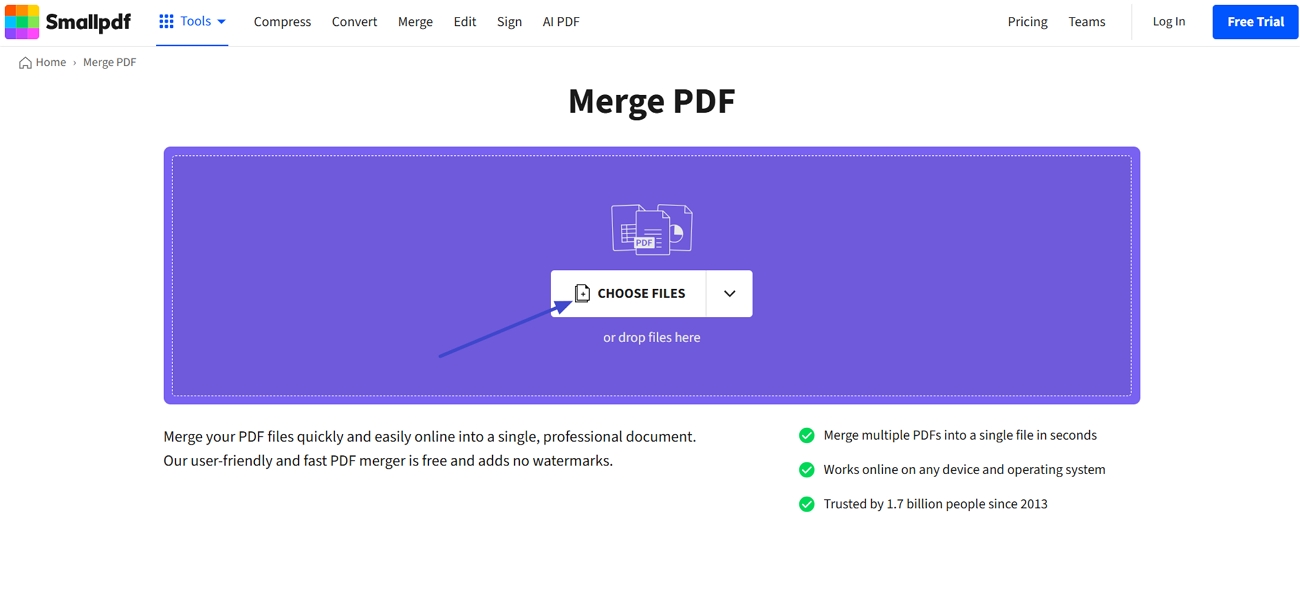
Step 1. On the main interface, click the "Choose File" option to upload the files that you want to merge.
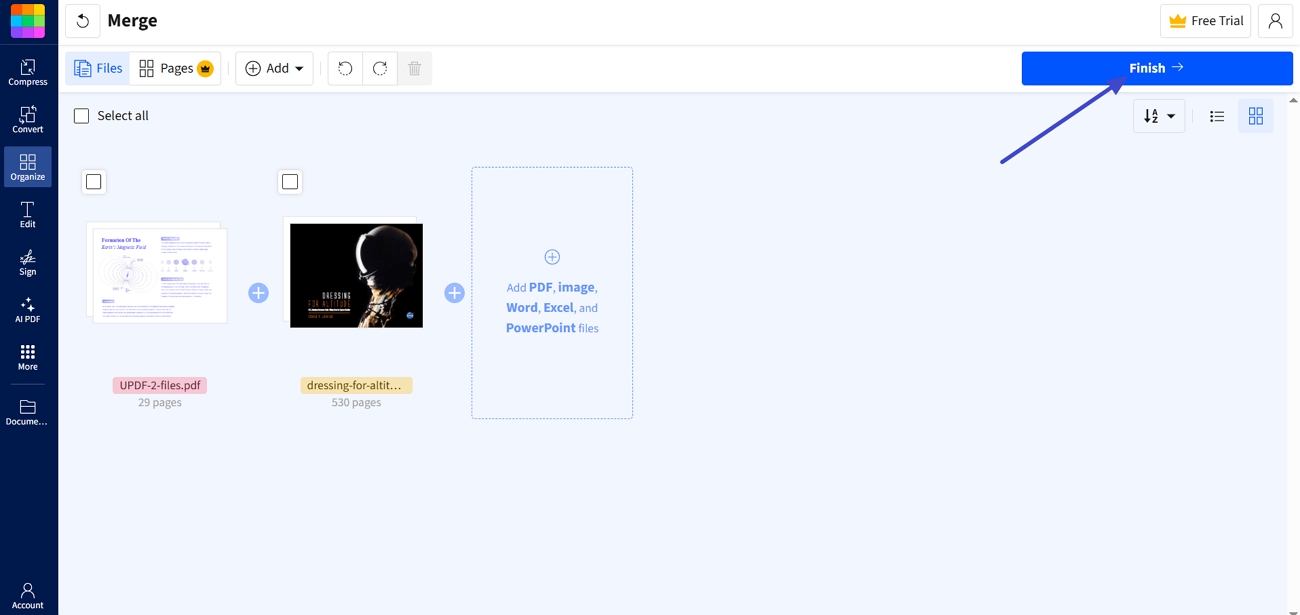
Step 2. Once uploaded, click the "Finish" button in the top right corner to start the combine process. After that, simply download or share the merged PDF.
For users asking, "How to collaborate multiple PDF files into one," Smallpdf seems like an easy answer. However, it sends documents through a web service, which is not ideal for sensitive or long-term team projects. UPDF keeps everything inside a secure, ISO 27001–aligned environment with admin controls, making it a safer, more collaboration-focused choice for serious teams.
FAQs
How do I merge files without losing my team's comments?
When you merge files, comments, and highlights from every teammate often risk getting lost or broken. That is exactly where UPDF helps, because it preserves annotations during merging, so the final master keeps every remark.
How do I handle different page sizes when collaborating?
Different page sizes within a single document can make collaboration and review feel messy and uncomfortable. To solve this, UPDF offers Fit Page and scaling options that align pages and keep everything easy to read.
Conclusion
This guide has shown how teams can turn scattered contributions into one organized master document. Readers explored desktop and web tools, learning how to collaborate PDF files into one while avoiding common version issues. Security, annotation preservation, and page-size control were highlighted as essential factors for multi-stakeholder projects. For teams that need secure workflows, admin control, and smooth collaboration in one place, UPDF is the recommended choice.
Windows • macOS • iOS • Android 100% secure





 Enola Miller
 Enrica Taylor
 Lizzy Lozano