UPDF
UPDF
 UPDF for Windows
 UPDF for Mac
 UPDF for iPhone/iPad
 UPDF for Android
 Nomostar
 UPDF AI Online
 UPDF Sign
 IvyCraft
 Edit PDF
 Annotate PDF
 Create PDF
 PDF Form
 Edit links
 Convert PDF
 OCR
OCR PDF to Word
 PDF to Image
 PDF to Excel
 Organize PDF
 Merge PDF
 Split PDF
 Crop PDF
 Rotate PDF
 Protect PDF
 Sign PDF
 Redact PDF
 Sanitize PDF
 Remove Security
 Read PDF
 UPDF Cloud
 Compress PDF
 Print PDF
 Batch Process
 About UPDF AI
 UPDF AI Solutions
 AI User Guide
 FAQ about UPDF AI
 Summarize PDF
 Translate PDF
 Chat with PDF
 Chat with AI
 Chat with image
 PDF to Mind Map
 Explain PDF
 PDF AI Tools
 Image AI Tools
 AI Chat Tools
 AI Writing Tools
 AI Study Tools
 AI Working Tools
 Other AI Tools
 AI Bookmark Generation
 AI Bookmark Summary
 AI Watermark Generation
 AI Background Generation
 AI Sticker Generation
 AI Stamp Generation
 AI Editing Suite
 UPDF Copilot
 AI Page Management
 AI Semantic Search
 PDF to Word
 PDF to Excel
 PDF to PowerPoint
 Enterprise Solution
 Enterprise Sign
 Enterprise AI
 Enterprise Plan
 Enterprise User Guide
 Enterprise Webinar
 IT
IT Education
 Construction
 Financial Service
 Healthcare
 Insurance
 Legal
Legal Manufacturing
 Government
 Researchers & PhDs
 Solopreneurs & Freelancers
 Lawyers & Legal Professionals
 Real Estate Agents & Brokers
 Education Solution
 Customer Stories
 User Guide
 UPDF Tricks
 FAQs
FAQs UPDF Reviews
 Download Center
 Blog
Blog Newsroom
 Tech Spec
 Updates
 UPDF vs. Adobe Acrobat
 UPDF vs. Foxit
 UPDF vs. PDF Expert

Typing "how to extract font from PDF" into Google usually means you're not actually chasing a standalone font file. You're dealing with a specific problem, and it falls into one of 3 common situations.
- A PDF uses a font you like, and you want to identify and reuse it.
- You only need to fix a typo or update text without changing the original font or document layout.
- The PDF shows missing characters or boxes, usually because the embedded font subset must be extracted and reinstalled.
If the middle scenario is yours, you can skip extraction altogether. Here, UPDF reads the font already embedded in your document and matches it automatically while you type, as long as that font is installed on your machine. It's worth trying before you touch any of the methods below: download UPDF for free and see if it solves the problem in under a minute.
Windows • macOS • iOS • Android 100% secure
Only need the font's name instead of the file? Our guide on how to find a font in a PDF gets you there faster. If missing characters are the real issue, see how to embed fonts in PDF to address the root cause directly.
Part 1. PDF Font Extraction Matrix: Choosing the Right Method
Every method below trades off differently between cost, platform, and what you actually walk away with. The table below helps you quickly find the method that matches your specific needs:
| Method | Best For | Cost | Platform | What You Get | Best Solution |
| FontForge | Designers who need an installable font file | Free | Windows, Mac, Linux | Full .ttf/.otf font file | Jump to FontForge |
| i2PDF | Fast extraction with a direct download link | Free | Browser-based | TrueType font download | Jump to i2PDF |
| ExtractPDF | Pulling fonts, images, and text together | Free | Browser-based | Fonts, images, and text | Jump to ExtractPDF |
| Adobe Acrobat Properties | Just need to know the font's name | Free (Reader) | Windows, Mac | Font name list, no file | Jump to Adobe Acrobat |
| UPDF | Editing PDF text without extracting anything | Free | Windows, Mac, iOS, Android | Auto font-matched edited text | Jump to UPDF |
Part 2. Step-by-Step: How to Extract Fonts from a PDF (Tested Methods)
Different tools work better based on your goal, like extracting a font or editing a PDF. So, let's explore different methods and see how to extract fonts from a PDF for your specific needs.
Method 1: FontForge — The Free, Open-Source Font Extractor
Best for:
An open-source tool that extracts embedded fonts from PDF files as installable font files. FontForge reads the original PostScript and TrueType font data stored inside the PDF and rebuilds the actual font. Its interface looks old and may take beginners a little time to learn. To extract fonts from a PDF with it, follow the simple steps below:
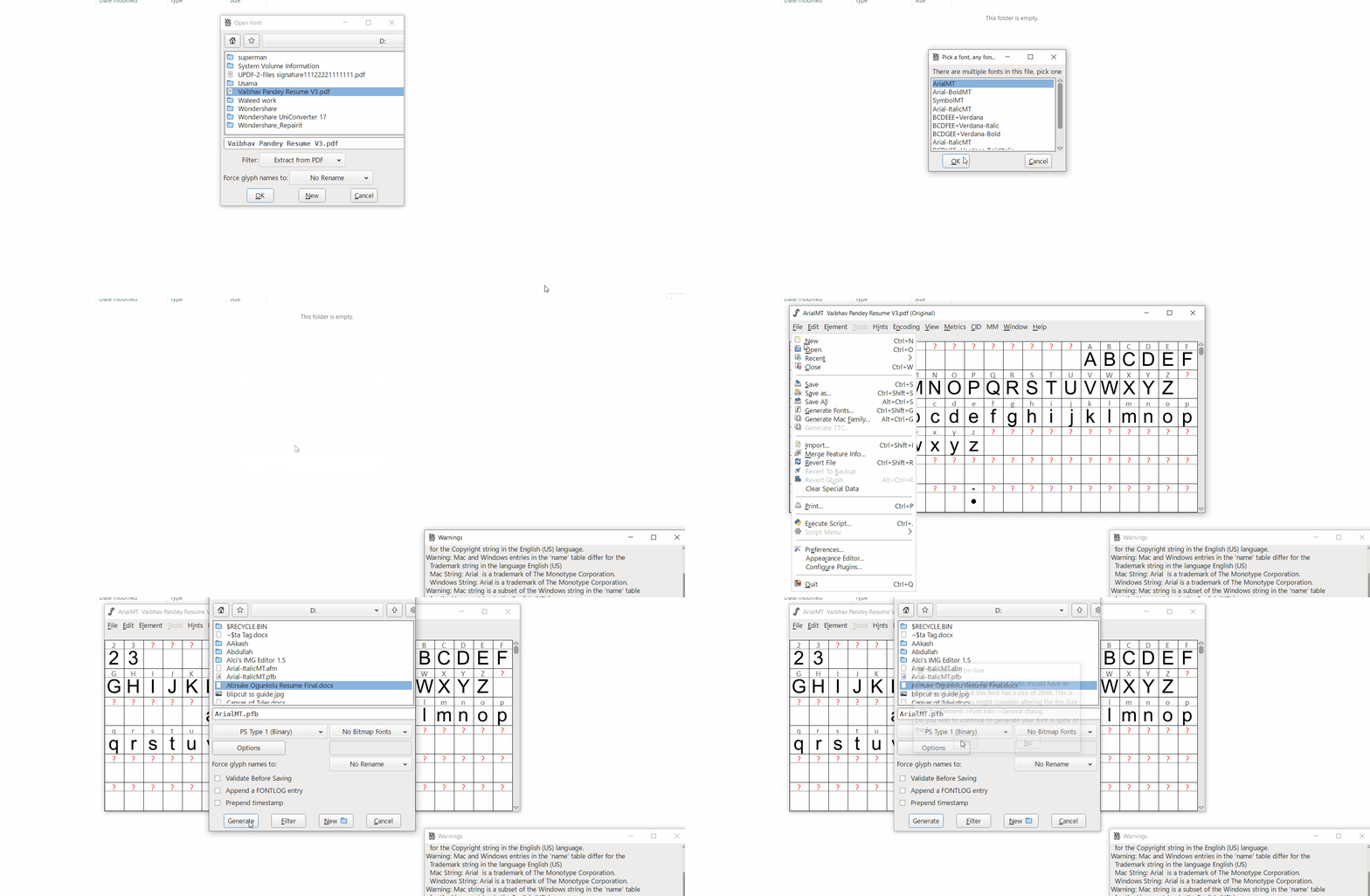
Step 1. Once you install and open the tool, choose the "Filter" dropdown and press the "Extract from PDF" option. After that, you need to browse the PDF and import it into the tool.
Step 2. Next, select a font embedded in the PDF and press the "Ok" button.
Step 3. After you chose the font, press the "File" option and select the "Generate Fonts" option. Next, choose a font type, uncheck "Validate Before Saving, " and press the "Generate" button to save the font.
One Limitation:
- Most PDFs embed only the characters used to reduce file size. If a character wasn't used originally, the extracted font will not include it.
Method 2: Online Font Extractors (i2PDF & ExtractPDF)
Best for:
FontForge is unnecessary if you only need to extract fonts from a PDF once. Browser-based extractors scan embedded TrueType fonts and provide downloads without installation or font-editing knowledge required.
Option A: i2PDF
i2PDF is built to extract embedded TrueType fonts from PDF files online. Using this, you can drag your PDF into the browser to see every TrueType font with download links. Use the steps below to see how to extract fonts from a PDF using i2PDF:
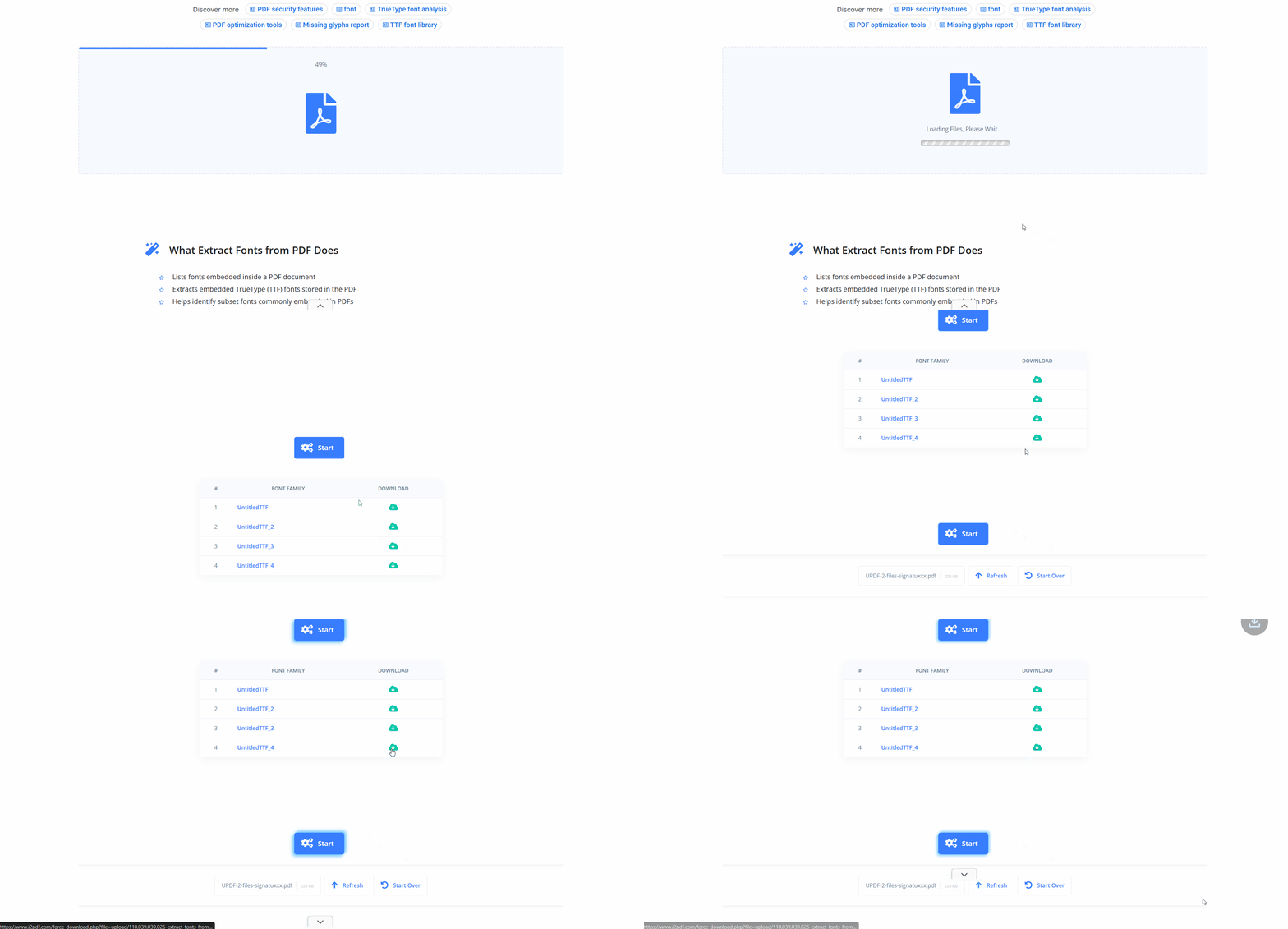
Step 1. First, access the i2PDF font extraction page and drag and drop your PDF or click "Choose Files" to upload.
Step 2. Once the file is uploaded, i2PDF shows the list of TrueType fonts used. Next, press the "Download" icon next to the font you need.
Option B: ExtractPDF
ExtractPDF extracts fonts, images, and raw text separately from PDF files up to 25MB in size. It works best when you need fonts together with images or text from the same PDF. To extract fonts from a PDF using ExtractPDF, use the steps below:
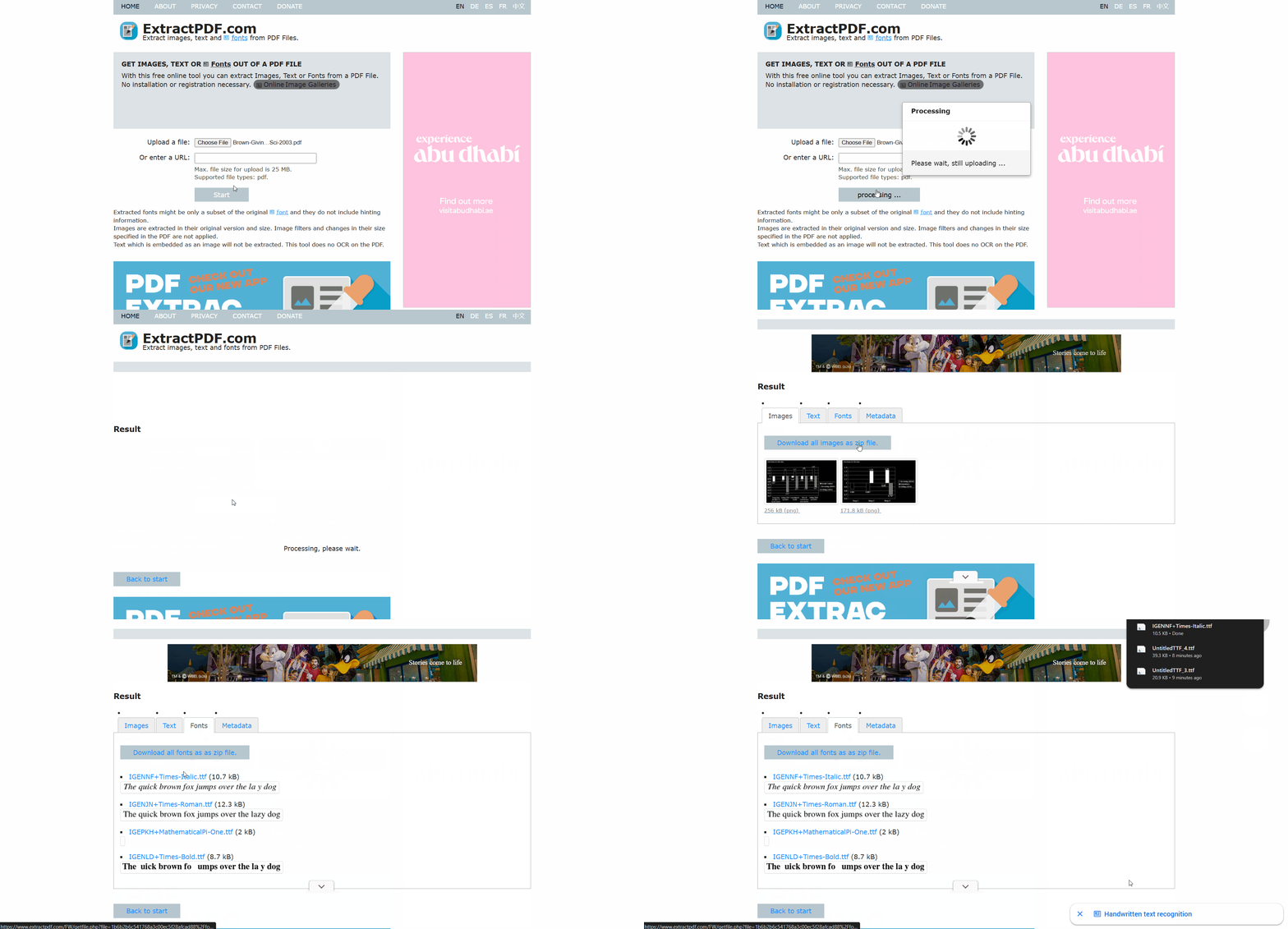
Step 1. Once you enter the main interface, press the "Choose Files" option to upload the PDF. Next, press "Start" to begin extraction.
Step 2. Choose the "Font" tab and click a font that you want to download.
Safety Note: Both tools work by uploading your file to their servers for a few seconds while they process it. That's a fine trade for a marketing flyer or a public brochure, but not for anything with sensitive information, contracts, medical records, or financial statements. For secure handling of sensitive PDFs, read our guide about editing a PDF online before uploading files.
Method 3: Adobe Acrobat Properties (Identify Only)
Best for:
Sometimes you only need the font name to find a licensed copy or matching alternative later. Adobe Acrobat reads document metadata instead of extracting embedded glyph data into usable font files. You can also use free Acrobat Reader, but it only identifies fonts rather than extracting them. Go through the simple steps to learn how to identify a font in a PDF using Acrobat:
Step 1. First, open a PDF in Adobe Acrobat. After that, press the "Menu" option and choose the "Document Properties" option in the dropdown.
Step 2. Next, select the "Fonts" tab and see every font used in the PDF.
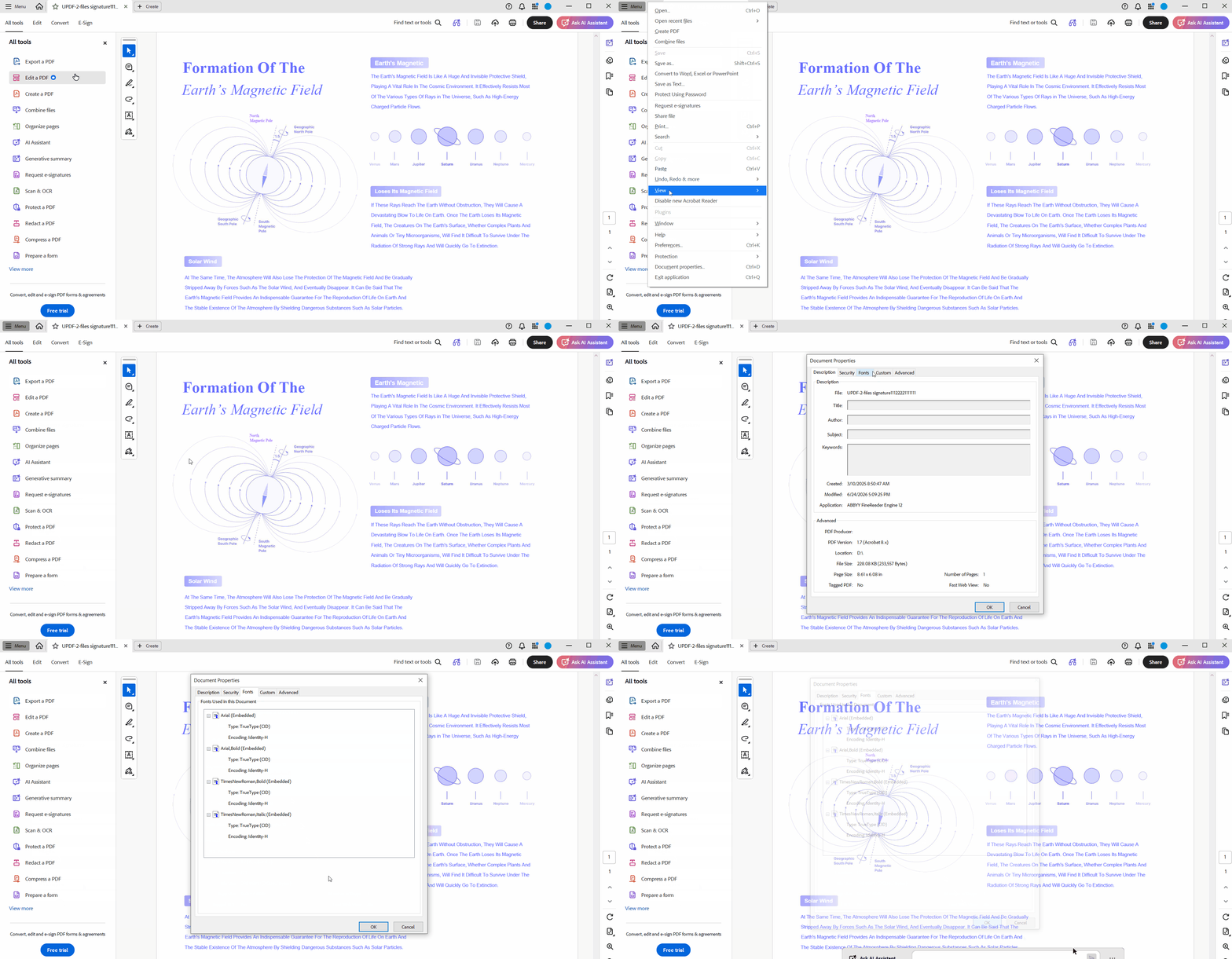
Even if a PDF uses an embedded font subset, Acrobat still shows its name. It may include a short prefix like ABCDEF+ showing it is a subset font. Search Adobe Fonts, MyFonts, or the font foundry's website for a properly licensed copy.
Part 3. No Extraction Needed! How to Edit a PDF with the Original Font Using UPDF
If your goal is editing text instead of keeping a font file, extraction is usually unnecessary for most documents.
UPDF is an AI-powered PDF editor that keeps your document layout and typography unchanged during text editing. To preserve the original font, that same font must already be installed on your Windows or Mac computer. Its rendering engine automatically detects, matches, and uses the original font without formatting or font changes. This lets you fix typos, edit paragraphs, and change numbers while keeping the document exactly the same.
Separating the relevant pages can make a long document easier to share. You can start with the video below for an introduction to editing PDF content in UPDF.
When the original font is unavailable, you can still change the font size in the PDF. The built-in PDF font changer also helps you choose a clean and readable system font instead. For updates beyond text, read our guide on how to add an image to a PDF.
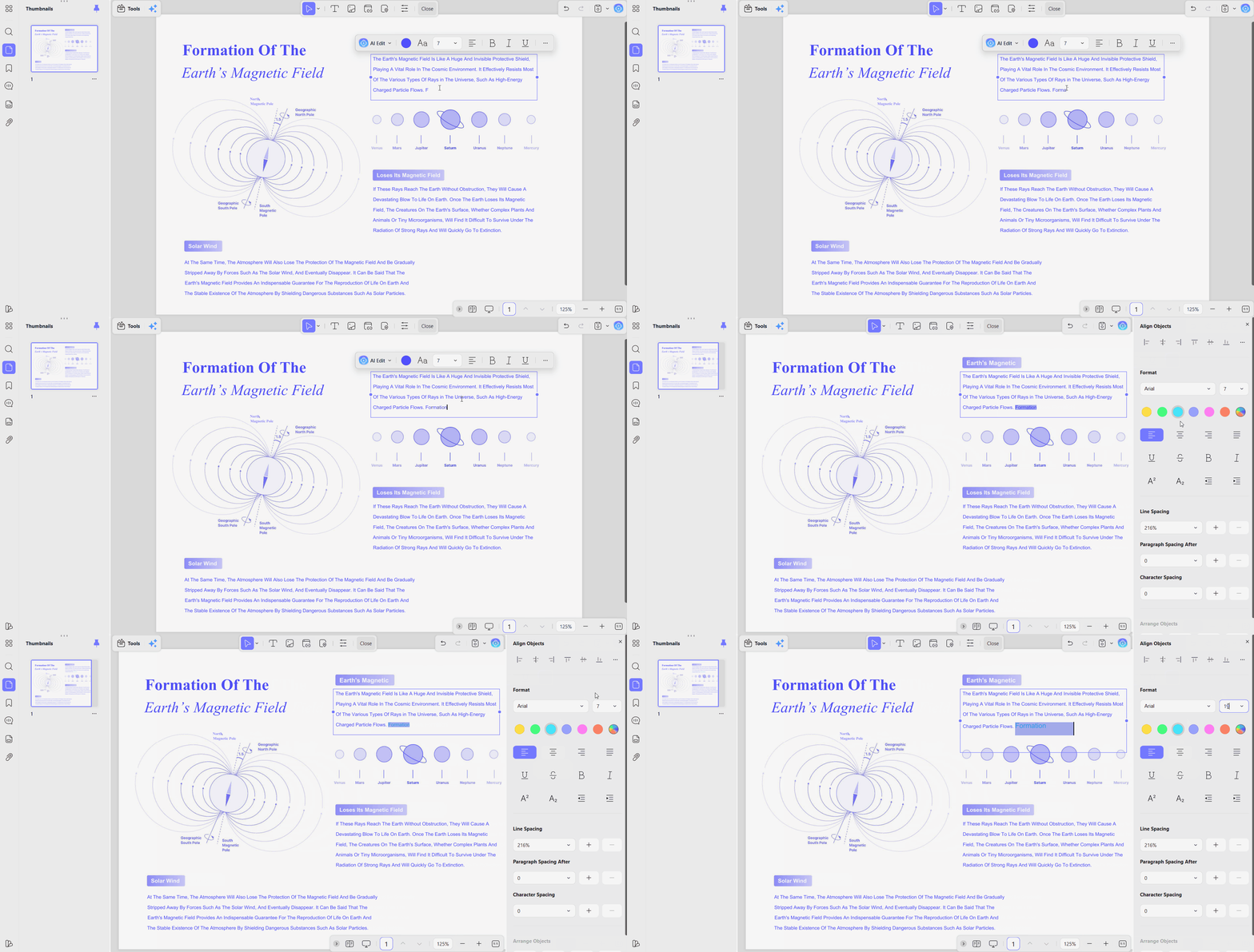
Beyond smart font matching and text editing, UPDF is an all-in-one PDF workspace. It packs a full suite of versatile features—including AI-powered document translation and summarization, high-accuracy OCR to make scanned PDFs editable, seamless file format conversion, batch processing, and built-in document protection.
Edit your PDF effortlessly while unlocking a complete AI document toolkit. Download UPDF today to experience smooth editing and so much more.
Windows • macOS • iOS • Android 100% secure
Frequently Asked Questions
Can I rip a font from a PDF if it's labeled an "Embedded Subset"?
Yes, but extracted embedded subset fonts only include characters originally used inside the PDF document. Extracting them with FontForge lets you reuse only those exact characters from the original document. Typing missing characters creates blank spaces or errors because those characters were never embedded originally.
Why does the font change to a default one when I edit a PDF?
Usually because your editor can't find the original font on your operating system. To stop it from falling back to a default like Arial, install the original font on your device before you start editing.
Is there an easy way to get fonts from a PDF online?
Yes, web tools like ExtractPDF or i2PDF let you upload a PDF and download the embedded TrueType fonts they find, with no installation required.
Conclusion
In summary, learning how to extract fonts from PDF using FontForge, i2PDF, or ExtractPDF gives you reusable font files for design work. Most people facing this problem simply want their PDF to look right again, and for that, you do not need to extract anything. Just make sure the original font is installed on your computer and let UPDF handle the rest.







 Enrica Taylor

 Nls Jansen