UPDF
UPDF
 UPDF for Windows
 UPDF for Mac
 UPDF for iPhone/iPad
 UPDF for Android
 Nomostar
 UPDF AI Online
 UPDF Sign
 IvyCraft
 Edit PDF
 Annotate PDF
 Create PDF
 PDF Form
 Edit links
 Convert PDF
 OCR
OCR PDF to Word
 PDF to Image
 PDF to Excel
 Organize PDF
 Merge PDF
 Split PDF
 Crop PDF
 Rotate PDF
 Protect PDF
 Sign PDF
 Redact PDF
 Sanitize PDF
 Remove Security
 Read PDF
 UPDF Cloud
 Compress PDF
 Print PDF
 Batch Process
 About UPDF AI
 UPDF AI Solutions
 AI User Guide
 FAQ about UPDF AI
 Summarize PDF
 Translate PDF
 Chat with PDF
 Chat with AI
 Chat with image
 PDF to Mind Map
 Explain PDF
 PDF AI Tools
 Image AI Tools
 AI Chat Tools
 AI Writing Tools
 AI Study Tools
 AI Working Tools
 Other AI Tools
 AI Bookmark Generation
 AI Bookmark Summary
 AI Watermark Generation
 AI Background Generation
 AI Sticker Generation
 AI Stamp Generation
 AI Editing Suite
 UPDF Copilot
 AI Page Management
 AI Semantic Search
 PDF to Word
 PDF to Excel
 PDF to PowerPoint
 Enterprise Solution
 Enterprise Sign
 Enterprise AI
 Enterprise Plan
 Enterprise User Guide
 Enterprise Webinar
 IT
IT Education
 Construction
 Financial Service
 Healthcare
 Insurance
 Legal
Legal Manufacturing
 Government
 Researchers & PhDs
 Solopreneurs & Freelancers
 Lawyers & Legal Professionals
 Real Estate Agents & Brokers
 Education Solution
 Customer Stories
 User Guide
 UPDF Tricks
 FAQs
FAQs UPDF Reviews
 Download Center
 Blog
Blog Newsroom
 Tech Spec
 Updates
 UPDF vs. Adobe Acrobat
 UPDF vs. Foxit
 UPDF vs. PDF Expert

Quick Answer
A research paper is not read once from beginning to end. You preview it, test its relevance, inspect methods and evidence, compare it with other papers, annotate uncertainties, and return to important passages during writing. A general-purpose viewer can display the pages, but a research workflow needs stronger retrieval and verification.
Decision rule: select tools around your research stage—discovery, close reading, synthesis, or writing—rather than expecting one AI summary to replace the process.
Part 1. What Researchers Need from a PDF Reader
| Research task | Reader capability |
| Triage | Fast search, thumbnails, bookmarks, and summary support |
| Close reading | Highlight, underline, comments, shapes, and precise zoom |
| Scanned archive | OCR and page correction |
| Foreign-language paper | Selected-text or full-document translation |
| Evidence review | Page-linked notes and easy return to source |
| Synthesis | Multi-document organization and citation-aware AI answers |
Also consider privacy, supported platforms, synchronization rules, and export options. If you work with unpublished manuscripts, participant data, or confidential reviews, verify where processing occurs before uploading files to any online AI service.
Part 2. Set Up a Research Paper in UPDF
Open the paper in UPDF and begin with a three-minute relevance check: title, abstract, section headings, figures, conclusion, and references. Add a bookmark or note only if the paper is likely to matter.
Step 1. Create a purpose note
At the beginning, write one sentence explaining why the paper is in your project. Example: “Provides a 2024 benchmark dataset for invoice-table extraction.” This prevents future confusion when a library grows.
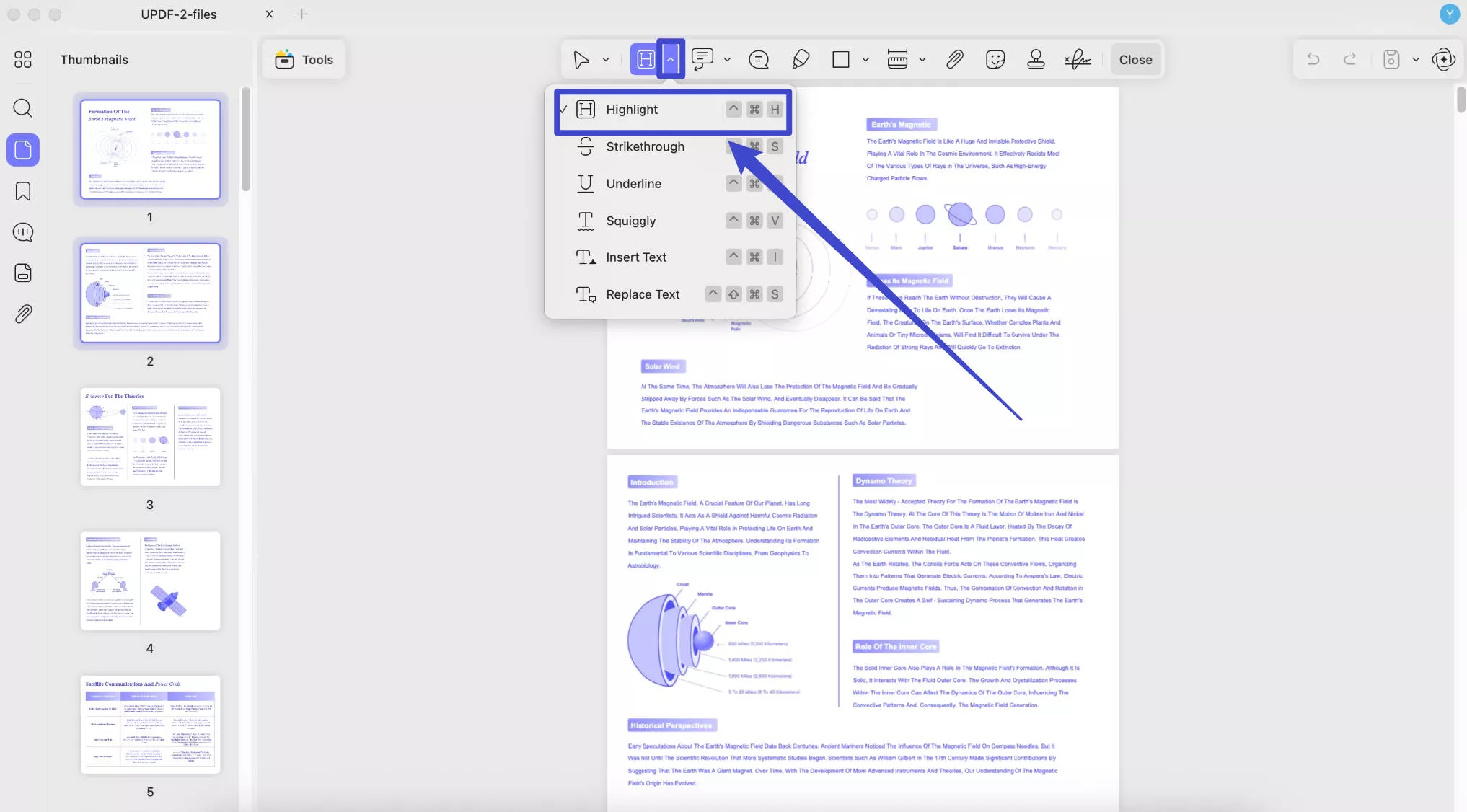
Step 2. Mark evidence by type
Use a consistent annotation scheme. For example: yellow for key claims, blue for methods, green for useful definitions, and red for limitations or contradictions. Keep the number of colors small enough to remember.
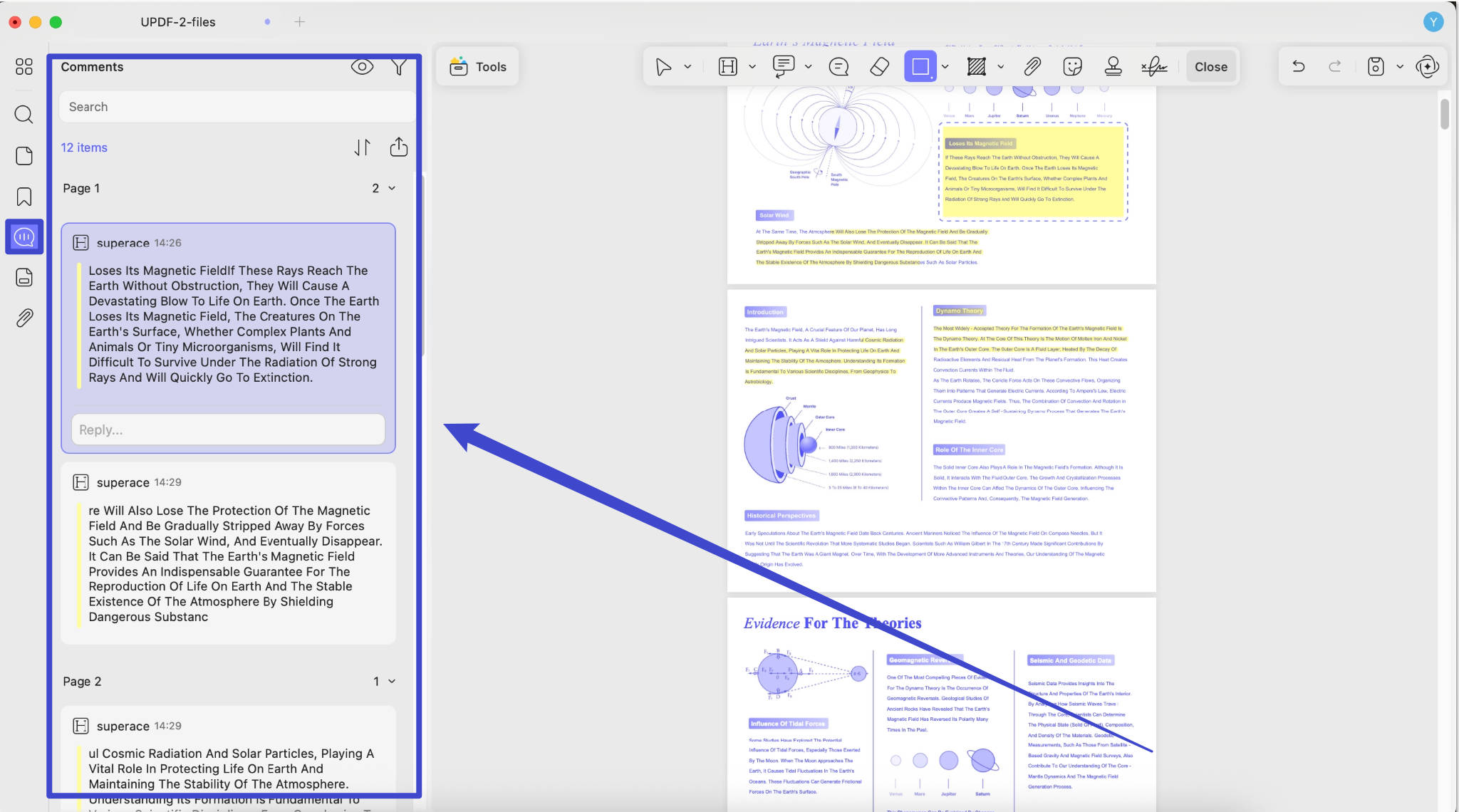
Step 3. Capture page-specific comments
A comment such as “use this” is weak. Write “Compare sample size with Rivera 2025” or “Potential limitation: only English documents.” Actionable notes reduce rereading.
Best for
Not for
Download UPDF for free to read, annotate, organize, OCR, and translate research PDFs.
Windows • macOS • iOS • Android 100% secure
Part 3. Read Actively Instead of Highlighting Everything
Highlighting feels productive but can create a colored document with no usable synthesis. After each section, write a short margin note in your own words: the question, method, finding, and limitation. If you cannot state these clearly, reread the relevant passage.
- Keep quotations separate from paraphrases.
- Include page numbers in notes that may enter a draft.
- Mark uncertainty explicitly.
- Record negative results and limitations, not only conclusions.
- Review figures and tables alongside the text that interprets them.
Part 4. Use AI Without Losing Source Control
UPDF AI supports summarization, explanation, translation, chat with PDFs, Paper Search, and research-oriented workflows. Use these capabilities to generate questions, locate passages, compare concepts, or explain terminology. Then click back to the source and verify the answer.
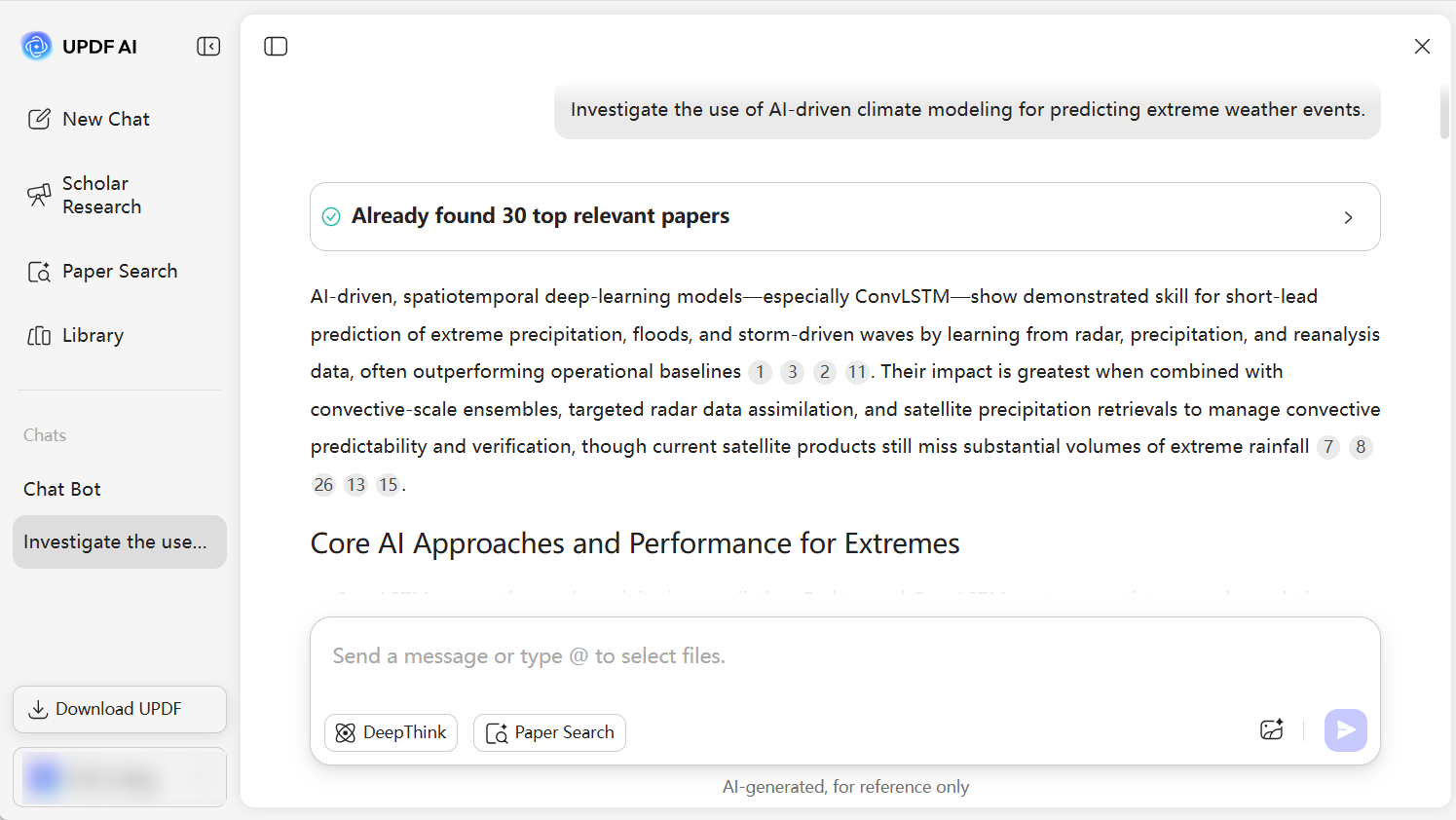
- Ask a narrow question.
- Require the answer to identify supporting pages or passages.
- Open the cited passage.
- Check whether qualifications or limitations were omitted.
- Save the verified insight in your own notes.
For multiple papers, ask comparative questions with an explicit schema: population, method, sample size, outcome, and limitation. Structured prompts produce results that are easier to audit than “compare these papers.”
Part 5. Organize Papers Across a Project
Use one folder or project per research question, not one giant library. Apply consistent filenames such as FirstAuthor-Year-ShortTitle.pdf. Add tags for method, population, and status: unread, screened, included, excluded, or cited.
| Layer | What to store |
| Original paper and annotations | |
| Citation record | Verified metadata and DOI |
| Evidence note | Claim, quotation/paraphrase, page, and your interpretation |
| Project synthesis | Themes, disagreements, gaps, and next searches |
UPDF AI Paper Search can search across a large scholarly index using keywords, DOI, or PMID, with filters, metadata, summaries, and citation/topic relationships. Discovery remains only the first stage; your project should preserve why a source was included and how its evidence was checked.
FAQs About PDF Readers for Research Papers
What is the best PDF reader feature for research papers?
Precise annotation tied to pages is foundational. OCR, translation, search, AI assistance, and organization are valuable when they preserve traceability to the source.
Can AI summarize research papers accurately?
AI can accelerate triage and explanation, but summaries can omit qualifications. Verify important claims in the original methods, results, and limitations.
How should I annotate academic PDFs?
Use a small, consistent annotation scheme and write page-specific notes that state the claim, evidence, method, or limitation in your own words.
Can a PDF reader replace a citation manager?
Usually not. A PDF reader manages documents and annotations; a citation manager is better for structured metadata, citation styles, and bibliographies.
Conclusion
A strong research-paper reader keeps you close to the evidence. Combine fast navigation, disciplined annotations, careful AI use, verified citations, and project organization. The outcome should be more than a read PDF: it should be an auditable chain from source to conclusion.






 Enid Brown
 Enrica Taylor
 Enya Moore