UPDF
UPDF
 UPDF for Windows
 UPDF for Mac
 UPDF for iPhone/iPad
 UPDF for Android
 Nomostar
 UPDF AI Online
 UPDF Sign
 IvyCraft
 Edit PDF
 Annotate PDF
 Create PDF
 PDF Form
 Edit links
 Convert PDF
 OCR
OCR PDF to Word
 PDF to Image
 PDF to Excel
 Organize PDF
 Merge PDF
 Split PDF
 Crop PDF
 Rotate PDF
 Protect PDF
 Sign PDF
 Redact PDF
 Sanitize PDF
 Remove Security
 Read PDF
 UPDF Cloud
 Compress PDF
 Print PDF
 Batch Process
 About UPDF AI
 UPDF AI Solutions
 AI User Guide
 FAQ about UPDF AI
 Summarize PDF
 Translate PDF
 Chat with PDF
 Chat with AI
 Chat with image
 PDF to Mind Map
 Explain PDF
 PDF AI Tools
 Image AI Tools
 AI Chat Tools
 AI Writing Tools
 AI Study Tools
 AI Working Tools
 Other AI Tools
 AI Bookmark Generation
 AI Bookmark Summary
 AI Watermark Generation
 AI Background Generation
 AI Sticker Generation
 AI Stamp Generation
 AI Editing Suite
 UPDF Copilot
 AI Page Management
 AI Semantic Search
 PDF to Word
 PDF to Excel
 PDF to PowerPoint
 Enterprise Solution
 Enterprise Sign
 Enterprise AI
 Enterprise Plan
 Enterprise User Guide
 Enterprise Webinar
 IT
IT Education
 Construction
 Financial Service
 Healthcare
 Insurance
 Legal
Legal Manufacturing
 Government
 Researchers & PhDs
 Solopreneurs & Freelancers
 Lawyers & Legal Professionals
 Real Estate Agents & Brokers
 Education Solution
 Customer Stories
 User Guide
 UPDF Tricks
 FAQs
FAQs UPDF Reviews
 Download Center
 Blog
Blog Newsroom
 Tech Spec
 Updates
 UPDF vs. Adobe Acrobat
 UPDF vs. Foxit
 UPDF vs. PDF Expert

Quick Answer
A “Print Preview Failed” message usually means the problem comes from the document, browser, printer driver, or Windows—not necessarily the printer itself. Use the quick diagnosis below to identify the likely source before applying the matching fix.
If you need to print a PDF immediately, UPDF can open and print the file without relying on Chrome or Microsoft Edge preview. You can download it free and continue printing while you troubleshoot the browser.
Windows • macOS • iOS • Android 100% secure
| What happens | Likely cause | Start with |
|---|---|---|
| Only one PDF or webpage fails | Damaged document or webpage | Test another file |
| Only Chrome fails | Chrome update, extension, cache, or profile | Test Incognito and extensions |
| Only Microsoft Edge fails | Edge or its built-in PDF viewer | Update and restart Edge |
| Every application fails | Printer, driver, Windows, or connection | Check the driver and printer |
| You need to print immediately | Browser preview is blocking the task | Print the PDF with UPDF |

Part 1. Why Does Print Preview Fail?
Print preview can fail at four different levels. Identifying where the problem occurs prevents you from clearing data or reinstalling software unnecessarily.
- Document or webpage issue: Damaged PDF data, unsupported fonts, graphics, or webpage code may prevent the preview from rendering.
- Browser issue: An outdated Chrome or Edge version, conflicting extension, corrupted cache, damaged profile, or missing built-in PDF viewer can interrupt preview generation.
- Printer or driver issue: The selected printer may be unavailable, disconnected, or using an outdated driver.
- Windows or device issue: Microsoft Print to PDF, the print queue, system resources, or Windows printing components may not be working correctly.
Test another document, printer, browser, and desktop application first. If only one combination fails, you can focus on that document or browser; if every application fails, troubleshoot the printer and operating system.
Part 2. How to Fix Print Preview Failed?
Try these fixes in order. The first steps help identify the source without changing browser or system settings; later methods address Chrome, Microsoft Edge, and Windows components.
1. Retry the Print Job and Restart the Browser
Cancel the failed preview, close the print dialog, and press Ctrl + P again. If it still fails, close every Chrome or Edge window, reopen the browser, and retry. A temporary renderer or connection error may disappear after the browser restarts.
Restart the computer if the browser remains unresponsive or the print queue appears stuck.
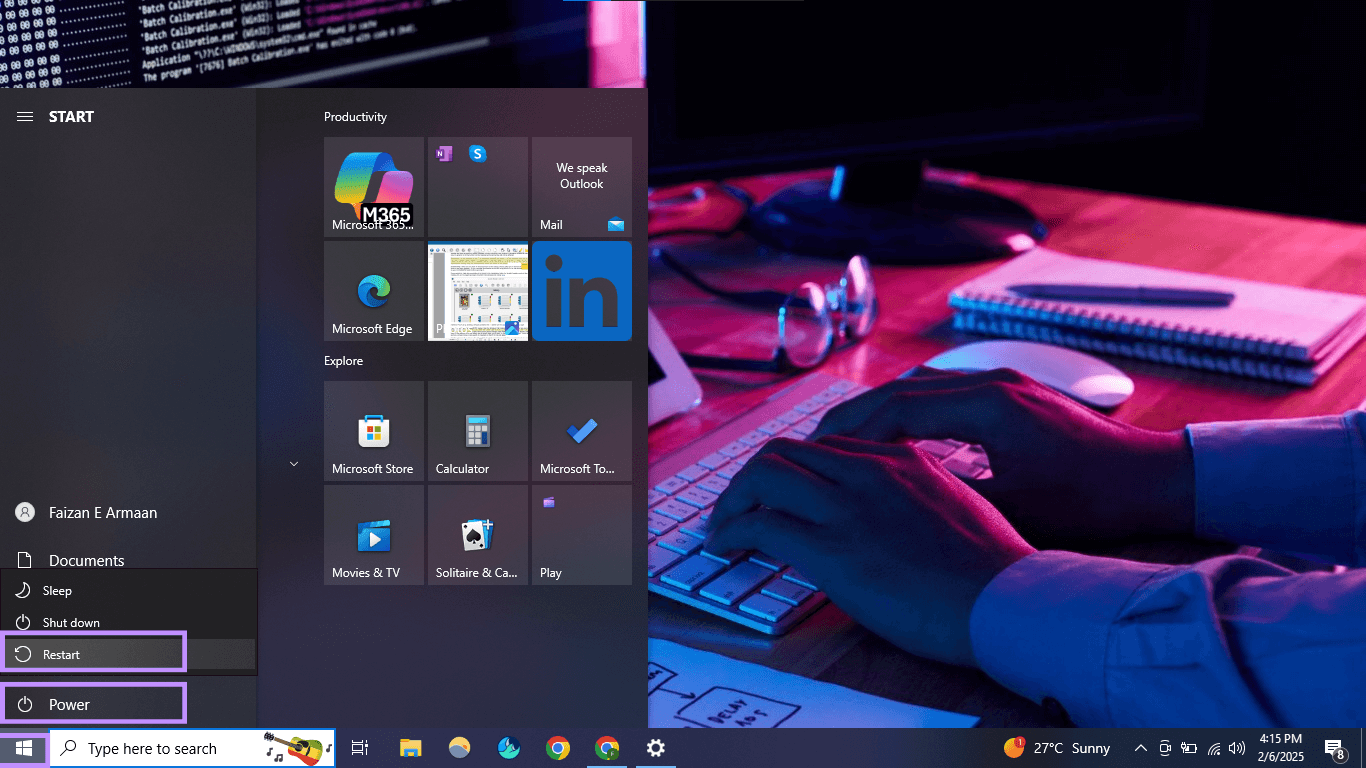
2. Test Another PDF, Website, Printer, and Application
Open another PDF or webpage and try to print it. Then select a different printer, such as Microsoft Print to PDF, and test printing from Word or another desktop application.
- If only one PDF or webpage fails, download a fresh copy or recreate the document.
- If only Chrome or Edge fails, continue with the browser-specific fixes below.
- If every application fails, update the printer driver and check the Windows print queue or printer connection.
3. Print the PDF With UPDF Without Browser Preview
If you need the document now, open it in UPDF and print it without using Chrome or Edge. Printing PDF files is free, and the print window lets you choose the printer, page range, page size, orientation, copies, and other available settings.
- Download and install UPDF, then select Open File and choose the PDF.
Windows • macOS • iOS • Android 100% secure
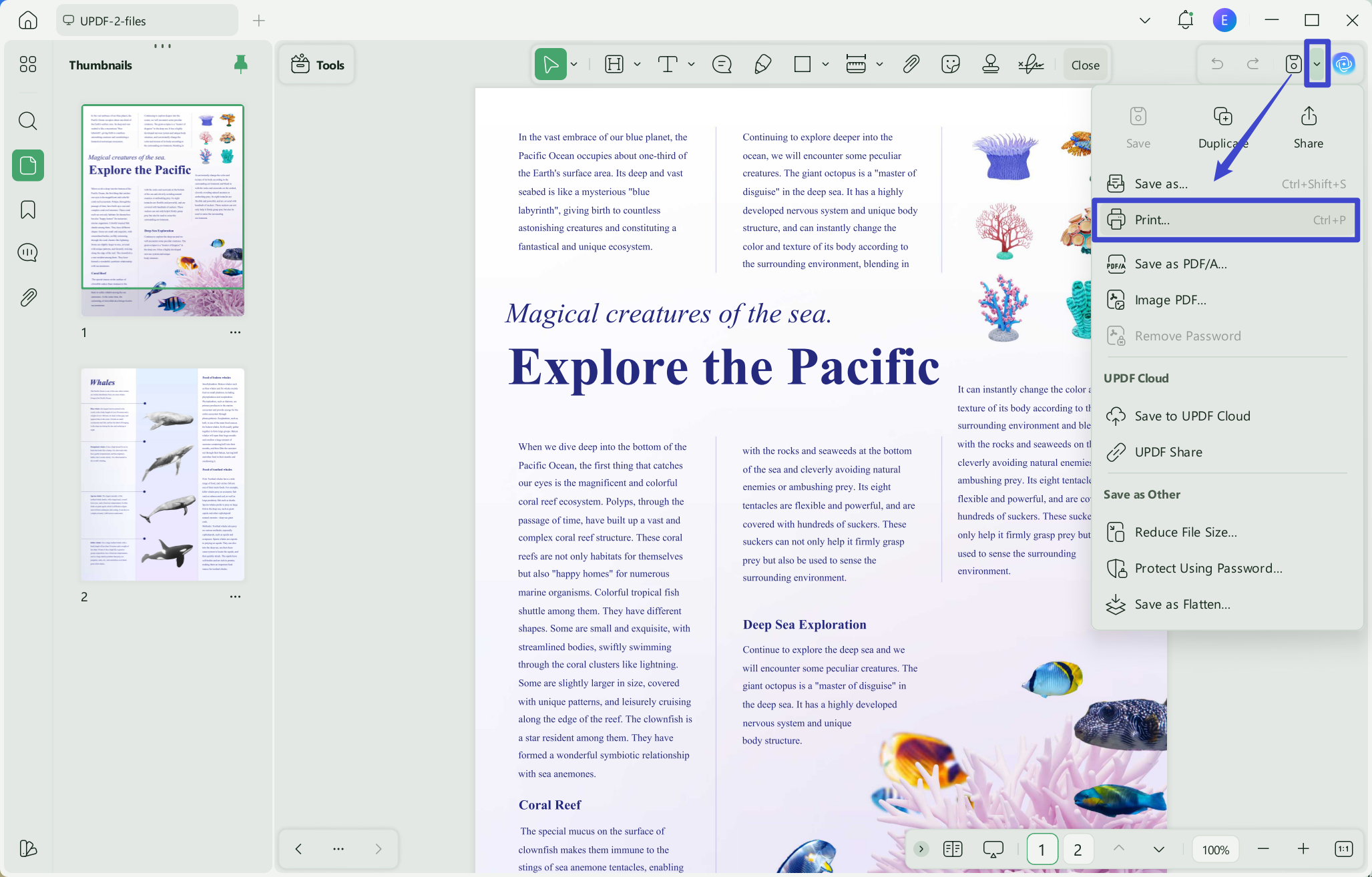
- Select the arrow beside the save icon and choose Print.
- Select the printer and adjust the page range, size, orientation, and other settings. Review the preview and select Print.
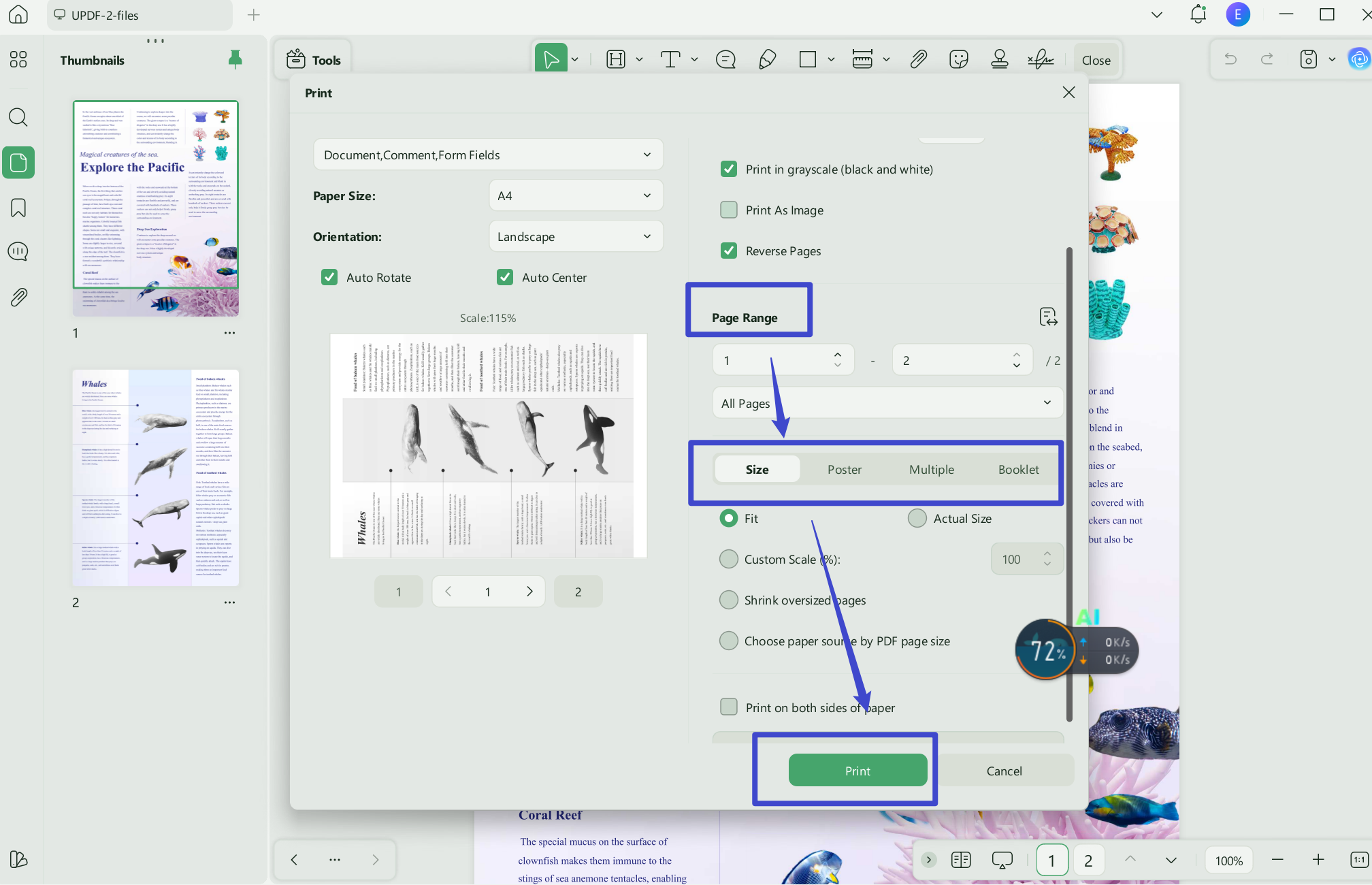
This workaround is most useful when the PDF itself opens correctly but the browser cannot generate a preview. For more printing options, see the complete guide on how to print a PDF.
4. Update Chrome or Microsoft Edge
Install the latest stable browser update before reinstalling anything. In Chrome, open Menu > Help > About Google Chrome. In Edge, open Settings and more > Help and feedback > About Microsoft Edge. Restart the browser after the update.
Microsoft Edge note: Edge cannot show print preview correctly when its built-in PDF viewer is unavailable. If webpages print but PDFs do not, restart and update Edge, then download the PDF and test it in another PDF reader. Organization-managed users should also ask IT whether a browser policy disabled the built-in viewer.
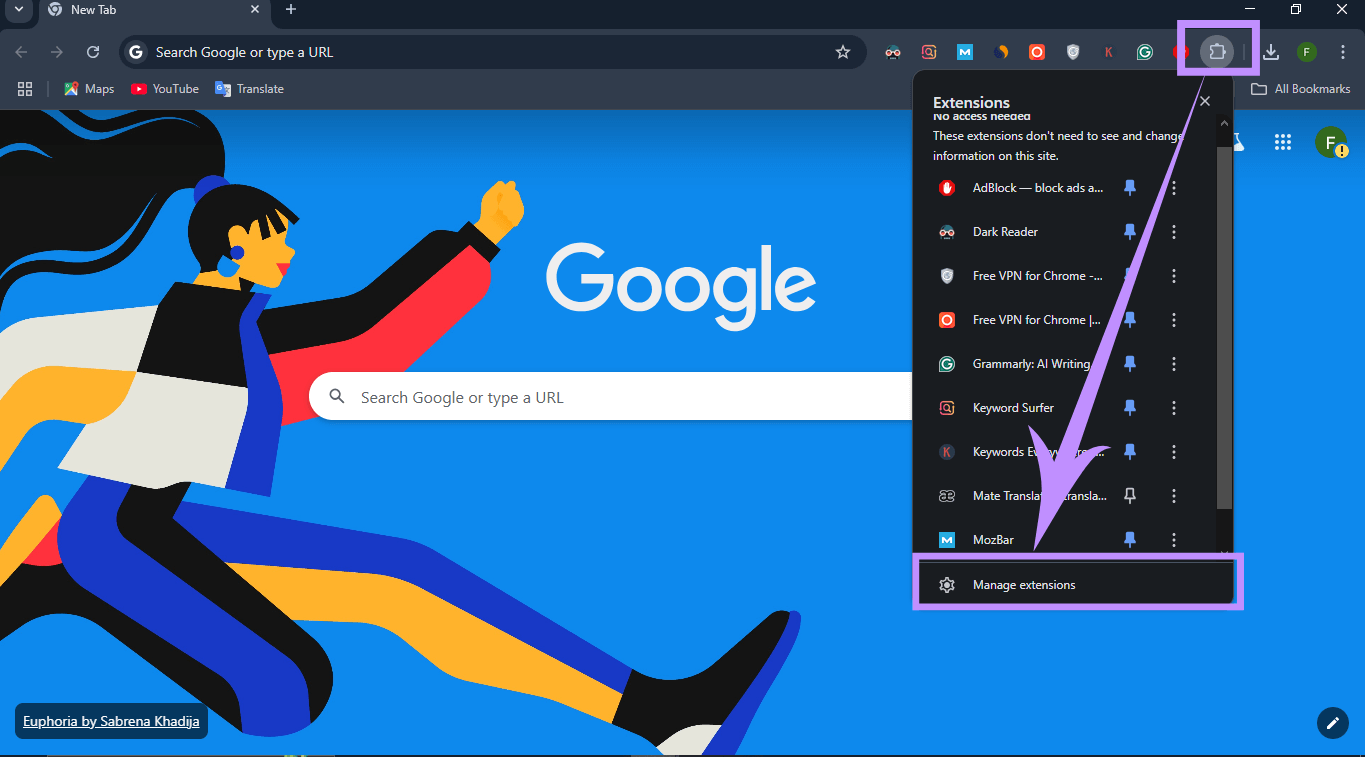
5. Test Incognito Mode and Disable Extensions
Open an Incognito or InPrivate window and try printing the same file. If preview works there, an extension or browser profile setting is probably responsible.
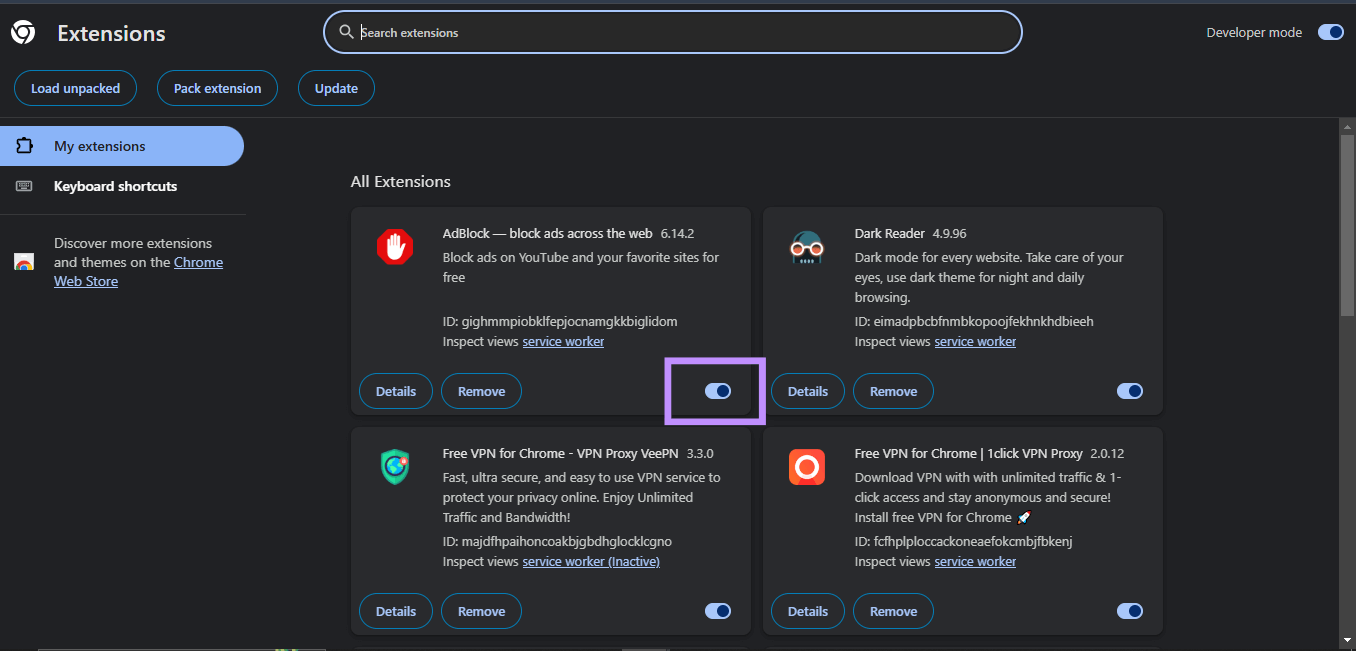
- Open the browser’s extension manager.
- Temporarily disable ad blockers, VPN extensions, security add-ons, and printing tools.
- Re-enable them one at a time until you identify the conflict.
6. Clear Browser Data or Reset the Browser
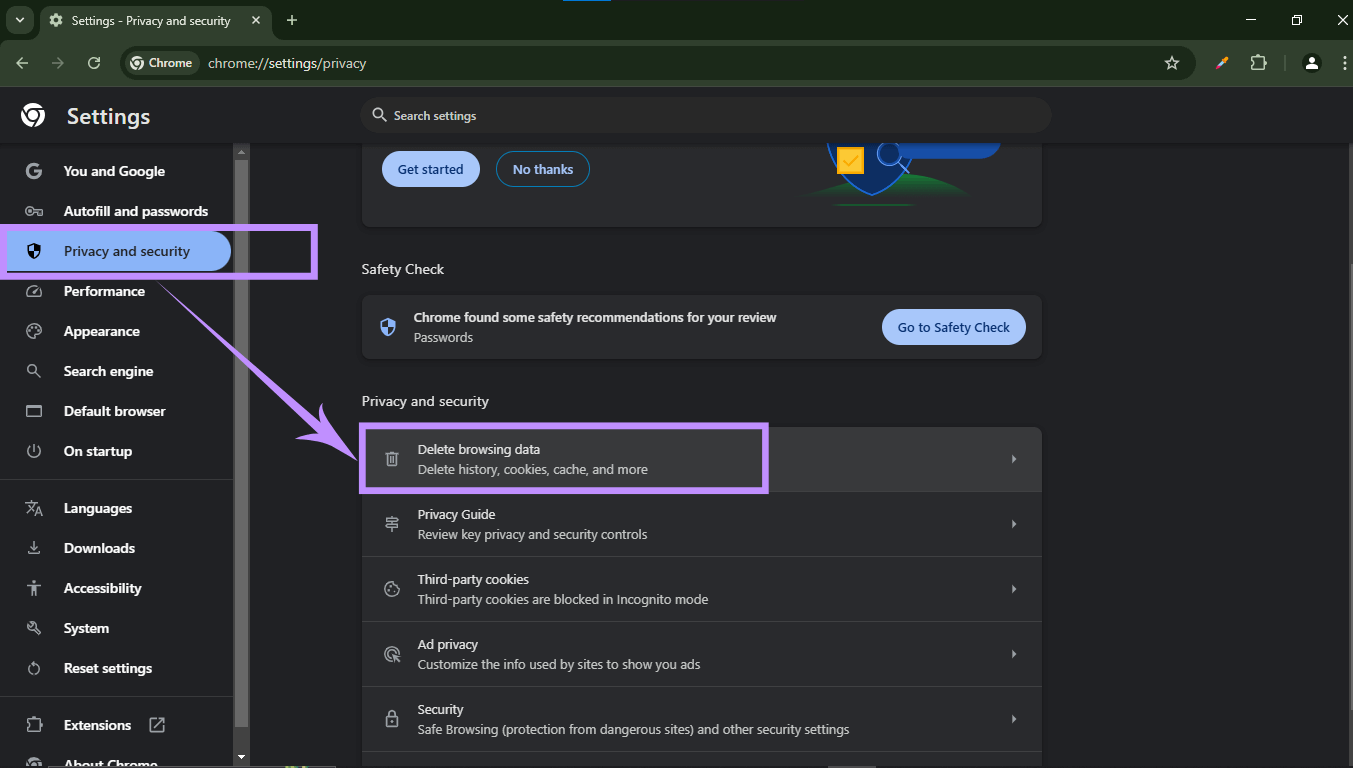
If the issue remains in a normal window, clear cached images and files. Start with the cache rather than deleting all passwords and browsing history. In Chrome or Edge, open Settings > Privacy and security > Delete browsing data, select cached files, restart the browser, and test again.
If clearing the cache does not work, reset the browser settings or create a new browser profile before considering a complete reinstall.
7. Update the Printer Driver or Reinstall Microsoft Print to PDF
If printing also fails in desktop applications, install the latest driver supplied by the printer manufacturer and clear paused jobs from the print queue. If only the virtual PDF printer is missing or damaged, reinstall Microsoft Print to PDF:
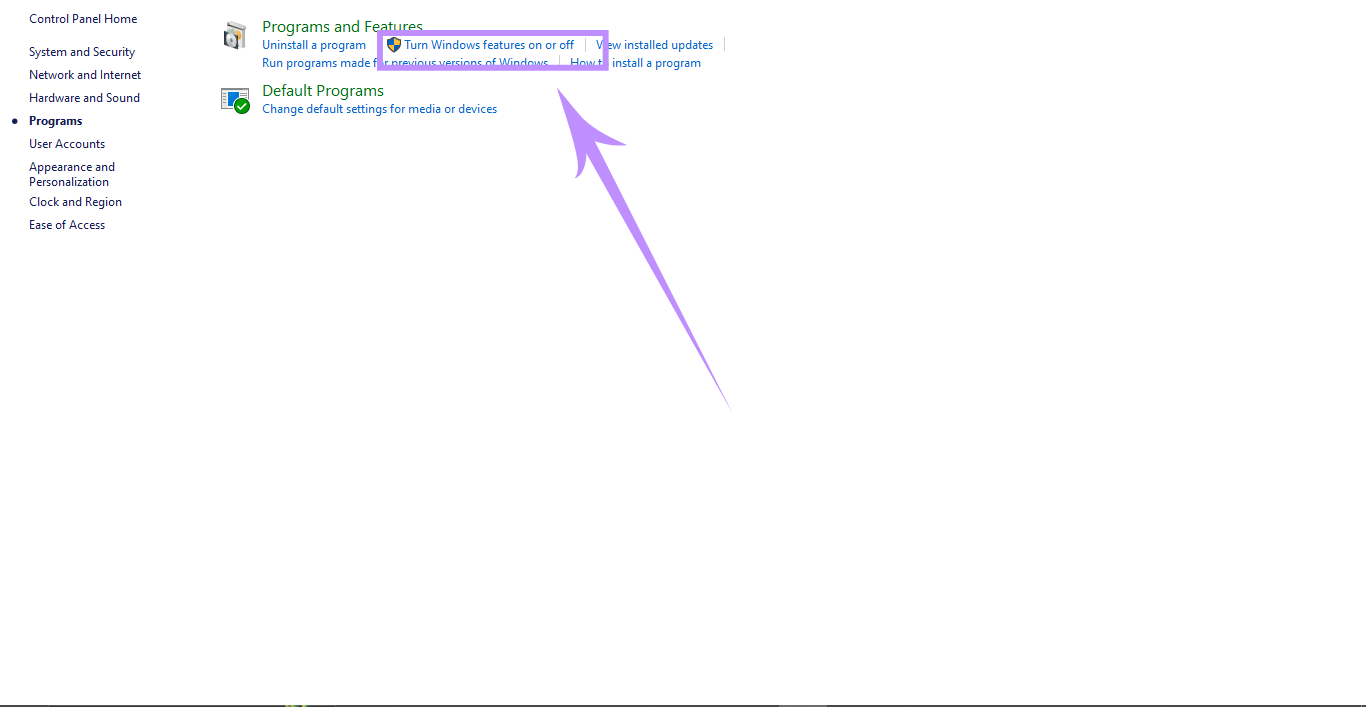
- Open Control Panel > Programs > Turn Windows features on or off.
- Uncheck Microsoft Print to PDF, select OK, and restart Windows.
- Return to Windows Features, enable it again, and retry the print job.
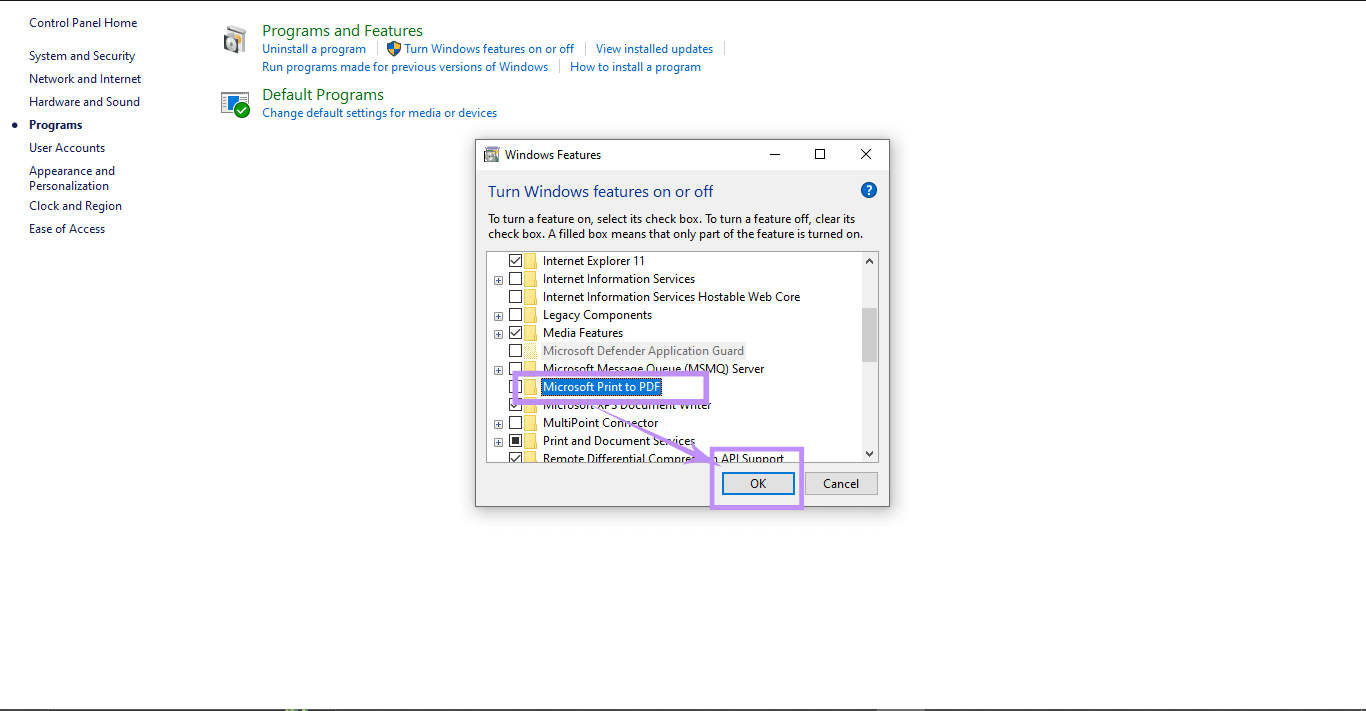
For additional details, see this guide to Microsoft Print to PDF.
8. Use the System Print Dialog or Another Browser
In Chrome and Edge on Windows, press Ctrl + Shift + P from the browser print window to open the system print dialog when available. You can also download the PDF and open it in a desktop reader, or temporarily use another browser to determine whether the problem is browser-specific.
If the error affects every browser, printer, and desktop application, use the Windows printer troubleshooter, verify that the Print Spooler service is running, and contact your device or printer administrator.
Final Words
When print preview fails, first determine whether the document, browser, printer, or Windows is responsible. Retrying the job, testing another file and printer, updating Chrome or Edge, and checking extensions will solve many browser-only cases. Driver and Microsoft Print to PDF repairs should be reserved for issues that also affect other applications.
If you need to print before the browser is fixed, open the PDF in UPDF and use its built-in preview and print settings. Download UPDF below to print the file without relying on Chrome or Edge.
Windows • macOS • iOS • Android 100% secure






 Lizzy Lozano