 UPDF
UPDF
 UPDF for Windows
 UPDF for Mac
 UPDF for iPhone/iPad
 UPDF for Android
 Nomostar
 UPDF AI Online
 UPDF Sign
 IvyCraft
 Edit PDF
 Annotate PDF
 Create PDF
 PDF Form
 Edit links
 Convert PDF
 OCR
OCR PDF to Word
 PDF to Image
 PDF to Excel
 Organize PDF
 Merge PDF
 Split PDF
 Crop PDF
 Rotate PDF
 Protect PDF
 Sign PDF
 Redact PDF
 Sanitize PDF
 Remove Security
 Read PDF
 UPDF Cloud
 Compress PDF
 Print PDF
 Batch Process
 About UPDF AI
 UPDF AI Solutions
 AI User Guide
 FAQ about UPDF AI
 Summarize PDF
 Translate PDF
 Chat with PDF
 Chat with AI
 Chat with image
 PDF to Mind Map
 Explain PDF
 PDF AI Tools
 Image AI Tools
 AI Chat Tools
 AI Writing Tools
 AI Study Tools
 AI Working Tools
 Other AI Tools
 AI Bookmark Generation
 AI Bookmark Summary
 AI Watermark Generation
 AI Background Generation
 AI Sticker Generation
 AI Stamp Generation
 AI Editing Suite
 UPDF Copilot
 AI Page Management
 AI Semantic Search
 PDF to Word
 PDF to Excel
 PDF to PowerPoint
 Enterprise Solution
 Enterprise Sign
 Enterprise AI
 Enterprise Plan
 Enterprise User Guide
 Enterprise Webinar
 IT
IT Education
 Construction
 Financial Service
 Healthcare
 Insurance
 Legal
Legal Manufacturing
 Government
 Researchers & PhDs
 Solopreneurs & Freelancers
 Lawyers & Legal Professionals
 Real Estate Agents & Brokers
 Education Solution
 Customer Stories
 User Guide
 UPDF Tricks
 FAQs
FAQs UPDF Reviews
 Download Center
 Blog
Blog Newsroom
 Tech Spec
 Updates
 UPDF vs. Adobe Acrobat
 UPDF vs. Foxit
 UPDF vs. PDF Expert

Quick Answer:
The crucial difference is what you are selecting. Crop changes the visible boundary of a PDF page. Crop Image trims one editable picture object without changing the page boundary. Preview can handle basic page cropping, but it does not directly crop a picture embedded as a separate PDF object.
Part 1. Which PDF Crop Method Should You Use on Mac?
| What you want to crop | Recommended method | Best for | Main limitation |
|---|---|---|---|
| White margins or unwanted content around a PDF page | UPDF Tools > Crop | Precise cropping, exact units, and applying one crop to multiple pages | A normal crop can hide content without permanently deleting it |
| One photo or graphic inside a PDF | UPDF Tools > Edit > Crop Image | Cropping, rotating, replacing, extracting, or deleting an editable image object | The picture must be selectable as a separate object |
| A page area without installing another app | Preview Rectangular Selection > Crop | A quick, basic crop on one PDF page | Limited batch and exact-size controls; does not directly edit an embedded image object |
| A page or editable image in an existing Acrobat workflow | Adobe Acrobat Crop Pages or Edit | Acrobat users who already edit PDFs in the app | More workflow than most one-off Preview crops require |
If you need repeatable controls for both pages and pictures, UPDF's PDF editor keeps the two jobs in the same application without treating them as the same operation.
Part 2: How to Crop a PDF on Mac with UPDF
The Best Tool to Crop PDF on Mac
Most of the solutions you will find when looking for a way to crop your PDF document are premium tools that are often quite expensive. The cost for these tools may not be justified if the changes you intend to make to the document are minor. Fortunately, there is a revolutionary new cost-effective PDF editing tool that has all the features you would find on these costly programs available to you.
This new product is UPDF for Mac, a simple but highly effective PDF editor that can be used to crop a PDF document in various ways. It has numerous tools and features that make it an ideal way to create, manage and edit PDF documents.
The page should fit its intended use without cutting off important details. The video that follows gives you a practical view of working with PDFs in UPDF 2.0 for Mac.
Windows • macOS • iOS • Android 100% secure
These features include the following:
- You can use it to edit the text on the document in a variety of ways. You can remove or add text to the PDF or you can change the font style, color, and size of the text as desired.
- You also have the option to change the images on the document. You can add and remove the images from PDF or even crop, rotate or move them to the desired location.
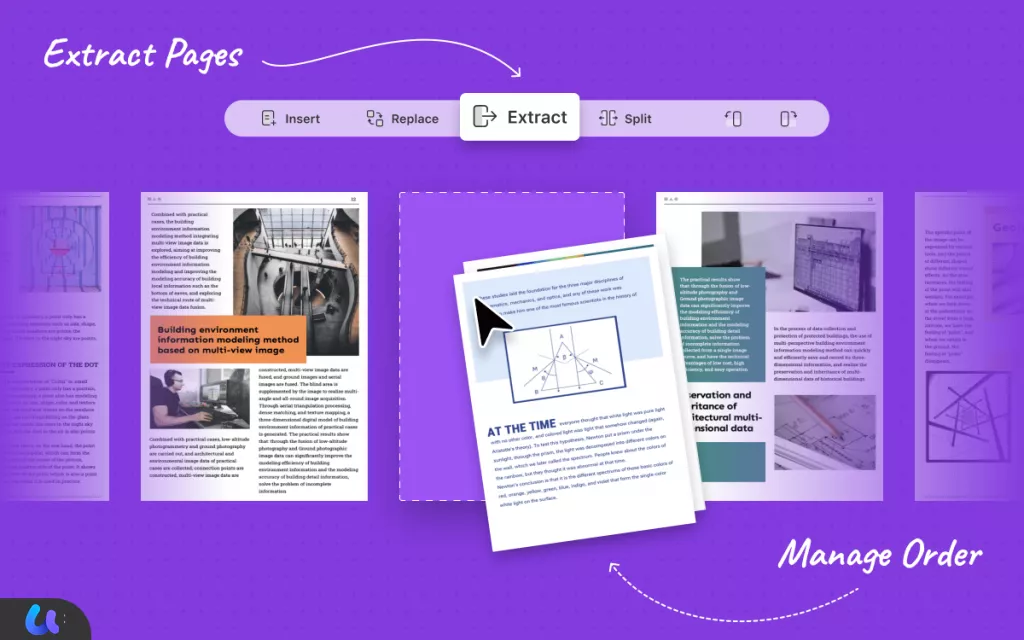
- It also gives you the option to make changes to the pages on the document. You can extract pages from PDF, reorder and delete them or even add new pages to the existing document.
- It is also one of the most powerful ways to collaborate on a PDF document thanks to its numerous annotation tools. You can use them to highlight, underline and strikethrough text or even add comments, shapes, and textboxes to the document.
Now, let's look at the steps to crop PDF pages on Mac.
- Download UPDF and open it.
Windows • macOS • iOS • Android 100% secure
- Select the PDF file.
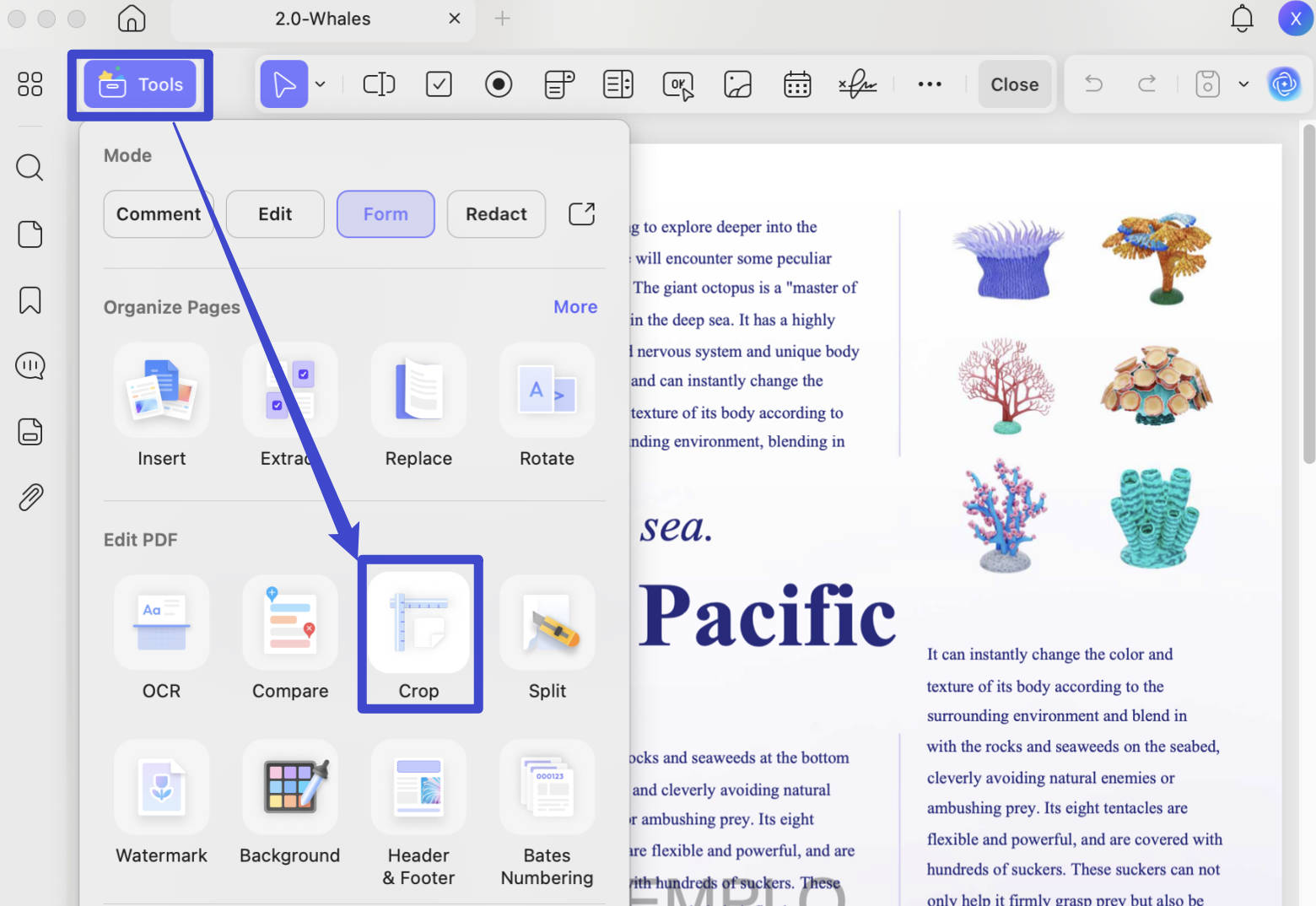
- Navigate to the 'Crop' mode in Tools, and drag the border of the page to crop it.
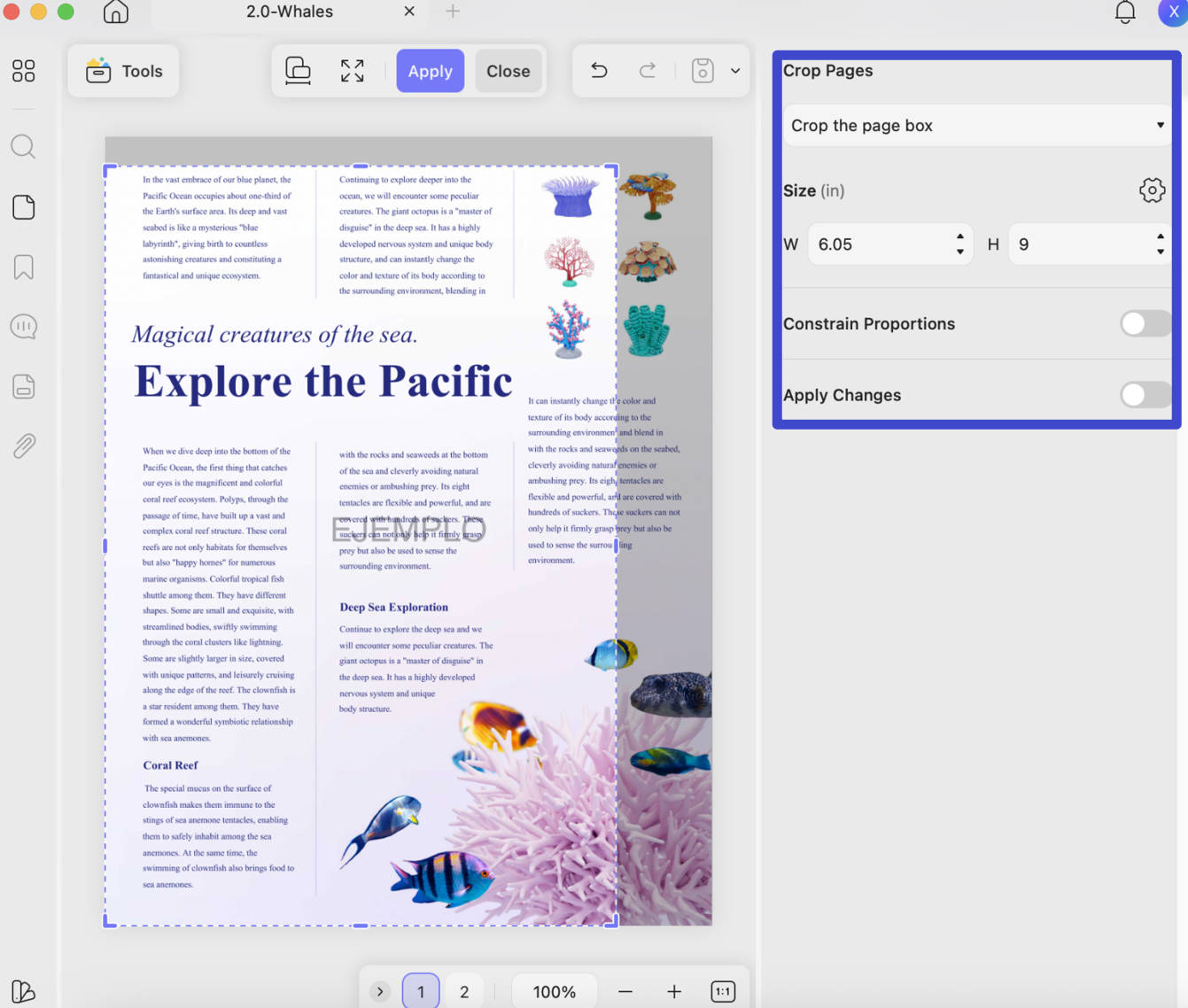
- Alternatively, you can click on the icon shown in the screenshot below to manually customize the cropping size of the page.
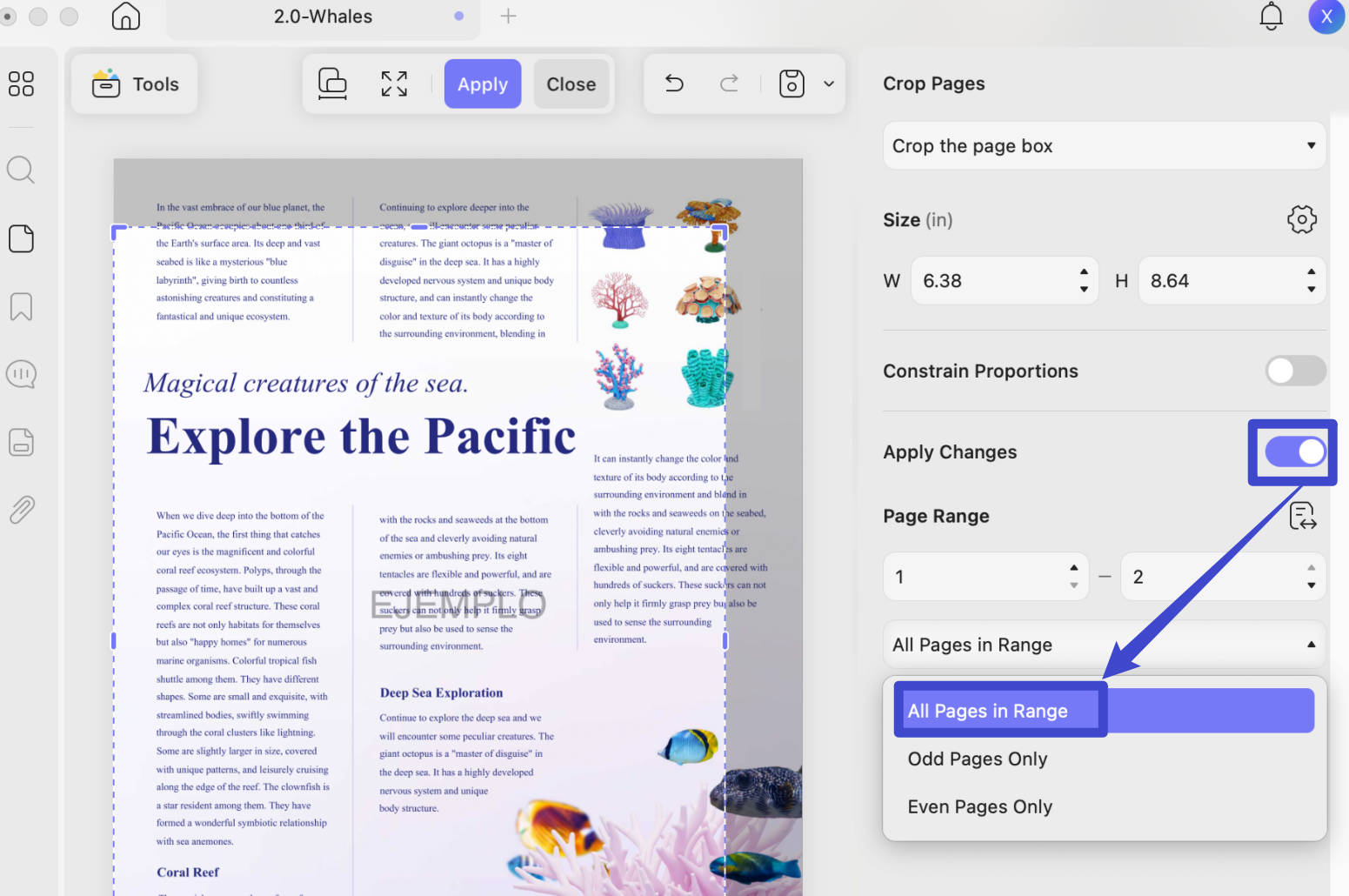
- Apply the changes to crop the PDF image. In this step, UPDF provides page range selection for applying changes.
Part 3. How to Crop the Image in a PDF on Mac
If what you want to crop is the image included in a PDF, then follow the steps below:
- Open UPDF and select the PDF file containing the image you wish to crop.
- Navigate to the 'Edit' mode in Tools, and click on the image to select it.
- Choose the 'Crop Image' option to adjust the image boundaries as needed. Except for cropping, UPDF also provides options to rotate, extract, and replace images.
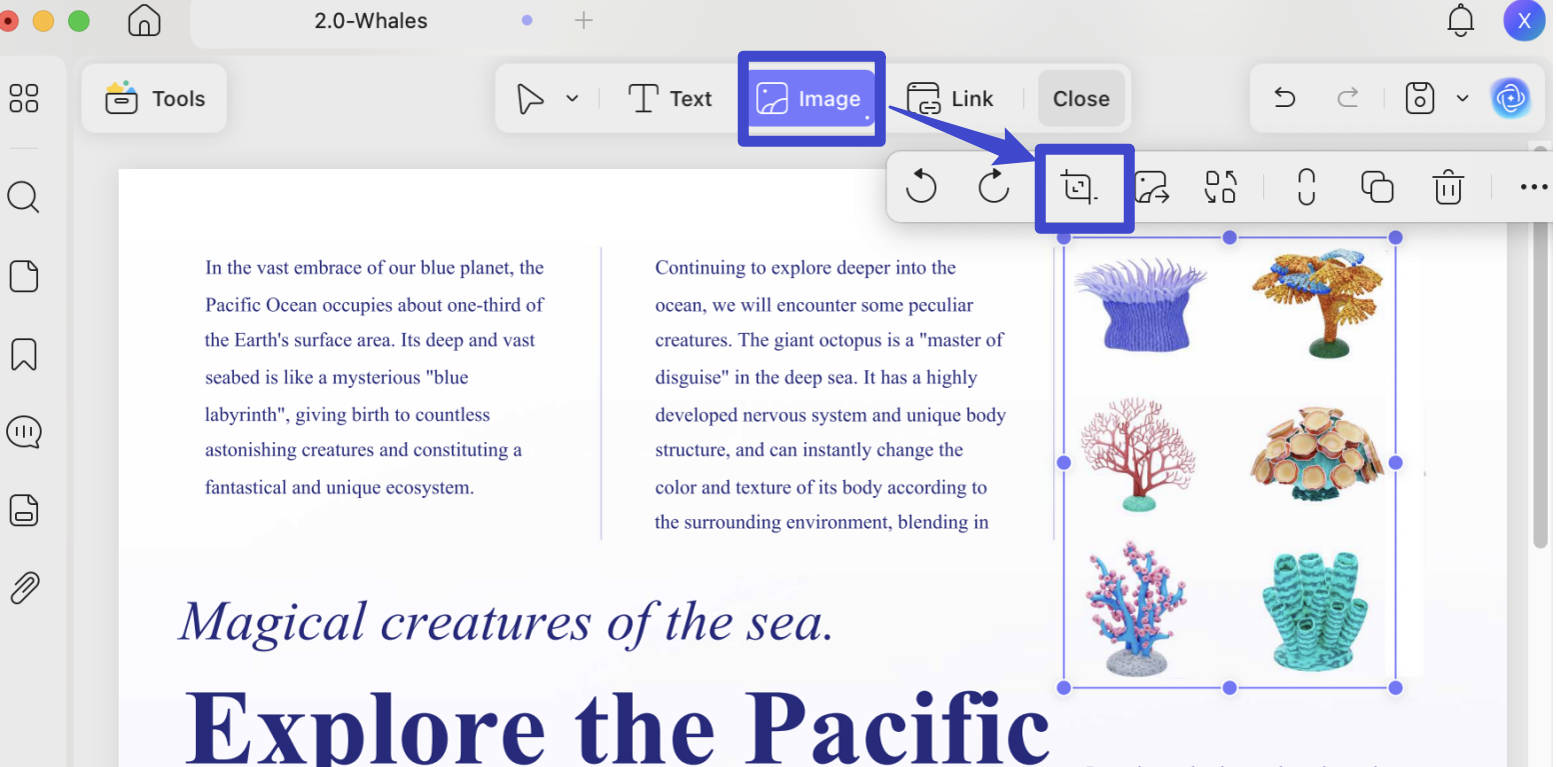
- Alternatively, you can also manually input the width and height to customize the cropping size.
For other object-level changes, see how to edit text and images in a PDF.
Windows • macOS • iOS • Android 100% secure
Part 4: How to Crop a PDF on Mac with Preview
Cropping images in PDF files on a Mac can be easily done using Preview. Here's how:
- Double-click the PDF file. It should open in Preview by default. If it doesn't, right-click the file, choose 'Open With', and select 'Preview'.
- Click on the 'Show Markup Toolbar' button (it resembles a pencil tip) in the toolbar. Then, click on the 'Rectangular Selection' tool.
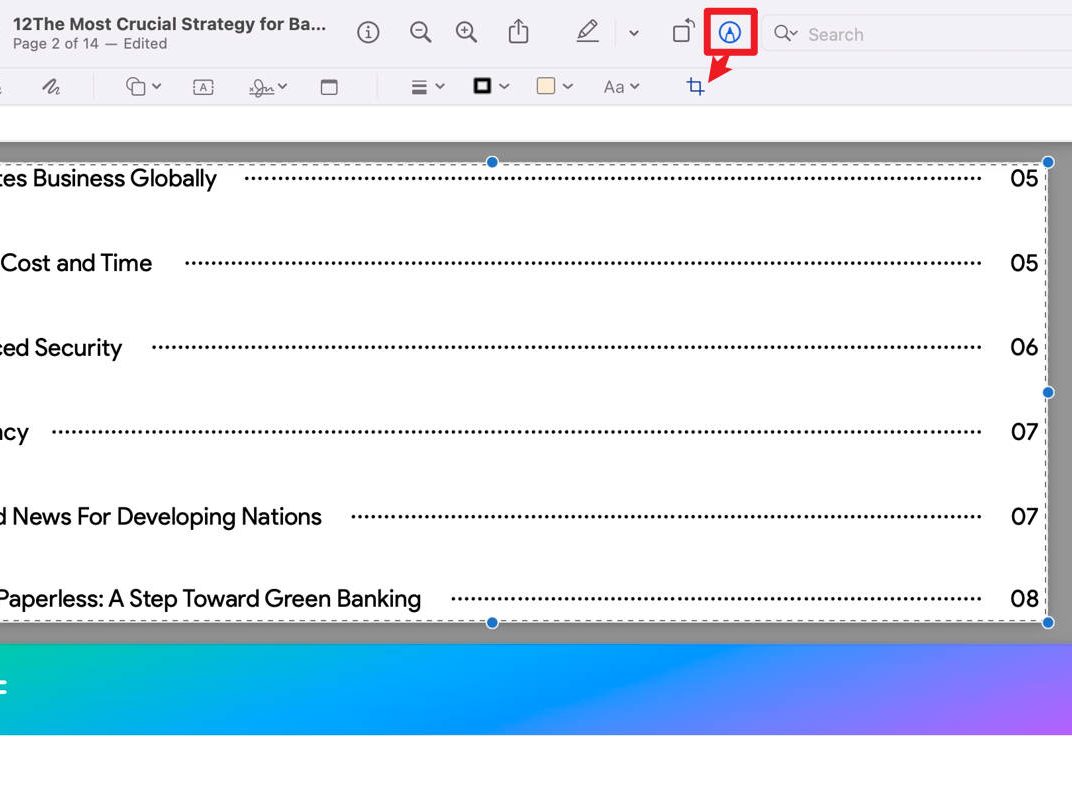
- Click and drag to draw a rectangle over the part of the PDF you want to keep. Be precise, as everything outside this rectangle will be cropped out.
- After making the selection, go to the menu bar, click on 'Tools', and then choose 'Crop' (or simply press Command-K). This action crops the PDF to your selected area.
- You can save the cropped PDF by clicking 'File' and then 'Save'.
Part 5. How to Crop PDF Pages or Pictures with Adobe Acrobat on Mac
Cropping PDF images on a Mac can also be accomplished using Adobe Acrobat. Here are the steps:
- Open your PDF in Adobe Acrobat.
- Select the "Edit PDF" tool to enable image editing features.
- Click on the image you want to crop, and select the "Crop" tool.
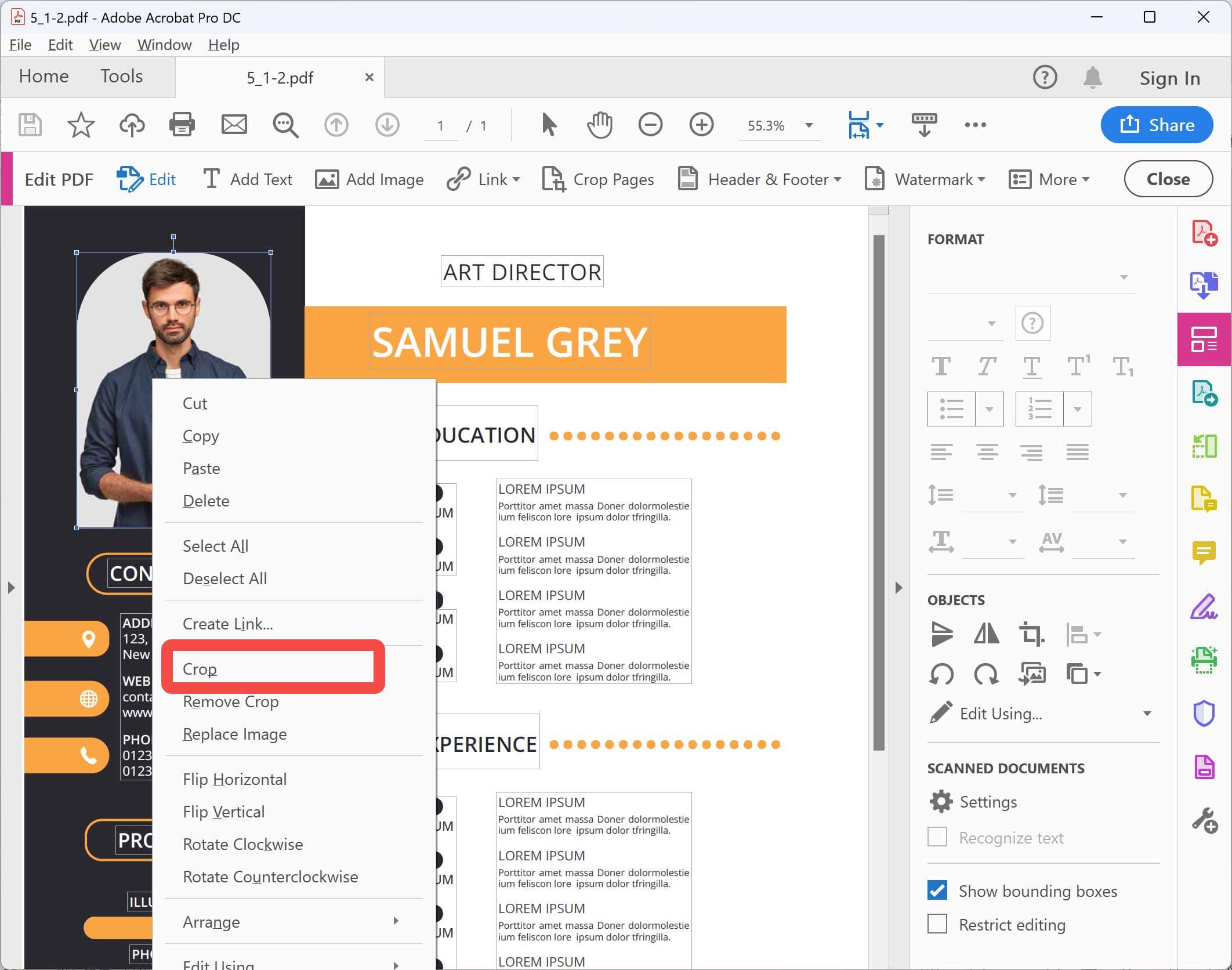
- Drag the cursor to adjust the crop area.
- Save your document to apply the changes.
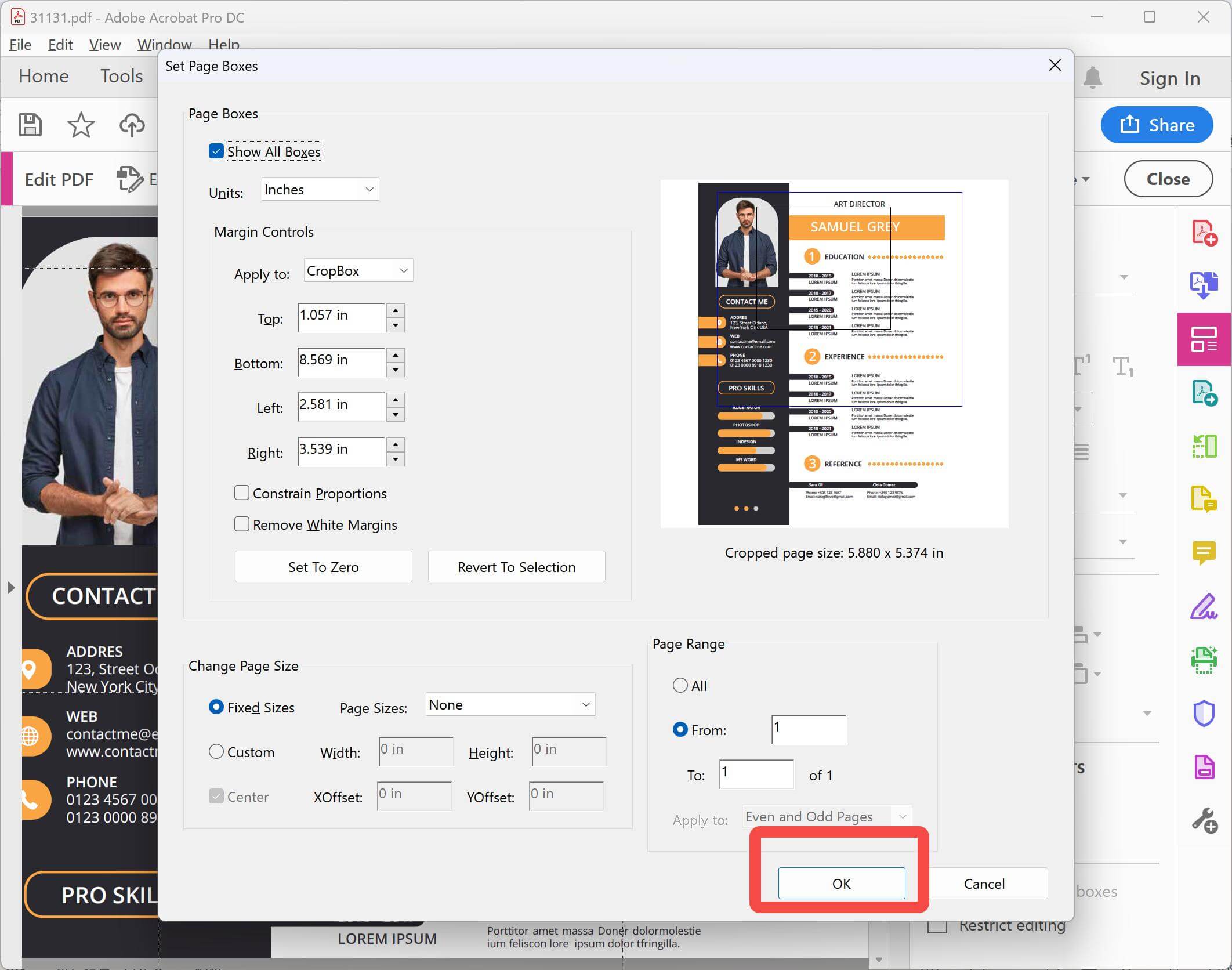
- If you are going to crop the PDF pages, then simply choose "Crop Pages" option, select the area that you want to keep after the cropping.
- Double-click the page to customize the settings. Once done, click "OK" to apply the changes, and then save the cropped PDF.
Part 6. Cropping vs. Redaction vs. Splitting a PDF
These operations solve different problems. Choosing the wrong one can leave data recoverable or produce the wrong page structure.
| Operation | What it changes | Use it when | Do not rely on it for |
|---|---|---|---|
| Crop | The visible page boundary or one image's visible area | Removing margins or trimming composition | Permanently deleting confidential information |
| Redact | The underlying selected content, when properly applied | Removing names, account numbers, or other sensitive data | Merely improving page framing |
| Split pages | One page or document becomes separate pages/files | Separating a two-page scan or dividing a document | Hiding an outer margin |
| Compress | The PDF's storage size | Making a file easier to upload or email | Changing which part of a page is visible |
UPDF provides Split a Page as a separate option in the Mac crop workspace. Use that option—not an ordinary crop—when a scanned book spread needs to become two individual PDF pages. For document-level division, use a dedicated split PDF workflow.
When the content outside a crop box is sensitive, use true PDF redaction for the confidential material. If the goal is specifically to prevent someone from restoring an otherwise acceptable page crop, UPDF's Save as Flatten > Cropped Pages option is designed to flatten cropped-page content. Keep an unflattened archival copy because flattening limits later recovery and editing.
FAQs
Q1: Does cropping a PDF reduce its file size?
Usually, no. A standard page crop often hides content outside the crop box rather than deleting the underlying data. Use a PDF compressor when file size—not page framing—is the actual problem.
Q2: Can I crop a PDF to exact dimensions on a Mac?
Yes, with a PDF editor that supports numeric controls. In UPDF's Mac crop workspace, use the crop-frame, margin, unit, or page-size controls to define the result. Check whether the required measurement describes the visible crop area or the finished paper size before entering the numbers.
Q3: Does cropping change how a PDF prints?
It can change the visible printed area. The printer may still scale the cropped page to fit the selected paper. Confirm the PDF page size, orientation, and print scaling, then print a test page before producing multiple copies.
Conclusion
To crop page margins or apply one crop across several pages, use Tools > Crop in UPDF. To trim only a selectable picture, use Tools > Edit > Crop Image. Preview is suitable for a quick page crop, while Acrobat covers both page and object workflows for users already working in Adobe's editor.
Most importantly, do not confuse a cleaner page boundary with permanent data removal. Save a working copy, inspect every affected page, and redact or flatten content when the hidden area must not be recoverable.
If you want precise page controls and editable-image cropping in one Mac application, download UPDF and try the appropriate workflow on a copy of your PDF.
Windows • macOS • iOS • Android 100% secure



 Enola Miller
 Lizzy Lozano
