 UPDF
UPDF
 UPDF for Windows
 UPDF for Mac
 UPDF for iPhone/iPad
 UPDF for Android
 Nomostar
 UPDF AI Online
 UPDF Sign
 IvyCraft
 Edit PDF
 Annotate PDF
 Create PDF
 PDF Form
 Edit links
 Convert PDF
 OCR
OCR PDF to Word
 PDF to Image
 PDF to Excel
 Organize PDF
 Merge PDF
 Split PDF
 Crop PDF
 Rotate PDF
 Protect PDF
 Sign PDF
 Redact PDF
 Sanitize PDF
 Remove Security
 Read PDF
 UPDF Cloud
 Compress PDF
 Print PDF
 Batch Process
 About UPDF AI
 UPDF AI Solutions
 AI User Guide
 FAQ about UPDF AI
 Summarize PDF
 Translate PDF
 Chat with PDF
 Chat with AI
 Chat with image
 PDF to Mind Map
 Explain PDF
 PDF AI Tools
 Image AI Tools
 AI Chat Tools
 AI Writing Tools
 AI Study Tools
 AI Working Tools
 Other AI Tools
 AI Bookmark Generation
 AI Bookmark Summary
 AI Watermark Generation
 AI Background Generation
 AI Sticker Generation
 AI Stamp Generation
 AI Editing Suite
 UPDF Copilot
 AI Page Management
 AI Semantic Search
 PDF to Word
 PDF to Excel
 PDF to PowerPoint
 Enterprise Solution
 Enterprise Sign
 Enterprise AI
 Enterprise Plan
 Enterprise User Guide
 Enterprise Webinar
 Banking
 Healthcare
 Insurance
 Legal
Legal Manufacturing
 Government
 Researchers & PhDs
 Solopreneurs & Freelancers
 Lawyers & Legal Professionals
 Real Estate Agents & Brokers
 Education Solution
 Customer Stories
 User Guide
 UPDF Tricks
 FAQs
FAQs UPDF Reviews
 Download Center
 Blog
Blog Newsroom
 Tech Spec
 Updates
 UPDF vs. Adobe Acrobat
 UPDF vs. Foxit
 UPDF vs. PDF Expert

Quick Answer:
The important distinction is adding content versus changing existing content. Smallpdf's free editor can place new text and markup on a page, but modifying words already embedded in the PDF is a Pro feature. A scanned PDF adds another step because it needs OCR before its text can be edited.
Windows • macOS • iOS • Android 100% secure
Part 1. Which PDF Editing Workflow Do You Need?
Use this table before uploading a file. It separates jobs that look similar but require different tools or plan levels.
| What you need to do | Best starting point | Important limit |
|---|---|---|
| Add a text box, image, highlight, drawing, or signature | Smallpdf online editor | The new content sits on the PDF; it does not necessarily change existing text |
| Correct words already in a normal PDF | Smallpdf Pro or UPDF | Smallpdf direct text editing is a Pro feature |
| Delete, rotate, duplicate, add, or reorder pages | Smallpdf Organize PDF | Requires uploading the file to a browser-based service |
| Edit text in a scanned PDF | OCR first, then edit | Recognition accuracy depends on scan quality, language, and layout |
| Create or deeply edit interactive form fields | A full PDF editor such as UPDF | Filling a form and designing its fields are different jobs |
| Edit confidential files locally or work without internet | UPDF desktop | A desktop application must be installed |
If your file falls into the last two rows, starting with a local editor avoids an unnecessary upload and keeps editing, OCR, and page management in one application. Download UPDF for free to test the workflow on your own PDF—installation is free, and files saved with the free version carry a trial watermark.
Part 2. What is Smallpdf Editor?
Smallpdf Editor is primarily a web-based PDF editor. You can open it in a browser without installing software and use it to add text, images, shapes, highlights, sticky notes, drawings, and electronic signatures. Smallpdf also connects the editor to tools for conversion, compression, protection, OCR, and page organization.
The web editor works across common desktop and mobile browsers. Smallpdf also offers iOS and Android apps and a Windows desktop application. However, do not assume that every interface has the same features. Smallpdf's current download page lists a narrower Windows desktop toolset, while its macOS desktop app is marked as unsupported as of October 1, 2021. Mac users can still use the browser version.
Is Smallpdf Editor Really Free?
Smallpdf provides free access to many basic tasks with usage limits. A free account can add new text, images, highlights, and drawings and can organize pages. Editing text that already exists in the PDF requires Pro access. Smallpdf currently offers a seven-day Pro trial, so check the live Smallpdf pricing page before subscribing because prices and promotions can change.
This distinction matters when comparing screenshots or reviews: an "Add Text" button does not prove that the free plan can rewrite existing paragraphs.
Part 3. How to Edit PDF in Smallpdf?
Editing in Smallpdf is a very straightforward experience with no complexities. You can add text, images, or freehand drawings anywhere in the PDF document with easily accessible tools. As the online version is super easy to use, so below is the step-by-step guide on how to edit PDF in Smallpdf on a desktop.
Seeing an everyday PDF task is a useful next step after comparing the features. For an on-screen example, watch the walkthrough of editing PDF content in UPDF below.
- Open Smallpdf on your computer and click the “upload" button to upload the PDF document.

- When the file opens, use the top toolbar for "Typing," "Highlighting," or other editing features. Click "Add Text Box” in this example.
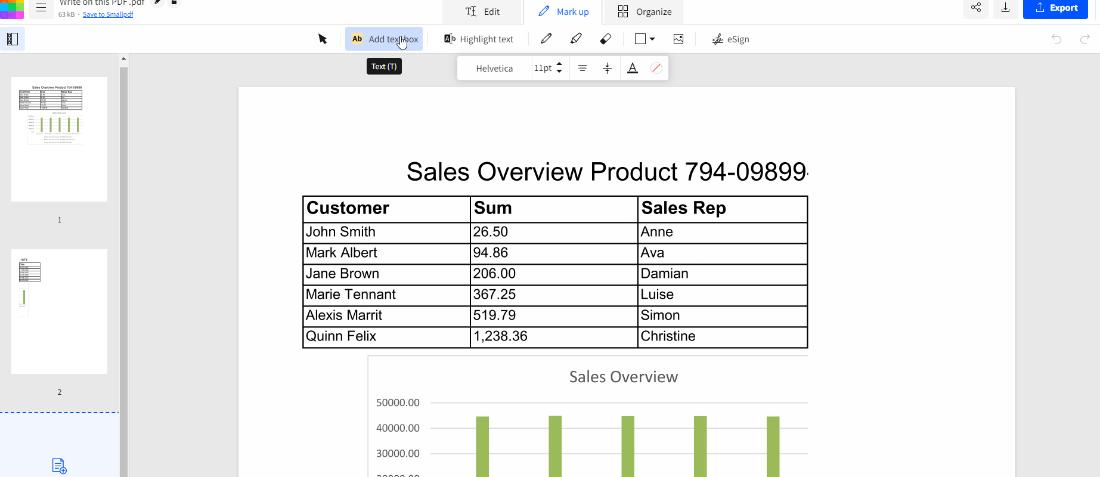
- Click anywhere on the PDF file to add text and start typing.
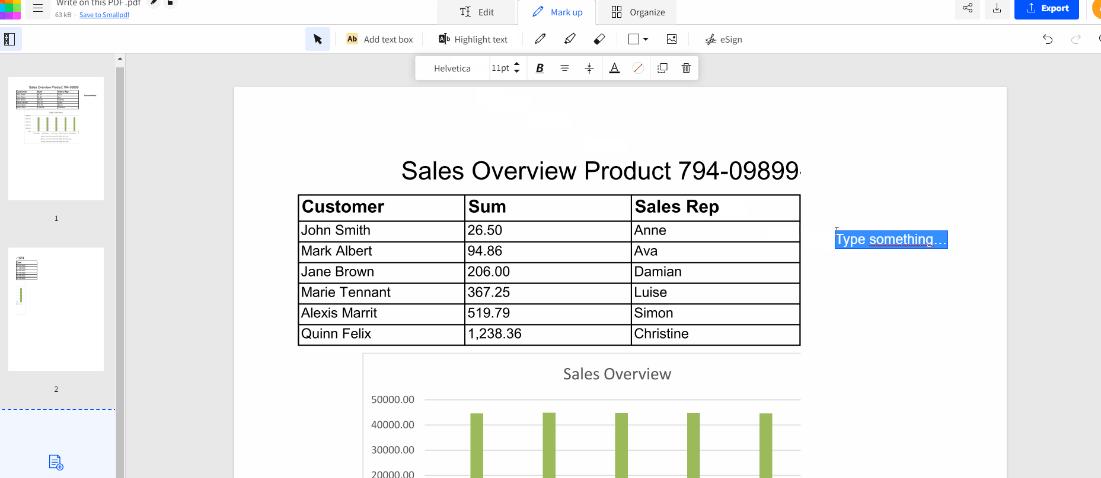
- Navigate to the “Export" button on the top right corner and save your work. Any edits you made to the PDF document will be saved in it now.
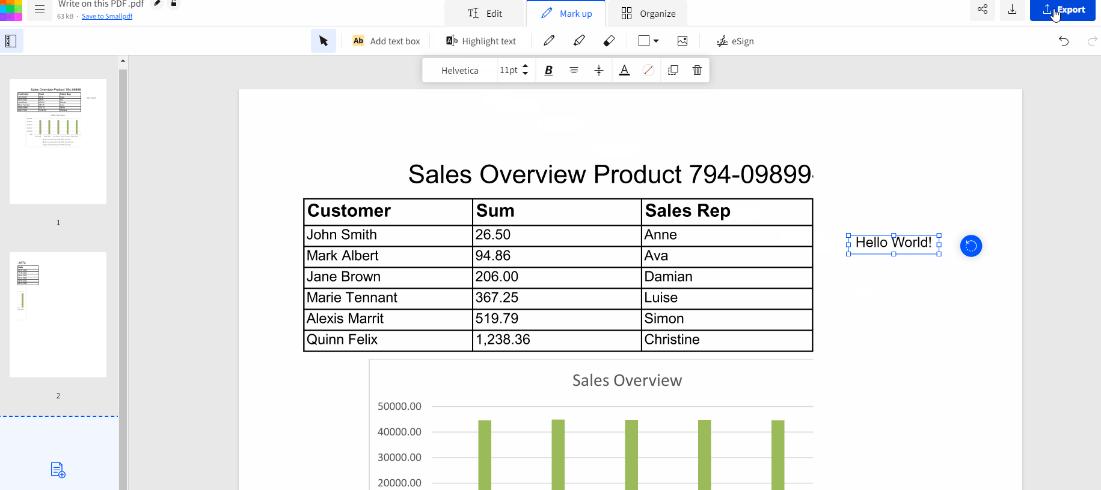
What If the PDF Is Scanned?
If you cannot select the text, the page may be an image rather than a text-based PDF. Run OCR first, then review the recognized text before editing. Smallpdf offers OCR as a Pro feature. For a detailed explanation of recognition and layout risks, see how to make a scanned PDF editable.
Do not skip the review step. OCR can confuse similar characters, miss faint text, or disturb tables and multi-column layouts. Names, dates, totals, and contractual terms need a manual check.
Part 4. How to Delete PDF Pages in Smallpdf
Smallpdf offers an intuitive web-based interface to delete PDF pages.
Follow the below steps to delete PDF pages using Smallpdf:
Step 1. Go to Smallpdf Delete Pages from the PDF webpage.
Step 2. Click "Choose Files" to select and upload the PDF. Alternatively, you can also drag and drop the PDF.
Step 3. Click the "Delete" icon for all the pages you want to delete.
Step 4. Once all the unwanted pages are deleted, click "Finish".
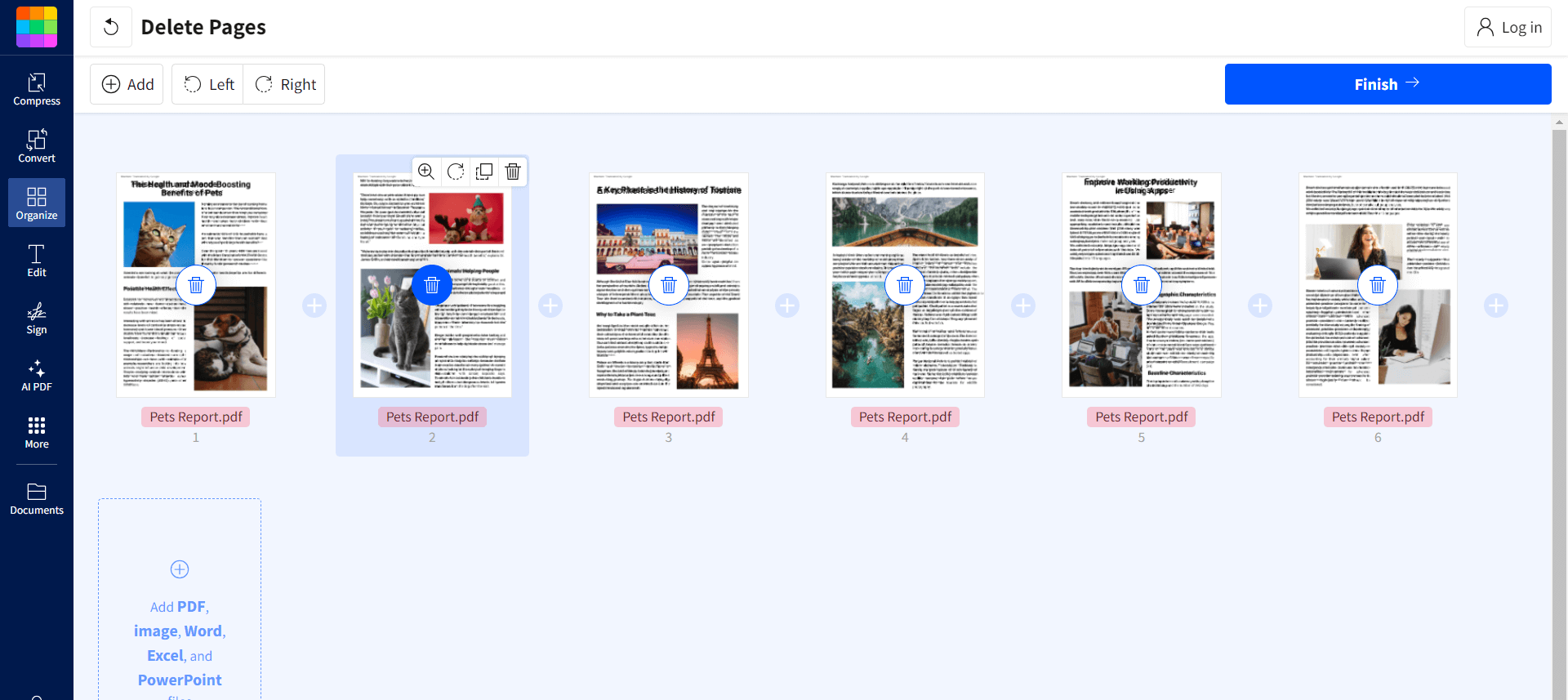
Step 5. Preview the modified file and click the "Download" icon to save the PDF.
This workflow works well for a short report with a few blank, duplicate, or outdated pages. With a long PDF, verify page numbers before deletion and keep an untouched original because removing the wrong page can break references, bookmarks, or a table of contents.
Part 5. When UPDF Is a Better Smallpdf Alternative
Smallpdf is strongest for quick browser tasks. UPDF is a better fit when the job begins to look like document production rather than a one-time markup: changing existing text repeatedly, working with images and links, applying OCR and then correcting the result, organizing many pages, or editing without a browser upload.
Edit and Organize the PDF Locally With UPDF
- Open the PDF in UPDF on Windows or Mac.
- Choose Edit PDF to change existing text, images, or links.
- If the document is scanned, run OCR, select the correct document language, and inspect the recognized result.
- Open Organize Pages to insert, replace, extract, split, rotate, reorder, or delete pages.
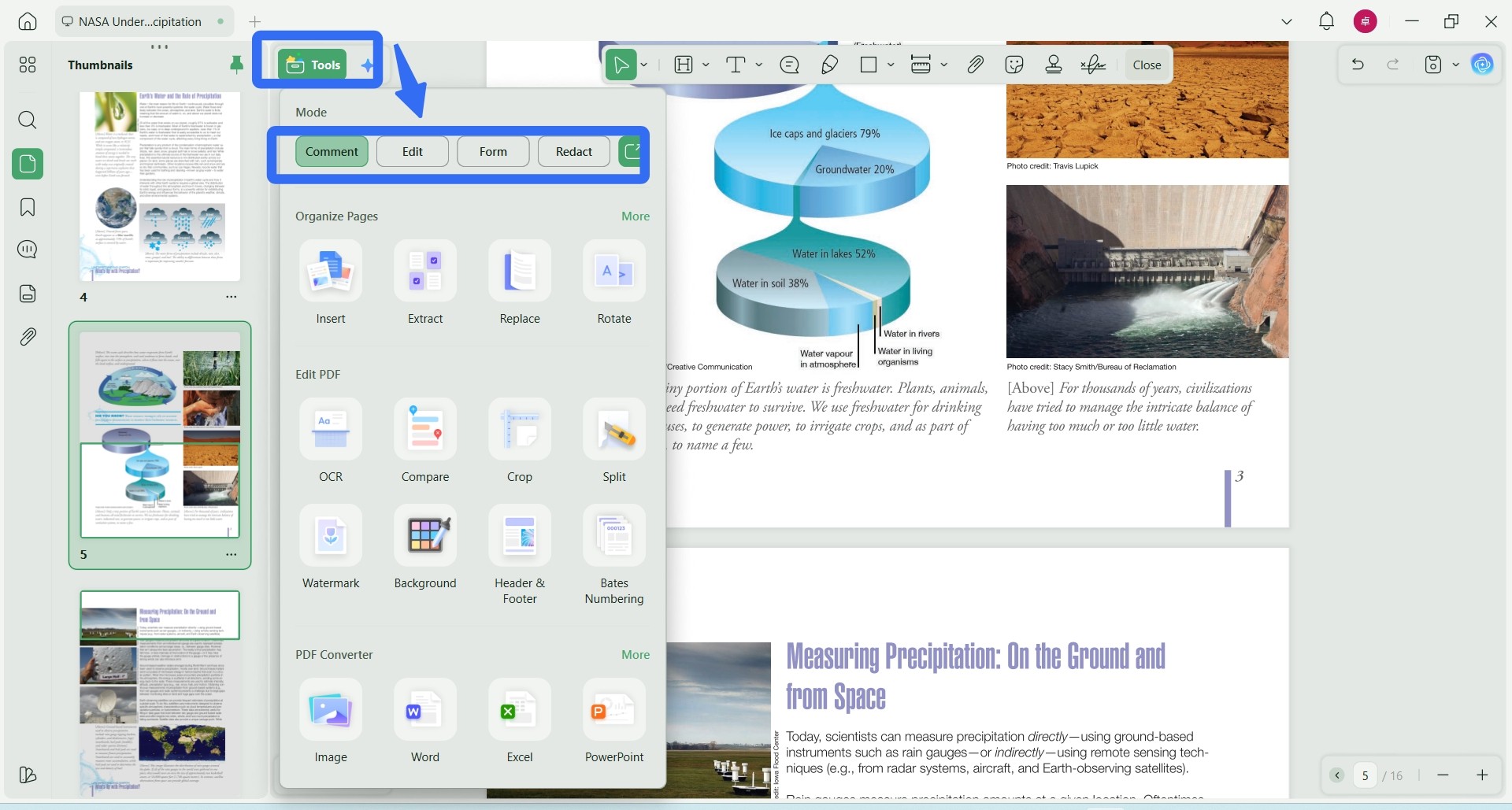
- Save a new copy so the original remains available for comparison.
To explore the document tools further, see the demonstration of organizing PDF pages in UPDF below.
If you need to test these page controls on a long document, download UPDF for free and open a copy of the file locally—installation is free, and files saved with the free version carry a trial watermark.
Windows • macOS • iOS • Android 100% secure
FAQs
Q1: Can I cancel a Smallpdf free trial before being charged?
Yes, Smallpdf says you can cancel during the trial. After cancellation, the account returns to the Free plan when the seven-day trial ends. Confirm the renewal date in your account and keep the cancellation confirmation.
Q2: Does Smallpdf work on Mac without an app?
Yes, the web editor works in a Mac browser. Smallpdf's download page marks its native macOS desktop app as unsupported since October 1, 2021, so current Mac workflows should normally use the website or a different maintained desktop editor.
Q3: Can Smallpdf edit a password-protected PDF?
Only after the relevant restriction is removed. You need the password or authorization to unlock the document. A certified or digitally signed PDF may also show that later edits have changed the signed content.
Conclusion
Smallpdf Editor is a sensible choice for a quick online edit, annotation, signature, or page cleanup. Its current Organize PDF tool is especially useful because it can delete, rotate, duplicate, reorder, and add pages without the older Merge-only workaround.
Choose carefully when the task involves existing text, scans, confidential files, or repeated editing. Existing-text editing and OCR are Pro functions, browser tools require an upload, and Smallpdf's native-app capabilities differ by platform. For regular local work that combines text editing, OCR, and page management, UPDF provides the more cohesive path.
If that matches your workflow, download UPDF for free and test it with a copy of your PDF—installation is free, and files saved with the free version carry a trial watermark.
Windows • macOS • iOS • Android 100% secure





 Lizzy Lozano
 Engelbert White
 Enrica Taylor