 UPDF
 UPDF for Windows
 UPDF for Mac
 UPDF for iPhone/iPad
 UPDF for Android
 Nomostar
 UPDF AI Online
 UPDF Sign
 IvyCraft
 Edit PDF
 Annotate PDF
 Create PDF
 PDF Form
 Edit links
 Convert PDF
 OCR
 PDF to Word
 PDF to Image
 PDF to Excel
 Organize PDF
 Merge PDF
 Split PDF
 Crop PDF
 Rotate PDF
 Protect PDF
 Sign PDF
 Redact PDF
 Sanitize PDF
 Remove Security
 Read PDF
 UPDF Cloud
 Compress PDF
 Print PDF
 Batch Process

 About UPDF AI
 UPDF AI Solutions
 AI User Guide
 FAQ about UPDF AI
 Summarize PDF
 Translate PDF
 Chat with PDF
 Chat with AI
 Chat with image
 PDF to Mind Map
 Explain PDF
 PDF AI Tools
 Image AI Tools
 AI Chat Tools
 AI Writing Tools
 AI Study Tools
 AI Working Tools
 Other AI Tools
 AI Bookmark Generation
 AI Bookmark Summary
 AI Watermark Generation
 AI Background Generation
 AI Sticker Generation
 AI Stamp Generation
 AI Editing Suite
 UPDF Copilot
 AI Page Management
 AI Semantic Search
 PDF to Word
 PDF to Excel
 PDF to PowerPoint
 Enterprise Solution
 Enterprise Sign
 Enterprise AI
 Enterprise Plan
 Enterprise User Guide
 Enterprise Webinar
 IT
 Education
 Construction
 Financial Service
 Healthcare
 Insurance
 Legal
 Manufacturing
 Government
 Researchers & PhDs
 Solopreneurs & Freelancers
 Lawyers & Legal Professionals
 Real Estate Agents & Brokers
 Education Solution
 Customer Stories
 User Guide
 UPDF Tricks
 FAQs
 UPDF Reviews
 Download Center
 Blog
 Newsroom
 Tech Spec
 Updates
 UPDF vs. Adobe Acrobat
 UPDF vs. Foxit
 UPDF vs. PDF Expert


Quick Answer:
“Convert PDF” can describe two opposite tasks: exporting an existing PDF or creating a PDF from another file. Check your starting file first, then choose the output according to what you need to do next.
This guide focuses on exporting PDFs on Mac. It links to format-specific tutorials where you need more detailed settings.
Part 1. What Are You Converting?
| Starting file | What you need | Route |
|---|---|---|
| Editable paragraphs | Export to Word | |
| Spreadsheet data | Export to Excel | |
| Presentation slides | Export to PowerPoint | |
| Page images | Export to JPEG or PNG | |
| Plain text or web output | Text or HTML export | |
| Word, presentations, images, or another supported source | A PDF | Mac PDF creation guide |
If your question is “how do I make this file a PDF?”, start with creating a PDF on Mac. If you are still choosing software, compare PDF converters for Mac.
Part 2. Export a PDF to Another Format on Mac
Windows • macOS • iOS • Android 100% secure
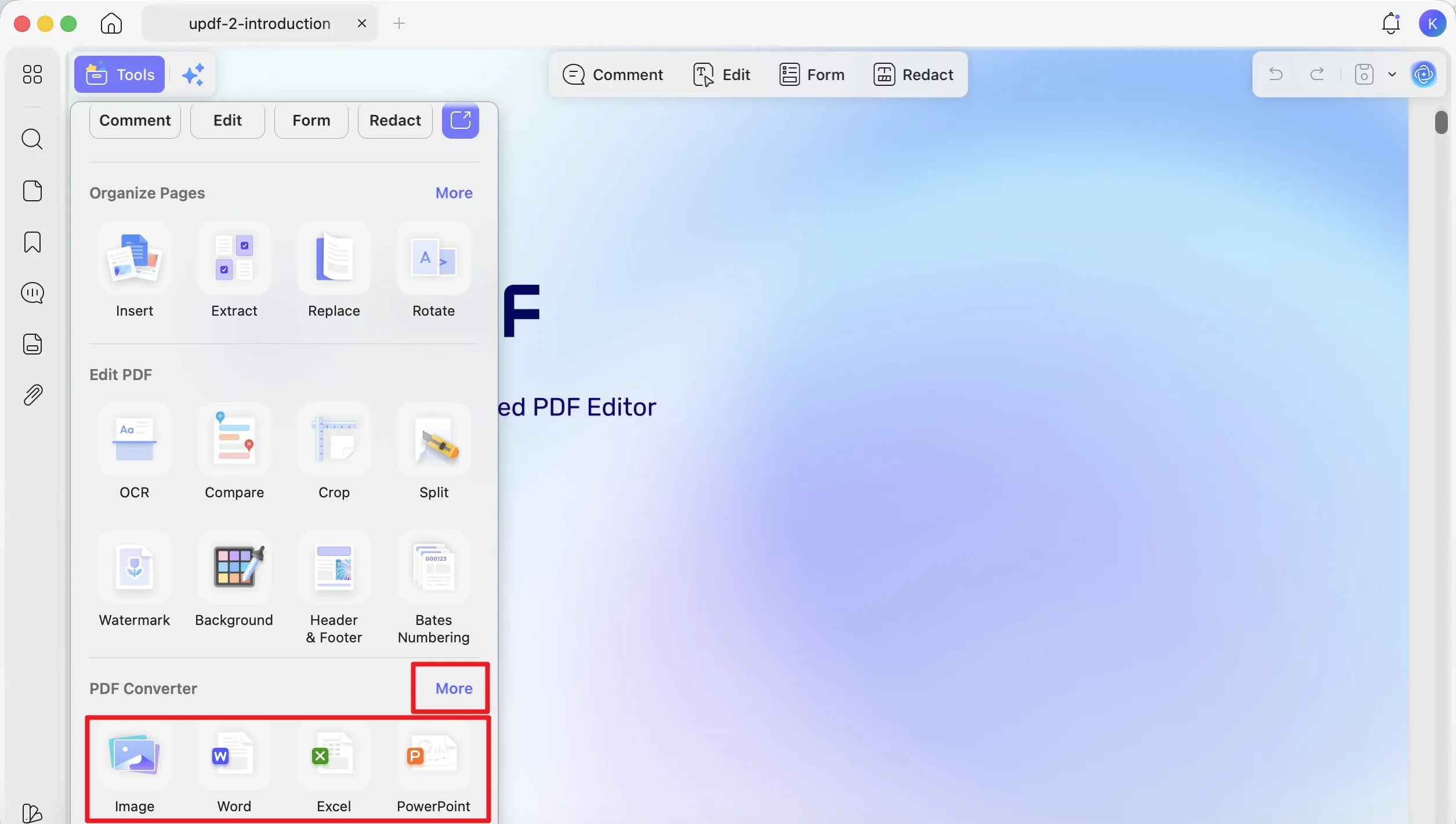
- Open the PDF in UPDF.
- Open Tools and select the destination under PDF Converter. Use More if needed.
- Review the page range and format-specific settings.
- Click Convert and choose the output location.
- Open the result in its destination application and inspect it.
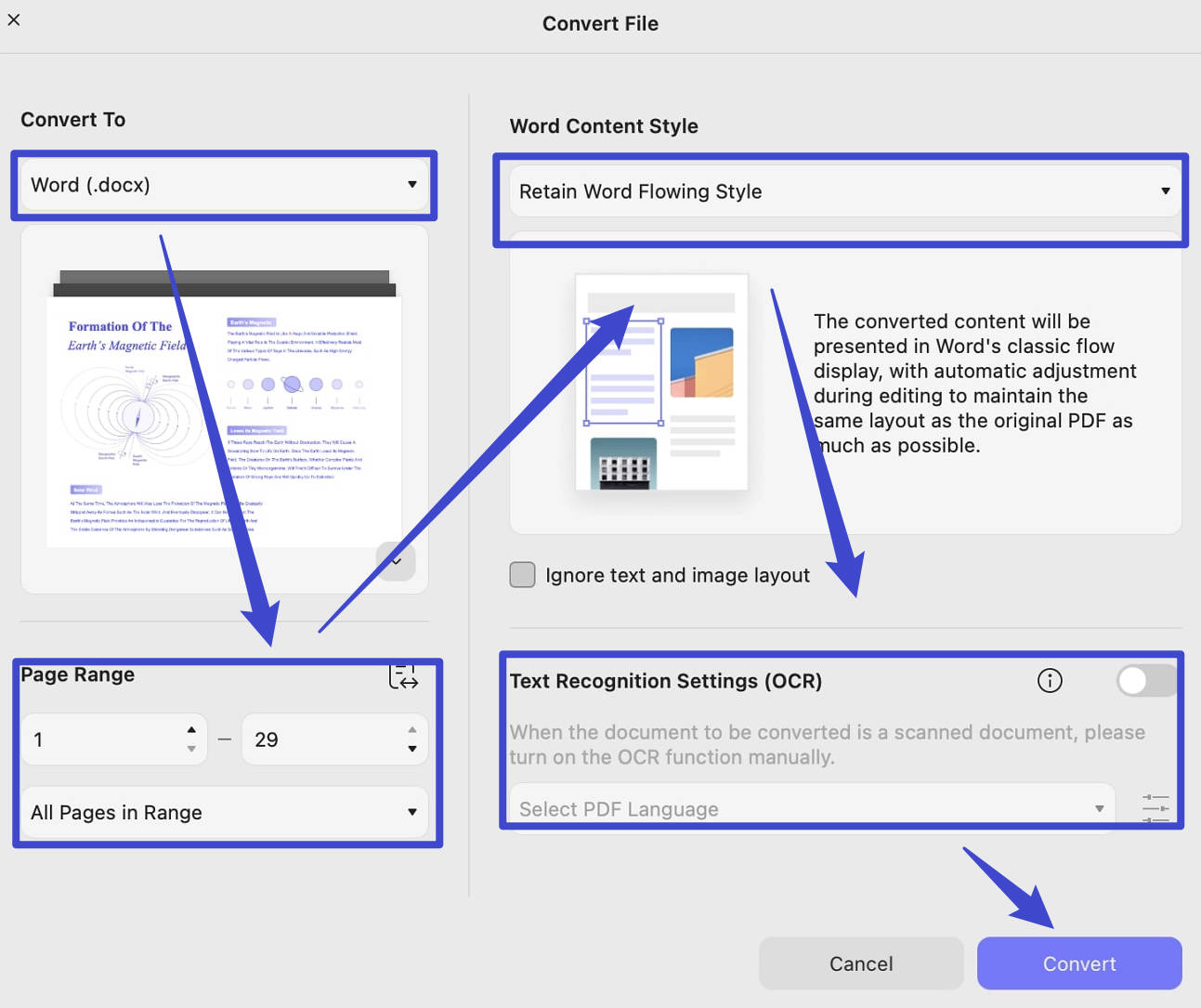
Conversion is a starting point, not proof that every paragraph, table, or graphic transferred correctly.
- Word: Choose it for continued writing. Check reading order, paragraph breaks, and whether the text is practical to edit.
- Excel: Choose it for tables. Check column boundaries, numeric values, dates, and worksheet arrangement. See PDF to Excel on Mac for detailed settings.
- PowerPoint: Decide whether the output needs editing or primarily reproduces the page appearance.
- Images: Choose complete page images, a long image, or embedded-picture extraction according to the deliverable. See converting PDF to JPG on Mac.
Other documented Mac exports include CSV, RTF, text, XML, and HTML. The current image choices include PNG, JPEG, TIFF, and GIF.
The retained video introduces PDF export in UPDF.
Download UPDF for free to try the required output on a representative PDF. Check the result before processing the complete document.
Windows • macOS • iOS • Android 100% secure
Part 3. Need to Turn Another File into a PDF?
If your source is a Word document, spreadsheet, presentation, or image, you need PDF creation rather than PDF export. UPDF can create PDFs from supported source files through drag-and-drop or its creation tools.
macOS also provides Print > PDF > Save as PDF in applications that support printing.
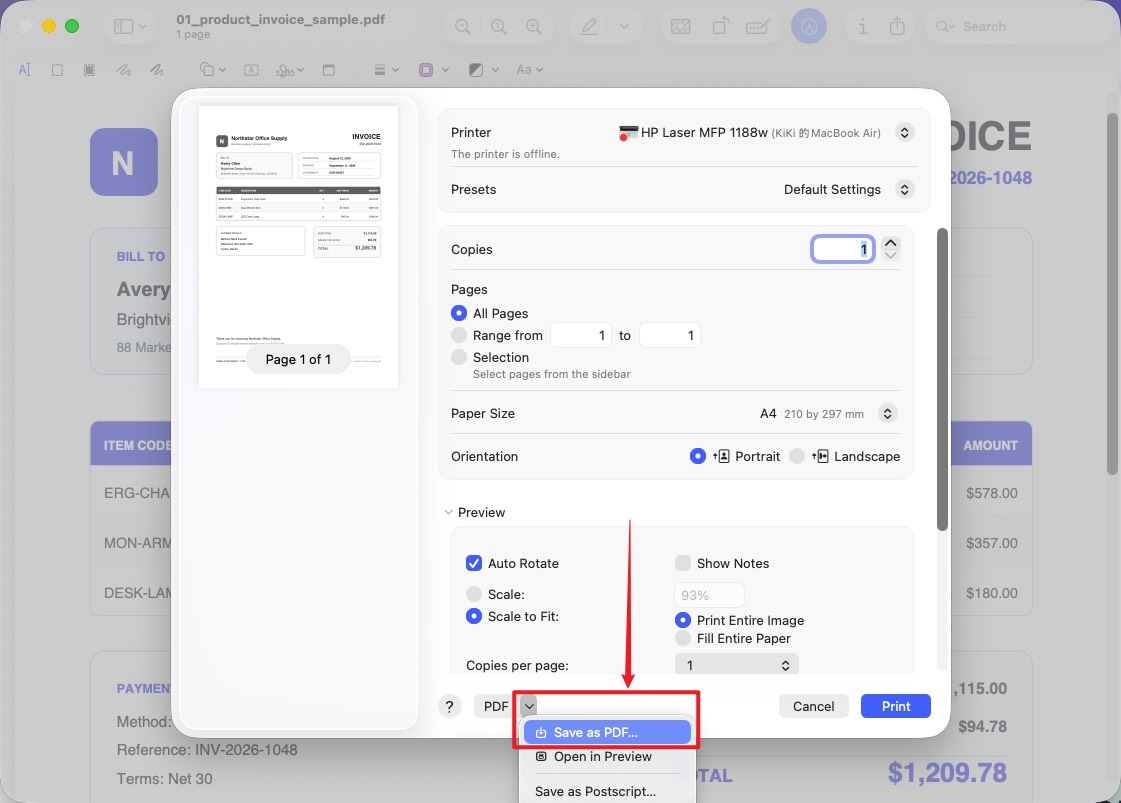
Follow How to Create a PDF on Mac for blank pages, source-file conversion, and separate or combined batch output. Keeping those steps in one guide makes choosing the correct creation method easier.
Part 4. Convert Several PDFs in a Batch
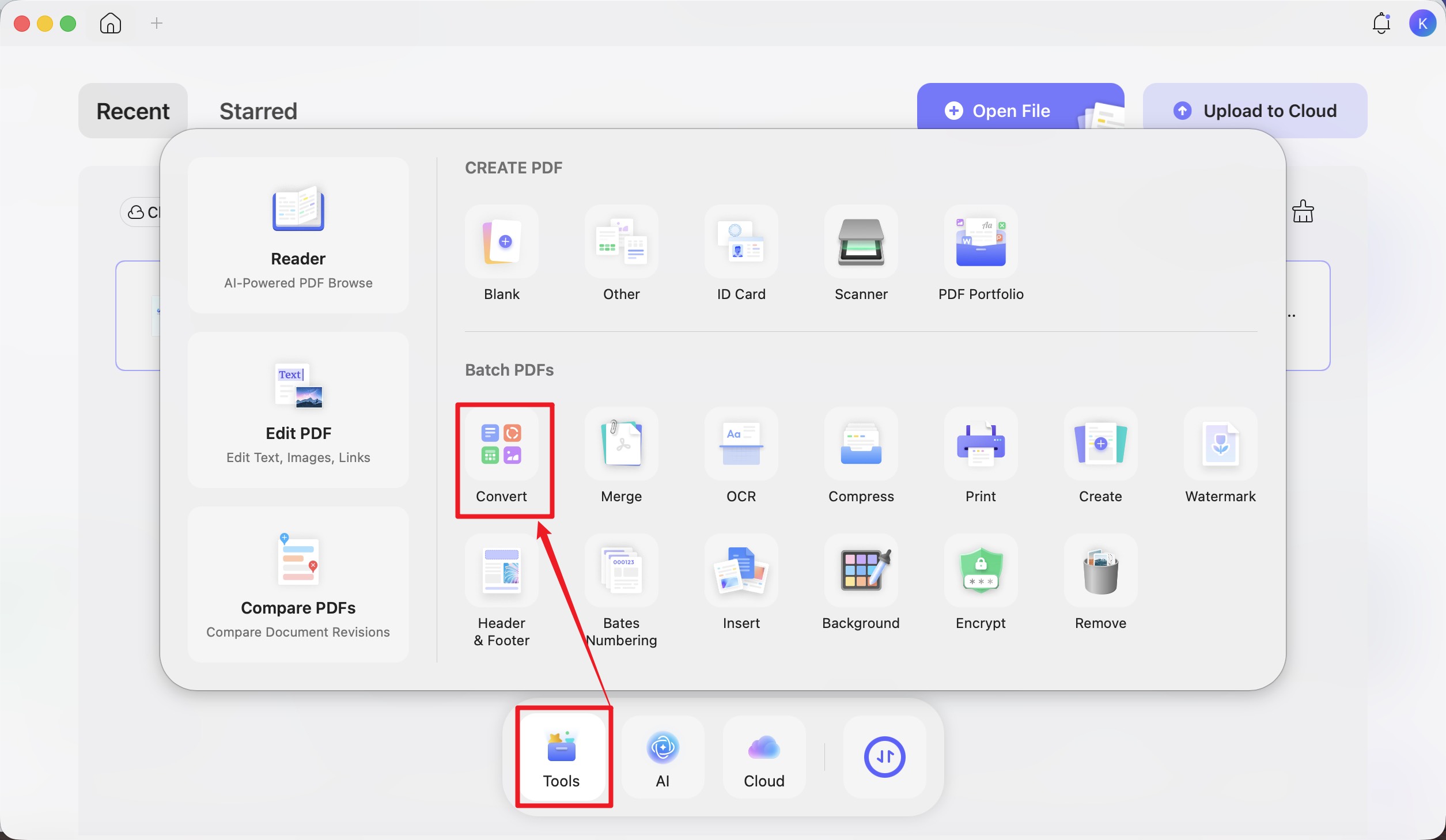
- From UPDF’s home screen, open Tools > Convert under Batch PDFs.
- Add the PDFs or a folder.
- Select the output format and review the available settings.
- Click Apply and choose the destination folder.
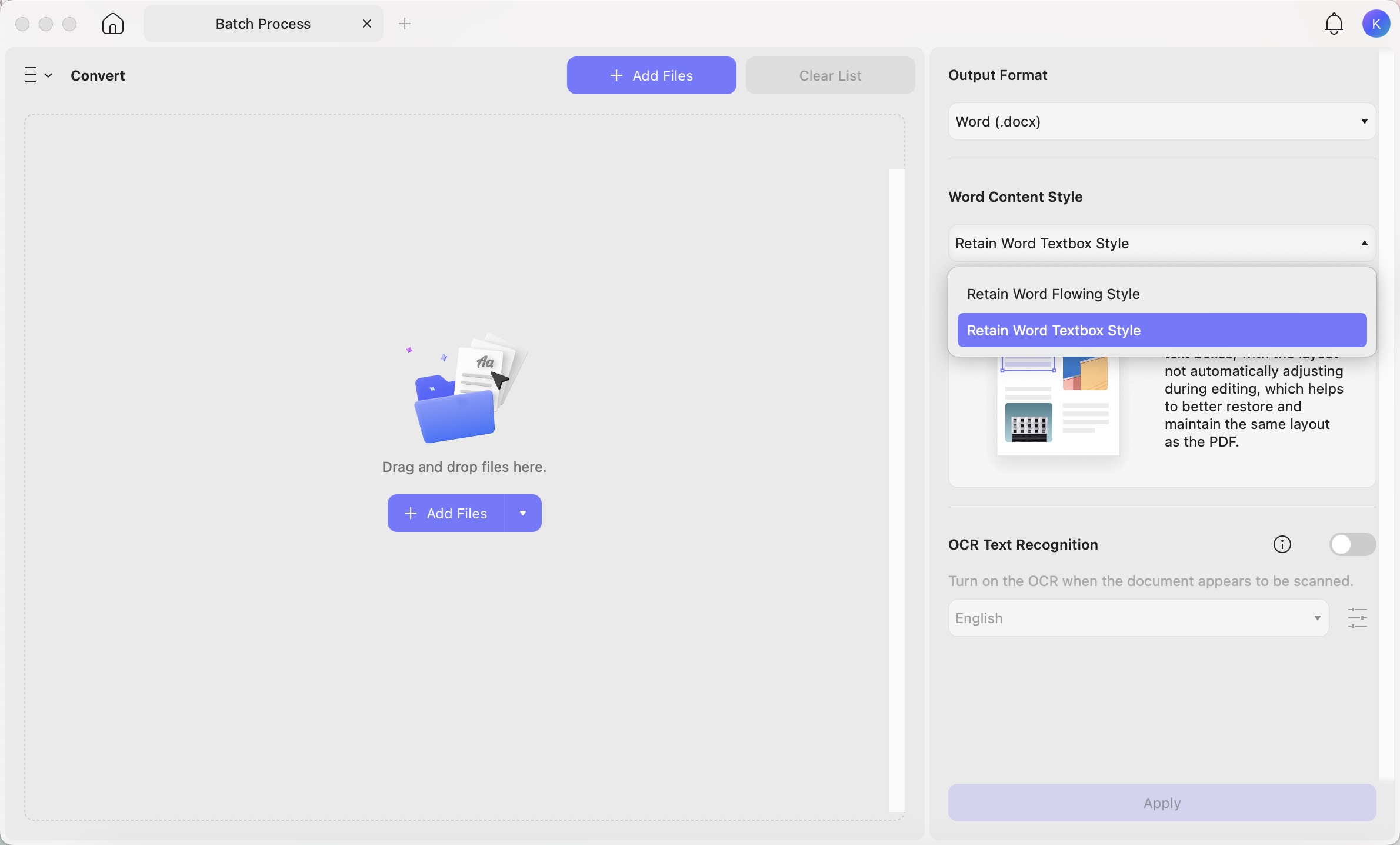
Example: If several reports need Word copies, test one representative report first. After the batch finishes, verify that every input produced its expected output.
Batch Convert exports existing PDFs. Batch Create generates PDFs from other source files; do not interchange them.
Download UPDF for free to test the workflow. For regular larger batches, review current free limits and Pro plans. Pro removes trial watermarks from exported files.
Windows • macOS • iOS • Android 100% secure
Part 5. Check the Converted File Before Sharing
Check the output according to its purpose: Word reading order and editable paragraphs; Excel values and table boundaries; PowerPoint slide order and placement; image coverage, file count, dimensions, and readability.
Keep the original PDF until the converted file has been reviewed. If a result needs substantial correction, revisit the source and conversion settings before repeating a large batch.
Part 6. FAQs
1. Can I convert a PDF by renaming its file extension?
No. Renaming a .pdf file to .docx or .jpg changes its name, not its format. Use an export operation to create a valid destination file.
2. Will an exported Word file preserve a PDF digital signature?
No. The exported document is a separate file and does not carry the original PDF’s certificate-based signature validation. Keep the signed PDF when authenticity must be checked.
3. Does turning PDF pages into images remove sensitive information?
No. Visible content remains readable and can be recognized with OCR. Conversion is not a substitute for proper redaction; inspect the final output before sharing it.
Conclusion
Choose the direction first: export an existing PDF, or create a PDF from another source. For PDF export, select the format that supports the next editing or sharing task, test a representative page, and inspect the result.
Explore UPDF PDF conversion tools for supported workflows, or download UPDF for free to try the output you need.
Windows • macOS • iOS • Android 100% secure



 Enola Miller
 Enola Davis

 Lizzy Lozano

 Enid Brown