 UPDF
UPDF
 UPDF for Windows
 UPDF for Mac
 UPDF for iPhone/iPad
 UPDF for Android
 Nomostar
 UPDF AI Online
 UPDF Sign
 IvyCraft
 Edit PDF
 Annotate PDF
 Create PDF
 PDF Form
 Edit links
 Convert PDF
 OCR
OCR PDF to Word
 PDF to Image
 PDF to Excel
 Organize PDF
 Merge PDF
 Split PDF
 Crop PDF
 Rotate PDF
 Protect PDF
 Sign PDF
 Redact PDF
 Sanitize PDF
 Remove Security
 Read PDF
 UPDF Cloud
 Compress PDF
 Print PDF
 Batch Process
 About UPDF AI
 UPDF AI Solutions
 AI User Guide
 FAQ about UPDF AI
 Summarize PDF
 Translate PDF
 Chat with PDF
 Chat with AI
 Chat with image
 PDF to Mind Map
 Explain PDF
 PDF AI Tools
 Image AI Tools
 AI Chat Tools
 AI Writing Tools
 AI Study Tools
 AI Working Tools
 Other AI Tools
 AI Bookmark Generation
 AI Bookmark Summary
 AI Watermark Generation
 AI Background Generation
 AI Sticker Generation
 AI Stamp Generation
 AI Editing Suite
 UPDF Copilot
 AI Page Management
 AI Semantic Search
 PDF to Word
 PDF to Excel
 PDF to PowerPoint
 Enterprise Solution
 Enterprise Sign
 Enterprise AI
 Enterprise Plan
 Enterprise User Guide
 Enterprise Webinar
 Banking
 Healthcare
 Insurance
 Legal
Legal Manufacturing
 Government
 Researchers & PhDs
 Solopreneurs & Freelancers
 Lawyers & Legal Professionals
 Real Estate Agents & Brokers
 Education Solution
 Customer Stories
 User Guide
 UPDF Tricks
 FAQs
FAQs UPDF Reviews
 Download Center
 Blog
Blog Newsroom
 Tech Spec
 Updates
 UPDF vs. Adobe Acrobat
 UPDF vs. Foxit
 UPDF vs. PDF Expert

Quick answer:
Pages files (.pages) only open cleanly on Apple devices, so the moment you send one to a Windows colleague, an Android phone, or upload it to a portal that expects PDF, it either fails to open or shows up as a garbled folder. Converting to PDF fixes that. Below are three free methods that work entirely on your iPhone, and a short section on editing the PDF once it's created — because a converted file you can't correct is only half the job.
Part 1. Which method should you use?
| What you're dealing with | Method | Best for |
|---|---|---|
| A normal Pages doc you just need as a shareable PDF | Export (built-in) | Fastest, most reliable; preserves fonts and layout |
| You need to pick a page range or drop pages before saving | Print / Share sheet | Trimming a long document down before exporting |
Pages app isn't installed, or you only have the .pages file | CloudConvert (online) | Converting without the Pages app; uploads to a server |
Part 2. Method 1: Convert Pages to PDF with the Export Option
The Export option is built into the Pages app and is Apple's recommended way to produce a PDF. It renders the document exactly as Pages displays it, so fonts, images, and column layouts carry over cleanly.
Step 1. Open the Pages app and tap your document to open it.
Step 2. Tap the three-dot menu (⋯) in the top-right corner, then choose Export.
Step 3. Select PDF from the format list.
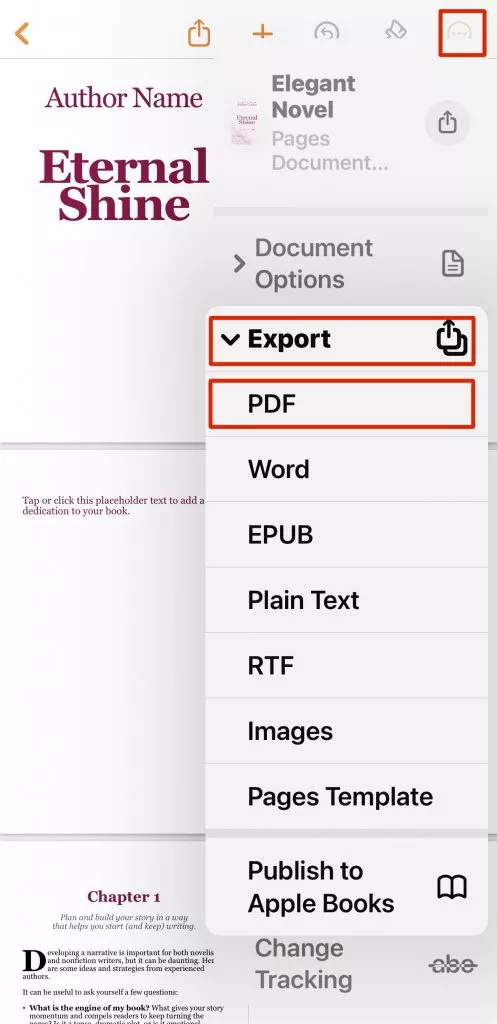
Step 4. On the Share sheet that appears, tap Save to Files, pick a folder, and tap Save.
Best for:
- any everyday Pages document you need as a clean, share-ready PDF.
Not for:
- when you only want part of a long document — for that, use the Print method below to select a page range first.
Part 3. Method 2: Convert Pages to PDF with the Print / Share Sheet
If you want to drop the last few pages of a report or export only a section, the Print route lets you narrow the page range before saving. It relies on iOS's built-in "print to PDF" behavior, which lives inside the Share sheet rather than as an obvious button.
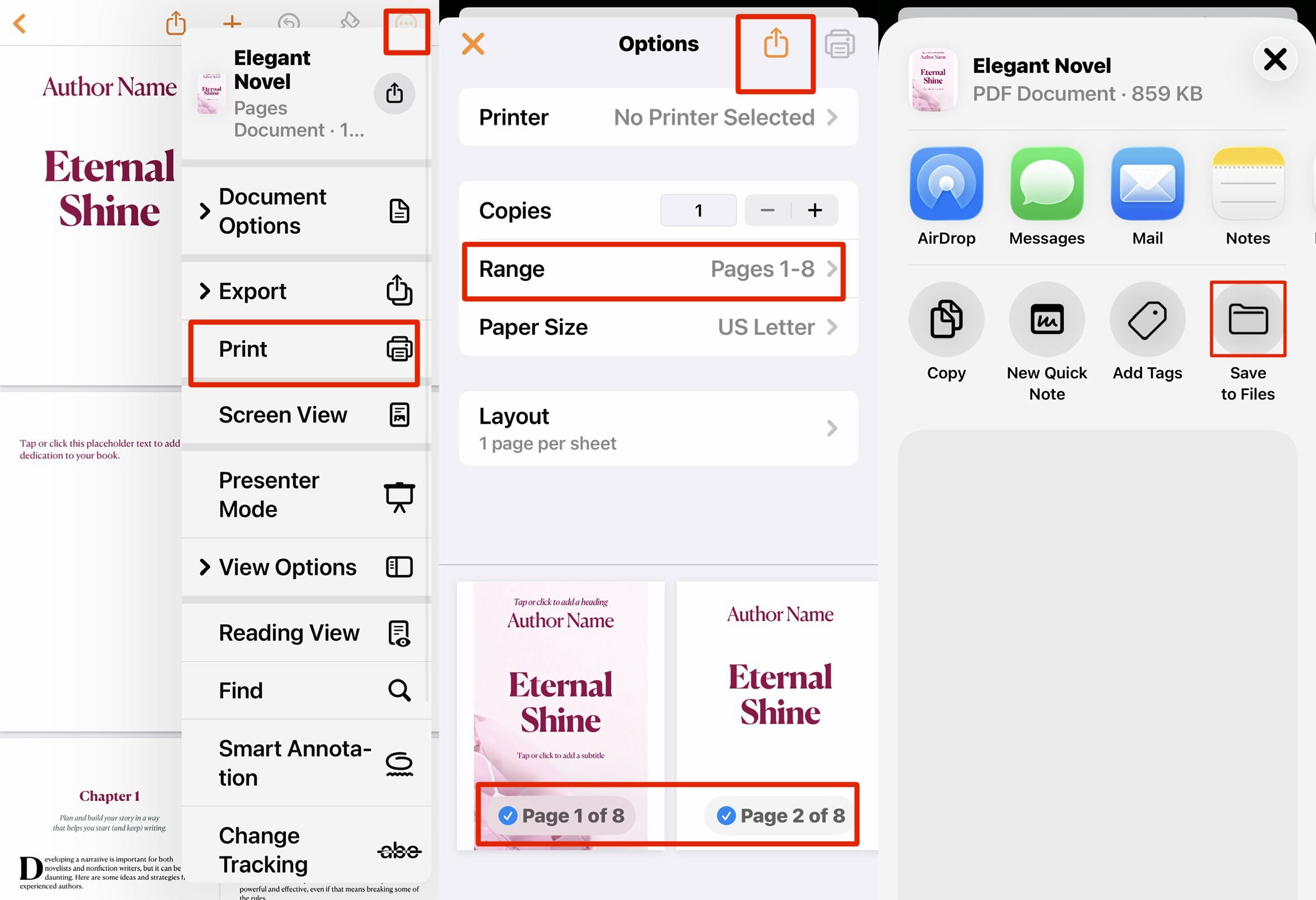
Step 1. Open your document in Pages, tap the three-dot menu (⋯), and choose Print.
Step 2. In the print preview, set the page range to just the pages you want. (Options here are limited to range and basic layout — Pages does not expose color or margin controls in this view.)
Step 3. Tap the Share icon at the top right, then choose Save to Files to store the PDF on your iPhone.
Best for:
- exporting a specific page range from a long document.
Not for:
- exact layout fidelity on design-heavy files — the print engine re-renders pages and can shift spacing, so use Export (Method 1) when the layout must match precisely.
Part 4. Method 3: Convert Pages to PDF Online with CloudConvert
If the Pages app isn't installed — say, someone AirDropped you a .pages file and you don't own the app — an online converter like CloudConvert handles it from any browser, including Safari and Chrome.
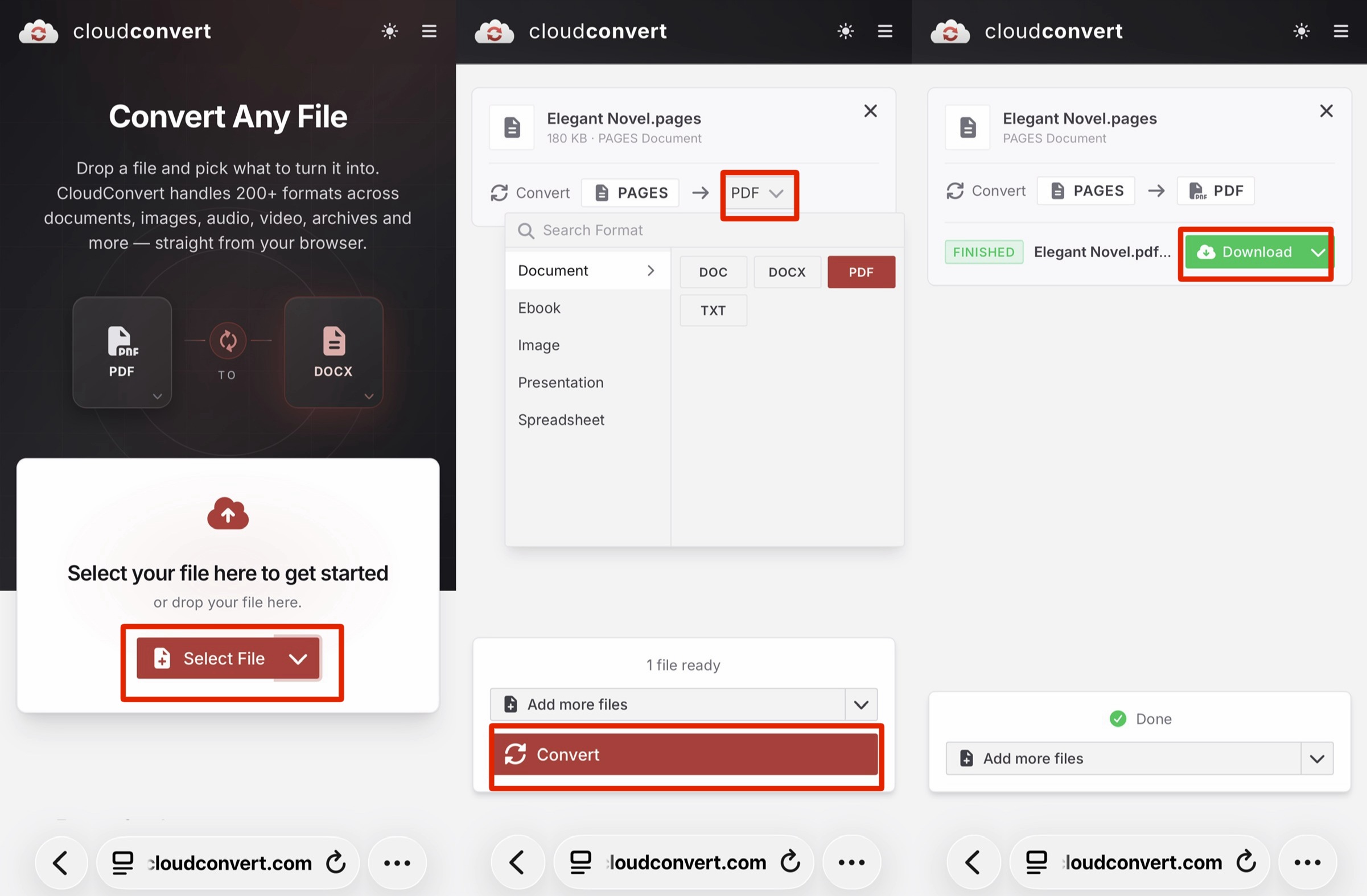
Step 1. Open CloudConvert in your iPhone browser and tap the Select File option to choose your Pages document.
Step 2. Tap the Select Format dropdown, choose PDF.
Step 3. Tap Convert. When processing finishes, tap Download to save the PDF.
Privacy note: CloudConvert uploads your file to its servers to convert it. It's based in Germany, GDPR-compliant, encrypts transfers, and deletes uploaded files automatically within 72 hours — but for confidential contracts, IDs, or medical forms, the on-device Export method (Method 1) is the safer choice because the file never leaves your iPhone. The free tier gives 10 conversion credits per day with no account required.
Best for:
- converting a
.pagesfile when you don't have the Pages app.
Not for:
- sensitive documents you'd rather not upload — keep those on-device with Method 1.
Part 5. How to Edit the Converted PDF on iPhone with UPDF
Converting to PDF often exposes a typo, a wrong figure, or a stray image you now need to fix — but PDFs aren't editable the way the original Pages file was. UPDF for iOS lets you edit the converted PDF directly on your iPhone: change existing text, swap an image, or add a note, without going back to Pages and re-exporting.
Windows • macOS • iOS • Android 100% secure
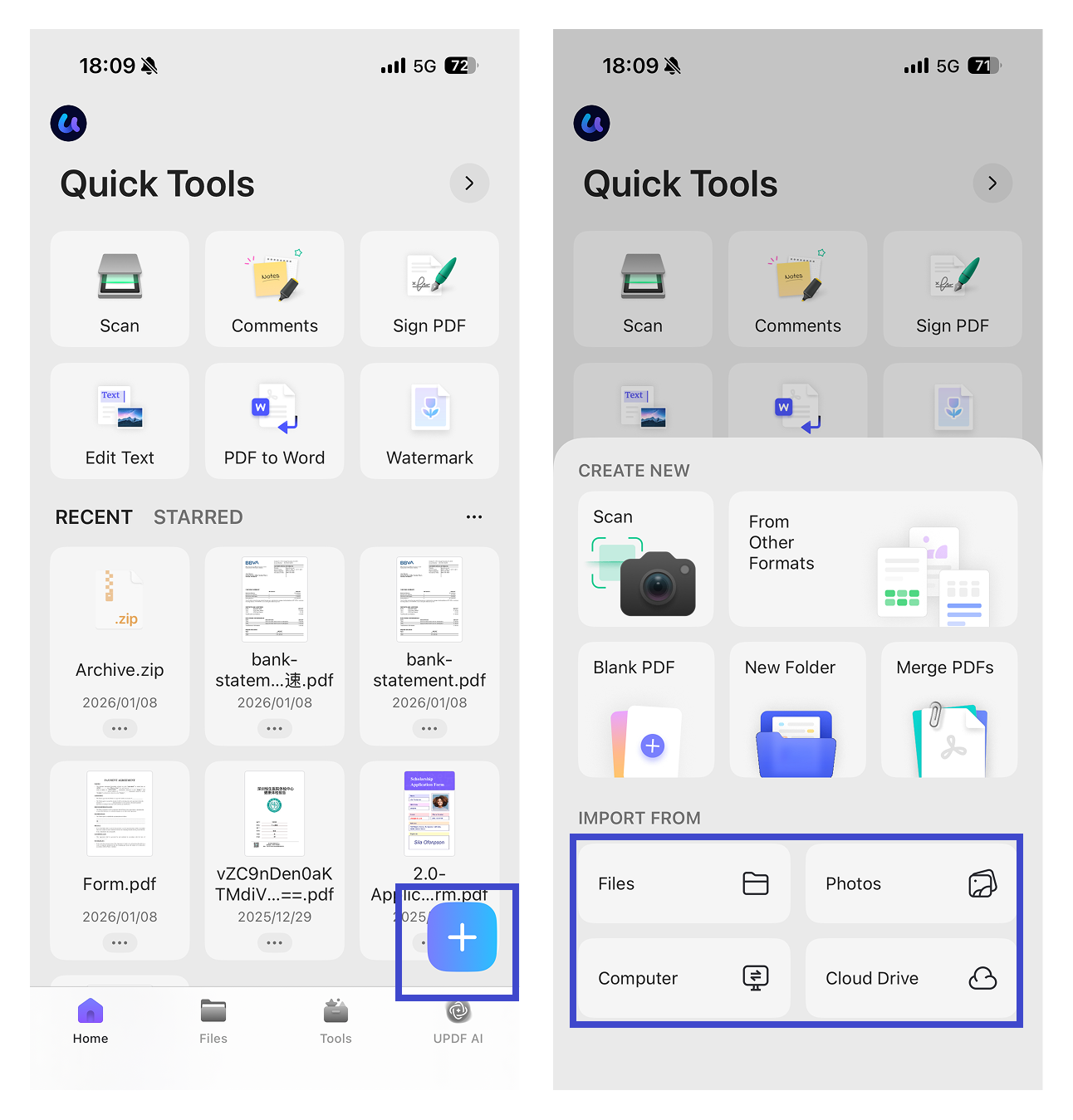
Step 1. Open UPDF, tap the + icon, and choose Files to import your converted PDF.
Step 2. Tap the Edit icon, then tap any text block and choose Edit to delete, replace, or retype it. Use Properties to adjust size, font, color, and alignment.
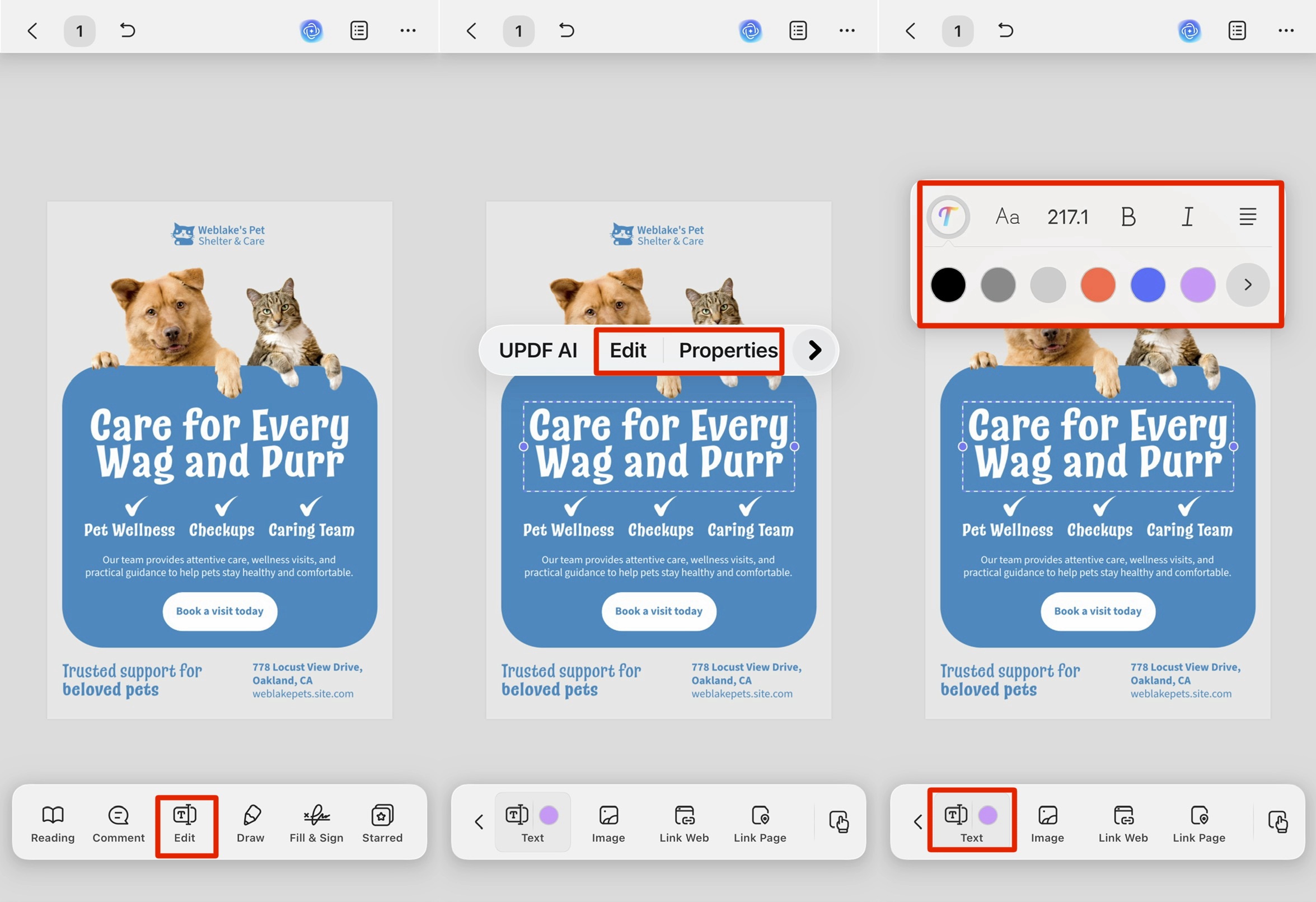
Step 3. To add something new, tap the T icon for a text box or the Image icon to insert a photo from Photos, Files, Scan, or Camera.
The same UPDF license works on Mac, Windows, iPad, and Android, so a PDF you fix on your phone opens with full editing rights on your laptop. UPDF is free to install and edit with; exported files carry a trial watermark until you upgrade to Pro, which starts at US$49.99/year (or US$79.99 one-time for the lifetime license). If you regularly convert Pages documents and then need to correct them, download UPDF for free and try editing a converted PDF on your own file — installation takes under a minute, and Pro features unlock when you need watermark-free export.
Windows • macOS • iOS • Android 100% secure
Part 6. Edge Cases: When the Standard Method Fails
The
.pagesfile won't open at all. If tapping the file does nothing, it may be a.pagespackage exported from an old Mac version. Rename it by adding.zipand unzip it — the PDF preview inside often works as a quick stand-in — or open it in Pages on a Mac and re-export.
Fonts look different in the PDF. This happens when the Pages document uses a font that isn't installed system-wide; Pages substitutes it during Export. Embed or replace the font before converting, or switch to a standard system font for text that must render identically everywhere.
"Save to Files" doesn't appear on the Share sheet. Scroll the Share sheet's app row all the way left and tap More to enable Files, or update to a current iOS version — the option is hidden when Files access is toggled off.
The exported PDF is locked or password-protected. A Pages document with a set password carries that protection into the PDF, so recipients get an "enter password" prompt. Remove the password in Pages (⋯ → Set Password → off) before exporting if the PDF should open freely.
Part 7. FAQs
1. Does converting Pages to PDF change the formatting?
The Export method preserves it. Export renders the PDF from Pages' own layout engine, so fonts, images, and spacing match the original — as long as the fonts are available on the device. The Print method re-renders page by page and can shift spacing on complex layouts, so use Export when fidelity matters.
2. Can I convert several Pages files to PDF at once on iPhone?
Not in the Pages app — Export handles one document at a time. For batch conversion, CloudConvert's paid plans support multiple files per job, or convert on a Mac where Pages supports selecting several documents and exporting together.
3. Can I turn a PDF back into an editable Pages file?
Pages can open a PDF, but it imports it as an image on a page rather than editable text, so you can't reflow it. To edit the content, open the PDF in UPDF for iOS and edit the text directly instead of converting back to Pages.
Conclusion
Three free routes convert a Pages file to PDF on iPhone: the built-in Export option (fastest and most layout-faithful), the Print / Share sheet (for selecting a page range), and CloudConvert online (for when the Pages app isn't installed). Once the PDF exists, UPDF for iOS lets you fix text, swap images, or add content directly on your phone — with the same license carrying over to Mac, Windows, iPad, and Android. Download UPDF for free to try editing a converted PDF on your file — installation is free, and Pro features are available when you need watermark-free export or advanced tools.
Windows • macOS • iOS • Android 100% secure




 Lizzy Lozano
 Enrica Taylor

 Enola Davis