 UPDF
UPDF
 UPDF for Windows
 UPDF for Mac
 UPDF for iPhone/iPad
 UPDF for Android
 Nomostar
 UPDF AI Online
 UPDF Sign
 IvyCraft
 Edit PDF
 Annotate PDF
 Create PDF
 PDF Form
 Edit links
 Convert PDF
 OCR
OCR PDF to Word
 PDF to Image
 PDF to Excel
 Organize PDF
 Merge PDF
 Split PDF
 Crop PDF
 Rotate PDF
 Protect PDF
 Sign PDF
 Redact PDF
 Sanitize PDF
 Remove Security
 Read PDF
 UPDF Cloud
 Compress PDF
 Print PDF
 Batch Process
 About UPDF AI
 UPDF AI Solutions
 AI User Guide
 FAQ about UPDF AI
 Summarize PDF
 Translate PDF
 Chat with PDF
 Chat with AI
 Chat with image
 PDF to Mind Map
 Explain PDF
 PDF AI Tools
 Image AI Tools
 AI Chat Tools
 AI Writing Tools
 AI Study Tools
 AI Working Tools
 Other AI Tools
 AI Bookmark Generation
 AI Bookmark Summary
 AI Watermark Generation
 AI Background Generation
 AI Sticker Generation
 AI Stamp Generation
 AI Editing Suite
 UPDF Copilot
 AI Page Management
 AI Semantic Search
 PDF to Word
 PDF to Excel
 PDF to PowerPoint
 Enterprise Solution
 Enterprise Sign
 Enterprise AI
 Enterprise Plan
 Enterprise User Guide
 Enterprise Webinar
 IT
IT Education
 Construction
 Financial Service
 Healthcare
 Insurance
 Legal
Legal Manufacturing
 Government
 Researchers & PhDs
 Solopreneurs & Freelancers
 Lawyers & Legal Professionals
 Real Estate Agents & Brokers
 Education Solution
 Customer Stories
 User Guide
 UPDF Tricks
 FAQs
FAQs UPDF Reviews
 Download Center
 Blog
Blog Newsroom
 Tech Spec
 Updates
 UPDF vs. Adobe Acrobat
 UPDF vs. Foxit
 UPDF vs. PDF Expert

PDF form text fields are typically set to single-line mode. That means no matter how much text you type, it only displays on one line. To make text automatically wrap to the next line, the form needs a setting called Multi-line enabled.
The catch? This setting usually can only be changed by the person who created the form. If you're just filling it out, you probably don't have permission to modify it.
This guide covers everything you need to know about wrapping text in PDF fillable forms—whether you're the form designer who can fix it permanently, or the form filler who just needs to get the job done today.
If you're the form designer, UPDF offers the fastest way to enable Multi-line — we'll walk you through it in Part 2. If you're the filler, skip ahead to Part 1 for free workarounds.
Part 1. Form Filler: Why Text Won't Wrap and How to Fix It
Before you download anything, identify which of these three situations matches yours:
| Symptom | Cause | Your Control Level |
|---|---|---|
| Text types in one line and disappears past the box edge | The field is set to Single-Line by the designer | None — you cannot change this without an editor |
| Text types in one line but you can press Enter to manually break lines | The field is Multi-Line but Do Not Scroll is off; your reader supports manual breaks | Partial — you can work around it |
| Text wraps visually while you type, but prints as a single line | Your PDF reader renders wrapping on screen but does not embed it in the saved file | High — switch readers |
Quick Fixes (No Paid Software Required)
Fix 1: Press Enter Manually
Some multi-line fields do not auto-wrap, but they accept manual line breaks. Press Enter (or Return on Mac) where you want the line to break. If the cursor moves to a new line inside the box, the field supports multi-line input — it just lacks auto-wrap.
Fix 2: Shrink Your Font Size
If the field is single-line and locked, reduce your font size so more characters fit. In most PDF readers, select the text and press Ctrl + - (Windows) or Cmd + - (Mac). This does not solve wrapping, but it prevents text from being cut off.
Fix 3: Fill the Form in a Different Reader
Browser-based PDF viewers (Chrome, Edge, Safari) have notoriously poor form support. They often ignore multi-line settings and may not save entered text correctly. Download the file and open it in Adobe Acrobat Reader (free) or UPDF before filling.
Windows • macOS • iOS • Android 100% secure
Fix 4: If Nothing Works, Ask for a New Form
If the field is fundamentally single-line, no reader trick will enable wrapping. Contact the form sender and request a multi-line version, or use a PDF editor to modify the field yourself (see Part 2).
Part 2. Form Designer: How to Enable Text Wrapping in Fillable Fields
If you are creating a fillable PDF or editing the form, you can set the correct field behavior so fillers never face the overflow problem. Then choose a reader or platform is necessary.
| Reader / Platform | Multi-line Support | Auto-Wrap | Save Preserves Wrap | Notes |
|---|---|---|---|---|
| Adobe Acrobat Pro (~$240 per year) | ✅ Full | ✅ Yes | ✅ Yes | The gold standard for testing |
| UPDF (Win/Mac) ($94.99 for lifetime license) | ✅ Full | ✅ Yes | ✅ Yes | Offers the same functionality but at one-fifth the price of Adobe |
| Chrome / Edge Built-in | ⚠️ Partial | ❌ No | ❌ Often fails | Avoid for forms |
| Firefox Built-in | ⚠️ Partial | ❌ No | ❌ Often fails | Avoid for forms |
| Safari (Mac) | ⚠️ Partial | ❌ No | ❌ Often fails | Avoid for forms |
| Mac Preview | ❌ None | ❌ No | ❌ N/A | Cannot fill multi-line fields reliably |
Key Rule for Designers: Always test your multi-line form in Adobe Acrobat Reader (free) before distributing. If it works there, it will work for 95% of your recipients. If it only works in your premium editor, your fillers will suffer.
Method 1: Using UPDF (Windows & Mac)
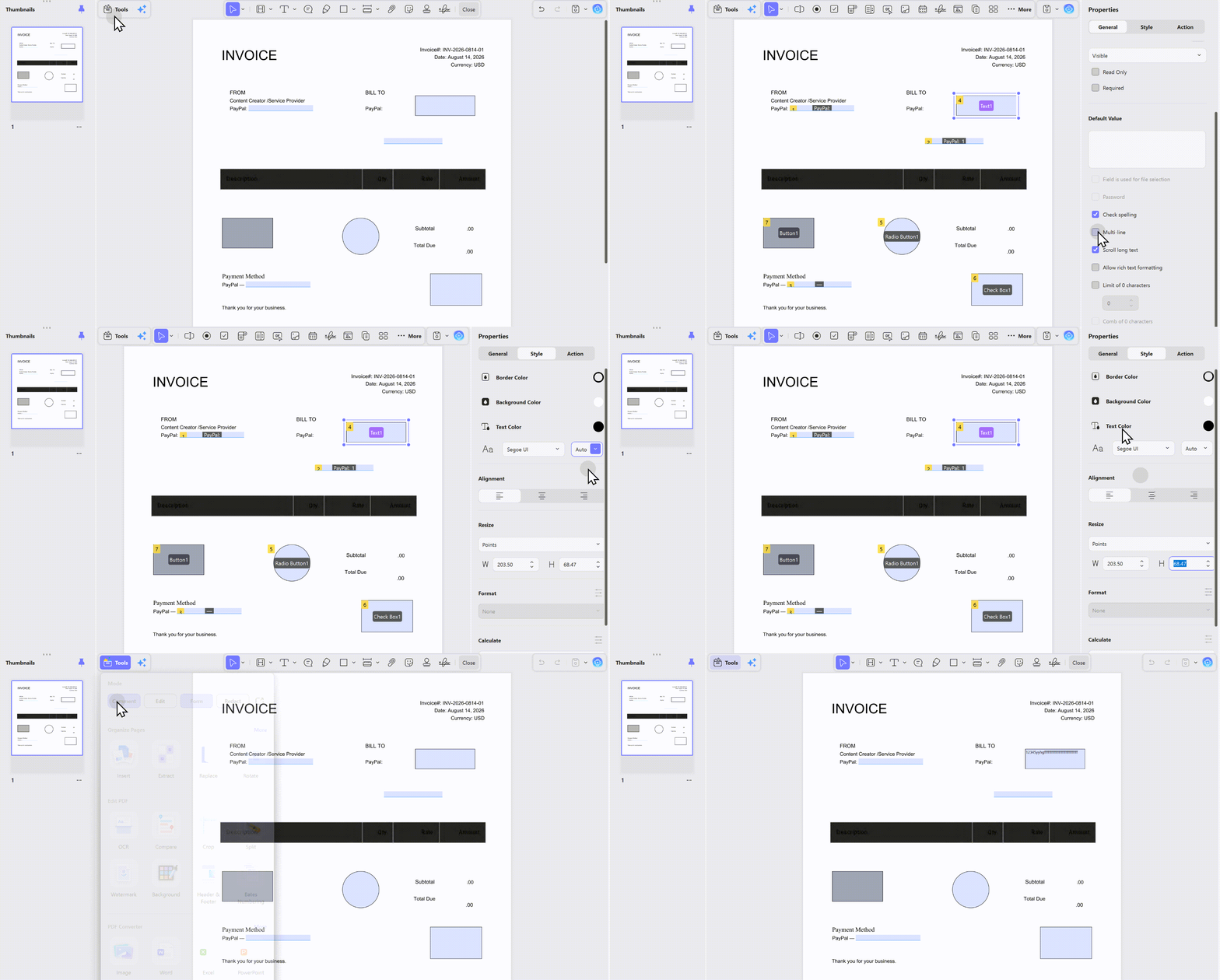
Step 1: Open UPDF, the dedicate PDF form filler and load your PDF. If it is not yet a fillable form, go to Tools > Form and let UPDF auto-detect fields, or add a text field manually.
It helps to see the form tools in use before setting up the fields. For a practical example of working with PDF forms in UPDF, watch the walkthrough below.
Windows • macOS • iOS • Android 100% secure
Step 2: Right-click the text field and select Show Field Properties.
Step 3: In the Properties panel, check Multi-line. This allows the filler to press Enter and create new lines.
Step 4 (Critical): Set the scroll behavior:
- Scroll Long Text (default): The box stays the same size. Text wraps inside, but if it exceeds the box height, a scrollbar appears. Best for fixed layouts like applications.
- Do Not Scroll (Expand to Fit): The box height automatically increases as the user types. Best for open-ended responses, but may overlap other page elements if placed too close to the bottom margin.
Step 5: Set font size behavior:
- Auto: Text shrinks to fit as the user types. Good for single-line fields (names, IDs).
- Fixed size with Multi-line: Text stays the same size; the box scrolls or expands. Best for paragraph responses.
Step 6: Save the form as a new file (do not overwrite if you need the original). Test by switching to Reader mode and typing a long paragraph.
Method 2: Using Adobe Acrobat Pro
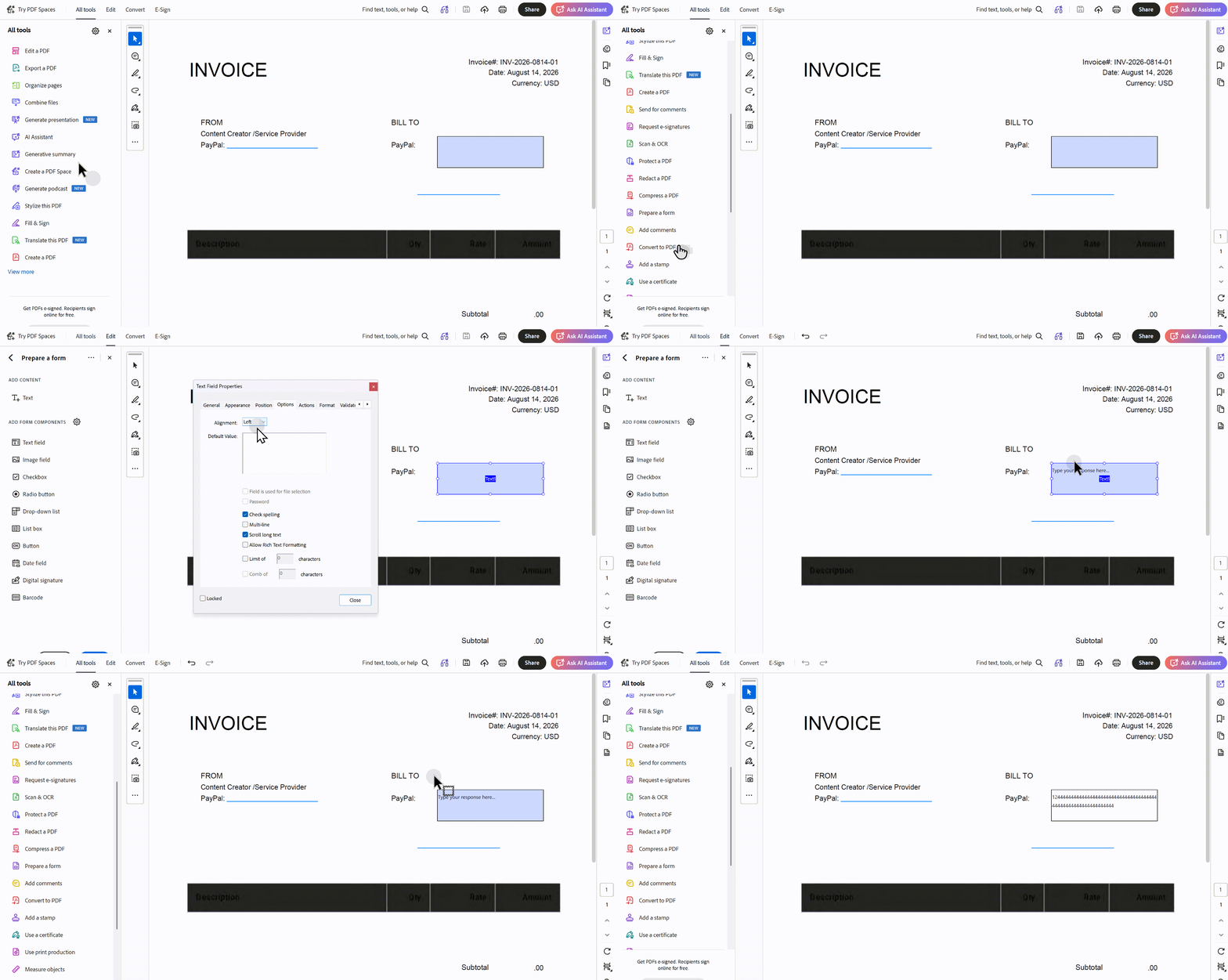
Step 1: Open your PDF and go to All Tools > Prepare a Form.
Step 2: Select the text field or add a new one via the toolbar.
Step 3: Right-click the field and choose Properties.
Step 4: In the Options tab, check Multi-line.
Step 5: Choose Scroll long text if you want a fixed box with a scrollbar, or leave it unchecked if you want the text to push the box boundaries (note: Acrobat handles expansion differently than UPDF; test thoroughly).
Step 6: Under Default Value, you can pre-fill instructions like "Type your response here..." to guide users.
Step 7: Close Properties, save, and test in Adobe Acrobat Reader (free) to ensure the behavior works for non-Pro users.
While Adobe Acrobat does offer useful features, its price is a bit hard to swallow. And also, the learning curve to understand how to do simple tasks like wrapping text is pretty steep, you can try the cheaper, easier alternatives like UPDF.
Also Read: Adobe Acrobat Vs UPDF: Discovering Advantages And Choosing Wisely
If you want an easy-to-use and cost-effective option, then UPDF should be your first choice.
Windows • macOS • iOS • Android 100% secure
Part 3. When Wrapping Goes Wrong: 5 Failures and Fixes
Failure 1: "I checked Multi-line, but text still types in a single line"
- Cause: The change was not saved to the PDF, or you are testing in a reader that ignores the flag.
- Fix: Save the PDF after changing properties. Close and reopen in Adobe Acrobat Reader (free) to verify.
Failure 2: "Text wraps on screen, but prints as one line"
- Cause: The reader renders wrapping visually but does not commit the line breaks to the PDF data layer. Common in browser-based viewers.
- Fix: Fill the form in a desktop reader, not a browser. If the problem persists, flatten the form after filling (File > Print > Save as PDF) to bake the visible text into the page.
Failure 3: "Multi-line works on Windows but not on Mac"
- Cause: Mac Preview does not support interactive multi-line form fields. The same file opened in Preview will show single-line behavior even if the field is correctly set.
- Fix: Instruct Mac users to open the form in Adobe Reader or UPDF, not Preview.
Failure 4: "The text box expands and covers the content below it"
- Cause: You enabled Do Not Scroll / Expand to Fit but placed the field too close to other elements.
- Fix: Enable Scroll Long Text instead, or move the field to an area with ample white space below it.
Failure 5: "Font becomes microscopic when I type a long paragraph"
- Cause: Auto font size is enabled on a multi-line field. Auto is designed for single-line fields (like phone numbers). On multi-line fields, it shrinks indefinitely.
- Fix: In field properties, set a fixed font size (e.g., 11pt) and enable Scroll Long Text or Expand to Fit.
Part 4. Autofit vs. Wrap vs. Scroll: What Each Setting Actually Does
Designers often confuse these three behaviors. Here is the exact difference:
| Setting | Behavior | Best For | Risk |
|---|---|---|---|
| Multi-line OFF + Auto font OFF | Single line only. Text scrolls horizontally. | Names, SSNs, short IDs | Text disappears past box edge |
| Multi-line ON + Scroll ON | Text wraps to new lines. Box stays fixed size; scrollbar appears if text exceeds height. | Fixed-layout forms (applications, tax forms) | Users may not notice hidden text |
| Multi-line ON + Scroll OFF (Expand) | Text wraps and box height grows to fit content. | Open-ended responses, essay questions | May overlap other page elements |
| Auto font ON (any mode) | Font shrinks as user types to keep all text visible. | Single-line fields with variable length | Becomes unreadable on multi-line fields |
FAQS Related to How to Wrap Text in PDF Fillable Form
Q1. How to Wrap Text in Drop-Down List in PDF?
Currently, it's not possible to wrap text within a drop-down list in PDF forms. Drop-down lists are designed to display options in a straightforward, unwrapped format.
Q2. How Do You Autofit Text in a Fillable PDF?
To autofit text in a fillable PDF using Adobe Acrobat, follow these steps:
- Open your PDF form in Adobe Acrobat.
- Select the form field where you want the text to autofit.
- Right-click on the field and choose "Properties".
- Go to the "Options" tab.
- Under the "Field Options", find and select "Auto" for the font size. This setting allows the text to automatically adjust to fit the field.
Q3. How to Make Text Shrink to Fit in PDF Form?
To make text shrink to fit within a form field in UPDF, follow these instructions:
- Launch UPDF and open your PDF form.
- Go to "Form" Mode in "Tools" (left-hand toolbar).
- Select the text box you wish to edit. Right-click to access the "Show Field Properties".
- Click on "Style" in the top menu.
- In the drop-down menu to change the size of the font, select "Auto" to shrink the text to fit within a form field in UPDF.
Final Words
Text wrapping in PDF fillable forms fails for two reasons: the field was never set to multi-line, or the person filling it is using a reader that cannot handle the setting. As a designer, always enable Multi-line and test in a free reader before sending. As a filler, know when the problem is the tool and when it is the form itself.
If you are designing forms and want a tool that makes multi-line setup intuitive — with clear controls for scroll, expand, and font behavior — UPDF handles the full workflow from field creation to distribution.
Windows • macOS • iOS • Android 100% secure








 Lizzy Lozano
 Enola Miller
 Engelbert White
 Enola Davis