UPDF
UPDF
 UPDF for Windows
 UPDF for Mac
 UPDF for iPhone/iPad
 UPDF for Android
 Nomostar
 UPDF AI Online
 UPDF Sign
 IvyCraft
 Edit PDF
 Annotate PDF
 Create PDF
 PDF Form
 Edit links
 Convert PDF
 OCR
OCR PDF to Word
 PDF to Image
 PDF to Excel
 Organize PDF
 Merge PDF
 Split PDF
 Crop PDF
 Rotate PDF
 Protect PDF
 Sign PDF
 Redact PDF
 Sanitize PDF
 Remove Security
 Read PDF
 UPDF Cloud
 Compress PDF
 Print PDF
 Batch Process
 About UPDF AI
 UPDF AI Solutions
 AI User Guide
 FAQ about UPDF AI
 Summarize PDF
 Translate PDF
 Chat with PDF
 Chat with AI
 Chat with image
 PDF to Mind Map
 Explain PDF
 PDF AI Tools
 Image AI Tools
 AI Chat Tools
 AI Writing Tools
 AI Study Tools
 AI Working Tools
 Other AI Tools
 AI Bookmark Generation
 AI Bookmark Summary
 AI Watermark Generation
 AI Background Generation
 AI Sticker Generation
 AI Stamp Generation
 AI Editing Suite
 UPDF Copilot
 AI Page Management
 AI Semantic Search
 PDF to Word
 PDF to Excel
 PDF to PowerPoint
 Enterprise Solution
 Enterprise Sign
 Enterprise AI
 Enterprise Plan
 Enterprise User Guide
 Enterprise Webinar
 Banking
 Healthcare
 Insurance
 Legal
Legal Manufacturing
 Government
 Researchers & PhDs
 Solopreneurs & Freelancers
 Lawyers & Legal Professionals
 Real Estate Agents & Brokers
 Education Solution
 Customer Stories
 User Guide
 UPDF Tricks
 FAQs
FAQs UPDF Reviews
 Download Center
 Blog
Blog Newsroom
 Tech Spec
 Updates
 UPDF vs. Adobe Acrobat
 UPDF vs. Foxit
 UPDF vs. PDF Expert

Quick Answer:
The distinction matters: sending a signature request is not the same as sharing a PDF. A request-based service controls who signs each field and records the document's progress. A shared PDF link gives the recipient access to the file, but it does not provide the same recipient routing or completion
This guide keeps those workflows separate so you can choose the one that matches your document.
Part 1. How to Send PDF for Signature with UPDF
To send PDF for signature, UPDF has two products can help you out. One is UPDF Sign which allows you to upload the document, send the PDF for signature for one or several persons per your needs. UPDF Sign allows you to set the signing order, track the process automatically, and the signed document is legally binding. If you do not need automatic process, you can also use UPDF on Windows and Mac to add the signature field, then, send it for signature.
Here, we will introduce these two methods in detail.
Way 1. Via UPDF Sign
Best for:
- contracts, approvals, and other documents where you need recipient-specific fields, email notifications, signing order, and status tracking.
For those who need to sign legally and automate the process of signing and tracking, especially for business, they can use UPDF Sign. Here is the guide to use it.
Step 1. Click the button below to visit UPDF Sign website. Click on the "Start Free Trial" to log in or create an account. In the free version, you can have three free signature requests to use. Once use up them, you can upgrade to pro version at a very low price here.
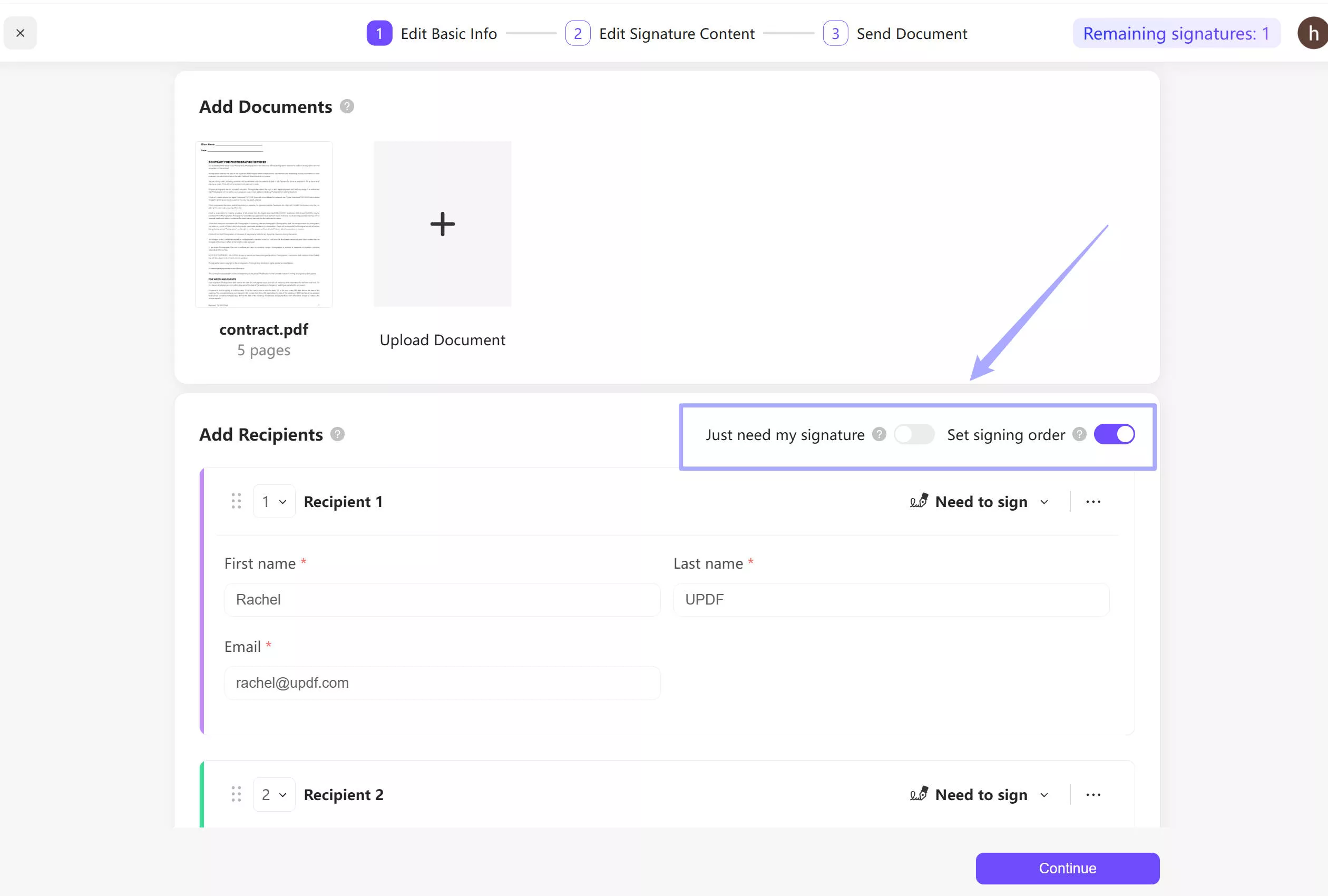
Step 2. In the home interface, click on the "Initiate Signature" button, upload the document, select "Just need my signature" if you need to sign the document on your own, and switch on the button after "Set signing order" if you have several recipients to sign the PDF and need to sign it in the correct order. Enter the information in the "Add Recipients". Add the message and update the document name, then click on the "Continue" icon.
Step 3. Now, you need to customize the signature field to collect the signature for each recipient. Click to select the first recipient, drag the signature field to the place where you need this recipient to sign. Then, select the second recipient and drag the signature field. Repeat the same steps if there are other recipients. When you are done, click on the "Finish" button to send the PDF for collecting signature.

Step 4. The recipient will receive one email and needs to click the link, click on the signature field, create a signature and sign it.

Way 2. Via UPDF on Windows or Mac
Best for:
- a PDF that is already prepared for signing and only needs to be delivered to a recipient.
Not for:
- a workflow where you must assign each field to a named recipient, enforce signing order, send automated reminders, or track completion. Use UPDF Sign for those controls.
UPDF on Windows and Mac is an AI-powered PDF signer tool that offers a fast, easy-to-use, and cost-friendly way to send and sign PDFs. With UPDF, you can:
- Send PDFs for signature to single or multiple recipients via email, shareable link, or QR code.
- Sign PDF digitally or electronically using mouse, keyboard, or trackpad.
- Send PDF with 1 day, 7 days, or 30 days expiration time.
- Import and add digital signatures seamlessly.
- Create a fillable PDF form with 9 types of form fields, i.e., checkboxes, text fields, image fields, dropdown lists, etc.
- Convert non-fillable form fields into fillable fields with the "Form Field Recognition" feature.
- Enable or disable copy, download, and print permissions before sharing.
- Send and sign PDFs from Windows, Mac, Android, and iOS.
In short, UPDF offers an intuitive approach to easily sending PDFs for signature or effortlessly creating and filling forms. However, UPDF is more than a PDF signer. It is a complete PDF editor, which means you can also edit, annotate, convert, compress, merge, OCR, and do other PDF-related activities. In short, it is a perfect alternative to Adobe Acrobat.
Don't just read! Download UPDF and try its above features yourself. Alternatively, you can directly uprade to the Pro version at a discounted price to unlock all the features.
Windows • macOS • iOS • Android 100% secure
Follow the below steps to learn how to send PDF for signature using UPDF:
Step 1. Download and install UPDF on your Windows/Mac system. Launch it and click "Open File" to select and open the PDF file to send for signature.
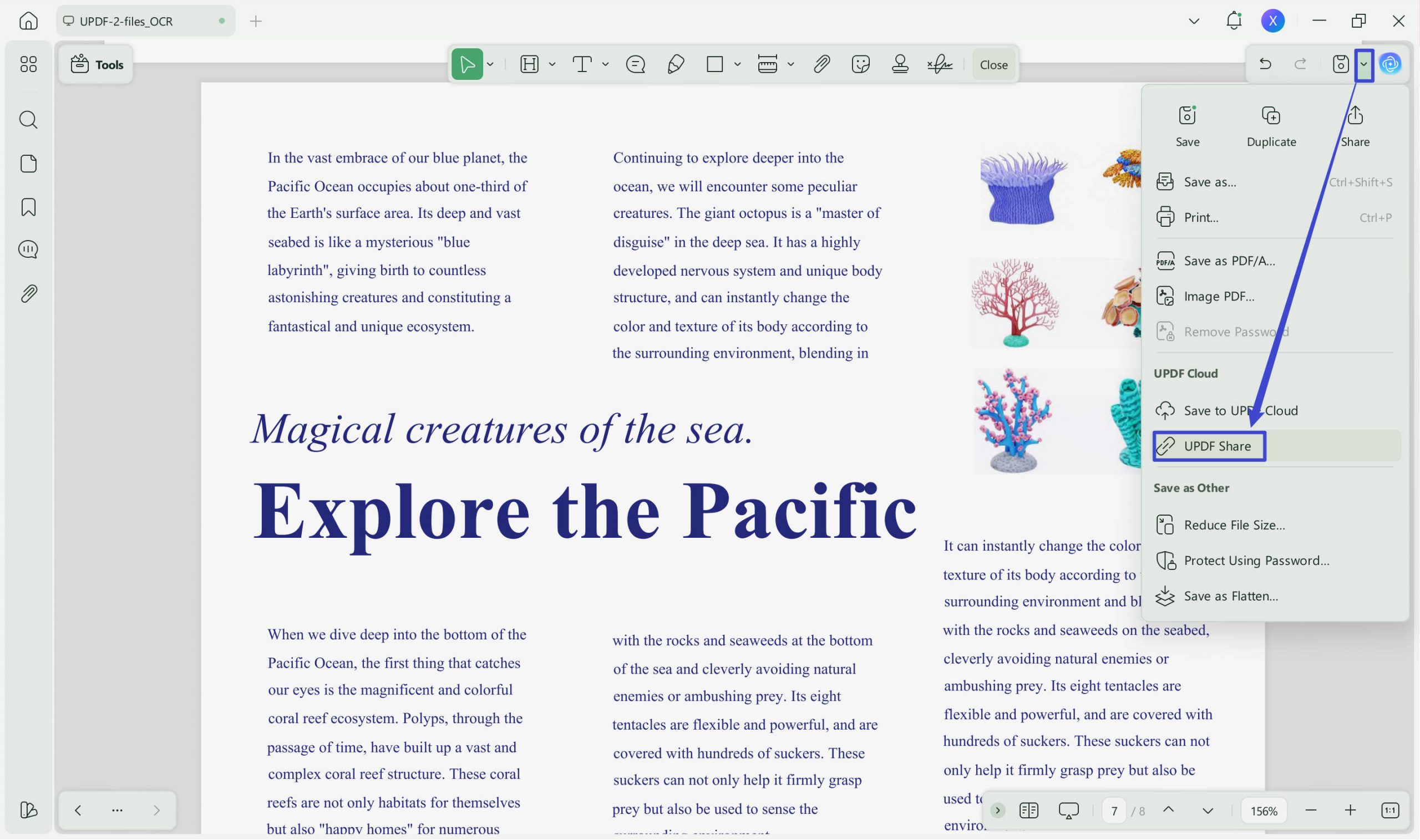
Step 2. To send a PDF for signature, click the narrow next to save. Use the "UPDF Share" option to share the PDF as a link, QR code, or via email.
Note
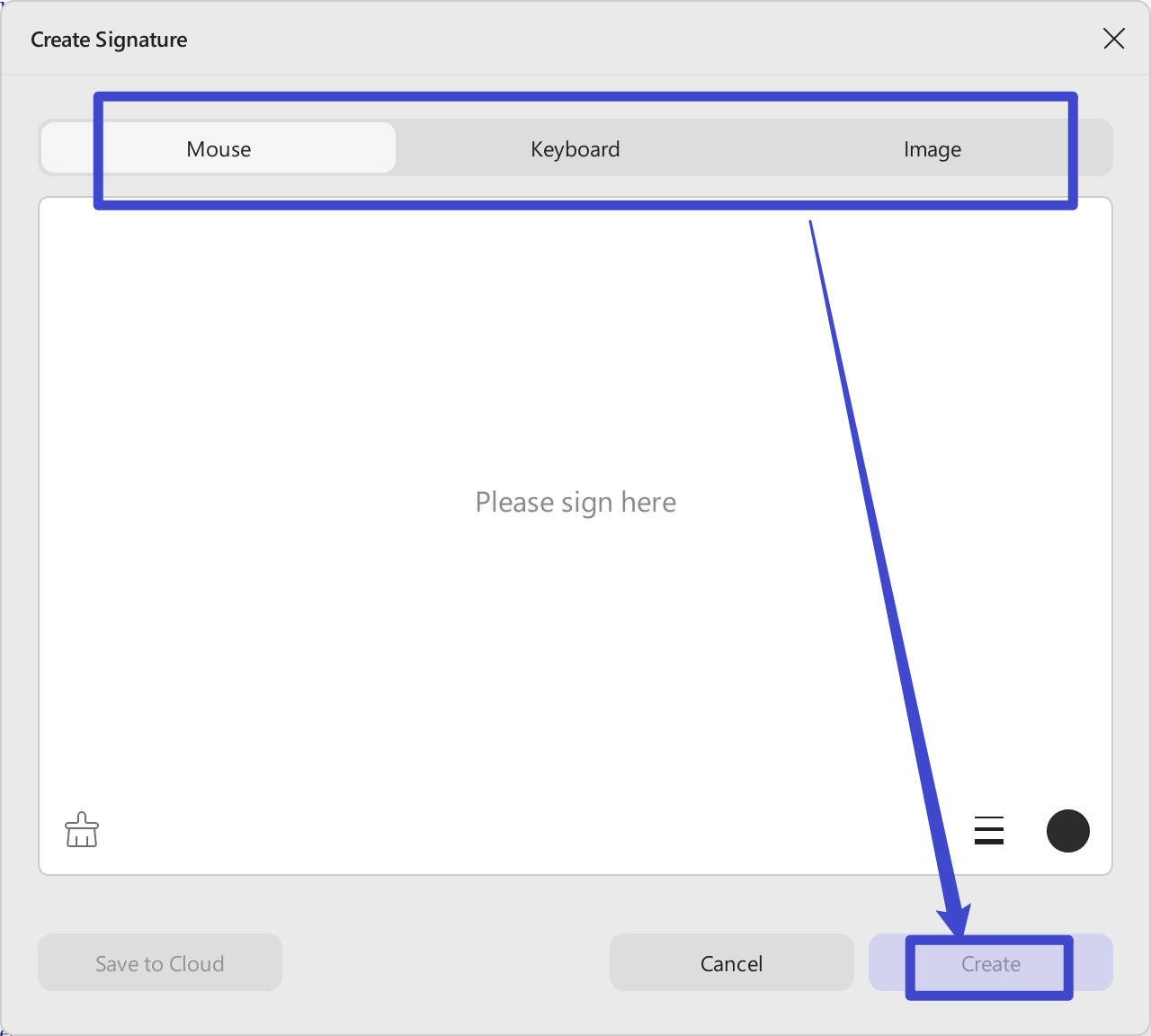
- The recipients can sign the received PDF through UPDF's signature tool under the Comment mode. From there, they can create different signatures using keyboard, mouse, and Image.
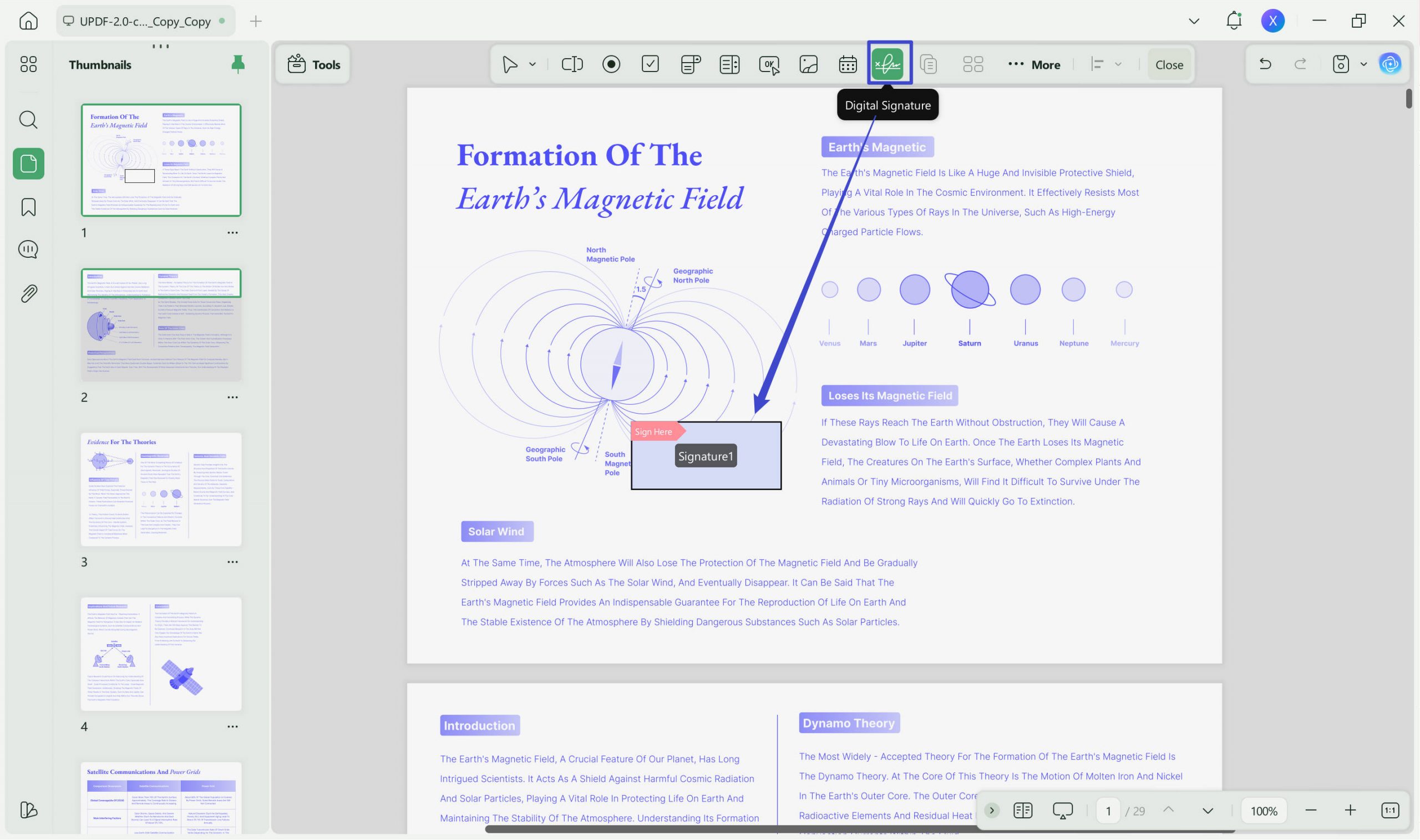
- To send PDF for a digital signature, you should add a digital signature field if it is not presented currently. To do so, click the "Form" icon in Tools from the left sidebar. Click the "Digital Signature" icon from the top toolbar and click on the place where you want to add a signature field.
That's it! This way, UPDF offers a modernized yet simple way to send PDFs for signature to any number of recipients.
To learn more about UPDF and why it is a perfect alternative to Adobe, watch this review video:
Part 2. How to Send PDF for Signature in Adobe Acrobat
Adobe Acrobat also provides a routed e-signature workflow on desktop and the web. You can add recipients, place fields, choose signing order, send the agreement, and track its status. A free Acrobat account currently allows two Request e-signature transactions every 30 days; paid plan availability and pricing vary by region and billing term.
Method 1. Send PDF for Signature using Adobe Acrobat Desktop
Best for:
- users who already work in Acrobat and want to prepare, send, and track the agreement from the desktop application.
Follow the below steps to learn how to send PDF for signature to single or multiple recipients with Adobe Acrobat:
Step 1. Launch Adobe Acrobat and open the PDF file.
Step 2. Click the "Request E-signatures" option from the right sidebar. If you don't see the option there, you can click the "Tools" tab from the top and access "Request E-signatures" from there.
Step 3. Enter the emails of all the recipients to whom you want to send PDF for signature. You can also add a custom message that goes along with the signature request. Once done, click "Request signatures".
Step 4. Now, create your form and signature fields. You can either accept an automatically-detected form and signature or drag and drop your own through the right pane. Once done, send the file.
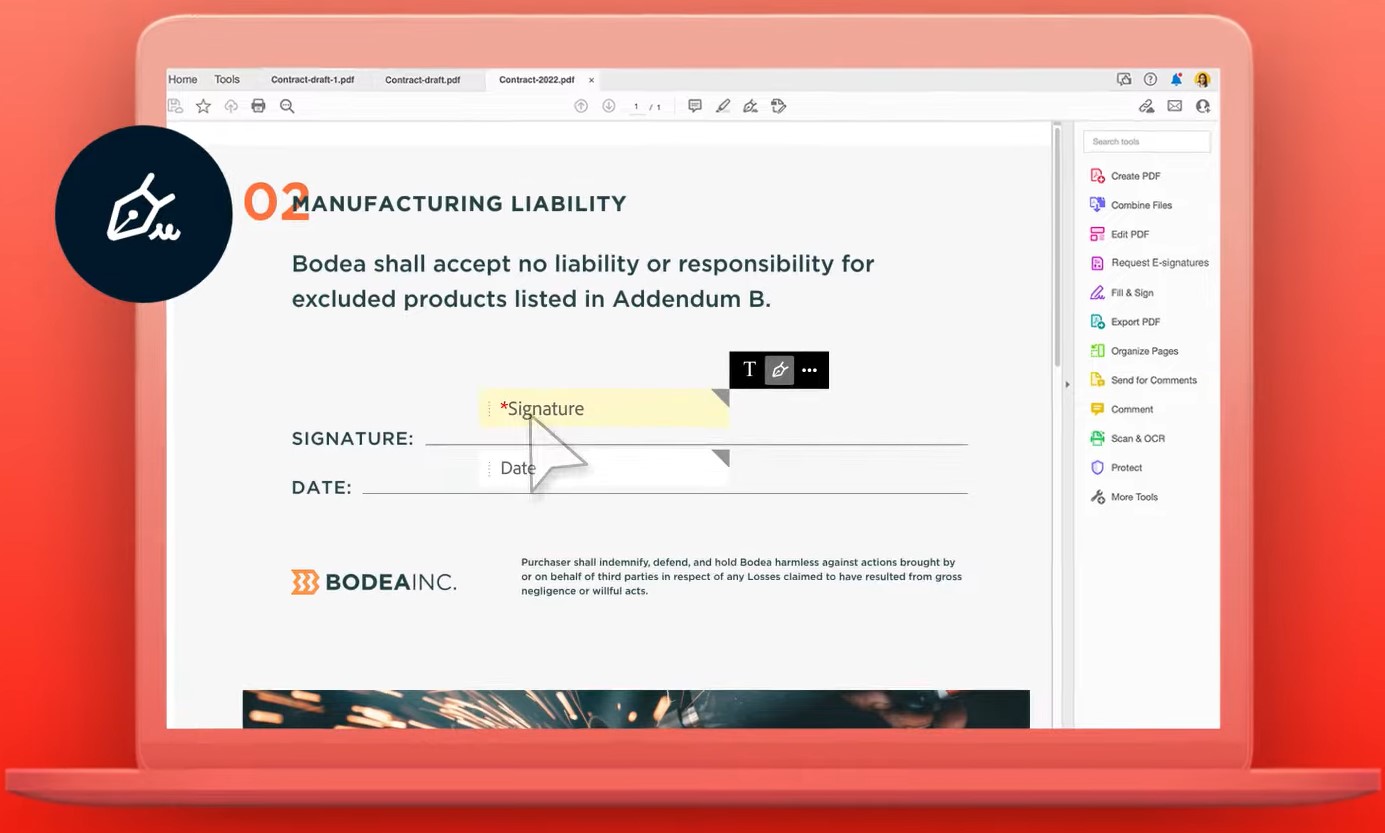
This is how Adobe send for signature feature lets you send PDFs and track signatures efficiently. All the recipients will receive an email for the signature request. They can click the provided link to fill out the form and sign a PDF online.
Once done, you and the recipient can download a copy of the signed PDF. Moreover, Adobe Acrobat also offers a dedicated section from where you can track and access all signature files.
Method 2. Send PDF for Signature using Adobe Acrobat Online
Best for:
- sending a managed signature request from a browser without opening the desktop application.
Here's how to send a PDF for someone to sign using Adobe Acrobat Online:
Step 1. Go to Adobe Acrobat Online website and upload the PDF to send for signature.
Step 2. Once uploaded, add the recipients' emails and then click "Prepare document".
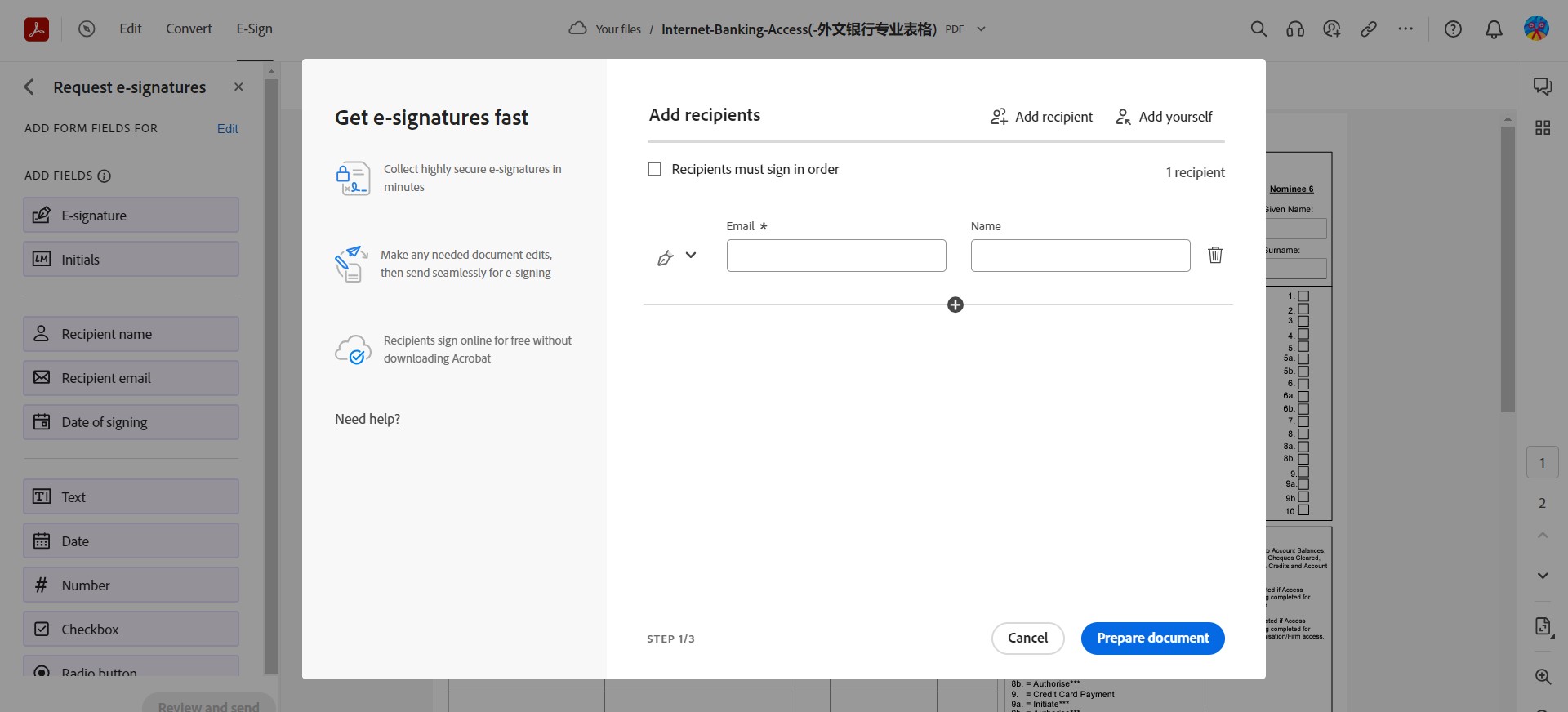
Step 3. Now specify the fields where you want the recipients to fill in details and sign. You can drag and drop files from the left sidebar.
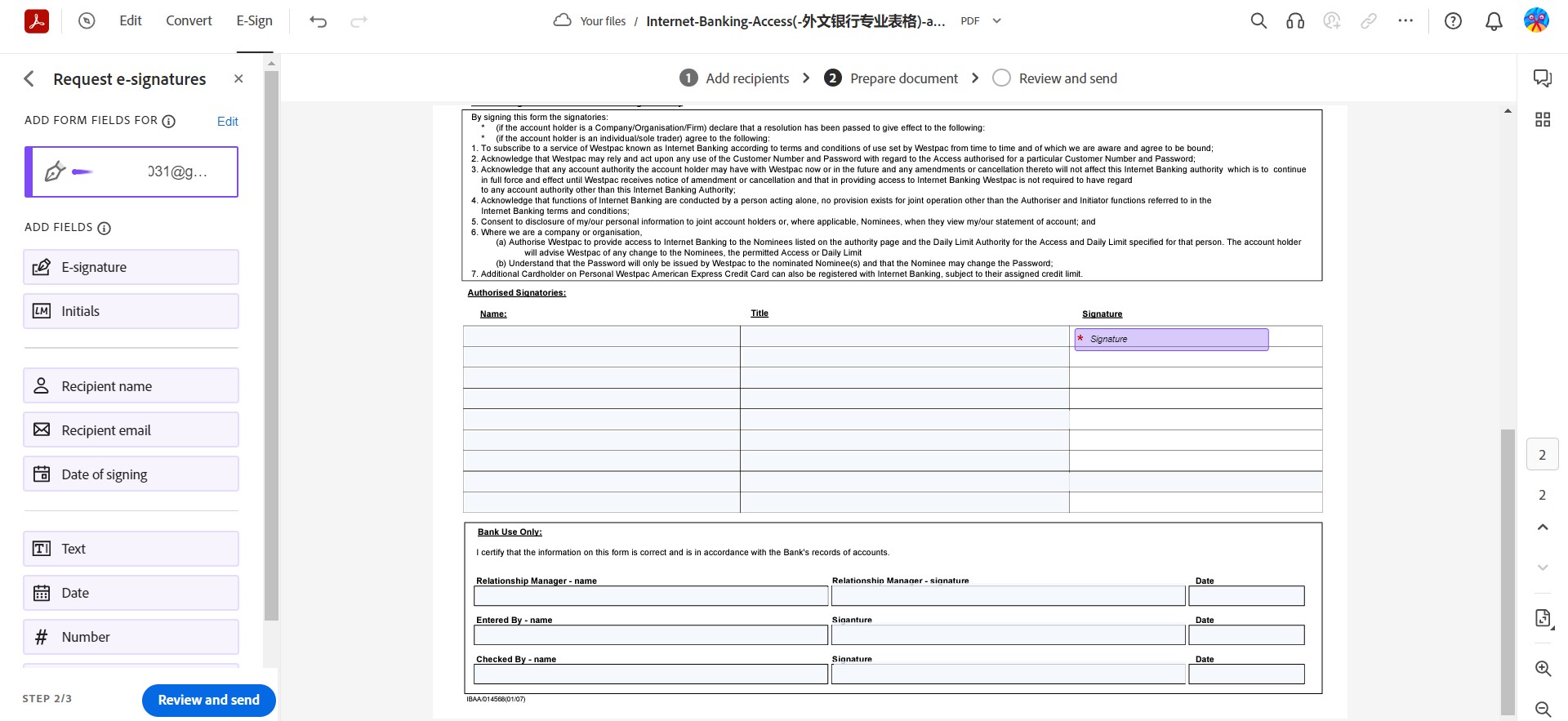
Step 4. Once the PDF file is ready, click the "Review and send" button. Specify the agreement name, email subject, and message. Lastly, click "Send".
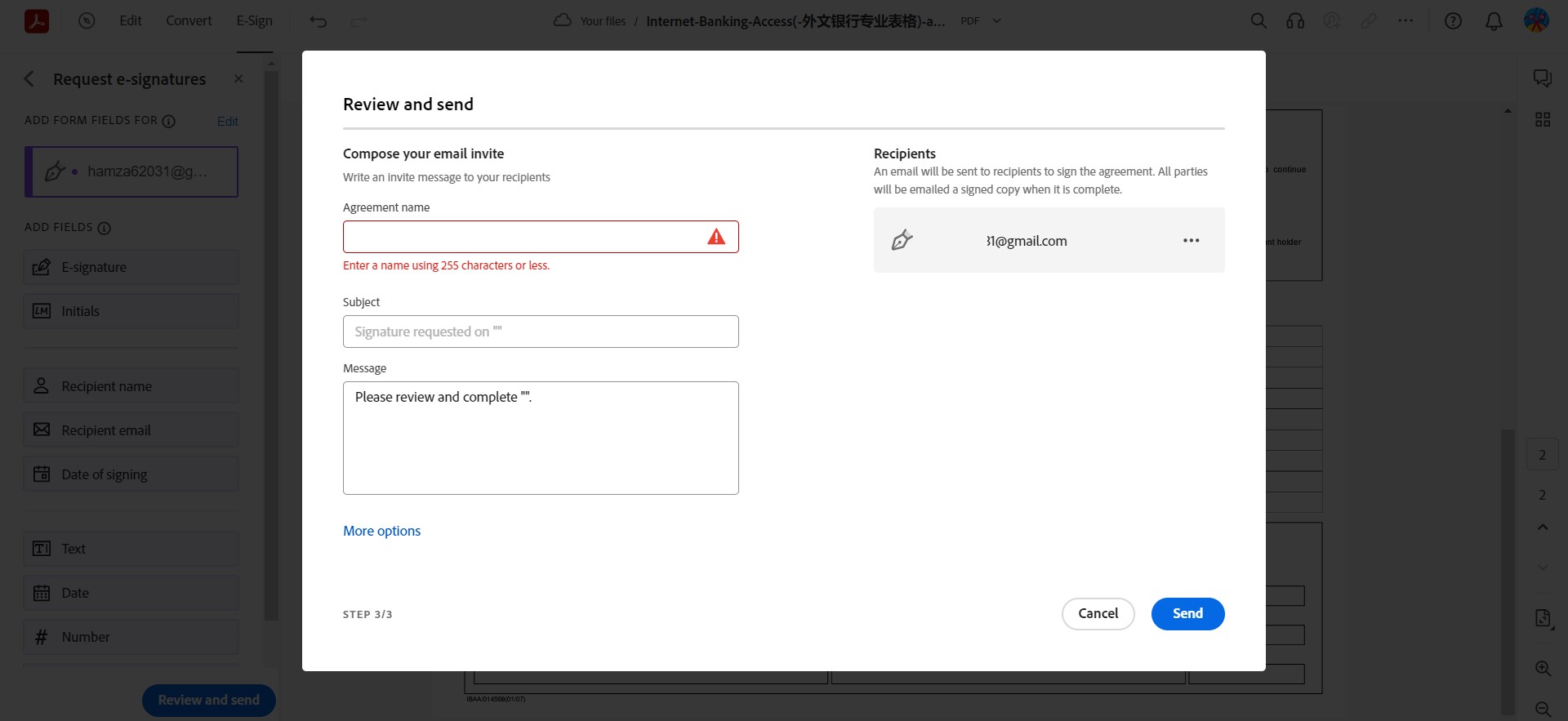
This way, you can easily use the web-based Adobe send for signature feature to easily send PDFs for signature.
Conclusion
The right way to send a PDF for signature depends on what must happen after delivery. Choose UPDF Sign when you need recipient-specific fields, optional signing order, email notifications, reminders, and status tracking. Choose UPDF Share when the PDF is already prepared and the recipient can sign and return it without a managed request. Choose Adobe Acrobat when you prefer Adobe's desktop or browser-based request workflow.
Before sending any option, verify every recipient and field assignment and keep an unsigned source copy. For contracts or regulated documents, also confirm that the signature method, identity checks, and audit evidence meet the rules that apply to the transaction.
Windows • macOS • iOS • Android 100% secure





 Lizzy Lozano
 Enid Brown
  Italo Rossi
 Enola Davis