UPDF
UPDF
 UPDF for Windows
 UPDF for Mac
 UPDF for iPhone/iPad
 UPDF for Android
 UPDF AI Online
 UPDF Sign
 Edit PDF
 Annotate PDF
 Create PDF
 PDF Form
 Edit links
 Convert PDF
 OCR
OCR PDF to Word
 PDF to Image
 PDF to Excel
 Organize PDF
 Merge PDF
 Split PDF
 Crop PDF
 Rotate PDF
 Protect PDF
 Sign PDF
 Redact PDF
 Sanitize PDF
 Remove Security
 Read PDF
 UPDF Cloud
 Compress PDF
 Print PDF
 Batch Process
 About UPDF AI
 UPDF AI Solutions
 AI User Guide
 FAQ about UPDF AI
 Summarize PDF
 Translate PDF
 Chat with PDF
 Chat with AI
 Chat with image
 PDF to Mind Map
 Explain PDF
 PDF AI Tools
 Image AI Tools
 AI Chat Tools
 AI Writing Tools
 AI Study Tools
 AI Working Tools
 Other AI Tools
 AI Bookmark Generation
 AI Bookmark Summary
 AI Watermark Generation
 AI Background Generation
 AI Sticker Generation
 AI Stamp Generation
 AI Editing Suite
 UPDF Copilot
 AI Page Management
 AI Semantic Search
 PDF to Word
 PDF to Excel
 PDF to PowerPoint
 Enterprise Solution
 Enterprise Sign
 Enterprise AI
 Enterprise Plan
 Enterprise User Guide
 Enterprise Webinar
 Banking
 Healthcare
 Insurance
 Legal
Legal Manufacturing
 Government
 Education Solution
 Customer Stories
 User Guide
 UPDF Tricks
 FAQs
FAQs UPDF Reviews
 Download Center
 Blog
Blog Newsroom
 Tech Spec
 Updates
 UPDF vs. Adobe Acrobat
 UPDF vs. Foxit
 UPDF vs. PDF Expert

Sign UP for UPDF
To begin using UPDF, simply create an account with a valid email address. Once registered, you’ll have access to the following features of the platform:
- Open and read PDF for free.
- Conversion is limited twice a day for free.
- Perform OCR on up to 5 PDFs.
- Batch processing can be handled for 2 files only.
- Create unlimited templates for watermarks, header & footer, and background use.
- 1 GB of free storage space with a file size limitation of 100MB per file.
- Cannot set a password or expiration date when sharing PDFs.
- Will not be able to view specific differences when comparing 2 PDFs.
- Watermarks will be added when saving the document.
- Limited free AI benefits: 5 PDF uploads, 10MB/PDF, 100 pages/PDF, ask up to 100 questions. With these free benefits, you can use AI to chat with PDFs, convert PDFs to mind maps, chat with images, and chat any topic beyond these.
(Note, if you want to save files without a watermark and process unlimited conversions with UPDF, you can purchase a Subscription Plan or a Lifetime License on our pricing page.)
- 1. Sign Up/Login UPDF on the Website
- 2. Sign Up/Login UPDF within the App
- 3. Set Up and Login with a Password
- 4. How to Redeem UPDF
- 5. How to Change or Link Email?
1. Sign Up/Login UPDF on the Website
You can create a UPDF account either through the official website or directly within the UPDF app. To learn, sign up via the website, follow the given stepwise guide:
- When using the website, click on Log In button, which will direct you to the sign-up form.
- Enter your email, and a verification code will be sent to your inbox (if you don't see the email, be sure to check your spam folder). Conversely, you can sign up using a Google or Apple account for a quicker setup.
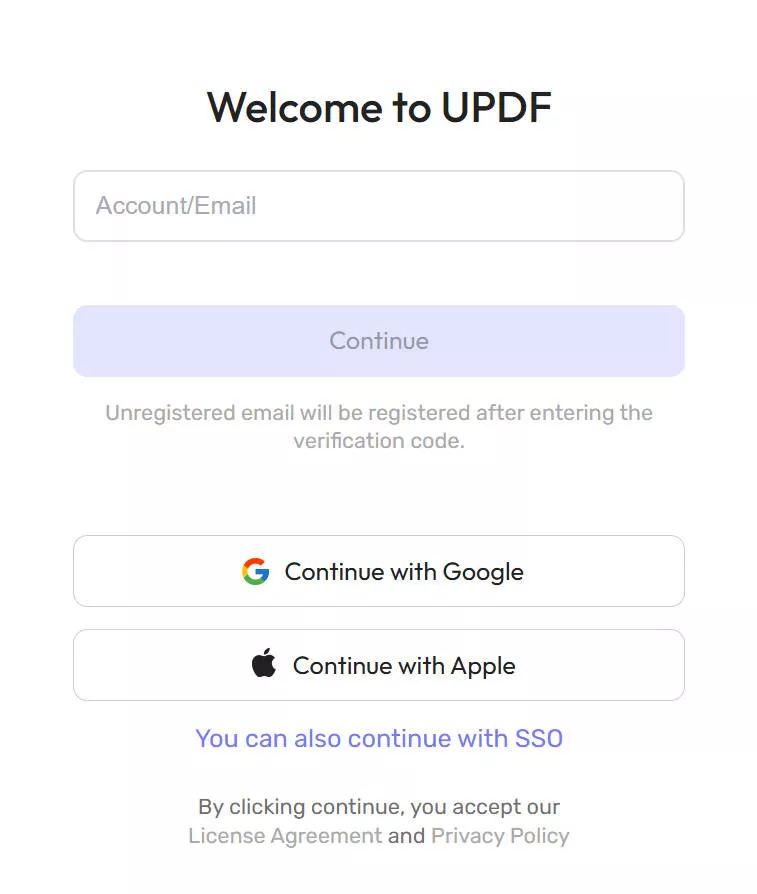
- Enter the code and set a name and password for your account.
- You'll receive a welcome email for successfully creating an account on UPDF.
2. Sign Up/Login UPDF within the App
- If you are using the UPDF app, click the Login button in the top right corner.
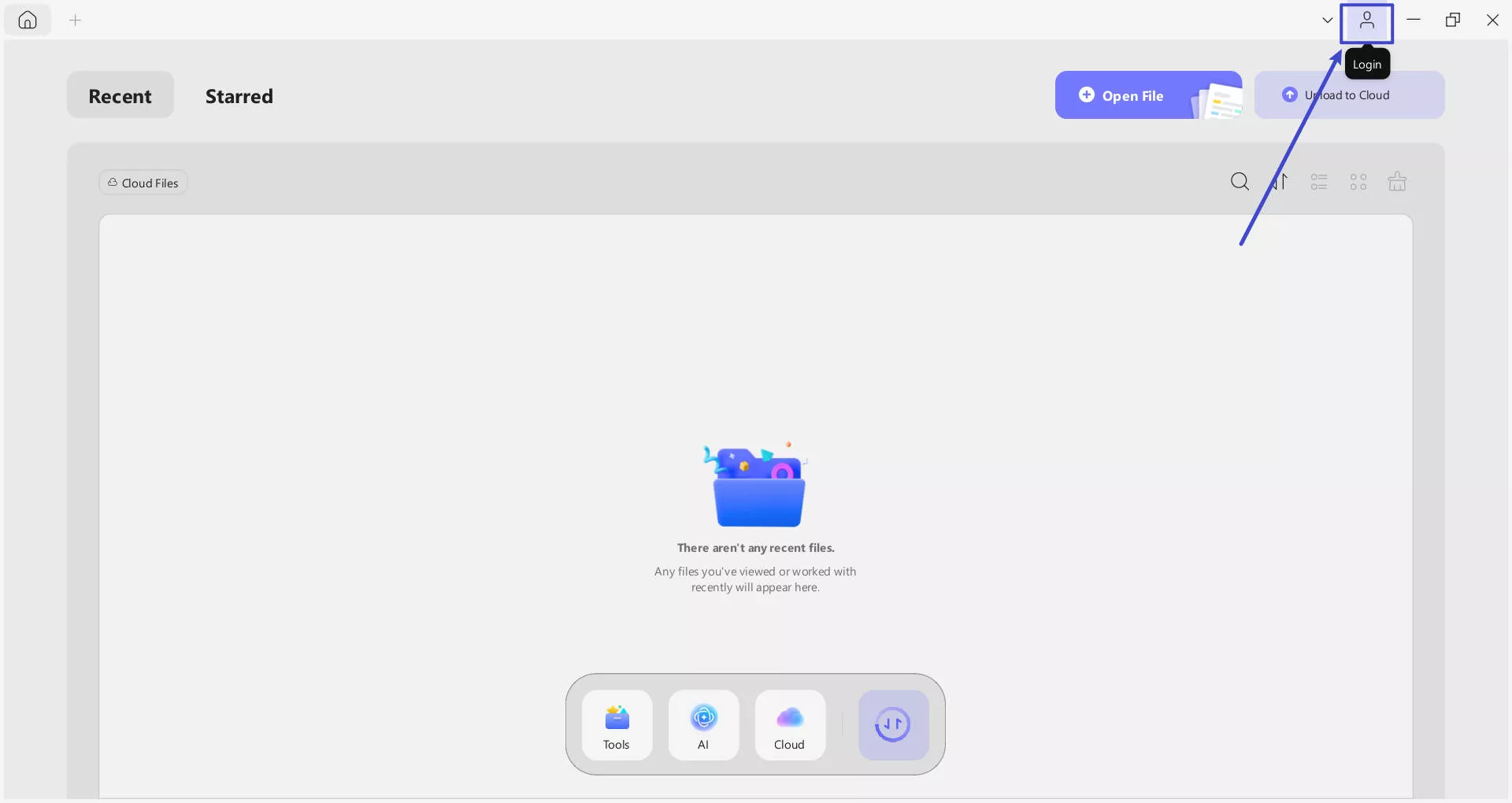
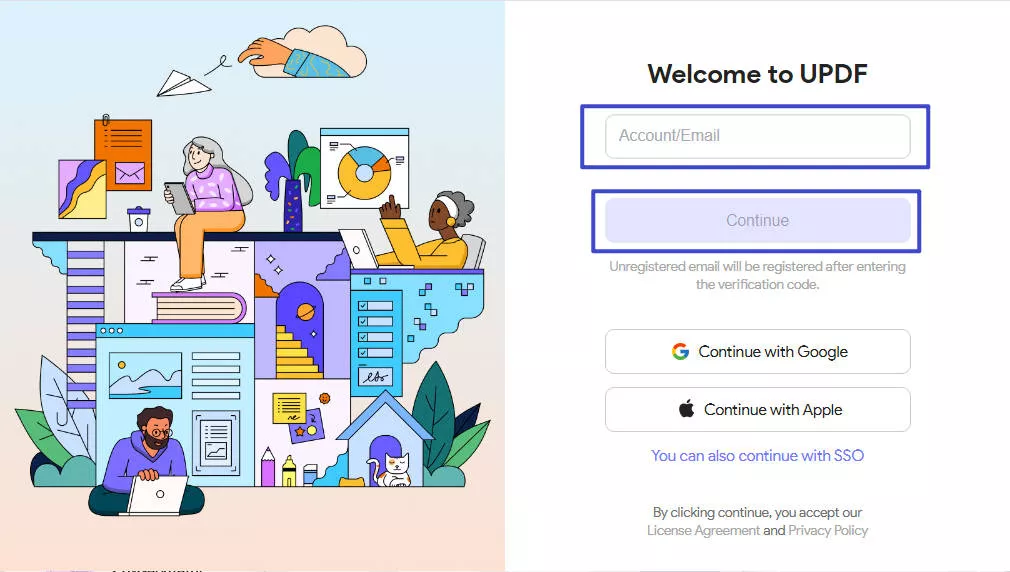
Now, you’ll be redirected to the website to enter your email in the given space and hit the Continue button. Then, type your password and press the Log In button to sign in to the app.
3. How to Set Up a Password and Login with a Password
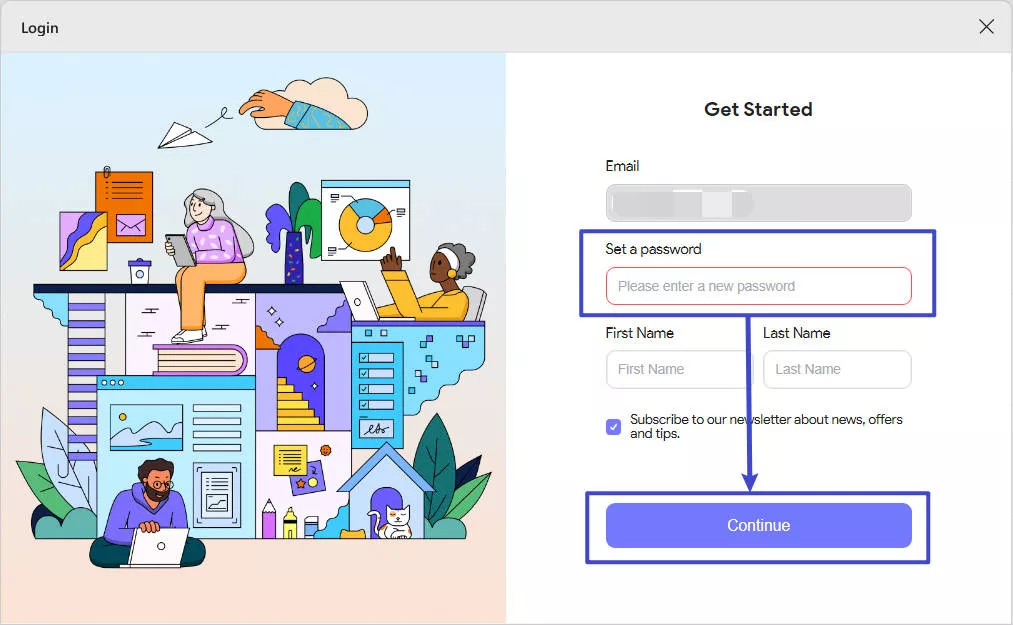
You need to set a password when you first register or log in UPDF account.
You can log in with a password directly, or you can log in UPDF account with the "Log in with verification code" method.
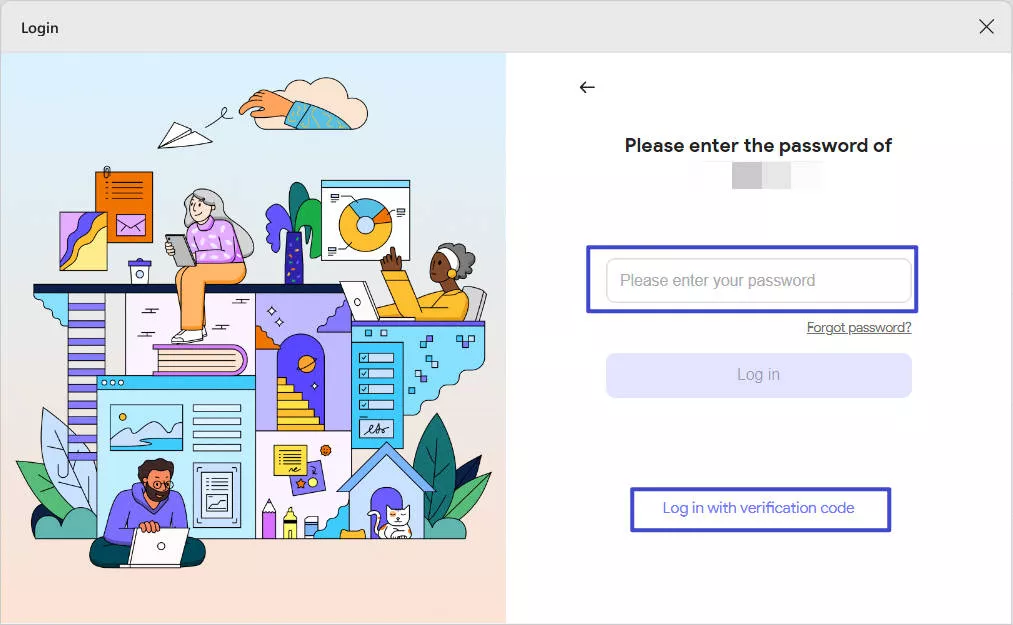
There is also an option for you to retrieve your password by clicking the "Forget password".
4. How to Redeem UPDF
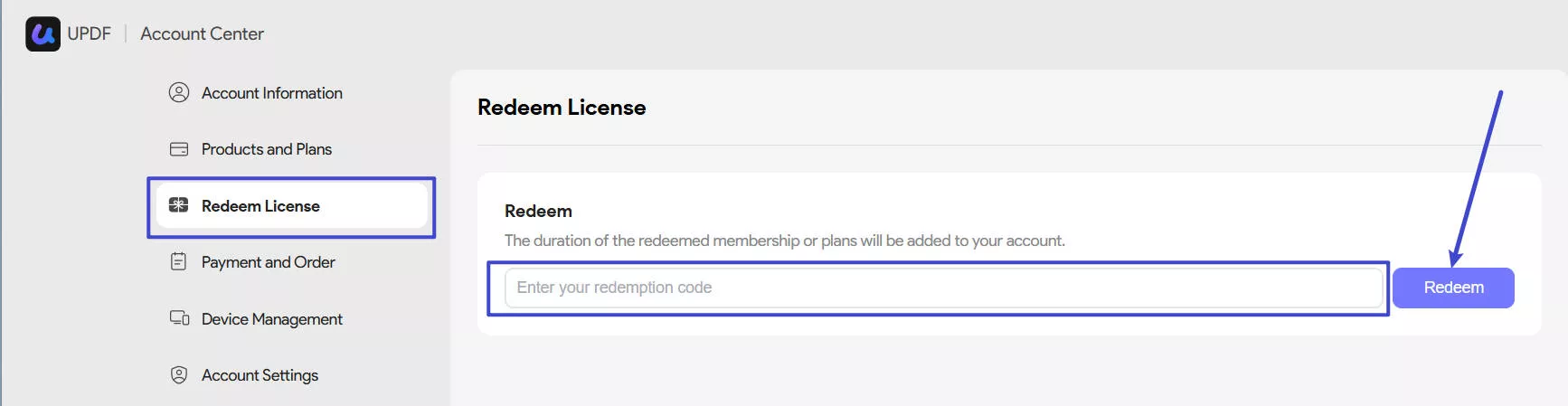
- Log into your account here, and find the "Redeem License" option under the Subscriptions Card.
- Enter your code, and click "Redeem". Then you can unlock UPDF across all the platforms.
5. How to Change or Link Email?
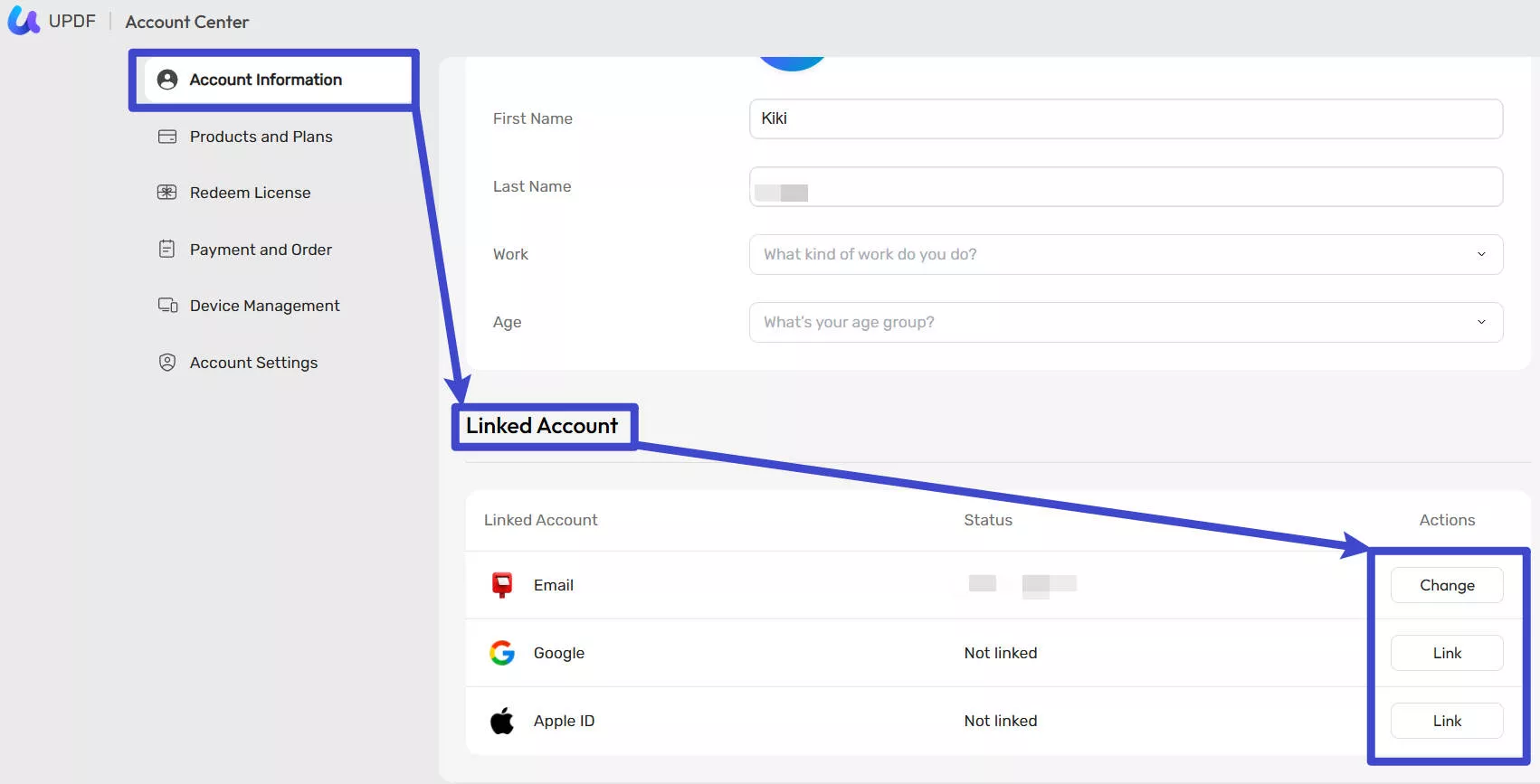
First, click the personal profile picture through UPDF.com. Click on the "Account Center".
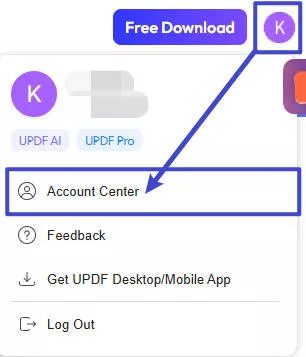
And then, go to the "Linked Account" section.
You can change different email addresses or link another 2 accounts at the same time. Once you've done it, you can log in UPDF account with either one of three emails.