 UPDF
UPDF
 UPDF for Windows
 UPDF for Mac
 UPDF for iPhone/iPad
 UPDF for Android
 UPDF AI Online
 UPDF Sign
 Edit PDF
 Annotate PDF
 Create PDF
 PDF Form
 Edit links
 Convert PDF
 OCR
OCR PDF to Word
 PDF to Image
 PDF to Excel
 Organize PDF
 Merge PDF
 Split PDF
 Crop PDF
 Rotate PDF
 Protect PDF
 Sign PDF
 Redact PDF
 Sanitize PDF
 Remove Security
 Read PDF
 UPDF Cloud
 Compress PDF
 Print PDF
 Batch Process
 About UPDF AI
 UPDF AI Solutions
 AI User Guide
 FAQ about UPDF AI
 Summarize PDF
 Translate PDF
 Chat with PDF
 Chat with AI
 Chat with image
 PDF to Mind Map
 Explain PDF
 PDF AI Tools
 Image AI Tools
 AI Chat Tools
 AI Writing Tools
 AI Study Tools
 AI Working Tools
 Other AI Tools
 AI Bookmark Generation
 AI Bookmark Summary
 AI Watermark Generation
 AI Background Generation
 AI Sticker Generation
 AI Stamp Generation
 AI Editing Suite
 UPDF Copilot
 AI Page Management
 AI Semantic Search
 PDF to Word
 PDF to Excel
 PDF to PowerPoint
 Enterprise Solution
 Enterprise Sign
 Enterprise AI
 Enterprise Plan
 Enterprise User Guide
 Enterprise Webinar
 Banking
 Healthcare
 Insurance
 Legal
Legal Manufacturing
 Government
 Education Solution
 Customer Stories
 User Guide
 UPDF Tricks
 FAQs
FAQs UPDF Reviews
 Download Center
 Blog
Blog Newsroom
 Tech Spec
 Updates
 UPDF vs. Adobe Acrobat
 UPDF vs. Foxit
 UPDF vs. PDF Expert

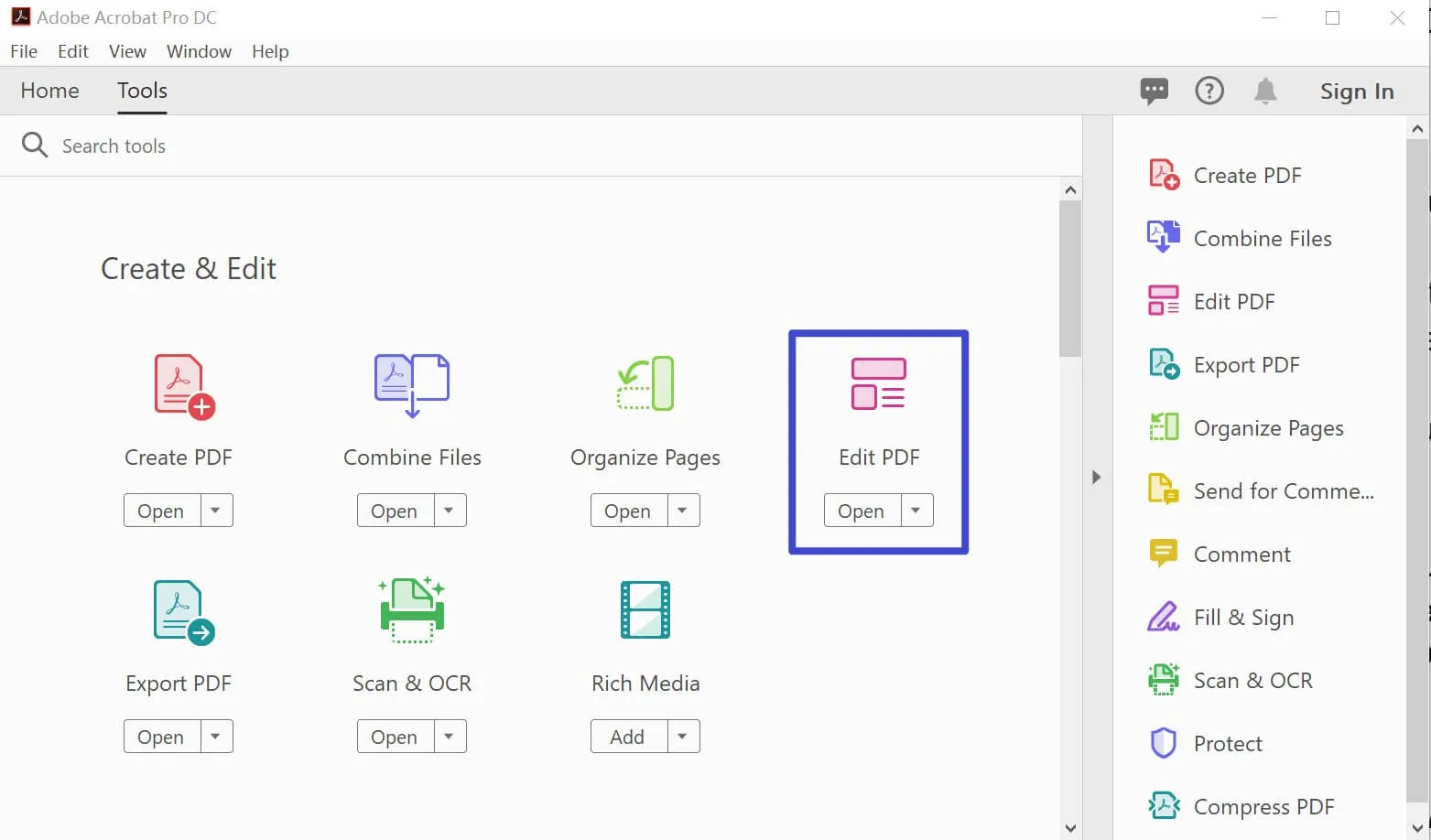
Adobe Acrobat on Windows 7 is still possible, but with serious limitations. Since January 2023, Adobe no longer provides updates for its tools for 32-bit Windows. However, users can still install older versions on their old devices.
Nevertheless, they will not receive security patches or bug fixes. All in all, Windows 7 users can only install the 32-bit version of Acrobat (XI Pro or DC).
For ongoing security and reliability, upgrading your system to Windows 10/11 or switching to UPDF 1.0 is strongly recommended. Read this article till the end to learn all about the best tools available for your device running on Windows 7.
Which Versions of Adobe Acrobat Does Windows 7 Support?
Before installing anything, check which version of Windows 7 you are running. For this, simply open System Properties to confirm whether your system is 32-bit or 64-bit. Not all Adobe Acrobat versions run on Windows 7, so explore the table below to see your options clearly.
| Adobe Acrobat Version | Windows 7 Compatibility | Official Support Status | Recommendation | Functions on Windows 7 |
| Acrobat DC (64-bit) | Not compatible | Discontinued | Do not install | No |
| Acrobat DC (32-bit) | Compatible | Discontinued (Jan 2023) | Use with caution | Yes, but no updates |
| Acrobat XI Pro | Compatible | Discontinued (Oct 2017) | Legacy use only | Yes, but outdated |
| Acrobat X Pro | Compatible | Discontinued (Nov 2015) | Not recommended | Yes, but heavily outdated |
| Acrobat Reader DC | 32-bit only | Discontinued (Jan 2023) | Use with caution | Yes, limited features |
How to Download and Install Adobe Acrobat on Windows 7?
After exploring which version suits your system, let's walk through the installation steps. Each method below covers a specific version of Adobe for Windows 7 or an older release. Go through each guide and choose the one that matches your needs.
1. Install Acrobat Reader DC on Windows 7 (Free Version)
Acrobat Reader DC is the free option for viewing, printing, and annotating PDFs. It is the most common Adobe Reader for Windows 7 choice. Users with 32-bit Windows 7 can follow these steps to install it correctly:
1. Start the process by visiting Adobe's official download page and clicking the Download Acrobat Reader button to get the installer.
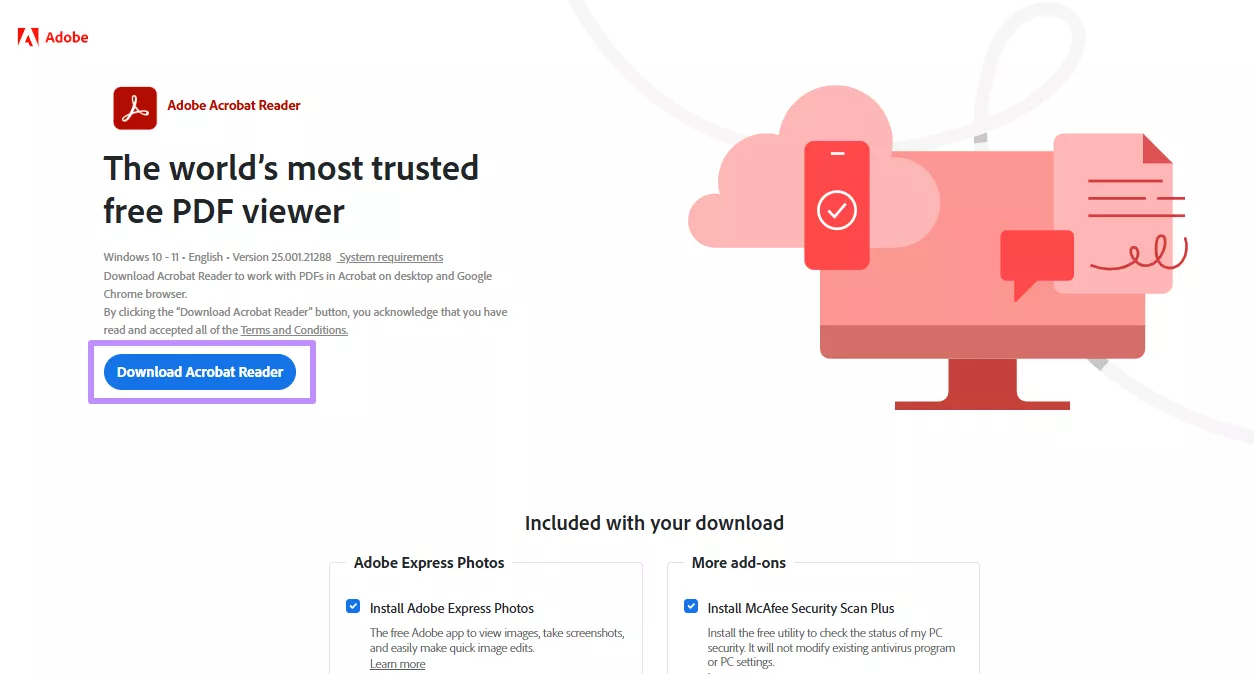
2. After downloading, locate the installer file in your Downloads folder and tap AcroRdrDC_installer.exe to launch the setup wizard. Moving forward, follow the on-screen prompts in the Adobe Acrobat Reader Setup window and accept the license agreement to begin installation.
2. Install Acrobat XI Pro on Windows 7 (Full Version)
This tool serves as the most stable option for Adobe Reader Windows 7 users. It supports editing, converting, and signing PDFs for users of all kinds. Official support has ended, but the software still functions on Windows 7. Here is how to install it.
1. Begin by visiting Adobe's archived downloads page to locate the Acrobat XI Pro installer. Select the correct language version and click Download to save the file.
2. After the download completes, right-click the installer file and select Run as administrator to start the setup with proper permissions. Within the setup wizard, enter your user name and serial number when prompted to proceed.
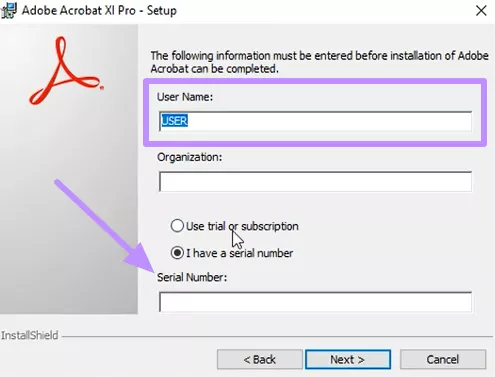
3. Once installation finishes, restart your computer and open Acrobat XI Pro from the Start menu to verify the installation was successful.
3. Install Acrobat DC 32-Bit on Windows 7
It is the newest version of Adobe Acrobat DC for Windows 7 that can still run on this OS. This tool offers more modern features than XI Pro. Adobe has discontinued all updates for this configuration. Install it only if you need its specific capabilities.
1. To begin the installation process, go to the Adobe licensing portal and tap on the 32-bit Acrobat DC installer.
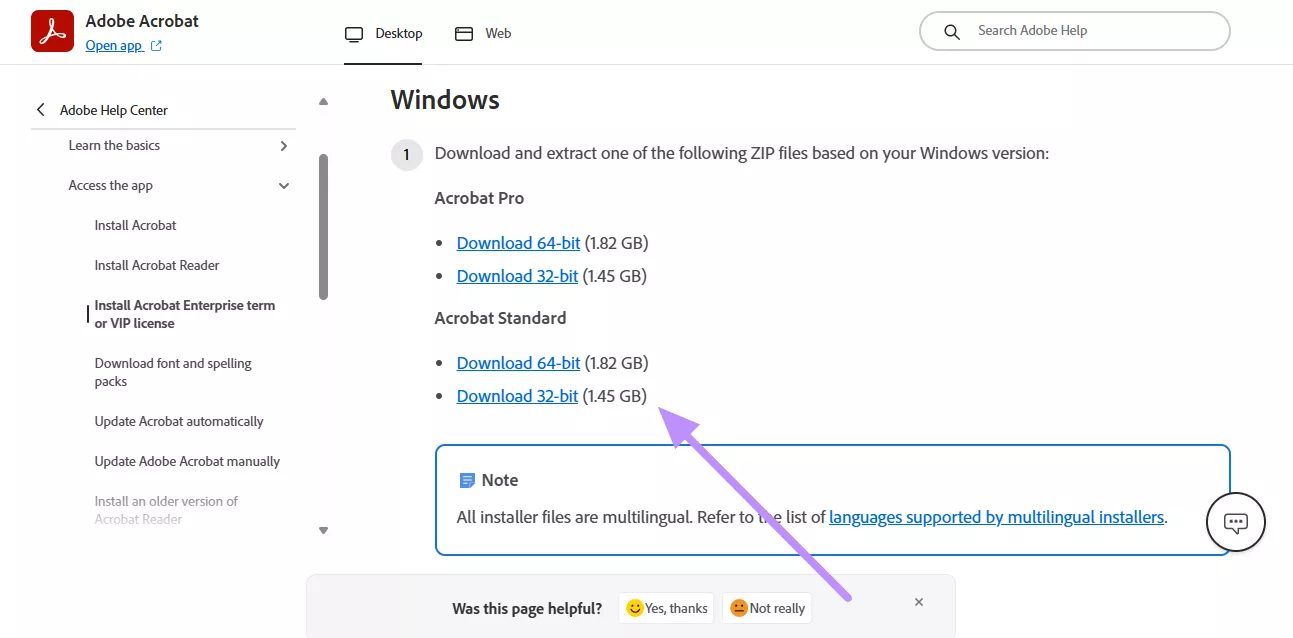
2. After downloading, open the installer file and tap Yes within the User Account Control prompt to proceed.
3. Moving forward, sign in with your Adobe ID when the setup asks for credentials. Then, follow the on-screen steps to complete the installation.
Note: If you encounter installation problems such as crashes or errors, visit the Acrobat Reader community page, which addresses common issues. Such a thread covers common fixes reported by Windows 7 users.
Safe Alternative to Adobe Acrobat for Windows 7
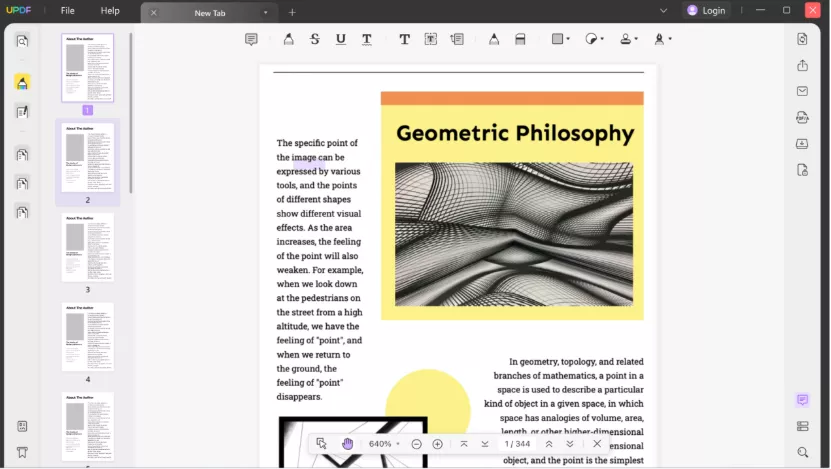
The end of official support for Windows 7 is not just an inconvenience, as it poses a genuine security risk. Without updates, any vulnerability in Adobe Acrobat remains permanently unpatched. To prevent cybercriminals from targeting outdated software, UPDF 1.0 fully supports Windows 7 and gives you a secure PDF experience without requiring a system upgrade.
It handles all the reading, editing, annotating, and organizing of documents in one clean interface. Download UPDF 1.0 for Windows 7 by visiting this download page to protect your PDF workflow.
Upgrade to the Latest Windows for New AI Features
Users should look to upgrade to Windows 10 or Windows 11 for a safer alternative and better PDF management features. On these latest OS, the UPDF 2.5 version fully unlocks powerful AI-driven features. It is a complete replacement for Adobe Acrobat with advanced features as explained below:
Windows • macOS • iOS • Android 100% secure
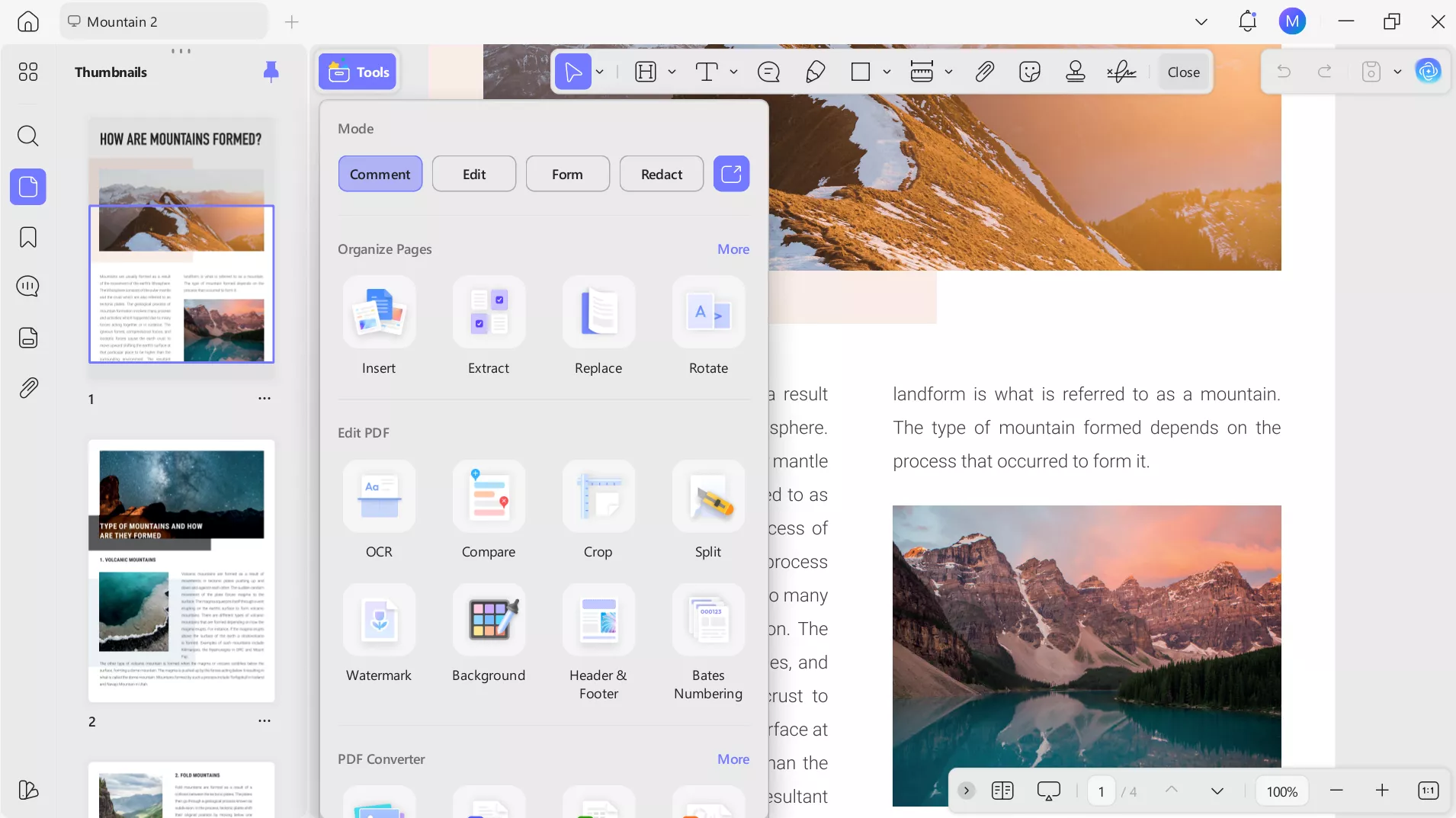
- Its built-in UPDF AI lets you chat directly with any PDF document. Using this feature, you can ask questions, get summaries, and extract key points.
- This feature scans your PDF and automatically creates bookmarks for your file. It detects headings by font size and layout, saving you hours of manual work.
- With UPDF, you can edit any text, image, or link directly inside a PDF. This mode gives you full control over content without converting the file first.
- Using UPDF AI writing agent, you get to generate, refine, and proofread text directly inside your document, giving you a professional editing experience.
- UPDF offers a complete set of annotation tools, including highlights, sticky notes, and freehand drawing. These tools work seamlessly across desktop and mobile.
- This mode lets you reorder, rotate, split, or delete pages with a simple drag-and-drop interface. It works visually, so you always see exactly what you are changing. Moreover, its AI Page Management feature automatically scan your document and highlight pages that need to be optimized.
- You can create fillable PDF forms from scratch or fill existing ones using UPDF's Form mode. It supports text fields, checkboxes, dropdowns, and signature fields to help you create forms for data collection.
- This tool also has AI features for generating backgrounds, watermarks, and stamps to let you create designs using text prompts.
- UPDF connects to the Cloud so you can sync files across all your devices. With this tool, you can share PDFs with others as easily as generating a secure link from inside the app.
Frequently Asked Questions
What should I do if the Adobe Acrobat installation fails or crashes on Windows 7?
When your installation keeps failing, check that your installer is the 32-bit version, as the 64-bit version is incompatible with Windows 7. If crashes persist, download a fresh copy from Adobe's archive or switch to UPDF for better compatibility.
The installation process shows an 'incompatible' message. What does that mean?
This message usually means you are trying to install a 64-bit version on a 32-bit system. For this, go to System Properties and confirm your Windows 7 architecture. To avoid this issue, download only the 32-bit Acrobat installer.
How to fix the “installer failed to start at all” issue?
A failed installer start usually points to a corrupted download or insufficient permissions. So, re-download the installer and run it as administrator. Alternatively, temporarily disable your antivirus, as it may block the setup file.
How do I tell the difference between 32-bit and 64-bit versions of Acrobat?
To tell the difference, right-click the installed application, select Properties, and check the install path. The 32-bit version installs in C:\Program Files (x86)\Adobe, while the 64-bit version goes to C:\Program Files\Adobe.
Conclusion
Adobe Acrobat on Windows 7 is usable through older 32-bit versions, but it comes with real risks. No security updates means your system stays exposed to known vulnerabilities.
For immediate safety on Windows 7, install UPDF 1.0 to get support for your system and keep your PDF work secure. For the long-term solution, upgrade to Windows 10 or 11 and use the latest UPDF with full AI features.
Windows • macOS • iOS • Android 100% secure








 Lizzy Lozano
 Enola Miller
 Enola Davis
 Enrica Taylor