UPDF
UPDF
 UPDF for Windows
 UPDF for Mac
 UPDF for iPhone/iPad
 UPDF for Android
 UPDF AI Online
 UPDF Sign
 Edit PDF
 Annotate PDF
 Create PDF
 PDF Form
 Edit links
 Convert PDF
 OCR
OCR PDF to Word
 PDF to Image
 PDF to Excel
 Organize PDF
 Merge PDF
 Split PDF
 Crop PDF
 Rotate PDF
 Protect PDF
 Sign PDF
 Redact PDF
 Sanitize PDF
 Remove Security
 Read PDF
 UPDF Cloud
 Compress PDF
 Print PDF
 Batch Process
 About UPDF AI
 UPDF AI Solutions
 AI User Guide
 FAQ about UPDF AI
 Summarize PDF
 Translate PDF
 Chat with PDF
 Chat with AI
 Chat with image
 PDF to Mind Map
 Explain PDF
 Scholar Research
 Paper Search
 AI Proofreader
 AI Writer
 AI Homework Helper
 AI Quiz Generator
 AI Math Solver
 PDF to Word
 PDF to Excel
 PDF to PowerPoint
 Enterprise Solution
 Enterprise Sign
 Enterprise AI
 Enterprise Plan
 Enterprise User Guide
 Enterprise Webinar
 Banking
 Healthcare
 Insurance
 Legal
Legal Manufacturing
 Government
 Education Solution
 Customer Stories
 User Guide
 UPDF Tricks
 FAQs
FAQs UPDF Reviews
 Download Center
 Blog
Blog Newsroom
 Tech Spec
 Updates
 UPDF vs. Adobe Acrobat
 UPDF vs. Foxit
 UPDF vs. PDF Expert


PDF files have been utilized for ages by corporates, banks, and universities as image files, meaning you are unable to edit the text on the file. However, with the advancement of technology, the dealings of the world are going paperless. This is where the need for a secure and reliable format arose, along with the ability to edit the scanned PDF format with authentic tools.
Adobe Acrobat OCR plays its part by offering users a feature that allows them to edit scanned documents without any inconvenience. This article will explore everything about Acrobat OCR.
And you may find the Adobe Acrobat OCR is very expensive and want to find a cheaper alternative. We also get you here. We will introduce UPDF which is the best Acrobat alternative. You can download UPDF via the button below to test it.
Windows • macOS • iOS • Android 100% secure
Part 1. Does Adobe Reader Have OCR Feature
Adobe Reader is a free standard version that offers users the feature of viewing, printing, and sharing PDF files across the internet. Adobe Reader also allows users to add comments to the PDF file. However, the premium features such as Adobe Reader OCR are offered in the paid version of Adobe, known as Adobe Acrobat Pro and Adobe Acrobat Studio.
Acrobat Pro is available at US$19.99 per month, billed monthly as part of an annual subscription, totaling US$239.88 per year. Acrobat Studio is offered at US$24.99 per month, billed monthly on an annual subscription, totaling US$299.88 per year, with early-access pricing available until January 31, 2026.

Adobe Acrobat and the later versions offer other premium features to its user, such as the OCR, compression, annotation, and conversion into other formats. It also offers password protection, tools to edit PDF text, and features to add a signature and personal branding to a PDF file.
Part 2. How to Use Adobe Acrobat OCR Step-by-Step
Adobe Acrobat is one of the best-known PDF file editors available for users around the world. The innovative and simple UI of Adobe Acrobat allows users to navigate and operate the software easily. Used by various industries, from tech to business administrations and IT departments, it has become the number one choice of PDF users worldwide.
Steps to Edit Scanned Document using Adobe Acrobat
Follow the steps cited below to successfully convert scanned PDF into an editable PDF document using the Adobe Acrobat OCR feature:
Step 1: Launch Adobe Acrobat
Initiate the process by launching Adobe Acrobat on your device. Navigate to the toolbar and tap on the "File" tab. Next, click on the "Open" tab to import a scanned PDF document from your device on the Acrobat window.
Step 2: Enable OCR Feature
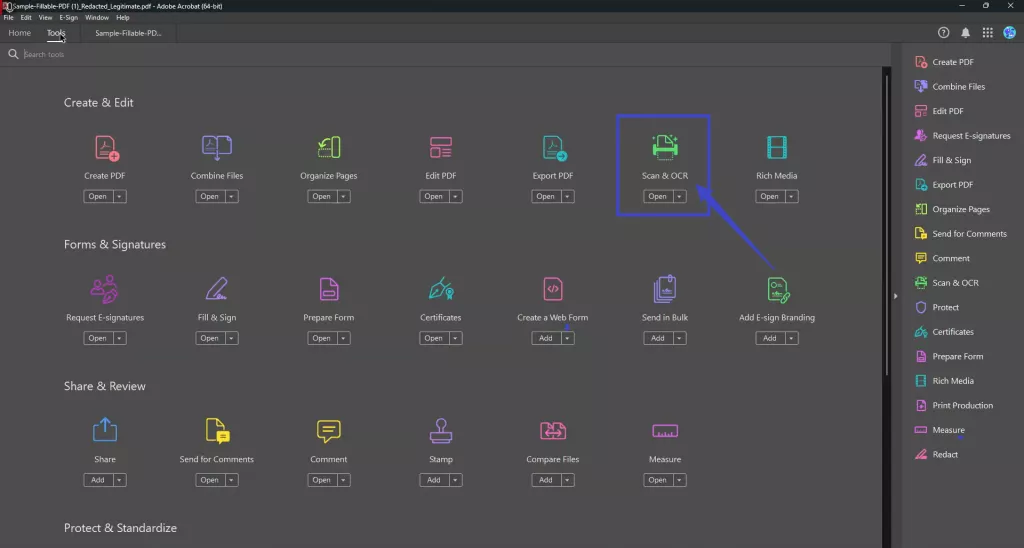
After importing the PDF on Acrobat, head up to "Tools", choose "Scan & OCR" and then click "Recognize Text" to make your PDF an editable file.
You need to pick the page range and set the correct language you want to progress.
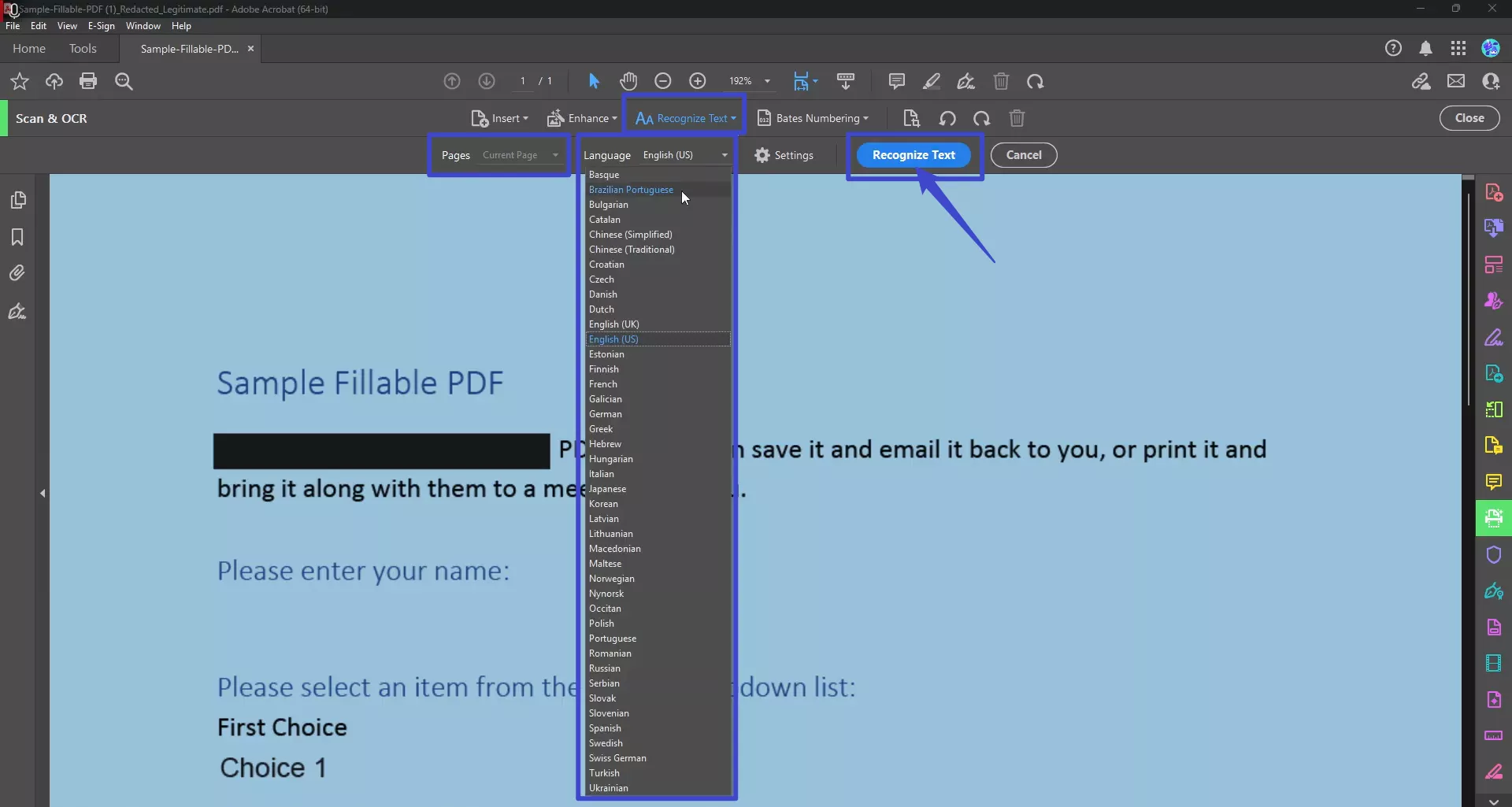
Next, click the Settings button to choose your PDF output style. Adobe Acrobat offers three options:
- Searchable Image: Keeps the original appearance of your pages while adding invisible, searchable text behind them.
- Searchable Image (Exact): Preserves the page layout as accurately as possible.
- Editable Text and Images: Converts recognized text and images into fully editable content, though complex layouts may see slight changes.
You can also enable Downsample to lower image resolution and reduce file size after OCR. This is useful for large documents, but note that heavy downsampling may reduce clarity when zoomed in. After adjusting your settings, click "OK".
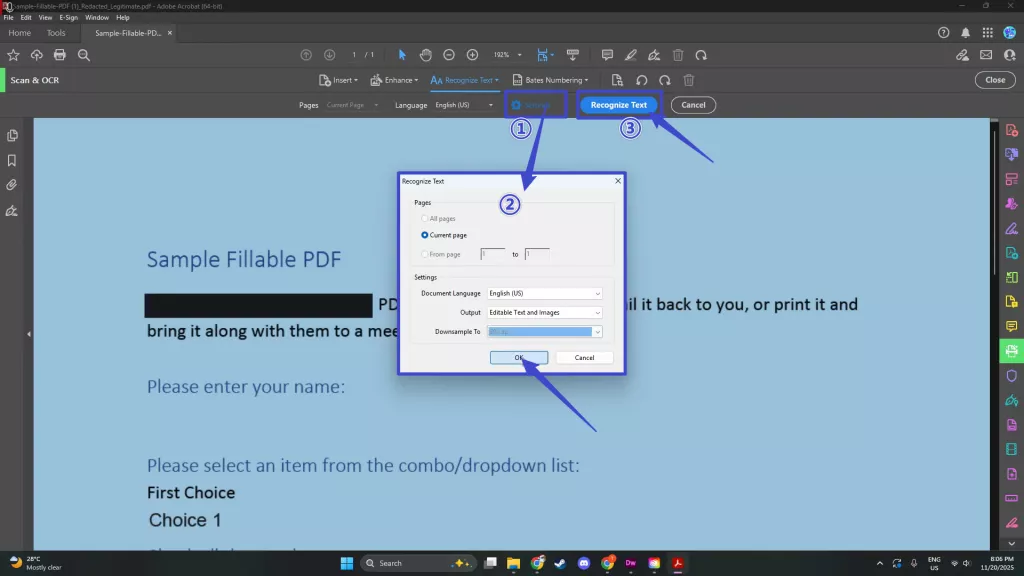
Finally, click "Recognize Text" to start the OCR process.
Step 3: Edit the Scanned PDF Document
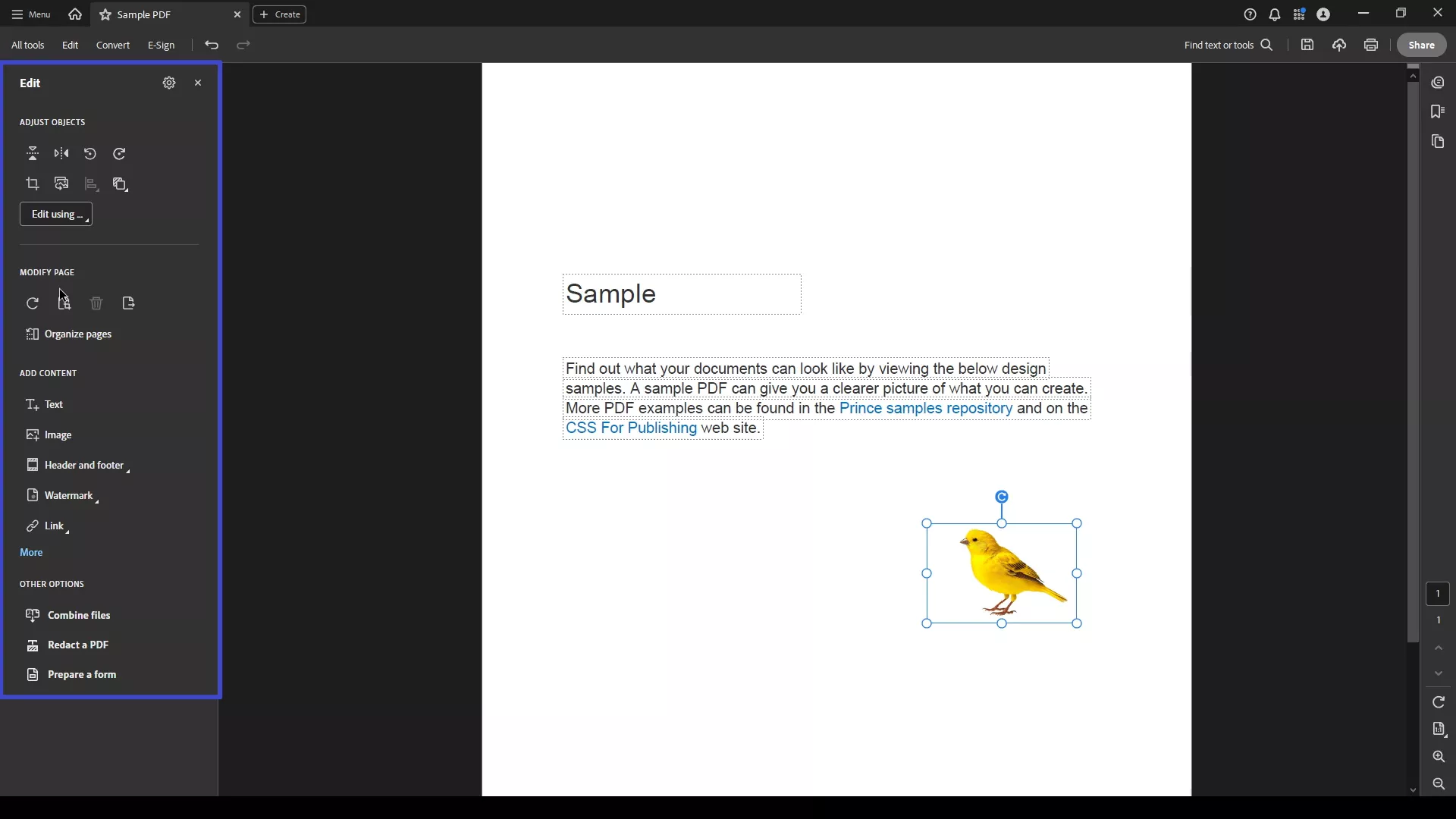
After applying the OCR feature to your PDF file, make edits to your document according to the requirement. You can change the text and alternate the font and size accordingly.
Step 4: Save the PDF Document
After editing the scanned PDF document, tap on the "File" option from the toolbar and navigate to the "Save As" option. Make sure to rename and select the file location for your PDF to save it on your device.
Part 3. How to Turn Automatically OCR in Adobe Acrobat
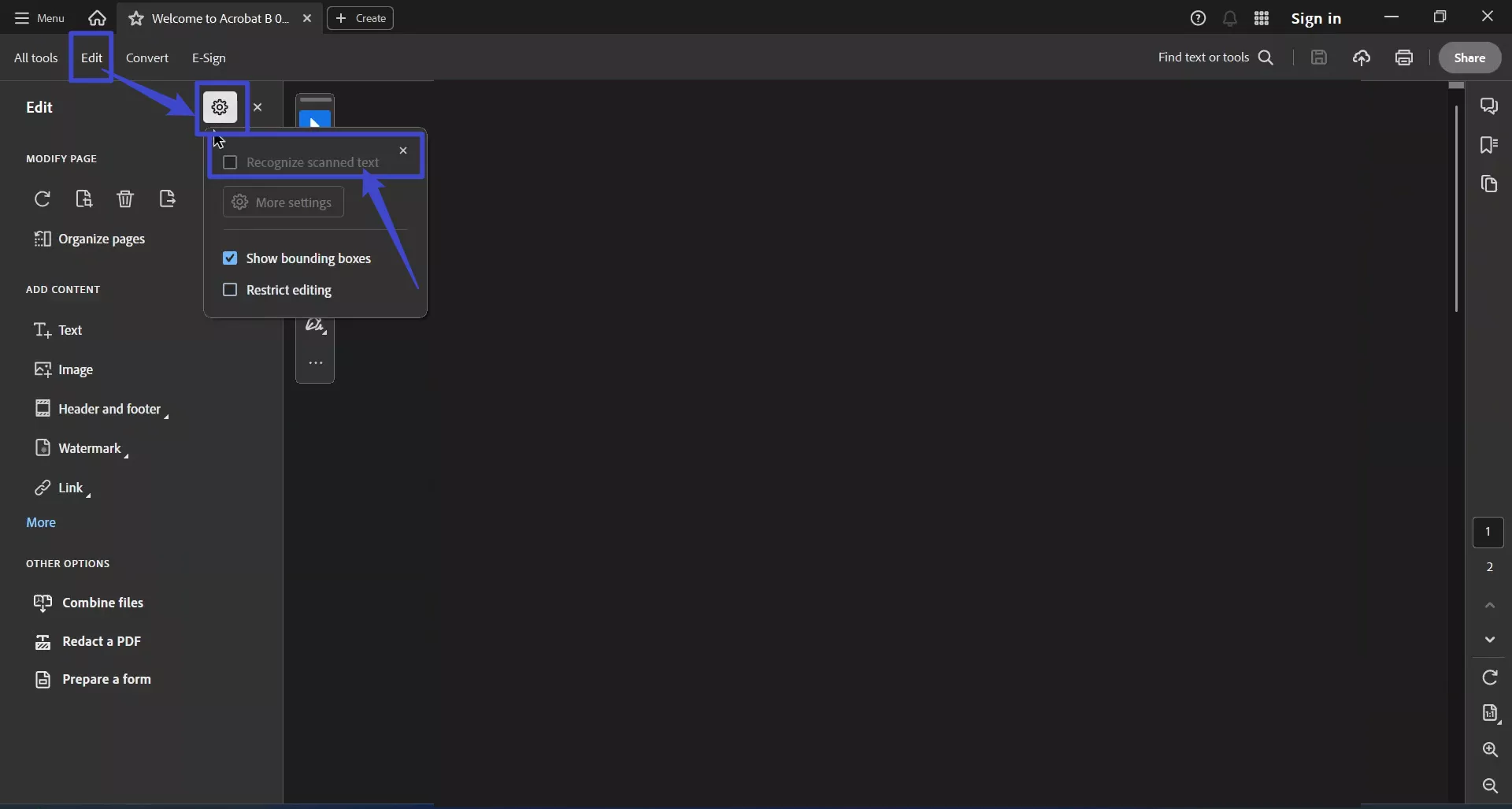
Adobe Acrobat automatically enables the OCR feature on scanned PDF documents as soon as you tap on the "Edit PDF" option on the right panel of Adobe Acrobats; hence the page under work becomes editable. But in case Adobe Acrobat OCR feature is not enabled automatically, you can turn it on by following the steps mentioned below.
Step 1: Open Adobe Acrobat on your computer and navigate to the "Edit" tab on the left side of the window.
Step 2: From the left panel of the "Edit" section, click the "Settings" icon and checkmark the "Recognize scanned text" option to enable the Adobe Acrobat Pro OCR feature automatically every time you import a scanned document on Acrobat.
Part 4. Pros and Cons of Adobe Acrobat OCR
Adobe Acrobat is undoubtedly a robust and intuitive PDF editor available for MacBook, Windows, and other devices, making it the most compatible PDF editor available on the market. But besides the plus point of Adobe Acrobat, there is a drawback too, which makes it not an ideal and complete solution for occasional PDF editors.
Pros of Adobe Acrobat OCR
Following are some of the pros and positive sides of using the Adobe Acrobat OCR feature to edit scanned PDF documents on the go without any difficulty:
1. Automated OCR Feature
Adobe Acrobat offers an automated OCR feature to its user, which means that users are not required to apply OCR separately on their scanned PDF files. Instead, on Adobe Acrobat, as soon as you open the scanned PDF document in edit mode, OCR is automatically enabled on the document.
2. Edit the File in Adobe Acrobat
Because the OCR feature is automated on PDF documents in Adobe Acrobat, users are not required to convert a file into Word format. Rather, you can edit your PDF file directly in Adobe Acrobat.
3. Compatibility with Devices
Adobe Acrobat is compatible with various devices and operating systems, such as Windows, Mac, Android, and iPhone, making it a wiser choice for users.
4. Offers Premium Features
Adobe Acrobat also offers other premium features to its user, such as annotation in PDF and connectivity with the cloud to access the file from anywhere at any time from any device. It also offers the conversion of files into different formats such as Word, Excel, PowerPoint, and so on.
Con of Adobe Acrobat OCR
The drawback of using Adobe Acrobat PDF editor is mentioned below, besides its robust functioning and simple UI:
Monthly or Annual subscription Packages
Adobe Acrobat limits user interaction with their tool because the free version only offers a limited set of features. To use PDF on a professional basis, to edit, annotate and convert PDF, you are required to pay for the premium feature, which comes with a high price.
With abundant PDF editors available in the market, deciding which will work best for your PDF editing sometimes becomes difficult. There are various paid options, too, but why pay hefty prices when you can enjoy all the premium features in a cost-friendly PDF editor, like UPDF editing tool?
Part 5. How to Use Adobe Acrobat OCR Alternative – UPDF
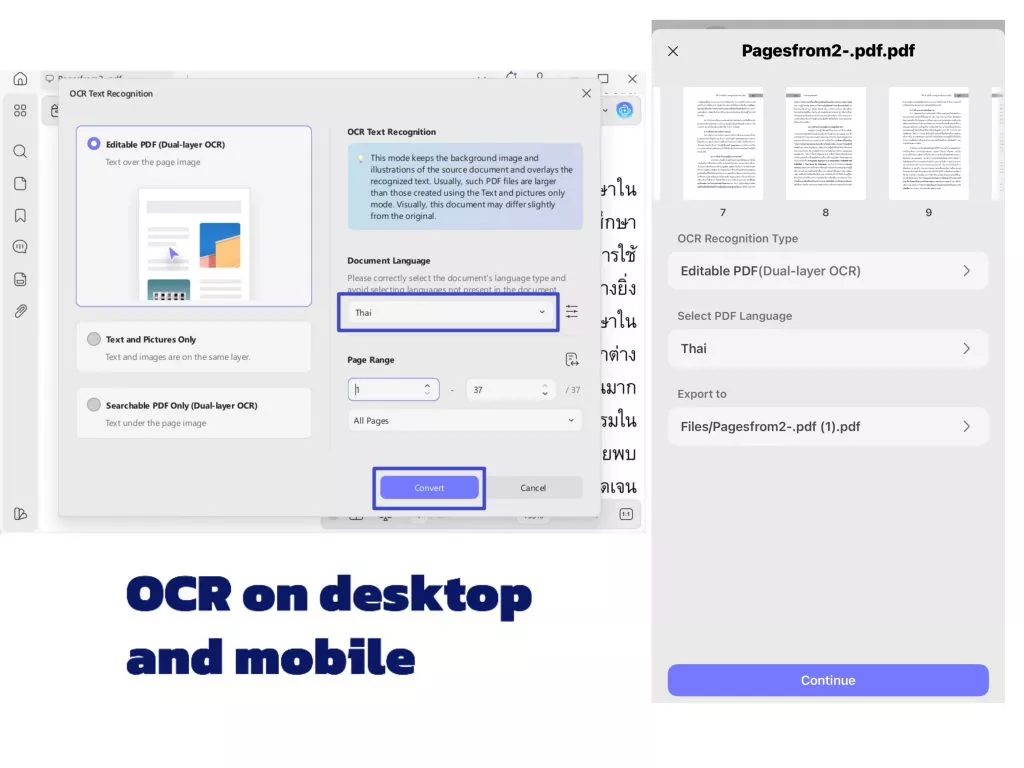
UPDF is a full fledge PDF editing tool that offers OCR tool to help you convert scanned or image only PDF to editable file. If you want to try this powerful editing tool, you can click below download button to get it.
Windows • macOS • iOS • Android 100% secure
Key Advantages of UPDF OCR
- UPDF’s OCR supports 38+ languages with at least 99% accuracy.
- Recognizes all languages in a multilingual document in a single process.
- After OCR, you can edit, translate, summarize, convert, and fully control your content.
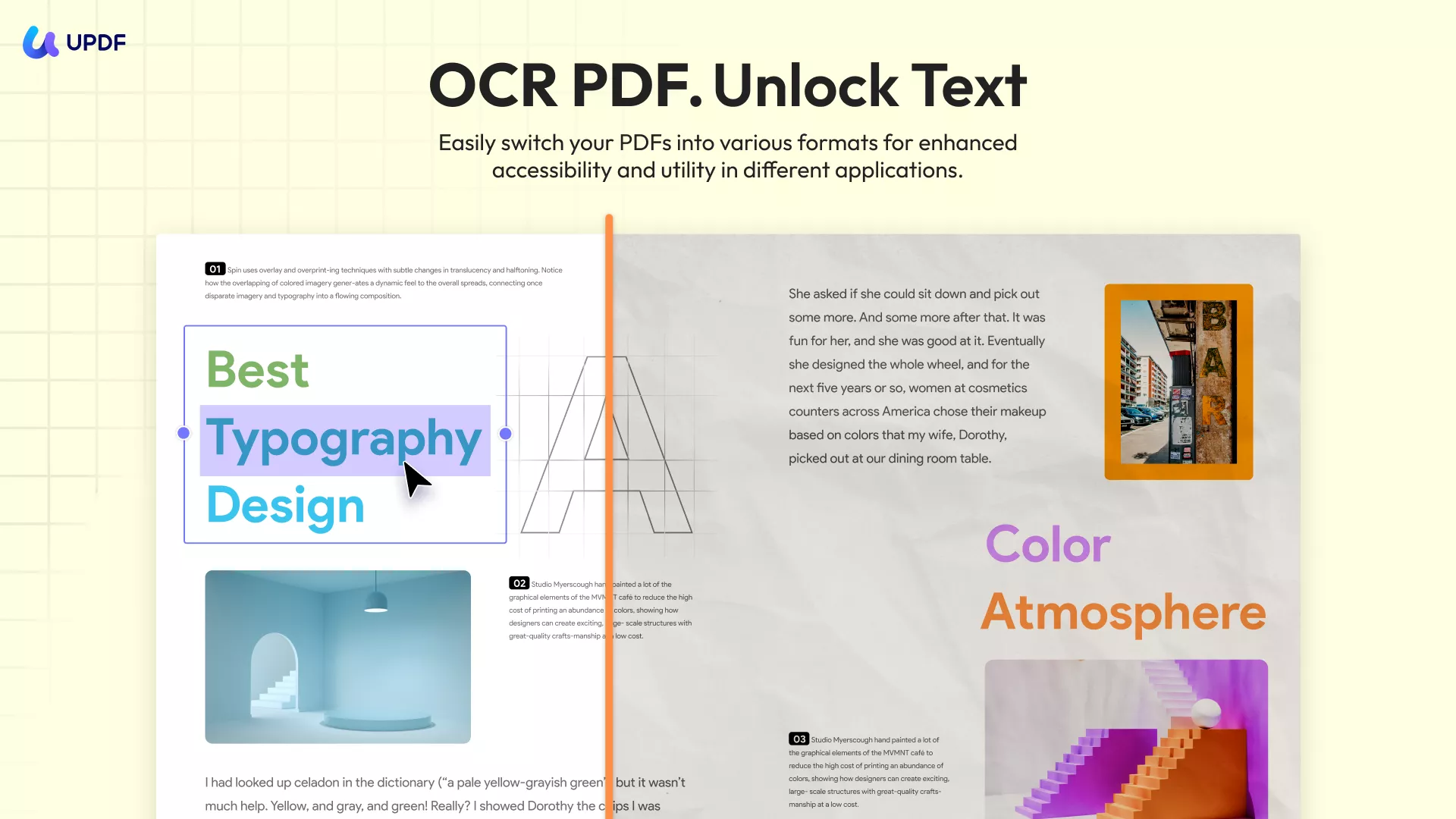
- UPDF retains the original format when performing OCR and converting scanned PDFs or images.
- Available on Windows, macOS, iOS, and Android.
To use:
Windows • macOS • iOS • Android 100% secure
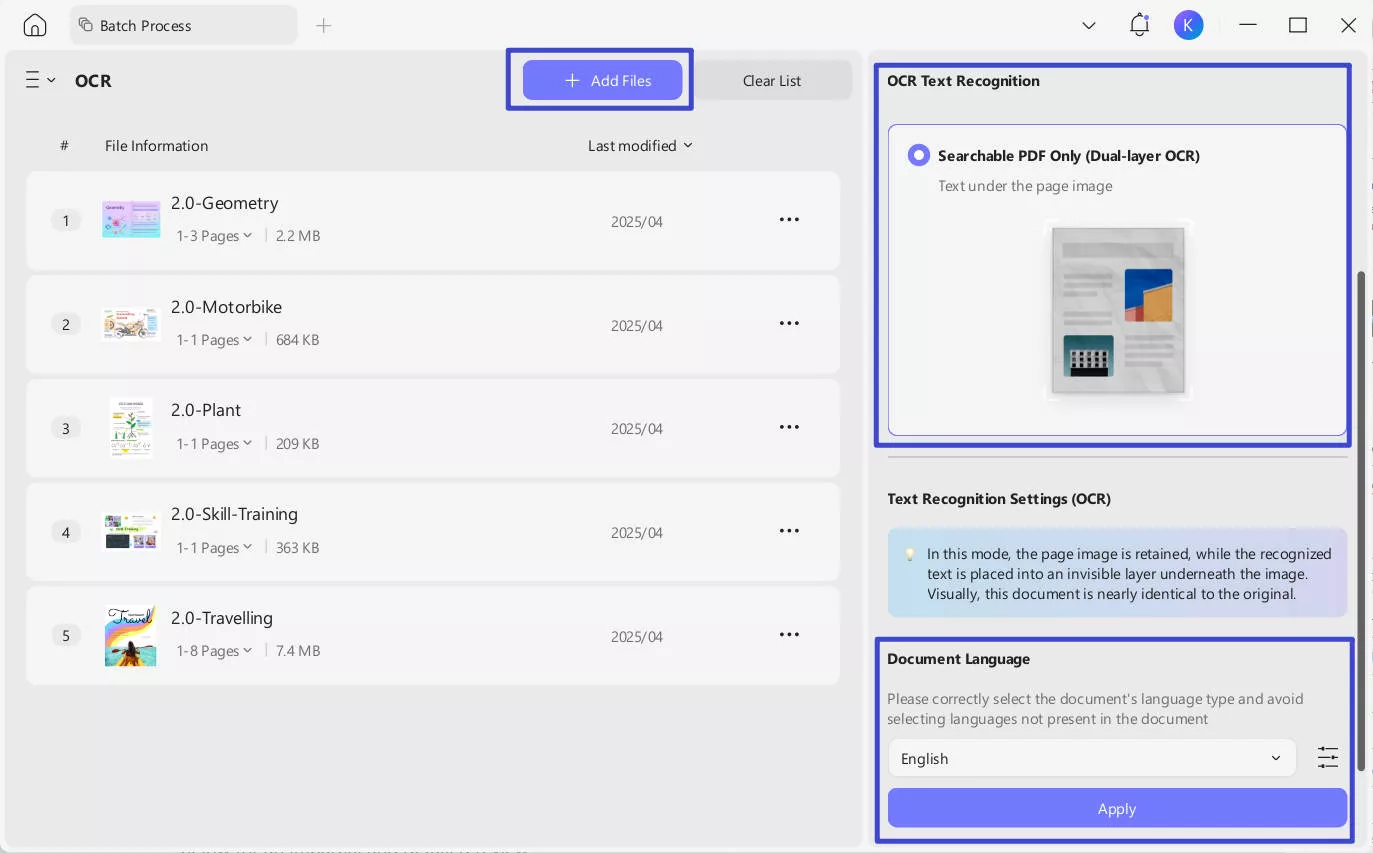
- UPDF offers a Batch OCR feature to process multiple scanned documents at once. No need to repeat the OCR process for each file individually.
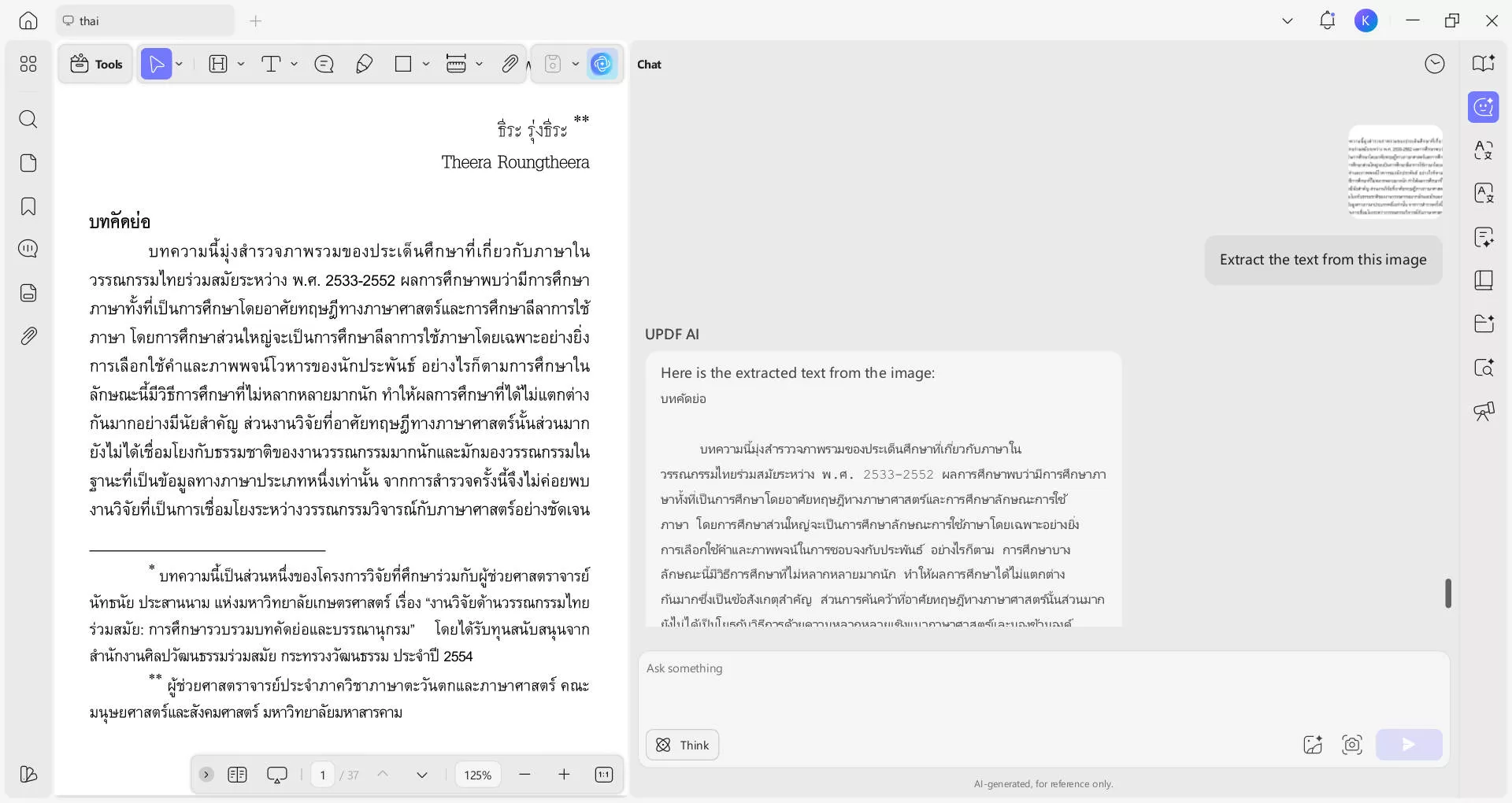
- If OCR struggles with special elements or specific content, use UPDF AI to extract text directly.
- Extracted text can be copied anywhere.
- For documents in languages beyond the 38 supported by UPDF, UPDF AI can still extract text using prompts. UPDF AI supports languages worldwide.
Steps:
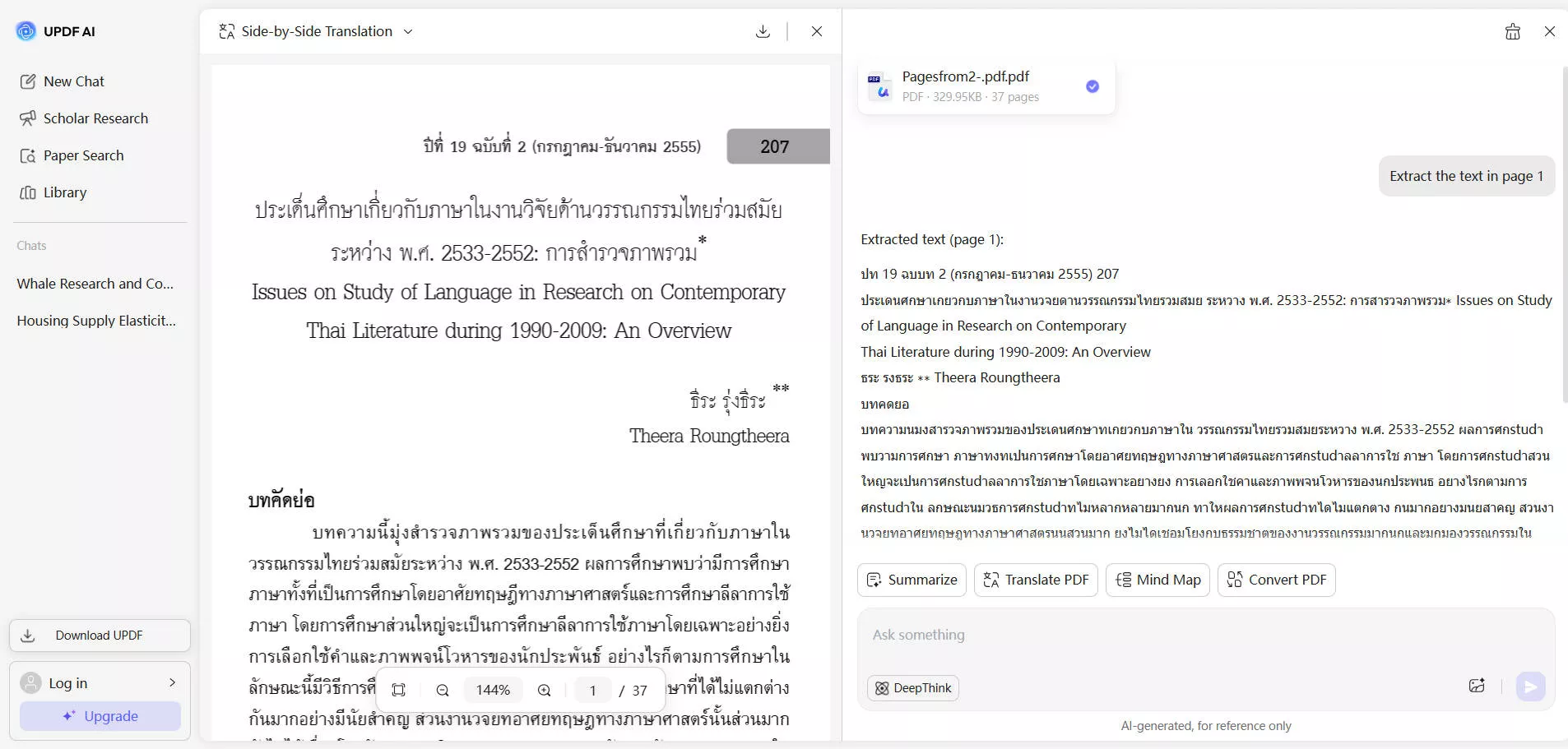
- No download needed: use UPDF AI Online to recognize and extract text from scanned PDFs and images.
- Commands can be entered to extract handwritten text. The free plan includes 100 prompts.
- The price of a UPDF Premium license is one-quarter that of Adobe Acrobat, while offering most of Adobe Acrobat’s features. One license can be used across all platforms, making it highly cost-effective.
Windows • macOS • iOS • Android 100% secure
To learn more about how to OCR PDF, you can watch the video below.
Final Thought
You can use OCR in Adobe Acrobat to convert scanned PDFs. But it's too expensive if you only use this feature in Adobe. So we recommend you choose UPDF with a better price. Download today on your devices and start using the premium feature and services UPDF offers. Whether you are working in a large-scale business or working in a small-scale business, it is the best choice as an all-rounder PDF editor.
Windows • macOS • iOS • Android 100% secure



 Enola Davis
 Grace Curry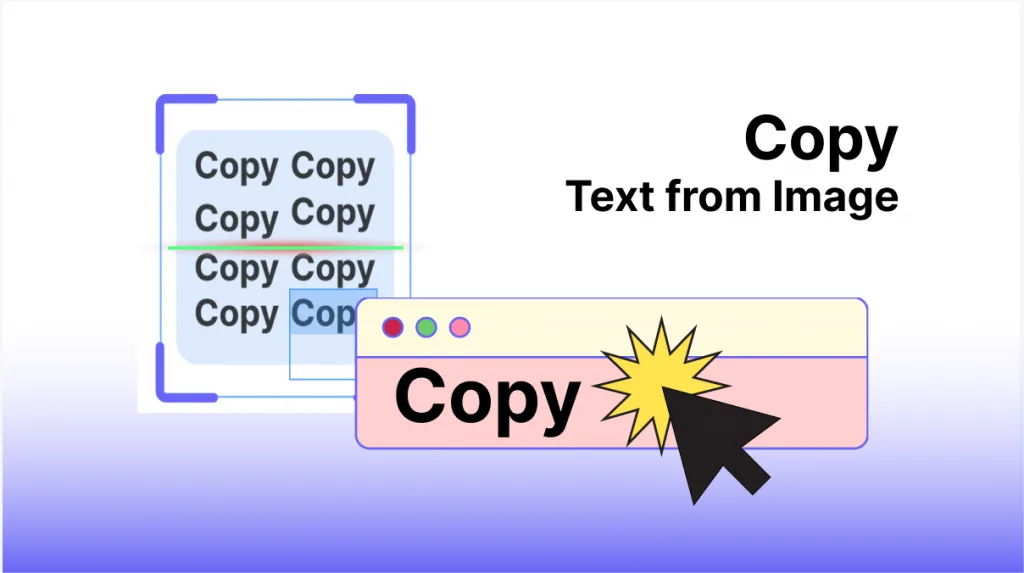
 Enrica Taylor