 UPDF
UPDF
 UPDF for Windows
 UPDF for Mac
 UPDF for iPhone/iPad
 UPDF for Android
 UPDF AI Online
 UPDF Sign
 Edit PDF
 Annotate PDF
 Create PDF
 PDF Form
 Edit links
 Convert PDF
 OCR
OCR PDF to Word
 PDF to Image
 PDF to Excel
 Organize PDF
 Merge PDF
 Split PDF
 Crop PDF
 Rotate PDF
 Protect PDF
 Sign PDF
 Redact PDF
 Sanitize PDF
 Remove Security
 Read PDF
 UPDF Cloud
 Compress PDF
 Print PDF
 Batch Process
 About UPDF AI
 UPDF AI Solutions
 AI User Guide
 FAQ about UPDF AI
 Summarize PDF
 Translate PDF
 Chat with PDF
 Chat with AI
 Chat with image
 PDF to Mind Map
 Explain PDF
 PDF AI Tools
 Image AI Tools
 AI Chat Tools
 AI Writing Tools
 AI Study Tools
 AI Working Tools
 Other AI Tools
 AI Bookmark Generation
 AI Bookmark Summary
 AI Watermark Generation
 AI Background Generation
 AI Sticker Generation
 AI Stamp Generation
 AI Editing Suite
 UPDF Copilot
 AI Page Management
 AI Semantic Search
 PDF to Word
 PDF to Excel
 PDF to PowerPoint
 Enterprise Solution
 Enterprise Sign
 Enterprise AI
 Enterprise Plan
 Enterprise User Guide
 Enterprise Webinar
 Banking
 Healthcare
 Insurance
 Legal
Legal Manufacturing
 Government
 Education Solution
 Customer Stories
 User Guide
 UPDF Tricks
 FAQs
FAQs UPDF Reviews
 Download Center
 Blog
Blog Newsroom
 Tech Spec
 Updates
 UPDF vs. Adobe Acrobat
 UPDF vs. Foxit
 UPDF vs. PDF Expert

Accessibility checkers for PDF are essential for ensuring documents meet legal and usability standards. Failing to verify a PDF’s accessibility can result in lawsuits, fines, and reputational damage. In addition, accessible PDFs have a full tagged structure and text alternatives so that people with disabilities can understand them.
In contrast, a “standard PDF” often has few or no tags and creates accessibility hurdles. In this guide, we introduce the best 5 PDF accessibility testing tools for users. All of these tools will flag different types of problems affecting the accessibility of a file.
However, many accessibility checkers only detect issues but don't fix them. Some also have complex interfaces or require expensive subscriptions. That's why many users turn to UPDF. Beyond AI-powered OCR, UPDF 2.5 now includes 10 purpose-built AI Agents — including tools that automatically detect page structure problems, fix text errors, and generate proper navigation bookmarks, all of which directly address common accessibility failures. Read till the end to learn about all of these PDF checkers and how UPDF can help you remediate them.
Windows • macOS • iOS • Android 100% secure
What’s the Working Standard of PDF Accessibility Checkers?
Before using specific accessibility checkers for PDF, it helps to know what they do. Typically, a PDF accessibility checker will:
- Standards Verification: Such tools scan the PDF against WCAG and PDF/UA (ISO 14289) criteria. It checks for required metadata, tag structure, alt text, headings, tables, and other elements that WCAG and PDF/UA specify.
- Structural Analysis: They examine document tags (headings, lists, tables) and reading order. Many checkers (like PAC) offer a screen reader preview so you can see how assistive technology interprets the structure.
- Report Generation: These tools typically flag each rule as pass/fail/needs-manual-review and export a summary or detailed report. Most of the time, these reports note exactly where errors occur.
- AI/OCR Features: Some modern checkers include AI or OCR to detect text in images or analyze contrast automatically. These help automate what used to be purely manual reviews.
For more information on the requirements of an accessible PDF, see UPDF’s detailed guide to accessible PDFs.
2026 Best 5 PDF Accessibility Checkers
We compare the following tools by platform, supported standards, price, features, and audience. After going through this table, read the detailed information about the best PDF accessibility checkers for an informed choice.
| Tool | Platform | Standards | Price | Key Features | Limitations |
| PAC | Windows only | WCAG 2.x, PDF/UA-1 | Free | Drag-drop scanAI-assisted checksDetailed reports | Only available on Windows |
| Adobe Acrobat | Windows, macOS | WCAG 2.x, PDF/UA (ISO) | $19.99 per month | Built-in CheckerReading Order toolAuto-tagging wizard | Require paid version for checks |
| veraPDF | Windows, macOS | PDF/UA-1, PDF/A | Free | CLI batch validatorISO 14289 complianceDetailed HTML reports | Only checks compliance without fixing issues |
| CommonLook | Acrobat plugin | WCAG 2.x, PDF/UA-1, Section 508, HHS | Free | Deep metadata analysisTable/list/form checkingCertification reports | Need a paid version of Adobe Acrobat |
| EqualWeb | Web-based | WCAG 2.x, Section 508 | Starts from $39 per month | AI-powered online auditCategory reportingWeb-based checking | Doesn’t cover ISO PDF/UA |
1. PAC
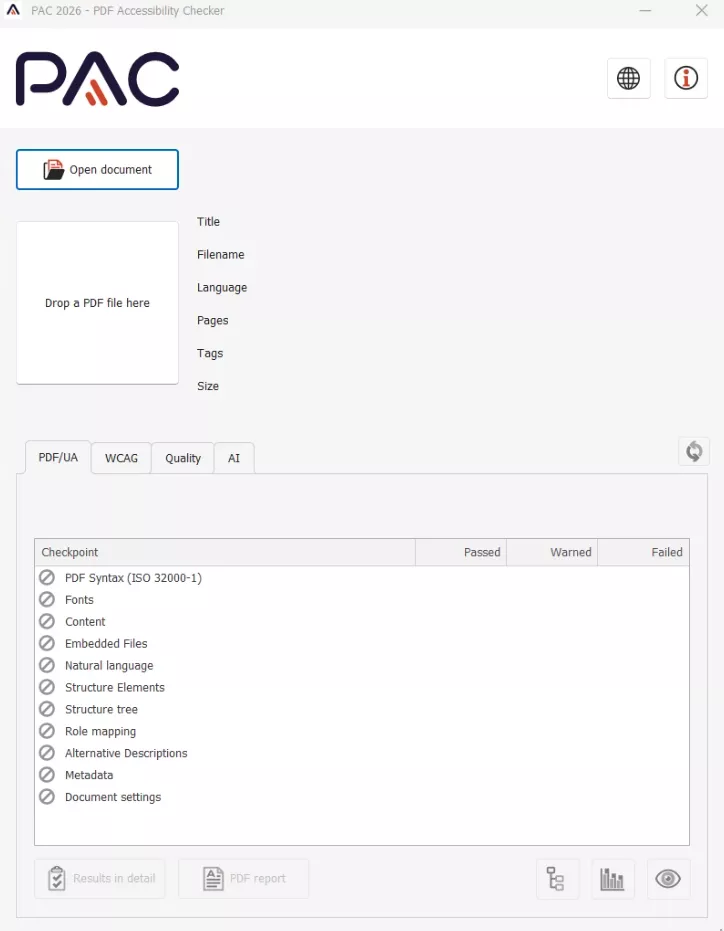
PAC is a Windows-only PDF checker developed by the “Access for All” foundation. It has been widely used since 2010 for PDF/UA and WCAG compliance. With PAC, you simply drag and drop a PDF onto its interface for an instant scan.
With the latest 2026 version, PAC introduces AI-assisted checks that reduce manual testing effort and improve accuracy. Moreover, its results include both a quick summary and a detailed error report.
Core Features
- Users can drag and drop a PDF into the interface and instantly receive accessibility results.
- Its screen reader preview shows how assistive technologies interpret document structure.
- PAC evaluates document structure, tags, and semantic elements to help maintain accessibility for assistive technologies.
Limitations
- While PAC performs automated checks, some accessibility requirements still require manual testing and human judgment.
- Interpreting detailed accessibility reports may need familiarity with standards such as PDF/UA or WCAG.
Targeted Audiences
- Accessibility specialists and compliance professionals
- Government organizations and public institutions
- Document remediation experts
Price
- Free
2. Adobe Acrobat Pro Preflight
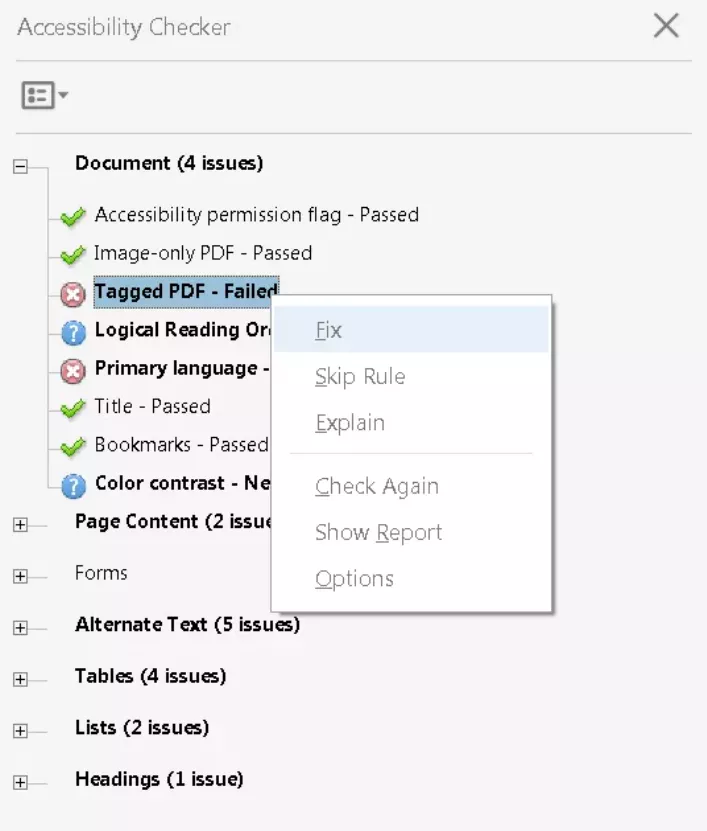
Adobe Acrobat Pro includes a powerful Accessibility Checker (often accessed via Preflight profiles) that supports WCAG and PDF/UA standards. It runs on Windows and macOS as part of Acrobat. The tool verifies elements like titles, alt text, tags, and form fields against compliance rules.
Moreover, this accessibility checker for PDF generates an accessibility report. Its Reading Order tool lets you correct tag order manually.
Core Features
- It automates several accessibility tasks, such as tagging PDFs, checking document titles, and detecting structural issues.
- Using Adobe, users can review and modify the logical reading order of document elements.
- This tool recognizes text in scanned or image-only PDFs using OCR, converting them into accessible text documents.
Limitations
- Many accessibility tools, including reading order editing and advanced checks, are only available in the paid Acrobat Pro version.
- Automated accessibility checks cannot verify all issues, requiring manual review.
Targeted Audiences
- Accessibility specialists and compliance auditors
- Educational institutions producing accessible materials
- Businesses publishing digital reports and documents
Price
- Acrobat Pro: $19.99 per month
- Acrobat Studio: $24.99 per month
3. veraPDF
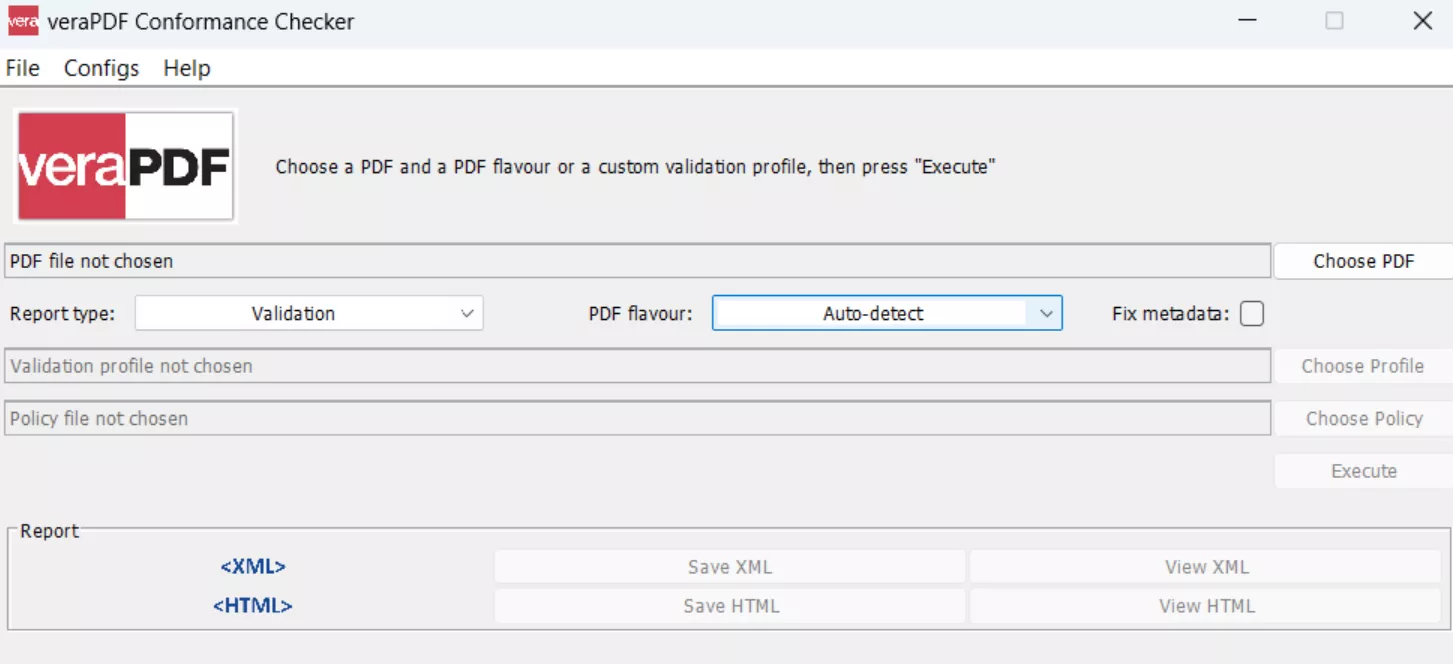
veraPDF works as an open-source validator focused on standards compliance. It’s the industry-leading tool for PDF/UA (ISO 14289-1) and PDF/A conformance. VeraPDF runs cross-platform (Windows, macOS, Linux) from the command line or via CI workflows.
In addition, this best PDF accessibility checker rigorously checks tag structures and file-level compliance with forensic accuracy. Users can export results as HTML, XML, or JSON for integration into dashboards. Because all rules and code are public, teams trust it for audits and batch testing.
Core Features
- This tool validates all PDF/A parts and conformance levels for long-term digital preservation and archival reliability.
- veraPDF parses and analyzes PDF structure, producing detailed validation reports describing document properties.
- It even allows institutions to define custom validation rules to enforce internal document policies beyond standard accessibility requirements.
Limitations
- veraPDF only checks compliance and does not provide extensive tools for fixing accessibility or structural issues.
- You need technical skills to use advanced features, including CLI automation, validation profiles, or policy checks.
Targeted Audiences
- Digital preservation specialists
- National archives and libraries
- Government institutions managing long-term records
Price
- Free, Open Source
4. CommonLook PDF Validator
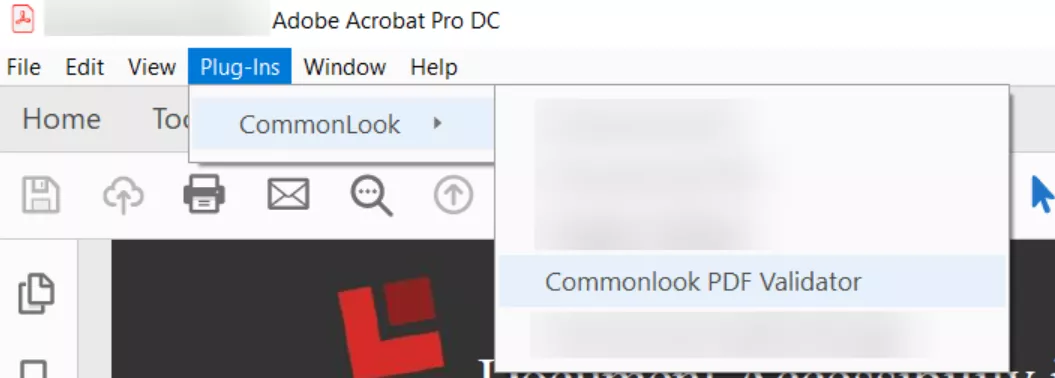
CommonLook PDF Validator (by Allyant) is a free Acrobat Pro plugin for accessibility testing. It complements PAC by focusing on complex document elements. Within Acrobat, it guides the user through both automated and manual checks.
Additionally, this PDF accessibility checker for Mac even produces a formal certification report for each document. Moreover, CommonLook is especially strong with multi-level tables and form fields.
Core Features
- This tool scans PDF documents to verify compliance with standards, including WCAG, Section 508, and HHS guidelines.
- It even allows users to review and validate essential PDF metadata, including document titles, author details, and properties.
- CommonLook provides detailed guidance for manual accessibility tests that automated tools cannot verify.
Limitations
- The validator functions only as a plugin and requires Adobe Acrobat Standard or Pro.
- It focuses mainly on validation and testing, meaning users may need additional software to fix accessibility issues.
Targeted Audiences
- Legal and compliance teams
- Corporate document management teams
- Accessibility consultants and auditors
Price
- Free Acrobat plugin
5. EqualWeb PDF Checker
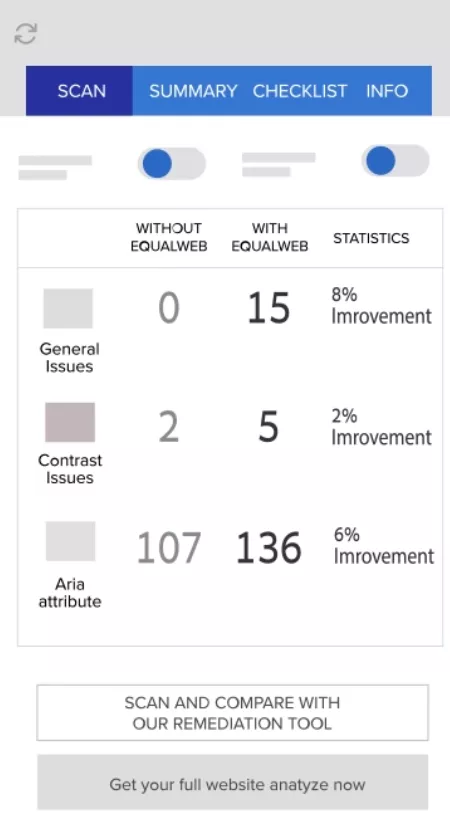
EqualWeb’s PDF Accessibility Checker is a web-based tool that scans PDFs against WCAG 2.x and Section 508 guidelines. It’s an online service that offers free basic scanning. After upload, it audits the document and produces a detailed report. The checker uses AI to quickly parse auto-tagged PDFs, resulting in readable reports.
For each category, this PDF accessibility checker online free shows the number of issues fixed, so you can track progress. EqualWeb’s checker is most effective when evaluating PDFs that have already been tagged or partially remediated.
Core Features
- It organizes issues into 7 main categories, including Document, Content, Forms, Alt Text, Tables, Lists, and Headings.
- Being a free scanner, its basic checking is available for free (may require a sign-up).
- Within its detailed feedback, you will find rule names and descriptions to guide remediation.
Limitations
- It acts purely as a checker, so it reports issues but does not modify the PDF.
- This online PDF accessibility checker doesn’t cover ISO PDF/UA-specific checkpoints.
Target Audience
- Web publishers
- Compliance teams
- Small businesses
Price
- Small: $39 per month
- Medium: $49 per month
- Large: $109 per month
Why Do PDF Accessibility Checker Results Differ?
Different checkers often report different issues for the same file. This happens because:
- Standards Ambiguity: PDF/UA and WCAG have areas open to interpretation. Each tool’s developers may implement checks differently, so one checker might flag an issue while another does not.
- Tool Focus: Some checkers emphasize strict technical compliance (PDF/UA syntax), while others highlight user experience or specific guidelines.
- Version Updates: Checkers may support different standard versions. For example, one tool might check WCAG 2.2, while another only covers 2.0, causing discrepancies.
- Parsing Engine: Each tool uses its own PDF parsing library. Differences in how they read tags, text, and graphics can yield inconsistent findings.
Best Tool for Fixing PDF Accessibility Issues
After checking, you’ll need to fix the flagged issues with a proper tool. For common problems like image-only PDFs, missing tags, or incorrect reading order, UPDF offers an all-in-one solution. UPDF is an AI-powered PDF editor that can convert scanned images to text via OCR, add or reorder tags, and adjust document structure.
Windows • macOS • iOS • Android 100% secure
For example, if a checker reports an “Image-only PDF – Failed,” you can simply run its OCR feature and make the content searchable and taggable. UPDF also lets you insert missing alt-text and correct reading order manually.
Its simple interface and powerful OCR make remediation fast, as explained below:
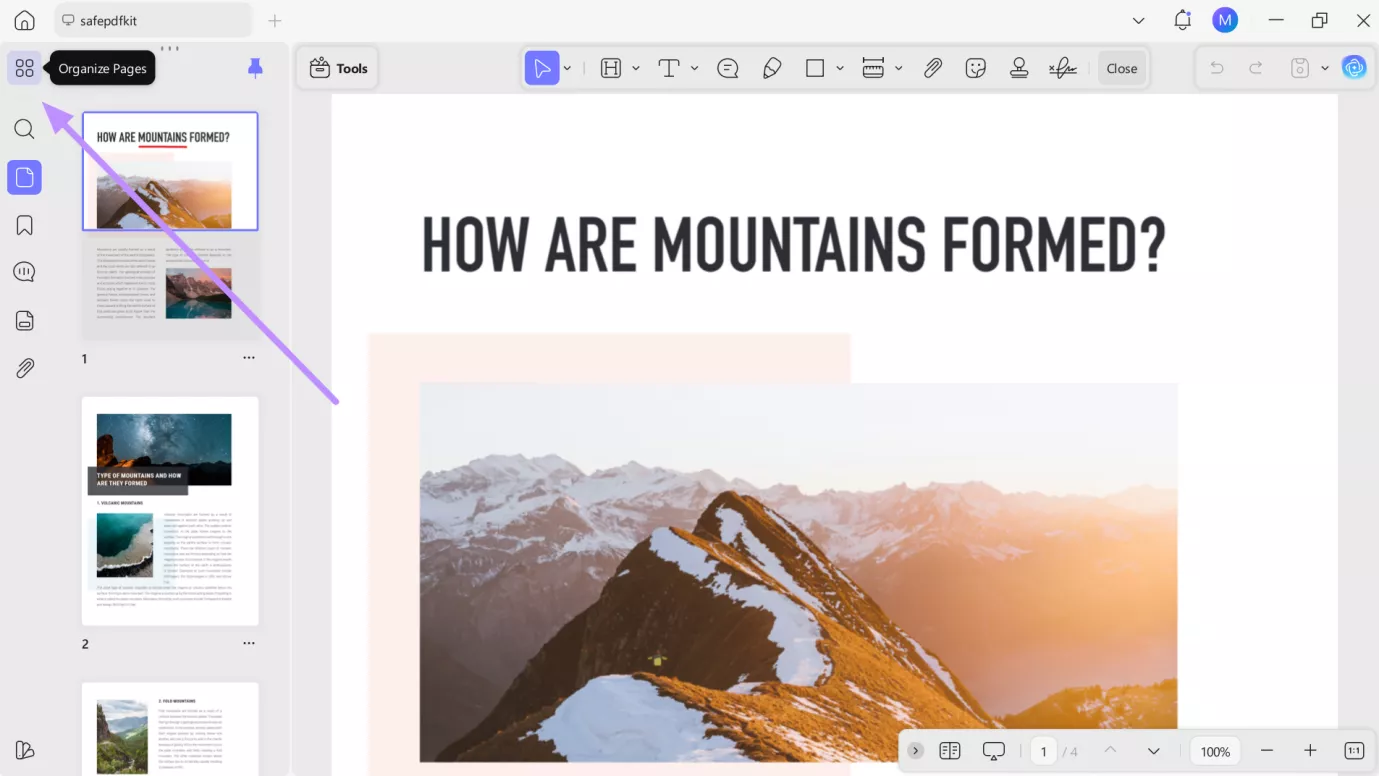
1. Start the process by launching UPDF and tapping the Open File button to import a file with accessibility issues. Once the file is uploaded, tap on the Organize Pages icon to proceed with this task.
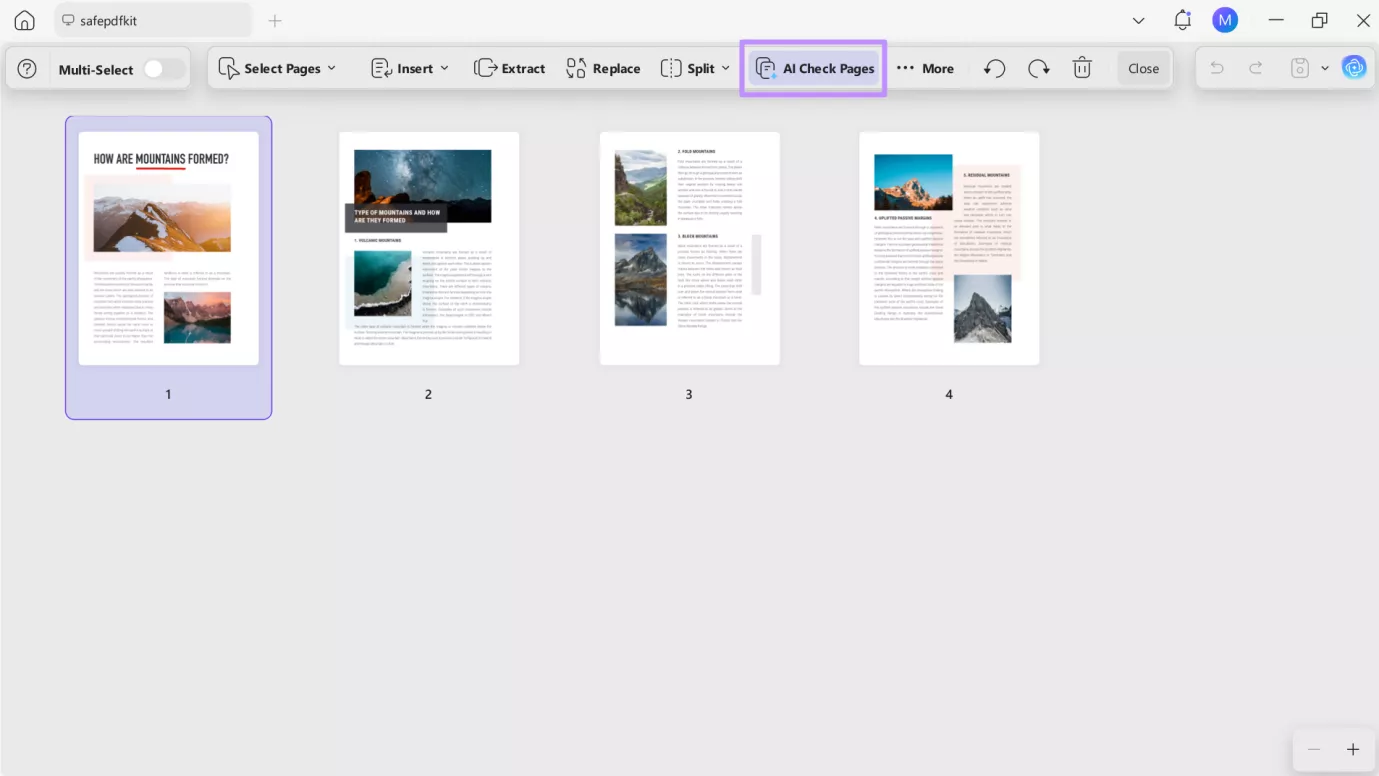
2. On the next screen, click on the AI Check Pages let UPDF determine issues within your uploaded PDF.
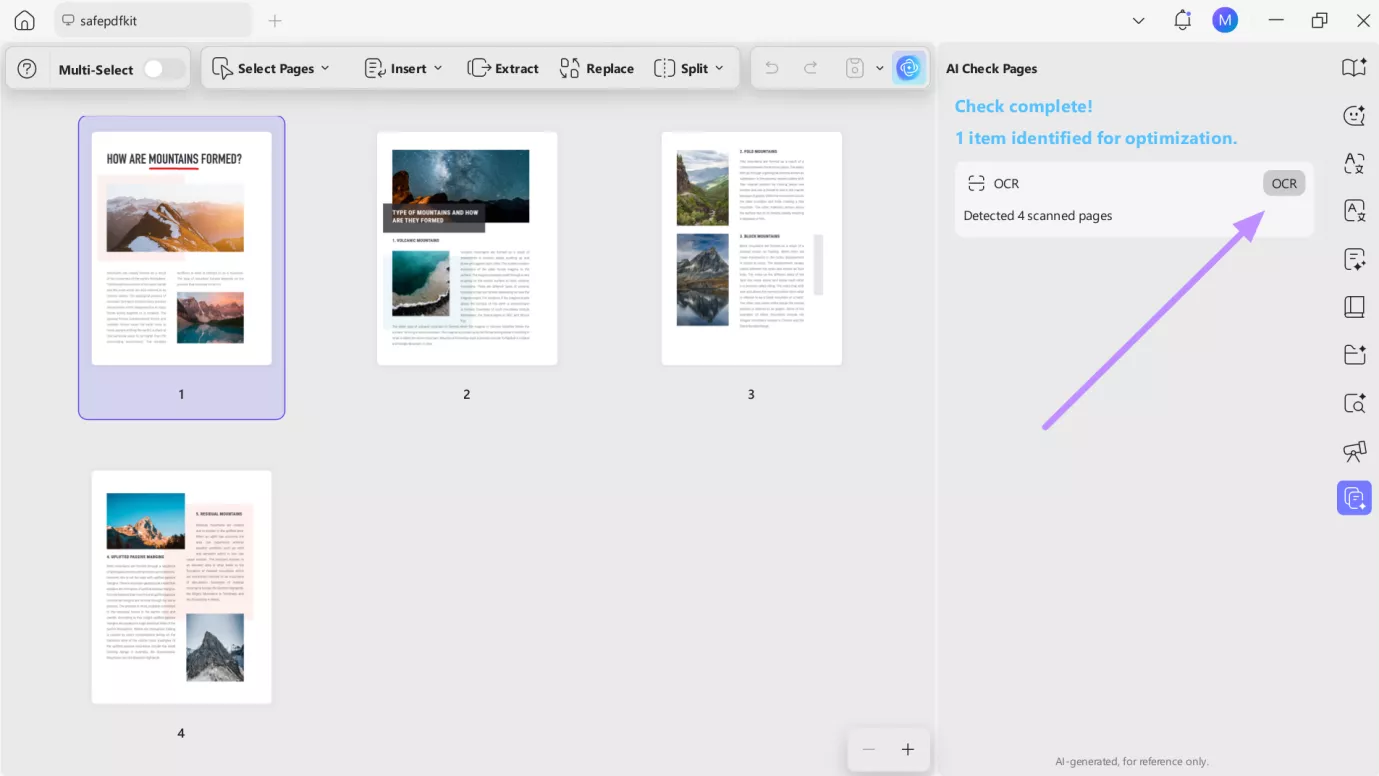
3. After processing, UPDF will show all the relevant issues within the AI Check Pages side window. From here, hit the OCR option to fix the problem.
4. Within the OCR Text Recognition screen, select the desired document language (26 languages supported) and page range. Finally, hit the Convert button to solve the “Image-only PDF” issue.
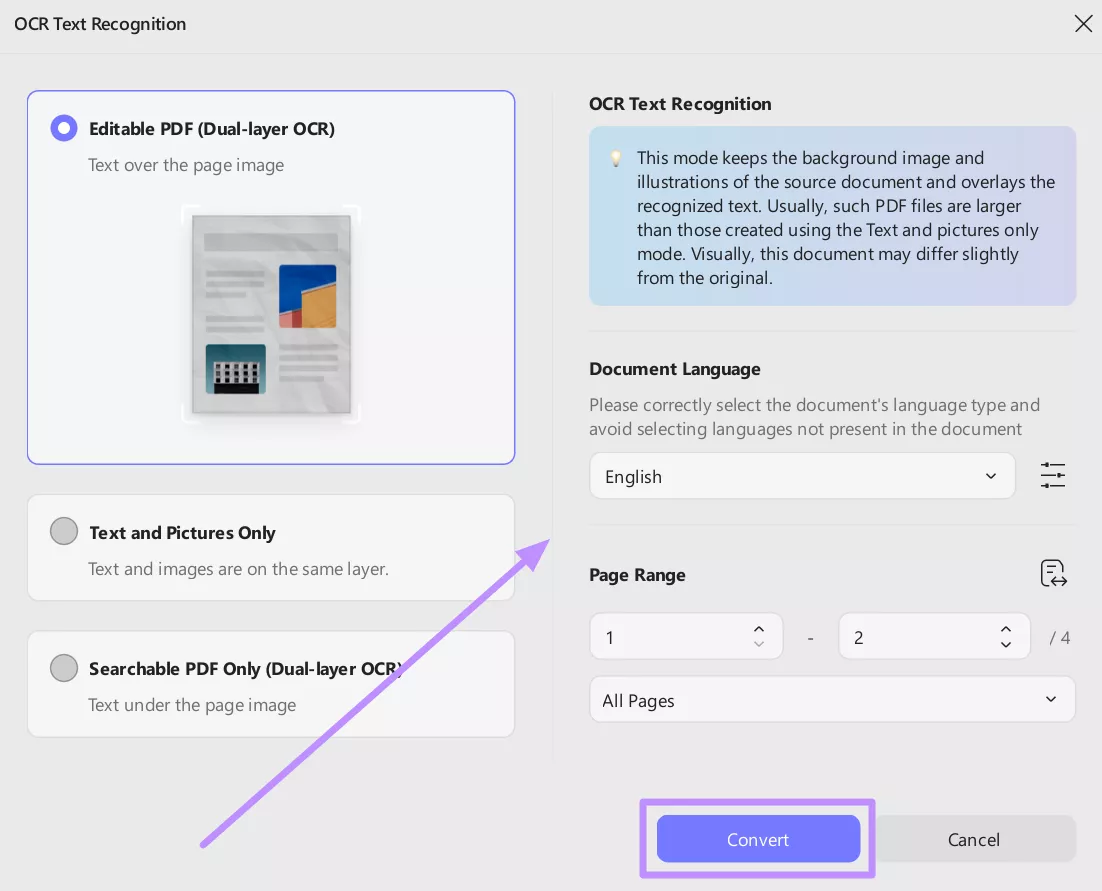
With UPDF, common accessibility failures (scanned images, missing text) can be fixed in minutes.
Windows • macOS • iOS • Android 100% secure
In addition, UPDF 2.5 introduced 10 AI Agents purpose-built to automate specific PDF tasks — several of which map directly to accessibility remediation needs. Here's how the most relevant ones help:
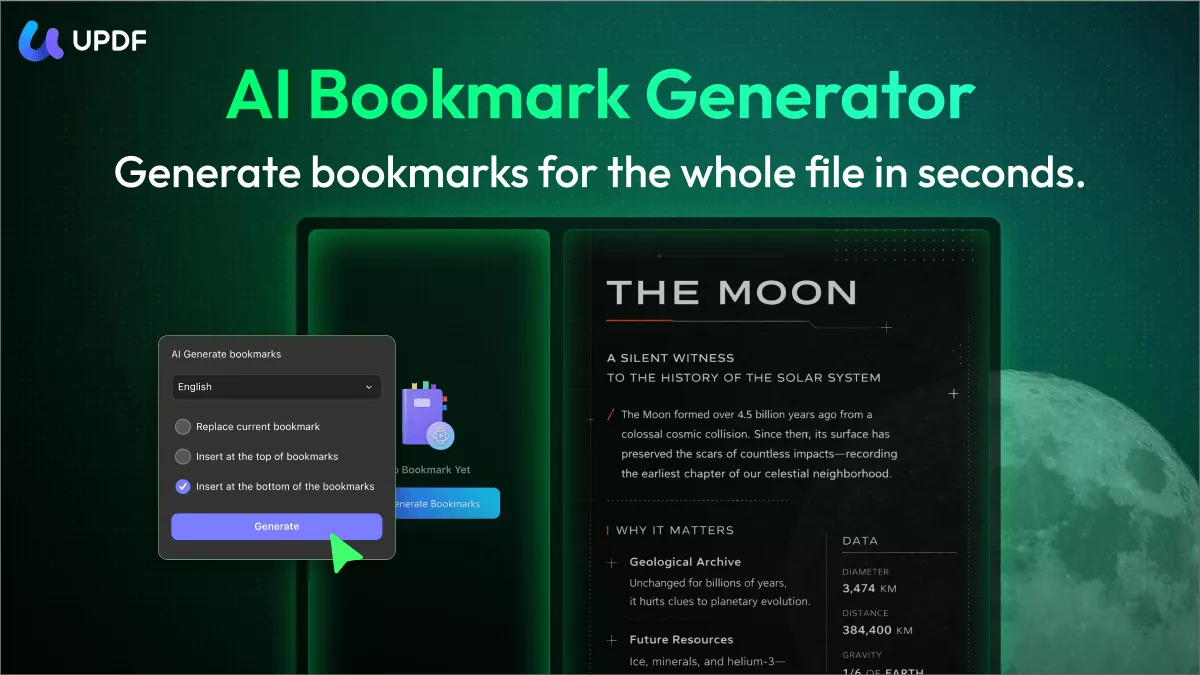
🔖 Fix Missing Navigation Structure — AI Bookmark Agent
Proper bookmarks (navigation structure) are a core PDF/UA requirement — screen readers depend on them to help users navigate long documents. If your accessibility checker flags missing or inadequate document navigation, UPDF's AI Bookmark Agent automatically reads the document's structure and generates intelligent bookmarks in seconds. No manual tagging required.
📋 Understand Document Structure at a Glance — Bookmark Summary Agent
After generating bookmarks, the Bookmark Summary Agent creates a concise summary for each section. This helps accessibility reviewers quickly verify whether the document's logical structure — headings, sections, and chapters — is complete and correctly ordered before submitting for compliance audit.
📄 Detect and Fix Page-Level Issues — AI Page Management Agent
Blank pages, incorrectly rotated pages, and duplicate content are common accessibility failures that checkers like PAC and veraPDF frequently flag. UPDF's AI Page Management Agent scans your document and automatically identifies these structural problems, then fixes them — replacing a slow manual review with an automated one-click process.
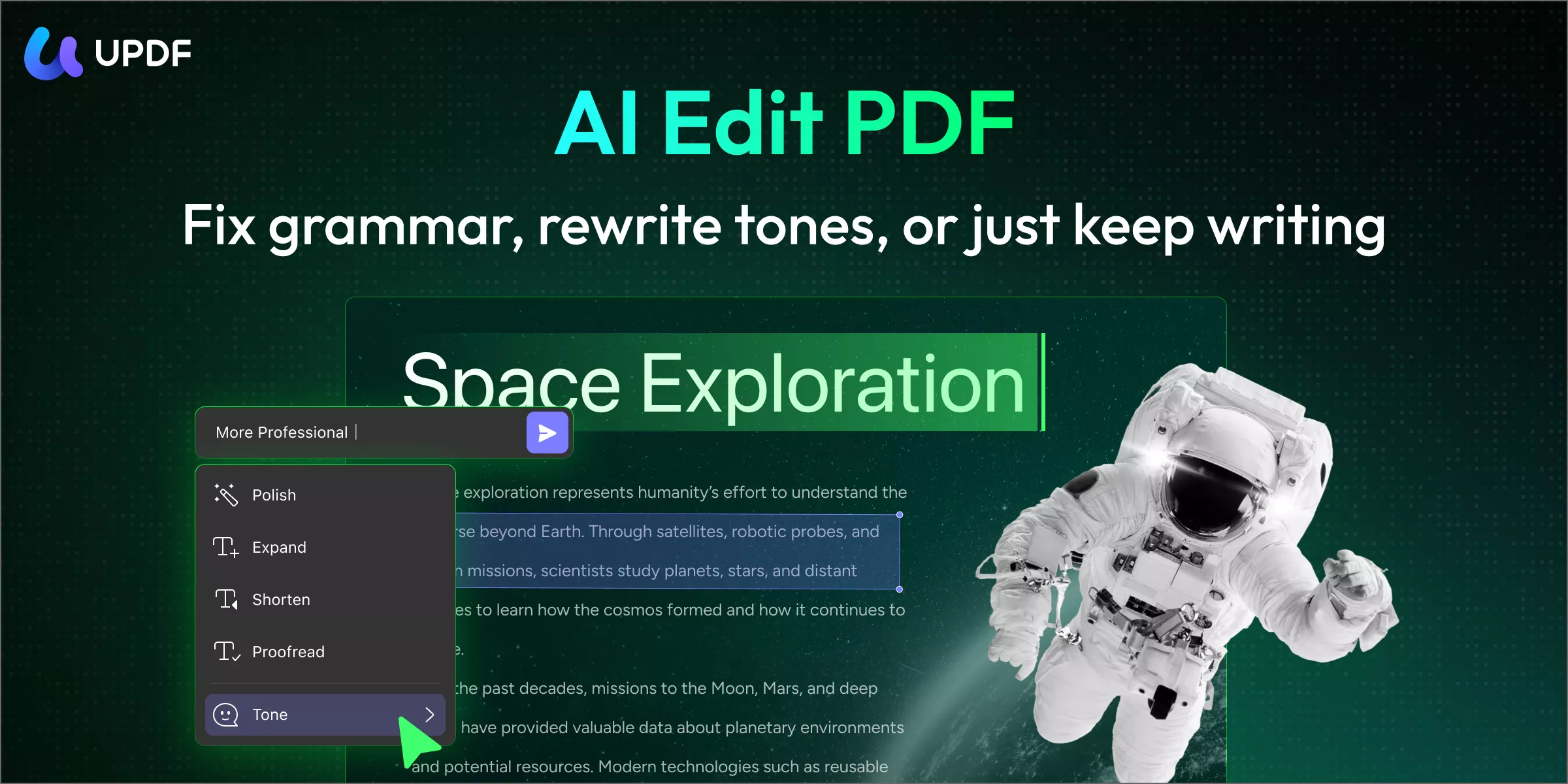
✏️ Fix Text Errors After OCR — AI Editing Agent
When you convert an image-only PDF to text via OCR, recognition errors are common — especially with complex layouts or non-standard fonts. The AI Editing Agent lets you correct those errors directly inside the PDF with AI assistance, without exporting to Word or another editor. This ensures the resulting text layer is clean, readable, and properly accessible.
🔍 Find Specific Content for Review — Semantic Search Agent
When auditing a long compliance document, finding every instance of a problematic element (such as unlabeled tables, missing alt text references, or undefined abbreviations) by scrolling is impractical. The Semantic Search Agent finds content by meaning, not just exact keywords — helping accessibility reviewers surface relevant passages quickly across lengthy documents.
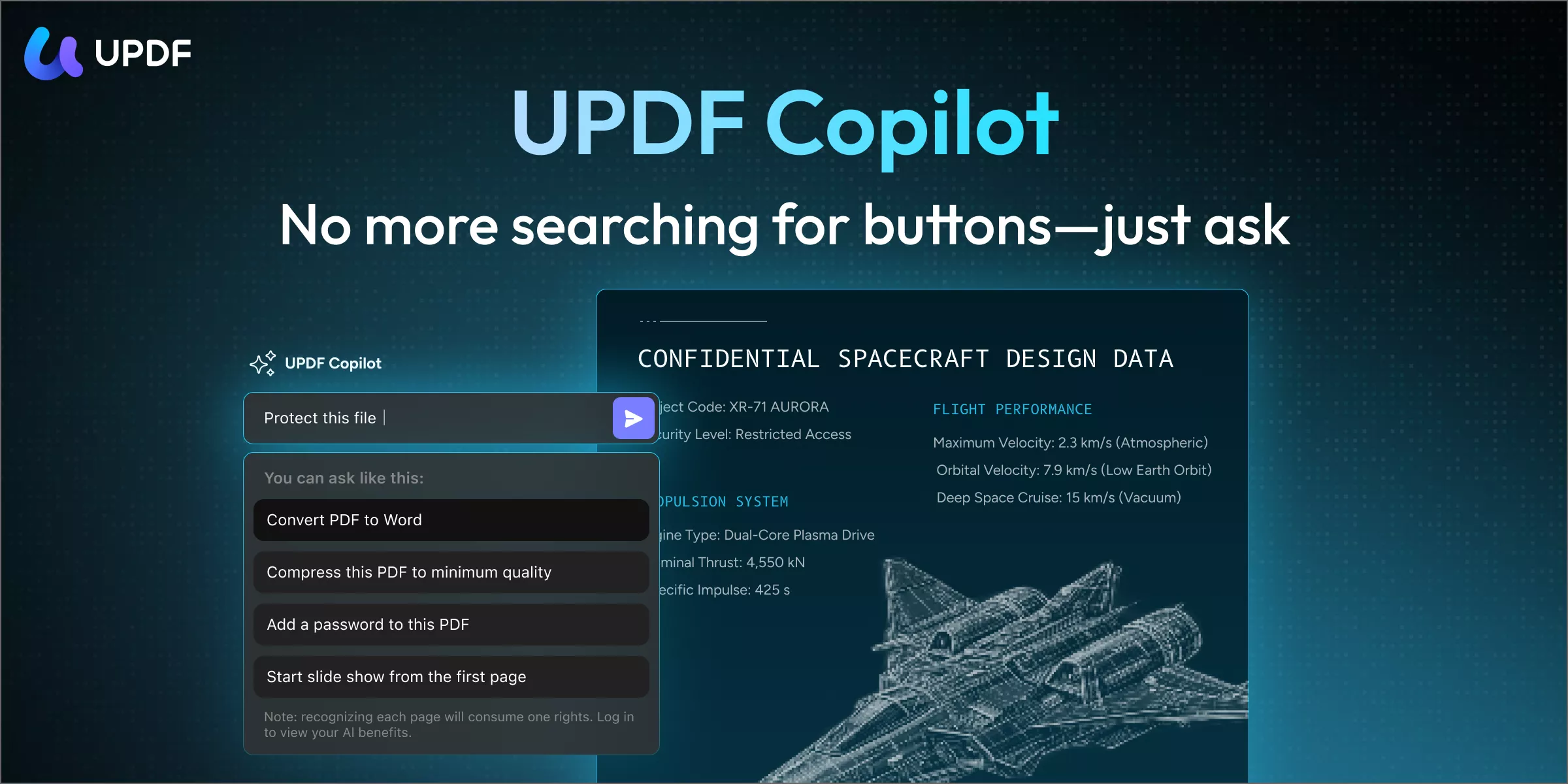
🤖 Get Guided Through Any Fix — UPDF Copilot Agent
Not sure which UPDF tool to use for a specific accessibility error? UPDF Copilot is your AI assistant for every PDF operation. Describe the problem in plain language — "my PDF has no bookmarks" or "this page is rotated wrong" — and Copilot will guide you to the right tool or execute the fix directly.
Additional AI Agents Available in UPDF 2.5
UPDF 2.5 also includes four more AI Agents for document enhancement and professional presentation:
- AI Watermark Agent: Intelligently generate watermarks with perfect precision.
- AI Background Agent: Generate custom PDF backgrounds from a text prompt.
- AI Sticker Agent: Creates custom AI-generated stickers for visual annotations.
- AI Stamp Agent: Smart creation of custom stamps.
🔥 Limited-Time Offer:
Final Thoughts
In summary, PDF accessibility compliance is crucial for all users. No matter if you’re an employee or accessibility professional, the right accessibility checkers for PDF will guide your remediation efforts. While each of the above tools has strengths, some of these checkers cannot apply fixes.
Users who need an affordable, all-in-one solution for accessibility remediation can rely on UPDF. Beyond OCR, its 10 AI Agents — including the AI Page Management Agent, AI Bookmark Agent, and AI Editing Agent — automate the fixes that checkers identify, dramatically reducing manual effort. And with the UPDF 2.5 launch discount of $10 off available until May 7, 2026, there's no better time to get started.
Windows • macOS • iOS • Android 100% secure






 Enola Davis
  Lizzy Lozano
 Engelbert White