 UPDF
UPDF
 UPDF for Windows
 UPDF for Mac
 UPDF for iPhone/iPad
 UPDF for Android
 Nomostar
 UPDF AI Online
 UPDF Sign
 IvyCraft
 Edit PDF
 Annotate PDF
 Create PDF
 PDF Form
 Edit links
 Convert PDF
 OCR
OCR PDF to Word
 PDF to Image
 PDF to Excel
 Organize PDF
 Merge PDF
 Split PDF
 Crop PDF
 Rotate PDF
 Protect PDF
 Sign PDF
 Redact PDF
 Sanitize PDF
 Remove Security
 Read PDF
 UPDF Cloud
 Compress PDF
 Print PDF
 Batch Process
 About UPDF AI
 UPDF AI Solutions
 AI User Guide
 FAQ about UPDF AI
 Summarize PDF
 Translate PDF
 Chat with PDF
 Chat with AI
 Chat with image
 PDF to Mind Map
 Explain PDF
 PDF AI Tools
 Image AI Tools
 AI Chat Tools
 AI Writing Tools
 AI Study Tools
 AI Working Tools
 Other AI Tools
 AI Bookmark Generation
 AI Bookmark Summary
 AI Watermark Generation
 AI Background Generation
 AI Sticker Generation
 AI Stamp Generation
 AI Editing Suite
 UPDF Copilot
 AI Page Management
 AI Semantic Search
 PDF to Word
 PDF to Excel
 PDF to PowerPoint
 Enterprise Solution
 Enterprise Sign
 Enterprise AI
 Enterprise Plan
 Enterprise User Guide
 Enterprise Webinar
 IT
IT Education
 Construction
 Financial Service
 Healthcare
 Insurance
 Legal
Legal Manufacturing
 Government
 Researchers & PhDs
 Solopreneurs & Freelancers
 Lawyers & Legal Professionals
 Real Estate Agents & Brokers
 Education Solution
 Customer Stories
 User Guide
 UPDF Tricks
 FAQs
FAQs UPDF Reviews
 Download Center
 Blog
Blog Newsroom
 Tech Spec
 Updates
 UPDF vs. Adobe Acrobat
 UPDF vs. Foxit
 UPDF vs. PDF Expert

Quick Answer:
HEIC to PDF conversion has been a bit of a problem for several years now. Apple's unique file format for images gives users crisp and realistic shots, but only at the cost of not being compatible with major OS platforms like Windows and Android. Thankfully, we now have tools to convert files from HEIC to PDF, which makes them easier to share or send via email because the recipients won't have compatibility issues.
Part1: How to convert heic to pdf on Windows & Mac
Method?
Convert HEIC to PDF on Mac
Since Mac is part of Apple's OS ecosystem, it natively supports HEIC files through the Preview app. You can use this to convert HEIC to PDF on Mac, as described below:
Best for:
- Mac users who want to convert one or several HEIC images while retaining control over the file name, location, and PDF export options.
Not for:
- Users who only want to combine a large group of images into one PDF as quickly as possible.
Step 1: Open HEIC in Preview
Right-click your HEIC file and select "Open with" to choose "Preview" - if that's your default image viewer, simply double-click the file.
Step 2: Convert from HEIC to PDF
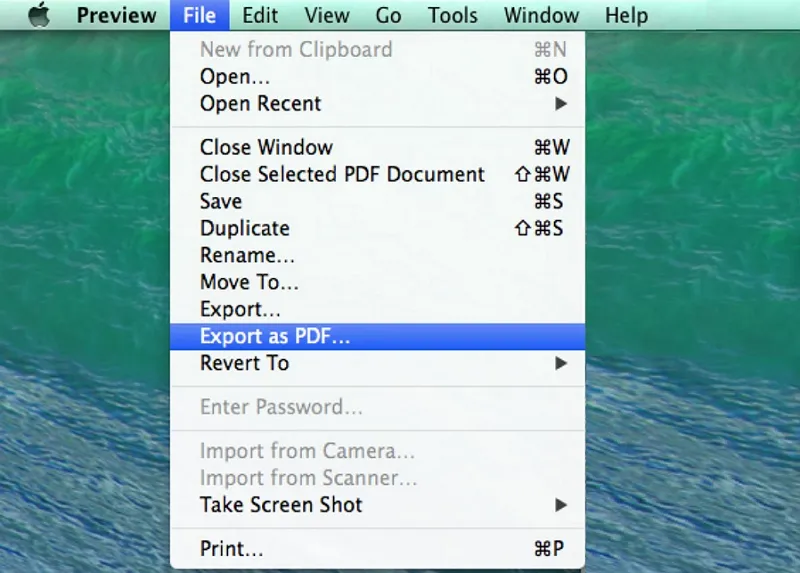
Click the "File" menu and select "Export Selected Images" - you can also choose "Export as PDF" in that same menu. Save the file to a local folder - you can change the filename if you need to.
Convert HEIC to PDF on Windows
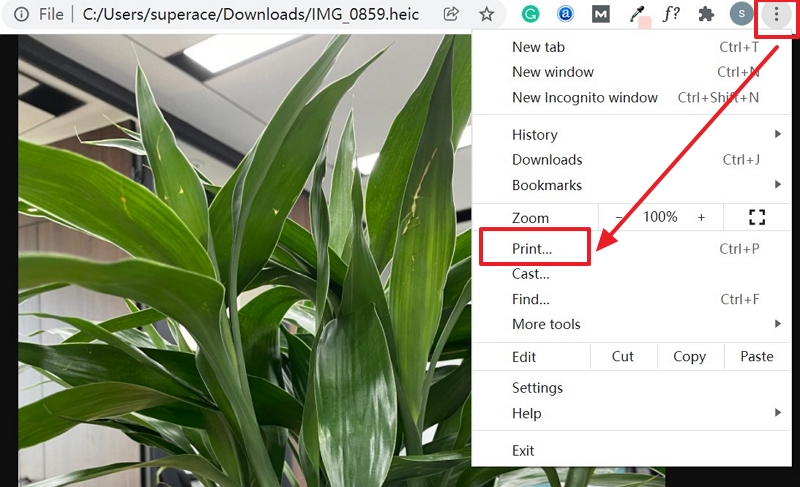
Google Chrome supports both image and PDF viewing, so we can use this native feature to convert an HEIC file into a PDF without any additional tools. The process is as simple as dragging the image file into a new Chrome tab and then using the print dialog in Chrome to convert the file to a PDF. Here are the steps.
Best for:
- Users who need to convert one or a few HEIC images on a Windows computer without uploading them to an online service.
Not for:
- Users whose computers cannot open HEIC files, or anyone who needs to combine and manage many images regularly.
Step 1: Drag an Image File into Chrome
- Go to an Explorer window and locate the HEIC file.
- Drag the file, toggle to any Chrome window and drop it - it will open in a new tab.
- Click the print option to open the default Print dialog in Google Chrome.
Step 2: Convert HEIC to PDF
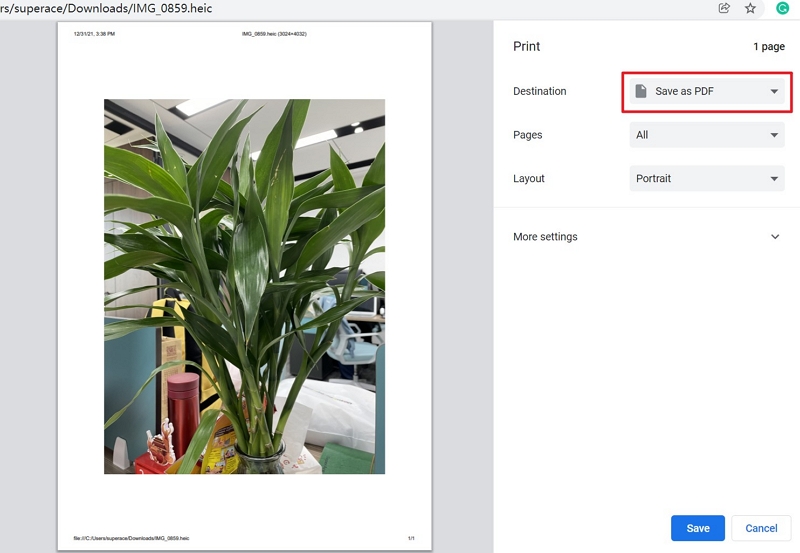
- Select "Save as PDF" from the available destination options.
- Save the file to the desired folder as a PDF.
Windows • macOS • iOS • Android 100% secure
Part 2: How to convert heic to pdf on iphone/ipad?
Rather than exporting your files and then converting them to a more universal and shareable format, it's better to complete the process on the device in which the photos were shot. In other words, directly on your iPhone or iPad. For this, we'll be using a robust HEIC to PDF converter called UPDF for iOS. Although it is a vast and comprehensive tool designed to manage files and folders on iOS and iPadOS devices, it comes with a lot of extras such as file conversion from images to PDFs. Converting PDF seems difficult, not with the help of UPDF, let's use UPDF to convert an HEIC screenshot into a PDF file.
Windows • macOS • iOS • Android 100% secure
Best for:
- Users who want to convert one or multiple HEIC images directly on an iPhone or iPad and continue working with the resulting PDF.
Not for:
-
Users who only need to convert one image once and prefer not to install an additional app.
Step 1: Import HEIC File to UPDF
UPDF gives you the flexibility to import image files from your Photos app, from local files on your device, or even from your computer. In this scenario, we'll do a simple import from Photos:
- Step 1. Launch UPDF and tap the "+" symbol, then choose Photos as your import source.
- Step 2. When the Photos app opens, select the HEIC file - you can also choose multiple files by sliding your finger across the required files.
- Step 3. Tap the "Add" button at the top to import the image files.

Step 2: Convert HEIC File to PDF
The next step is to convert the imported HEIC file to PDF. Follow the steps below to do this:
Step 1. Tap the "…" icon next to the HEIC file, or long-press the HEIC image.
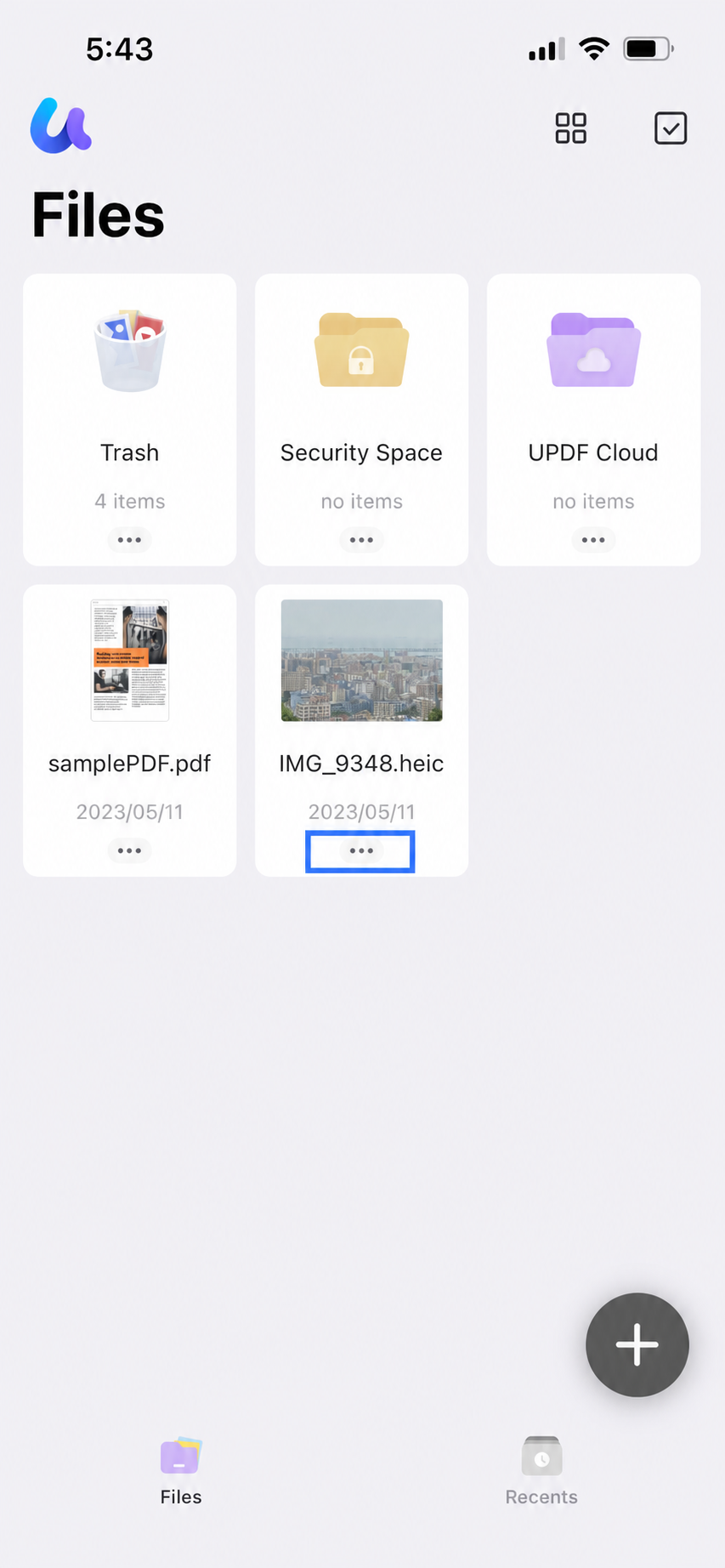
Step 2. In the extended menu, tap on "Convert to PDF".
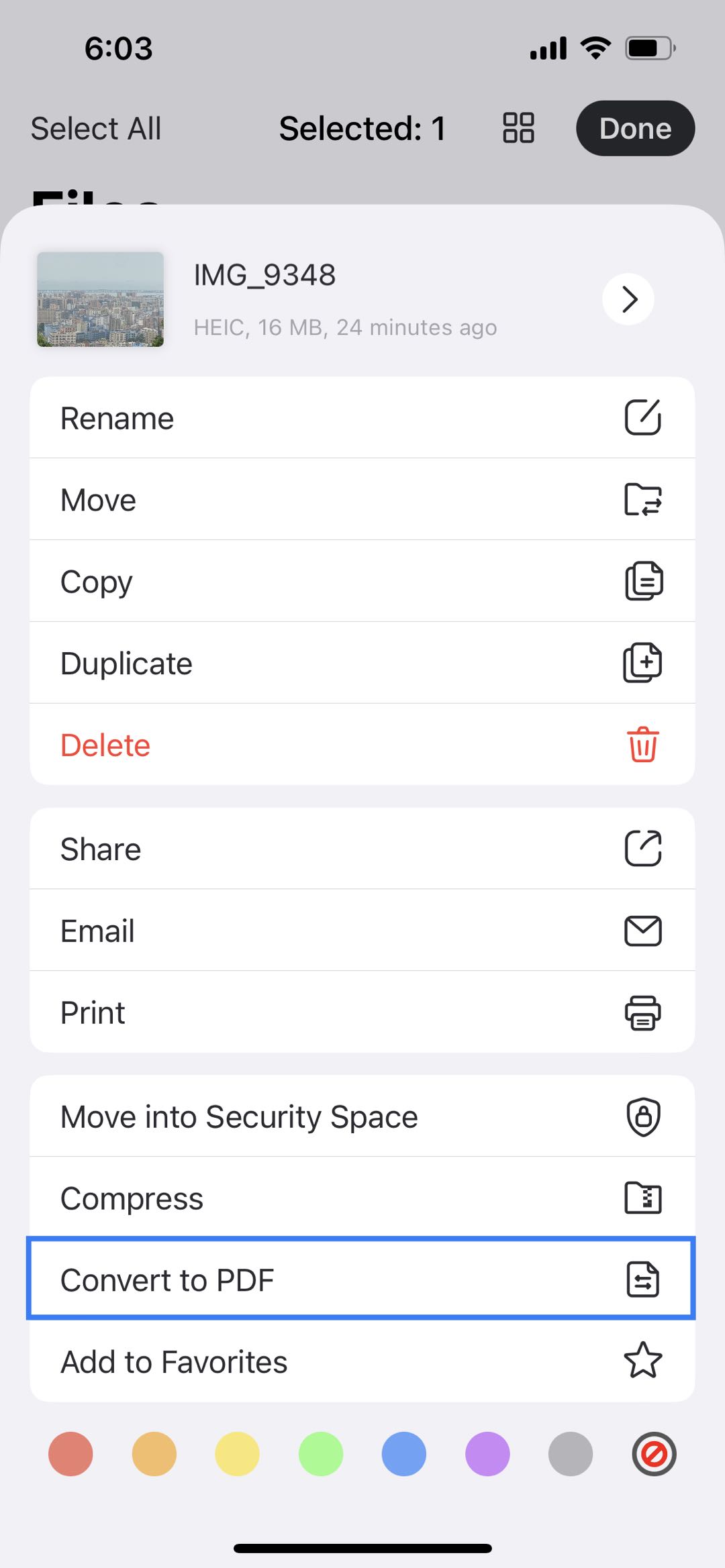
That’s it! A new PDF file will be created in the same location as the original HEIC file and with the same name but a different file extension.
Windows • macOS • iOS • Android 100% secure
some quality loss with other methods. That's why it's important to have UPDF installed on your iPhone or iPad, where the HEIC image is generated. This way, you don't need to transfer or upload the image anywhere - just import it into UPDF and convert it in a lossless manner.
FAQs
Q1: What is a HEIC image?
HEIC (High Efficiency Image Container) is Apple's default image format for photos taken on iPhones and iPads. Compared with JPG, HEIC files use more advanced compression, allowing them to store high-quality images while taking up less storage space. However, because not all devices and applications support HEIC, many users convert HEIC images to PDF or JPG for easier sharing and viewing.
Q2: Can I convert multiple HEIC images into one PDF?
Yes. Many PDF tools allow you to combine multiple HEIC images into a single PDF document, making it easier to organize, share, or print a collection of photos. This is especially useful for receipts, scanned documents, reports, or photo albums. If you need to convert multiple images regularly, choose a tool that supports batch conversion to save time.
Q3: Will converting HEIC to PDF reduce image quality?
In most cases, converting HEIC to PDF does not noticeably reduce image quality. The final quality depends on the conversion tool and whether it compresses the images during export. Using a reliable PDF converter helps preserve the original resolution and clarity of your photos.
Q4: Why can't I open or convert HEIC files on Windows?
Older versions of Windows don't natively support HEIC files. If your computer doesn't have the required HEIF image extensions installed, you may not be able to open or convert HEIC images. Installing the necessary codec or using a compatible PDF converter can usually resolve the issue.
Conclusion
Converting HEIC to PDF does not have to be complicated.
Mac users can export HEIC images through Preview. Windows users can open the image in Microsoft Photos and select Microsoft Print to PDF. iPhone and iPad users can import HEIC files into UPDF and convert them without transferring the images to a computer.
For a quick desktop conversion, the built-in Mac and Windows tools are usually sufficient. UPDF is a practical mobile option when you want to convert the image on an iPhone or iPad and continue managing or editing the PDF afterward.
Choose the method that matches your current device and workflow rather than installing a new tool unnecessarily.
Windows • macOS • iOS • Android 100% secure





 Enola Davis
