 UPDF
UPDF
 UPDF for Windows
 UPDF for Mac
 UPDF for iPhone/iPad
 UPDF for Android
 Nomostar
 UPDF AI Online
 UPDF Sign
 IvyCraft
 Edit PDF
 Annotate PDF
 Create PDF
 PDF Form
 Edit links
 Convert PDF
 OCR
OCR PDF to Word
 PDF to Image
 PDF to Excel
 Organize PDF
 Merge PDF
 Split PDF
 Crop PDF
 Rotate PDF
 Protect PDF
 Sign PDF
 Redact PDF
 Sanitize PDF
 Remove Security
 Read PDF
 UPDF Cloud
 Compress PDF
 Print PDF
 Batch Process
 About UPDF AI
 UPDF AI Solutions
 AI User Guide
 FAQ about UPDF AI
 Summarize PDF
 Translate PDF
 Chat with PDF
 Chat with AI
 Chat with image
 PDF to Mind Map
 Explain PDF
 PDF AI Tools
 Image AI Tools
 AI Chat Tools
 AI Writing Tools
 AI Study Tools
 AI Working Tools
 Other AI Tools
 AI Bookmark Generation
 AI Bookmark Summary
 AI Watermark Generation
 AI Background Generation
 AI Sticker Generation
 AI Stamp Generation
 AI Editing Suite
 UPDF Copilot
 AI Page Management
 AI Semantic Search
 PDF to Word
 PDF to Excel
 PDF to PowerPoint
 Enterprise Solution
 Enterprise Sign
 Enterprise AI
 Enterprise Plan
 Enterprise User Guide
 Enterprise Webinar
 IT
IT Education
 Construction
 Financial Service
 Healthcare
 Insurance
 Legal
Legal Manufacturing
 Government
 Researchers & PhDs
 Solopreneurs & Freelancers
 Lawyers & Legal Professionals
 Real Estate Agents & Brokers
 Education Solution
 Customer Stories
 User Guide
 UPDF Tricks
 FAQs
FAQs UPDF Reviews
 Download Center
 Blog
Blog Newsroom
 Tech Spec
 Updates
 UPDF vs. Adobe Acrobat
 UPDF vs. Foxit
 UPDF vs. PDF Expert

Quick Answer:
An ASPX page is different from a static HTML file. ASP.NET processes the page on a web server—including server controls, code, state, and potentially database data—and sends the rendered HTML to your browser. That means the most reliable target for PDF conversion is usually the rendered page you can see, not the raw ASPX source file.
Below are three situations that cover most searches for ASPX file to PDF, ASPX to PDF online, and convert ASPX.
Part 1. Which ASPX to PDF Method Should You Use?
| Your situation | Best method | Main limitation |
|---|---|---|
| You can open the ASPX page normally | Browser Print > Save as PDF | Captures the rendered page, not server-side source |
You only have an .aspx file | Run it in its ASP.NET environment first | Raw files may depend on code-behind, databases, or other server resources |
A PDF downloaded with an .aspx extension | Verify the actual file type first | Renaming works only if the downloaded content is already a PDF |
| You are building automated PDF generation | Use a server-side or browser-rendering workflow | Requires development and authentication/session handling |
For most non-developers, browser printing is the correct starting point.
Part 2. How to Convert ASPX to PDF Free with Printing?
The first method that we will discuss here is the safest, quickest, easiest, and most reliable method. It does not involve any complex steps or third-party tools for the conversion. It works offline, so there will be no issues regarding the security and privacy of your files. For this process, we will use Chrome browser printing features, and the complete details are explained in the steps below.
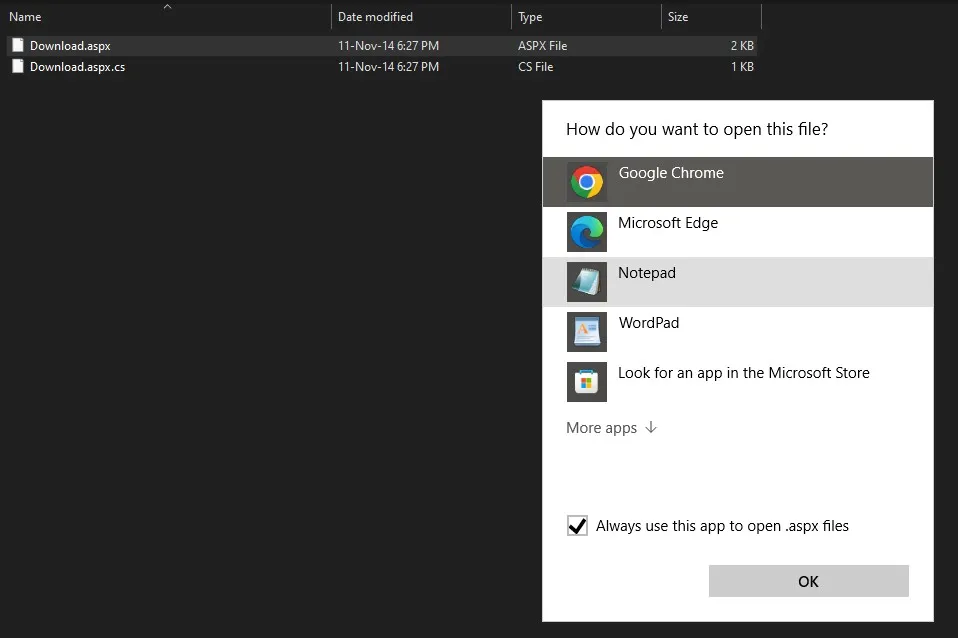
Step 1: Go to the folder that contains your ASPX files and right-click on that file then choose "Google Chrome" then click "OK". Your ASPX file will now open in Google Chrome and display all its contents there.
Step 2: Once the file opens, you will press "Ctrl + P" to get printing options and set destination to "Microsoft Print to PDF". You may edit other settings as needed and click "Print". Now you may need to go through file-saving steps and once it is saved, you are done.

Part 3. How to Convert ASPX Format to PDF Online Free With 2PDF?
If the ASPX file that you are working on does not contain any confidential or sensitive information and you don't have any issues about uploading it online, then you can use this method. This method involves using a third-party online converter, 2PDF, that efficiently converts your ASPX files into PDF format with the simple steps discussed below:
Step 1: Open a browser and go to 2PDF.com ASPX to PDF conversion online tool. Here you can drag and drop your ASPX file or click "Choose File" to upload it from your computer's storage with file explorer window.

Step 2: Now the file is uploaded, and you must pick PDF as the type that you will convert this file to. Click "Convert" and wait until this tool processes your ASPX file. Once the processing is complete and it is ready for downloading you can download it and save it on your device as PDF.

Part 4. How to Convert ASPX File to PDF Free with Renaming File Extension
The last method that you can try for this conversion is renaming the extension of your ASPX file. This method is effective in cases where you wanted to save the file as a PDF, and it was a PDF file on the server, but when saved, it appears and opens as an ASPX file. The method is completely free, but it needs some file-level configurations to be done on your Windows PC, as shown in the steps below:
Step 1: Start by opening Run program by pressing "Win + R" keys and type "Control Folder" command before you click "OK". A popup window may appear where you need to go to "View" and checkmark the option that is about hiding extensions for file types that are known. After marking this option, you may click "Apply" > "OK".

Step 2: Now we need to go to folder that contains your ASPX file and right-click to pick "Rename" option. Simply remove ASPX by using backspace button and replace that by ".pdf". A warning box may appear showing that you are about to change the file type and you must proceed by clicking "Yes".

Part 5. Bonus Tip: How to Edit PDF After Creating from ASPX?
There are cases where you want to edit the PDF file after creating it from ASPX. UPDF is the PDF editor that will offer you every editing functionality for working on PDF documents.
It offers a user-friendly experience for editing PDFs and provides a lot of other features. You can get features such as
- Annotating PDF with sticky notes, comments, text box, callouts, pencils, stickers, stamps, and more.
- Adding, replacing, extracting, rotating, splitting, and deleting pages by organizing PDF
- Using UPDF AI to generate relevant content, rewrite the content, summarize, translate, and chat for PDF
- PDF OCR for converting non-editable content into editable.
- A lot of PDF file conversion options like converting PDF to Word, Excel, PPT, HTML TXT, etc.
- And more
So, to edit your ASPX files in PDF form, you can click the button below to download UPDF on your devices.
Windows • macOS • iOS • Android 100% secure
Step 1: Launch UPDF software on PC by double-clicking desktop icon. Now open PDF that you converted from ASPX by clicking "Open File". After UPDF displays your PDF in reader view, you may get editing access by clicking "Edit" in "Tools".
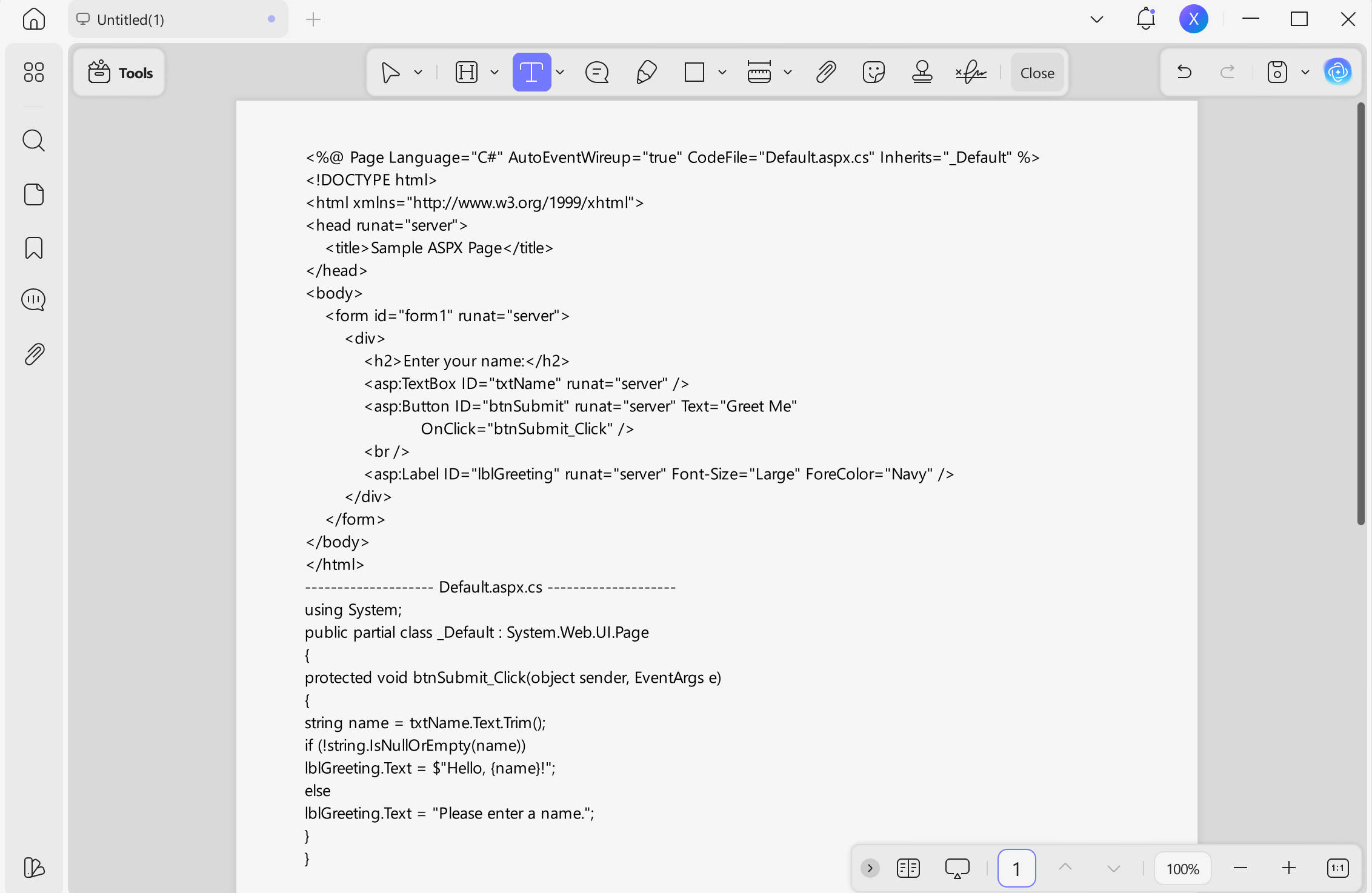
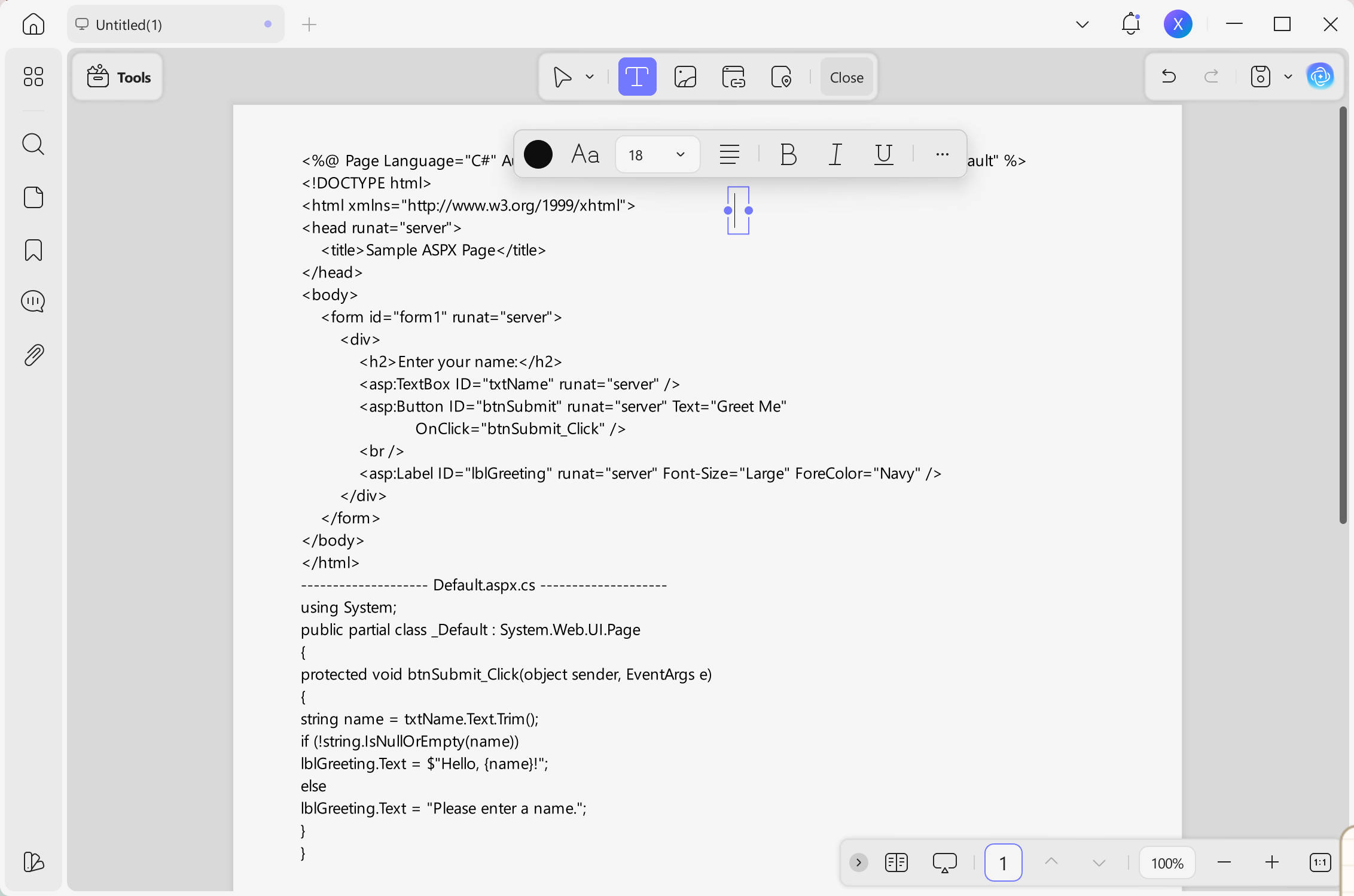
Step 2: To add new text, you may click "Text" from the top and click where you want to add text. You can also add new links or images to the PDF. To edit existing text, you can double-click on it, and it will become editable. You can edit other components like images and links using the same method.
This UPDF review from Laptopmedia amazingly covers everything that you can do with it. If you want to learn more about using UPDF, you can watch the below video tutorial. UPDF not only meets your PDF editing needs but offers a lot of other features, and that's why you must download it on your smartphone, laptop, or PC to try all its features.
Windows • macOS • iOS • Android 100% secure
FAQs
Q1. What is an ASPX File, and How Do I Open It?
An ASPX file is made by using Microsoft's system called ASP.NET on web servers that makes websites work well in internet browsers. These files are written in easy-to-understand languages like C# or VB.NET and have coding scripts that help communicate with a web server. They are important parts of active, engaging websites and online apps.
The easiest way is to use a web browser like Chrome, Firefox or Edge. Just move the ASPX file into your browser window or right-click on it and pick "Open with," then select a web browser from the options. If you want to see or change the code, use programs like Visual Studio, Notepad++ or Sublime Text for it. Click on the ASPX file and pick "Open with." Then, choose your favorite code editor to use.
Q2. Why use an ASPX file?
ASPX file is mainly used to make websites dynamic. This mostly happens with the ASP.NET framework. It offers several advantages, including dynamic content, rich framework support, and server-side scripting.
Q3. How to Convert ASPX to JPG?
Changing an ASPX file to a JPG requires making the ASPX page into a picture. Here's a simple step-by-step process.
First, open the ASPX file in a web browser by right-clicking and picking "Open with," and it will be shown as an online page displaying code script. Now, you can use the Snipping Tool or Print Screen function to take a screenshot and save that as a JPG.
Conclusion
ASPX files are a necessary part of the web development environment, but sometimes, we need to use the content of these files outside that environment. The prime example is for documentation or presentation purposes. That's where you can convert ASPX to PDF format, which will make working with the contents of these files very easy.
Hopefully, the methods we discussed here to convert your files have helped you out. When you need to view or edit the PDF file you created by converting the ASPX file, you can choose UPDF. It is a complete PDF editing and viewing tool that can assist you in multiple use cases. Download the UPDF application to edit ASPX contents on your device after you convert it to PDF.
Windows • macOS • iOS • Android 100% secure






 Lizzy Lozano

 Engelbert White

 Enid Brown