 UPDF
UPDF
 UPDF for Windows
 UPDF for Mac
 UPDF for iPhone/iPad
 UPDF for Android
 Nomostar
 UPDF AI Online
 UPDF Sign
 IvyCraft
 Edit PDF
 Annotate PDF
 Create PDF
 PDF Form
 Edit links
 Convert PDF
 OCR
OCR PDF to Word
 PDF to Image
 PDF to Excel
 Organize PDF
 Merge PDF
 Split PDF
 Crop PDF
 Rotate PDF
 Protect PDF
 Sign PDF
 Redact PDF
 Sanitize PDF
 Remove Security
 Read PDF
 UPDF Cloud
 Compress PDF
 Print PDF
 Batch Process
 About UPDF AI
 UPDF AI Solutions
 AI User Guide
 FAQ about UPDF AI
 Summarize PDF
 Translate PDF
 Chat with PDF
 Chat with AI
 Chat with image
 PDF to Mind Map
 Explain PDF
 PDF AI Tools
 Image AI Tools
 AI Chat Tools
 AI Writing Tools
 AI Study Tools
 AI Working Tools
 Other AI Tools
 AI Bookmark Generation
 AI Bookmark Summary
 AI Watermark Generation
 AI Background Generation
 AI Sticker Generation
 AI Stamp Generation
 AI Editing Suite
 UPDF Copilot
 AI Page Management
 AI Semantic Search
 PDF to Word
 PDF to Excel
 PDF to PowerPoint
 Enterprise Solution
 Enterprise Sign
 Enterprise AI
 Enterprise Plan
 Enterprise User Guide
 Enterprise Webinar
 IT
IT Education
 Construction
 Financial Service
 Healthcare
 Insurance
 Legal
Legal Manufacturing
 Government
 Researchers & PhDs
 Solopreneurs & Freelancers
 Lawyers & Legal Professionals
 Real Estate Agents & Brokers
 Education Solution
 Customer Stories
 User Guide
 UPDF Tricks
 FAQs
FAQs UPDF Reviews
 Download Center
 Blog
Blog Newsroom
 Tech Spec
 Updates
 UPDF vs. Adobe Acrobat
 UPDF vs. Foxit
 UPDF vs. PDF Expert

Quick Answer
Best for: Forms, applications, contracts, and any document that must not show content on the back (e.g., documents that will be scanned, signed, or hole-punched).
Printing documents is something we all do, whether for work, school, or personal use. Have you ever encountered the problem of double-sided printing when you wanted the document to be printed on one side, but your printer had other plans? There are many situations where single sided printing is a preferred choice.
In this guide, I will walk you through how to print single sided PDFs and answer the most common questions regarding this topic.
Part 1. How to Print a PDF Single Sided?
Here are two sections that can save your time and give direct solutions in step-by-step guidelines.
Section 1: From a PDF reader
If you’re looking for a reliable tool to print PDF files single-sided, we recommend downloading UPDF. You can use the software by printing one PDF document for free.
| PDF Reader | Single-Sided Printing | Batch Printing | Editing Before Print | Platforms |
|---|---|---|---|---|
| UPDF | Yes, clear toggle | Yes | Yes | Win, Mac, iOS, Android |
| Adobe Acrobat | Yes | Limited | Yes | Win, Mac |
| Foxit Reader | Yes | No | Limited | Win, Mac |
| SumatraPDF | Yes | No | No | Windows |
| Chrome PDF Viewer | Yes | No | No | All |
| Edge PDF Viewer | Yes | No | No | All |
If you only need to print one PDF, any reader will work. But if you regularly work with multiple PDFs and need editing, organizing, and printing capabilities, UPDF is the clear choice.
Windows • macOS • iOS • Android 100% secure
UPDF is the only tool on this list that offers:
- Clear single-sided printing toggle
- Full editing capabilities before printing
- Print dozens of PDFs single-sided in one batch with the Batch Print feature
- Set single-sided once and apply it to every file in the queue—no per-file toggling
- Wide range of features beyond printing:
- AI-powered PDF editing and summarizingConverting PDFs to Word, Excel, PowerPoint, and moreOrganizing PDF pages: rotate, delete, or rearrange pagesPassword-protect your documents
UPDF makes it simple to print a PDF single-sided. Printing single-sided is often preferred for applications, submissions, or forms. Here is how you can do it in UPDF:
Best for
Step 1: Open the File in UPDF by clicking the “Open File” button.
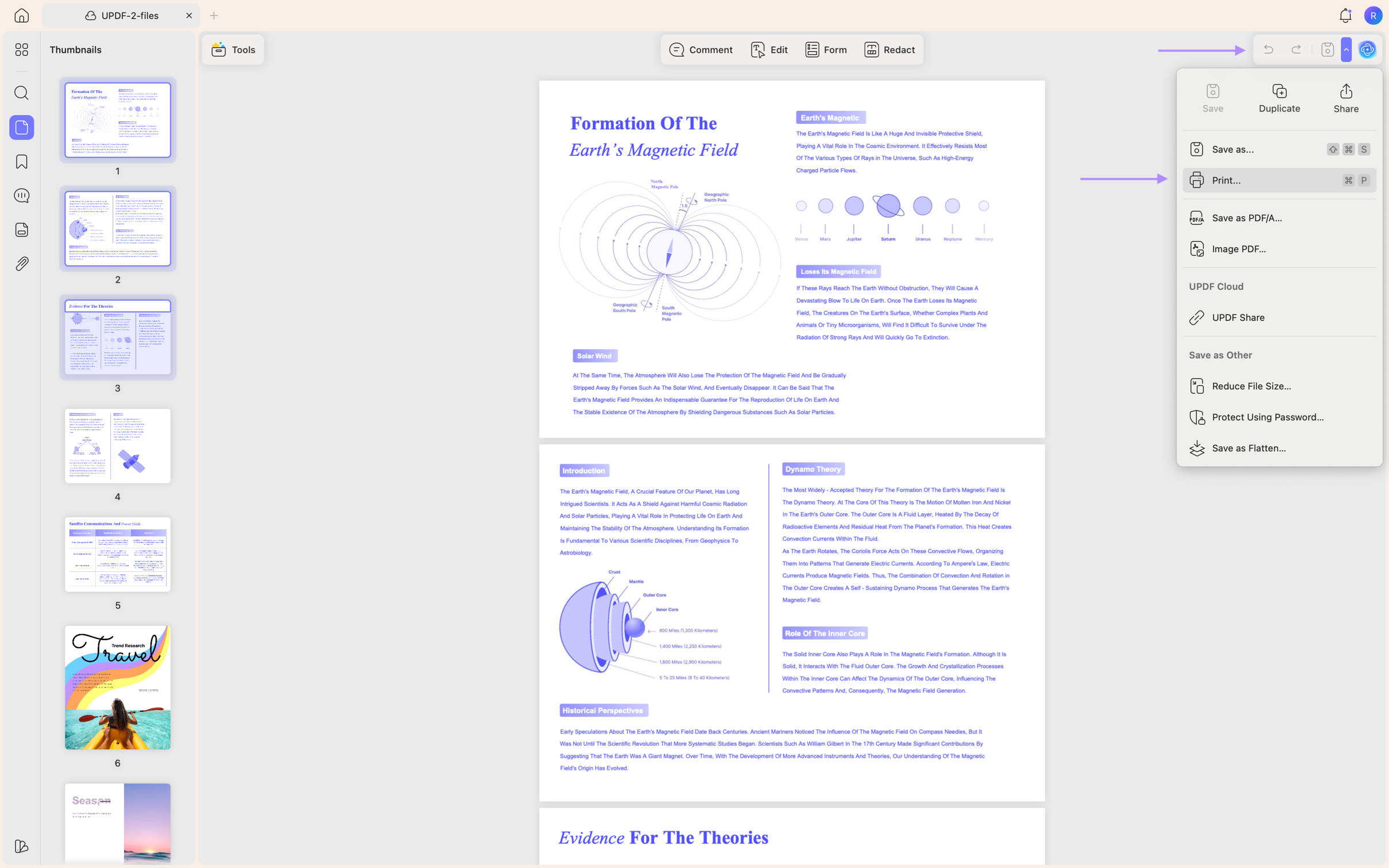
Step 2: In the top right-corner, click the down arrow next to the save button. This will show you more options. Then click “Print”. This will open the print settings window.
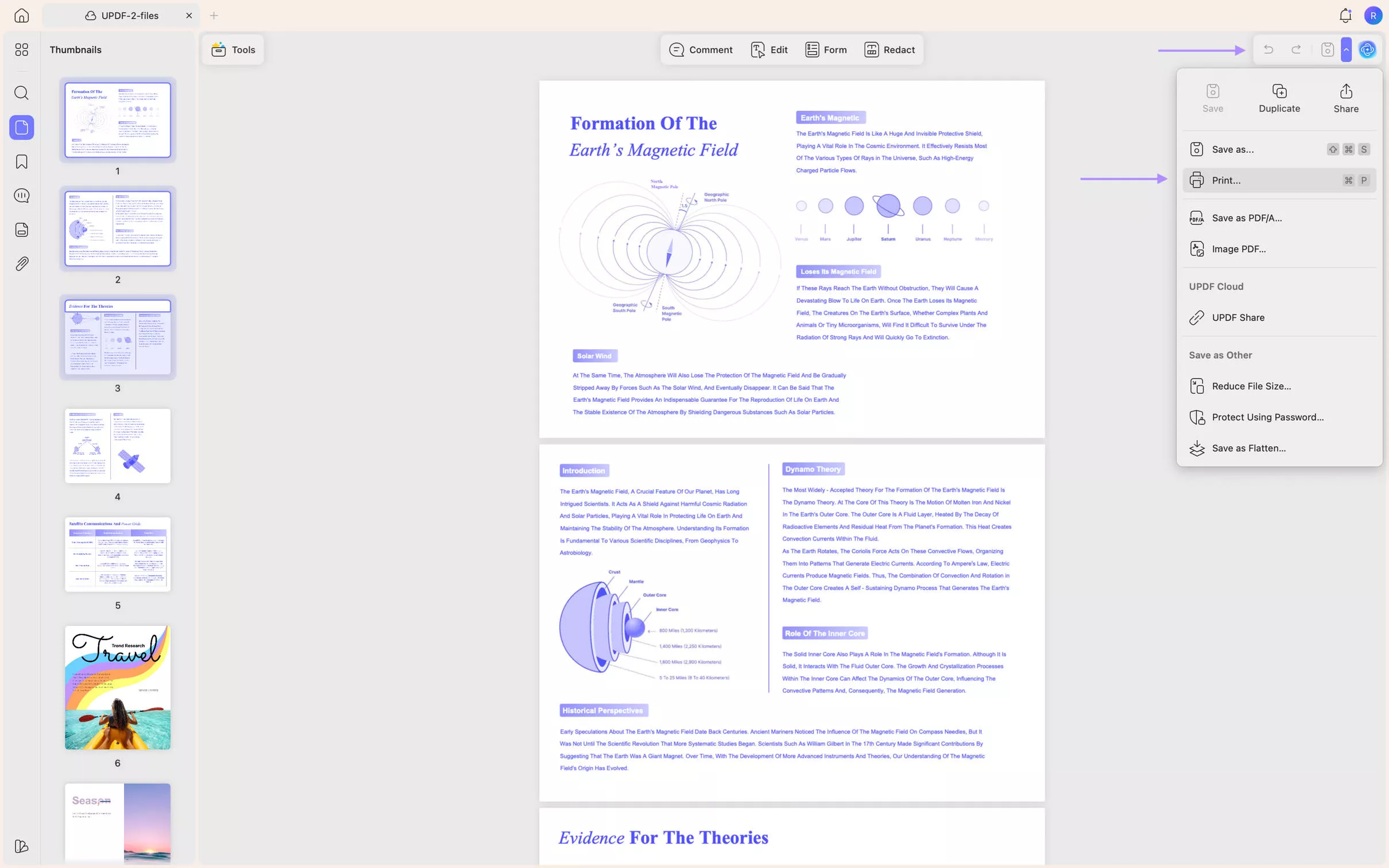
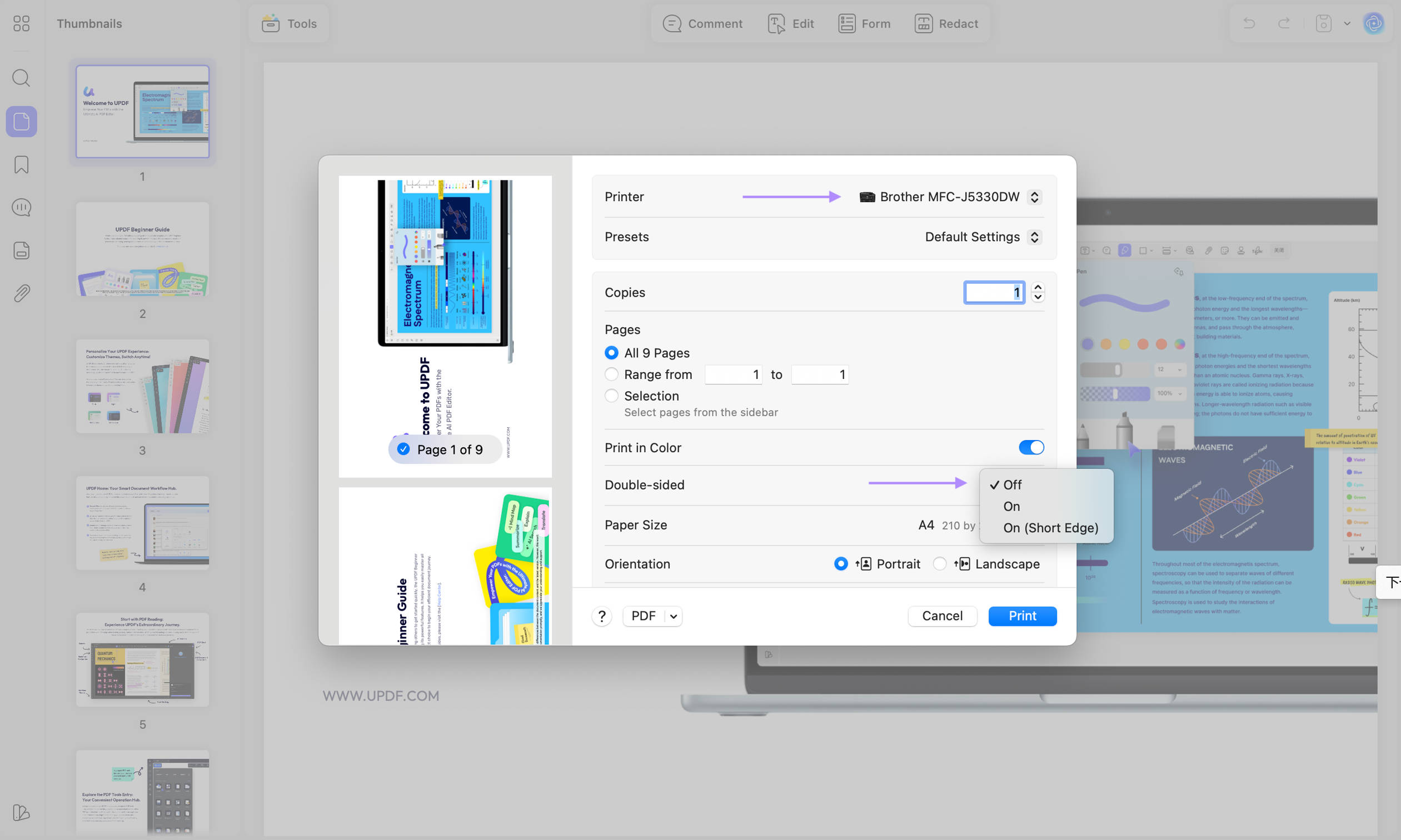
Step 3: In the print settings window, make sure to select the correct printer. Then select “Off” in the “Double sided” section. Click “Print” to print your file.
Remember: not every printer allows double printing. Thus, if you can’t see the “Double sided” option in the print settings window, it means that your printer can print documents only on one side of the sheet.
If you would like to learn more about UPDF and its features, download UPDF to explore more features and functions and read this review on Apple Insider or watch this video.
Windows • macOS • iOS • Android 100% secure
Section 2: Change Printer Defaults to Single-Sided (Windows and Mac)
If your printer keeps printing double-sided regardless of what you select in your document, you need to change the printer driver defaults. Here is how to do it on both Windows and Mac.
Step 1 (Windows): Control Panel → Devices and Printers → right-click your printer → Printer Properties → Advanced tab → set default to single-sided.
Step 2 (Printer itself): Open the printer's Embedded Web Server (type its IP in a browser) → System → Paper Setup → set Duplex to Off. Or change it on the printer's control panel.
Step 3 (Mac): In the print dialog, open the dropdown that shows "Copies & Pages" → Layout → uncheck "Two-Sided".
Warning
Part 2. How to Print PDF Files Single-Sided in Batch?
Need to print single-sided PDF files in batch? UPDF makes it really easy to do so with its batch feature. You can print dozens of files at once without printing on the back of the paper.
Tip: Batch printing is a major time-saver. Instead of opening each PDF individually, checking the print settings, and printing one by one, you can process all files in one go.
Download UPDF now to get started!
Windows • macOS • iOS • Android 100% secure
If you regularly print contracts, invoices, or forms for an office, changing settings file-by-file is where single-sided printing becomes painful. UPDF's batch print lets you set "Double sided: Off" once and apply it to every file.
Best for
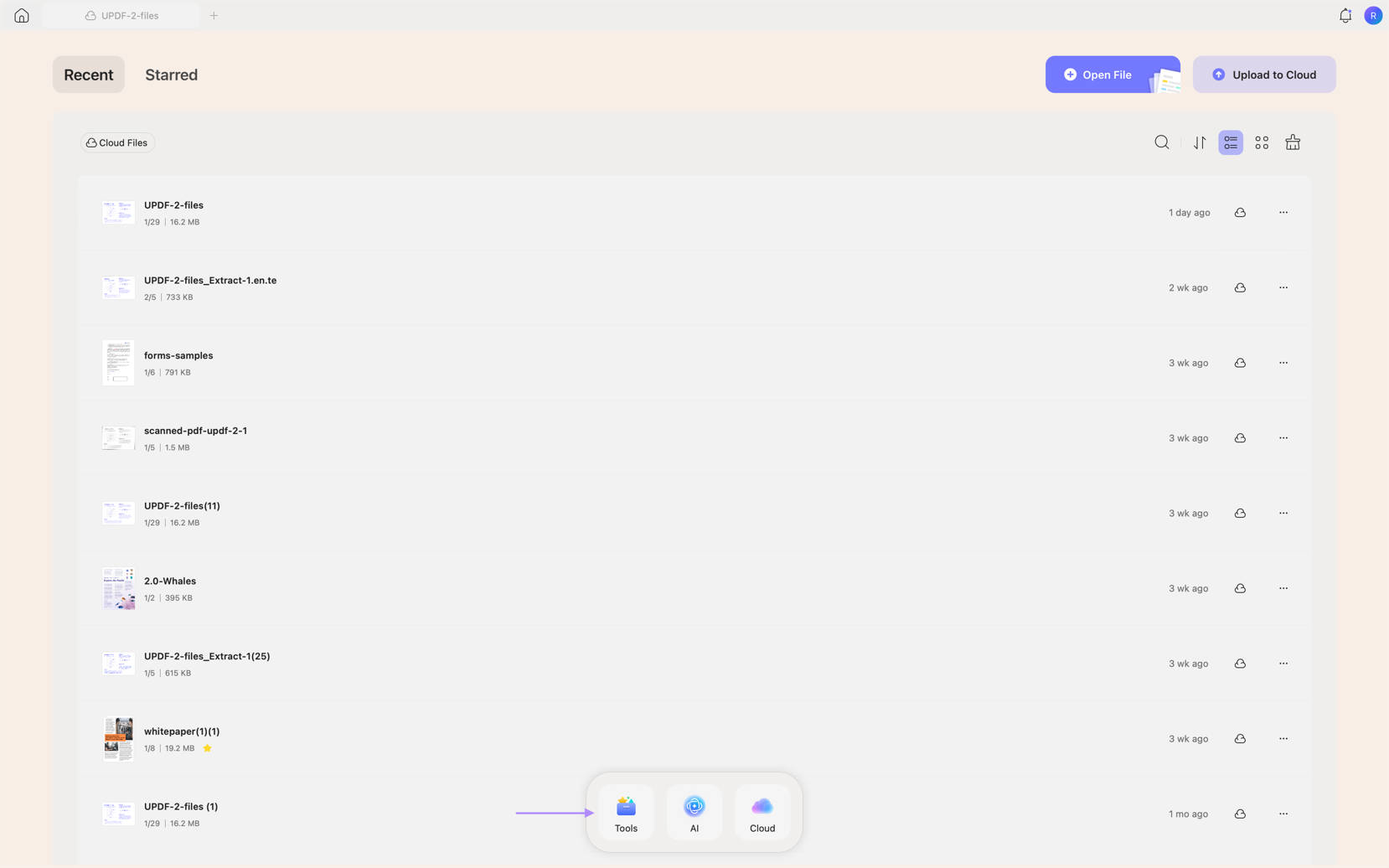
Step 1: Select “Tools” from the navigation bar at the bottom.
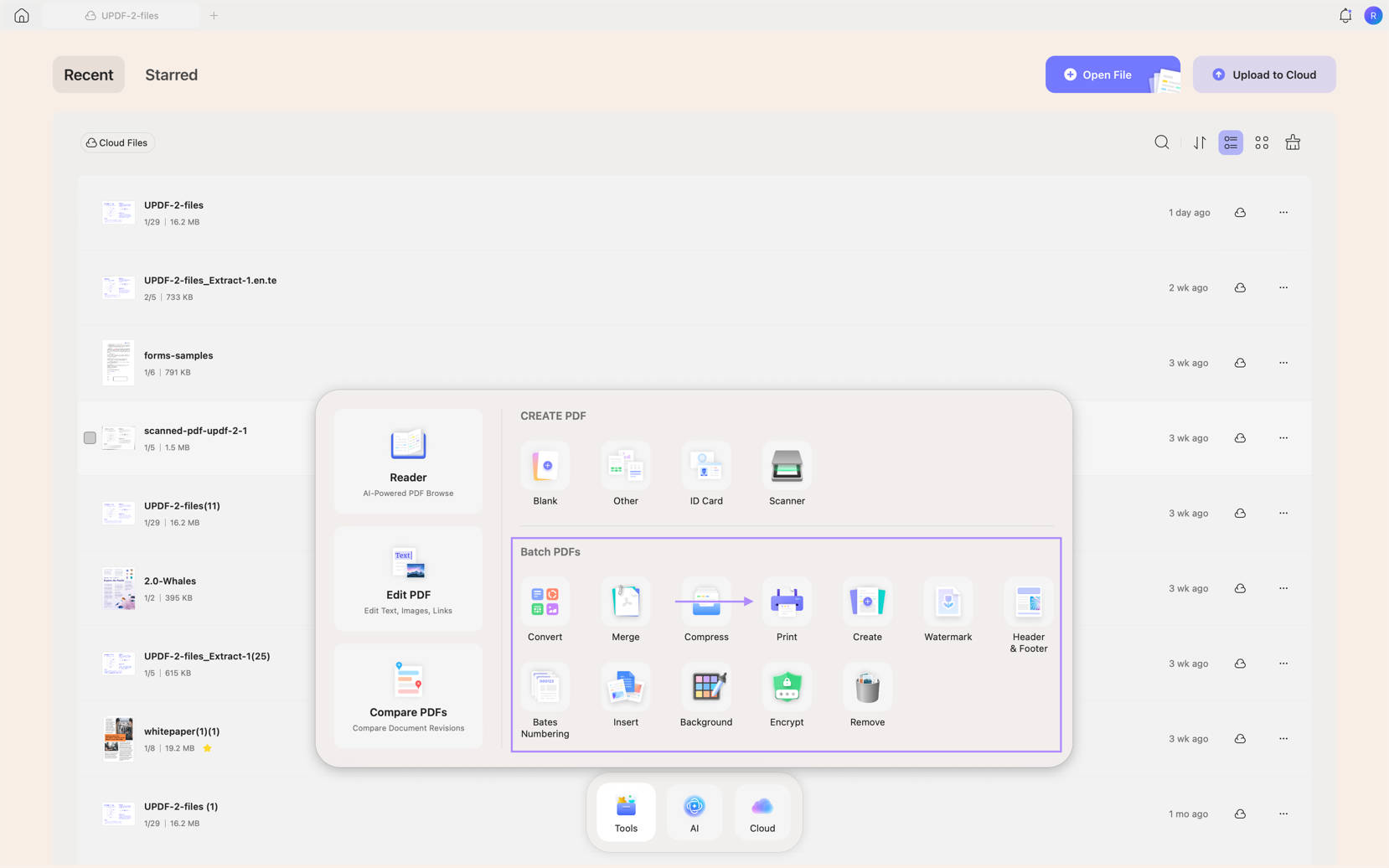
Step 2: In the “Batch PDFs” section, click “Print”.
Step 3: Drag and drop your files or click “Add files” to add your documents.
Step 4: Once your files are added, click “Print” to print them. Before confirming, make sure that “Double sided” option is switched off.
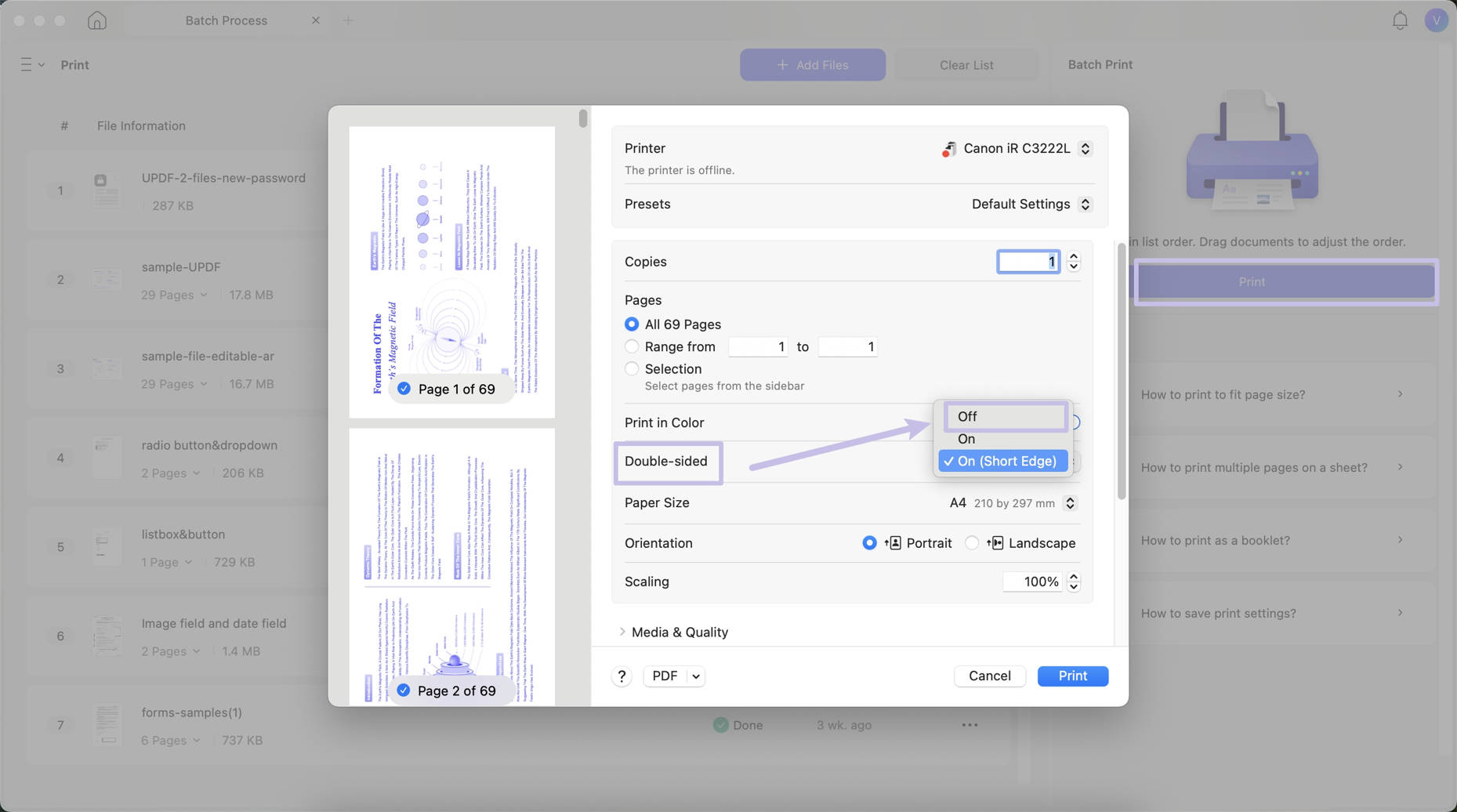
Why use UPDF for batch printing? Most PDF readers and printers do not support true batch printing. You either have to open each file manually or use a command line tool. UPDF makes it visual and straightforward, saving you significant time when dealing with large numbers of documents.
Windows • macOS • iOS • Android 100% secure
Part 3. When Should You Print Double-Sided Instead?
If you want to reduce paper use, converting a single-sided PDF to a double-sided PDF is a great solution. With UPDF, this process is simple and quick. Follow the steps below:
Best for
Step 1: Open your PDF in UPDF, click the arrow next to the Save icon in the top-right corner, and click “Print”.
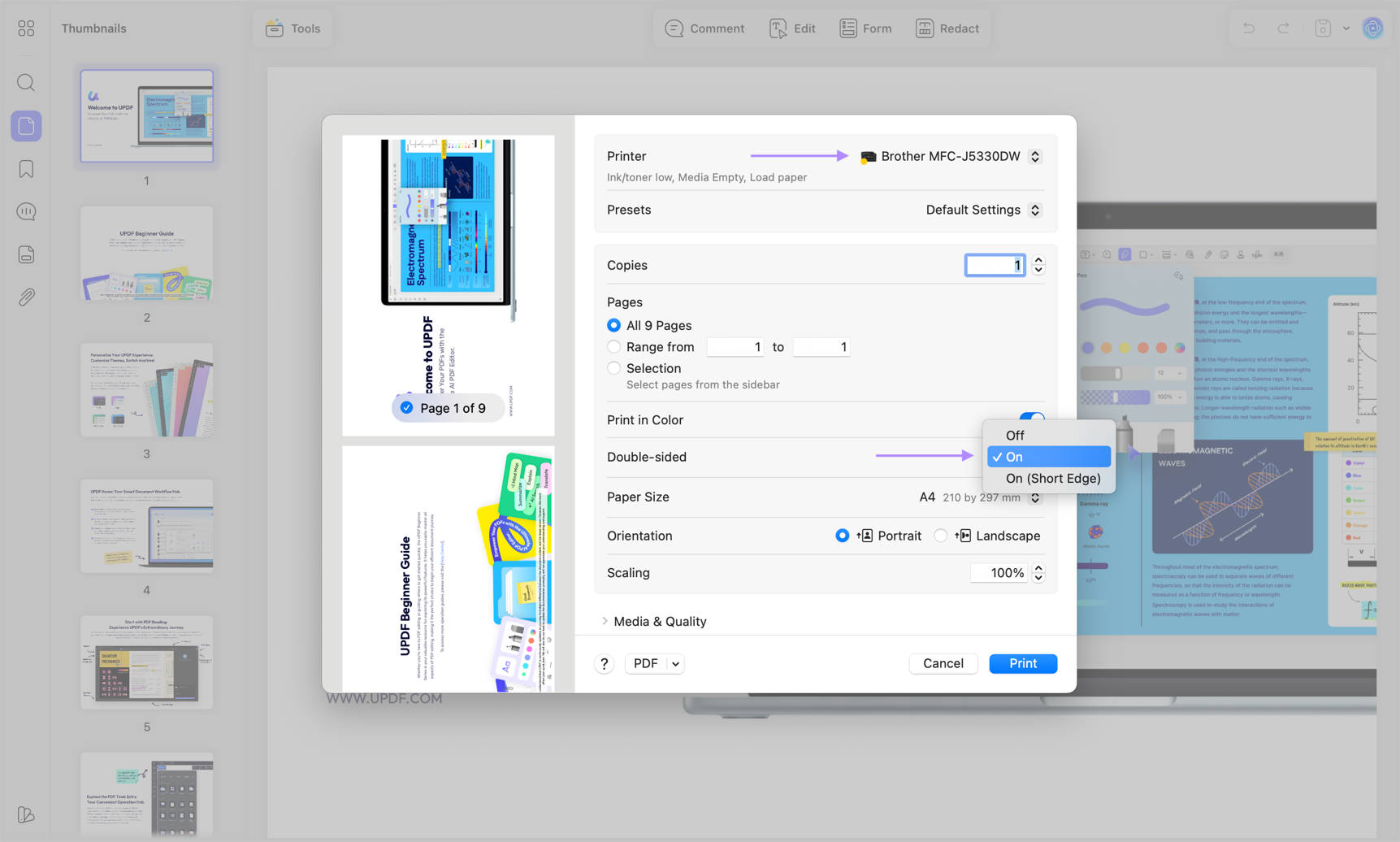
Step 2: Choose the correct printer that supports double printing. Then enable the “Double sided” option and click “Print” to start printing.
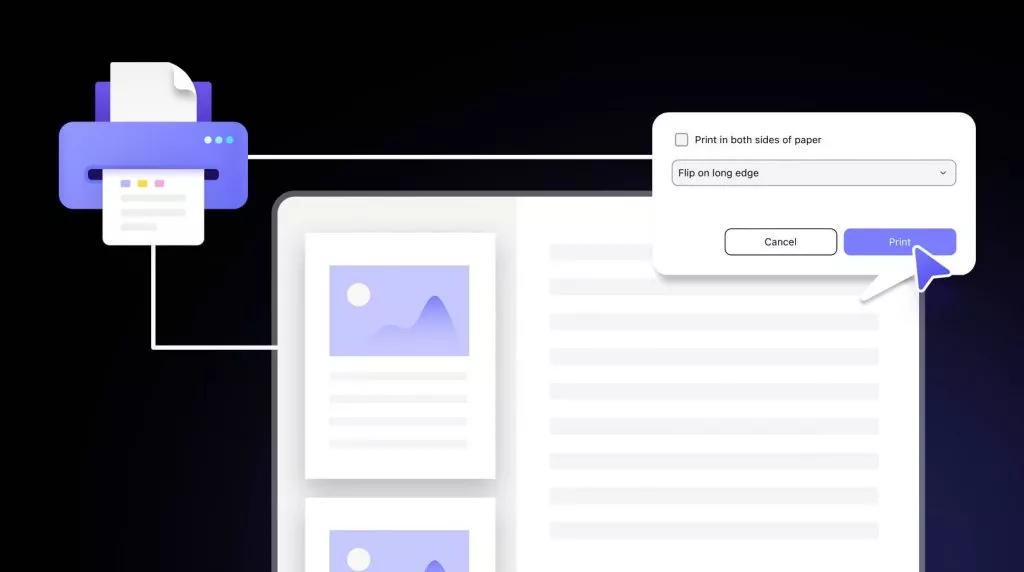
Also Read: How to Print Double-Sided PDFs
Tip
Part 4. Why Does My Printer Keep Printing Double-Sided?
Even after changing the settings, some printers stubbornly continue to print double-sided. You are not alone. This is one of the most frustrating printing issues users face. You select "single-sided" in your document, hit print, and the printer still flips the page and prints on the back.
The issue usually lies in one of three places:
- Document-level settings — Your PDF, Word, or Google Docs file has double-sided printing enabled.
- Printer driver defaults — The printer's preferences are set to duplex printing by default, overriding your document settings.
- Printer hardware settings — Some printers have a physical or firmware setting that forces double-sided printing.
Warning: If you have tried changing settings in your document and the printer still prints double-sided, the problem is almost certainly in the printer driver. Do not waste time rechecking document settings. Skip to Part 1 Section 1.
FAQs About Printing PDF Single Sided
How to Print Single Sided with Google Docs?
To print single-sided file in Google Docs, click “File” > “Print”, then in the print settings, uncheck “Print on both sides” or choose “One-sided” under More Settings. Then click “Print”.
How to print on One Side of paper in Word?
Go to “File” > “Print”, click on the Print on Both Sides dropdown, then select “Print One Sided”. Click “Print” to print the document.
What is Print Single Sided Meaning?
Printing single sided means that the printer will only print on one side of each sheet of paper. This avoids printing on the back of the sheet.
How to Set One Sided Printing as Default on Windows 11?
Go to “Settings” > “Bluetooth & devices” > “Printers & scanners”. Select your printer, click “Printing Preferences”, and under “Duplex/Two Sided” set it to “Off”. Then click “Apply” to save the new settings.
How Do I Turn Off Double-Sided Printing on Mac?
On Mac, open the print dialog (Cmd+P) in any application. Look for the "Two-Sided" checkbox and uncheck it. To make this the default, open "System Settings" > "Printers & Scanners," select your printer, and look for a "Default Options" or "Presets" setting where you can set single-sided as the default.
Is Single-Sided Printing More Expensive?
Yes, single-sided printing uses more paper than double-sided printing. If you print frequently, double-sided can cut your paper usage in half. However, single-sided is often preferred for official documents, applications, and submissions where readability and presentation matter more than paper savings.
Also Read: How to Get 2 Slides Per Page on a PDF?
Wrapping Up
Printing single-sided documents is often useful when handling forms, applications, or any material that requires a clean presentation. Whether you’re printing one file or many, knowing how to print single sided PDFs can save you time.
If you're fighting a printer that ignores your settings, fix the driver default first. If you're printing PDFs in volume and want single-sided to stick without per-file toggling, [download UPDF]—set it once, print dozens of files.
Windows • macOS • iOS • Android 100% secure





 Enya Moore
 Lizzy Lozano
 Idham Wijaya