 UPDF
UPDF
 UPDF for Windows
 UPDF for Mac
 UPDF for iPhone/iPad
 UPDF for Android
 Nomostar
 UPDF AI Online
 UPDF Sign
 IvyCraft
 Edit PDF
 Annotate PDF
 Create PDF
 PDF Form
 Edit links
 Convert PDF
 OCR
OCR PDF to Word
 PDF to Image
 PDF to Excel
 Organize PDF
 Merge PDF
 Split PDF
 Crop PDF
 Rotate PDF
 Protect PDF
 Sign PDF
 Redact PDF
 Sanitize PDF
 Remove Security
 Read PDF
 UPDF Cloud
 Compress PDF
 Print PDF
 Batch Process
 About UPDF AI
 UPDF AI Solutions
 AI User Guide
 FAQ about UPDF AI
 Summarize PDF
 Translate PDF
 Chat with PDF
 Chat with AI
 Chat with image
 PDF to Mind Map
 Explain PDF
 PDF AI Tools
 Image AI Tools
 AI Chat Tools
 AI Writing Tools
 AI Study Tools
 AI Working Tools
 Other AI Tools
 AI Bookmark Generation
 AI Bookmark Summary
 AI Watermark Generation
 AI Background Generation
 AI Sticker Generation
 AI Stamp Generation
 AI Editing Suite
 UPDF Copilot
 AI Page Management
 AI Semantic Search
 PDF to Word
 PDF to Excel
 PDF to PowerPoint
 Enterprise Solution
 Enterprise Sign
 Enterprise AI
 Enterprise Plan
 Enterprise User Guide
 Enterprise Webinar
 IT
IT Education
 Construction
 Financial Service
 Healthcare
 Insurance
 Legal
Legal Manufacturing
 Government
 Researchers & PhDs
 Solopreneurs & Freelancers
 Lawyers & Legal Professionals
 Real Estate Agents & Brokers
 Education Solution
 Customer Stories
 User Guide
 UPDF Tricks
 FAQs
FAQs UPDF Reviews
 Download Center
 Blog
Blog Newsroom
 Tech Spec
 Updates
 UPDF vs. Adobe Acrobat
 UPDF vs. Foxit
 UPDF vs. PDF Expert

“2 images in one page PDF” can mean two different things, and they don’t use the same workflow.
If you need two pictures arranged on a printed sheet — ID front/back on one page, two photos side by side for printing — the fastest path is often the print dialog you already have. Windows’ built-in Print Pictures tool lets you select two images and choose a layout like 13×18 cm or 10×15 cm; Adobe Acrobat’s “Multiple” print option can put two pages on one sheet. No PDF editor required.
If you need the two images embedded into a single PDF page as a document — a product sheet, a certificate with two photos, a report page with two exhibits — you need a PDF editor that can insert and position images. That’s where UPDF’s two methods (ID Card template and blank-page custom layout) fit.
If you need to merge two images into one long image or a multi-page PDF first, and then place or print that, a batch merge/convert tool is the starting point.
The rest of this guide walks through each path, with the cases where it makes sense and the cases where it doesn’t.
Which Method Fits Your Case before Putting 2 Images on One Page PDF?
"Put 2 images on one page PDF" sounds like one task. It's actually four different tasks, and they don't use the same tool. Before you read a single step-by-step, find your situation in the table below — then jump straight to the method that fits.
| Your situation | What you actually need | Go to |
|---|---|---|
| Two photos for printing on paper — two shots on one sheet, ID front/back on one page — no captions, no editing | Your system print dialog or Acrobat's "Multiple" option. No PDF editor required. | Method 1 |
| Two images need to be embedded into a single PDF page in a fixed side-by-side layout — ID card, certificate photos, two product shots | UPDF ID Card template — fastest route, no manual positioning | Method 2 |
| Two images need custom placement — stacked, overlapping, offset, captions between them, or more than two on the page | UPDF blank PDF + Edit mode — full control | Method 3 |
| You need to merge two images into one long image or one PDF first, then place or print that | UPDF batch merge → convert → place | Method 4 |
The one-line rule: if the output is paper and you don't need to edit, try Method 1 first. If the output is a single PDF page you'll send, archive, or edit further, use Methods 2–4.
Method 1: Print 2 Images on One Page Without a PDF Editor
Use this when:
Most people reach for a PDF editor here when they don't need one. The print dialog already does 2-up layout.
Windows — Print Pictures:
- Select the two images in File Explorer.
- Right-click → Print.
- In the Print Pictures window, choose a layout. For two images, 13×18 cm or 10×15 cm gives you two on one page.
- Pick your printer — or choose Microsoft Print to PDF if you want a digital file instead of paper.
macOS — Preview:
- Select two images in Preview → File > Print.
- Under Layout, choose a 2-up preset.
- Print or save as PDF.
If you need to add captions, overlap the images, or keep them as a single document page rather than two pages printed on one sheet. That's when you move to Method 2 or 3.
Method 2: UPDF ID Card Template — Fastest Fixed Layout
Use this when:
Skip this if:
This method lets you quickly merge your selected images into a PDF with a fixed layout. It removes the need to rearrange images manually. This works well for combining the front and back of an ID card or certificates. However, you can use it to merge any two images.
Here are the steps to combine images into one page PDF.
Windows • macOS • iOS • Android 100% secure
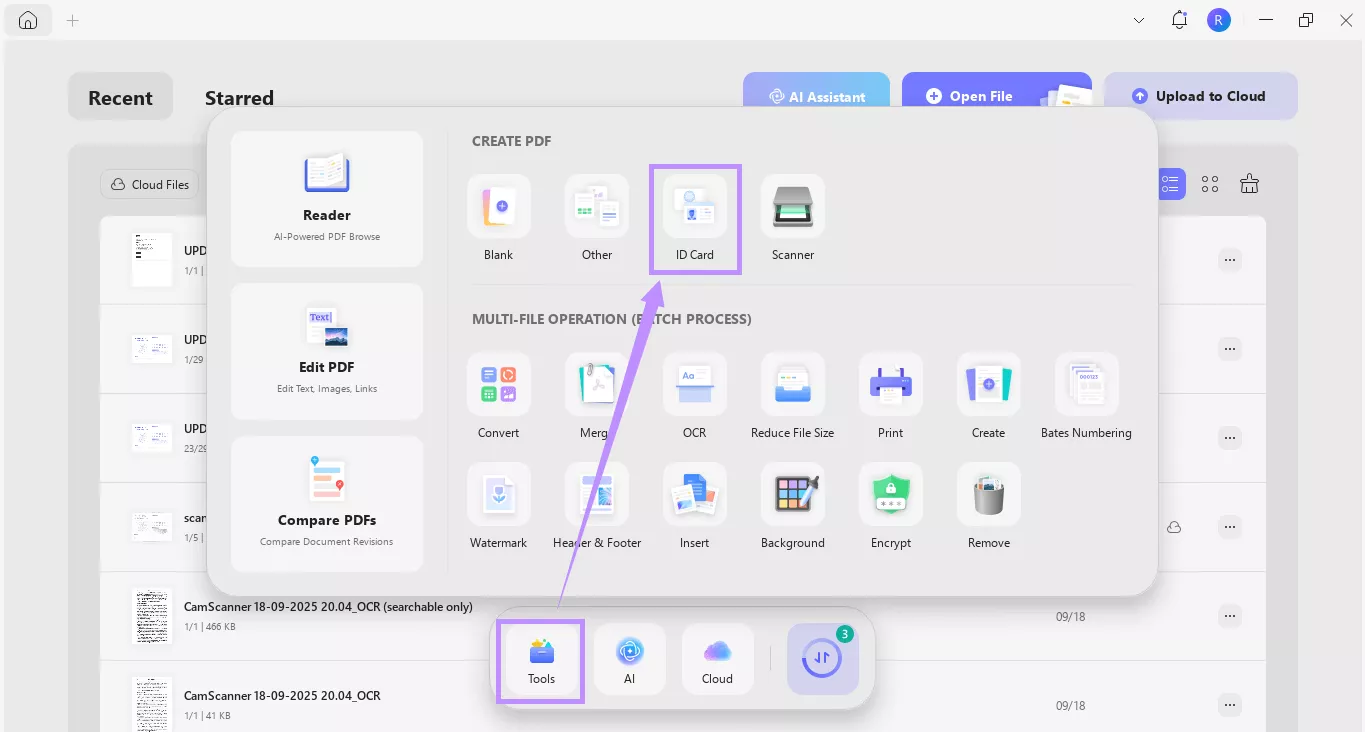
Step 1. Open UPDF on your computer. Click “Tools” from the bottom. Then, select “ID Card” located under the Create PDF section.
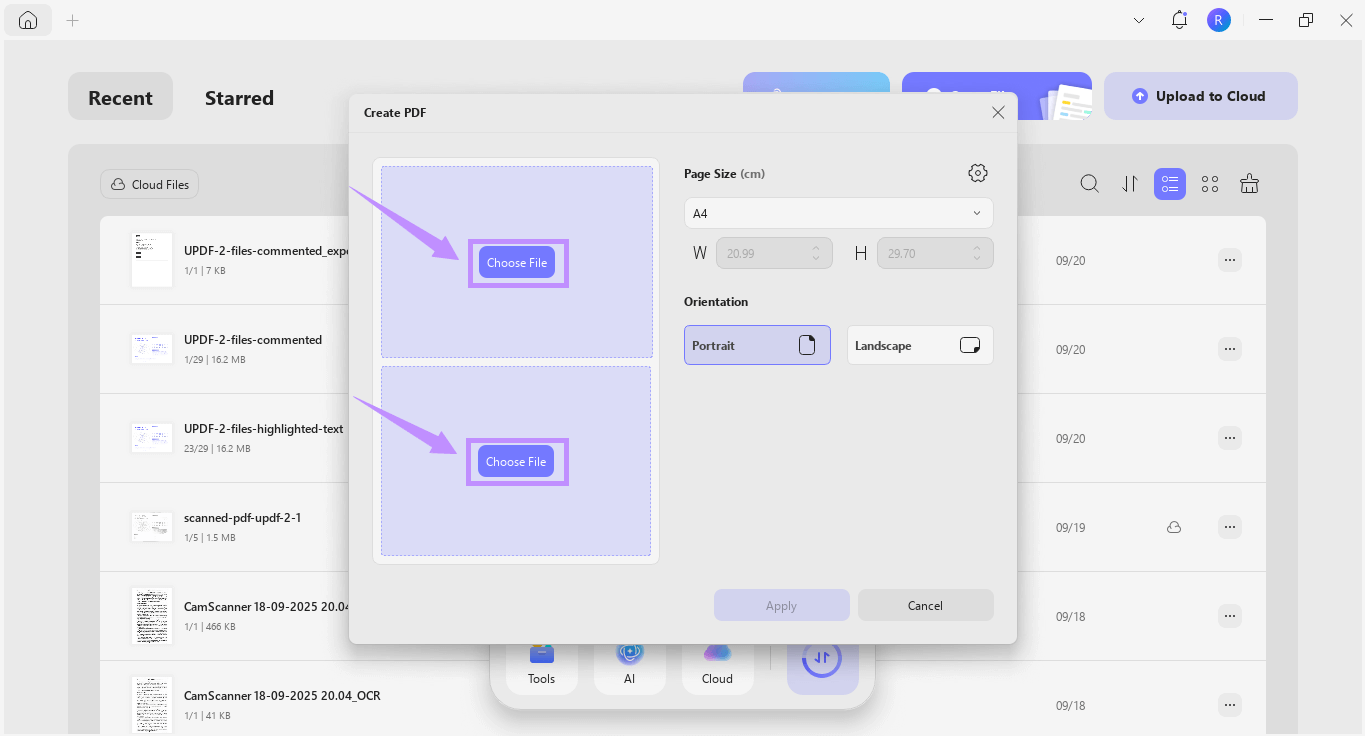
Step 2. A new window will show up with two file upload options. Click each “Choose File” button and select the images you want to combine on a single page.
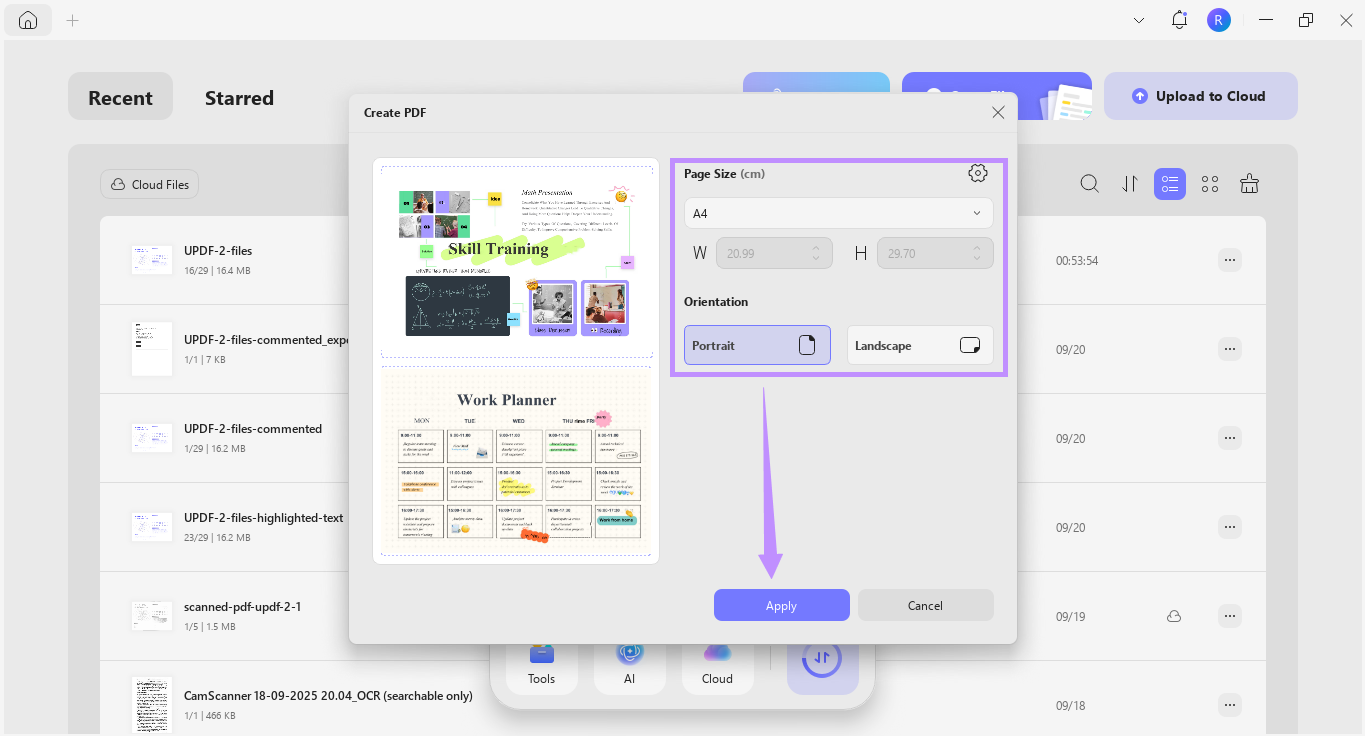
Step 3. Once both images are added, click the Page Size dropdown and choose your desired size. Then, select a page orientation such as Portrait or Landscape. After that, click “Apply.”
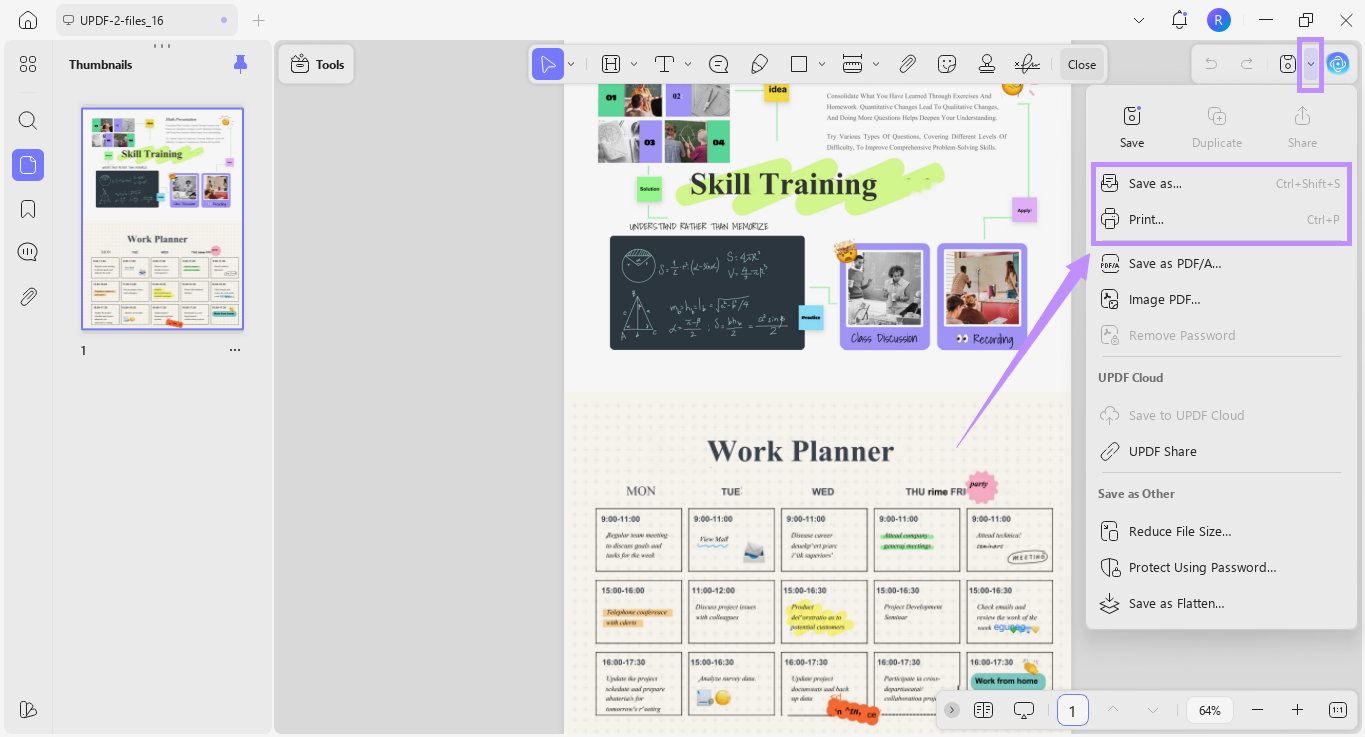
Step 4. UPDF will combine both images into a single page and open it for viewing. From here, click the down arrow in the top right and choose “Save as” or “Print” as needed.
After saving, you can also:
- Edit the layout: Resize, rotate, or reposition either image using UPDF's Edit mode if the initial arrangement needs tweaking. For more layout options, learn how to insert and edit images in any PDF.
- Add text or annotations: Label the images with captions, arrows, or sticky notes using the Comment tools.
- Share or print: Export as a flattened PDF for email, save to UPDF Cloud for cross-device access, or print directly with preserved page size.
The ID Card method is the fastest way to create a 2 image 1 page layout — ideal for ID documents, certificates, or any pair of photos that need a fixed side-by-side format.
After saving, if the layout needs a tweak: open the file in UPDF's Edit mode to resize, rotate, or reposition either image. You can also add captions or labels using the Comment tools.
The template handles the placement math for you. No canvas setup, no manual dragging — two images in, one page out, usually under a minute.
Method 3: UPDF Blank PDF + Custom Insertion — Full Control
Use this when:
Skip this if:
This method gives you more control over combining 2 images on one page PDF in your desired layout. It works best for creating custom arrangements. You can freely place images anywhere on the page.
Here’s how it works.
Windows • macOS • iOS • Android 100% secure
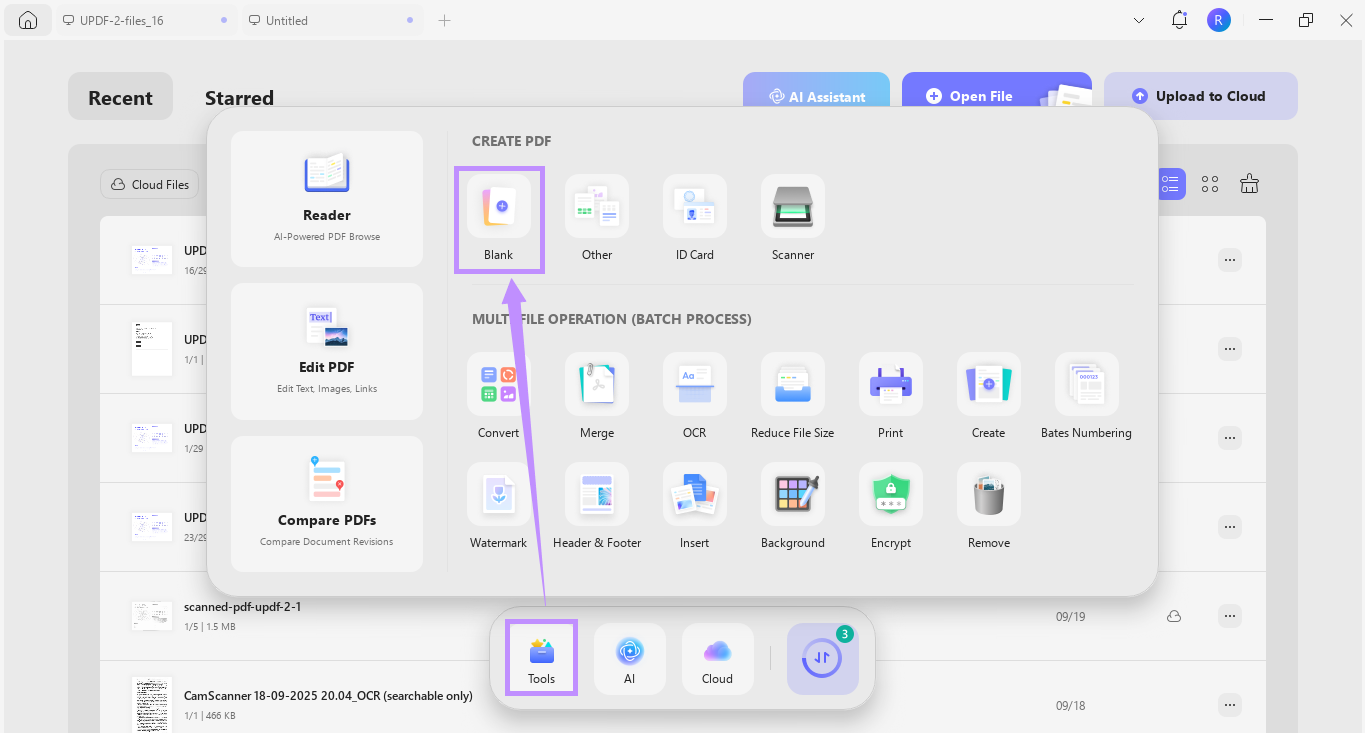
Step 1. Open UPDF and click “Tools” from the Home screen. Then, click “Blank” under Create PDF.
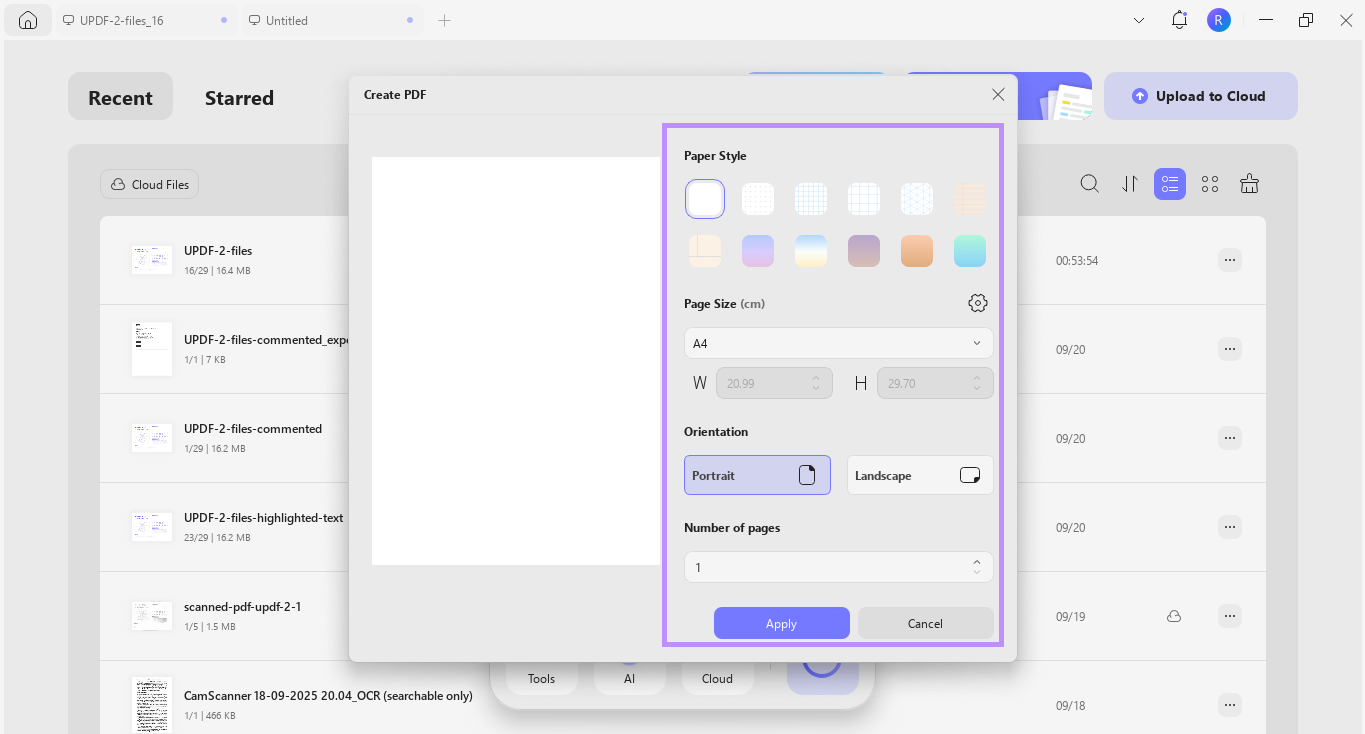
Step 2. From the new window, customize the page appearance. You can select your desired page style, size, orientation, and number of pages. Once done, click “Apply.”
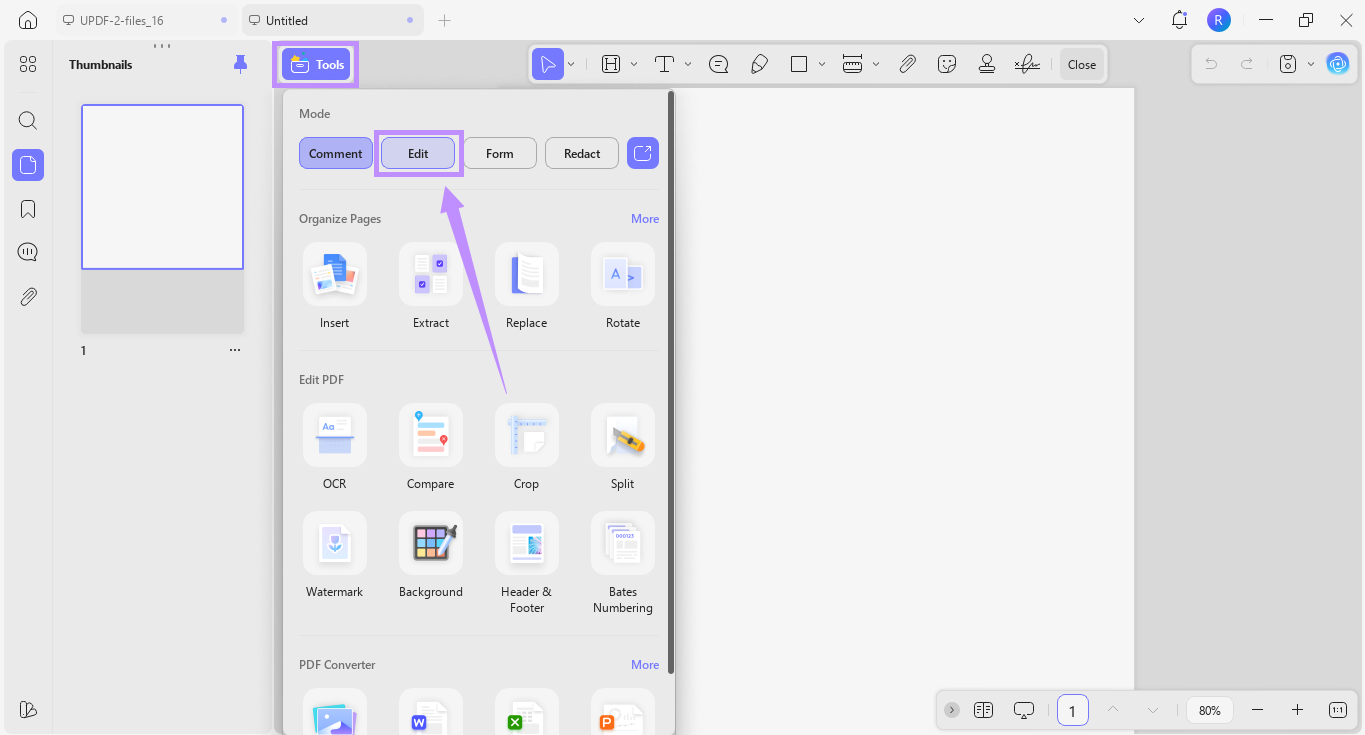
Step 3. UPDF will create and open a blank PDF. From here, click “Tools” at the top and select “Edit.”
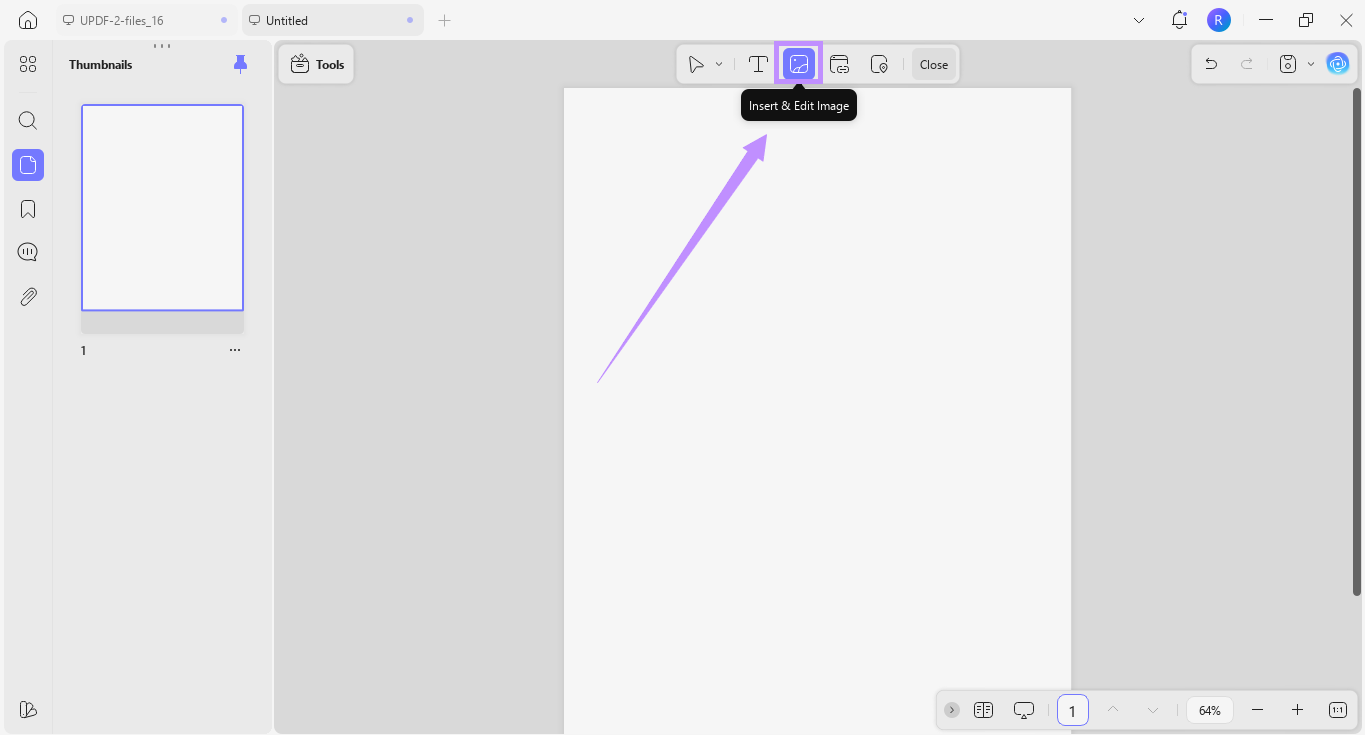
Step 4. You will see a toolbar at the top with several options. Click the image icon for “Insert & Edit Image” from here.
Step 5. Click the area on the page where you want to insert the first image. From the new window, select the image to insert. Repeat the process to add the second image.
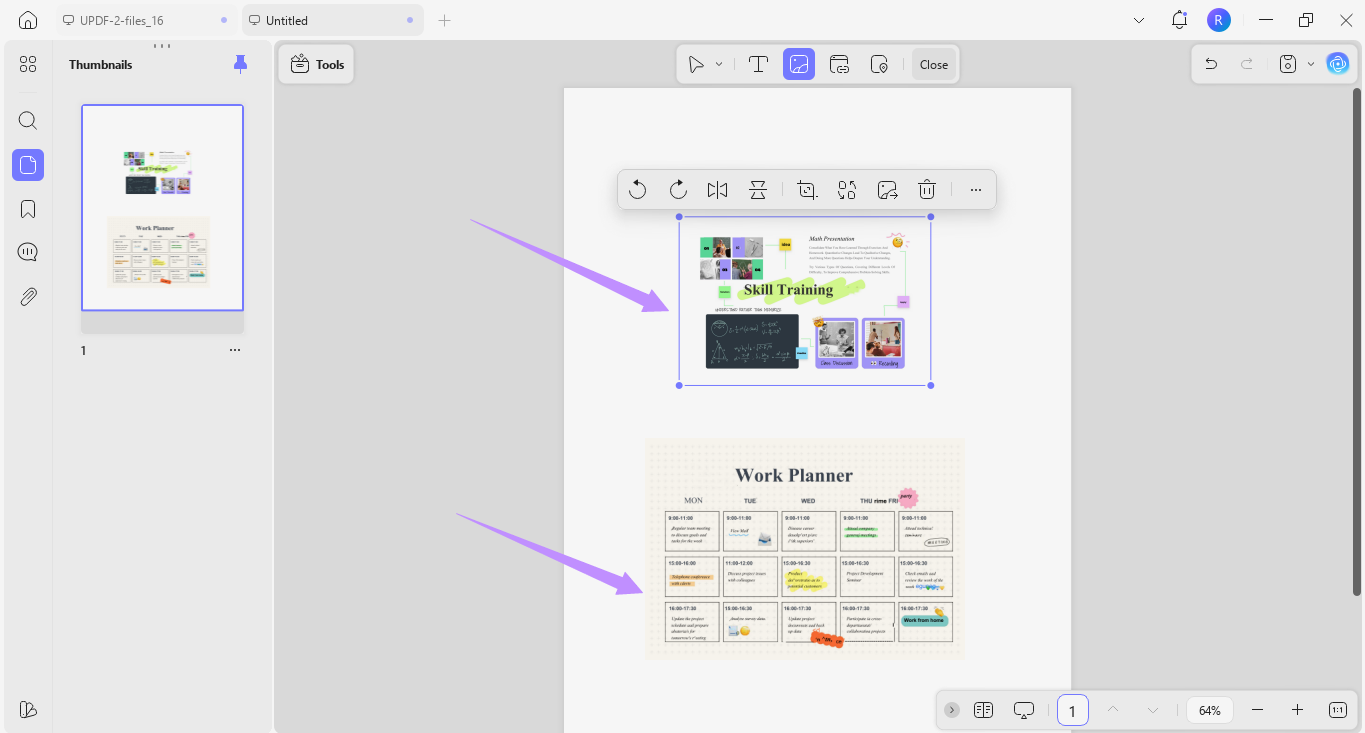
Step 6. After inserting both images, drag each one to your desired position — side by side, stacked, or overlapping. Use the corner handles to resize proportionally. You can also use the floating toolbar to rotate, flip, crop, replace, or delete them as needed.
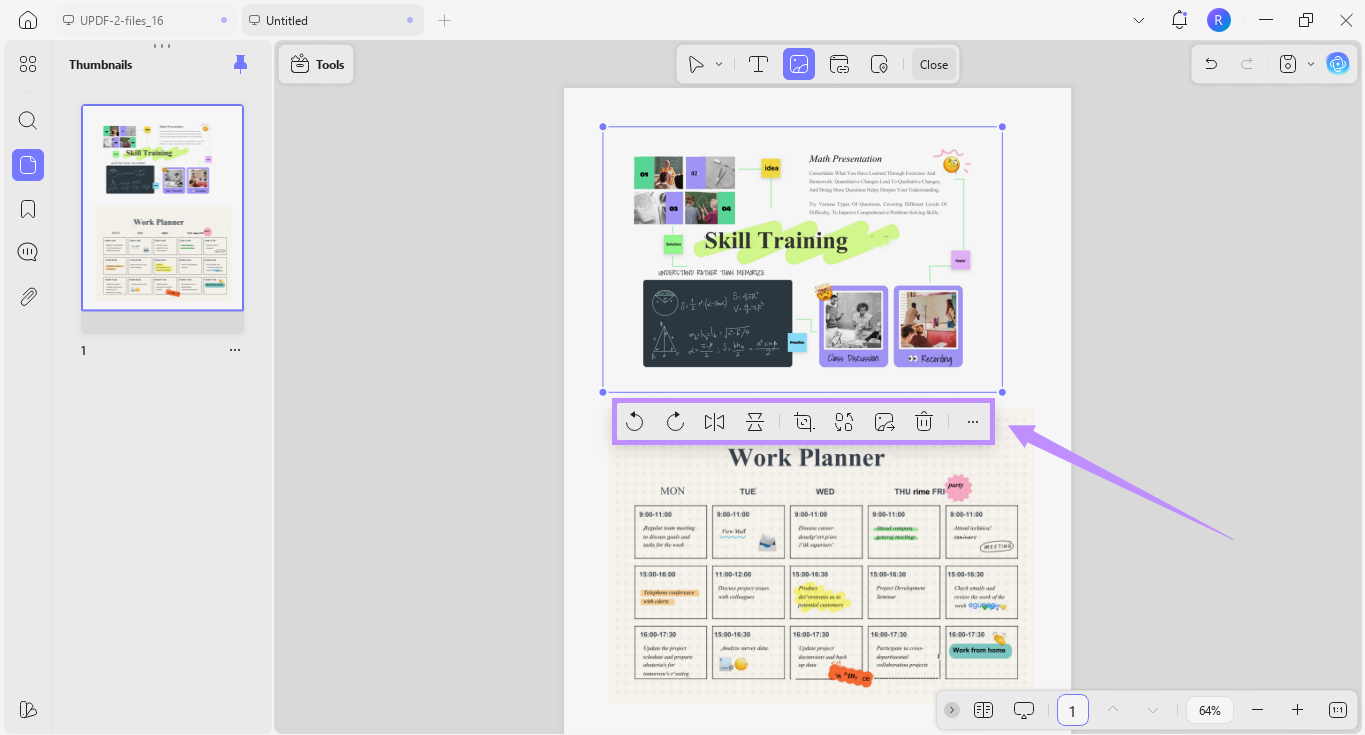
Step 7. Once the layout looks right, click the down arrow in the top right corner. Then select “Save as” to export or choose “Print” to send directly to your printer. You can also click Share to generate a link or QR code for instant sending. This blank-page method gives you full creative control over any 2 image in one page design.
Method 2 gives you a fixed two-up layout in seconds; Method 3 gives you a blank canvas and lets you decide where everything goes.
Method 4: Merge Two Images First, Then Place or Print
Use this when:
Sometimes, you may want to combine or print 2 images on one page of a PDF. This can be useful for creating photo albums, presentations, or catalogues. With UPDF, the process is quick and straightforward. You can use the merge and image tools to put 2 images into a single-page PDF.
Download UPDF on your device. Then follow the steps below to learn how to print multiple images on one page PDF.
Windows • macOS • iOS • Android 100% secure
Step 1. With UPDF open, click “Tools” from the Home screen. Then, select “Merge” under Multi-File Operation (Batch Process).
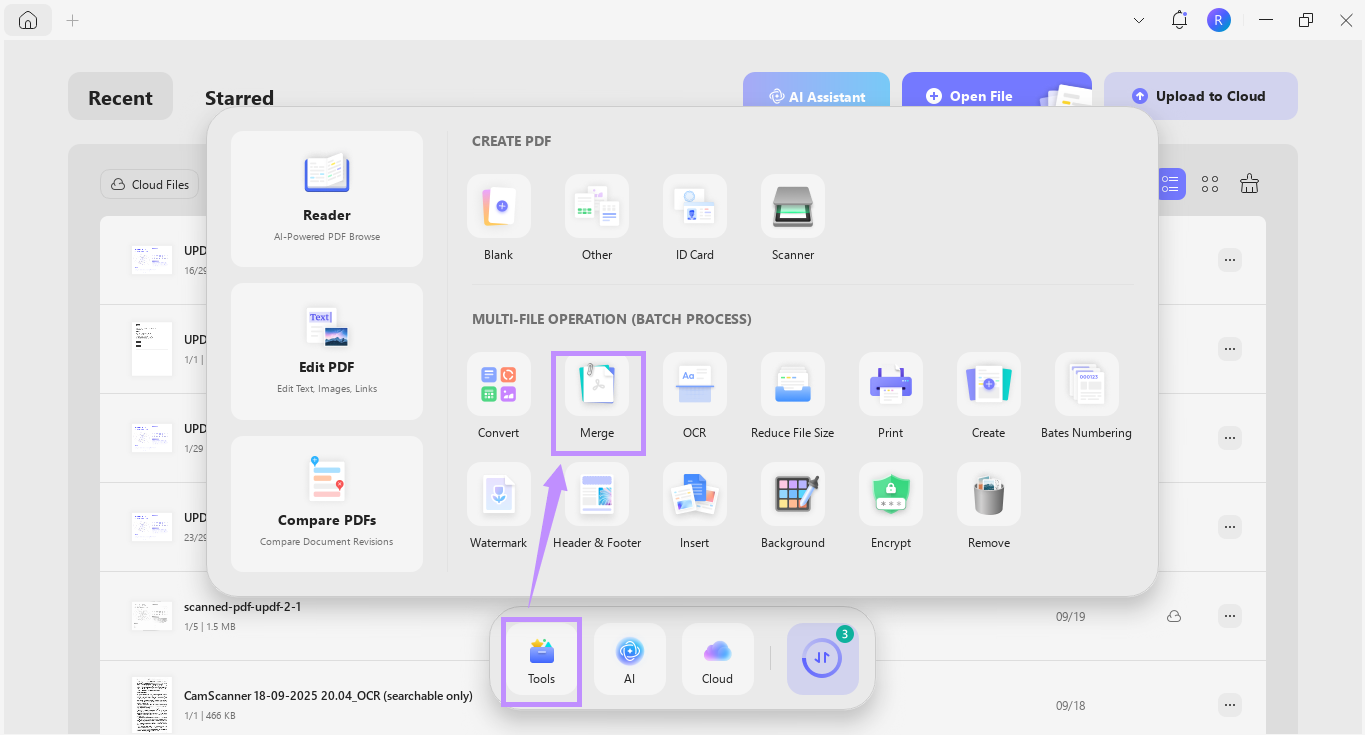
Step 2. Click “Add Files” and import the pictures you want to combine.
Step 3. Once the images are uploaded, go to the right-hand panel. Click the Page Size Options dropdown and choose either “Keep original size” or “Standardize page size.”
Step 4. If needed, select a page size and orientation. Enter a file name, then click “Apply.” Choose the folder where you want to save the merged file.
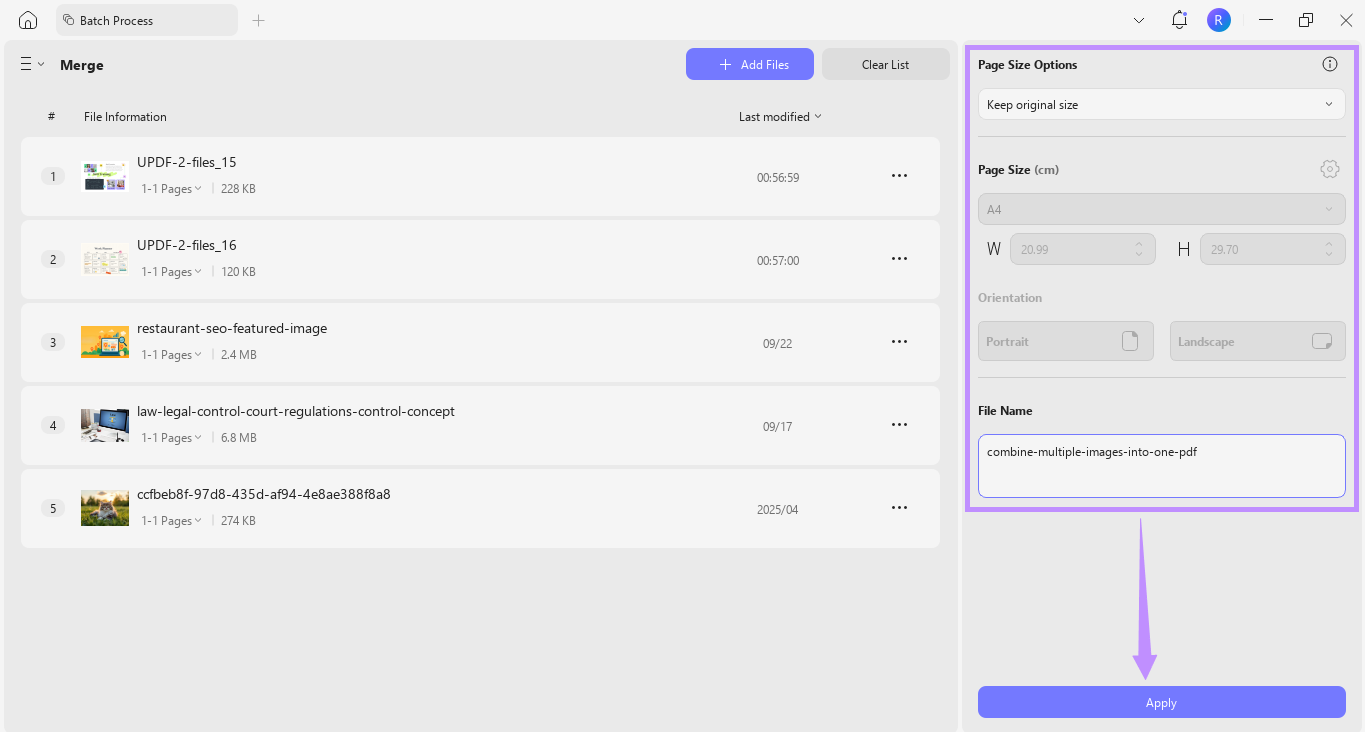
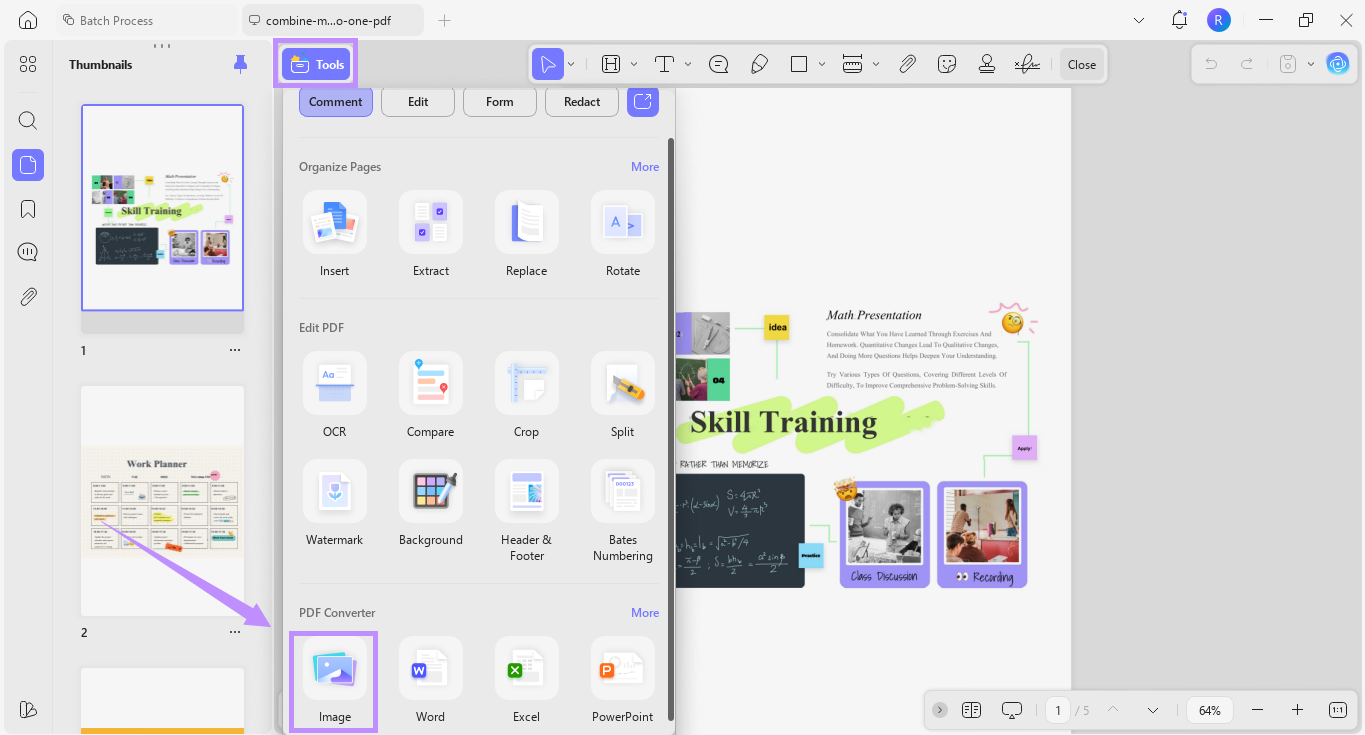
Step 5. UPDF will direct you to the folder where your file is located. Double-click the file to open it in UPDF. Then click “Tools” from the top menu and select “Image” under PDF Converter at the bottom.
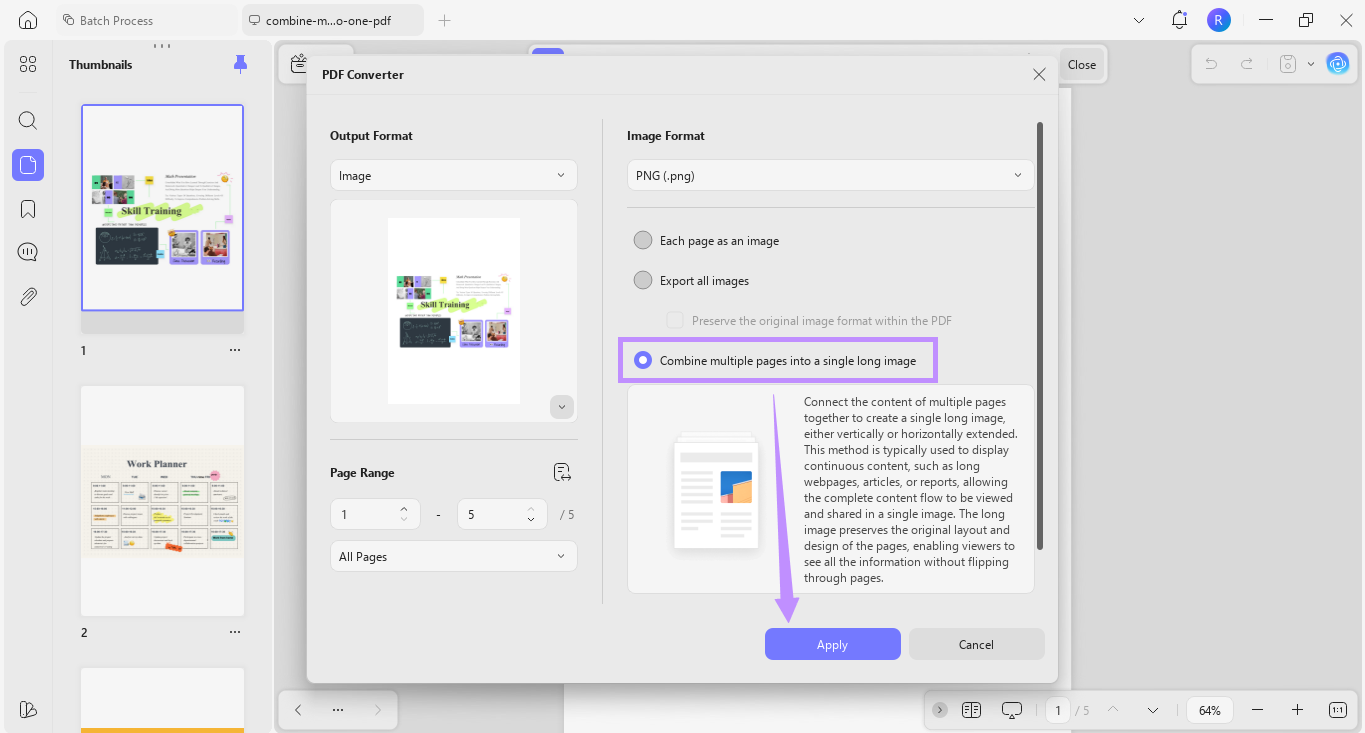
Step 6. In the new window, check “Combine multiple pages into a single long image.” Click “Apply” and save your file.
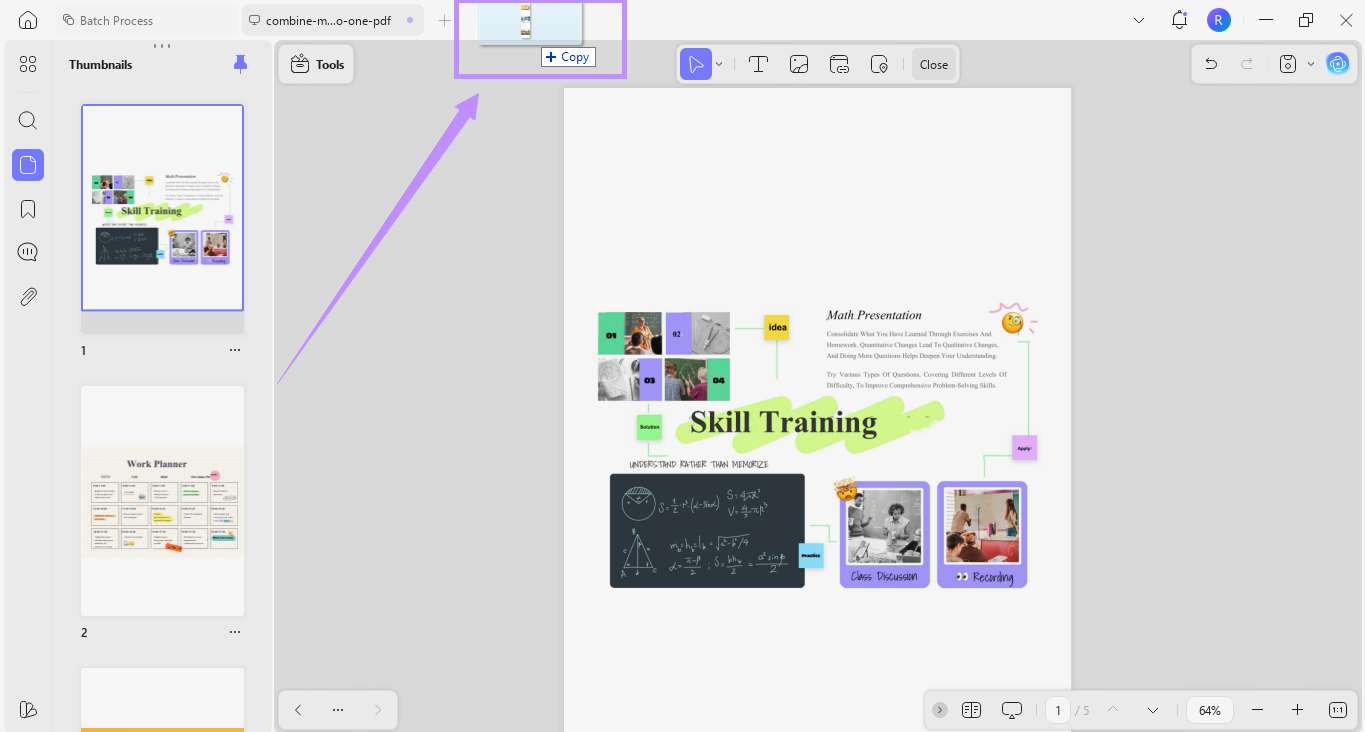
Step 7. After saving, you’ll be directed to the destination folder. Drag and drop the single long image back into UPDF. Make sure to place it on the tab bar to open in a new tab.
Step 8. Finally, click the down arrow in the top right and click “Save as” or “Print” as needed.
Apart from creating a single-page PDF, UPDF is packed with tools to make your PDF management effortless. If you want to get more familiar with it, read this review of UPDF or watch the video below.
When the two images aren't the final page layout — they're raw material that needs to become one image or one document first. Method 4 is the prep step; Methods 2 and 3 are the placement step.
Frequently Asked Questions
Do I need a PDF editor to put 2 images on one page?
Not always. If you only need two photos printed on one sheet, the Windows Print Pictures dialog or Acrobat's "Multiple pages per sheet" option can do it without a PDF editor. You need a PDF editor when the two images must be embedded into a single PDF page for sending, archiving, or further editing.
Can I put 2 images on one page for free?
Yes, for printing — the built-in print dialog on Windows or macOS is free. For embedding into a PDF page, UPDF's ID Card template and blank-page insertion are part of the paid feature set, but you can test the workflow on the free tier before buying.
How do I print 2 images on one page without Photoshop?
Select the two images in your file manager → right-click → Print → choose a 2-up layout (13×18 cm or 10×15 cm on Windows). On macOS, use Preview's print layout presets. If the images are already in a PDF as separate pages, use Acrobat's Multiple → 2 pages per sheet.
Does putting 2 images on one page reduce quality?
If you're printing, output quality depends on the images' native resolution and the print size. If you're embedding into a PDF, UPDF inserts at the image's original resolution — avoid scaling a small image up beyond its native dimensions. For print, aim for at least 300 DPI at the final printed size.
Can I put more than 2 images on one page?
Yes. For printing, the print dialog's layout presets include 4-up, 9-up, and contact-sheet options. For embedding into a PDF page, use Method 3 (blank PDF) and insert as many images as the page can hold.
Conclusion
The shortest answer depends on your output. Printing two photos on one sheet? Try your system print dialog or Acrobat's Multiple option first — no PDF editor needed. Embedding two images into a single PDF page for sending or archiving? UPDF's ID Card template is the fastest route for fixed side-by-side layouts, and the blank-page method gives you full control for custom placement. Need to merge images into one long image or one PDF before placing them? Start with UPDF's batch merge.
Try UPDF free to test the ID Card and blank-page workflows, or check the lifetime plan if embedding images into PDFs is a recurring task.
Windows • macOS • iOS • Android 100% secure







 Enola Davis

 Engelbert White
 Lizzy Lozano