 UPDF
UPDF
 UPDF for Windows
 UPDF for Mac
 UPDF for iPhone/iPad
 UPDF for Android
 Nomostar
 UPDF AI Online
 UPDF Sign
 IvyCraft
 Edit PDF
 Annotate PDF
 Create PDF
 PDF Form
 Edit links
 Convert PDF
 OCR
OCR PDF to Word
 PDF to Image
 PDF to Excel
 Organize PDF
 Merge PDF
 Split PDF
 Crop PDF
 Rotate PDF
 Protect PDF
 Sign PDF
 Redact PDF
 Sanitize PDF
 Remove Security
 Read PDF
 UPDF Cloud
 Compress PDF
 Print PDF
 Batch Process
 About UPDF AI
 UPDF AI Solutions
 AI User Guide
 FAQ about UPDF AI
 Summarize PDF
 Translate PDF
 Chat with PDF
 Chat with AI
 Chat with image
 PDF to Mind Map
 Explain PDF
 PDF AI Tools
 Image AI Tools
 AI Chat Tools
 AI Writing Tools
 AI Study Tools
 AI Working Tools
 Other AI Tools
 AI Bookmark Generation
 AI Bookmark Summary
 AI Watermark Generation
 AI Background Generation
 AI Sticker Generation
 AI Stamp Generation
 AI Editing Suite
 UPDF Copilot
 AI Page Management
 AI Semantic Search
 PDF to Word
 PDF to Excel
 PDF to PowerPoint
 Enterprise Solution
 Enterprise Sign
 Enterprise AI
 Enterprise Plan
 Enterprise User Guide
 Enterprise Webinar
 IT
IT Education
 Construction
 Financial Service
 Healthcare
 Insurance
 Legal
Legal Manufacturing
 Government
 Researchers & PhDs
 Solopreneurs & Freelancers
 Lawyers & Legal Professionals
 Real Estate Agents & Brokers
 Education Solution
 Customer Stories
 User Guide
 UPDF Tricks
 FAQs
FAQs UPDF Reviews
 Download Center
 Blog
Blog Newsroom
 Tech Spec
 Updates
 UPDF vs. Adobe Acrobat
 UPDF vs. Foxit
 UPDF vs. PDF Expert

Quick answer: To tile print a PDF, open it in a PDF program with a Poster mode, choose your A4 or Letter paper size, and set the tile scale and overlap. The program divides one oversized PDF page across several sheets that you can trim and assemble into a poster, sewing pattern, map, blueprint, or classroom display.
This guide shows how to tile print a PDF with UPDF for Windows and Adobe Acrobat. It also explains the settings that control the final size and what to check when the Poster option does not appear. For other print layouts, see our complete guide on how to print a PDF. You can download UPDF below and follow the Windows steps in Part 2.
Windows • macOS • iOS • Android 100% secure
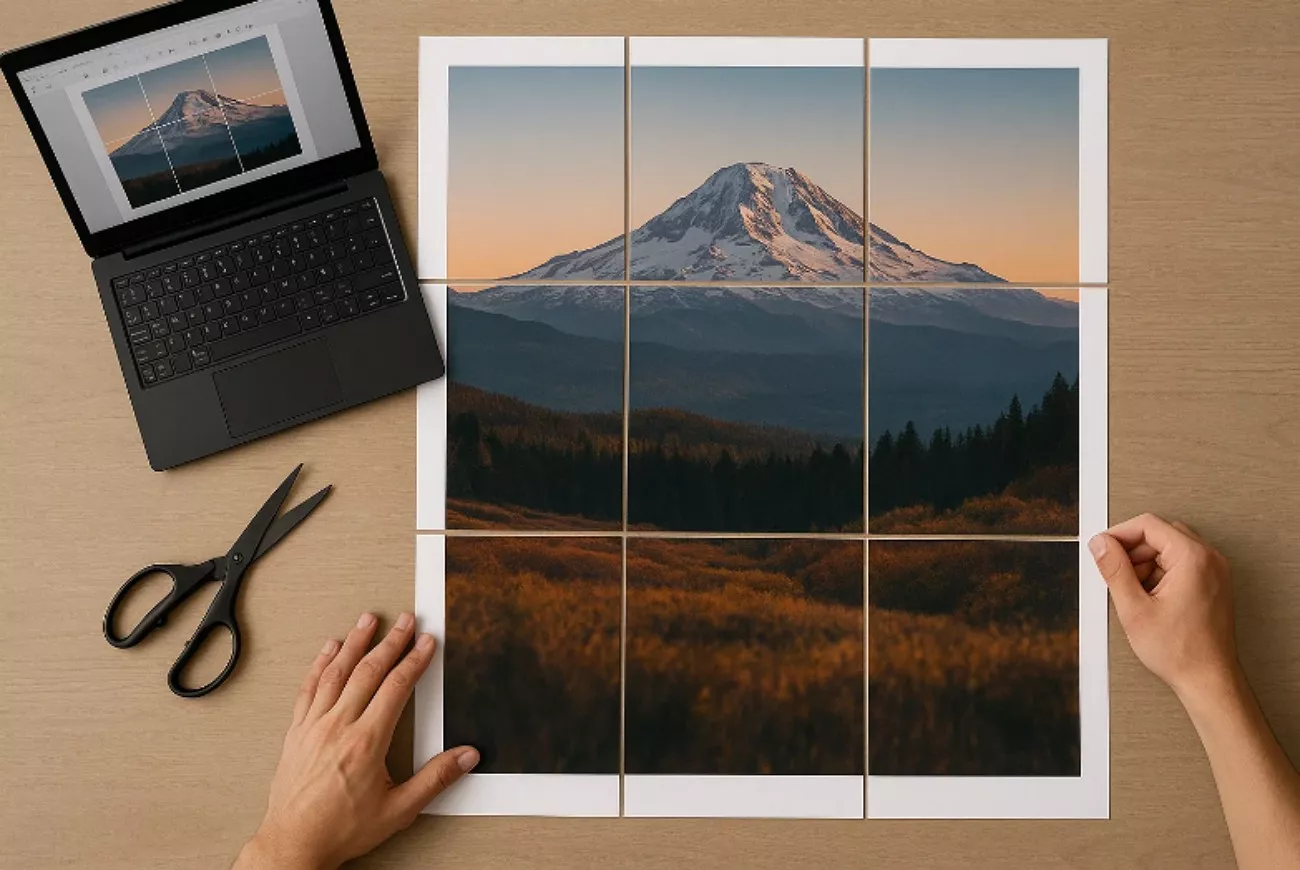
Part 1. What “Tile Printing” or “Poster Mode” Means
Tile printing divides one large PDF page into smaller sections, or tiles, that a standard printer can print on separate A4 or Letter sheets. After printing, you trim the margins and align the overlapping areas to rebuild the full-size design. It is different from “multiple pages per sheet,” which puts several PDF pages onto one piece of paper.
When Tile Printing Is Useful
You may need to tile a PDF for printing when its page is larger than your printer supports, or when you want to enlarge a normal page into a wall-size display. Common examples include posters, architectural plans, maps, sewing patterns, craft templates, classroom materials, and presentation boards.
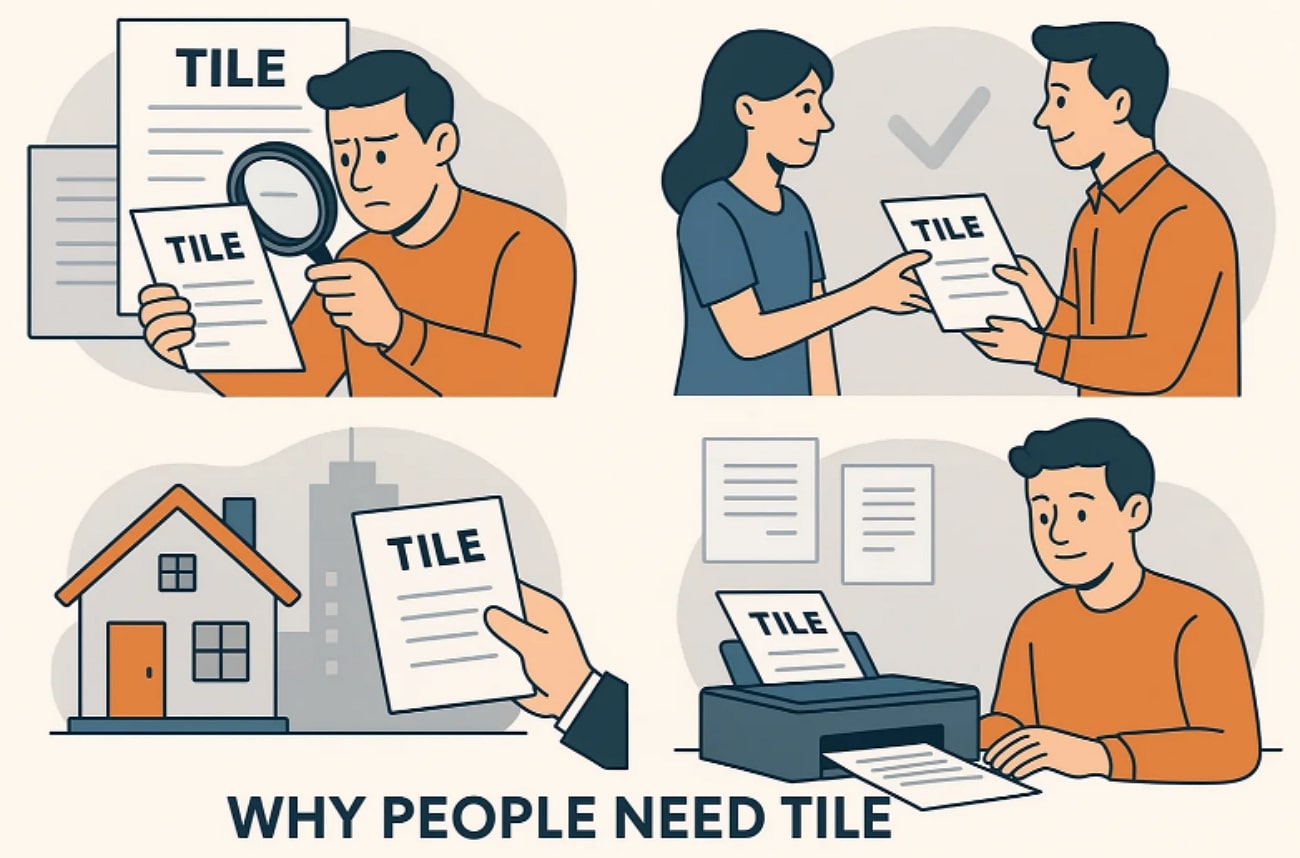
- Home and office printers: Print a large design without a plotter or large-format printer.
- Accurate-size patterns: Keep a sewing pattern or technical drawing at 100% scale.
- Large visual displays: Enlarge one PDF page and assemble it from several sheets.
Part 2. How to Tile Print a PDF with UPDF on Windows
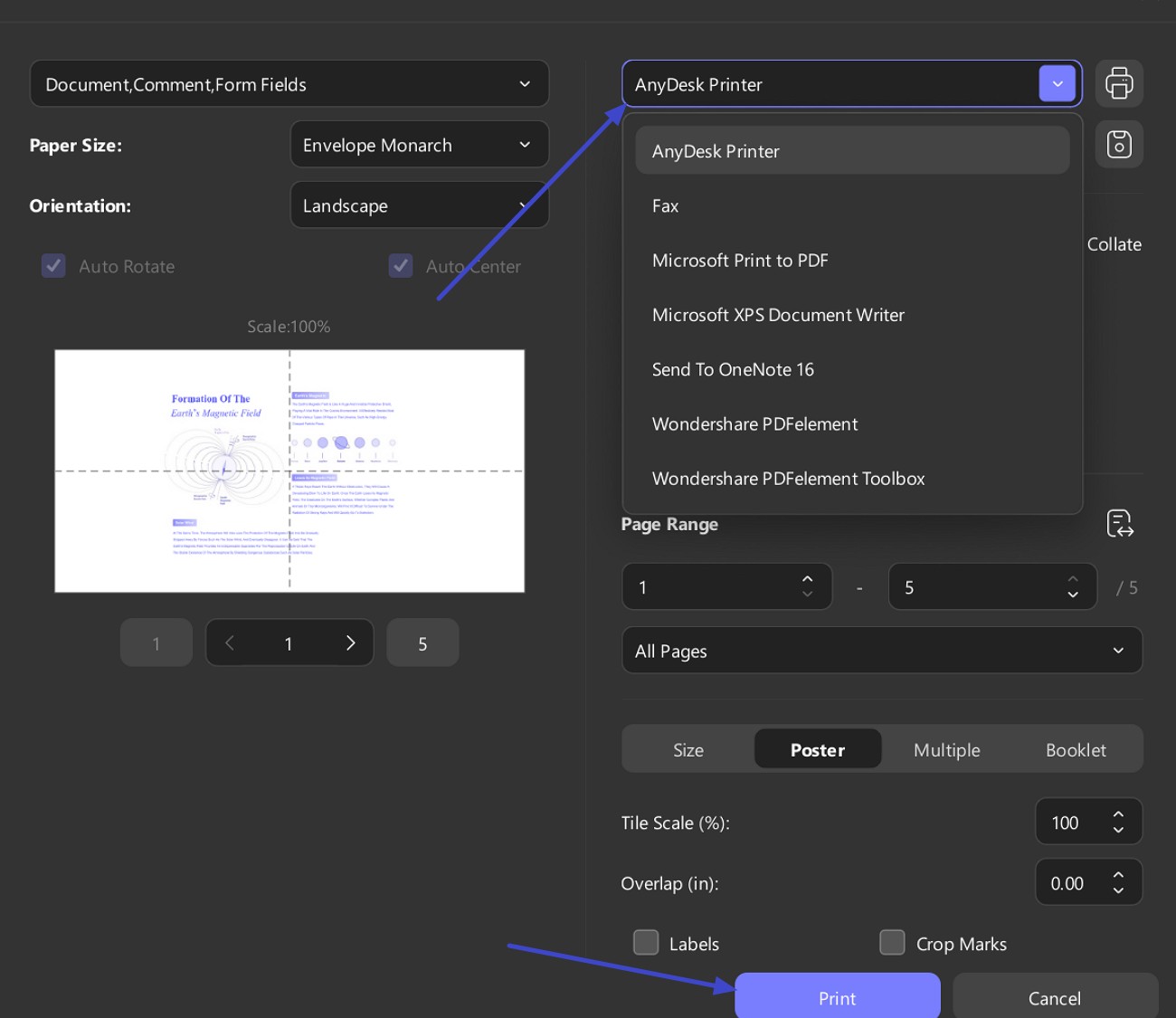
UPDF for Windows includes a dedicated Poster option for printing one PDF page across multiple sheets. Its print panel lets you set the paper size, orientation, page range, Tile Scale, Overlap, Labels, and Cut Marks while checking the layout in the preview. This method is based on the Windows version; UPDF on macOS uses the macOS system print panel and does not present the same Poster controls.
How to Tile-Print with UPDF: Step-by-Step Guide
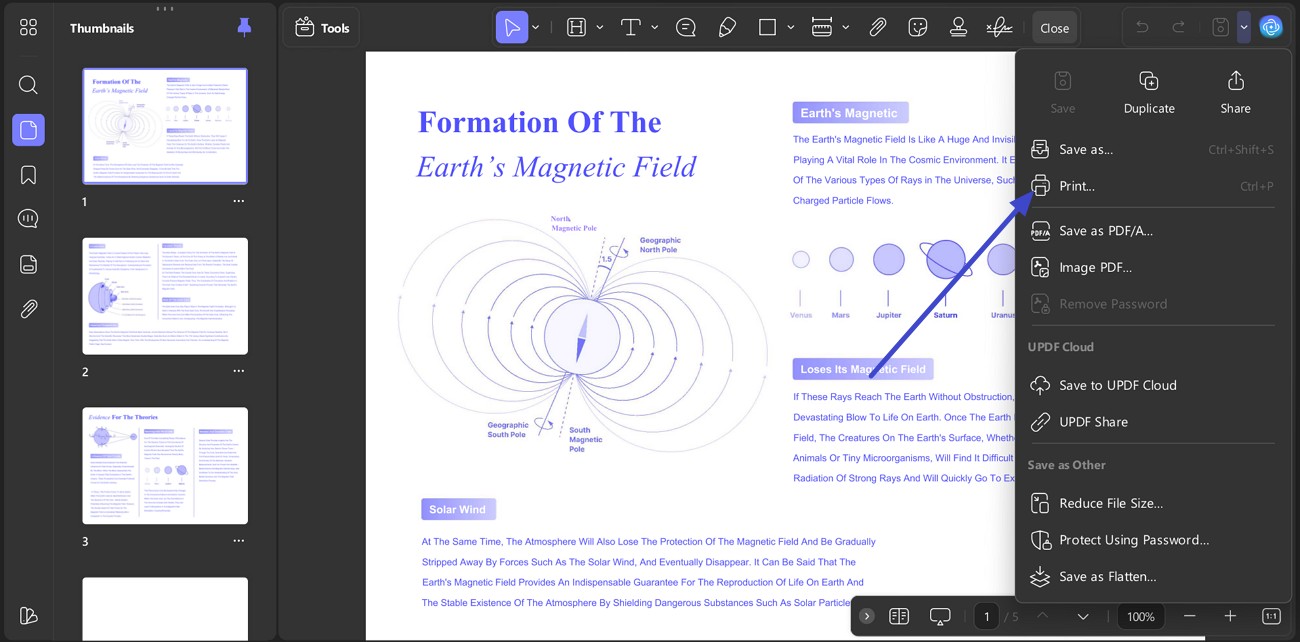
Step 1. Open the Print window. Open the PDF in UPDF for Windows. Click File > Print, use the Print option in the top menu, or press Ctrl + P.
Step 2. Select Poster and configure the tiles. Set the paper size, orientation, and page range, then choose Poster under Page Sizing & Handling. Use Tile Scale to control the final printed size and Overlap to leave an area for trimming and joining. Turn on Cut Marks for trimming guides and Labels when you need help identifying many tiles.
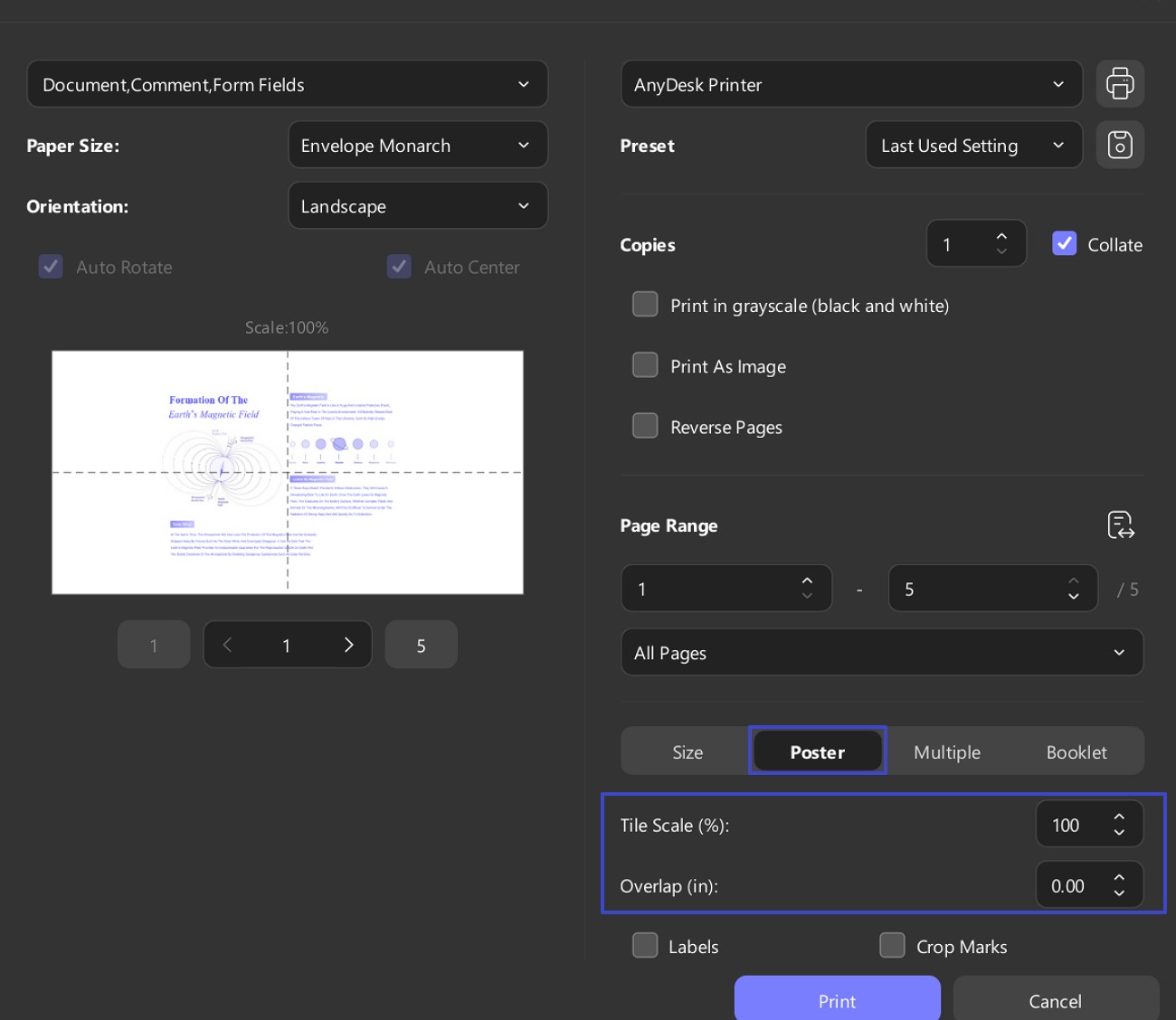
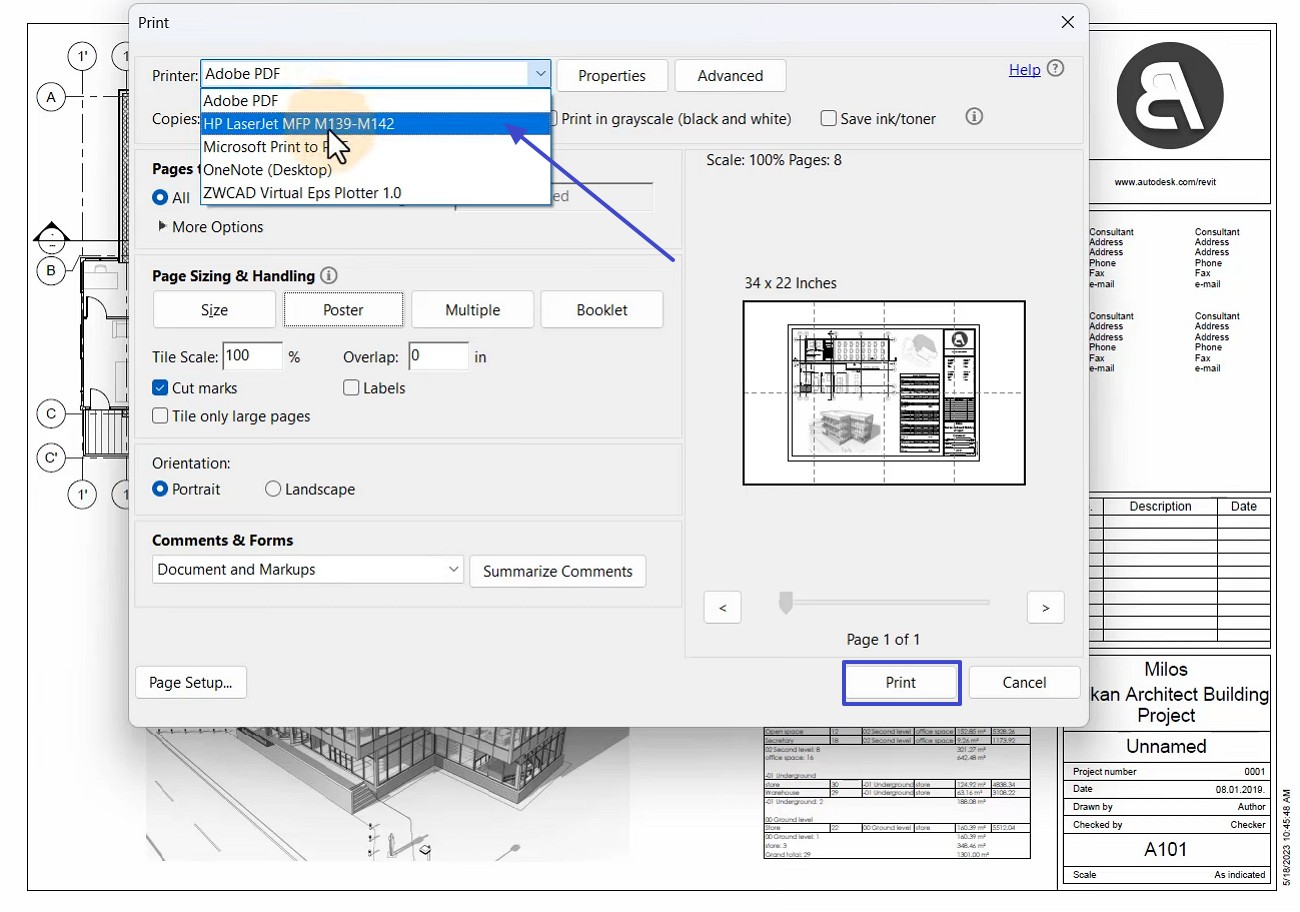
Step 3. Preview and print. Select your printer and inspect the preview carefully. Confirm the number and order of sheets, orientation, and edge content, then click Print. For a size-critical sewing pattern or drawing, print a page containing a measurement guide first and check it with a ruler.
Besides Poster printing on Windows, UPDF can edit, crop, organize, annotate, flatten, and compress the PDF before you print it. Download it to test the workflow with your own file.
Windows • macOS • iOS • Android 100% secure
Part 3. How to Tile Print a PDF in Adobe Acrobat
Adobe Acrobat and the free Acrobat Reader also include Poster mode. This is useful if you already have Adobe installed or need to tile print on a Mac where the standard Preview print window does not provide the same dedicated poster controls.
Step 1. Open the PDF in Adobe Acrobat or Acrobat Reader and select File > Print. Under Page Sizing & Handling, choose Poster.
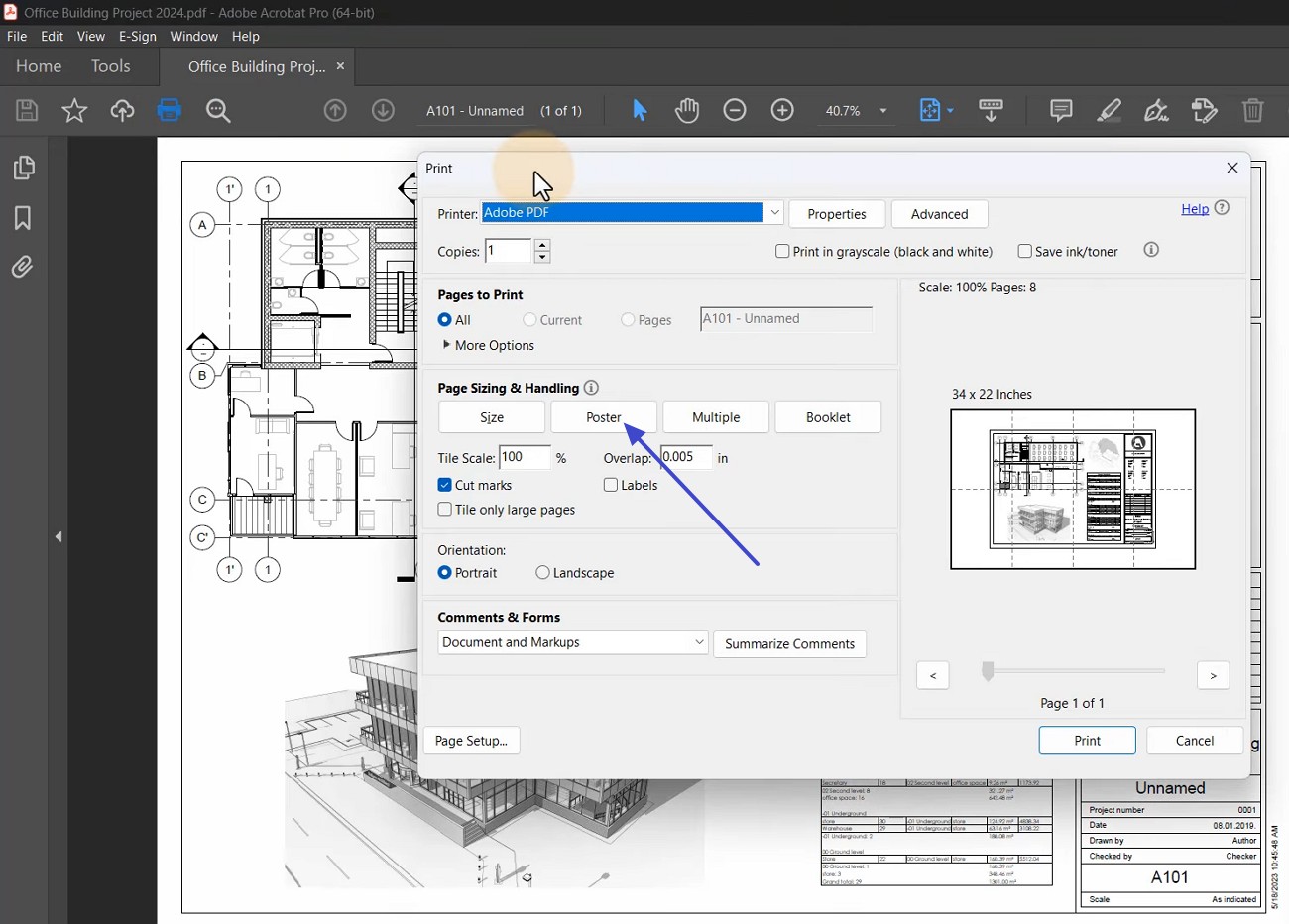
Step 2. Set the Tile Scale and Overlap. Enable Cut Marks to add trimming guides, Labels to identify the tiles, or Tile only large pages if the PDF contains a mix of standard and oversized pages.
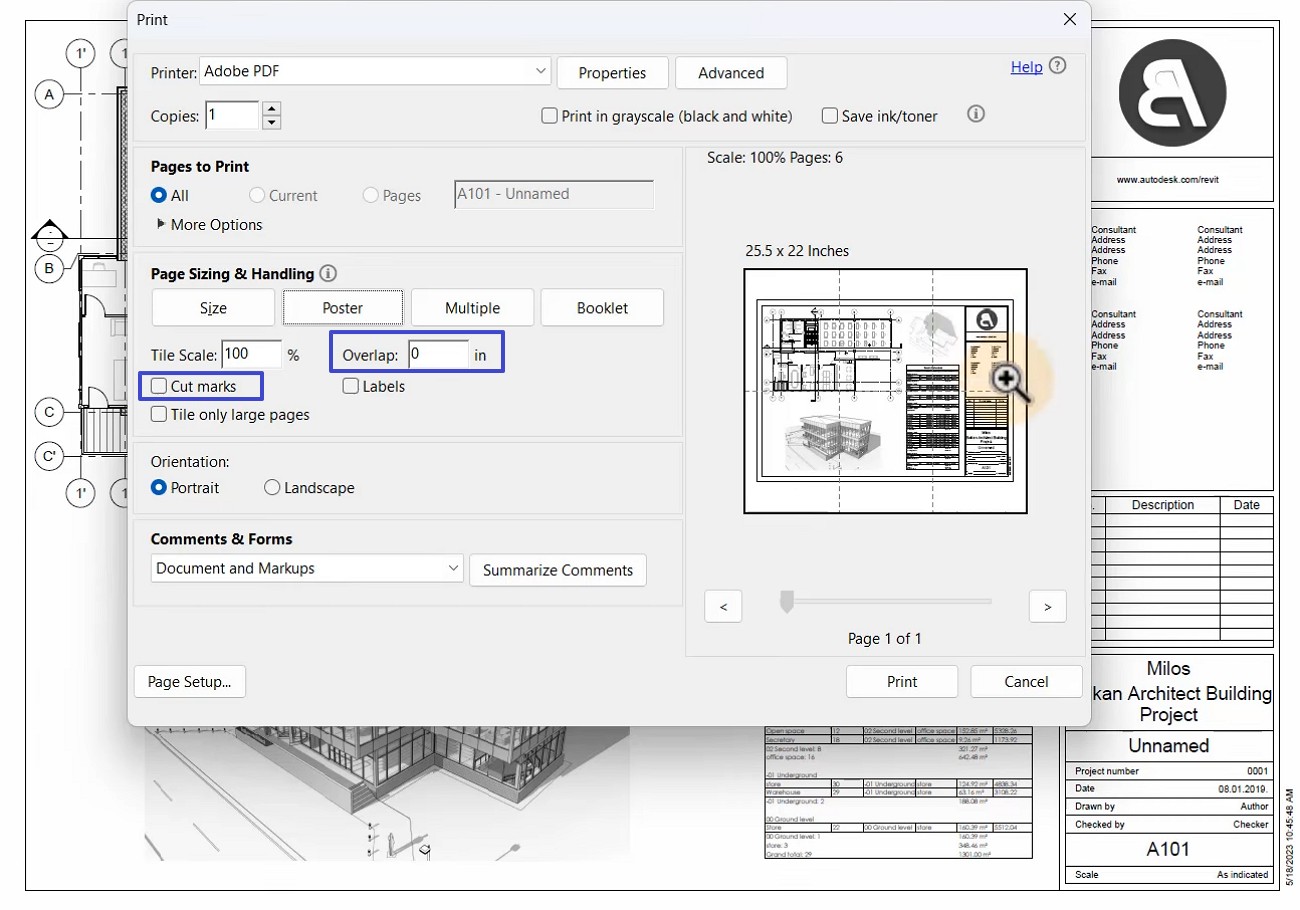
Step 3. Check the live preview, select the correct printer and paper size, and click Print. Trim along the guides and match the overlapping content before taping the sheets together.
Both programs handle the core tile-printing task. UPDF is a practical choice for Windows users who also need to prepare or edit the file in the same application. One UPDF license can additionally be used for other supported PDF tasks on Windows, Mac, iOS, and Android; see the UPDF pricing options if you want to upgrade after trying it.
Part 4. Tile Printing Settings Explained
| Setting | What It Controls | When to Use It |
|---|---|---|
| Tile Scale | The final size of the assembled print | Use 100% when a pattern or plan must retain its original dimensions. Increase it to enlarge the design. |
| Overlap | How much adjacent sheets repeat | About 0.25–0.5 in (6–12 mm) usually makes trimming and alignment easier. |
| Cut Marks | Trimming guides around each tile | Enable them when sheets need to be cut before assembly. |
| Labels | File and tile identification | Useful for posters containing many printed sheets. |
| Tile Only Large Pages | Limits tiling to oversized pages | Use it for PDFs containing mixed page sizes. |
Do not confuse Fit with tile printing. Fit reduces the entire PDF page so it fits on one sheet; Poster mode keeps or enlarges the design and spreads it across several sheets. If you need to change the percentage precisely, learn more about how to scale a PDF for printing.
Part 5. What to Check Before Printing a Tiled PDF
- Paper size: Match the software setting to the A4, Letter, or other paper loaded in the printer.
- Scale accuracy: Use 100% when dimensions must remain exact. Avoid “Fit to page” for sewing patterns and technical plans.
- Overlap and margins: Most home printers cannot print to the paper edge, so leave enough overlap to align the sheets.
- Orientation: Compare portrait and landscape in the preview; one may require fewer sheets.
- Test page: Print a measurement box or one representative tile before sending the whole job.
What If the Poster Option Does Not Appear?
The basic print dialogs in a browser or macOS Preview may not show a dedicated Poster option. Download the PDF and open it in UPDF for Windows or Adobe Acrobat/Reader instead. Also verify that you are using the application’s full print window rather than a simplified system dialog. If your goal is generally to print a large PDF on multiple pages, that guide covers additional layouts and preparation options.
Part 6. Can You Tile a PDF Online?
Some online poster tools can convert one PDF page into a downloadable multi-page tiled PDF. This can be convenient when you cannot install software, but check the supported paper sizes, maximum file size, watermark policy, and whether the service uploads the document to a remote server. For private plans, client files, or unreleased designs, a desktop workflow keeps the document on your device and lets you print directly.
Part 7. Frequently Asked Questions
How do I print one PDF page across multiple sheets?
Open the PDF in UPDF for Windows or Adobe Acrobat/Reader, choose Print, select Poster, and then set the Tile Scale and Overlap. Check the preview before printing all sheets.
Can I tile print a PDF for free?
Yes. You can test Poster printing in UPDF for Windows, and Adobe Acrobat Reader also provides Poster mode. Check the preview and any product-specific limits before starting a large print job.
What Tile Scale should I use?
Use 100% when the PDF must retain its original dimensions. Increase the percentage to make a larger poster. For size-sensitive files, print and measure a test page first.
How do I print a 24 × 36 PDF on Letter or A4 paper?
Select the correct Letter or A4 paper size, choose Poster mode, and start with a 100% Tile Scale. The preview will show how many sheets are required. Add overlap and cut marks so the printed tiles can be aligned accurately.
Is splitting a PDF the same as tile printing?
No. Splitting creates separate files or page ranges from a multi-page PDF. Tile printing divides the content of one oversized page across multiple physical sheets.
Conclusion
To tile print a PDF successfully, use Poster mode, choose the actual paper size, and check Tile Scale, Overlap, and the preview before printing. UPDF for Windows provides these controls together with editing and document-preparation tools, while Adobe Acrobat/Reader is another reliable option. If you want to prepare and print your file in one workspace, download UPDF and test the result with one sheet first.
Windows • macOS • iOS • Android 100% secure





 Enola Miller
 Enrica Taylor
 Grace Curry
—multimetier