 UPDF
UPDF
 UPDF for Windows
 UPDF for Mac
 UPDF for iPhone/iPad
 UPDF for Android
 Nomostar
 UPDF AI Online
 UPDF Sign
 IvyCraft
 Edit PDF
 Annotate PDF
 Create PDF
 PDF Form
 Edit links
 Convert PDF
 OCR
OCR PDF to Word
 PDF to Image
 PDF to Excel
 Organize PDF
 Merge PDF
 Split PDF
 Crop PDF
 Rotate PDF
 Protect PDF
 Sign PDF
 Redact PDF
 Sanitize PDF
 Remove Security
 Read PDF
 UPDF Cloud
 Compress PDF
 Print PDF
 Batch Process
 About UPDF AI
 UPDF AI Solutions
 AI User Guide
 FAQ about UPDF AI
 Summarize PDF
 Translate PDF
 Chat with PDF
 Chat with AI
 Chat with image
 PDF to Mind Map
 Explain PDF
 PDF AI Tools
 Image AI Tools
 AI Chat Tools
 AI Writing Tools
 AI Study Tools
 AI Working Tools
 Other AI Tools
 AI Bookmark Generation
 AI Bookmark Summary
 AI Watermark Generation
 AI Background Generation
 AI Sticker Generation
 AI Stamp Generation
 AI Editing Suite
 UPDF Copilot
 AI Page Management
 AI Semantic Search
 PDF to Word
 PDF to Excel
 PDF to PowerPoint
 Enterprise Solution
 Enterprise Sign
 Enterprise AI
 Enterprise Plan
 Enterprise User Guide
 Enterprise Webinar
 IT
IT Education
 Construction
 Financial Service
 Healthcare
 Insurance
 Legal
Legal Manufacturing
 Government
 Researchers & PhDs
 Solopreneurs & Freelancers
 Lawyers & Legal Professionals
 Real Estate Agents & Brokers
 Education Solution
 Customer Stories
 User Guide
 UPDF Tricks
 FAQs
FAQs UPDF Reviews
 Download Center
 Blog
Blog Newsroom
 Tech Spec
 Updates
 UPDF vs. Adobe Acrobat
 UPDF vs. Foxit
 UPDF vs. PDF Expert

Quick answer:
A PDF that will not open in WhatsApp can mean three different things: the attachment is missing, the download has failed, or the saved file will not open. Identify which one you are seeing before trying a fix. The phone and web versions also need different checks.
Part 1. Why Is the PDF Not Opening in WhatsApp?
Start with what you can see in the chat:
- No PDF attachment appears: Confirm that you are in the right conversation and ask the sender whether the document was sent successfully. If other messages are also missing on WhatsApp Web, check its connection.
- The attachment appears but will not download: Try a stable connection, check free space on your device, and update WhatsApp if an update is available.
- The PDF downloads but will not open: Save the file and test it in another PDF reader. If the saved copy also fails to open, ask the sender to check the original and resend it as a PDF—not simply rename another file with a .pdf extension.
The distinction matters: a PDF reader can help with a file you already have; it cannot repair a missing WhatsApp message or complete a failed download.
For example, one Android user reported an unexpected “Open with” prompt when tapping a PDF in WhatsApp. That is a reader-selection problem, not evidence that every missing attachment or failed download needs a new PDF app.
Part 2. Fix WhatsApp PDF Problems on iPhone and Android
1. Check the connection and finish the download
If the attachment is visible but still shows a download control or an error, switch to a stable Wi-Fi or mobile connection and try again. Check available device storage if downloads repeatedly fail. Do not change PDF readers until the file has actually downloaded.
2. Update WhatsApp and retry
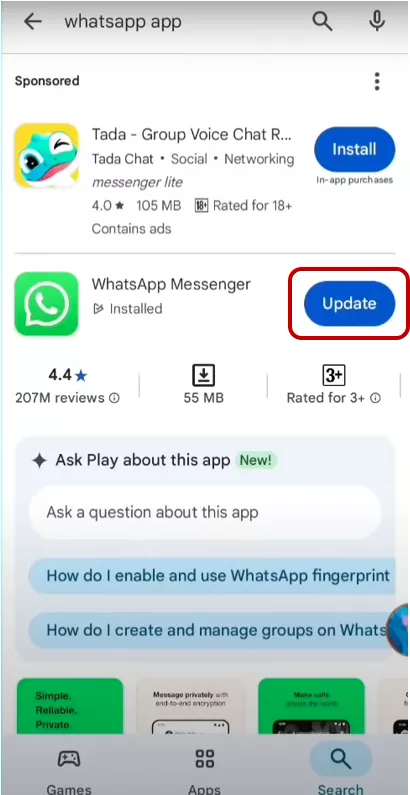
Open the App Store on iPhone or Google Play Store on Android, search for WhatsApp, and tap Update if it is available. Then return to the chat and try the attachment again. An available update is a sensible troubleshooting step, not proof that the old version caused the problem.
3. Check available storage on your phone
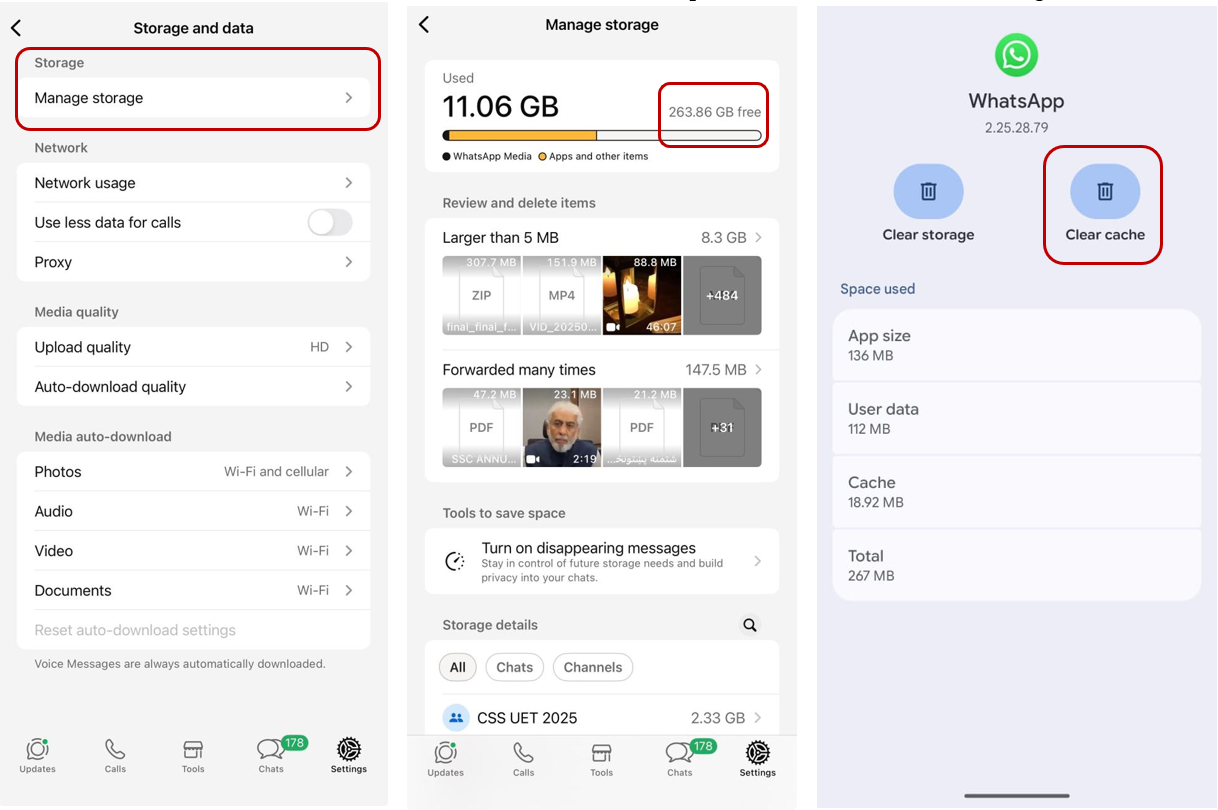
If your phone is nearly full, free up space and retry the download. On Android, the app settings may also offer a WhatsApp cache control; menu names vary by device. The Android screenshot below is an example, not an iPhone path. Do not clear app data or reinstall WhatsApp just to troubleshoot one PDF unless you have confirmed your chat backup.
4. Ask for a fresh PDF if the saved file is unreadable
If the downloaded file fails to open in more than one reader, ask the sender to open the original file and send the PDF through WhatsApp again. A new reader cannot reliably repair a damaged or incomplete original, and renaming a non-PDF file with a .pdf extension does not convert it.
5. Open a downloaded copy in a PDF reader
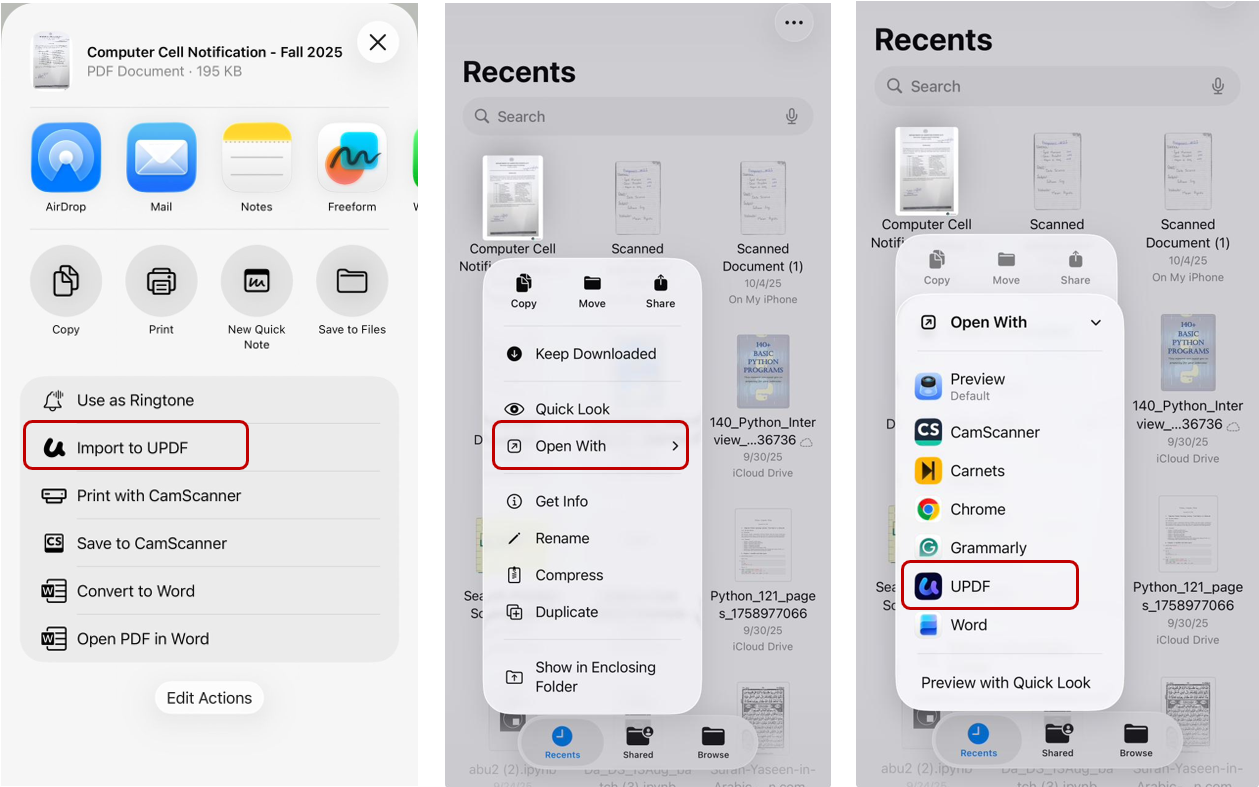
If the PDF has downloaded but WhatsApp's preview will not open it, save a copy to your device and try that copy in UPDF or another PDF reader. On Android, an “Open with” chooser may let you select UPDF. That chooser belongs to Android; there is no universal “default PDF viewer in WhatsApp” setting. If PDFs also fail to open elsewhere on your iPhone, see the separate iPhone PDF troubleshooting guide.
WhatsApp PDF Not Showing in Chat on the Web Version?
First open the same conversation on your phone. If the PDF is absent there too, confirm with the sender that it was sent. If it appears on your phone but not on WhatsApp Web, check whether the web page shows a connection warning, then refresh it. If the problem continues, try a current supported browser. For connection issues, WhatsApp's Web troubleshooting guidance also recommends clearing browser cache and cookies or logging out and back in.
If the attachment appears in the web chat but will not download, resolve the browser or connection issue first. Once the PDF is saved to your computer, you can open that local copy in a PDF reader. UPDF cannot make a missing attachment appear in WhatsApp Web.
Part 3. Read and Mark Up a PDF Saved from WhatsApp
Once the document has downloaded, open the saved copy in UPDF on your iPhone or Android device. You can read it, search its text, and highlight or annotate the pages you need. This is useful when WhatsApp's preview is inconvenient or when you need to review the document beyond simply viewing it.
Windows • macOS • iOS • Android 100% secure
On iPhone: Save a copy of the WhatsApp PDF to Files. In UPDF for iOS, tap +, choose Files, and select the saved PDF. The UPDF iOS import guide shows the Files path.
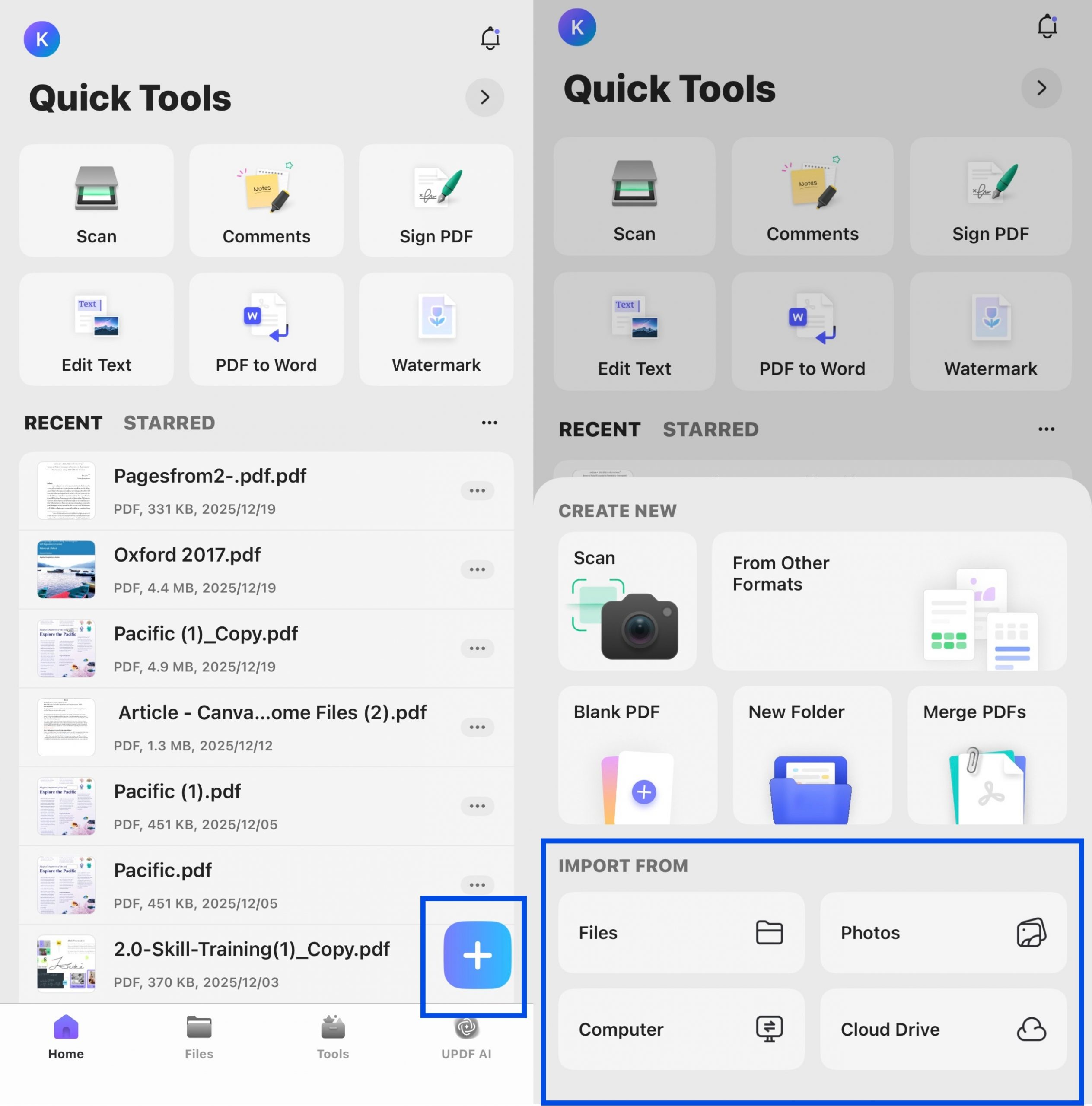
On Android: Save or locate the downloaded PDF on your device. In UPDF for Android, use + to import a local file, then tap the PDF to open it. See the UPDF Android viewing guide for the local-file workflow.
UPDF does not fix WhatsApp delivery, downloading, or a damaged original PDF. Use it after you have a valid saved copy.
Keep a local copy if you need to review or mark up the document after leaving the chat.
Windows • macOS • iOS • Android 100% secure
Part 4. FAQs
1. Why can I open a WhatsApp PDF in UPDF but not save my edits?
The file may have been opened as a temporary, read-only document supplied by WhatsApp. Save or import a separate copy before editing, then save your changes to that copy.
2. Why does a PDF from WhatsApp ask for a password?
Conclusion
Match the fix to the failure: check WhatsApp when the attachment is missing or will not download; check the saved file and its reader when the PDF will not open. On WhatsApp Web, resolve chat and connection problems before troubleshooting the PDF itself. If you have a valid downloaded copy, UPDF can help you read and annotate it on your device.
Want to keep working with the PDF after downloading it? Open your saved copy in UPDF to read or mark it up.
Windows • macOS • iOS • Android 100% secure








 Lizzy Lozano
 Delia Meyer
 Enid Brown
Source