 UPDF
UPDF
 UPDF for Windows
 UPDF for Mac
 UPDF for iPhone/iPad
 UPDF for Android
 Nomostar
 UPDF AI Online
 UPDF Sign
 IvyCraft
 Edit PDF
 Annotate PDF
 Create PDF
 PDF Form
 Edit links
 Convert PDF
 OCR
OCR PDF to Word
 PDF to Image
 PDF to Excel
 Organize PDF
 Merge PDF
 Split PDF
 Crop PDF
 Rotate PDF
 Protect PDF
 Sign PDF
 Redact PDF
 Sanitize PDF
 Remove Security
 Read PDF
 UPDF Cloud
 Compress PDF
 Print PDF
 Batch Process
 About UPDF AI
 UPDF AI Solutions
 AI User Guide
 FAQ about UPDF AI
 Summarize PDF
 Translate PDF
 Chat with PDF
 Chat with AI
 Chat with image
 PDF to Mind Map
 Explain PDF
 PDF AI Tools
 Image AI Tools
 AI Chat Tools
 AI Writing Tools
 AI Study Tools
 AI Working Tools
 Other AI Tools
 AI Bookmark Generation
 AI Bookmark Summary
 AI Watermark Generation
 AI Background Generation
 AI Sticker Generation
 AI Stamp Generation
 AI Editing Suite
 UPDF Copilot
 AI Page Management
 AI Semantic Search
 PDF to Word
 PDF to Excel
 PDF to PowerPoint
 Enterprise Solution
 Enterprise Sign
 Enterprise AI
 Enterprise Plan
 Enterprise User Guide
 Enterprise Webinar
 IT
IT Education
 Construction
 Financial Service
 Healthcare
 Insurance
 Legal
Legal Manufacturing
 Government
 Researchers & PhDs
 Solopreneurs & Freelancers
 Lawyers & Legal Professionals
 Real Estate Agents & Brokers
 Education Solution
 Customer Stories
 User Guide
 UPDF Tricks
 FAQs
FAQs UPDF Reviews
 Download Center
 Blog
Blog Newsroom
 Tech Spec
 Updates
 UPDF vs. Adobe Acrobat
 UPDF vs. Foxit
 UPDF vs. PDF Expert

Quick Answer
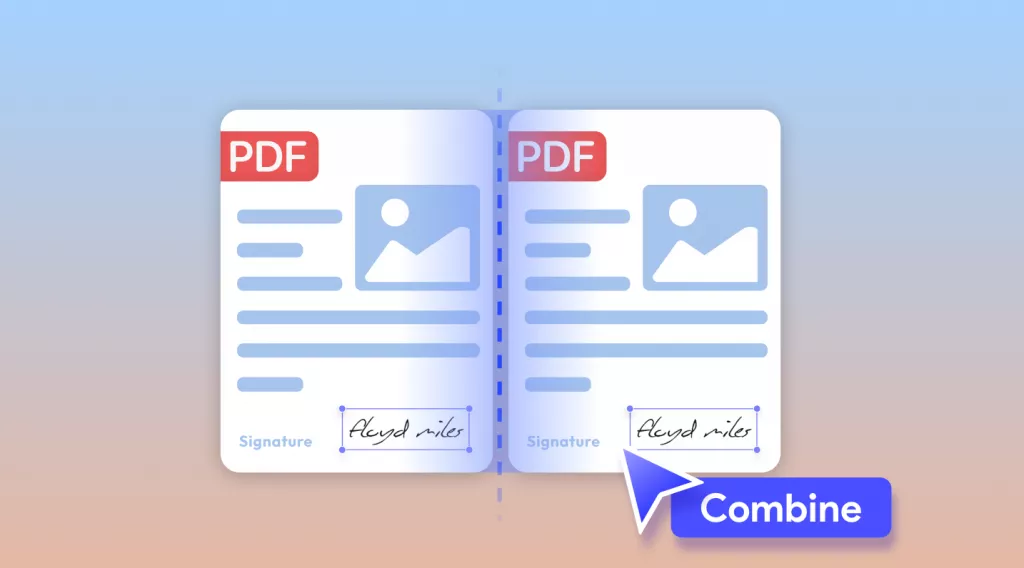
The fastest way to merge a PDF and Word document into one file is to use UPDF's "Create Multiple PDF Files" feature — drag both files in, reorder as needed, and click "Combine into One." For a free online alternative, PDF24 merges PDF + Word to a single PDF in 3 steps. For merging into a Word document, UPDF can convert the merged PDF back to Word with formatting preserved.
Imagine that you're working on a school project with two other people. You're in charge of putting together the final report to turn in. One person sends you their work as a PDF, and the other person sends you their work as a Word document.
So now what do you do? How can you merge PDF and Word into the same file to turn in for class?
The solution is easier than you may think! In this guide, we'll show you four easy methods to combine a PDF and a Word document into one file, so you will never run into this problem again!
📌 Best for quick tasks: PDF24 (free, online, 3 steps)
📌 Best for professional workflow: UPDF (offline, batch merging, AI-enhanced)
📌 Best for merging into Word format: UPDF (merge to PDF → convert to Word)
📌 Best for privacy-sensitive files: UPDF Desktop (offline processing)
While there are many tools available, UPDF has emerged in 2026 as the gold standard, offering a seamless, AI-enhanced workflow that turns static files into dynamic, intelligent documents. You can click the button below to have a free download.
Windows • macOS • iOS • Android 100% secure
Part 1. How to Merge Word and PDF on Windows and Mac Via UPDF? (2 Ways)
Adobe's "Combine Files" tool requires you to add files through a file picker dialog. UPDF lets you drag Word and PDF files directly into the workspace — no pre-conversion, no file picker, no format restrictions. The software handles Word→PDF conversion automatically during the merge, similar to how iLovePDF Desktop works.

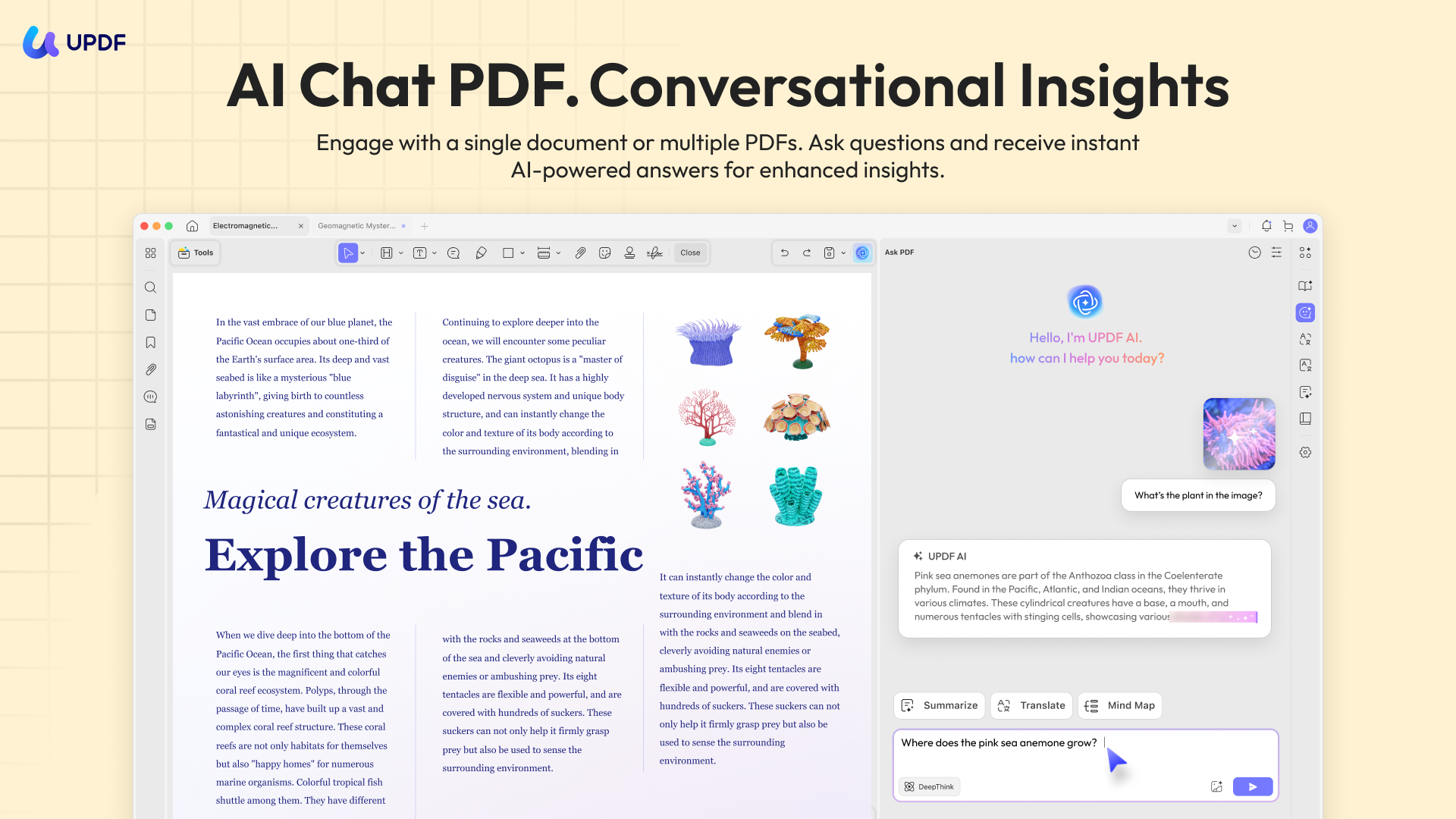
In addition to merging different documents, UPDF also has other features that can help you with work or study. UPDF has a powerful AI feature that allows you to easily chat with your PDFs, write content, summarize long writing, explain difficult concepts, rewrite paragraphs, and more. The UPDF AI free version allows you to ask up to 100 questions.
UPDF supports merging Word (.doc, .docx), Excel (.xls, .xlsx), PowerPoint (.ppt, .pptx), images (JPG, PNG), and existing PDFs — all in a single batch operation. If you need to merge a password-protected PDF, you'll need to unlock it first (UPDF can handle that too).
Curious to try out UPDF's merge and AI features? Make sure to download UPDF today and start your free trial so you can follow along with the tutorial below.
Way 1. Merge a Word Document and a PDF to One PDF
You can use this method to merge a Word document and a PDF into one PDF single PDF using the "Create" feature in UPDF.
Step 1 - Open the Creation Tool
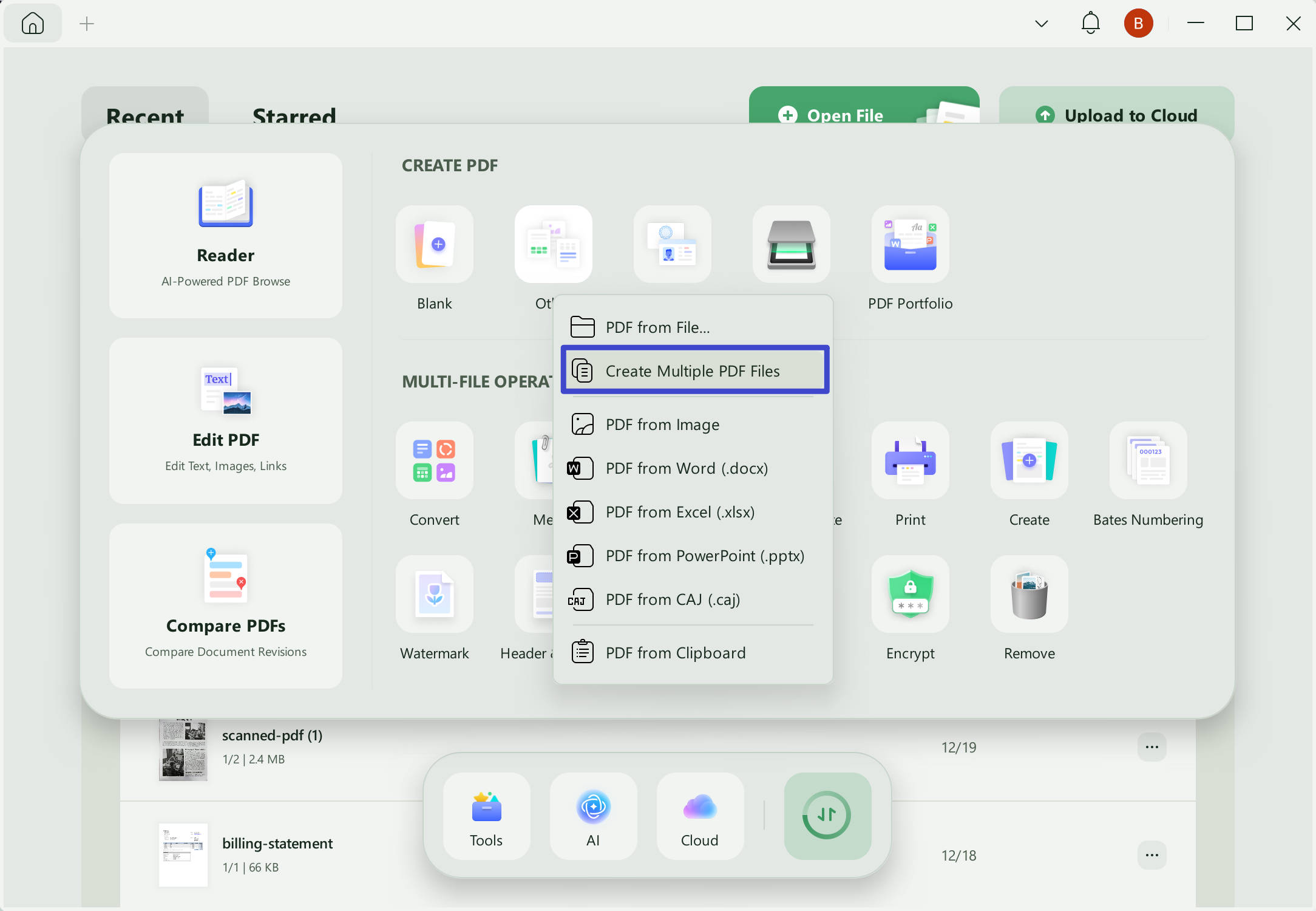
Open UPDF for Windows or Mac, click on "Tools", then click on "Other" under the "CREATE PDF" tab, and choose "Create Multiple PDF Files".
Alternative path: You can also drag your Word and PDF files directly onto the UPDF home screen. The files will open in separate tabs, and you can then use Tools > Batch > Combine to merge them.
Windows • macOS • iOS • Android 100% secure
Step 2 - Convert Merged PDF to Word
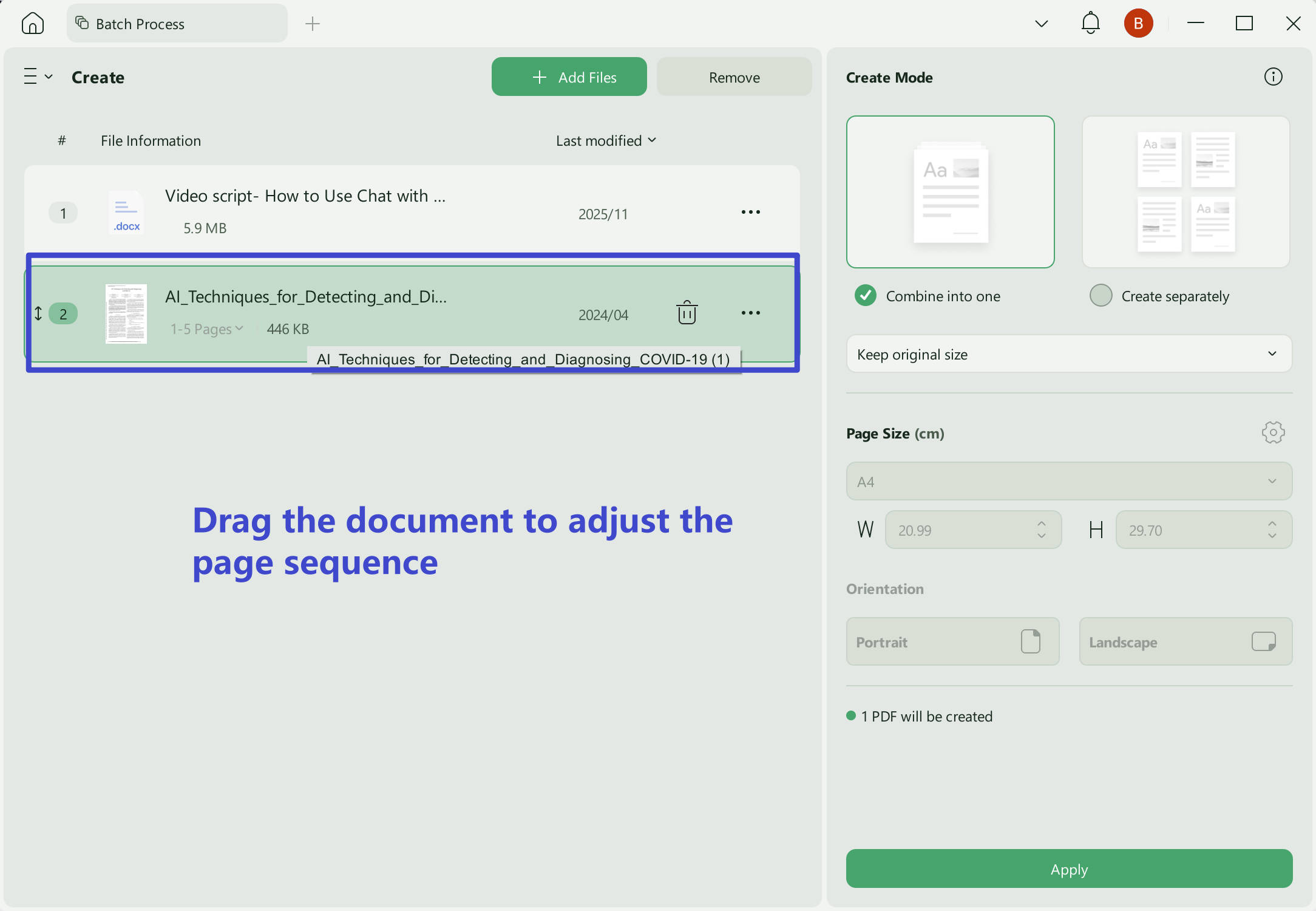
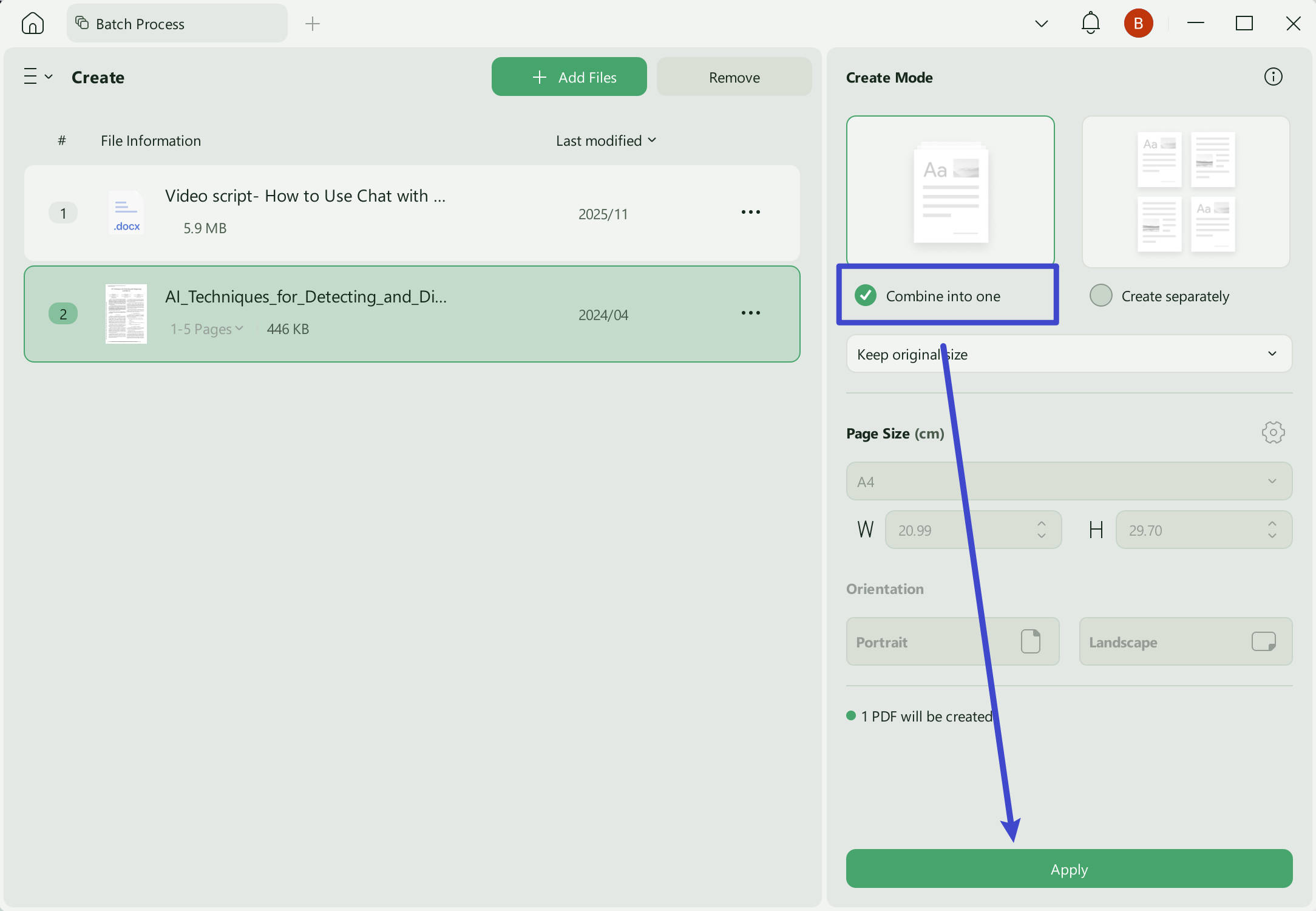
On the next screen, select the PDF and Word files you want to merge.
You can adjust their order freely by dragging them—this will determine the page sequence.
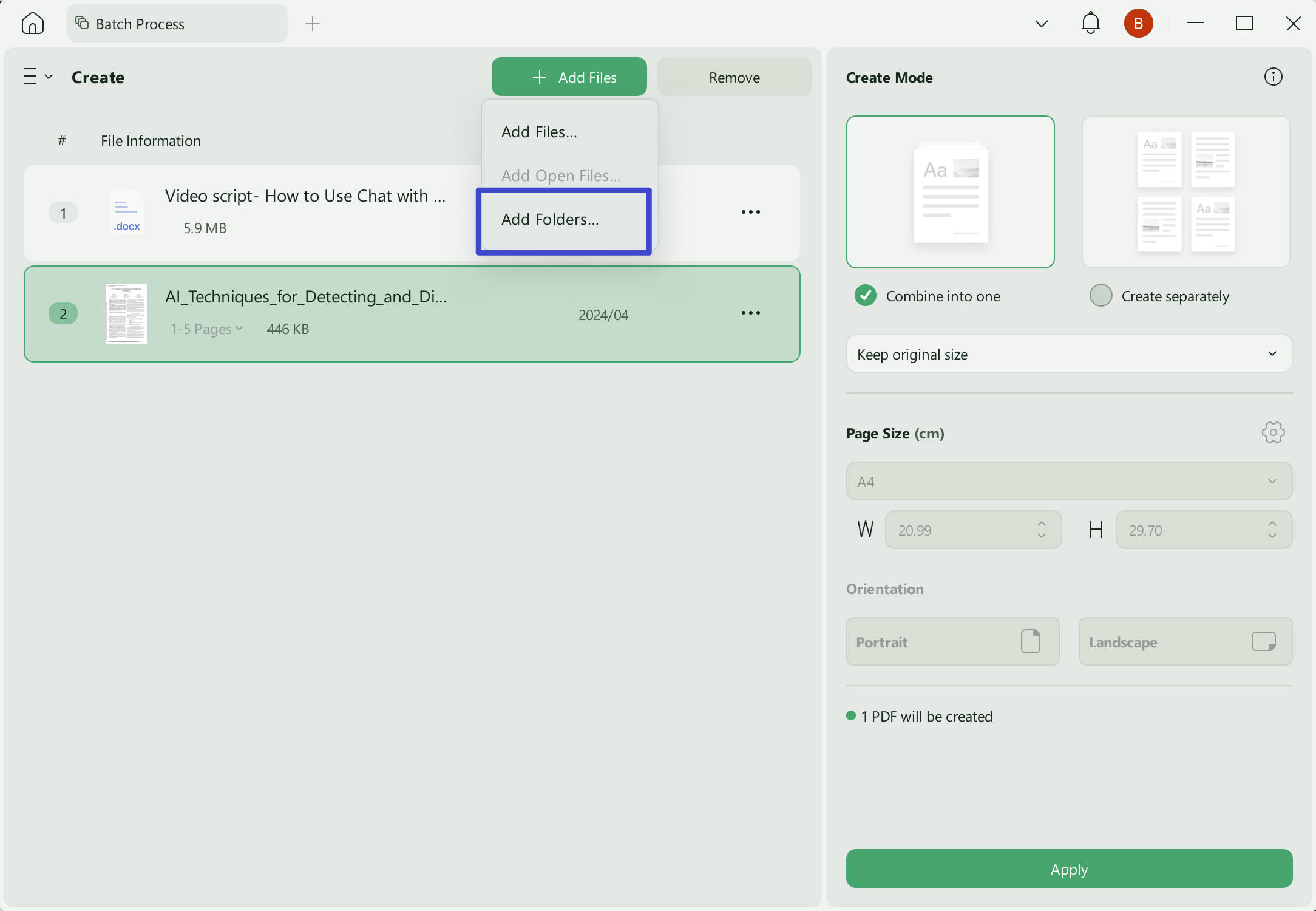
If you have multiple Word or PDF files in the same folder, you can select the entire folder directly to save time.
After selecting the documents, click "Combine into One" in the right panel to merge the selected files into a single PDF. Then, click the "Apply" button to complete the process.
Formatting alert:
When converting a merged PDF (which contains both original PDF content and converted Word content) to Word format, complex layouts — especially multi-column text, embedded tables from the original PDF, and floating images — may shift slightly. UPDF's rendering engine handles this better than most tools, but always review the output Word file before submitting.
Way 2. Merge a PDF and Word Document Together to One Word
If you want to combine your PDF and Word documents into one Word document, you can follow this method using the "Create" tool in UPDF.
Step 1 - Follow the Steps Above
The first thing you need to do is follow the steps above to drag both the PDF and Word documents to UPDF and then merge them together into a single PDF.
Windows • macOS • iOS • Android 100% secure
Step 2 - Convert PDF to Word
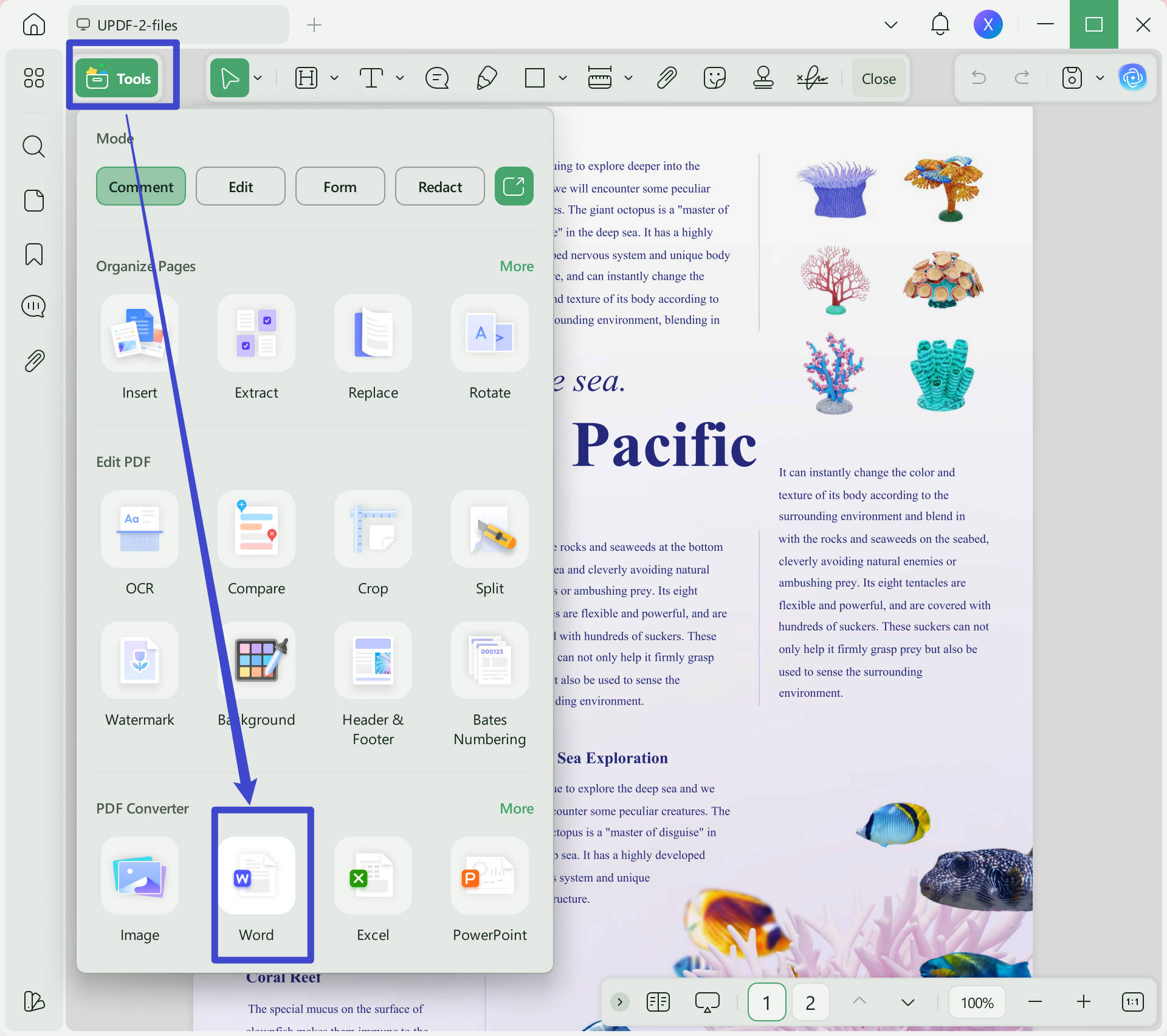
Now, you can convert your merged PDF into a Word document. Open your merged document in UPDF by clicking on the "Open File" box. Then, on the right side, click "Tools" > "Word".
Adjust the settings, and then click "Apply". Select a location to save your Word document, click "Save", and you're done!
Using UPDF’s AI to Enhance Your Merged Document
After the merge: What you can do with the combined file
The real value isn't just in combining files — it's in what you can do with the merged result. Here are the most common post-merge tasks and how UPDF handles them:
- Instant Summarization: Ask the AI to provide a 200-word executive summary of the entire combined document.
- Global Translation: Need to share your report with international partners? UPDF AI can translate the merged PDF while preserving the layout.
- Smart Q&A: If your merged PDF is 100 pages long, simply ask the AI, "What are the key financial projections mentioned in the Word section?" and get an immediate answer.
- AI Agents: UPDF streamlines every stage of your document workflow. For research-heavy tasks, AI Semantic Search goes beyond keywords to find deep insights across massive files, while the Bookmark Summarizer maps out complex documents for instant navigation. On the creative front, new built-in tools allow you to generate professional watermarks, stickers, and backgrounds instantly. Combined with automated Page Organization and Bookmark Generation, UPDF handles the heavy lifting—from editing and organizing to searching and presentation—all in one seamless platform.
- Merge bookmarks from multiple documents: When you combine a Word document (with its own heading structure) and a PDF (with bookmarks), UPDF's AI Bookmark Generation agent can automatically create a unified table of contents for the merged file — eliminating the manual work of rebuilding navigation.
UPDF also has many other features that make reading, managing, and editing your PDFs easily. With UPDF, you can use OCR to convert a text image into an editable PDF. You can also customize your PDFs by adding images, URLs, and text, or annotating your PDFs with highlighters, sticky notes, underlined text, stickers, and more. UPDF also has PDF protecting features, such as adding digital signatures, stamps, or passwords.
Windows • macOS • iOS • Android 100% secure
Part 2. How to Merge PDF and Word to One PDF Online Via PDF24?
PDF24 is a free online tool that merges PDF and Word files into a single PDF. It's the fastest zero-install option — no account, no email, no sign-up. However, PDF24 can only be used online, and you can only merge your PDF and Word document into a single PDF, but not any other formats.
Follow these steps to merge a PDF and Word document using PDF24:
Step 1 - Choose Files
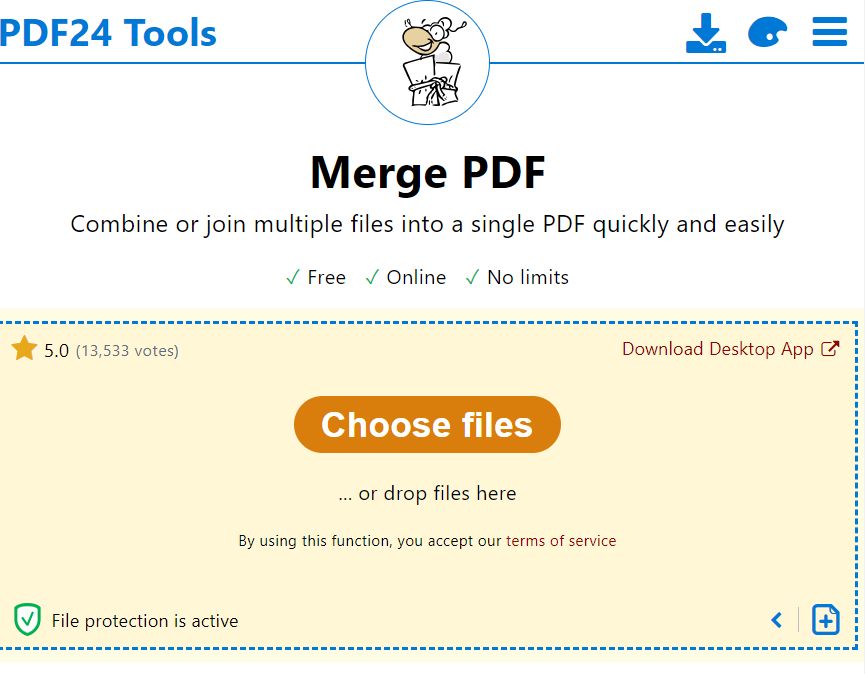
Navigate to PDF24's Merge PDF tool, and select the PDF and Word documents that you want to upload. You can click the "Choose file" button, or drag and drop your files into the yellow box.
Step 2 - Merge Documents
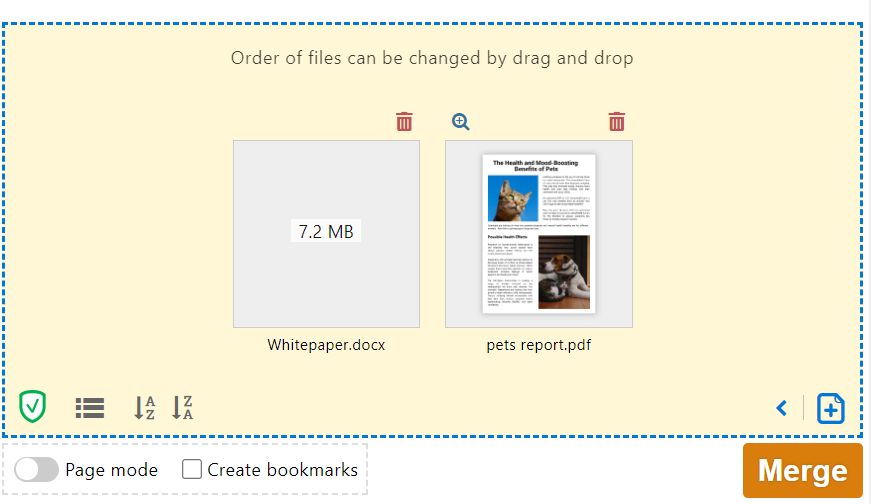
Once your files have loaded, click on the orange "Merge" button in the bottom right of the website.
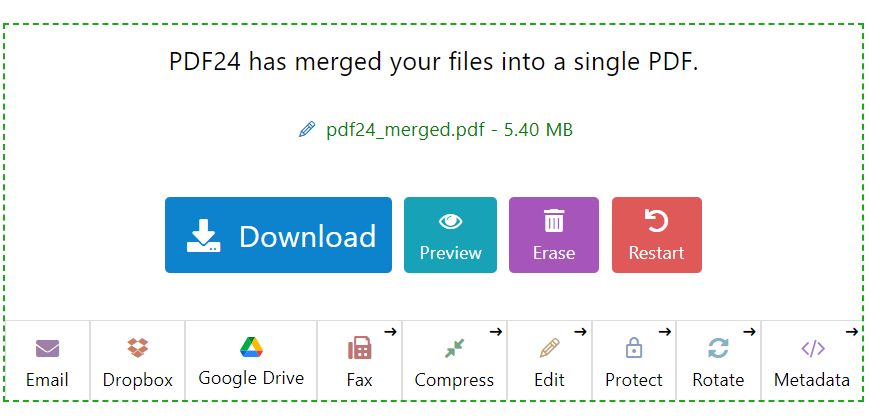
Step 3 - Download Merged File
When your files are done merging, you can download them by clicking the blue "Download" button. You can also email your file to yourself or someone else, upload it to Dropbox or Google Drive, or use one of PDF24's other tools to fax, compress, edit, protect, rotate, or edit metadata.
🔒 Privacy warning: PDF24 uploads your files to its servers for processing. If you're merging confidential documents — contracts, financial reports, personal records — use an offline tool instead. A Reddit user in a private PDF workflow thread noted: "I need to merge some confidential documents... I cannot use any online 3rd party apps". UPDF Desktop process files locally on your machine.
Part 3. How to Merge PDF and Word to One Word/PDF Online Via ASPOSE
ASPOSE's online merger stands out because it lets you apply OCR during merging — useful if your PDF contains scanned images that need to become searchable text.
However, this tool has similar limitations to the method above. ASPOSE is online only, so you must have access to the internet to use it, and it doesn't have any customization tools. You can also only merge small files, and if the file size is too big you will need to pay for a membership to ASPOSE.
Follow the steps below to merge a PDF and Word document using ASPOSE.
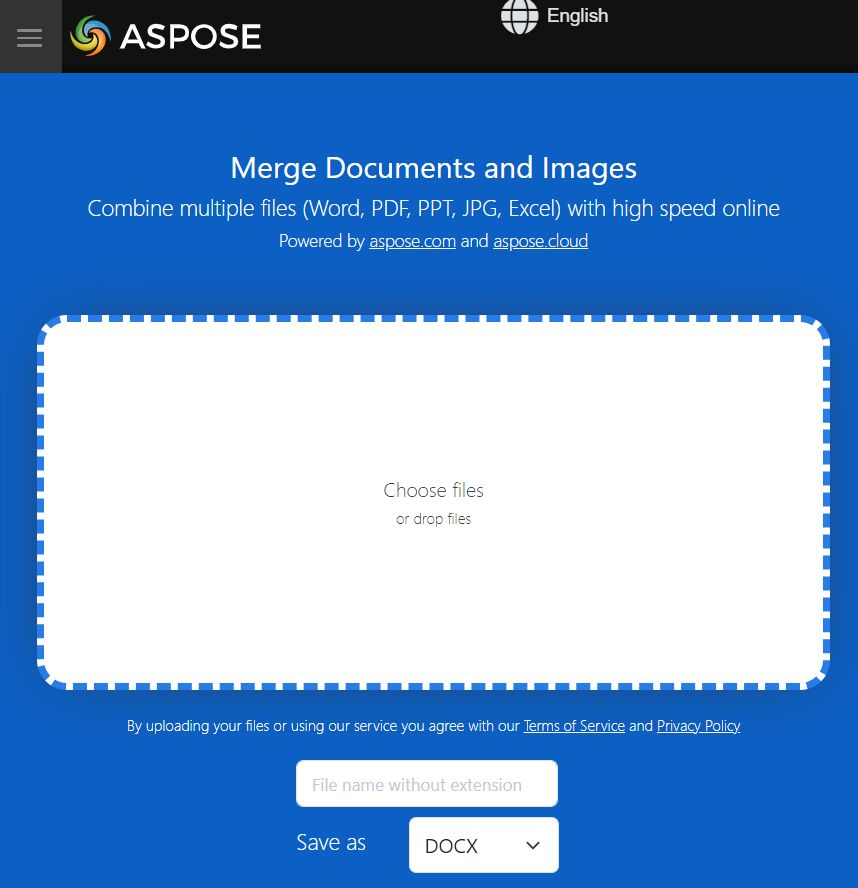
Step 1 - Upload Documents
Click on the white box to choose your PDF and Word document files to upload, or drag and drop them into the white area.
Step 2 - Merge Documents
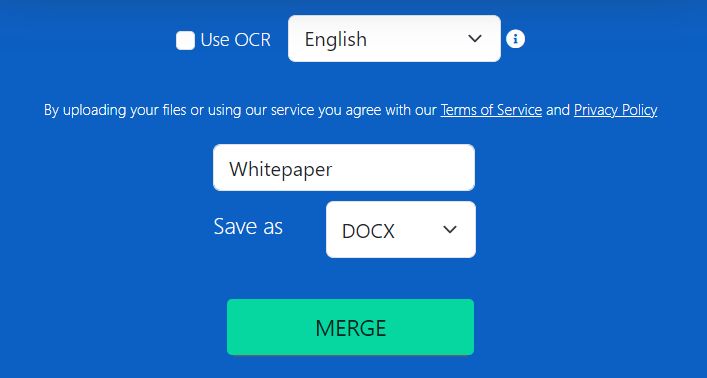
You can decide if you want to use OCR, and what language to use. You can also change the name of the file, and then select the format you want to save your documents as and click the green "Merge" button.
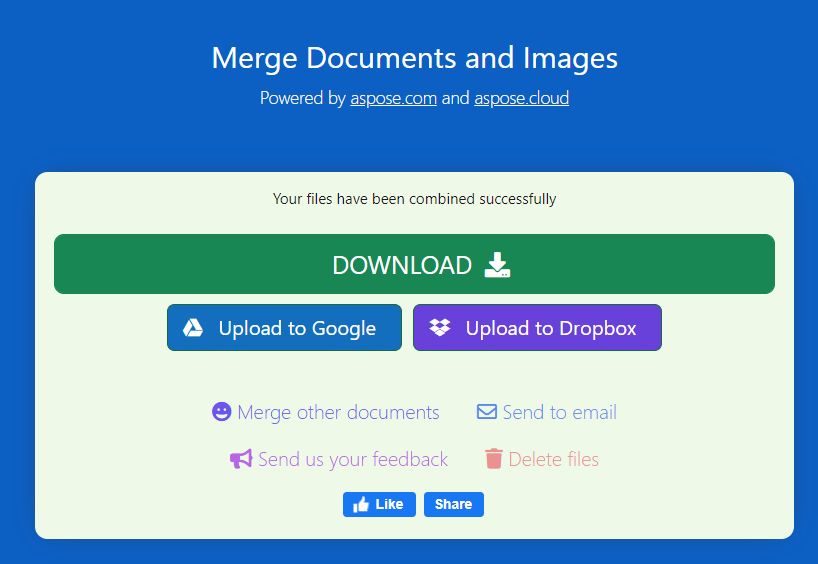
Step 3 - Download Merged Document
After a couple of seconds of processing, your merged document will be ready for downloading. You can click the "Download" button to download the merged file directly to your computer. Or you can upload the file to Google or Dropbox, send it via email, delete the files, or merge other documents.
Part 4. Frequently Asked Questions
Will merging a Word file with a PDF change my fonts?
Not with UPDF. Its advanced rendering engine preserves the original typography of your Word documents during the conversion and merge process.
Can I merge images (like JPG or PNG) along with my Word and PDF files?
Absolutely. UPDF supports a wide array of formats. You can combine Word, Excel, PowerPoint, and images into a single PDF in one go.
Is there a limit to how many files I can merge?
Under UPDF's free version, you can merge up to 2 files in a batch. However, if you upgrade to the premium version, you can merge an unlimited number of files. UPDF is designed for high-performance batch processing, so whether you're merging 2 files or 200, the speed remains lightning-fast.
Can I merge a PDF into an existing Word document without converting it first?
No — Word cannot directly merge PDF content into a .docx file while keeping the PDF as a separate object. You must either: (a) convert the PDF to Word first, then copy/paste or use Word's "Insert > Object > Text from File"; or (b) convert both files to PDF and merge them there. UPDF's approach (merge to PDF → convert back to Word) is the most reliable for complex layouts.
Does merging preserve hyperlinks, bookmarks, and annotations?
In UPDF, hyperlinks and bookmarks are preserved when merging PDF files. However, when you convert a Word document to PDF during the merge, Word's internal hyperlinks (e.g., table of contents links) are converted to PDF-compatible links. Annotations from the original PDF (highlights, sticky notes) are retained. If you merge into Word format afterward, some annotation types may not survive the round-trip conversion — always verify.
What's the file size limit for merging PDF and Word files online?
PDF24 has no explicit published limit but may slow down or fail with very large files. ASPOSE restricts small files on the free tier; larger files require a paid membership. For files over ~50 MB or containing many high-resolution images, use a desktop tool like UPDF — no upload required, no size limit.
Conclusion
Merging PDF and Word files should be the easiest part of your day, not a technical headache. Now you know at least four ways to merge PDF and Word documents.
- Just need to merge two files once? → Use PDF24 (free, no sign-up, 30 seconds). Just don't upload anything confidential.
- Merge PDF + Word into a Word document? → UPDF is the only tool in this guide that can do this reliably with formatting preserved (merge to PDF → export to Word).
- Regularly combine multiple formats for work? → UPDF's batch merging handles Word, PDF, Excel, PPT, and images in one operation — no pre-conversion needed.
- Developer or need OCR during merge? → ASPOSE's API-based approach is worth exploring.
Download UPDF for free → 2 files per batch on the free tier, watermark added. Upgrade to Pro for unlimited batch merging without watermarks.
Windows • macOS • iOS • Android 100% secure



 Enrica Taylor
 Grace Curry
 Enola Davis