 UPDF
UPDF
 UPDF for Windows
 UPDF for Mac
 UPDF for iPhone/iPad
 UPDF for Android
 UPDF AI Online
 UPDF Sign
 Edit PDF
 Annotate PDF
 Create PDF
 PDF Form
 Edit links
 Convert PDF
 OCR
OCR PDF to Word
 PDF to Image
 PDF to Excel
 Organize PDF
 Merge PDF
 Split PDF
 Crop PDF
 Rotate PDF
 Protect PDF
 Sign PDF
 Redact PDF
 Sanitize PDF
 Remove Security
 Read PDF
 UPDF Cloud
 Compress PDF
 Print PDF
 Batch Process
 About UPDF AI
 UPDF AI Solutions
 AI User Guide
 FAQ about UPDF AI
 Summarize PDF
 Translate PDF
 Chat with PDF
 Chat with AI
 Chat with image
 PDF to Mind Map
 Explain PDF
 PDF AI Tools
 Image AI Tools
 AI Chat Tools
 AI Writing Tools
 AI Study Tools
 AI Working Tools
 Other AI Tools
 PDF to Word
 PDF to Excel
 PDF to PowerPoint
 Enterprise Solution
 Enterprise Sign
 Enterprise AI
 Enterprise Plan
 Enterprise User Guide
 Enterprise Webinar
 Banking
 Healthcare
 Insurance
 Legal
Legal Manufacturing
 Government
 Education Solution
 Customer Stories
 User Guide
 UPDF Tricks
 FAQs
FAQs UPDF Reviews
 Download Center
 Blog
Blog Newsroom
 Tech Spec
 Updates
 UPDF vs. Adobe Acrobat
 UPDF vs. Foxit
 UPDF vs. PDF Expert

Have you ever encountered this: opening a PDF and finding that the text cannot be selected, copied, or searched; wanting to quote a passage but having to type it manually; wanting to translate a foreign document but unable to paste it into translation software…? These types of PDFs are “image-based PDFs” (or scanned documents), which are essentially images rather than actual text documents.
OCR (Optical Character Recognition) technology can “read” the text in the images and convert it into editable, searchable text.
Follow along as we learn how to identify and recognize text types in a PDF and how to fix OCR pages easily and quickly with the one-stop solution - UPDF.
Windows • macOS • iOS • Android 100% secure
Part 1. How to Recognize Text PDF or Image PDF?
Let's see the basic concepts to understand the two types of PDFs.
| Type | Features | Text Selectable | File Size | Typical Source |
| Text-based PDF | Directly generated by Word/formatting software | ✅ | Smaller | Electronic documents, exported reports |
| Image-based PDF | Generated by scanner/camera; each page is an image | ❌ | Larger | Scanned copies of paper documents, photo conversion |
How to quickly determine the type of text?
Method 1: Try selecting a piece of text with your mouse. If you can select it, it's text and doesn't require OCR; if you can't select it, it's an image.
Method 2: Try searching for keywords using Ctrl+F. If you can't find the keywords, but it's visible to the naked eye, it's an image.
Now that you can identify and recognize the text categories in PDFs, the easiest way to make this type of PDF text editable and searchable is through a professional PDF editor with OCR functionality.
Unlike online tools with their numerous limitations, such as document size and privacy issues, and the complex interface and high price of Adobe Acrobat, UPDF stands out with its lightweight and user-friendly interface and powerful AI-assisted one-click detection of all OCR pages. Let's see how to use this tool to solve the problems we encounter in recognizing PDF text.
Windows • macOS • iOS • Android 100% secure
Part 2. How to Recognize Text in PDFs: A step-by-step Guide
If you want to recognize PDF text in images or scanned PDFs, UPDF's OCR tool offers a simple solution. It quickly analyzes the text in your document and converts it into an editable and searchable PDF with remarkable accuracy.
Here are some standout features it offers.
- You can convert scans with 3 layouts: text and picture only, text over the background image, or text under it.
- You can customize settings for the layout, image resolution, page range, and more.
- You can extract text from a multilingual document.
- Reverse OCR allows you to convert an editable PDF to an image-only format.
- It supports both scanned documents and images.
- It detects the OCR pages with one click.
If your PDF doesn't contain all image-based pages, finding them among a large number of pages can be challenging. UPDF supports one-click detection of all pages and the identification of all OCR pages, providing an entry point to output editable or searchable PDFs according to your requirements.
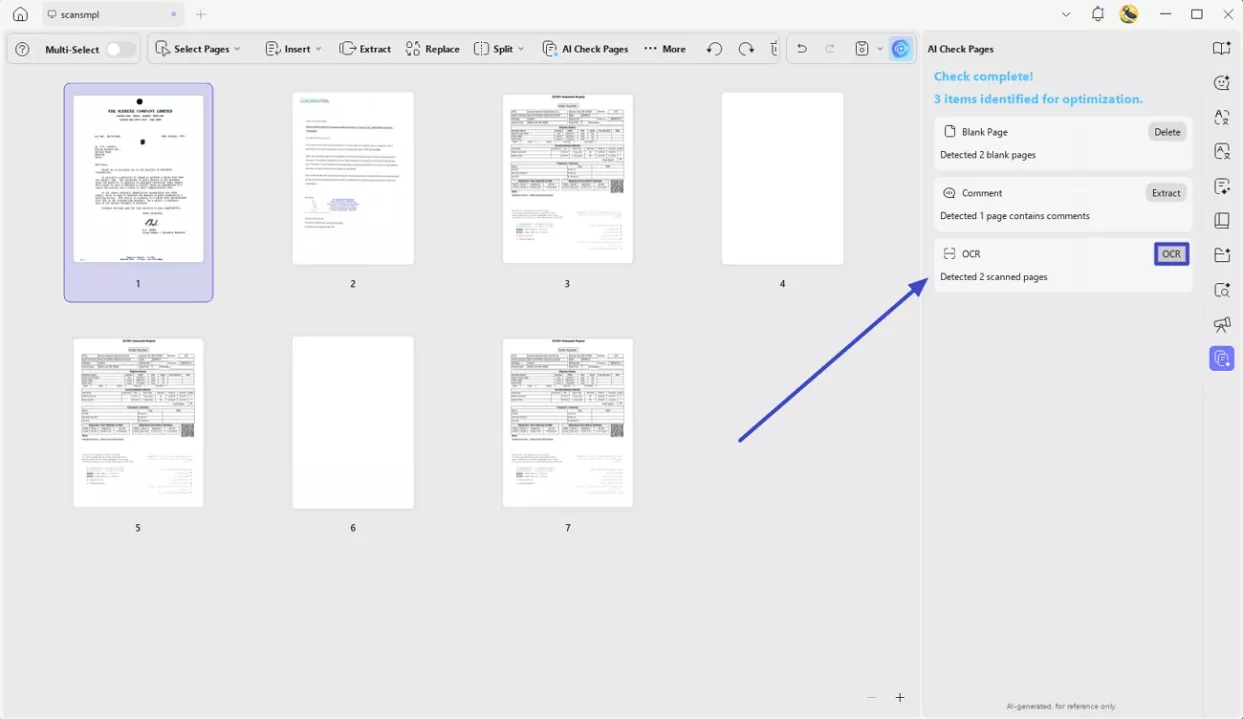
Ready to recognize text in scanned PDF documents? Here's how it works.
On desktop
Step 1: Launch UPDF on your device. Then click "Open File" to import your scanned PDF. For image files, you can drag them into UPDF home interface to open them.
Windows • macOS • iOS • Android 100% secure
Step 2: Once your file opens, click "OCR" in Tools from the left panel.
Step 3: A menu for OCR settings will open. Under the Document Type, select "Editable PDF."
Step 4: Select your desired layout and adjust other settings such as document language, image resolution, page range, etc.

Step 5: Click the gear icon next to the Layout dropdown for advanced layout settings. This will open the layout settings menu. Here, you can select options like MRC compression and more. Click "Convert" once you're done with settings.

Step 6: Once the OCR is complete, the converted PDF will open in a new tap. Then, you can select, search, and edit the text in PDF.

On mobile
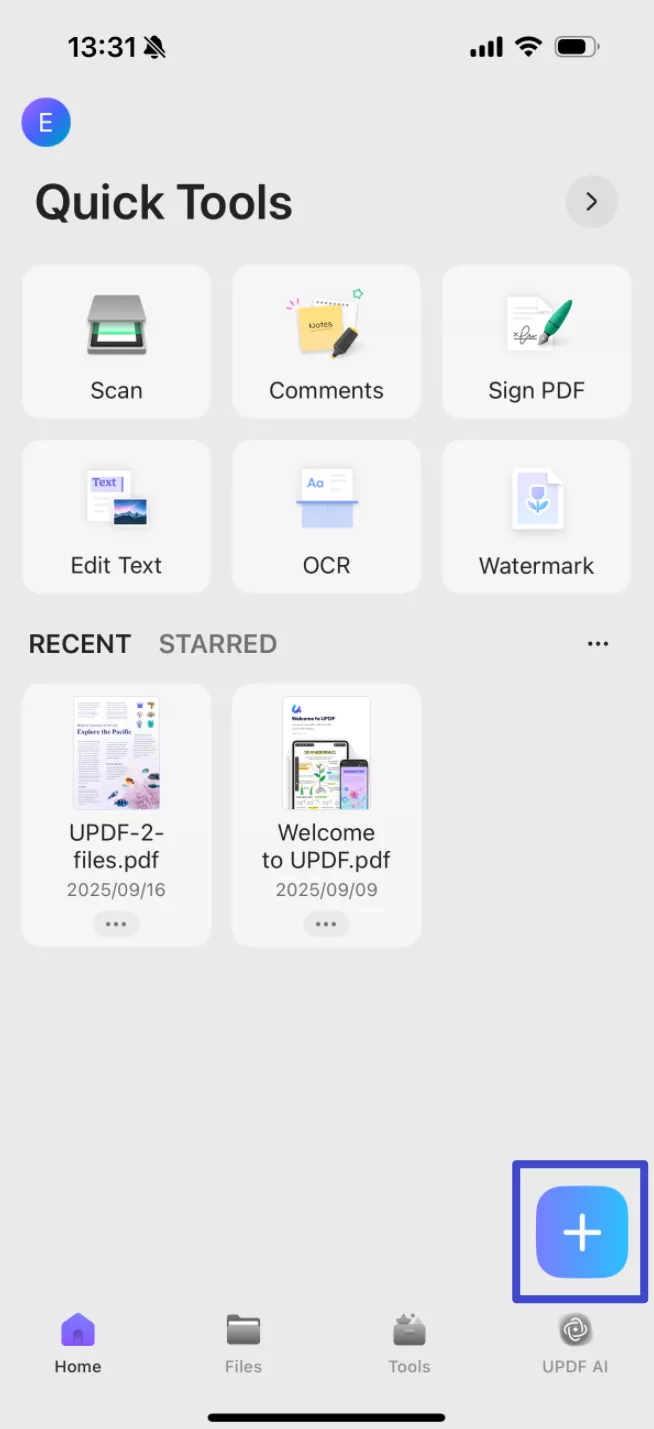
Step 1: Launch UPDF on your phone. Then click "+" to import your scanned PDF.
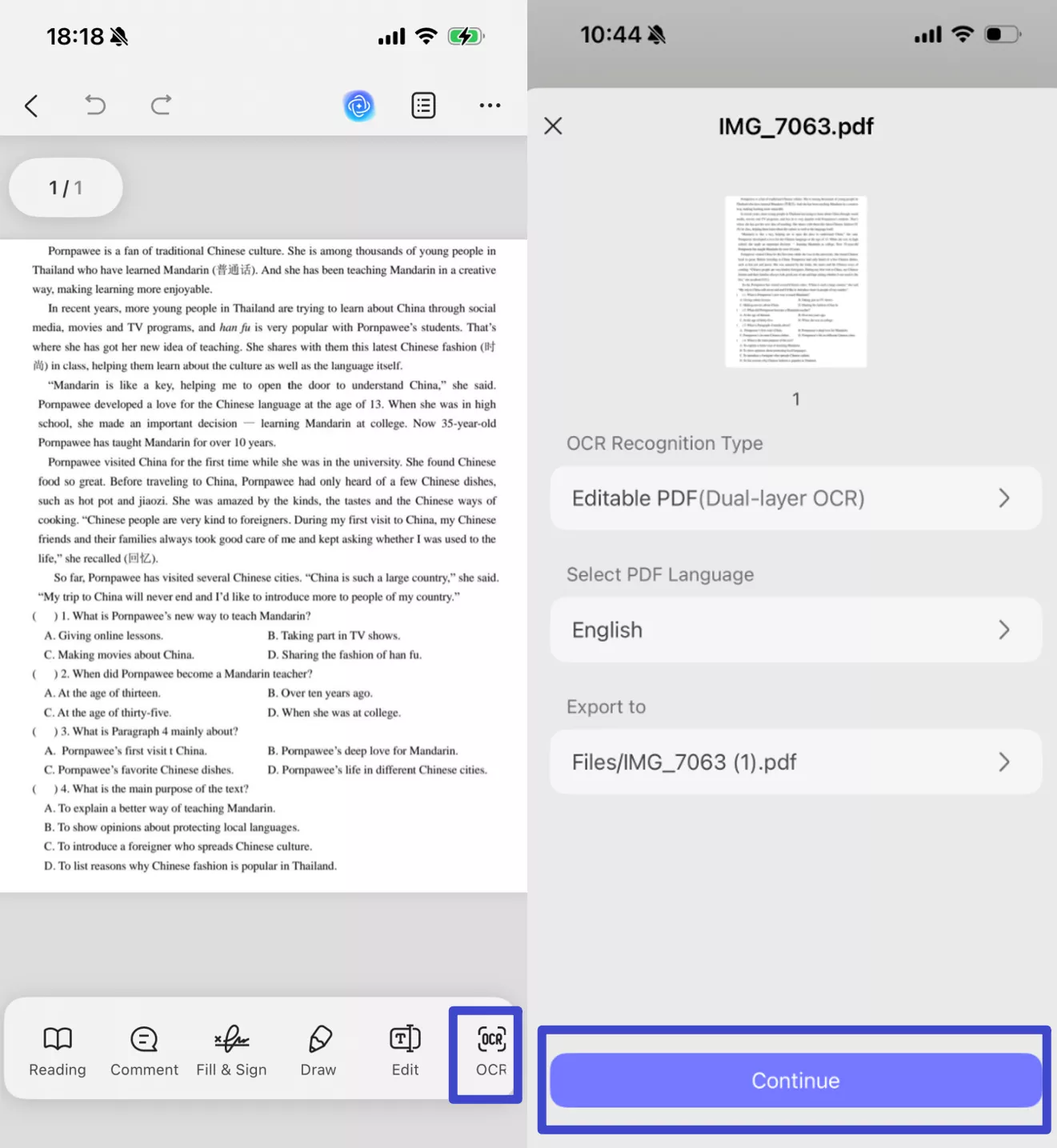
Step 2: Once your file opens, click "OCR" at the bottom, adjust the settings according to your needs, then click "Continue".
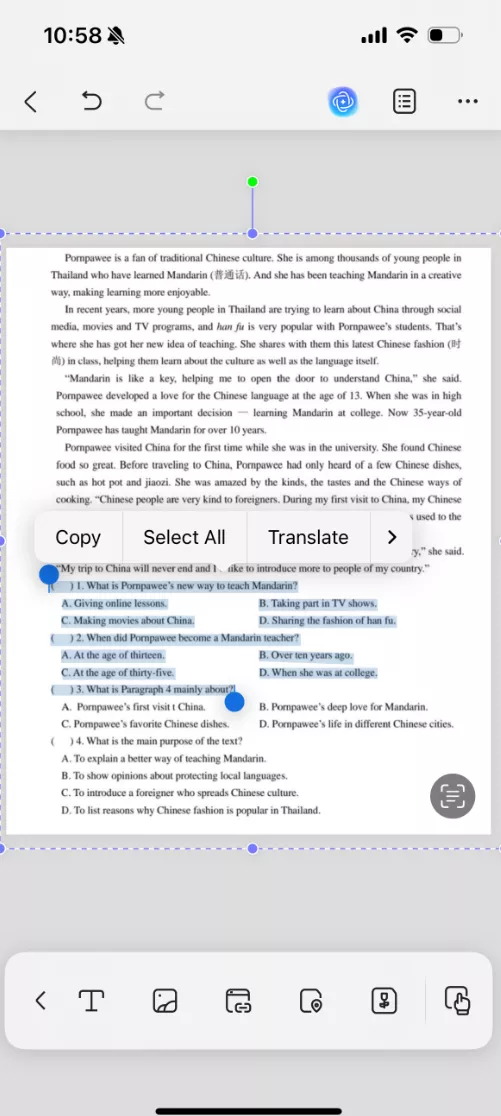
Step 3: Once the OCR is complete, the converted PDF will open in a new tap. Then, you can select, search, and edit the text in PDF.
That's it. Now you know how to recognize text in a PDF with scanned images! If you're more of a visual learner, watch the video below for an easy guide on UPDF's OCR tool.
Also Read: Extract Text From PDF With And Without OCR
Part 3. How to Recognize Handwritten Text in PDF
Sometimes, you may need to extract a handwritten text from a PDF file. While OCR tools can help you recognize it, they can be inaccurate, especially if the writing is unclear.
But don't worry. UPDF offers an easy solution with its built-in AI assistant. Give it a screenshot of the handwriting, and it will extract the text within seconds. You can then copy and paste it into any text editor for manual editing.
This is the chat with the image function at work! Here's what more you can do with it.
- You can extract text with a single prompt from images and screenshots.
- It supports all languages for both handwritten and digital text.
- You can gain detailed analysis of data charts and complex diagrams.
- It can offer expert feedback, suggestions for design improvement, and more.
- You can generate content for social media based on the file.
So, are you ready to recognize handwritten text in PDF? Download and install on your Windows or Mac. Then, use the guide below to extract handwritten text quickly and easily!
Windows • macOS • iOS • Android 100% secure
Step 1: Open UPDF on your desktop. Click "Open File" and select the PDF with handwritten text.
Step 2: Once your PDF opens, click "UPDF AI" from the lower right. Then, select the "Chat" mode from the top.
Step 3: Navigate to the PDF page with handwritten text. Then, select the "Screenshot" tool from the bottom right.

Step 4: Click and drag your cursor over the area with handwritten text. Once you release it, the screenshot will be uploaded to UPDF AI.
Step 5: Write a prompt asking UPDF AI to extract handwriting from the image. Then, hit the "Send" button. UPDF AI will quickly analyze the handwriting and extract it in digital form.
Prompt: Extract the handwritten text from this image.
And that's how to recognize handwritten text in PDF with AI! UPDF AI makes it quick and simple. You don't need lengthy steps or complex navigation. And even better, it offers 100 free tasks to get you started.
Apart from the AI assistant, UPDF brings a full suite of productive PDF tools to your workflows. You can read this UPDF review to explore more of its features and how they can benefit you!
Bonus: Why is My Text Not Recognized in PDF?
Sometimes, an OCR may not recognize text, leading to inaccurate conversion. If you face this issue, don't panic. Here are some possible reasons and how to fix it.
- Low-Quality Scans: A scan with blurry or misaligned text is difficult for the OCR to recognize.
- Messy Handwriting: OCR tools can struggle to identify sloppy handwritten text.
- Stylized Fonts: The PDF may contain decorative or complex text that can confuse the OCR.
- Low Contrast: If there is not enough contrast between text and background, differentiating the characters can be tricky.
- Protected PDF: The PDF may have restrictions for performing OCR and editing the text, restricting text recognition.
Solutions for Text Not Recognizing in PDF
Here's what to consider to fix the issue of 'text not recognized in PDF.'
- Use High-Quality Scans: Scan the document at a higher resolution for clear and legible text.
- Use Multi-Language OCR: If your PDF contains multiple languages, use an OCR tool that supports multi-lingual documents.
- Check OCR Settings: Select the right document language, layout, and output type. Incorrect settings can cause issues with text recognition.
- Use AI: If the result is not what you want, try to convert the scanned PDF to images or screenshot it, then use the AI tool like UPDF AI to extract text.
Final Words
That's all about how to recognize text in PDF. The process is effortless with UPDF's versatile text recognition capabilities. You can use the OCR tool to recognize text from scanned documents or AI assistant to extract text with minimal effort. Meanwhile, UPDF also supports use on iOS and Android mobile ports, allowing you to conveniently use OCR functionality on your phone.
Windows • macOS • iOS • Android 100% secure





 Engelbert White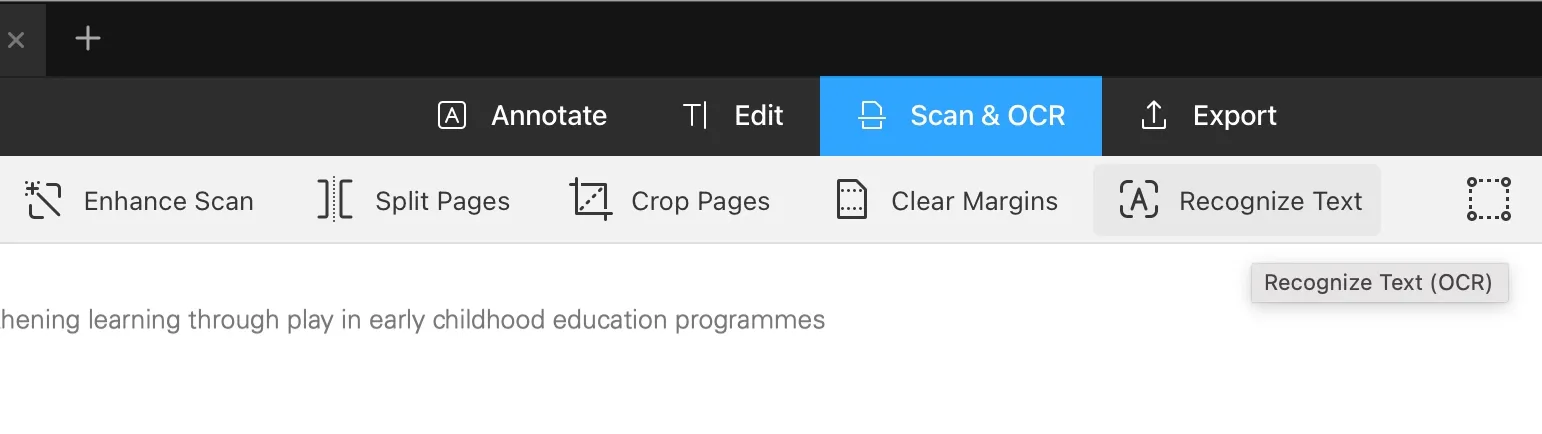
 Enola Davis
 Delia Meyer
 Enid Brown