 UPDF
UPDF
 UPDF for Windows
 UPDF for Mac
 UPDF for iPhone/iPad
 UPDF for Android
 Nomostar
 UPDF AI Online
 UPDF Sign
 IvyCraft
 Edit PDF
 Annotate PDF
 Create PDF
 PDF Form
 Edit links
 Convert PDF
 OCR
OCR PDF to Word
 PDF to Image
 PDF to Excel
 Organize PDF
 Merge PDF
 Split PDF
 Crop PDF
 Rotate PDF
 Protect PDF
 Sign PDF
 Redact PDF
 Sanitize PDF
 Remove Security
 Read PDF
 UPDF Cloud
 Compress PDF
 Print PDF
 Batch Process
 About UPDF AI
 UPDF AI Solutions
 AI User Guide
 FAQ about UPDF AI
 Summarize PDF
 Translate PDF
 Chat with PDF
 Chat with AI
 Chat with image
 PDF to Mind Map
 Explain PDF
 PDF AI Tools
 Image AI Tools
 AI Chat Tools
 AI Writing Tools
 AI Study Tools
 AI Working Tools
 Other AI Tools
 AI Bookmark Generation
 AI Bookmark Summary
 AI Watermark Generation
 AI Background Generation
 AI Sticker Generation
 AI Stamp Generation
 AI Editing Suite
 UPDF Copilot
 AI Page Management
 AI Semantic Search
 PDF to Word
 PDF to Excel
 PDF to PowerPoint
 Enterprise Solution
 Enterprise Sign
 Enterprise AI
 Enterprise Plan
 Enterprise User Guide
 Enterprise Webinar
 IT
IT Education
 Construction
 Financial Service
 Healthcare
 Insurance
 Legal
Legal Manufacturing
 Government
 Researchers & PhDs
 Solopreneurs & Freelancers
 Lawyers & Legal Professionals
 Real Estate Agents & Brokers
 Education Solution
 Customer Stories
 User Guide
 UPDF Tricks
 FAQs
FAQs UPDF Reviews
 Download Center
 Blog
Blog Newsroom
 Tech Spec
 Updates
 UPDF vs. Adobe Acrobat
 UPDF vs. Foxit
 UPDF vs. PDF Expert

Quick Answer:
A TIFF-to-PDF job can fail even when the conversion itself finishes. Several TIFF images may enter the PDF in filename order rather than document order; a multi-page TIFF may contain more frames than a basic image preview shows; and a clear scan still produces an image-only PDF until OCR adds a text layer. The safest workflow is therefore create, verify, OCR if needed, and compress only after checking quality.
Part 1. Which TIFF-to-PDF Workflow Do You Need?
| Your TIFF files | Use this UPDF workflow | Best for | Check before saving |
|---|---|---|---|
| One single-page TIFF | PDF from Image | One scan, drawing, or photograph | Page size and orientation |
| Several TIFFs that belong together | Combine into one | A scanned contract, case file, or photo packet | File order and total page count |
| A folder that needs separate PDFs | Create separately | Per-customer records or one PDF per scan | Output names and destination folder |
| One multi-page TIFF | PDF from Image, then verify pages | Faxes, archive scans, and document-imaging exports | Every TIFF frame became one PDF page |
| A PDF that needs to become TIFF | PDF to TIFF conversion | Raster delivery, image processing, or legacy archive requirements | Per-page images vs. one combined image |
Part 2: How to Convert TIFF to PDF?
UPDF, a top-rated tool, helps you boost productivity with your PDF files effortlessly. As a comprehensive PDF editor, it excels at converting TIFF files to PDFs—whether you're working with a single file or processing a batch. With just a few clicks, you can quickly convert TIFF files into PDFs.
Windows • macOS • iOS • Android 100% secure
It stands above in the list of PDF tools because of its lucrative features and economical price. As an offline tool, you can work with it without worrying about good internet speed.
UPDF is a user-friendly tool that allows you to perform multiple tasks, such as editing, annotating, organizing, and converting PDF documents. The process of converting a TIFF file to a PDF is very simplified because of this tool.
Method 1. Convert a Single TIFF to a PDF
If you are intending to convert a single TIFF file to a PDF, then follow the steps below:
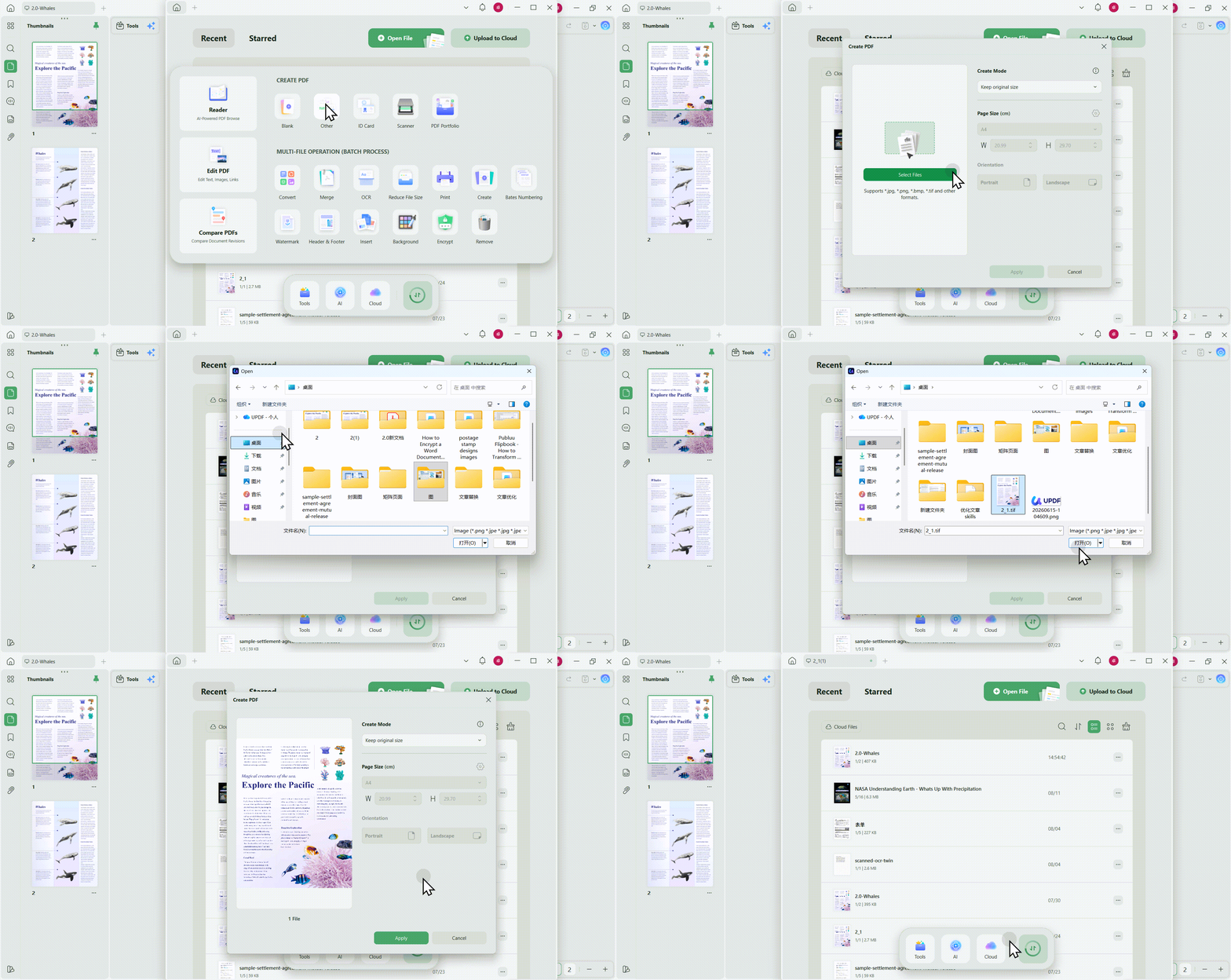
Step 1: Open UPDF on Windows or Mac. From the Home screen, select Tools.
Step 2: Under the creation tools, choose PDF from Image. Click Create PDF > Other.
Check the order and orientation of the images before saving the final document. For the next step, you can explore creating PDFs in UPDF in the video below.
Step 3: Select the .tif or .tiff file.
Step 4: Keep the original page size when the scan's physical dimensions matter. Choose a standard page size only when the finished document needs consistent A4 or Letter pages.
Step 5: Select Apply, review the new PDF, and save it with a new name so the original TIFF remains untouched.
From the new window, add your TIFF images. You can add more than one image at once. When you have done the selecting, please make sure whether you want to combine the images into one PDF file. If you want it, please select "Yes", and vice versa.
Method 2. Convert Multiple TIFF Files to a Single/Multiple PDF(s)
If you are looking for a method to convert multiple TIFF files to a single or multiple PDF(s), then this method will work for you:
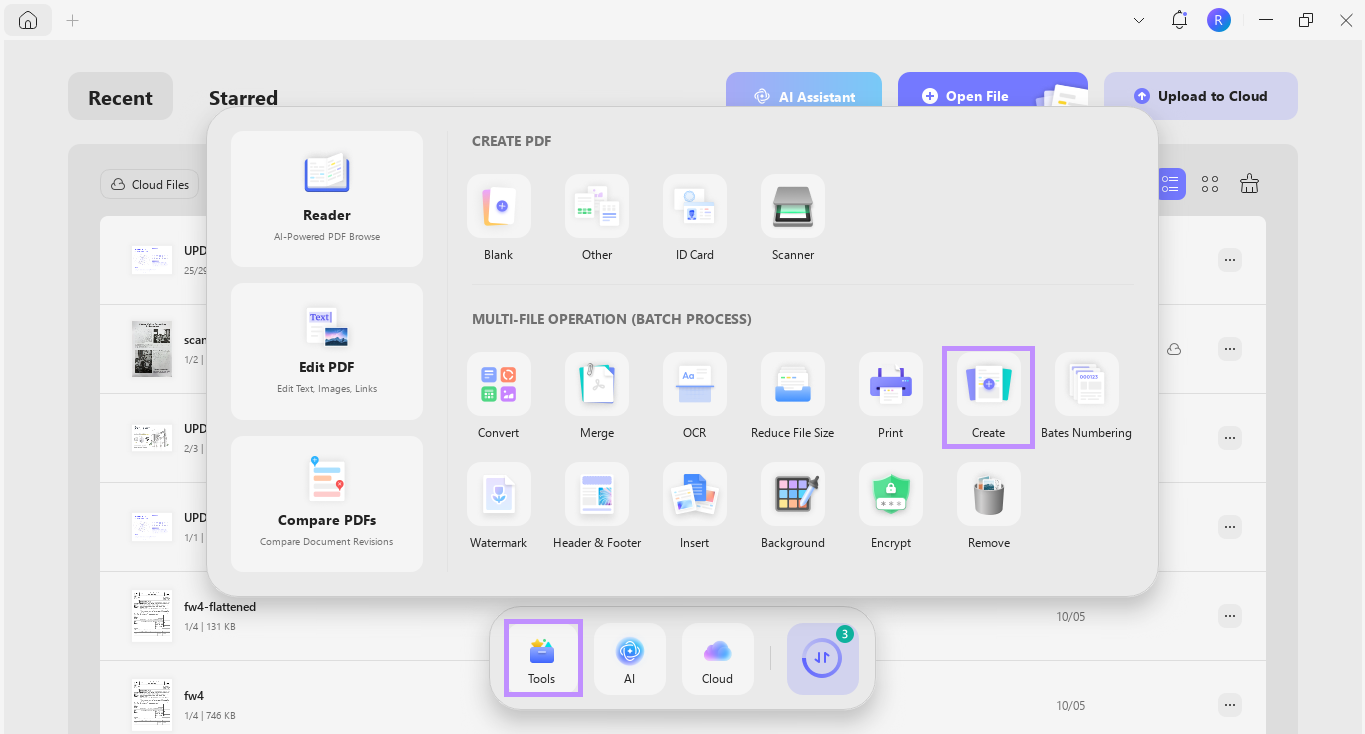
Step 1. Launch UPDF and click "Tools" from the bottom. Then, select "Create" from the menu.
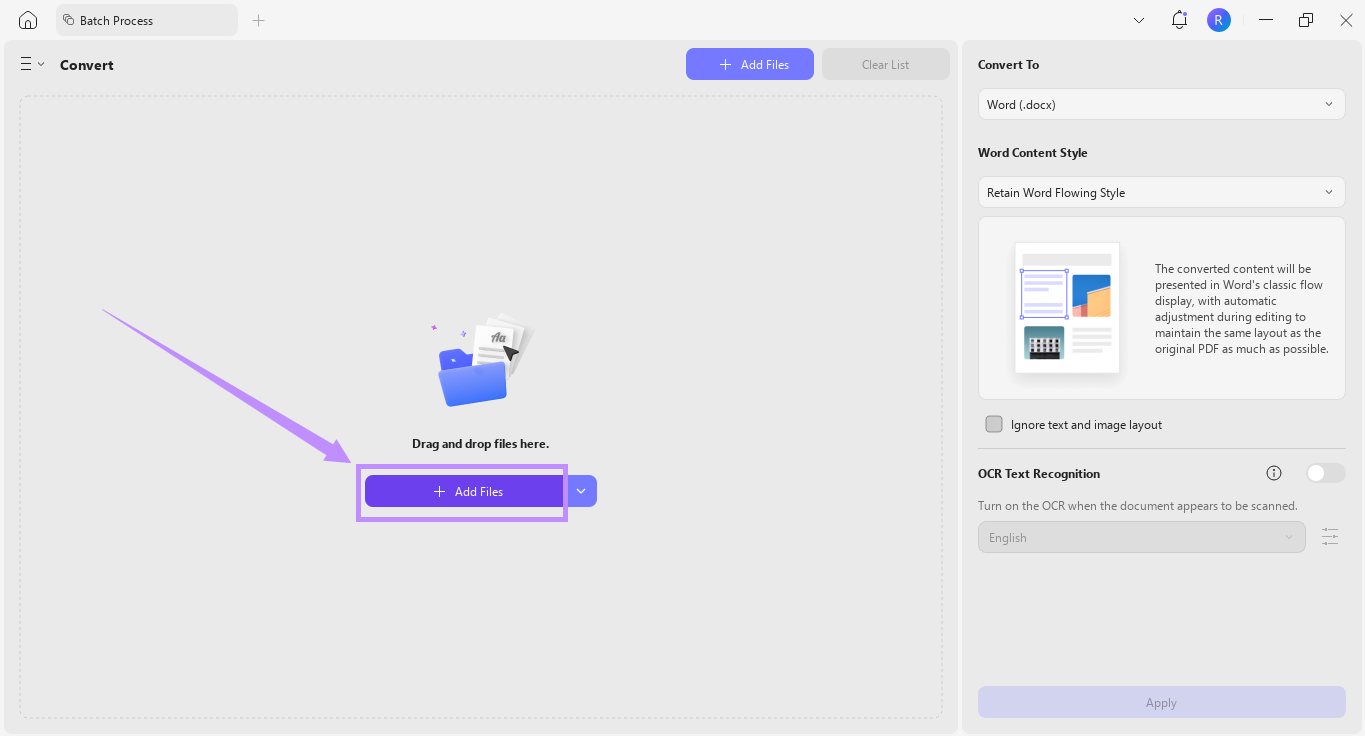
Step 2. Click "Add Files" and import the images you need to convert. You can also drag and drop your TIFFs to upload them.
Step 3. Once your documents are added, go to the right panel. Under Create Mode, select how you want to bulk convert TIFF to PDF. You can choose to "Combine into one" or "Create separately."
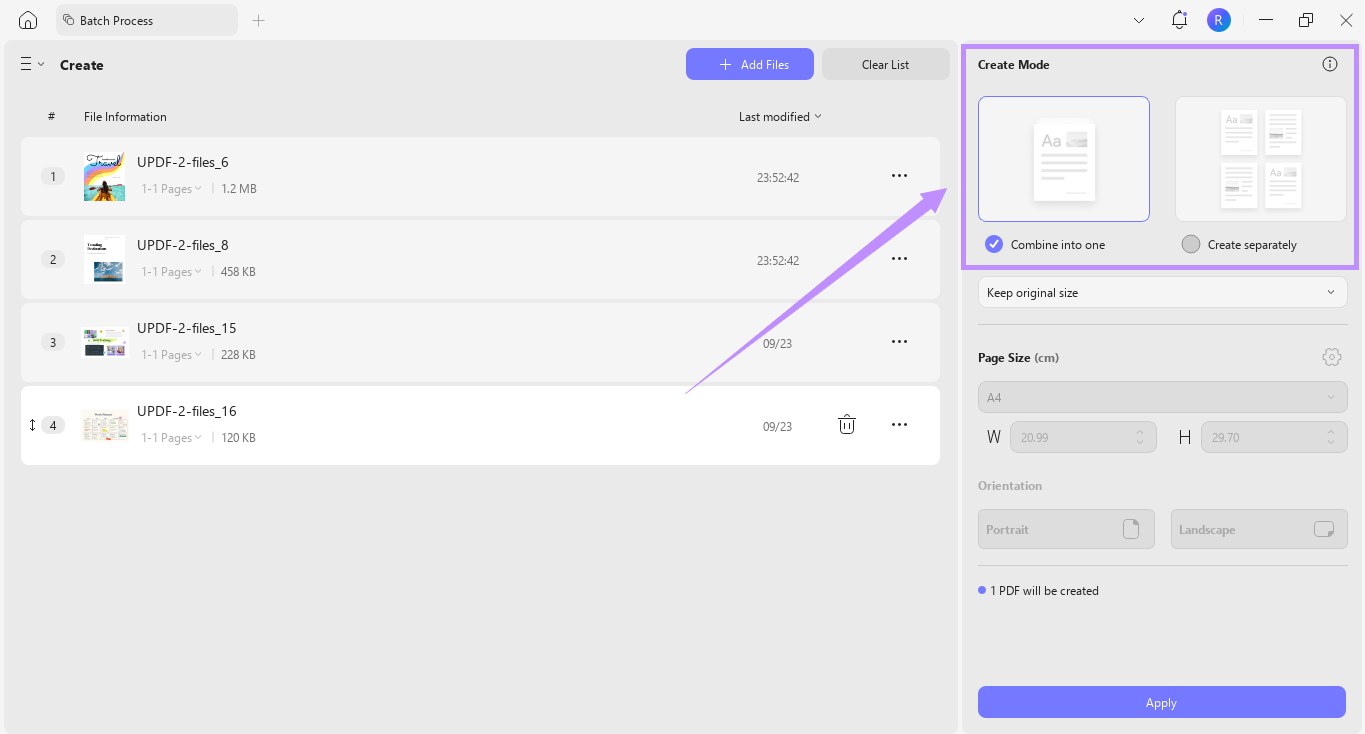
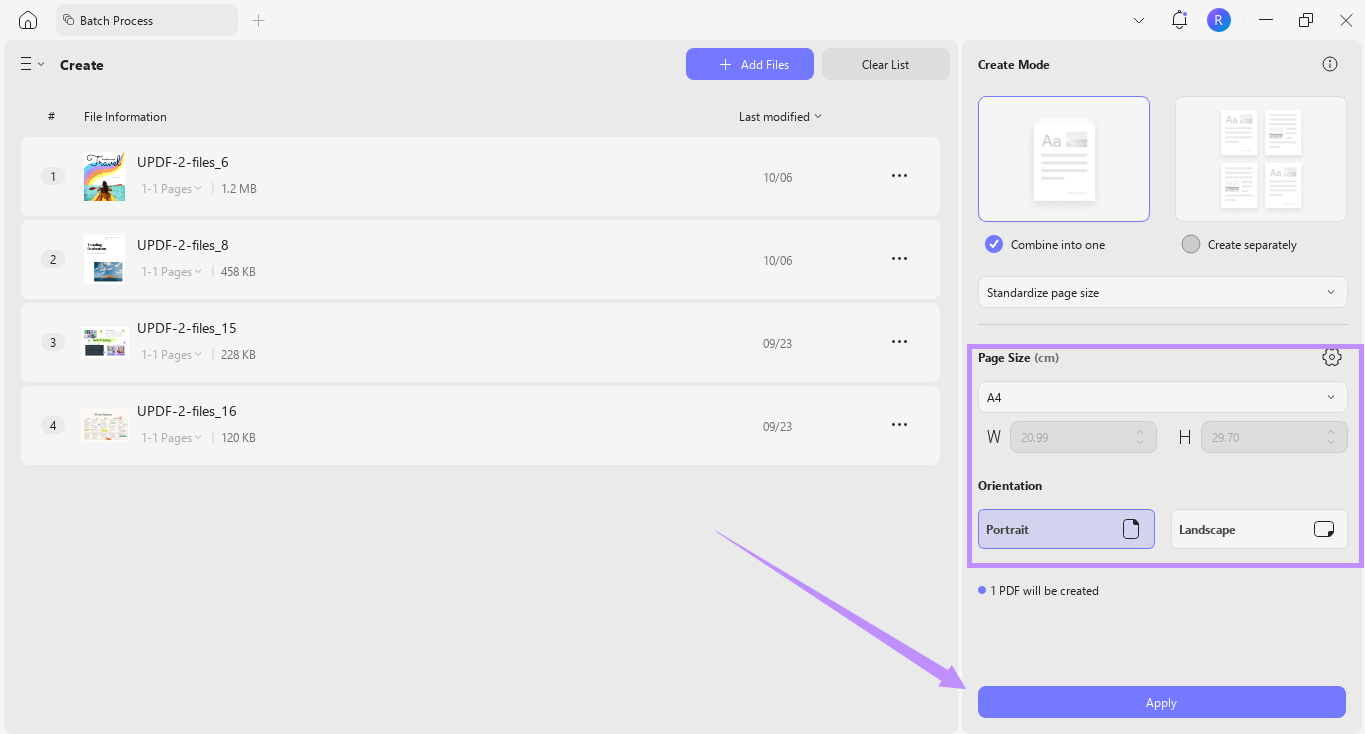
Step 4. Click the dropdown below the Create Mode options. Then, choose whether to “Keep original size" or “Standardize page size.”
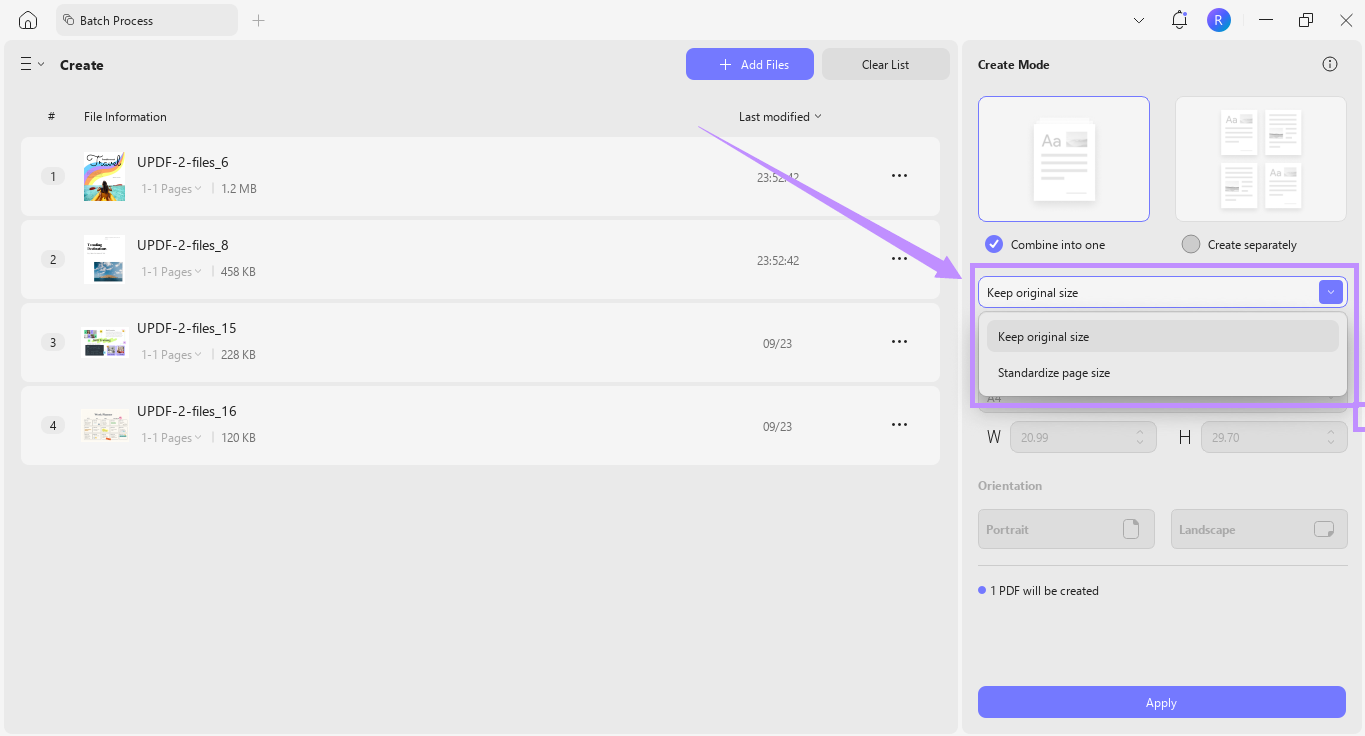
Step 5. If you choose to standardize page size, you can adjust the page size and orientation. After that, click “Apply” to mass convert TIFF to PDF.
Part 3: How to Convert PDF to TIFF?
Use PDF to TIFF when the receiving system requires raster images, a print or imaging workflow specifies TIFF, or a downstream application cannot use PDF. This is the reverse intent and should not be confused with extracting only the photographs embedded inside a PDF.
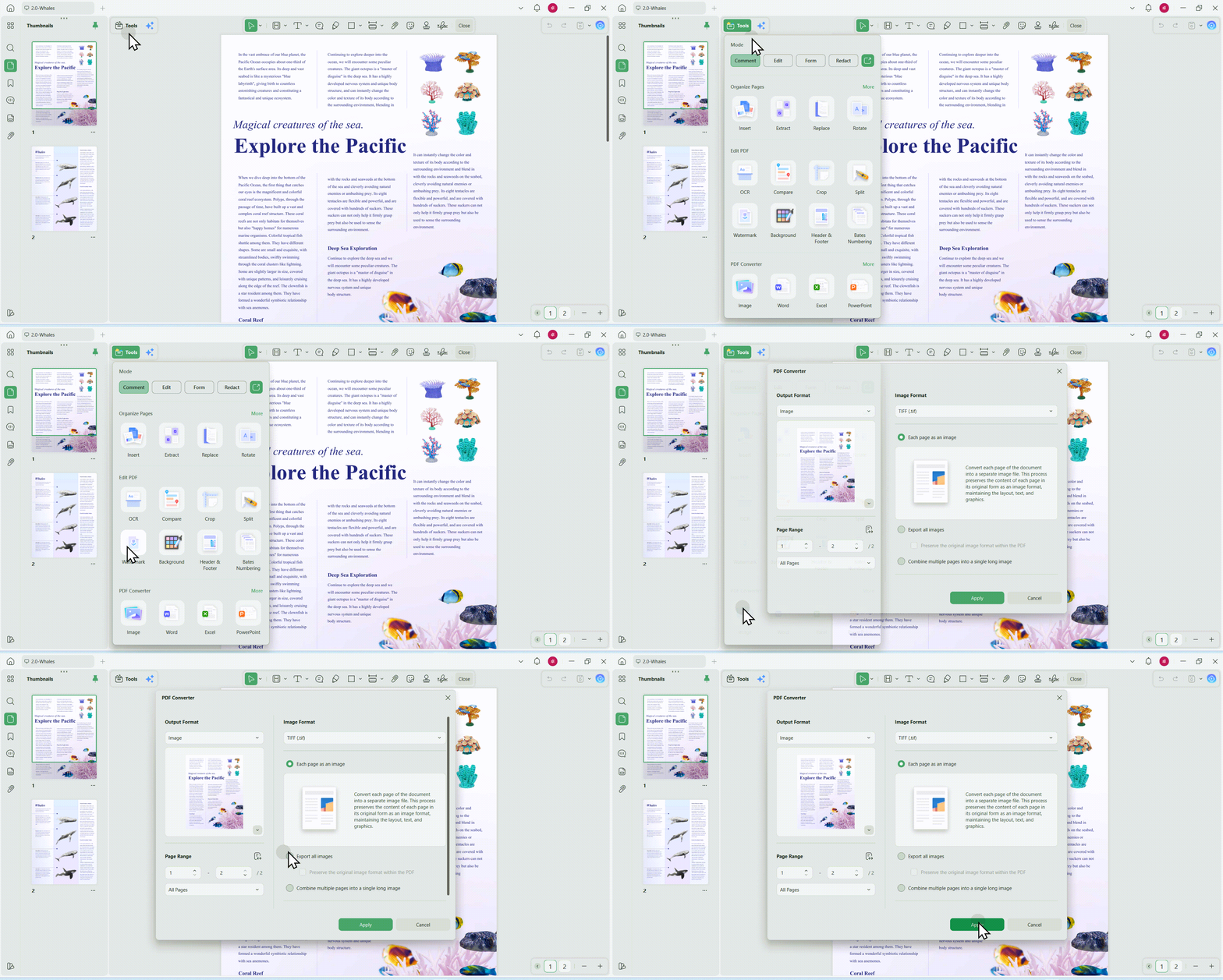
UPDF's PDF-to-TIFF workflow can handle one PDF or a batch. Current conversion options distinguish among:
- converting each PDF page into a separate TIFF image;
- exporting embedded images from the PDF;
- combining several PDF pages into one long image.
These outputs are not interchangeable. If you need one TIFF file per page, do not choose embedded-image extraction. If you need the original pictures rather than rendered pages, do not rasterize every page.
Follow the dedicated PDF to TIFF guide for the complete reverse workflow. If you are processing many files, use the current batch TIFF from/to PDF guide to compare the two directions.
FAQs
Q1: Can a TIFF contain more than one page?
Yes, TIFF can store multiple frames. Multi-page TIFFs are common in fax and document-imaging systems. Check the frame count in a compatible viewer and confirm that the PDF contains the same number of pages.
Q2: Can I convert TIFF to PDF and back without quality loss?
Only under controlled settings. A round trip may preserve image data when compatible compression is embedded without resampling, but page standardization, OCR rebuilding, editing, color conversion, and lossy compression can prevent exact reconstruction. Keep the original TIFF as the master.
Q3: Why is my PDF larger than the TIFF?
The containers compress data differently. The PDF may add page objects, metadata, fonts, thumbnails, or OCR text, and the TIFF may already use efficient lossless compression. File size alone does not show which file has better quality.
Conclusion
For one TIFF, create a PDF from the image and inspect the result. For a document split across several TIFFs, combine them in deliberate order. For independent records, create separate PDFs in a clean output folder. For a multi-page TIFF, verify every internal frame. Add OCR only when the finished PDF needs searchable or editable text, and compress only after the quality check.
The desktop workflow keeps ordinary local creation on the device and gives you page-order, OCR, compression, and protection tools after conversion.
Download UPDF for free to try the complete TIFF-to-PDF workflow — installation is free, and Pro removes the trial watermark from exported files.
Windows • macOS • iOS • Android 100% secure








 Enola Davis
  رغداء محمد
 Enola Miller
 Lizzy Lozano