UPDF
UPDF
 UPDF for Windows
 UPDF for Mac
 UPDF for iPhone/iPad
 UPDF for Android
 Nomostar
 UPDF AI Online
 UPDF Sign
 IvyCraft
 Edit PDF
 Annotate PDF
 Create PDF
 PDF Form
 Edit links
 Convert PDF
 OCR
OCR PDF to Word
 PDF to Image
 PDF to Excel
 Organize PDF
 Merge PDF
 Split PDF
 Crop PDF
 Rotate PDF
 Protect PDF
 Sign PDF
 Redact PDF
 Sanitize PDF
 Remove Security
 Read PDF
 UPDF Cloud
 Compress PDF
 Print PDF
 Batch Process
 About UPDF AI
 UPDF AI Solutions
 AI User Guide
 FAQ about UPDF AI
 Summarize PDF
 Translate PDF
 Chat with PDF
 Chat with AI
 Chat with image
 PDF to Mind Map
 Explain PDF
 PDF AI Tools
 Image AI Tools
 AI Chat Tools
 AI Writing Tools
 AI Study Tools
 AI Working Tools
 Other AI Tools
 AI Bookmark Generation
 AI Bookmark Summary
 AI Watermark Generation
 AI Background Generation
 AI Sticker Generation
 AI Stamp Generation
 AI Editing Suite
 UPDF Copilot
 AI Page Management
 AI Semantic Search
 PDF to Word
 PDF to Excel
 PDF to PowerPoint
 Enterprise Solution
 Enterprise Sign
 Enterprise AI
 Enterprise Plan
 Enterprise User Guide
 Enterprise Webinar
 IT
IT Education
 Construction
 Financial Service
 Healthcare
 Insurance
 Legal
Legal Manufacturing
 Government
 Researchers & PhDs
 Solopreneurs & Freelancers
 Lawyers & Legal Professionals
 Real Estate Agents & Brokers
 Education Solution
 Customer Stories
 User Guide
 UPDF Tricks
 FAQs
FAQs UPDF Reviews
 Download Center
 Blog
Blog Newsroom
 Tech Spec
 Updates
 UPDF vs. Adobe Acrobat
 UPDF vs. Foxit
 UPDF vs. PDF Expert

Quick Answer:
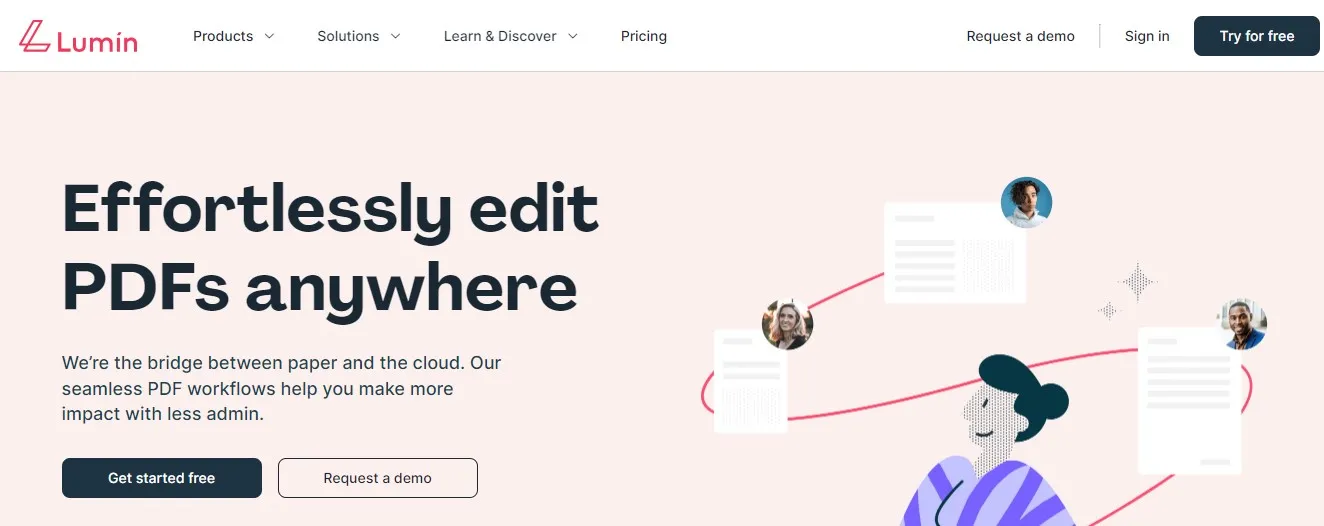
Lumin PDF is a cloud-focused PDF editor designed for editing, annotation, electronic signatures, and document collaboration. It works across web, desktop, and mobile platforms and integrates with services such as Google Drive and OneDrive.
But is Lumin PDF the right choice for your workflow and budget? In this review, we examine its key features, current plans, free-version limitations, strengths, and drawbacks. We also compare it with UPDF, a cross-platform alternative for users who need broader PDF editing, conversion, OCR, batch processing, and offline document tools.
Windows • macOS • iOS • Android 100% secure
What is Lumin PDF?
Lumin PDF is a top-notch cloud-based document management platform that makes managing PDF files a breeze. It offers numerous features such as annotation tools, digital signatures, form filling, and collaboration tools that will help you manage PDF files efficiently.
You can access Lumin PDF via desktop or mobile devices, and it seamlessly integrates with popular cloud storage services like Google Drive and Dropbox. It allows users to streamline their document workflows, boost their productivity, and collaborate effectively with others. You can do Lumin PDF login and signup today and enjoy a smooth, hassle-free document management experience.
Key Features of Lumin PDF
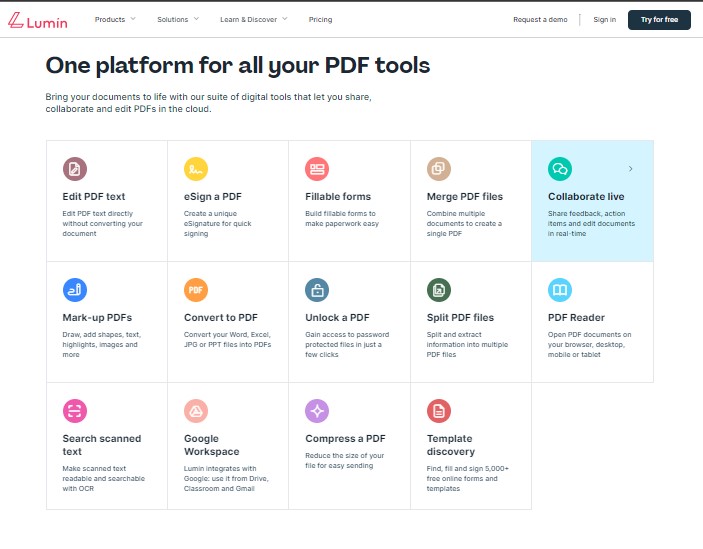
Here are some of the top features of Lumin PDF:
Document Editing
Lumin lets you edit PDF documents with ease. Users can add and edit text, images, and links, annotate documents with comments and highlights, and adjust the size and position of elements on the page.
Collaborative Editing
The platform allows users to share PDF documents with other team members and collaborate. It comes with a range of collaboration tools, enabling adding comments, assigning tasks, and tracking changes.
Security Features
Lumin PDF takes security seriously, and comes with a range of features to help keep documents Lumin PDF safe. Users can password-protect their documents, set permissions, and control who can view and edit them.
Integration with Cloud Storage
Lumin PDF integrates seamlessly with popular cloud storage services, including Google Drive, Dropbox, and OneDrive. This makes it easy for users to access their PDF documents from anywhere, and collaborate with team members in real-time. Moreover, with the help of cross-device editing, you can maintain the concurrency of the document while editing on any device you want.
OCR Technology
Lumin PDF uses OCR technology to extract text from scanned documents, making it easy to edit and search for information in the document.
Form Filling
Lumin PDF comes with powerful form filling features that allow users to fill out forms, add digital signatures, and save completed forms for future use.
Is Lumin PDF Free?
Yes, Lumin PDF offers a free version that users can access without paying any fee. However, the free version comes with certain limitations.
- The free version of Lumin PDF has restrictions on the number of signatures available and the quantity of documents that can be signed each month.
- Basic PDF editing features are available in the free version, but advanced editing capabilities are limited.
- The free version lacks advanced collaboration features, such as real-time co-editing and commenting, which may not be suitable for teams working on the same document.
Lumin PDF Pricing
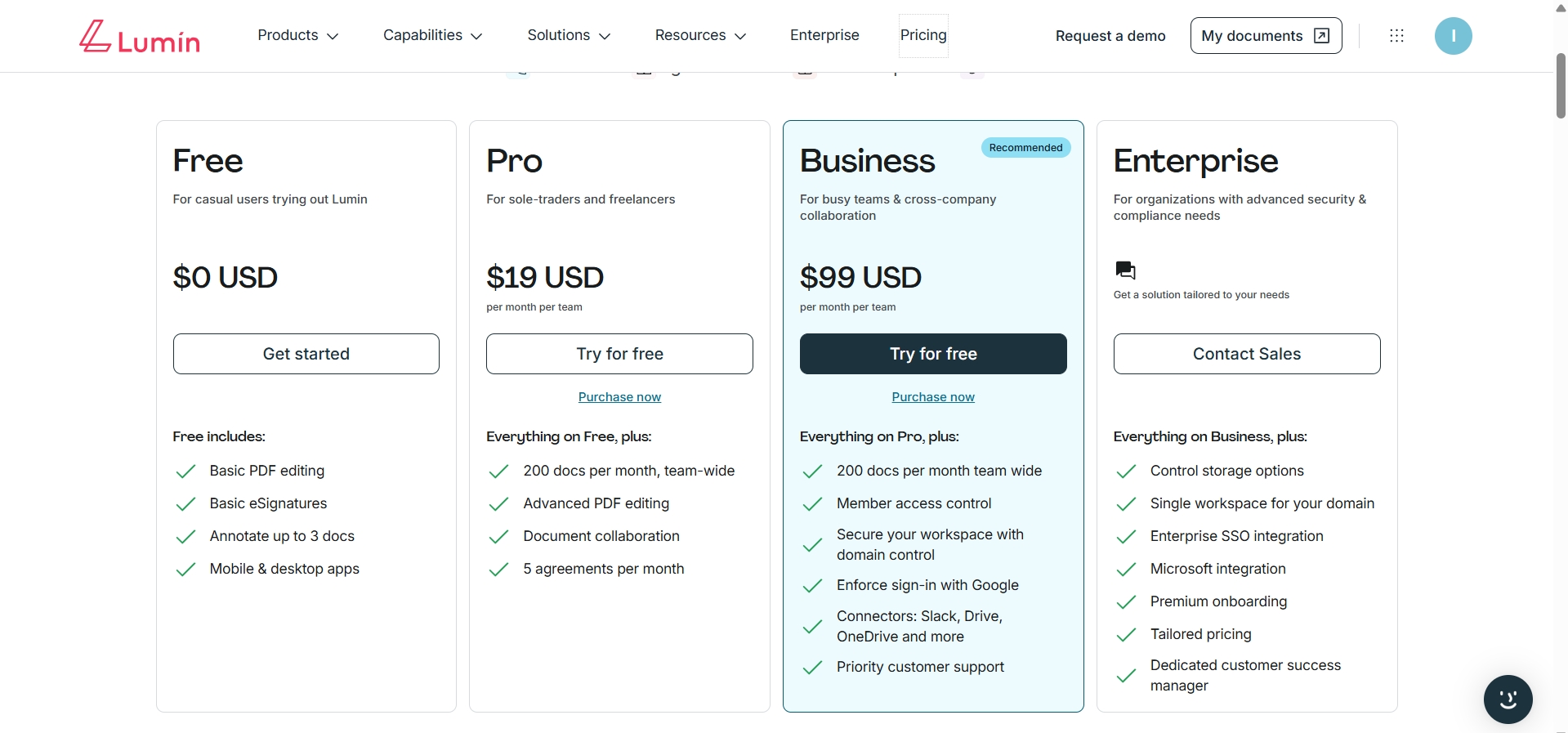
Lumin PDF offers four different pricing plans to suit the needs of different users. Here's what you need to know about it:
| Plan | Current Price | Document Allowance | Best For |
|---|---|---|---|
| Free | US$0 | Annotate up to 3 documents | Casual and first-time users |
| Pro | US$19/month per team | 200 documents per month, team-wide | Freelancers and small teams |
| Business | US$99/month per team | 200 documents per month, team-wide | Teams needing access and security controls |
| Enterprise | Custom pricing | Tailored to the organization | Organizations with advanced security and compliance requirements |
How to Edit PDF with Lumin PDF?
Editing a PDF document can be a daunting task, especially if you don't have the right tools. Fortunately, Lumin PDF is a fantastic PDF editor that allows you to edit, annotate, and collaborate on your PDF files with ease. Here are the step-by-step instruction on how to do Lumin PDF download and edit PDF.
- Step 1: Login or Signup at Lumin PDF using your Google account or your own credentials. You'll see this interface after logging into your account.
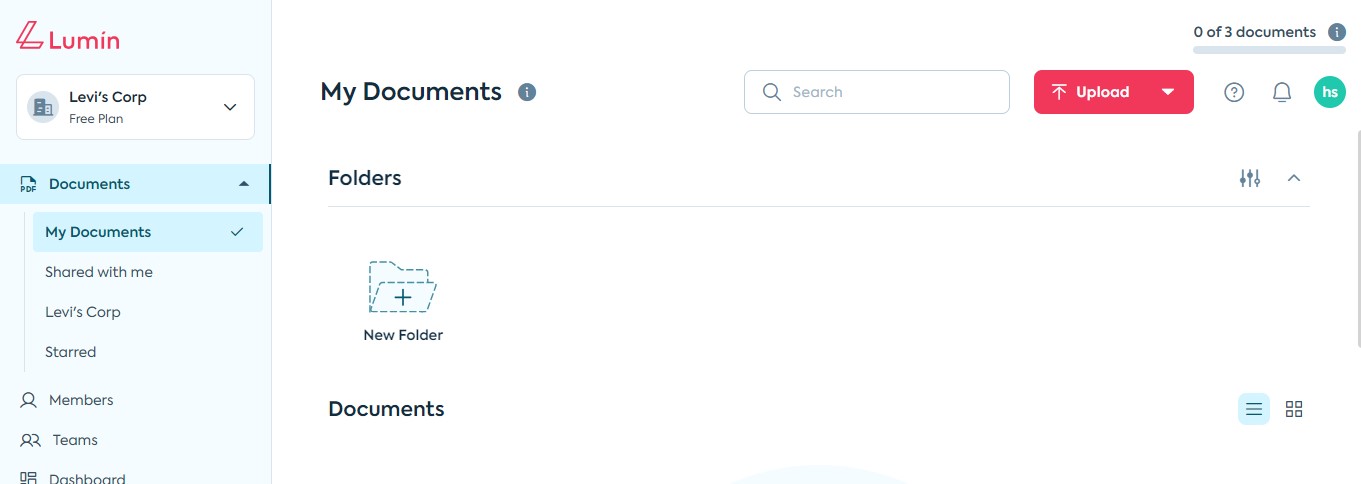
- Step 2: Upload your PDF file to Lumin PDF. You can either drag and drop your file or click the 'Upload' button to select your file from your computer.
- Step 3: Once your PDF is uploaded, click on the 'Edit' button located on the top left corner of the page. This will open up the editing mode.
- Step 4: You can now make changes to your PDF file. You can add text, images, shapes, and even draw on your document. You can also highlight, underline, and strikethrough text.
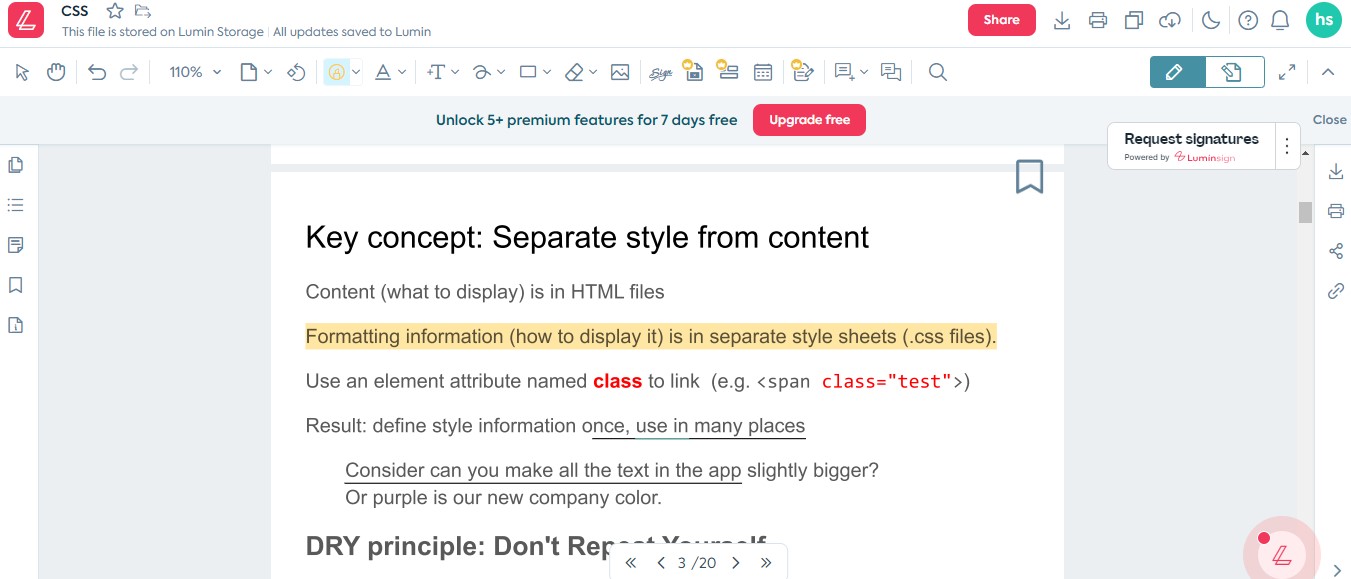
- Step 5: After making the necessary changes to your PDF, click on the 'Download' button located on the top right corner of the page.
- Step 6: If you want to share your edited PDF file with others, click on the 'Share' button located on the top right corner of the page. You can either share the file via email or generate a shareable link.
Pros of Using Lumin PDF
Here are some of the pros of Lumin PDF editor that you should know about:
- It offers a user-friendly interface that makes it easy for users to navigate and access different features.
- This software provides a wide range of PDF editing options, including adding or deleting text, images, and pages, as well as filling out forms and adding annotations.
- Users generally praise the software for its ease of use, reliability, and versatility. It offers a range of features that cater to different types of users and their needs.
- Lumin PDF seamlessly integrates with G Suite, making it easy for users to collaborate on documents and share files with others. This feature is particularly useful for businesses and teams that need to work together on projects.
Cons of Using Lumin PDF
Here are some potential cons of using app Lumin PDF on all platforms:
- Some users mention that the software can be a little bit better in certain aspects, such as the speed of document processing, the accuracy of OCR, or the quality of output files.
- Few flaws have been reported, issues when editing PDF files that contain fonts or alphabets that are not supported by the software. This can make it difficult for users to edit or work with certain documents.
The Best Lumin PDF Alternative with Better Performance
If you're looking for a powerful PDF editor and converter, UPDF should be your top choice. Compared to other PDF editors like Lumin PDF, UPDF offers more advanced features and customization options. With UPDF, you can easily create, edit, and convert PDF files, as well as add or remove pages, and even merge multiple PDFs into one.
Additionally, UPDF offers a variety of tools to help you customize your PDFs including watermarks, headers, and footers. So, if you want a professional PDF editor and converter, download UPDF today.
Windows • macOS • iOS • Android 100% secure
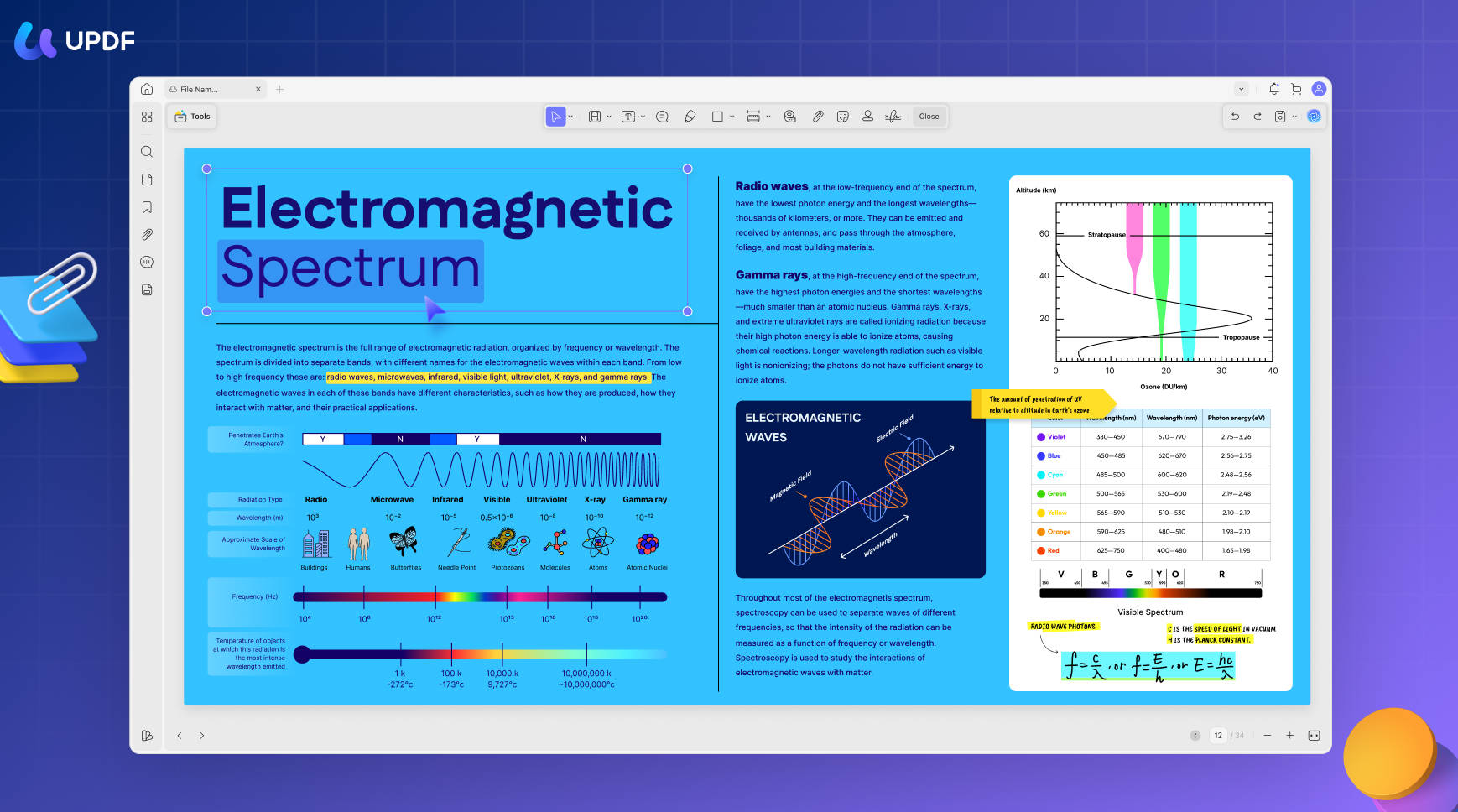
UPDF is a robust PDF editor that offers a range of features to help users edit, annotate, and sign PDF documents with ease. Here are some of the key features of UPDF:
- Edit PDF Documents: With UPDF, users can easily edit text, images, and even the layout of a PDF document. This feature is particularly useful for anyone who needs to make changes to a PDF document quickly and efficiently.
- Annotate PDF Documents: UPDF offers a range of annotation tools, allowing users to highlight, underline, and add comments to their PDF documents.
- Merge and Split PDF Documents: You can merge multiple PDF documents into a single file or split a PDF document into multiple files. It allows you to easily create a new document from multiple PDF files or extract specific pages from a PDF document.
- Convert PDF Documents to Other Formats: UPDF allows users to convert PDF documents to other formats, such as Microsoft Word, Excel, and PowerPoint. This feature is useful for anyone who needs to repurpose content from a PDF document for use in other applications.
- Advanced Security Features: It offers advanced security features, such as password protection, digital signatures, and redaction tools, which can be used to safeguard sensitive documents. This is particularly important for businesses and organizations that deal with confidential information regularly.
- OCR (Optical Character Recognition): UPDF's OCR feature allows users to convert scanned PDF documents into editable text. This feature is useful for anyone who needs to extract text from a scanned document for editing or analysis.
- Batch Processing: UPDF's batch processing feature allows users to process multiple PDF documents at once, saving time and increasing productivity. It is best for anyone who needs to perform the same action on multiple PDF documents, such as adding watermarks or converting to another format.
Overall, UPDF offers a wide range of features that make it a great choice for anyone looking for a reliable PDF editor. Whether you need to edit, annotate, or sign PDF documents, UPDF has everything you need to get the job done quickly and efficiently.
UPDF is also incredibly easy to use, with a simple and intuitive interface that makes it easy to navigate and find the tools you need. And with various pricing plans to suit different needs and budgets, there's no reason not to try and purchase UPDF today.
Windows • macOS • iOS • Android 100% secure
Lumin PDF vs. UPDF
Here's a complete comparison between Lumin PDF and UPDF:
| Feature | Lumin PDF | UPDF |
| Pricing | Free plan available; Pro costs US$19/month per team, and Business costs US$99/month per team | Free version available; UPDF Pro Lifetime costs US$79.99 as a one-time purchase |
| Compatibility | Available for iOS, Android, macOS, Windows, and web. | Available for iOS, Android, macOS, and Windows |
| Annotate PDF | Have basic annotation features | Has advanced annotation features |
| Stickers | Not available | Yes |
| AI-Integration | Integration with G Suite | AI-powered |
| Edit PDF | Good PDF editing capabilities but a few limitations | Advanced editing features |
| OCR | Available | Available |
| Convert PDF | Yes | Yes |
| Flatten PDF | Not available | Available |
| User Interface | Complex UI | Intuitive UI |
| Stability | Might have some stability issues | Very stable and robust software |
| Safety | Security concerns have been reported | 100% secure |
| Rating | 4.3 star | 4.7 star |
After reading this comparison, you can truly conclude why UPDF is better than Lumin PDF in many aspects.
- UPDF and Lumin PDF are PDF editors that can help you edit, convert, and annotate PDF files. However, UPDF has some advantages over Lumin PDF, making it a better choice for your PDF needs. Here are some of the reasons why UPDF is better than Lumin PDF:
- The UI of UPDF is more user-friendly than Lumin PDF. UPDF has a simple and intuitive interface that allows you to edit PDFs with ease. You can also customize the toolbar and access the most frequently used tools with one click. Lumin PDF has a more cluttered and complex interface that can be confusing for some users.
- Another reason is that UPDF is more secure than Lumin PDF. UPDF allows you to encrypt and decrypt your PDF files with passwords and permissions. You can also add digital signatures and watermarks to protect your PDFs from unauthorized access and modification.
The Bottom Line!
Lumin PDF is an impressive PDF editor that offers AI-powered features for a seamless editing experience on Windows, Mac, iOS, and Android devices. However, if you're looking for an even more powerful and comprehensive PDF editor, we highly recommend trying UPDF (The Ultimate PDF Editor). UPDF provides advanced features such as editing, OCR, AI, translation, flatten PDF, batch processing, and more.
Don't hesitate to download and try UPDF today to see how it can simplify your PDF editing tasks and enhance your productivity. With UPDF, you'll have all the tools to create, edit, and manage PDF documents efficiently and effortlessly!
Windows • macOS • iOS • Android 100% secure




 Lizzy Lozano
 Enrica Taylor
  Enid Brown