UPDF
UPDF
 UPDF for Windows
 UPDF for Mac
 UPDF for iPhone/iPad
 UPDF for Android
 UPDF AI Online
 UPDF Sign
 Edit PDF
 Annotate PDF
 Create PDF
 PDF Form
 Edit links
 Convert PDF
 OCR
OCR PDF to Word
 PDF to Image
 PDF to Excel
 Organize PDF
 Merge PDF
 Split PDF
 Crop PDF
 Rotate PDF
 Protect PDF
 Sign PDF
 Redact PDF
 Sanitize PDF
 Remove Security
 Read PDF
 UPDF Cloud
 Compress PDF
 Print PDF
 Batch Process
 About UPDF AI
 UPDF AI Solutions
 AI User Guide
 FAQ about UPDF AI
 Summarize PDF
 Translate PDF
 Chat with PDF
 Chat with AI
 Chat with image
 PDF to Mind Map
 Explain PDF
 PDF AI Tools
 Image AI Tools
 AI Chat Tools
 AI Writing Tools
 AI Study Tools
 AI Working Tools
 Other AI Tools
 PDF to Word
 PDF to Excel
 PDF to PowerPoint
 Enterprise Solution
 Enterprise Sign
 Enterprise AI
 Enterprise Plan
 Enterprise User Guide
 Enterprise Webinar
 Banking
 Healthcare
 Insurance
 Legal
Legal Manufacturing
 Government
 Education Solution
 Customer Stories
 User Guide
 UPDF Tricks
 FAQs
FAQs UPDF Reviews
 Download Center
 Blog
Blog Newsroom
 Tech Spec
 Updates
 UPDF vs. Adobe Acrobat
 UPDF vs. Foxit
 UPDF vs. PDF Expert

Have you ever had this experience—you take a picture of a document with your phone, and the app automatically extracts the text; you scan a contract, and your computer directly recognizes the editable content? This is all thanks to OCR.
OCR (Optical Character Recognition) is a technology that converts text in an image into machine-readable text.
In the digital age, OCR serves as a bridge connecting the physical world (paper documents) and the digital world (editable text).
This article will explain the definition, working principle, application scenarios and introduce a great tool - UPDF to enable OCR pages to be editable text with simple clicks.
Windows • macOS • iOS • Android 100% secure
Part 1: Everything About "What Is OCR"
The first question that arises here is what OCR stands for. So, OCR is "Optical Character Recognition." It is a method of detecting and examining the text on pages and converting the characters into code that can be used to manipulate data. In simple words, It is a technique to detect text in scanned document files and images.
OCR systems include software and hardware systems that convert physical documents into machine-readable text (electronic version.)
Plus, users can edit the style, design, and analysis of the documents as if they were created using a word processor once the document is saved in OCR PDF format.
Just as humans can recognize the words on a road sign, OCR enables computers to perform the same task.
Workflow: Original Image → Preprocessing → Layout Analysis → Character Segmentation → Character Recognition → Postprocessing → Output Text
Let's dive into the depths of the topic and know how OCR works.
Part 2: Ultimate Solution When It Comes to OCR
Do you have important digital documents in scanned or image form and want to convert them into editable PDF documents? It is common to share hard-form documents with other users by scanning them. Such documents cannot be edited by any tool. Optical Character Recognition or OCR allows you to turn these documents into editable and searchable PDF documents as it detects and extracts text from scanned documents and images. Today we will introduce you to the best tool in the market for OCRing your scanned documents and pictures.
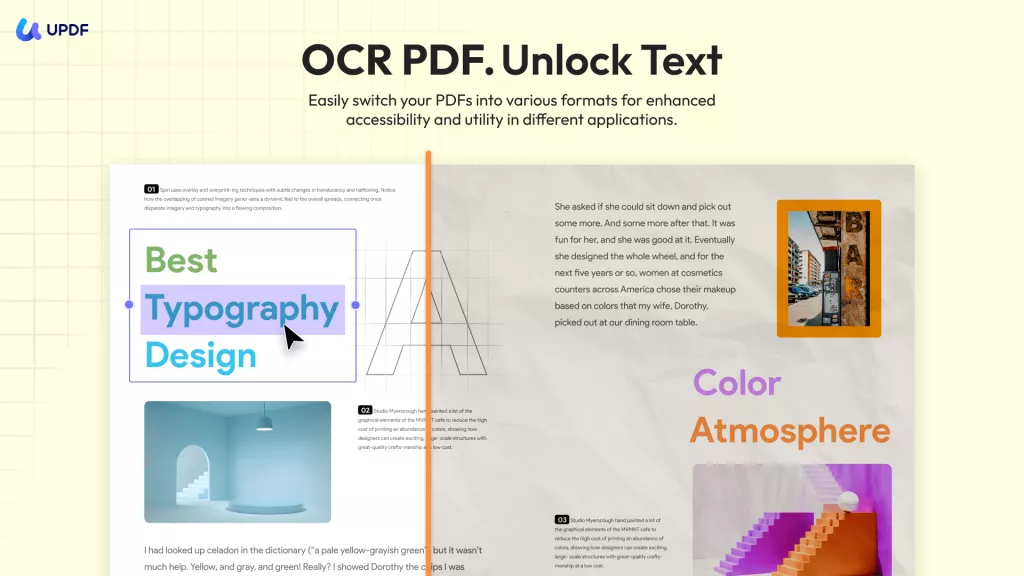
Many tools are available for applying OCR on scanned documents and images. UPDF is the ideal choice to OCR your documents, as it offers a fast, comprehensive, and detailed result. You can even perform OCR on iPhone and Android devices using UPDF, making it versatile and accessible. It also offers multiple choices to tailor the new documents to suit your needs when using OCR.
Finding OCR pages within a large number of PDF files is difficult and time-consuming. Besides providing solutions for OCR page issues, UPDF also supports one-click detection and quick location of OCR pages within a vast number of pages.
So if you cannot get accurate text with the OCR feature, you can use this feature. That is an awesome tool.
Windows • macOS • iOS • Android 100% secure
Key Features
- Its highly accurate OCR capability lets you extract text from images and transform scanned PDFs and images into searchable documents. Options include Microsoft Office formats and TXT files. You can customize layout options, resolution, and preserve formatting elements with ease.
- It detects more than 38 languages, including English, French, German, and Italian, among others. It is a practical solution for users worldwide.
- UPDF supports recognizing text in a document with multiple languages.
- You can perform OCR and conduct format conversion in a single operation.
- With the batch convert and OCR feature, you can perform OCR on all the scanned PDF files or convert them all into editable formats.
- UPDF's OCR can work on Windows, Mac, Android, and iOS. So you can use it any time and anywhere.
How to Perform OCR on Documents in UPDF
Do you wish to know how to perform the OCR on your scanned document? Follow these steps to OCR your scanned documents in UPDF:
On Desktop:
For one Scanned File:
Step 1. Download UPDF and launch it.
Windows • macOS • iOS • Android 100% secure
Step 2. Drag and drop or click "Open File" to add all the file you want to convert to searchable PDF formats from your device.
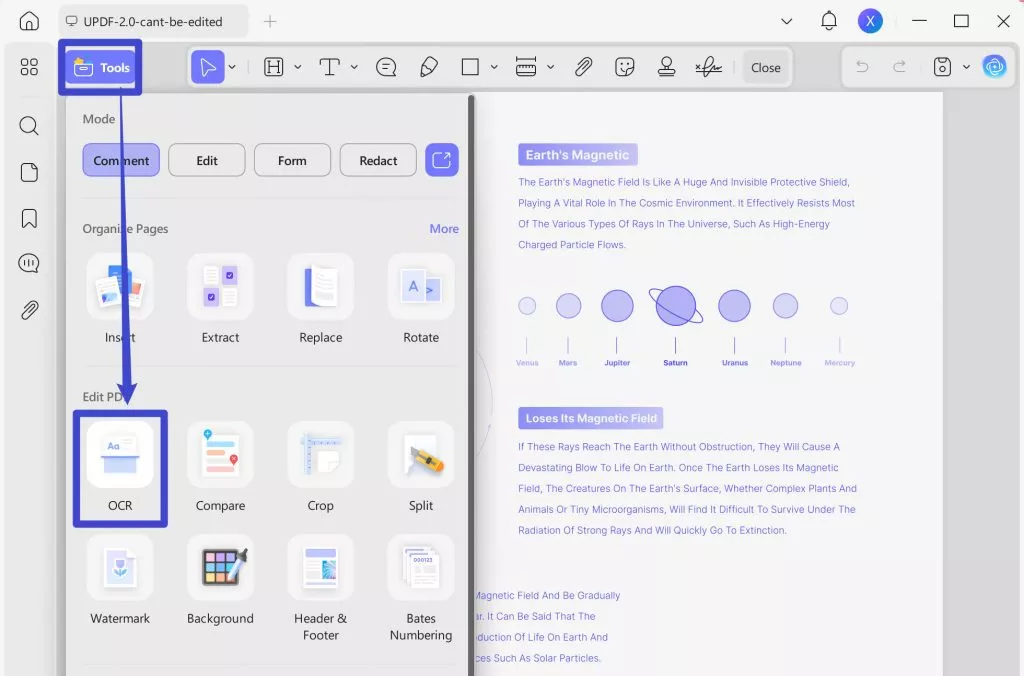
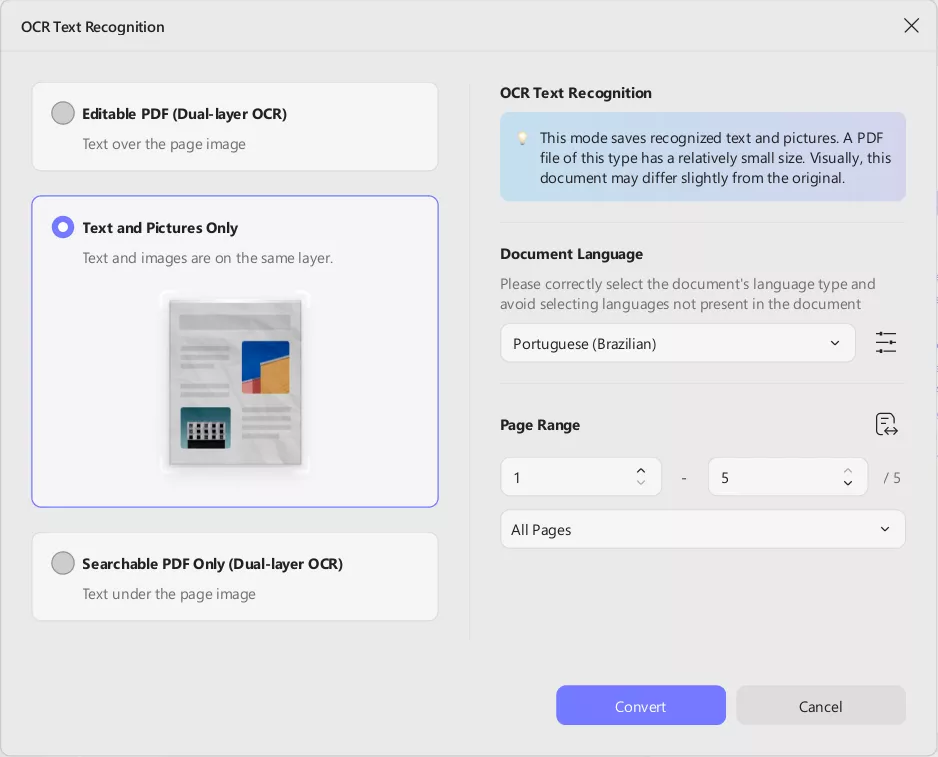
Step 3. Click "Tools" > "OCR". UPDF OCR provides you with 3 different options of OCR Text Recognition type, which include Editable PDF, Text and Picture Only, and Searchable PDF Only.
- Searchable PDF Only: In this mode, the page image is preserved, and the recognized text is added in an invisible layer beneath it. This keeps the document visually almost identical to the original.
- Editable PDF: This mode preserves the background images and illustrations from the original document and places the recognized text on top. As a result, the file size is usually larger than that created with the "Text and Pictures Only" mode. Visually, the output may look slightly different from the original.
- Text and pictures only: This mode saves the recognized text and images, resulting in a smaller PDF file. However, the appearance may differ slightly from the original document.
Choose your desired mode based on your need. To achieve more accurate OCR results, you need to correctly select the language you want to recognize, such as English.
Step 4. You can also click the Layout Settings option next to the language to access more customization options.
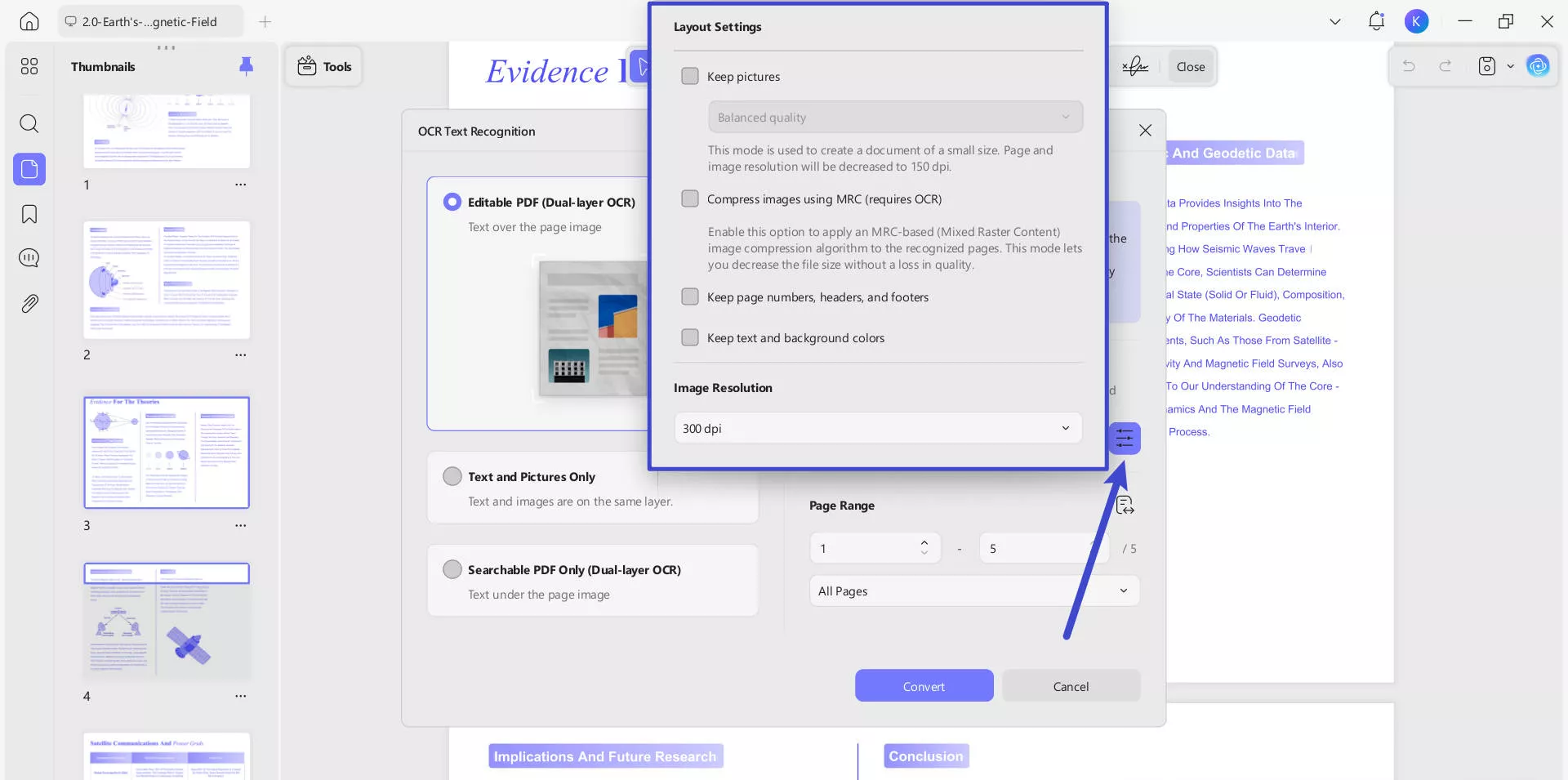
- Keep pictures: Keeps images in the output document. It provides Low / Balanced / High quality. You can control image quality to balance between file size and clarity.
- Compress images using MRC (requires OCR): Uses Mixed Raster Content compression to reduce file size without losing visible quality (only works after OCR).
- Keep page numbers, headers, and footers: Preserves these layout elements in the output.
- Keep text and background colors: Maintains original colors for better visual fidelity.
- Image Resolution (last image): Lets you choose the output resolution:
- Automatic: Software decides.
- 300 dpi: High quality (best for print).
- 150 dpi: Medium quality (smaller file).
- 72 dpi: Low quality (smallest file, screen-only use).
For Multiple Scanned PDF Files:
Step 1. Click the "Tools" button after launching UPDF, from the pop-up menu, select "OCR" under the MULTI-FILE OPERATION panel.
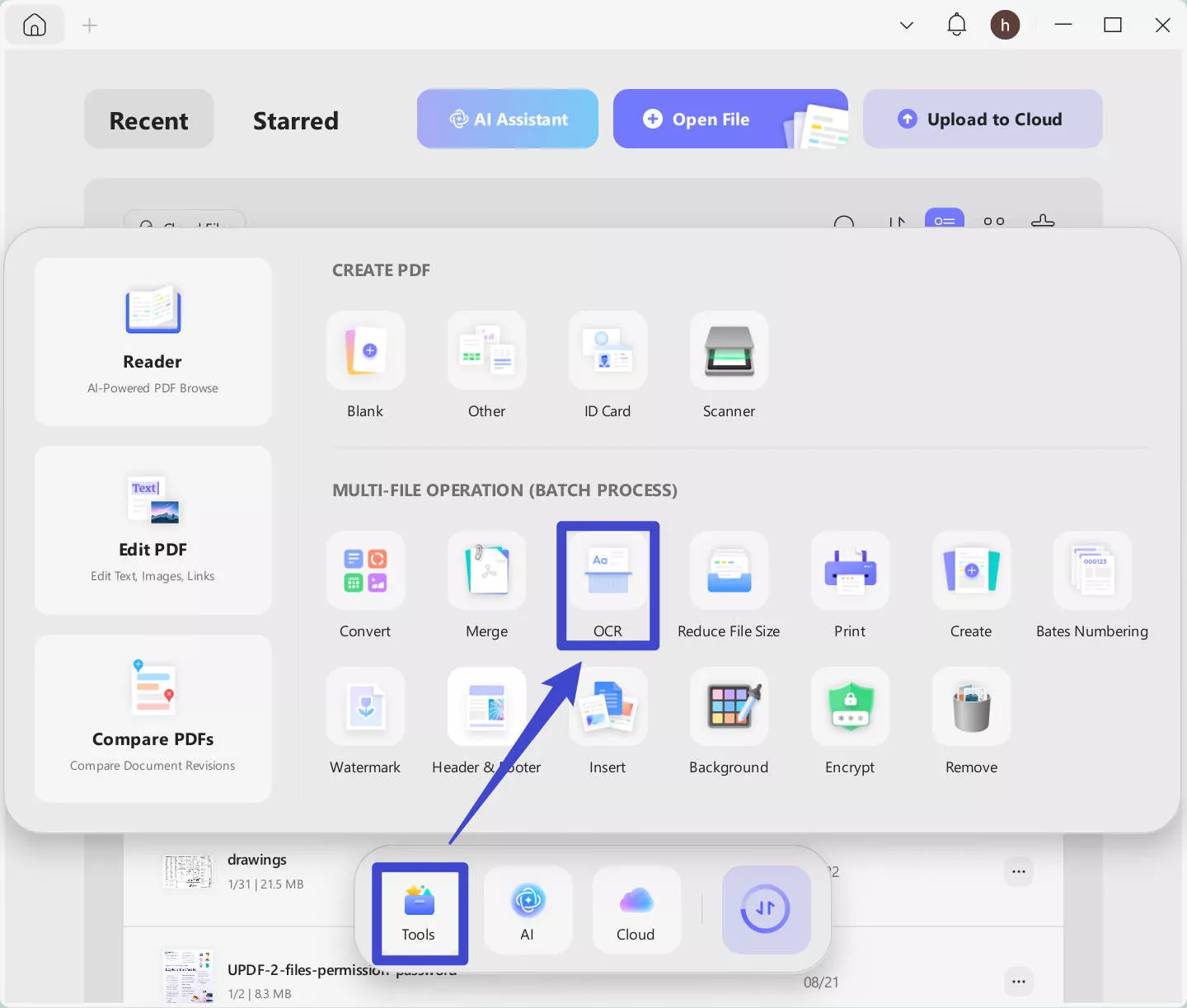
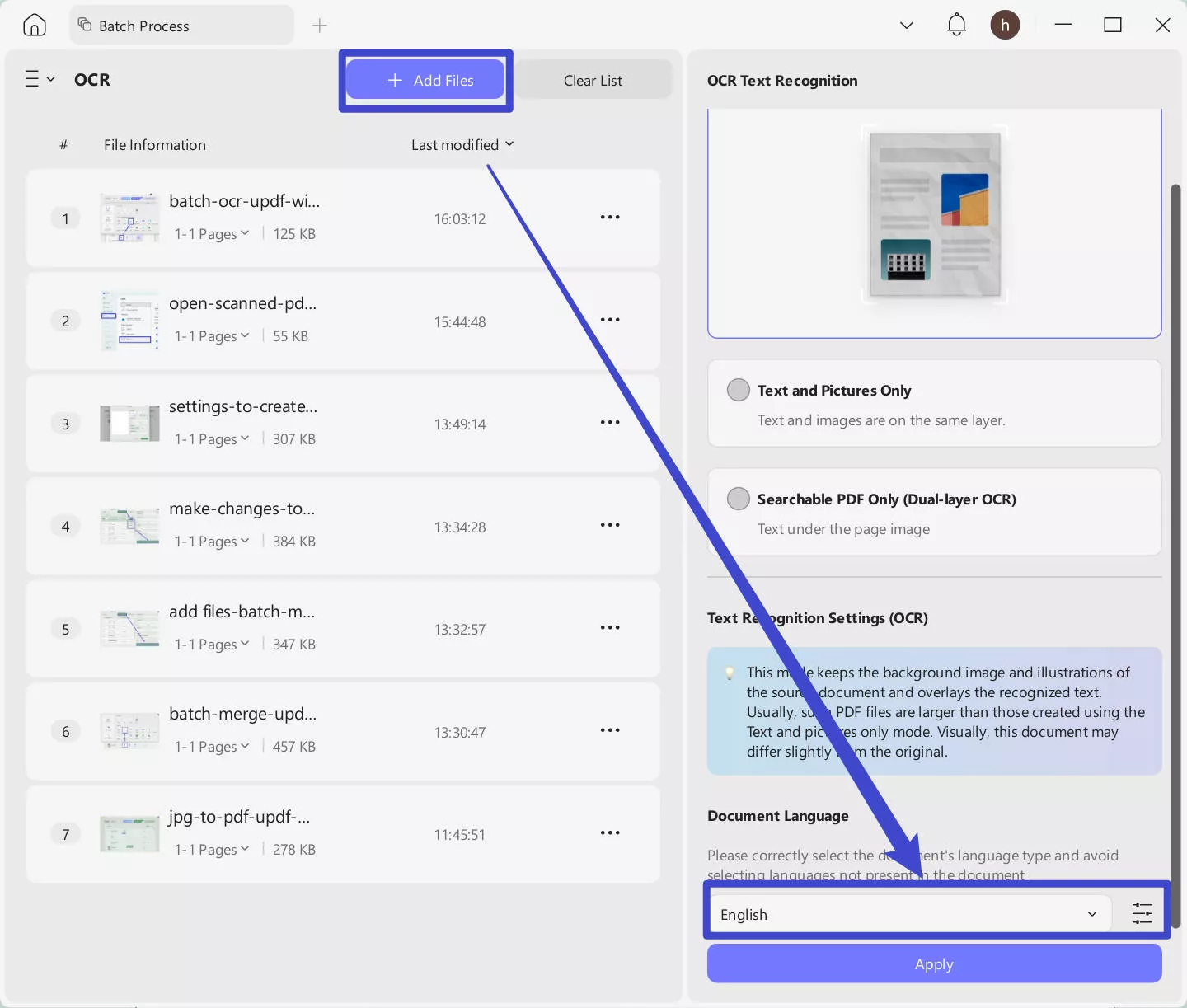
Step 2. Drag and drop your scanned documents to upload. Other settings are the same as single-file performance. Click the purple "Apply" button (bottom-right) to start batch conversion.
On Mobile:
If you are in the mobile, you can follow the below guide.
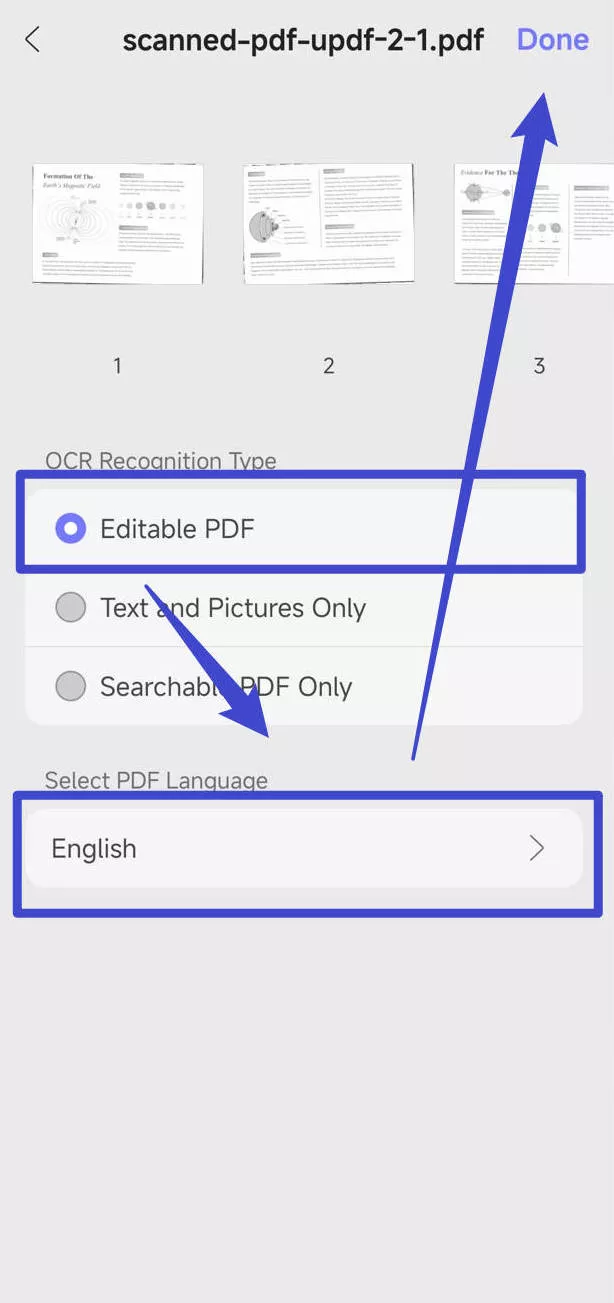
Steps. Go to "Tools" > "OCR", upload the scanned PDF, choose "Editable PDF", choose correct document language, then, tap on the "Done" to convert scanned PDF to editable file.
Watch this video to learn more about how to OCR PDF with UPDF here.
Note:
If the OCR result does not meet your requirements, you can use UPDF AI to extract text directly by clicking on the "UPDF AI" > "Chat" mode > "Add Image" or "Screenshot" > enter the prompt "Extract text from the image" > Send.
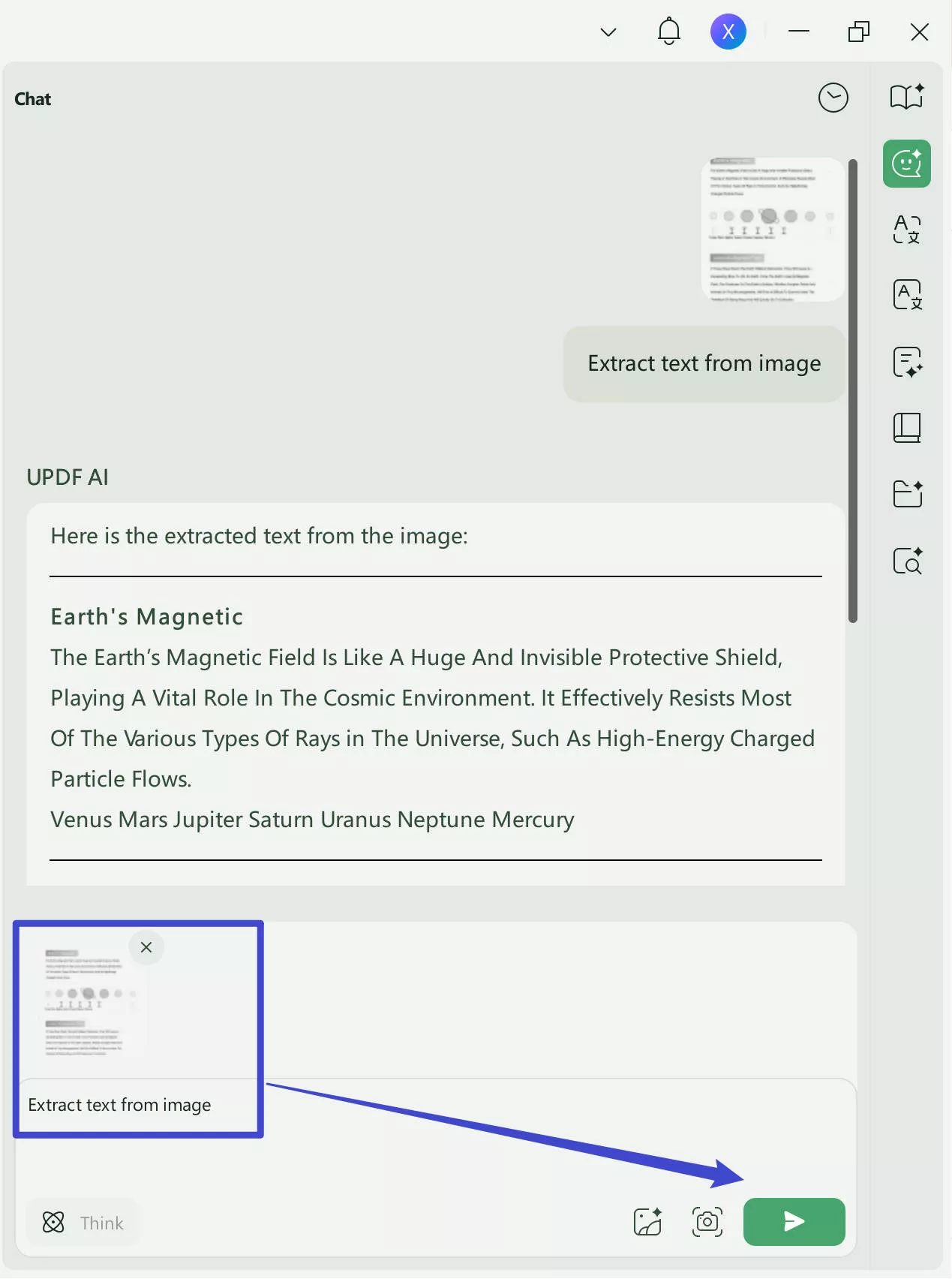
UPDF not only has OCR and AI features, but you can read this review article or click the button below to download UPDF free trial to learn more about it.
Windows • macOS • iOS • Android 100% secure
Frequently Asked Questions About OCR
1: How Does OCR Work?
Optical character recognition works with scanners to process the hardcopy of documents. After copying all pages, OCR software, such as UPDF, enables you to convert the document to a two-color or black-and-white version.
The scanned image analyzed dark and light areas. The dark areas are classified as characters that require identification, and areas of light are classified as background.
These dark regions are processed to identify numerals or alphabetic letters. This is typically done by focusing on only one word, character, or text block simultaneously. Characters are then identified with any of the two methods:
- Pattern recognition.
- Feature recognition.
Pattern Recognition
Pattern recognition is used when the OCR application is supplied with text samples with various fonts and formats to identify and match the characters within the document or image files.
Feature Recognition
Feature detection happens as the OCR applies rules to the specific features of a numeral or letter to detect characters that are scanned into the document. It is a feature that can be identified by the amount of crossed lines, angled lines, and curvatures in characters.
For Example, Letter "A" appears as two straight lines intersecting a horizontal line that runs across the middle. If a character is recognized by a computer, it is transformed into the ASCII code (American Standard Code for Information Interchange), which computers use to process other modifications.
The OCR software also analyzes the structure of an image. It breaks the page down into parts, such as blocks of text, tables, or images. The lines are separated into words and then into characters. After the characters are isolated, the software analyzes them using a series of patterns. The software will present the matched text after processing the possible matches.
2: What are the User Cases of OCR?
In 2021, as everything is going digital and technologically advanced, OCR technology is being employed by various companies to improve efficiency in processes in the business, increase accessibility, and increase customer satisfaction.
Below are some of the well-known applications of OCR in the industry today.
OCR Technology In Health Department
OCR technology has proven to benefit healthcare professionals. In the health department, OCR technology allows patient medical histories to be accessible digitally by both doctors and patients.
Furthermore, the patient's records, such as their treatment, X-rays, blood test reports, hospital records, and insurance records, can be searched, scanned, and saved using OCR technology.
This is why optical character recognition can streamline the workflow and reduce hospital work while keeping medical records current.
OCR Technology In Communication
The most common use of OCR is digitizing documents and books, making human-to-human communication more efficient. One example of this can be Google Translate OCR technology which lets users translate any text into any language.
OCR Technology In Banking
One example of the use of OCR within the banking industry is the use of mobile banking apps where checks can deposit electronically and processed in a matter of days using OCR-based check depositing functions.
Another application of OCR within the banking sector is to keep track and analyze your customers' data, including personal and security data.
Banking transactions are characterized by a large quantity of data entry related to the bank statements. OCR-based technology can help keep workflow running smoothly with high accuracy for text recognition each time.
Additionally, OCR can also be beneficial in capturing sensitive information in pay slips and mortgage applications.
OCR Technology In Legal Affairs
It permits legal firms to print documents, such as affidavits, filings, judgments, wills, and statements, among others, digitalized. PDF in legal industry is widely used.
OCR Technology In Insurance
OCR can also help the growing insurance industry. In particular, OCR can automate insurance claims processing to speed up transactions.
3: What are the Benefits of OCR?
OCR, or Optical Character Recognition, provides various benefits, many of which were covered in the article. But, the most significant advantages of OCR are given below for information.
- Accuracy: Software-based optical character recognition eliminates human error, resulting in better accuracy.
- Affordable: OCR technology doesn't need a huge amount of resources, which decreases the cost of processing and consequently lowers the overall cost of a company.
- Improved customer satisfaction The availability of searchable information to customers will ensure a positive experience and increase customer satisfaction.
- Last but not least, Enhances productivity: Accessibility of searchable data creates an accessible, stress-free environment for employees, allowing them to concentrate on the primary objectives, increasing the efficiency and productivity of any business.
As machine learning continues to develop, it expands beyond data capture and offers numerous applications across various industries.
Using the OCR facility unlocks multiple abilities and conveniences for users in their digital life. With UPDF, the accessibility to this feature has been made easier for users on a large scale for editing or searching scanned documents.
Conclusion
Hope this article provides you with enough information about what OCR means. If you want to use the OCR and get accurate results, you can click the button below to download UPDF. In the free version, you can only experience the OCR.





 Enola Miller
 Enya Moore
 Enola Davis