 UPDF
UPDF
 UPDF for Windows
 UPDF for Mac
 UPDF for iPhone/iPad
 UPDF for Android
 Nomostar
 UPDF AI Online
 UPDF Sign
 IvyCraft
 Edit PDF
 Annotate PDF
 Create PDF
 PDF Form
 Edit links
 Convert PDF
 OCR
OCR PDF to Word
 PDF to Image
 PDF to Excel
 Organize PDF
 Merge PDF
 Split PDF
 Crop PDF
 Rotate PDF
 Protect PDF
 Sign PDF
 Redact PDF
 Sanitize PDF
 Remove Security
 Read PDF
 UPDF Cloud
 Compress PDF
 Print PDF
 Batch Process
 About UPDF AI
 UPDF AI Solutions
 AI User Guide
 FAQ about UPDF AI
 Summarize PDF
 Translate PDF
 Chat with PDF
 Chat with AI
 Chat with image
 PDF to Mind Map
 Explain PDF
 PDF AI Tools
 Image AI Tools
 AI Chat Tools
 AI Writing Tools
 AI Study Tools
 AI Working Tools
 Other AI Tools
 AI Bookmark Generation
 AI Bookmark Summary
 AI Watermark Generation
 AI Background Generation
 AI Sticker Generation
 AI Stamp Generation
 AI Editing Suite
 UPDF Copilot
 AI Page Management
 AI Semantic Search
 PDF to Word
 PDF to Excel
 PDF to PowerPoint
 Enterprise Solution
 Enterprise Sign
 Enterprise AI
 Enterprise Plan
 Enterprise User Guide
 Enterprise Webinar
 IT
IT Education
 Construction
 Financial Service
 Healthcare
 Insurance
 Legal
Legal Manufacturing
 Government
 Researchers & PhDs
 Solopreneurs & Freelancers
 Lawyers & Legal Professionals
 Real Estate Agents & Brokers
 Education Solution
 Customer Stories
 User Guide
 UPDF Tricks
 FAQs
FAQs UPDF Reviews
 Download Center
 Blog
Blog Newsroom
 Tech Spec
 Updates
 UPDF vs. Adobe Acrobat
 UPDF vs. Foxit
 UPDF vs. PDF Expert

Need to highlight important text in a PDF on your iPad? With UPDF for iOS, you can highlight PDF text, change colors, add comments, and use Apple Pencil for natural markup.
A few well-chosen marks can make a dense page much easier to revisit. A helpful next reference is the following demonstration of using the PDF annotation tools in UPDF.
After adding highlights, you can open the comment list to view all annotations and tap any item to jump back to the highlighted part. This is useful for reviewing study notes, research papers, contracts, reports, or meeting materials.
In this guide, you will learn how to highlight a PDF on iPad with UPDF, use Apple Pencil for PDF markup, and fix common issues when a PDF cannot be highlighted.
Windows • macOS • iOS • Android 100% secure
Using This Workflow on iPadOS 27
Recheck the Files, Preview or Markup, multitasking, and Apple Pencil steps on iPadOS 27. Current devices such as iPad Pro with M5 and iPad Air with M4 can use the same core PDF workflow, but tool names and placement may differ between the built-in apps and UPDF.
Can You Highlight a PDF on iPad?
Yes, you can highlight a PDF on iPad. You can use the built-in Markup tools in iPadOS for basic annotations, but if you want more flexible PDF highlighting, color options, comments, Apple Pencil support, and PDF management tools, a dedicated PDF app like UPDF is a better choice.
With UPDF on iPad, you can:
- Highlight PDF text in different colors
- Underline or strikethrough important content
- Add comments, notes, stickers, and shapes
- Use Apple Pencil to mark up PDFs naturally
- Edit, organize, convert, and manage PDF files
If you often read or review PDFs on your iPad, UPDF gives you a more complete PDF annotation experience than the default viewer.
Windows • macOS • iOS • Android 100% secure
How to Highlight a PDF on iPad with UPDF?
With UPDF, you can highlight PDF on iPad for the contents of a PDF file effortlessly. Numerous highlighting options are available for professionals to make free-hand annotations, draw horizontal lines, enlarge text, etc.
But it accomplishes a lot more than simply enabling highlights. Users can also annotate PDF on iPad easily, such as adding text comment, sticky notes, shapes, signatures, and so on.
Let's look at how to highlight PDF on iPad with UPDF.
- After you have opened the UPDF app, tap the "Tools" button that you can easily find in the left corner.
- Select the file you want to import.
- Choose the highlighter pen icon from the list shown at the top. Click on the "Comment" at the left side menu. Now, you are in the highlight mode.
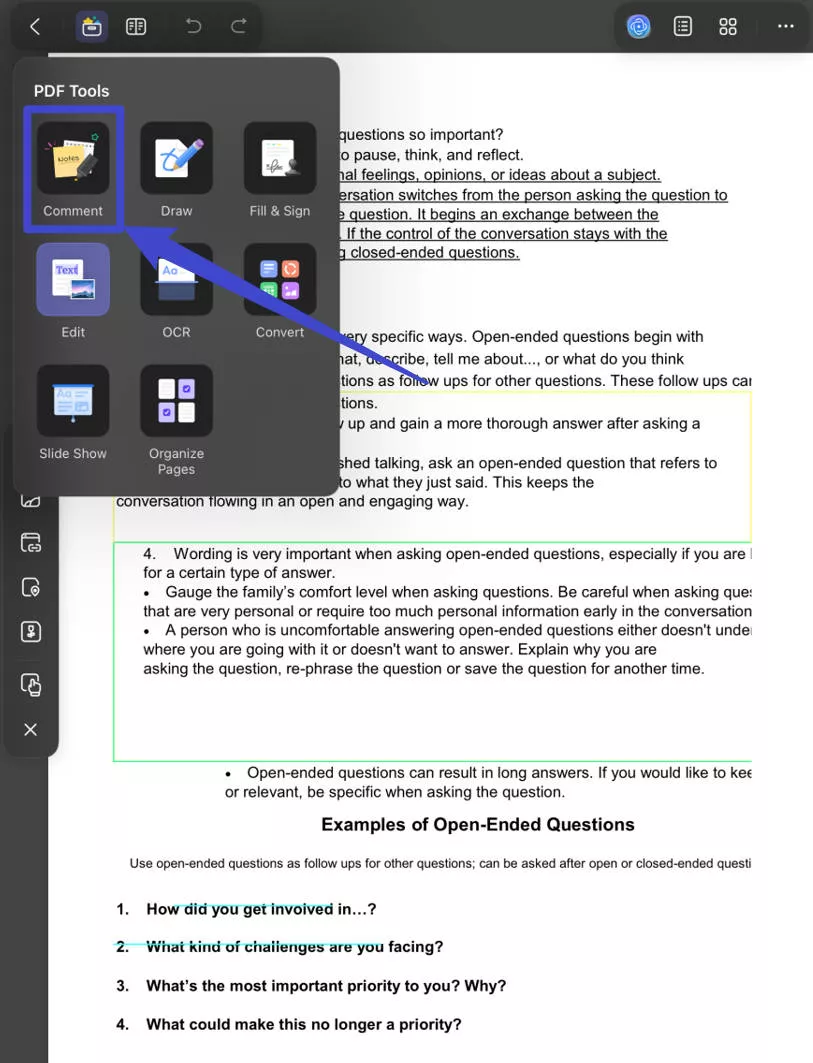
- You can update the highlight color by tapping on the "Color" setting option. A range of colors will pop up. Choose which color you want the highlight to show.
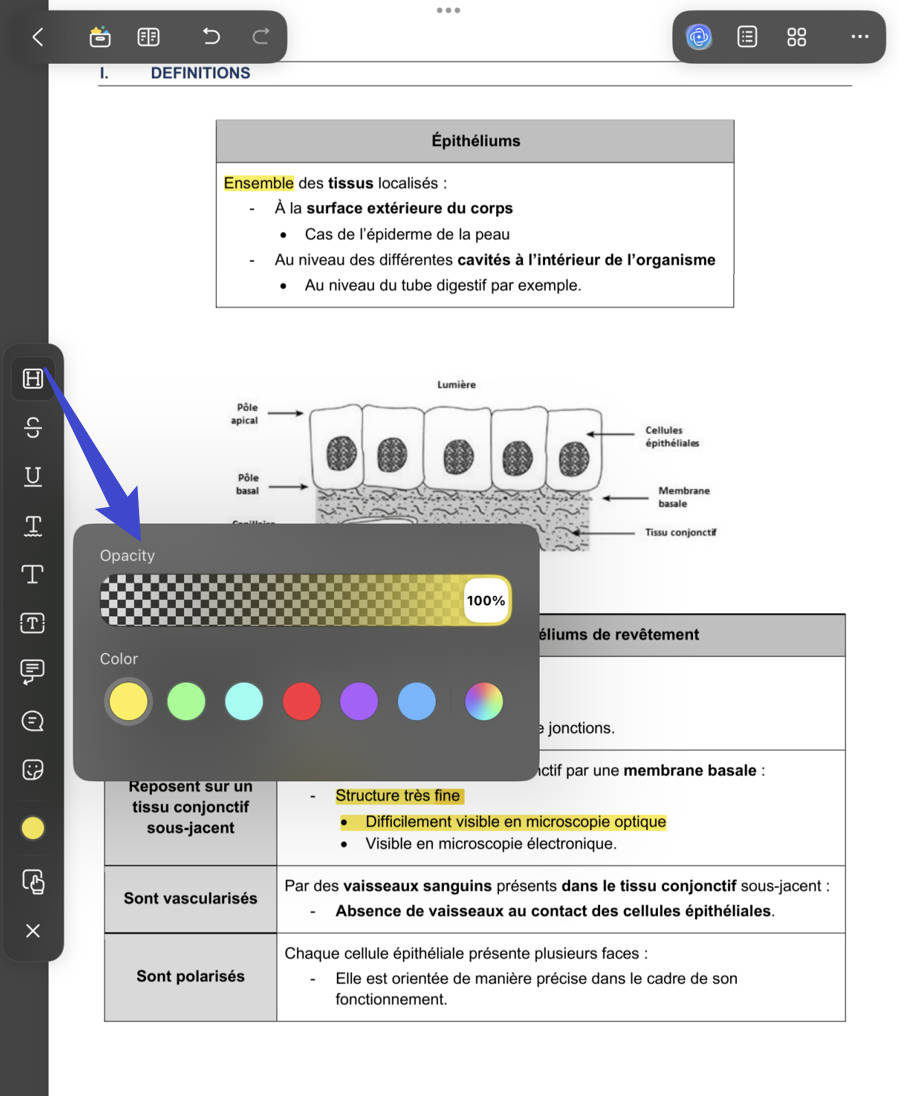
- Tap and drag the section of the document where you want to highlight.
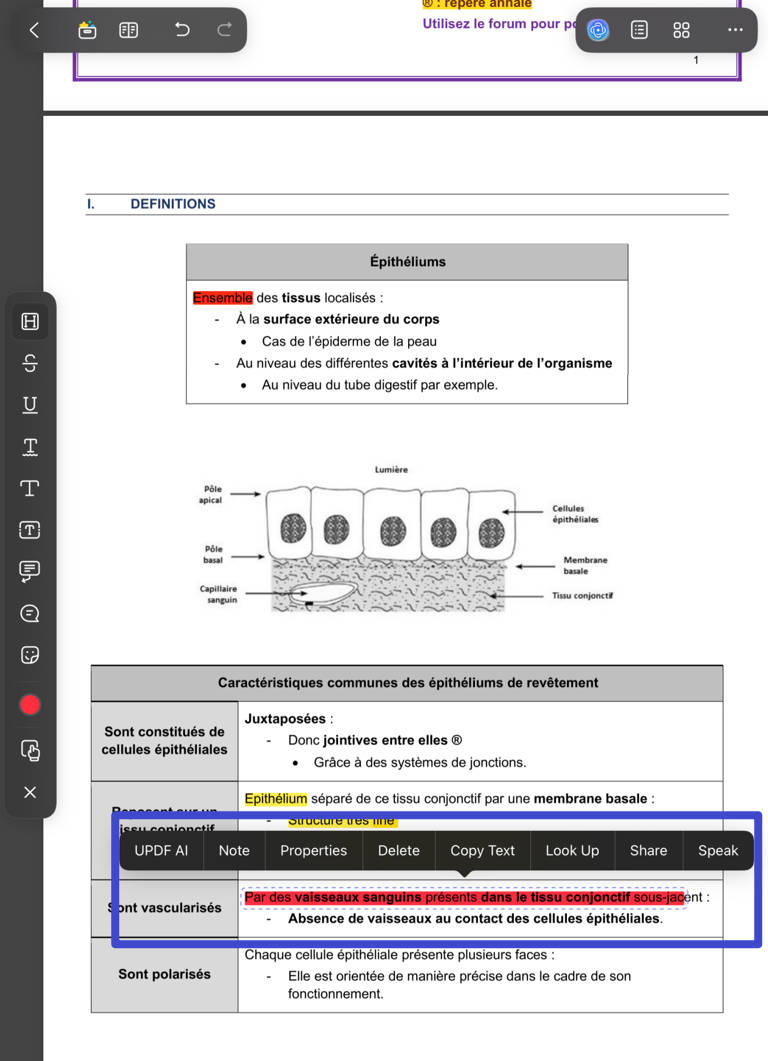
- If you want to remove the highlights, you can tap on the highlights and tap "Delete" from the options.
Want to highlight PDF with UPDF now? Download it via the below button.
Windows • macOS • iOS • Android 100% secure
Also Read: How to Change Highlight Color in PDF
How to Highlight a PDF on iPad with Apple Pencil?
If you use an Apple Pencil, UPDF also lets you highlight and annotate PDFs in a more natural way.
Open your PDF in UPDF, go to Comment mode, and choose the Highlight tool. Then use your Apple Pencil to drag over the text you want to mark. You can also use the Pencil tool to circle key points, draw arrows, underline sentences, or add handwritten notes in the margins.
This is especially useful for students, teachers, researchers, and professionals who prefer writing directly on PDFs while reading.
UPDF also allows you to adjust colors and line styles, so your annotations stay clear and organized.
What If You Cannot Highlight a PDF on iPad?
Sometimes, you may find that you cannot select or highlight text in a PDF on your iPad. This usually happens for one of the following reasons.
1. The PDF Is Scanned
If your PDF is a scanned document or image-based file, the text is not real selectable text. In this case, you need OCR to recognize the text before highlighting it.
You can learn more from this guide: how to make a PDF highlightable.
2. The PDF Is Protected
Some PDFs are password-protected or have restrictions that prevent editing, copying, or commenting. If the file owner has disabled annotations, you may not be able to highlight the PDF directly.
For this situation, check this guide: how to highlight a protected PDF.
3. The Text Layer Is Not Recognized
Even if a PDF looks like normal text, it may not contain a proper text layer. This often happens with exported images, scanned books, or flattened PDF files. You may need OCR or another annotation method, such as highlighting an area instead of selecting text.
If you need to mark a non-selectable section, you can also learn how to highlight an area in PDF.
UPDF vs. iPad Built-in Markup: Which One Should You Use?
The iPad built-in Markup tool is useful for quick notes, but it is limited if you work with PDFs often. Here is a simple comparison.
| Feature | UPDF for iPad | iPad Built-in Markup |
|---|---|---|
| Highlight PDF text | Yes | Basic |
| Change highlight color | Yes | Limited |
| Add comments and sticky notes | Yes | Limited |
| Use Apple Pencil | Yes | Yes |
| Manage PDF pages | Yes | Limited |
| Edit PDF content | Yes | No |
| OCR scanned PDFs | Yes, with supported features | No |
| Better for long-term PDF reading | Yes | Basic use only |
If you only need to quickly draw on a file, iPad Markup may be enough. But if you need to read, highlight, comment, organize, and manage PDFs regularly, UPDF is the better option.
FAQs
1. Can I highlight a scanned PDF on iPad?
Not directly if the scanned PDF does not have selectable text. You need OCR to recognize the text first, or use an area highlight/markup tool to visually mark the content. You can also learn make a PDF highlightable if your file cannot be selected or highlighted.
2. How do I change the highlight color in a PDF on iPad?
In UPDF, tap the highlighted text and choose a new color from the annotation options. You can use different colors to organize different types of information. For a detailed guide, read change highlight color in PDF.
3. How do I remove highlights from a PDF on iPad?
Tap the highlighted text in UPDF, then choose the delete option to remove the highlight. This will remove the annotation without deleting the original PDF text. You can also check how to remove highlighted text in PDF for more methods.
Conclusion
Highlighting PDFs on iPad is simple with the right tool. If you only need basic markup, the built-in iPad tools may work. But if you want a smoother way to highlight text, change colors, add comments, use Apple Pencil, and manage PDF files, UPDF for iPad is a more complete solution.
Download UPDF for iOS and start highlighting your PDFs on iPad with ease.
Windows • macOS • iOS • Android 100% secure







 Čserná Anna
 Enid Brown
 Lizzy Lozano

 Enola Davis