 UPDF
UPDF
 UPDF for Windows
 UPDF for Mac
 UPDF for iPhone/iPad
 UPDF for Android
 Nomostar
 UPDF AI Online
 UPDF Sign
 IvyCraft
 Edit PDF
 Annotate PDF
 Create PDF
 PDF Form
 Edit links
 Convert PDF
 OCR
OCR PDF to Word
 PDF to Image
 PDF to Excel
 Organize PDF
 Merge PDF
 Split PDF
 Crop PDF
 Rotate PDF
 Protect PDF
 Sign PDF
 Redact PDF
 Sanitize PDF
 Remove Security
 Read PDF
 UPDF Cloud
 Compress PDF
 Print PDF
 Batch Process
 About UPDF AI
 UPDF AI Solutions
 AI User Guide
 FAQ about UPDF AI
 Summarize PDF
 Translate PDF
 Chat with PDF
 Chat with AI
 Chat with image
 PDF to Mind Map
 Explain PDF
 PDF AI Tools
 Image AI Tools
 AI Chat Tools
 AI Writing Tools
 AI Study Tools
 AI Working Tools
 Other AI Tools
 AI Bookmark Generation
 AI Bookmark Summary
 AI Watermark Generation
 AI Background Generation
 AI Sticker Generation
 AI Stamp Generation
 AI Editing Suite
 UPDF Copilot
 AI Page Management
 AI Semantic Search
 PDF to Word
 PDF to Excel
 PDF to PowerPoint
 Enterprise Solution
 Enterprise Sign
 Enterprise AI
 Enterprise Plan
 Enterprise User Guide
 Enterprise Webinar
 IT
IT Education
 Construction
 Financial Service
 Healthcare
 Insurance
 Legal
Legal Manufacturing
 Government
 Researchers & PhDs
 Solopreneurs & Freelancers
 Lawyers & Legal Professionals
 Real Estate Agents & Brokers
 Education Solution
 Customer Stories
 User Guide
 UPDF Tricks
 FAQs
FAQs UPDF Reviews
 Download Center
 Blog
Blog Newsroom
 Tech Spec
 Updates
 UPDF vs. Adobe Acrobat
 UPDF vs. Foxit
 UPDF vs. PDF Expert

Quick answer:
The right PDF cropper for Mac depends on what you need to control: a single page boundary, consistent margins across a document, or professional print boxes. This comparison focuses on those differences, alongside pricing and Mac-specific capabilities.
Cropping changes the visible page area. It is different from deleting whole pages, extracting pages into another file, or scaling a document for printing. Choose the tool for the task—not simply the longest feature list.
Part 1. 4 PDF Croppers for Mac
These desktop options serve different cropping needs. The comparison uses documented capabilities, not a timed performance benchmark.
1. UPDF — For Consistent Cropping Across a Page Range
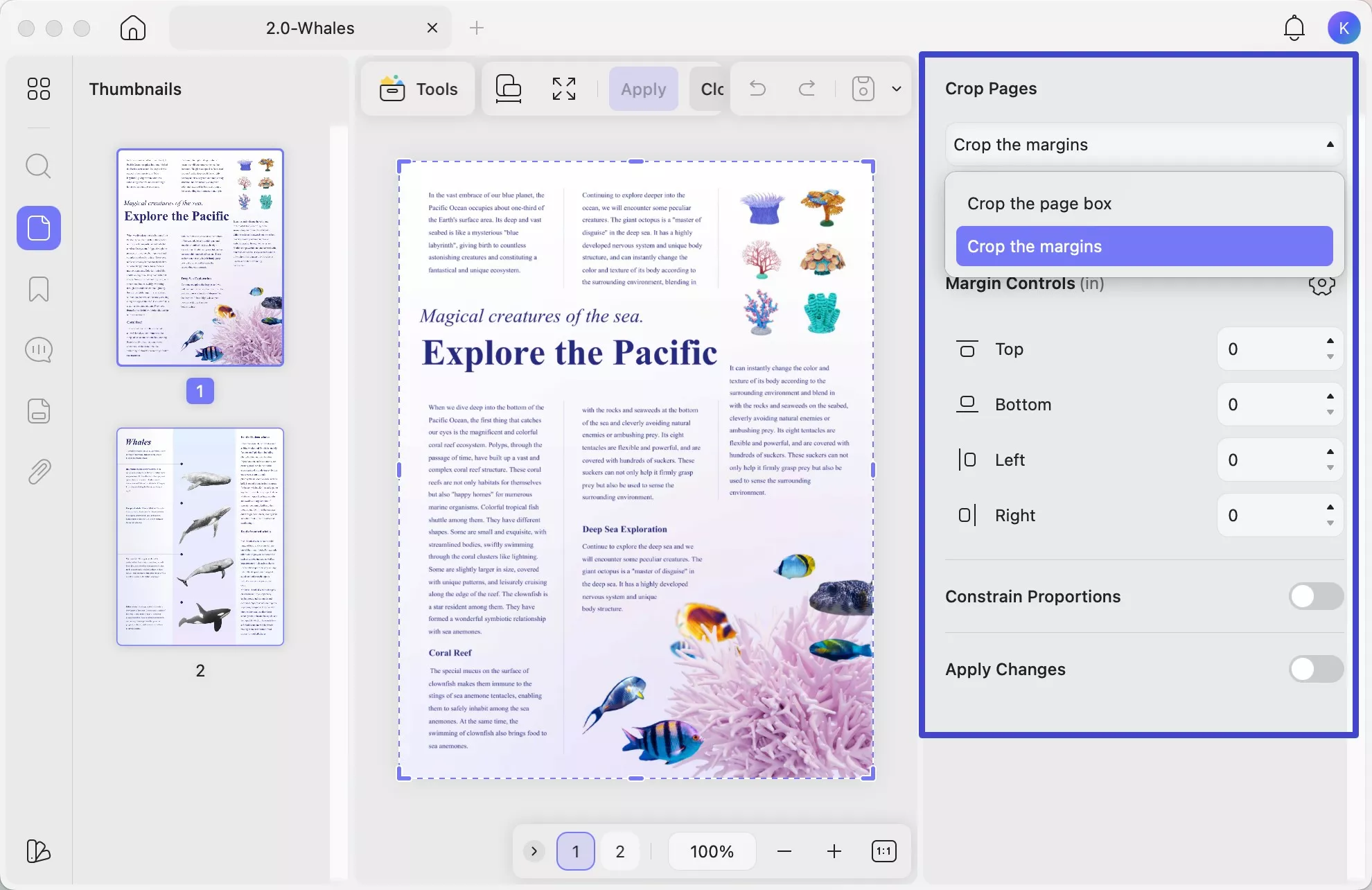
UPDF for Mac lets you adjust the page box or margins and apply the same crop settings to a custom page range. That makes it worth considering when a report needs consistent boundaries across several pages, rather than a one-off trim. Its crop controls also support restoring crop changes.
Windows • macOS • iOS • Android 100% secure
Best for:
- Reports with repeated margins, or applying the same crop settings to selected pages in one PDF.
Skip if:
- You expect one crop rectangle to fit mixed page sizes or layouts without checking each result.
Price: The official UPDF pricing page lists US$49.99/year or US$79.99 for a lifetime license. Optional add-ons are separate. The free trial adds a watermark when saving edited files.
Try UPDF on a copy of a representative document to check whether its crop controls suit your page layouts.
Windows • macOS • iOS • Android 100% secure
2. Preview — For Occasional Cropping Without Another Purchase
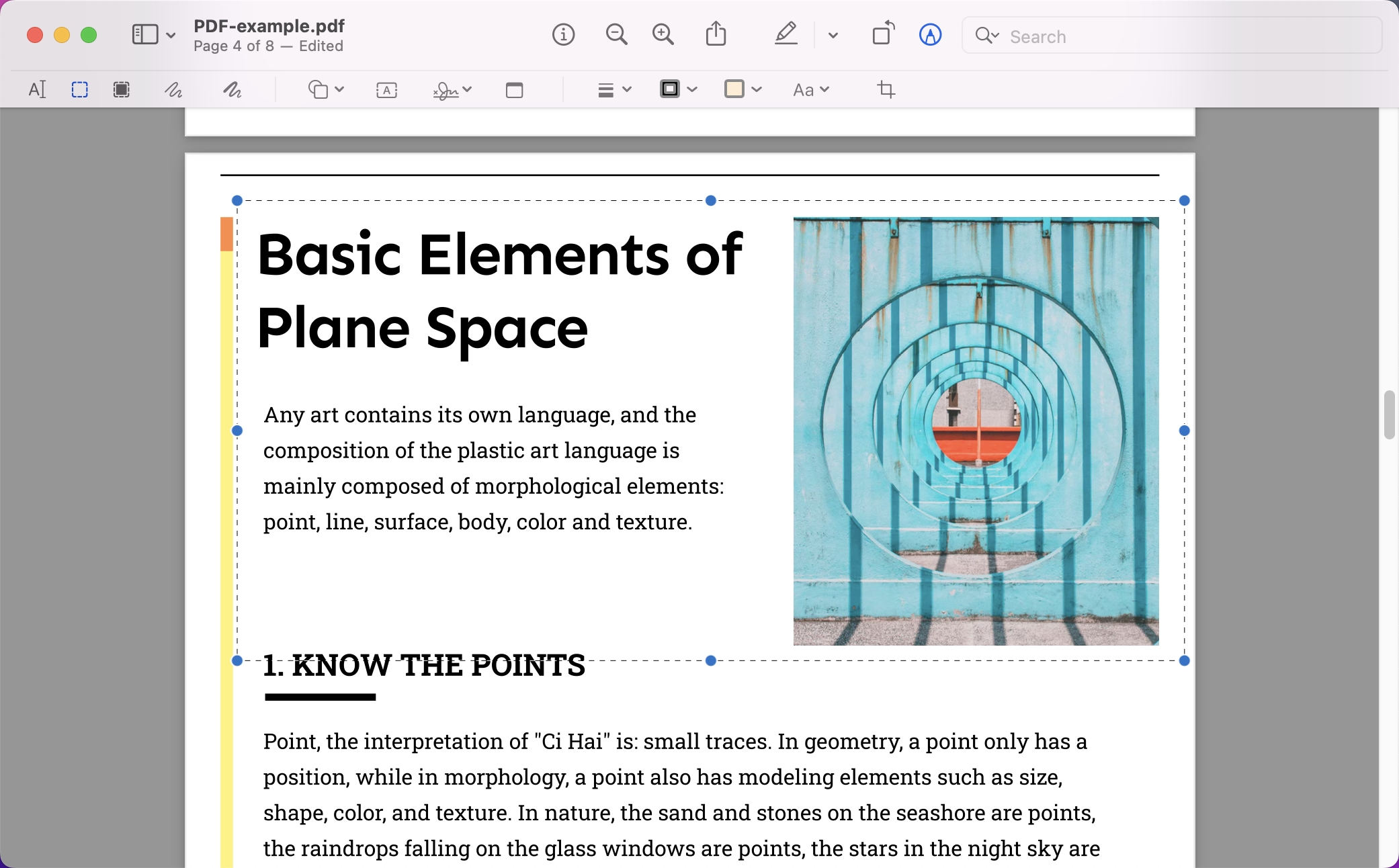
Preview is included with macOS and is a practical starting point for occasional PDF cropping. Its Crop Inspector displays selection dimensions, giving you a way to check the size of a rectangular selection.
Preview also supports page management, including creating a new PDF from page thumbnails. Those capabilities are separate from cropping; the app is not limited to viewing PDFs.
Best for:
- Occasional trimming with the built-in Mac app and no additional software purchase.
Skip if:
- Your workflow depends on professional print-box management or explicit controls for reusing a crop across a custom page range.
Price: Free. For instructions, see how to crop a PDF in Preview.
3. Adobe Acrobat Pro — For Print-Production Page Boxes
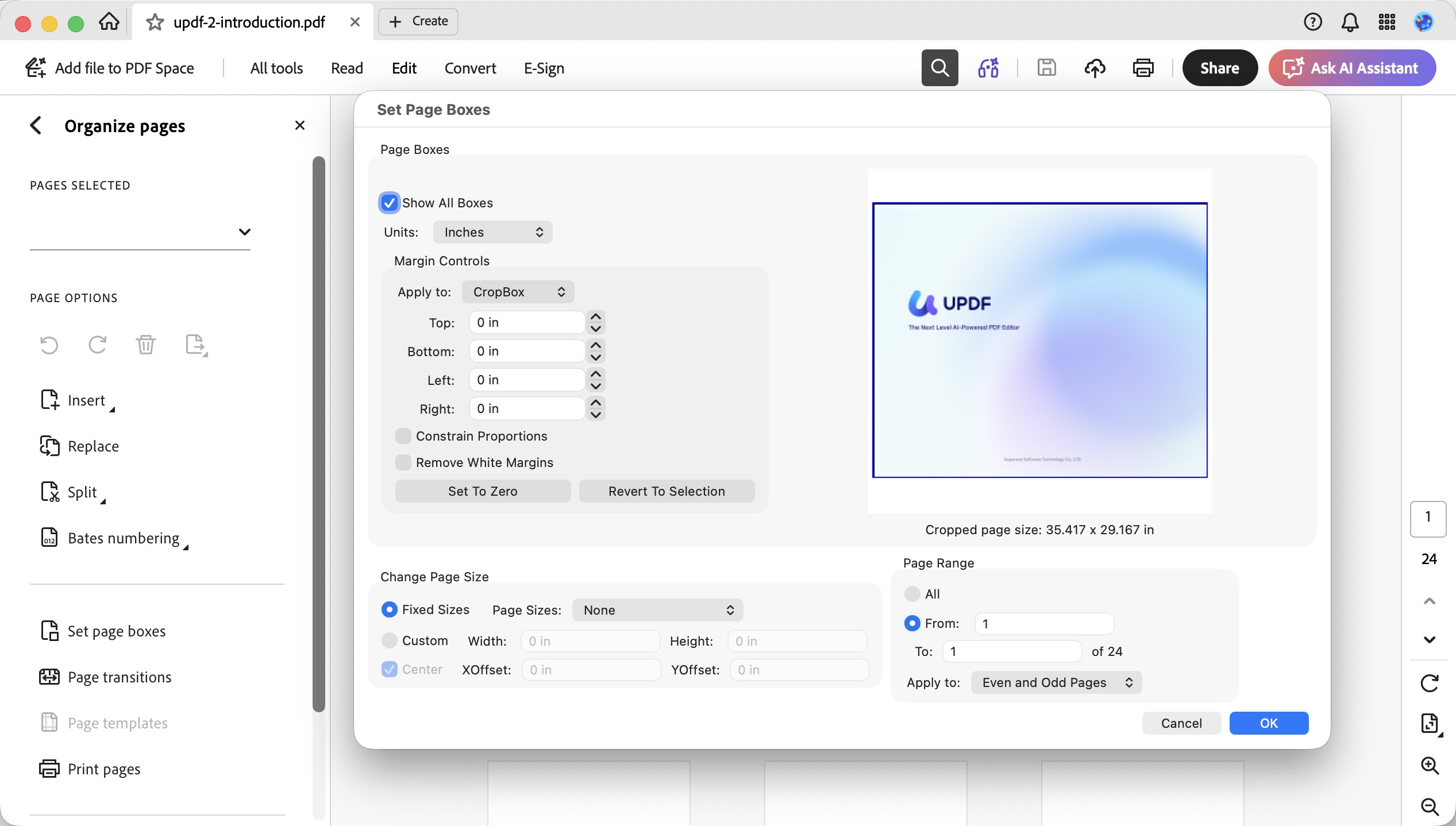
Acrobat Pro is worth considering when cropping is part of a print-production workflow. Its Set Page Boxes controls distinguish the visible CropBox from ArtBox, TrimBox, and BleedBox settings, with options for margins and page ranges.
That additional control matters when a document must meet a printer’s specifications. It is less compelling when the only task is trimming an occasional page.
Best for:
- Documents with printer-specified trim, bleed, or other professional page-box requirements.
Skip if:
- You would buy a subscription solely to crop an occasional PDF.
Price: Acrobat Pro’s US individual plan is US$19.99/month with an annual commitment, billed monthly—US$239.88 over 12 months, not per month. Check the cancellation terms before subscribing.
4. Nitro PDF Pro for Mac — For Document-Wide Cropping
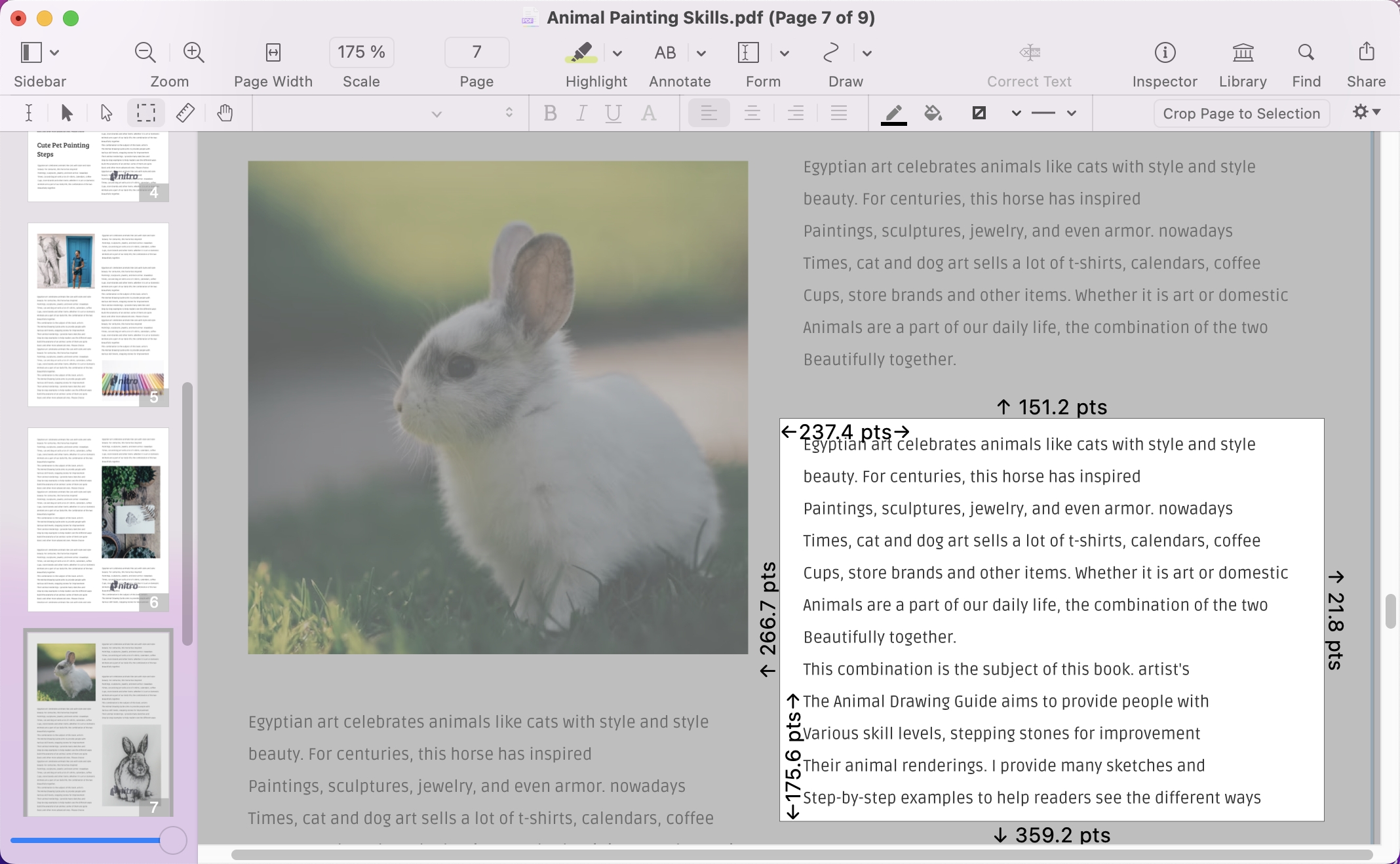
Nitro’s Mac application supports a rectangular crop selection with visible dimensions and a document-wide cropping option. Its Mac cropping guide also describes creating a new PDF from a selection, which is a different task from simply changing the visible page boundary.
Best for:
- Applying a consistent crop to an entire document within an existing Nitro workflow.
Skip if:
- You are considering Nitro PDF Classic for a Mac: that plan is Windows-only.
Price: Nitro PDF Standard is listed at US$15/user/month, billed annually at US$180/user/year, with Mac support. Taxes may apply. Confirm the Mac application and license entitlement for the plan you choose.
Part 2. Compare PDF Croppers for Mac: What Matters Most?
Crop precision: Look for dimensions, margin settings, or page-box controls that match the output you need. A movable rectangle may be enough for occasional trimming; print-production files may require distinct trim and bleed boxes.
Multi-page scope: Check whether settings can be applied to selected pages or the entire document. Applying a crop across pages in one PDF is not the same as batch-processing several PDF files.
Mac compatibility and cost: Compare the Mac desktop features, not a Windows feature list. Check the current macOS requirements and test your own documents before paying for a plan.
| Tool | Crop controls | Documented multi-page scope | Best-fit task | Price reference (USD) |
|---|---|---|---|---|
| UPDF | Page box and margins | Custom page range | Consistent margins on selected pages | $49.99/year or $79.99 lifetime |
| Preview | Rectangular selection; dimension inspector | Not rated here for a page-range workflow | Occasional built-in cropping | Included with macOS |
| Acrobat Pro | CropBox, ArtBox, TrimBox, BleedBox; margins | Page range or all pages | Print-production requirements | $19.99/month, annual commitment |
| Nitro PDF Pro for Mac | Measured rectangular selection | Entire document | Document-wide cropping | Standard: $180/user/year |
Prices reflect the official US-dollar listings checked for this comparison and may change. Billing terms, taxes, and optional add-ons can affect the total. Screenshots are illustrative; interface details may vary by version.
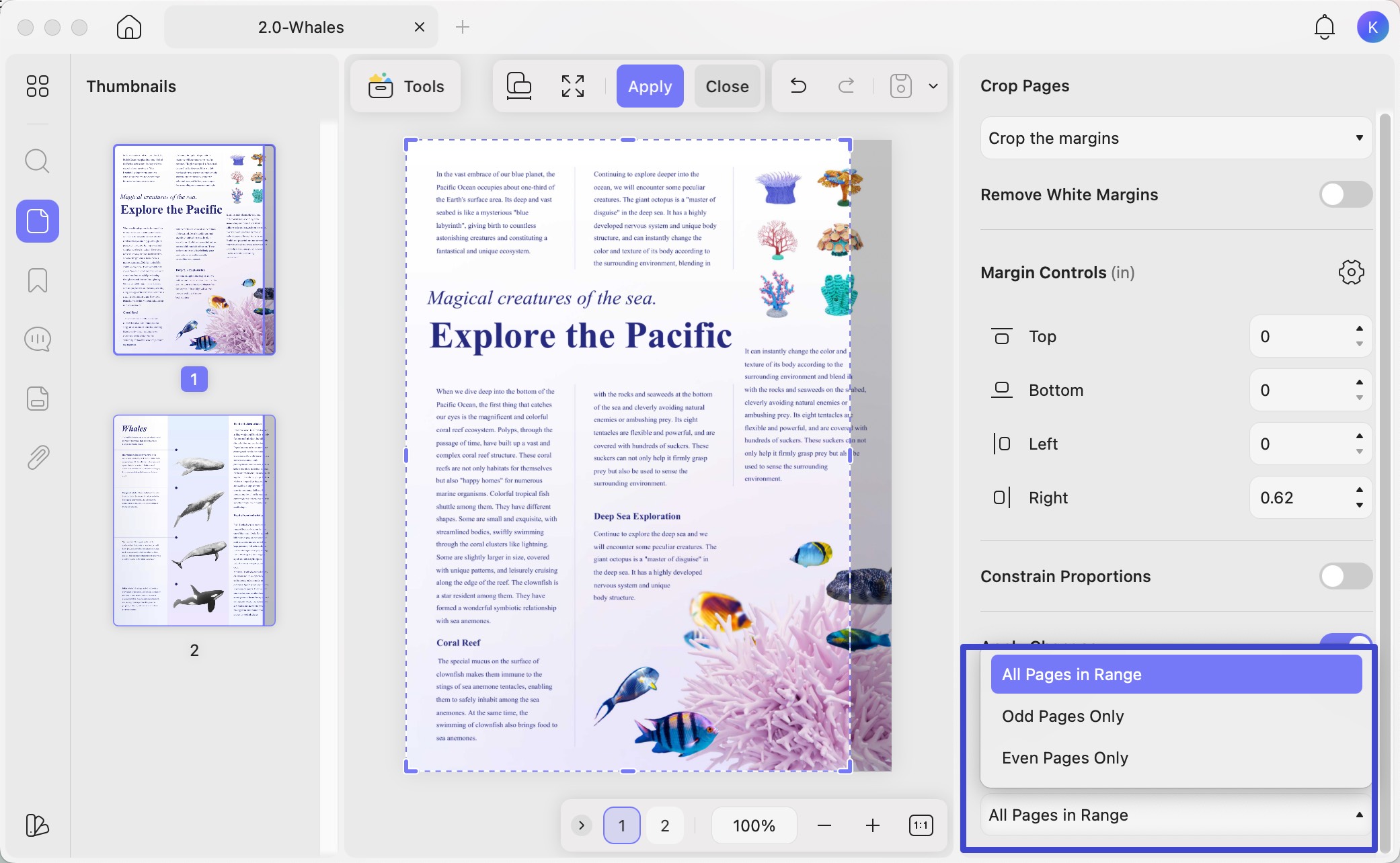
Need consistent margins across several pages? Download UPDF for free to try page-range cropping on a copy of your document. A paid license removes the trial watermark from saved files.
Windows • macOS • iOS • Android 100% secure
Conclusion
Choose Preview for occasional trimming, UPDF for reusable crop settings across a page range, Acrobat Pro for professional page-box requirements, or Nitro PDF Pro for document-wide cropping within a Nitro workflow. Before paying, test a representative document containing the page sizes and layouts you actually use.
If page-range cropping matches your workflow, try UPDF with your own PDF before choosing a license.
Windows • macOS • iOS • Android 100% secure
FAQs About PDF Croppers for Mac
1. Does cropping a PDF reduce its file size?
Not necessarily. Page-boundary cropping typically hides the area outside the crop box while retaining the underlying document data. If your goal is a smaller attachment or upload, use PDF compression and compare the resulting file size and readability.
2. Do I need OCR before cropping a scanned PDF?
No. Cropping adjusts the visible boundary of a page, so it does not require the text in a scanned image to be recognized first. OCR is a separate task for making scanned text searchable or editable. Check that the crop does not cut off content you want to keep.
3. Why does my cropped PDF look different when printed?
Paper size and print scaling can change how the cropped page fits on a sheet. Check the print preview before printing. In Preview, Print Entire Image fits the content without additional cropping, while Fill Entire Paper can crop it to the paper proportions. Choose settings that match your intended output.




 Enola Miller
 Enid Brown
 Lizzy Lozano
 Enrica Taylor