 UPDF
UPDF
 UPDF for Windows
 UPDF for Mac
 UPDF for iPhone/iPad
 UPDF for Android
 UPDF AI Online
 UPDF Sign
 Edit PDF
 Annotate PDF
 Create PDF
 PDF Form
 Edit links
 Convert PDF
 OCR
OCR PDF to Word
 PDF to Image
 PDF to Excel
 Organize PDF
 Merge PDF
 Split PDF
 Crop PDF
 Rotate PDF
 Protect PDF
 Sign PDF
 Redact PDF
 Sanitize PDF
 Remove Security
 Read PDF
 UPDF Cloud
 Compress PDF
 Print PDF
 Batch Process
 About UPDF AI
 UPDF AI Solutions
 AI User Guide
 FAQ about UPDF AI
 Summarize PDF
 Translate PDF
 Chat with PDF
 Chat with AI
 Chat with image
 PDF to Mind Map
 Explain PDF
 PDF AI Tools
 Image AI Tools
 AI Chat Tools
 AI Writing Tools
 AI Study Tools
 AI Working Tools
 Other AI Tools
 AI Bookmark Generation
 AI Bookmark Summary
 AI Watermark Generation
 AI Background Generation
 AI Sticker Generation
 AI Stamp Generation
 AI Editing Suite
 UPDF Copilot
 AI Page Management
 AI Semantic Search
 PDF to Word
 PDF to Excel
 PDF to PowerPoint
 Enterprise Solution
 Enterprise Sign
 Enterprise AI
 Enterprise Plan
 Enterprise User Guide
 Enterprise Webinar
 Banking
 Healthcare
 Insurance
 Legal
Legal Manufacturing
 Government
 Education Solution
 Customer Stories
 User Guide
 UPDF Tricks
 FAQs
FAQs UPDF Reviews
 Download Center
 Blog
Blog Newsroom
 Tech Spec
 Updates
 UPDF vs. Adobe Acrobat
 UPDF vs. Foxit
 UPDF vs. PDF Expert

When dealing with receipts, you have to prefer precision and attention to detail. Individuals encounter inaccuracies in a receipt, especially when managing finances or seeking settlements. Whether it involves a misspelling of a name or missing information, such errors can cause confusion and potential issues.
For seamless text editing in any receipt type without confusion, UPDF serves as an excellent receipt editor. Additionally, it simplifies the process for any edits you need to make on various receipts. In this article, we'll explore its strong capabilities to accommodate users on their daily editing tasks.
Part 1. How to Edit a Receipt with UPDF
UPDF provides a comprehensive set of editing capabilities to customize receipts and other PDF documents with precision and ease. You can seamlessly alter various elements to ensure a professional and polished appearance for these receipts. Also, it allows you to edit the text on the receipt, including adding, changing, or deleting information. You can attach or edit images to provide a better visual look to your receipts.
Plus, this all-in-one editor lets you add links and watermarks for branding or security purposes. With its comprehensive set of tools, you can personalize the size of pages to fit the receipt layout requirements. Additionally, UPDF AI includes more powerful and high-tech features for you to complete your receipt, one of which is the ability to combine multiple receipts or invoices into one document. Now, let's discuss how to edit receipts and then how to merge multiple invoices into one statement through the easy-to-follow steps mentioned below:
Step 1. Download the UPDF PDF and Open the PDF Receipt
You can initiate the receipt editing process by downloading UPDF through the "Free Download" button below. Once it is downloaded, follow the installation instructions and launch the software on your device. From its main interface, tap on "Open File" to import the PDF receipt after searching.
Windows • macOS • iOS • Android 100% secure
Step 2. Edit the Text of Your Receipt
Now you need to go to the edit mode for receipt editing. After a successful import of files, it will open a new window. Within this screen, head to the left top corner and opt for the "Tools" > "Edit" tool to access several editing features to modify the elements of receipts.
To customize the text of the receipt, navigate to "Insert & Edit Text" icon, and click on it. Go through the document and click on the desired text. This action will display a toolbar menu with multiple options to adjust the size, color, or any other formatting aspects to suit your preferences. By pressing any of the options, make quick and precise changes to the text of the receipt. You can make modifications to the text as you are on a Word processor. You can even change or add new data to the selected text.
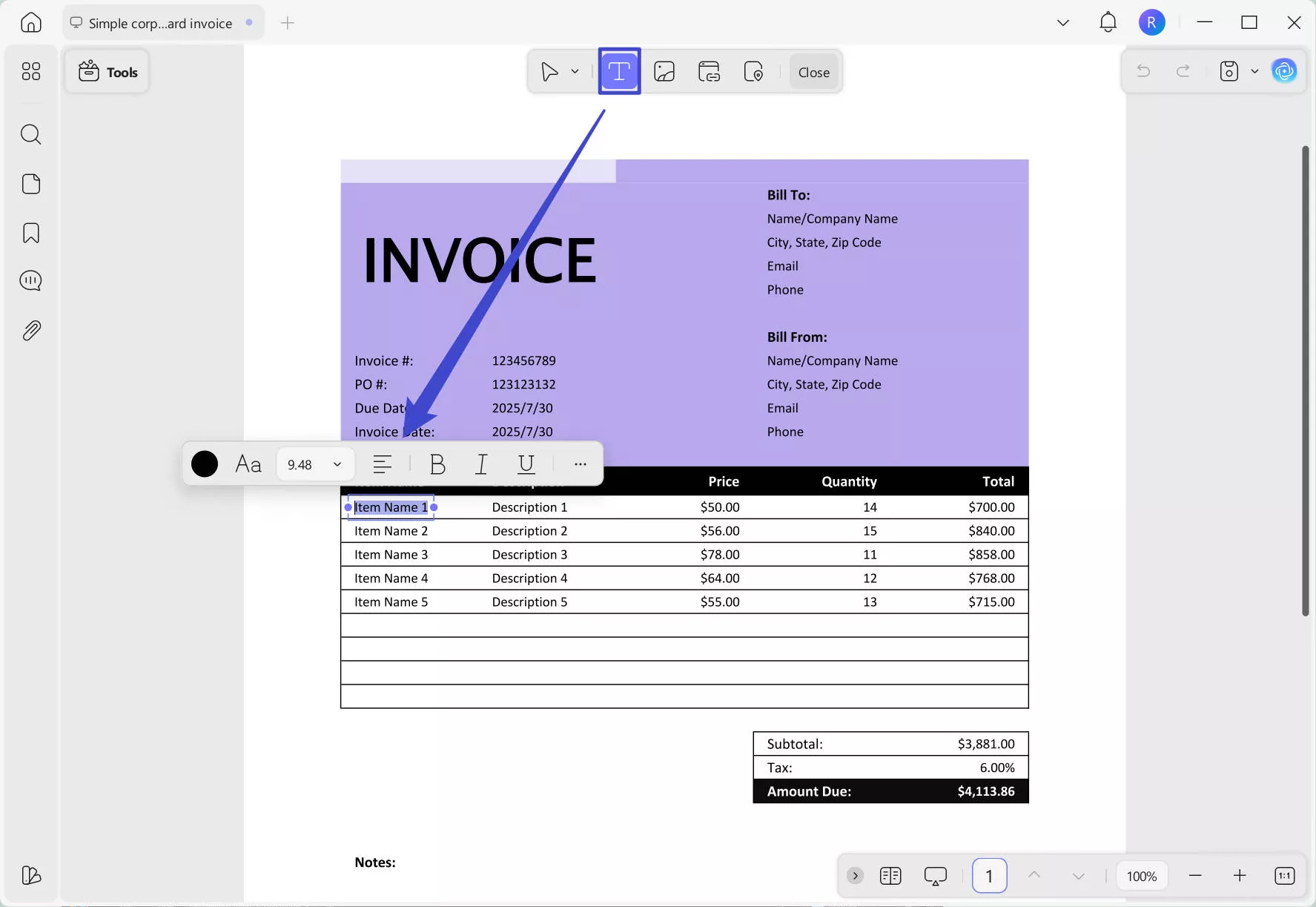
Step 3. Edit the Logo and Picture in the Receipt
If you want to know how to edit a picture of a receipt, head to the "Insert and Edit Image" icon this time. Now, double-click on the image that allows you to replace the existing picture with a new one. Additionally, from the toolbar shown above the image, you can rotate and extract the image. Also, crop the image by manually adding width and height to resize it.
You can transform your receipt editing with UPDF, the top-notch PDF editing tool. Hit the Free Download button and get it for free to access its exceptional features to edit text, images, watermarks, and more.
Windows • macOS • iOS • Android 100% secure
If you want to learn how to edit a PDF, please watch the video below:
Also Read: How to Edit Bill? (3 Easy Methods)
Since we've discussed how to edit receipts, some of you may face the situations like there are too many receipts or invoices. So, how can you combine them into a single one, official, and clear statement for a broader use? It's time-consuming and inefficient to combine them manually one by one, right?
That's where UPDF AI comes in. UPDF AI (2.5), driven by GPT-5 & DeepSeek R1, offers a wide range of intelligent features to streamline your workflow. As for the combination of invoices, UPDF AI is the best tool. Now, let's walk through the step-by-step guide to organize your files with UPDF in an easy and efficient way:
Step 1. Open the PDF of invoices or receipts within UDPF.
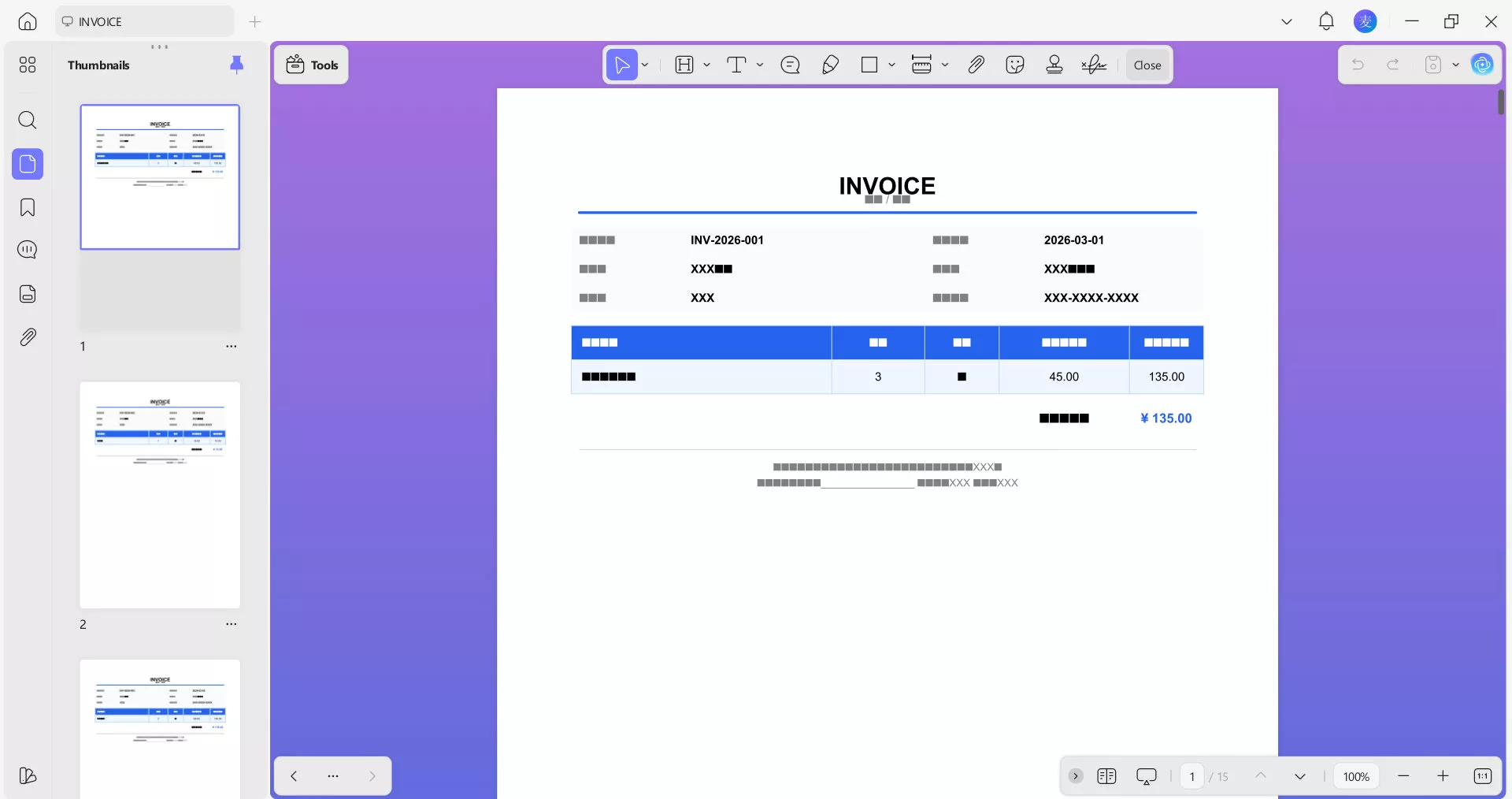
Step 2. Click "UPDF AI" in the top-right corner then choose "Ask PDF" button.
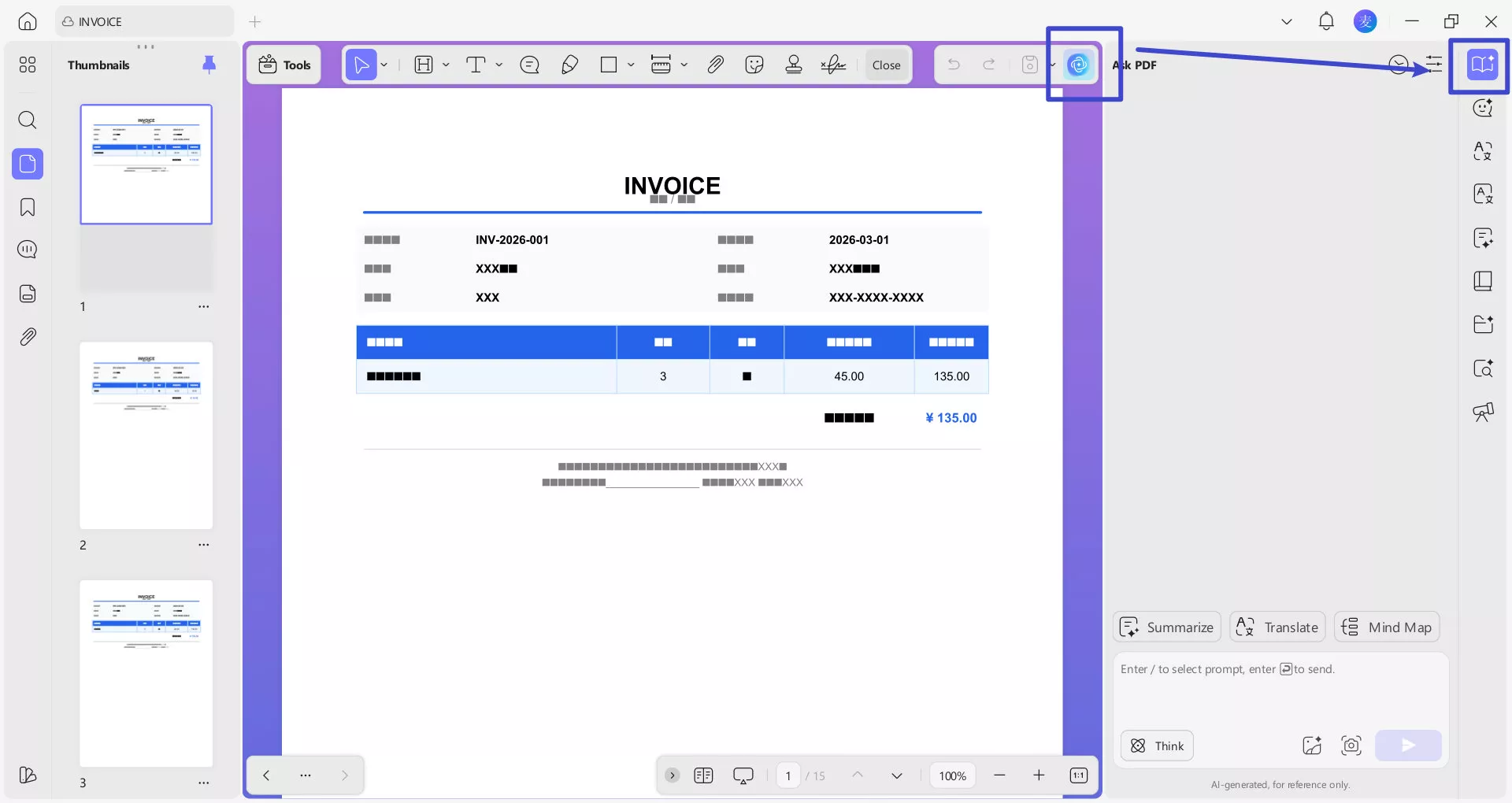
Step 3. Send your requirement to UPDF AI as clear as possible so that you can get a satisfying response.
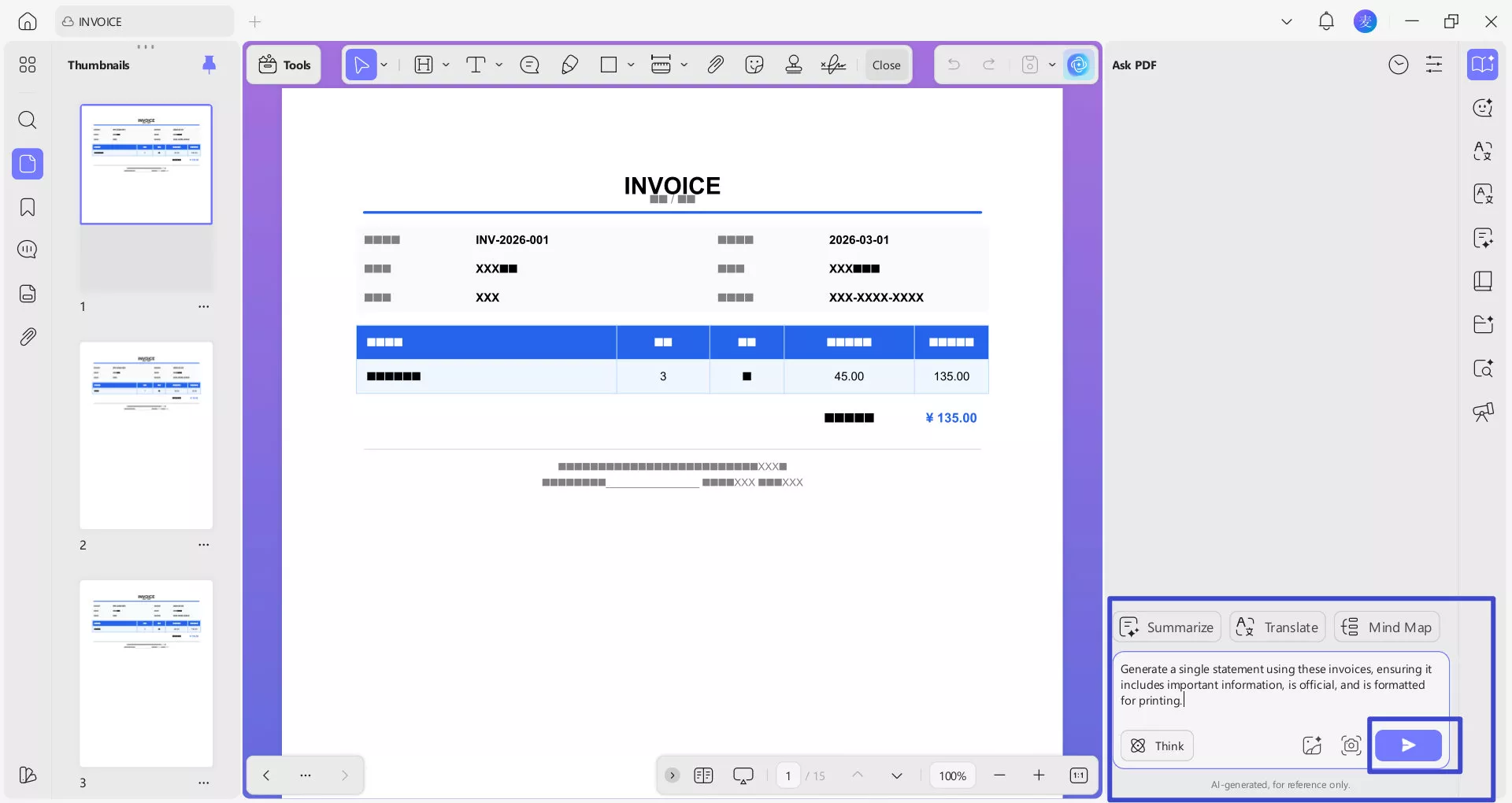
Step 4. Once done, you can click "Copy" or "Export & Delete" based on your own needs.
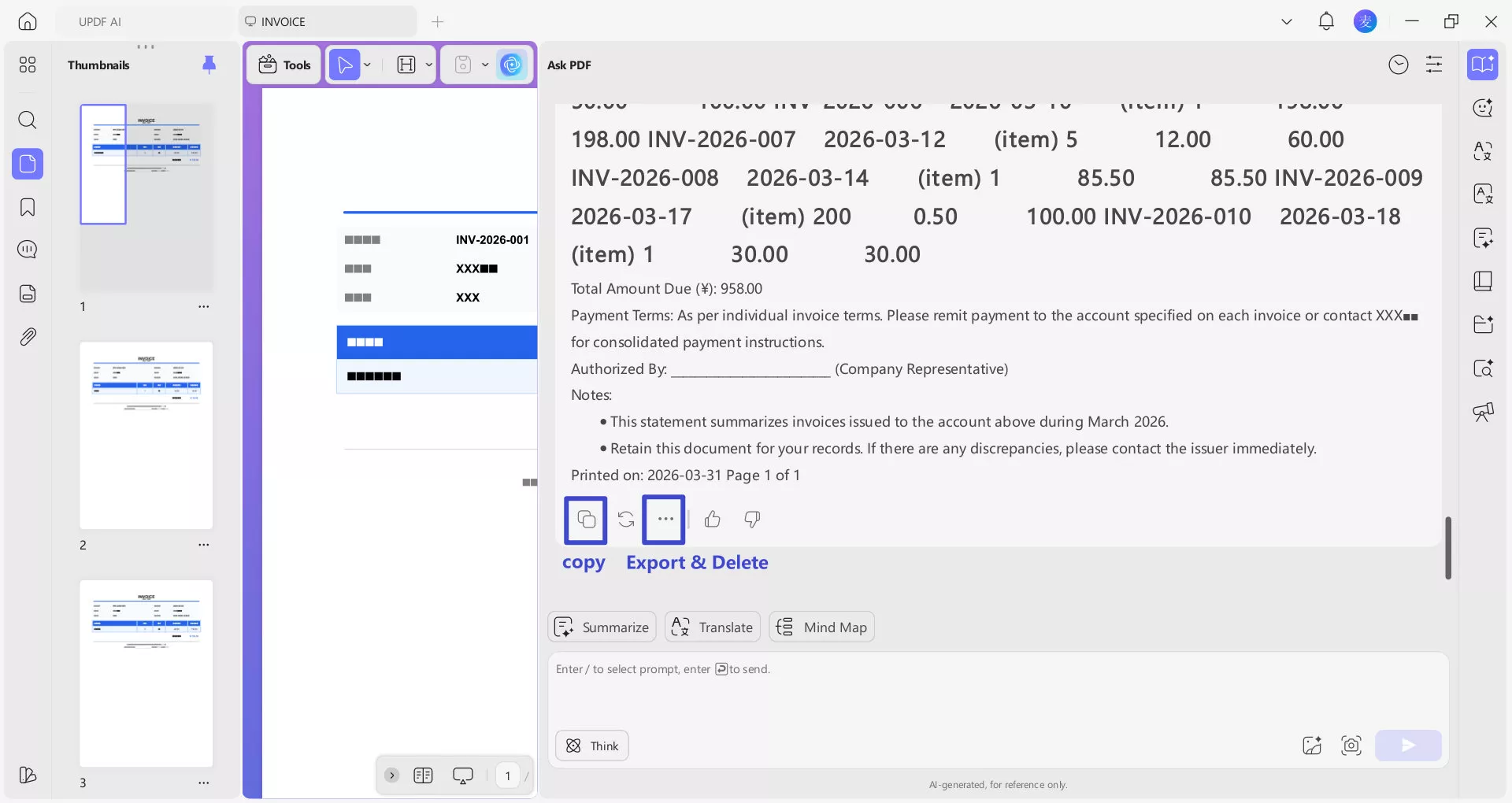
Apart from the features above, UPDF AI also comes with a number of features like AI semantic search, AI watermark generation and UPDF copilot. All of them are exceptional AI assistance to fasten your workflow and reduce manual effort.
And now it's the best time to have a try, for UPDF offers an exclusive $10 discount. But hurry, this offer may end on May 7th!
Windows • macOS • iOS • Android 100% secure
Part 2. How to Edit a Scanned Receipt with UPDF?
The common query arises: Can you edit a scanned receipt? The answer can be found in UPDF, a thorough PDF editing tool crafted to simplify this task. It empowers users to modify scanned receipts easily and saves them from the usual limitations linked with unchangeable document formats. Basically, editing scanned receipts is crucial for error correction and adding annotations.
Also, it facilitates customization for record-keeping to ensure compliance with regulations and helps in organization. In the following section, you'll find detailed instructions on editing scanned receipts with UPDF, a robust receipt editor app with OCR function.
Step 1. Access the OCR function to Edit Scanned Receipts
After launching UPDF at your end, open your scanned receipt on the tool. Click on the "Tools" and then "OCR".
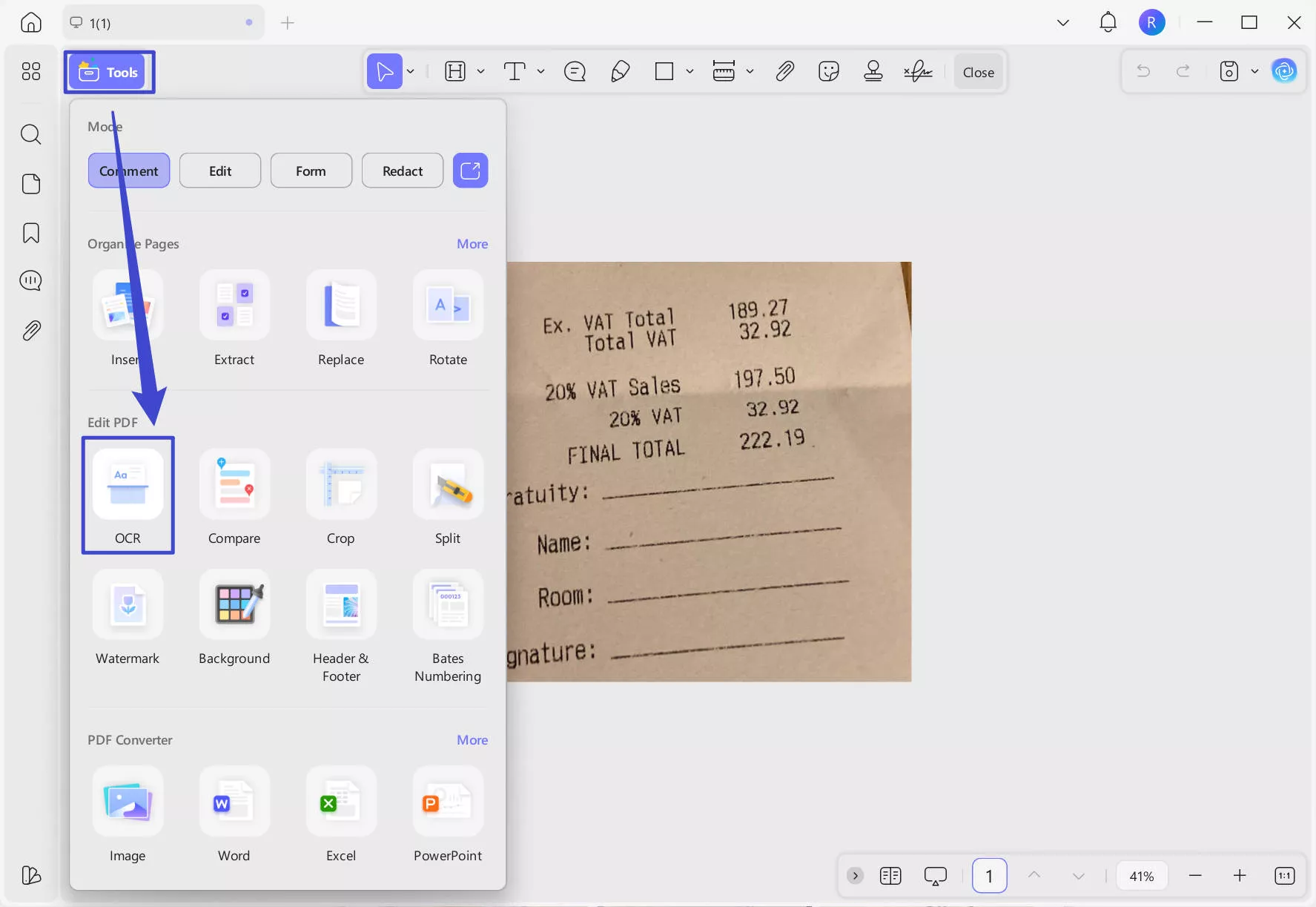
Step 2. Perform OCR to Make the Receipt Searchable and Editable
Upon accessing the OCR feature, a menu with different options will appear next to it. It is set to "Editable PDF" by default to transform scanned PDFs into editable documents. Choose the correct document language for accurate result.
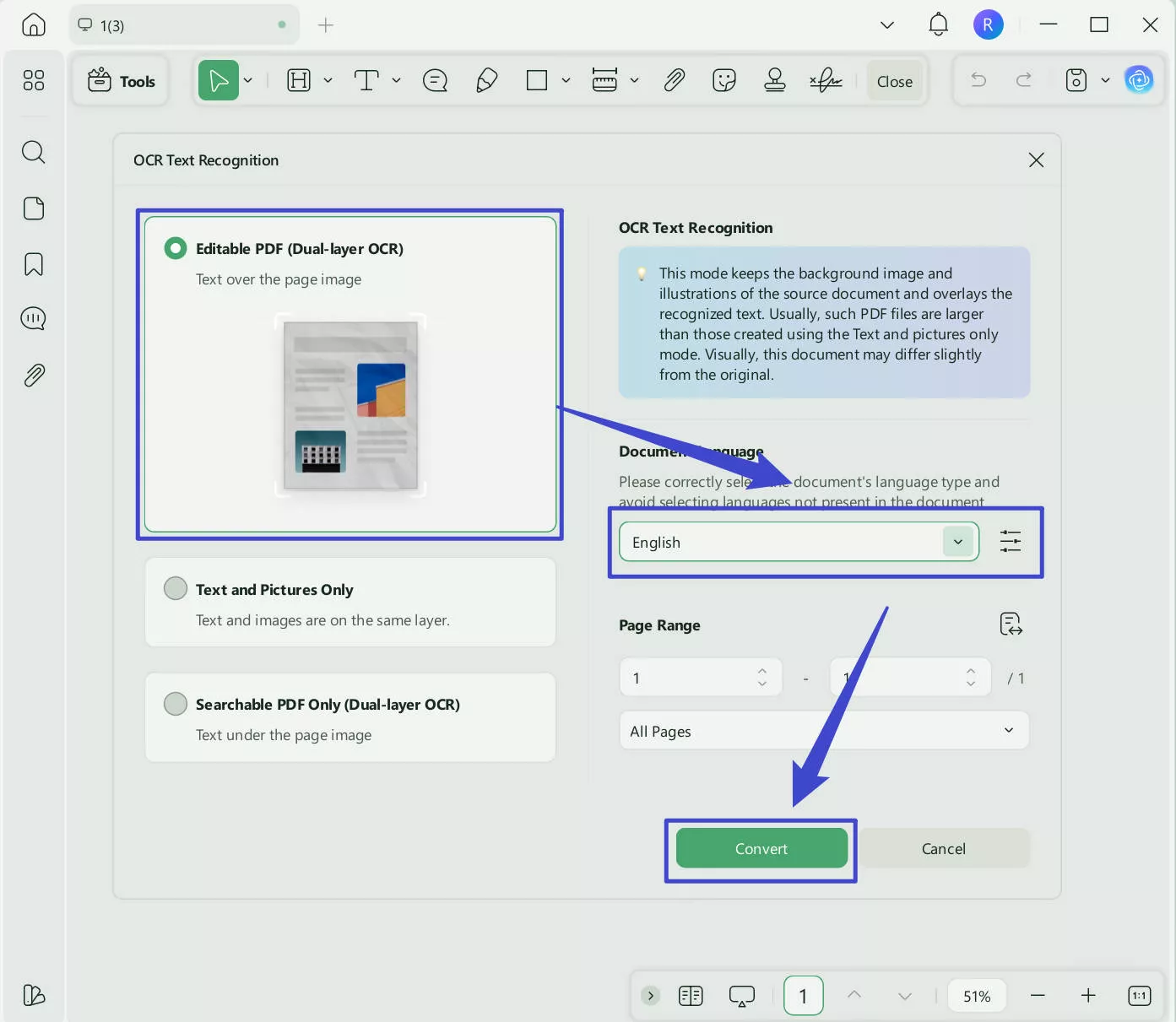
Step 3. Enter the Edit PDF Mode to Edit the Receipt
Once OCR is completed, it will be directly opened as an editable and searchable document on the tool. Now, you can process the same steps explained in Part 1. Select "Edit" from "Tools" to make changes to it. Now, you can make changes in the text style, size, alignment, and color. Moreover, you can alter the position, add, replace, and delete the available images in the file to meet your specific requirements.
Step 4. Make the Receipt Image-Only Again
Do you want to make the receipt non-editable again after making your desired changes?
Again, choose the "Image PDF" tool after clicking on the "arrow down" icon.
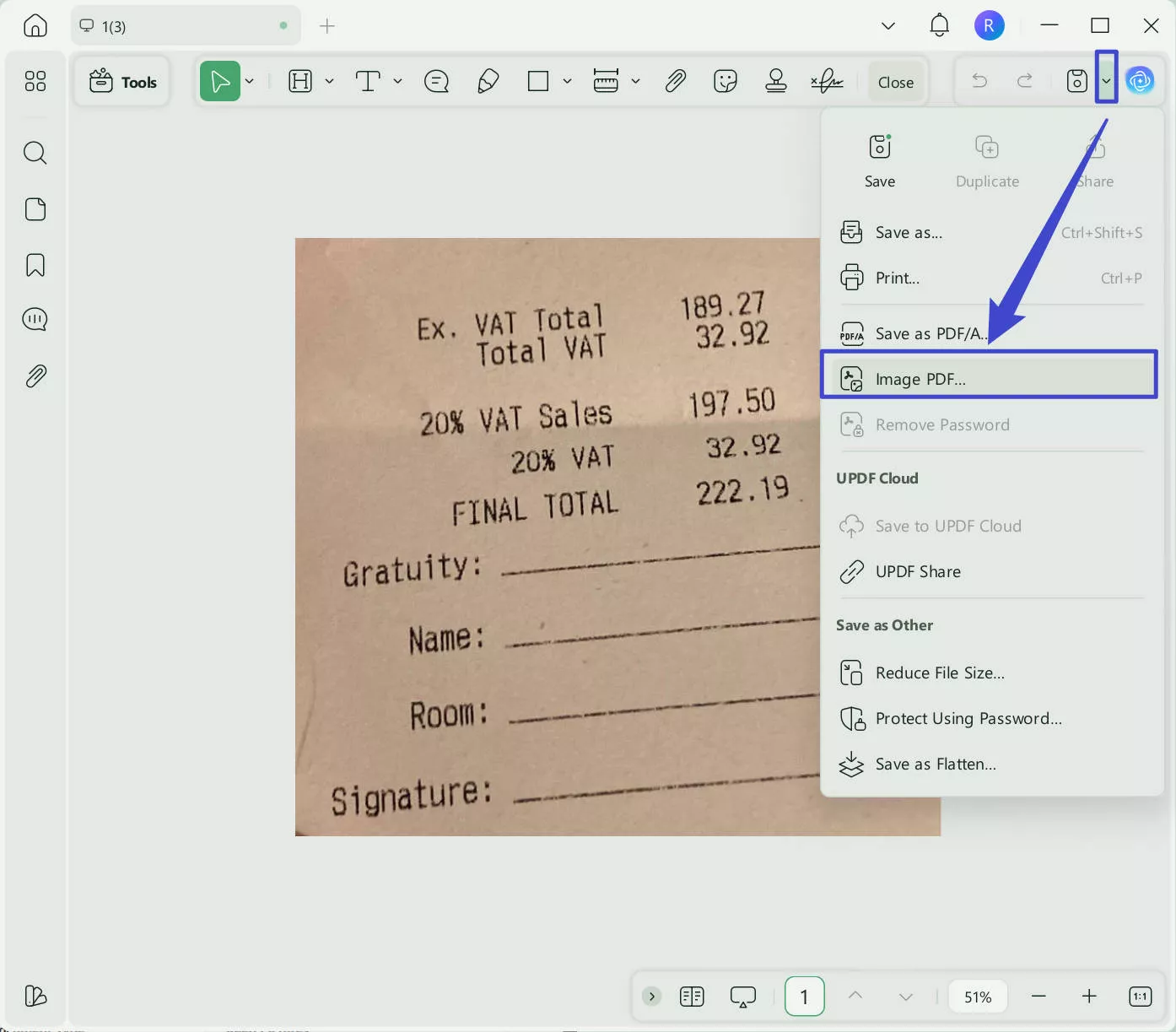
Click on the "Save" directly, as you do not need to change its appearance.
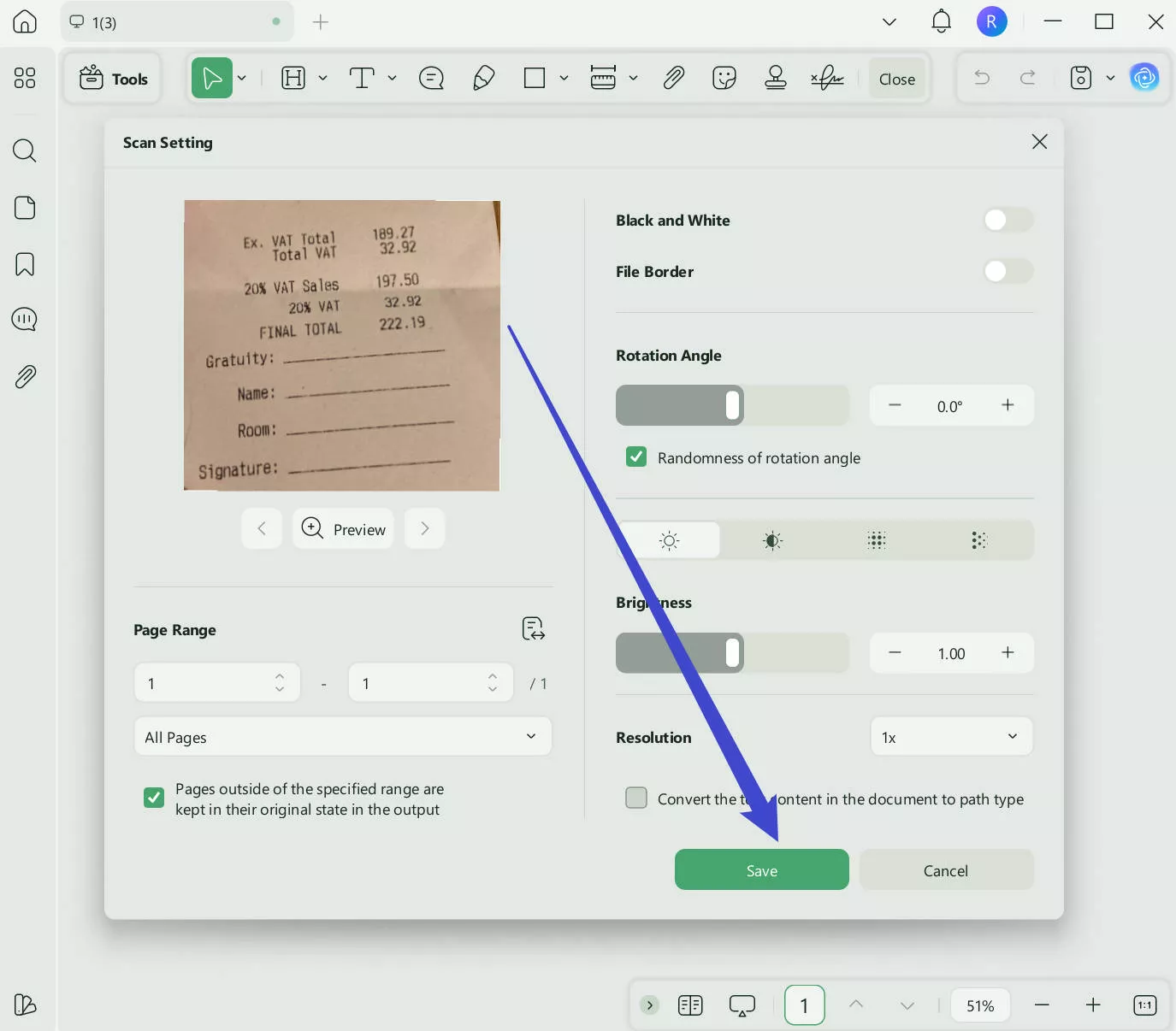
It is so easy to make the scanned receipt editable. Why not download UPDF via the button below to use it now? And it is a paid feature. But no worry, the price is very low. You can check and upgrade here. And it is more than a receipt editor; you can check this review to see all its features.
Windows • macOS • iOS • Android 100% secure
Part 3. Tips: Where Can You Free Download Receipt Templates
Receipt templates are valuable helpers that make it easy to create neat and professional receipts for all kinds of transactions. Furthermore, these templates ensure your records are consistent and clear for different businesses. Now, let's find out where you can get these useful receipt templates for free download.
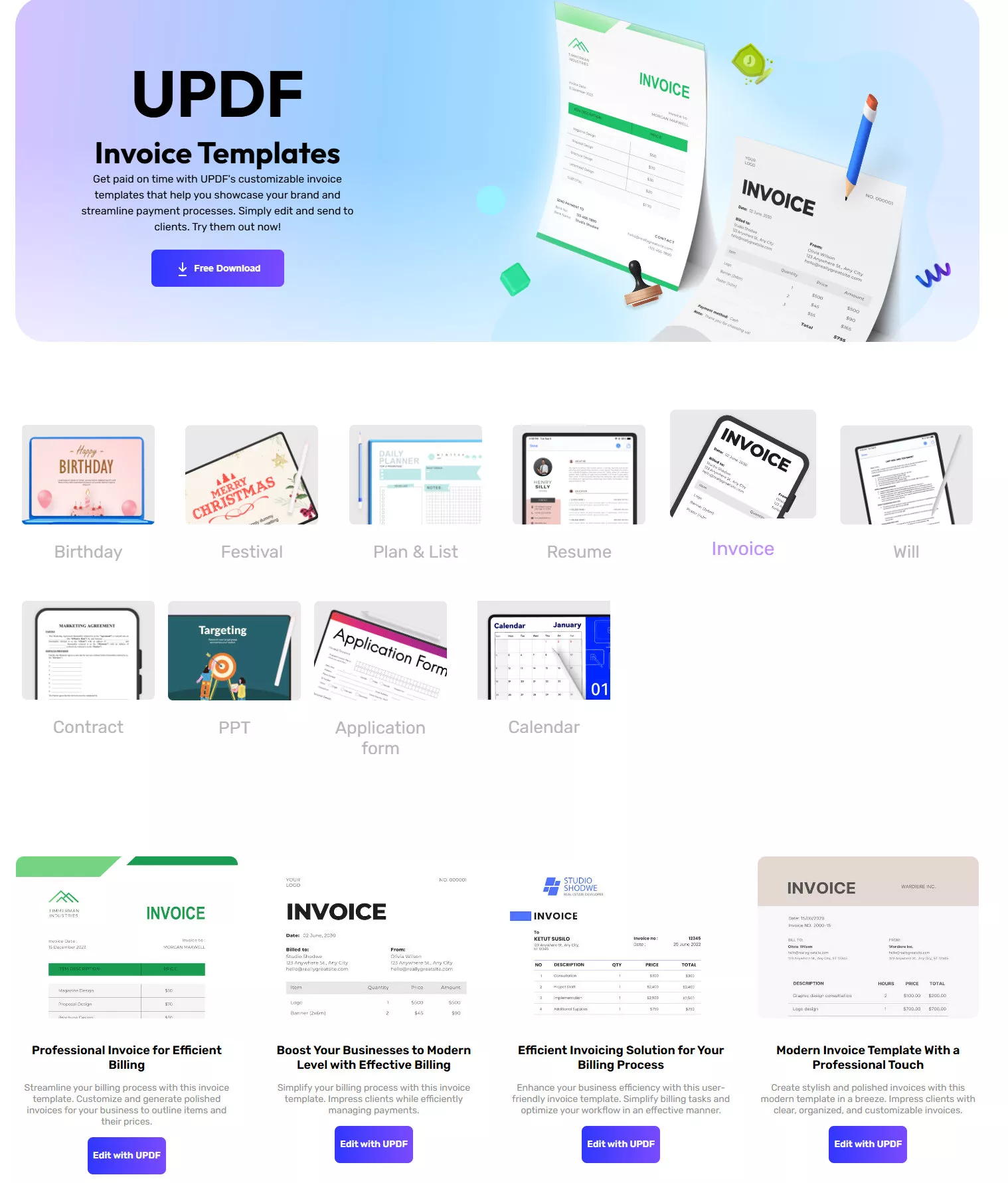
1. UPDF Templates Library
UPDF stands out as a comprehensive solution for anyone seeking free and efficient invoice templates to elevate the billing process. These professionally designed templates cater to various business needs and allow users to effortlessly create polished and organized invoices. With UPDF, users can customize and generate invoices that outline items and their corresponding prices to showcase a professional touch.
In addition, choosing UPDF as the template editor offers a multitude of advantages. You can personalize templates effortlessly using a range of editing tools and page tools for contract, proposal, and presentation creation. It prioritizes convenience and security while sharing exclusively made templates via links or email, with password protection. Businesses can efficiently manage their invoicing needs while enjoying the benefits of a user-friendly app to edit receipts.
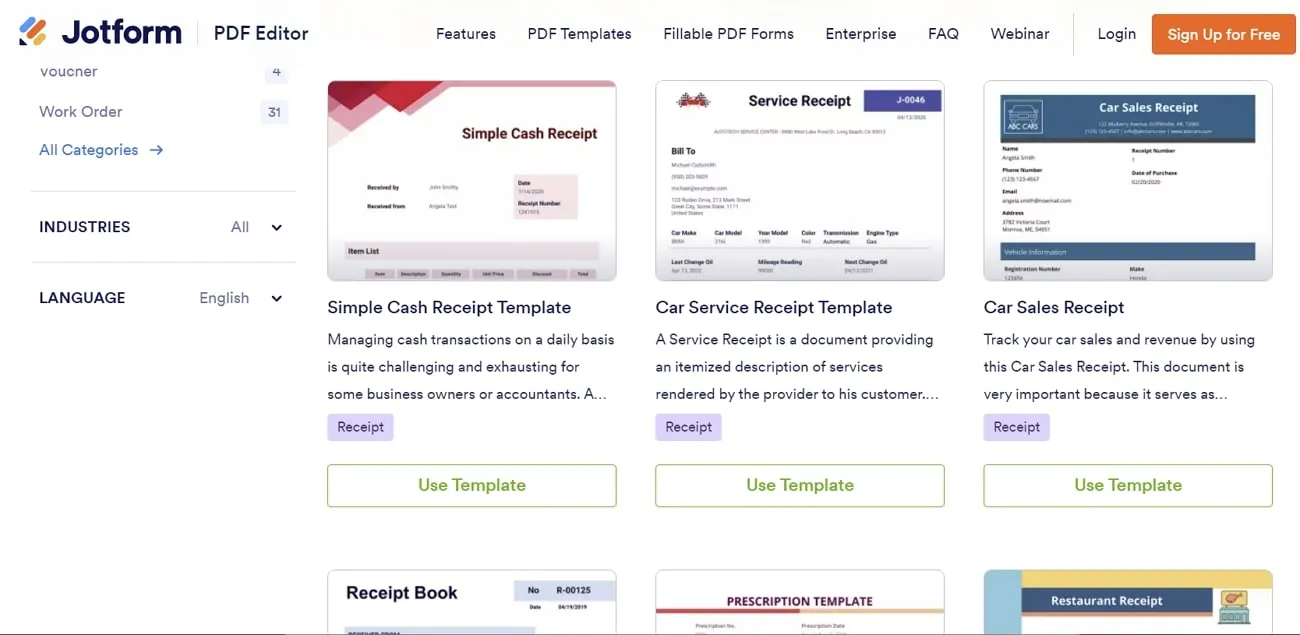
2. Jotform
Jotform allows you to simplify your billing process and track payments with PDF receipt templates. Whether you're selling products, providing services, accepting donations, or collecting rent payments, it offers everything. Users can choose from a range of professionally designed templates, including Payment Receipts, Delivery Receipts, Hotel Receipts, Donation Receipts, Car Service Receipts, and more.
Also, these templates are not only functional but also aesthetically pleasing. Its editing tool allows you to customize each template with ease. You can add your company logo, rearrange the layout, and update fonts and colors to align with your brand.
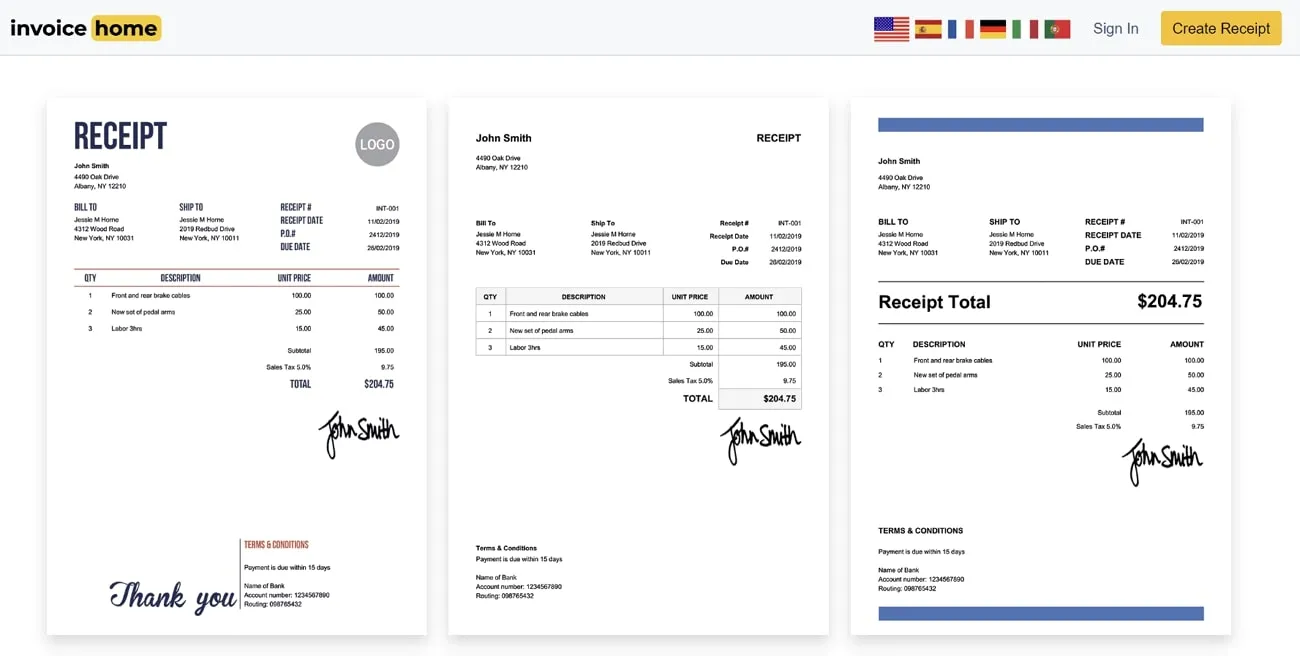
3. Invoice Home
Invoice Home offers an extensive collection of over 100 receipt template designs to elevate your business professionalism. It provides a diverse range of options to suit your branding needs. Additionally, you can stand out by personalizing your receipts and incorporating your logo to make it unique.
Plus, it allows users to utilize its features to add online payment methods via card or PayPal. The diverse range of templates includes Basic Receipt, Free Receipt, Advanced Receipt, and PDF Receipt templates. Furthermore, it is available on both Android and iOS to create, download, and send customized receipts.
Part 4. FAQs about Editing Text and Pictures in a Receipt
Q1. Is it possible to edit a receipt?
Yes, you can edit receipts easily. If the receipt is in non-editable and non-searchable format, you can use UPDF, a powerful OCR tool offering extensive PDF editing features. It allows smooth adjustments to text, images, watermarks, and more within a receipt. Moreover, you can rectify errors and customize the receipt's appearance with a user-friendly editing experience.
Q2. How do I edit a receipt in Word?
After opening Word, navigate to "File" and select "Open" to choose the receipt document. Within the "Home" tab, use its tools to make changes, adjust text and formatting, and insert/delete elements. For PDF receipts, consider UPDF for more flexibility in editing.
Q3. Why do you need to edit a receipt?
Editing receipts rectifies inaccuracies arising from scanning issues or manual errors. It keeps details like product prices or contact information updated. Furthermore, you can customize receipts to align with specific organizational or personal preferences. In this way, businesses can add personalized branding elements for a consistent and professional appearance.
Q4. Can you edit a handwritten receipt?
Yes, you can edit handwritten receipts by taking their picture and turning it into a scanned document. Afterward, open this document on UPDF and utilize its OCR functionality to turn it into an editable file. While performing OCR, you can maintain its layout and language. Afterward, you can modify the text's color, size, and style.
Q5. What is the best receipt editor?
UPDF emerges as a highly effective receipt editor, offering capabilities to modify its content. Its features empower users to edit receipts with the same ease as editing a document in Word. Plus, the diverse customization and user-friendly operation position it as a powerful tool for receipt editing. I highly recommend you to have a try, since it offers a great discount now.
Conclusion
It is crucial to have effective and flexible tools for an accurate and precise receipt editing process. In this situation, UPDF stands out as a dependable and go-to receipt editor app. It manages financial documents by skillfully handling inaccuracies. Unlike traditional text editing tools, UPDF smoothly manages various receipt formats, ensuring edits are done seamlessly.
Plus, UPDF provides a comprehensive set of tools for easy modifications of text, images, watermarks, and more. Therefore, users can improve their financial record management by downloading UPDF now. Additionally, grab the opportunity to buy UPDF with an exclusive discount to enhance your receipt management.
Windows • macOS • iOS • Android 100% secure





 Nls Jansen
 Enola Davis
 Enrica Taylor
 Enola Miller
 Engelbert White