 UPDF
UPDF
 UPDF for Windows
 UPDF for Mac
 UPDF for iPhone/iPad
 UPDF for Android
 Nomostar
 UPDF AI Online
 UPDF Sign
 IvyCraft
 Edit PDF
 Annotate PDF
 Create PDF
 PDF Form
 Edit links
 Convert PDF
 OCR
OCR PDF to Word
 PDF to Image
 PDF to Excel
 Organize PDF
 Merge PDF
 Split PDF
 Crop PDF
 Rotate PDF
 Protect PDF
 Sign PDF
 Redact PDF
 Sanitize PDF
 Remove Security
 Read PDF
 UPDF Cloud
 Compress PDF
 Print PDF
 Batch Process
 About UPDF AI
 UPDF AI Solutions
 AI User Guide
 FAQ about UPDF AI
 Summarize PDF
 Translate PDF
 Chat with PDF
 Chat with AI
 Chat with image
 PDF to Mind Map
 Explain PDF
 PDF AI Tools
 Image AI Tools
 AI Chat Tools
 AI Writing Tools
 AI Study Tools
 AI Working Tools
 Other AI Tools
 AI Bookmark Generation
 AI Bookmark Summary
 AI Watermark Generation
 AI Background Generation
 AI Sticker Generation
 AI Stamp Generation
 AI Editing Suite
 UPDF Copilot
 AI Page Management
 AI Semantic Search
 PDF to Word
 PDF to Excel
 PDF to PowerPoint
 Enterprise Solution
 Enterprise Sign
 Enterprise AI
 Enterprise Plan
 Enterprise User Guide
 Enterprise Webinar
 Banking
 Healthcare
 Insurance
 Legal
Legal Manufacturing
 Government
 Researchers & PhDs
 Solopreneurs & Freelancers
 Lawyers & Legal Professionals
 Real Estate Agents & Brokers
 Education Solution
 Customer Stories
 User Guide
 UPDF Tricks
 FAQs
FAQs UPDF Reviews
 Download Center
 Blog
Blog Newsroom
 Tech Spec
 Updates
 UPDF vs. Adobe Acrobat
 UPDF vs. Foxit
 UPDF vs. PDF Expert

Scanning apps have been around for years, but most of them still have the same problems. Some have watermarks on the free plan, others have blurry output on curved pages, and most show so many ads that the app becomes unusable. vFlat Scan works differently.
vFlat scan PDF scanner flattens curved book pages automatically and sharpens blurry captures with a dedicated Deblur tool. No subscription required for any of it.
This guide covers what vFlat Scan is, what it can do, and how to use it from start to finish. Read till the end to know how it holds up against the other scanner apps on the market.
Part 1. What is vFlat Scan PDF Scanner?
vFlat Scan is a mobile document scanning app that handles cropping, flattening, and image enhancement automatically after you take a photo. You do not have to manually adjust borders or fix distortion.
The app detects your document edges, straightens the page, and exports the result as a PDF, JPG, Word, or TXT file. It also has built-in OCR (text recognition), which means you can pull editable text from any scanned image without a separate app.
Use Cases
vFlat Scan fits a wide range of scanning needs. Here are the four most common ones.
- Scanning Books and Multi-Page Documents: vFlat works especially well with physical books. It flattens the natural curve of bound pages automatically and can capture both pages in one shot, splitting them into separate files.
- Scanning Receipts and Forms: When you point the camera at a receipt, invoice, or printed form, vFlat detects the document edges right away. It crops the image, removes background clutter, and saves the result without you needing to drag any handles.
- Digitizing Handwritten Notes: If you have handwritten notes, a vFlat Scan PDF scanner OCR can scan the page and convert the content to searchable text. The AI Eraser can also remove handwriting from printed materials entirely.
- Archiving Photos and Printed Material: Old photos, certificates, and printed graphics often come out faded or low-contrast. vFlat's image enhancement boosts color saturation and contrast after scanning, making the output look sharper.
Advantages and Differentiators
On top of those use cases, vFlat Scan has four qualities that separate it from most scanner apps on the market.
- vFlat uses AI to correct the curve of book spines and document folds, producing flat scans that look like they came off a physical flatbed scanner.
- The app identifies the document borders on its own and crops the image automatically without any manual input.
- This tool can boost contrast and color saturation after each capture, which improves text visibility in scans.
- When you photograph an open book, vFlat captures both pages in a single shot and splits them automatically into two separate images.
- vFlat Scan PDF Scanner works on Android 8.0 or higher, on iOS through the App Store, and on desktop through pc.vflat.com.
Part 2. What Can vFlat Scan Do?
Here is a closer look at each feature of vFlat Scan and what it actually does.
1. Automatic Scanning
Auto Scan mode captures pages one after another without requiring you to tap the shutter between each one. The app detects when a new document enters the frame and fires the camera on its own.
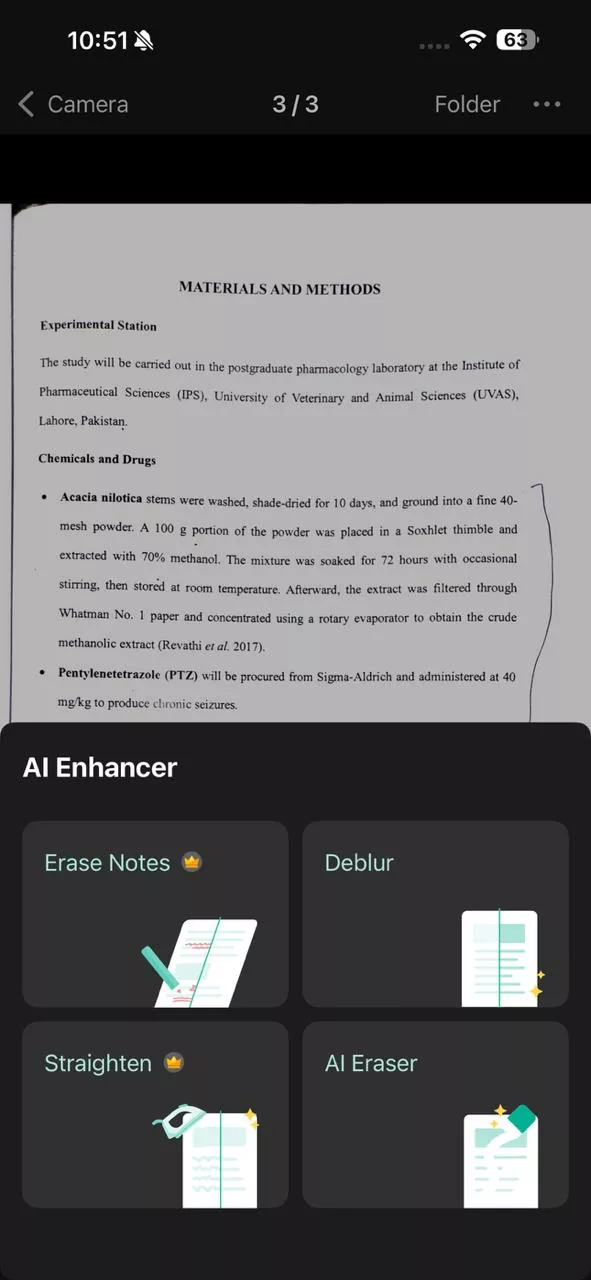
2. Deblur
Mobile scans often come out slightly soft because of camera shake or motion during capture. The Deblur tool analyzes the image and sharpens text edges and fine detail, recovering readability.
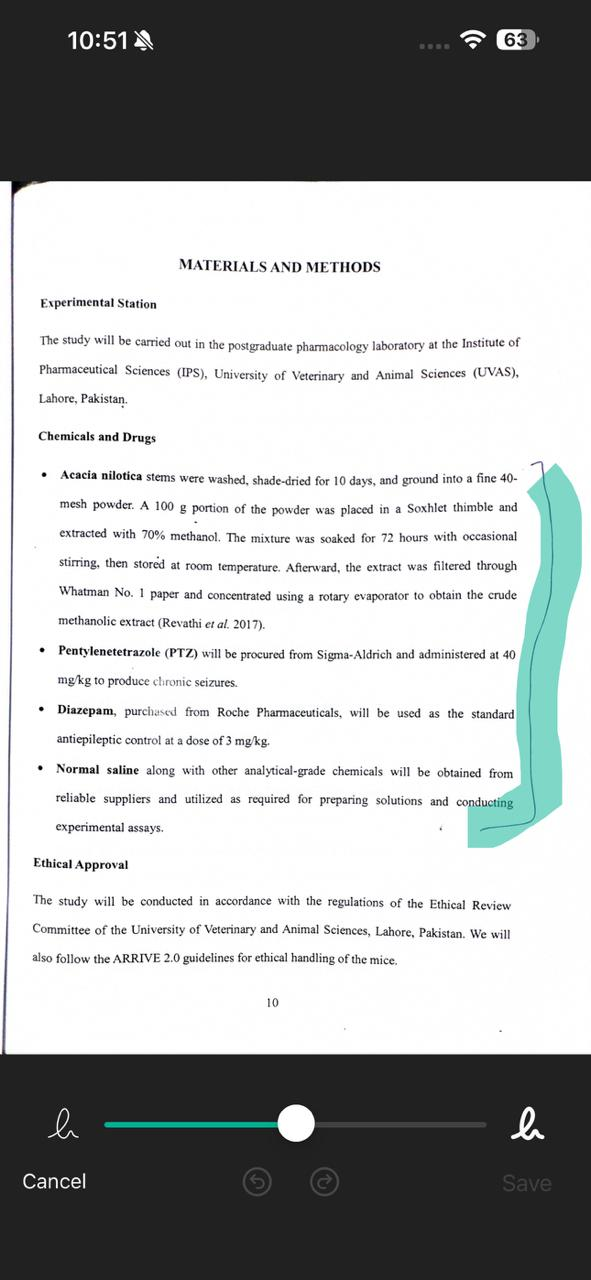
3. AI Eraser
The AI Eraser finds handwritten notes, scribbles, and ink annotations in a scanned image and removes them. It leaves the printed content underneath intact. This tool even has a note eraser, which uses AI to tell printed text apart from handwriting.
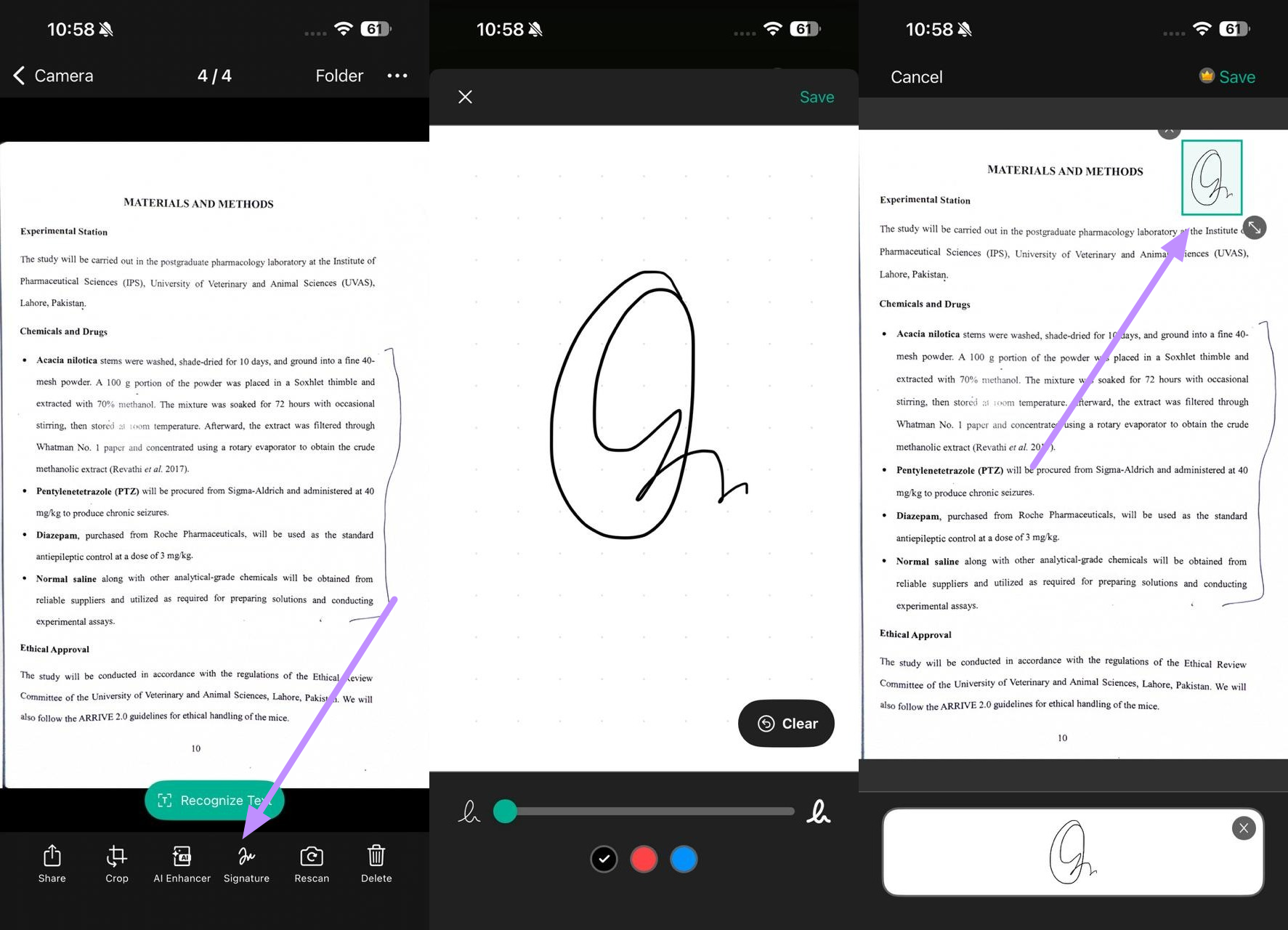
4. Signature
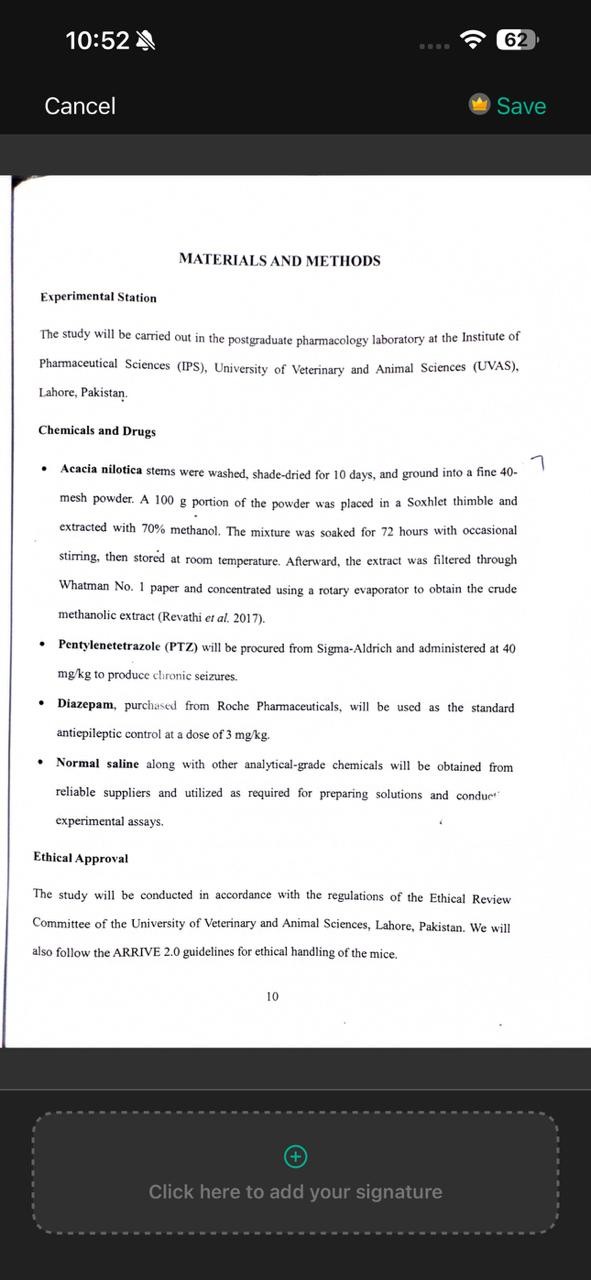
vFlat Scan PDF Scanner lets you draw a signature directly inside the app using your finger or a stylus. Afterwards, you can place it on any scanned document before you export it.
5. Recognize Text (OCR)
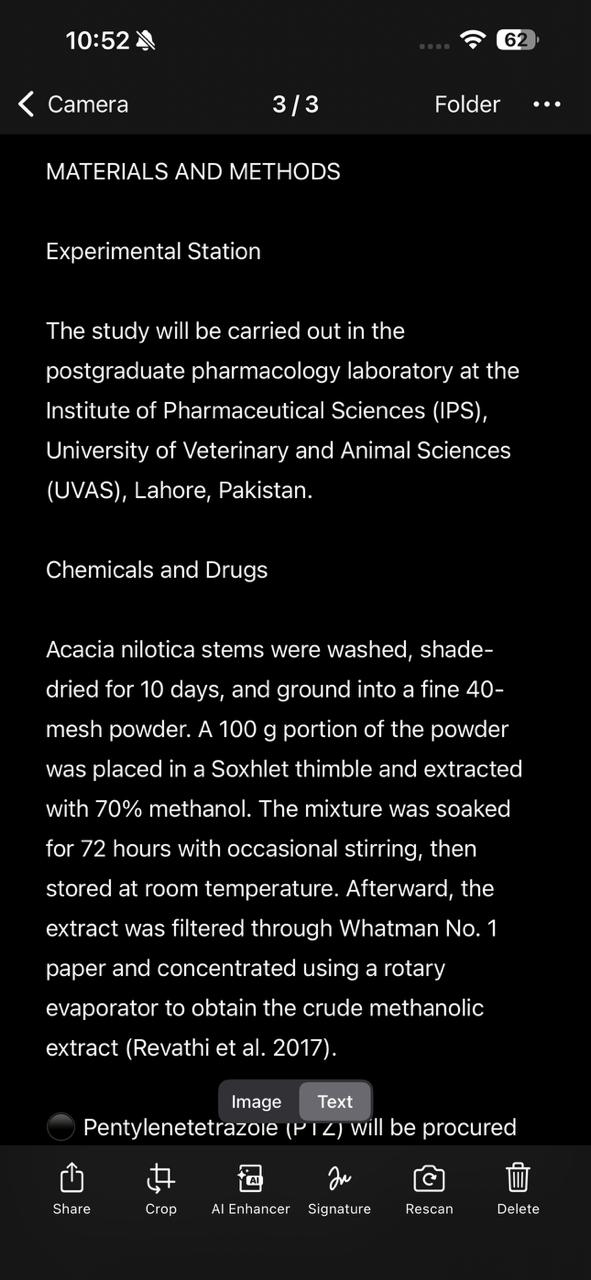
The text recognition tool reads your scanned image and converts it to editable text. From there, you can copy sections, edit the content inside the app, and export it as a Word document or TXT file.
6. Straighten Pages
If a document is slightly tilted or angled in the frame, it corrects the perspective after capture. This feature adjusts the angle and alignment of the page without you having to reshoot.
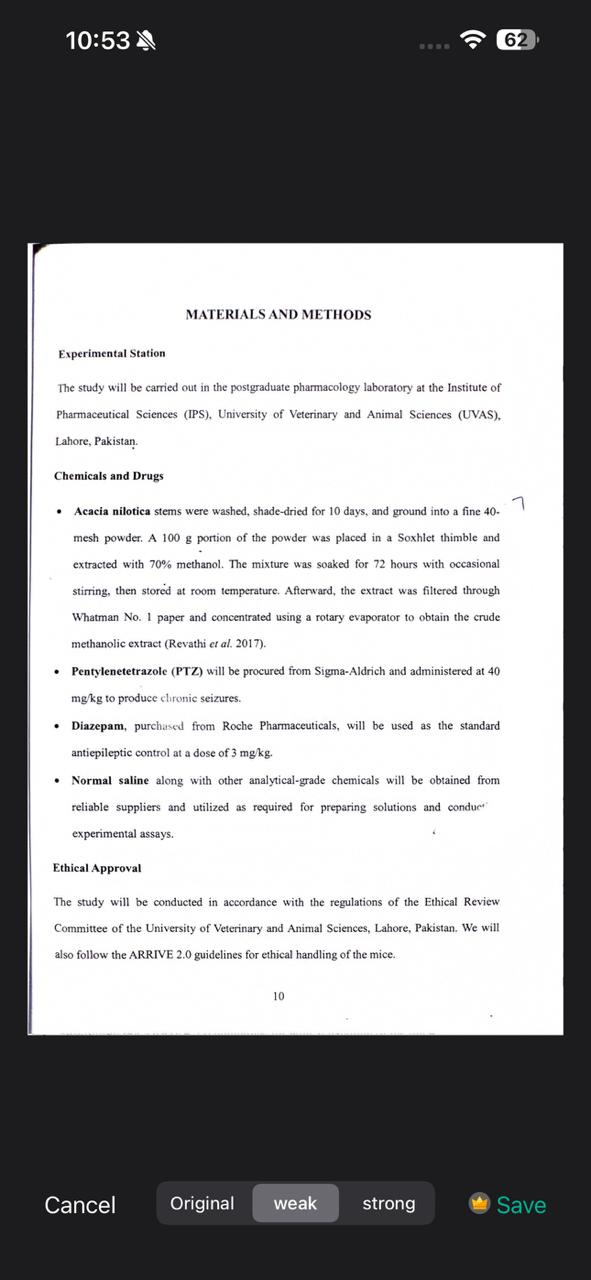
7. Share PDF Notes
Once a scan is ready, vFlat lets you export it as a PDF, JPG, Word file, TXT file, or ZIP archive. You can also generate a shareable URL link so other people can view or download the scan from a browser without needing the app installed on their device.
Part 3. How to Use vFlat Scan?
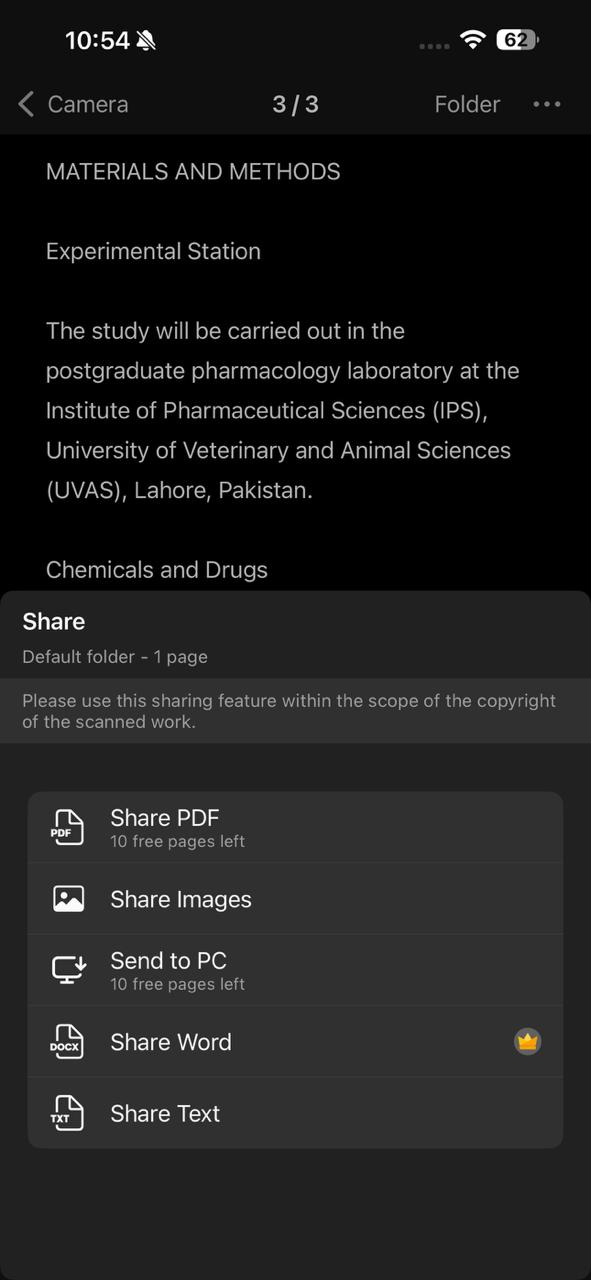
The workflow in vFlat Scan runs in a clear sequence from scanning to export. Follow the steps below to go from a raw photo to a finished, shareable PDF.
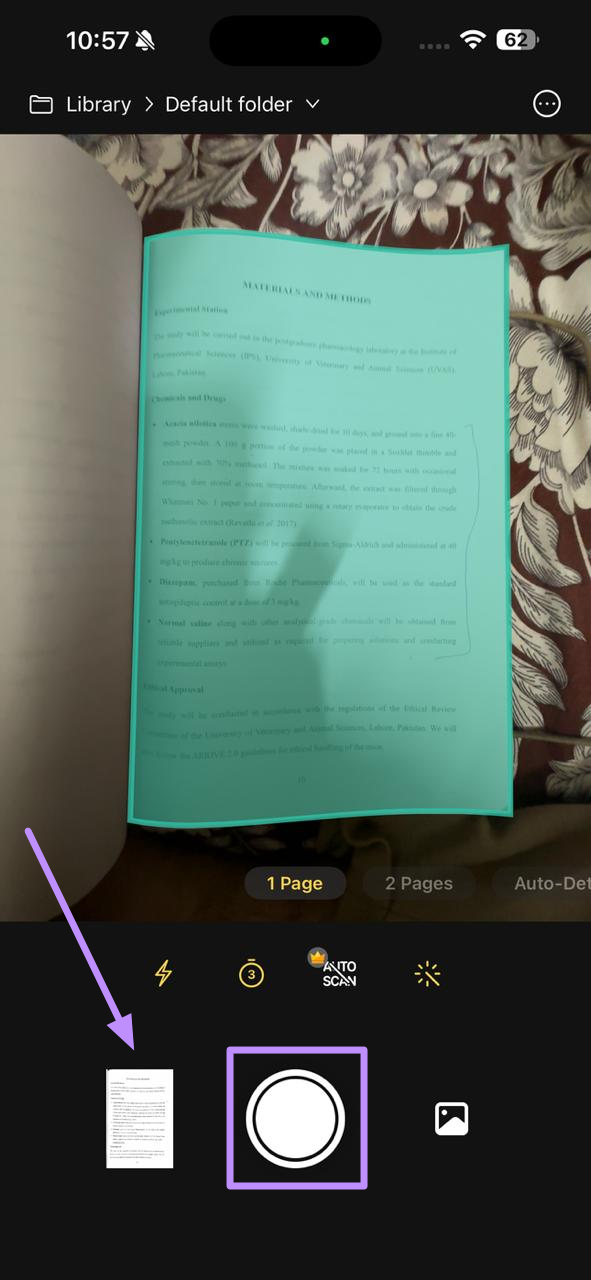
Step 1. Start by positioning your phone above the document and the app will highlight the document borders automatically. Once the border appears, tap the Shutter button to capture the image. After capturing, tap the thumbnail at the bottom of the screen to open the image in the editor.
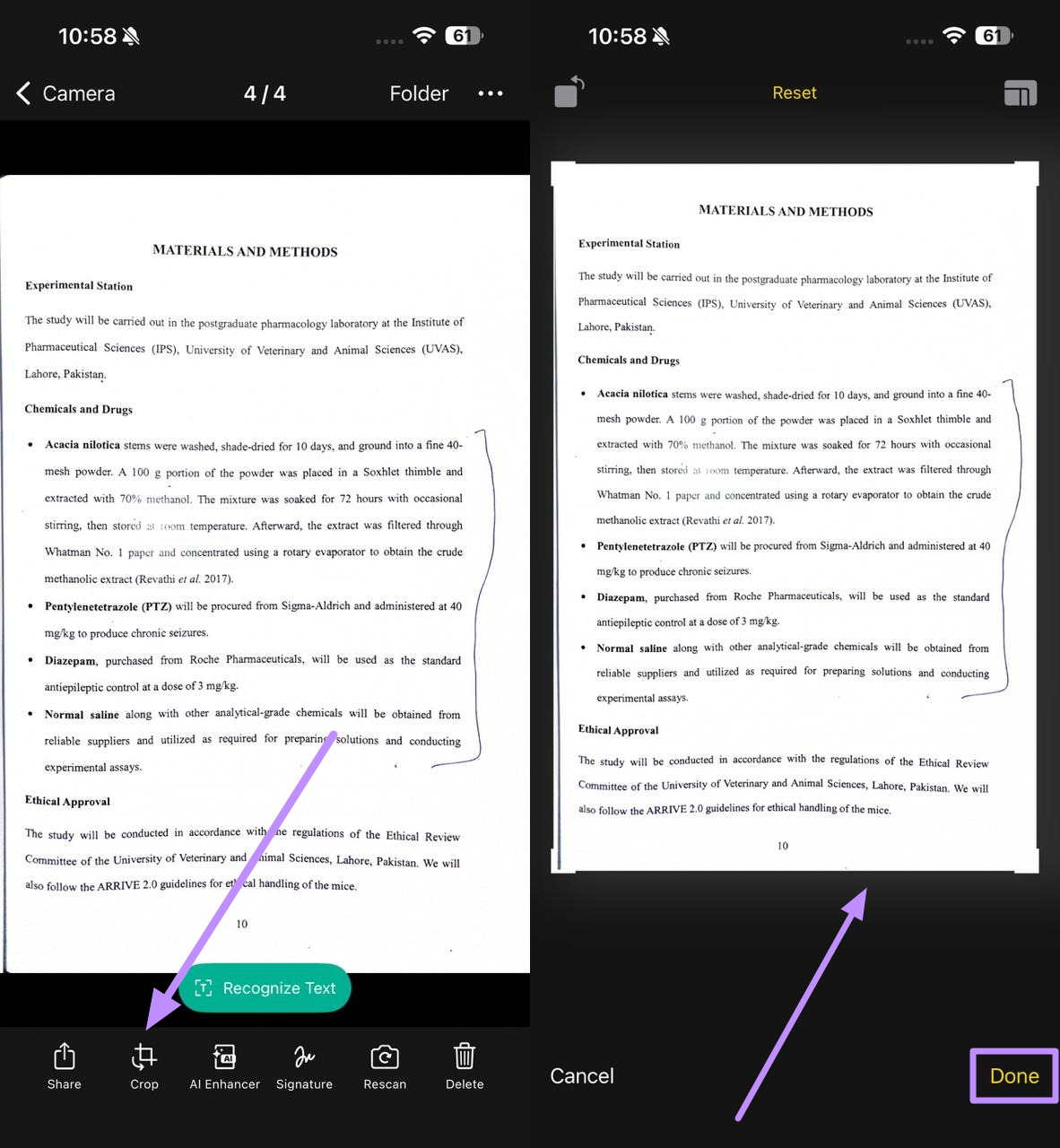
Step 2. After the scan opens, tap the Crop icon in the editing toolbar. Now, drag the corner handles inward or outward to adjust the margins if the automatic crop is slightly off. When the frame looks right, tap Done to apply it.
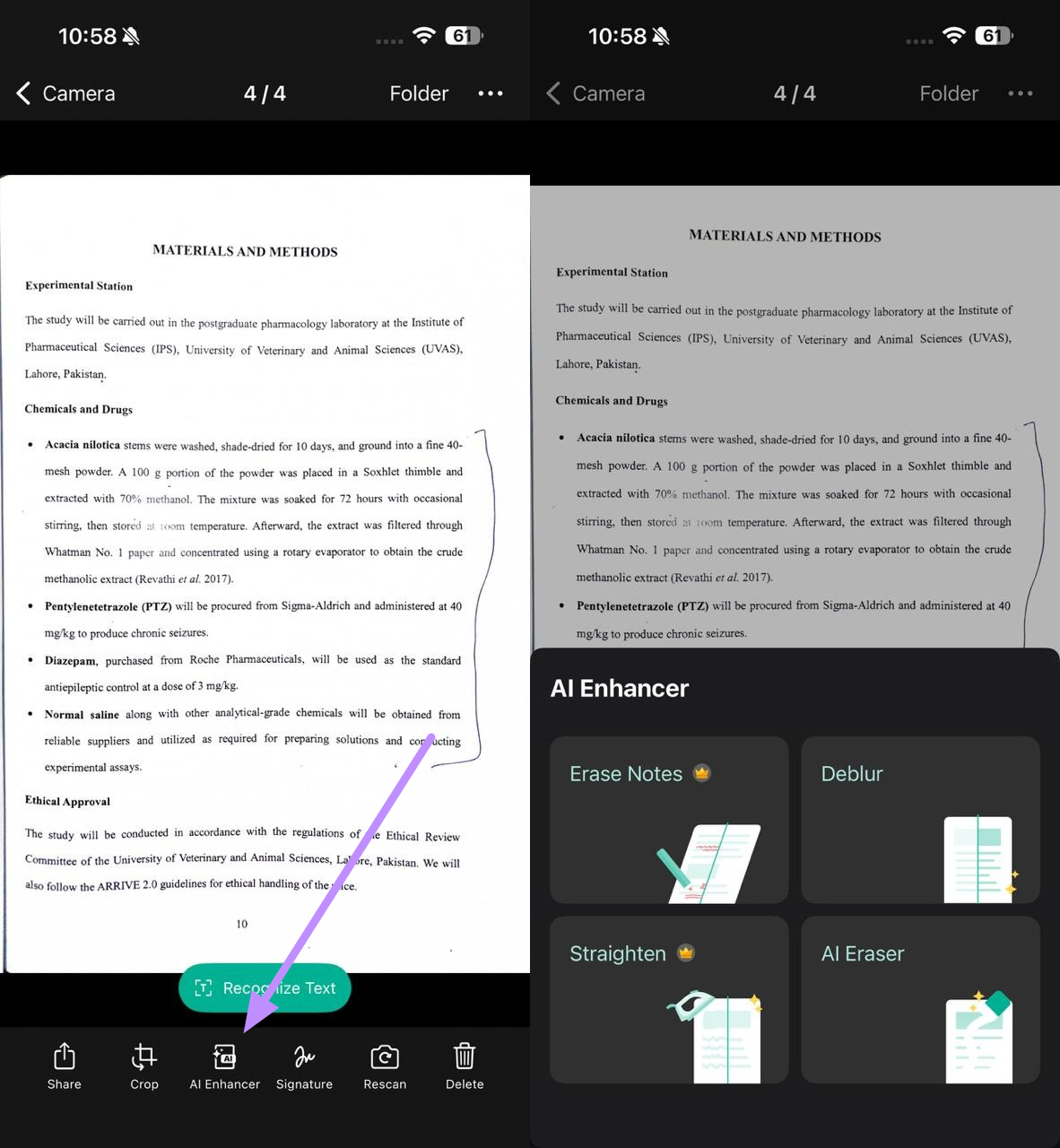
Step 3. With the crop done, tap on the AI Enhancer icon in the editing panel to clean up the image. From here, you can use Deblur, Straighten, AI Eraser, or Erase Notes features to improve the outlook.
Step 4: If you need to sign the document, tap the Signature icon in the toolbar at the bottom of the screen. A blank canvas opens where you can draw your signature and then press Done when the signature looks right. Finally, drag it into the correct position on the page and pinch to resize it if needed.
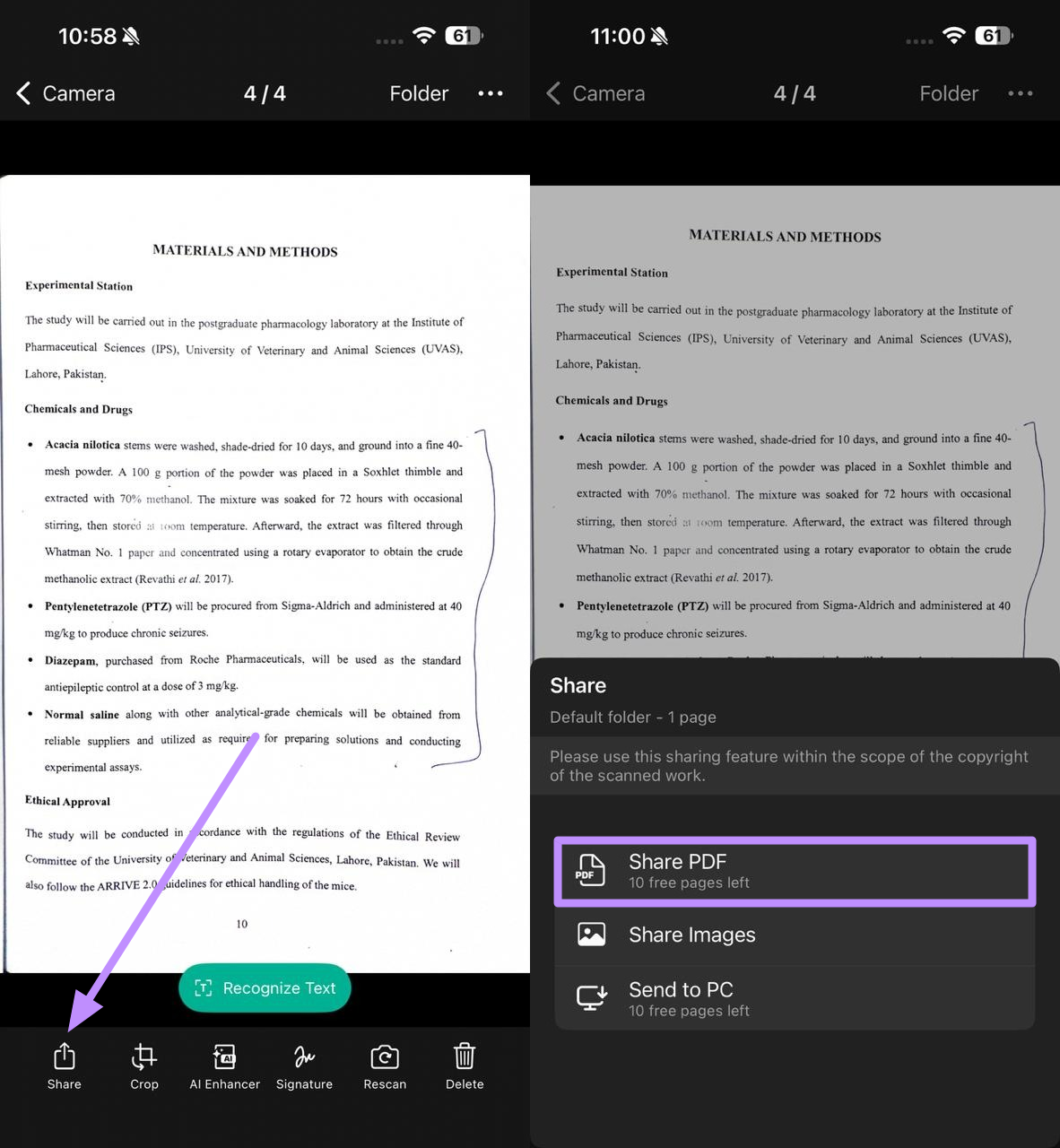
Step 5. Once everything looks good, tap the Share icon in the bottom-left of the screen. From the menu that appears, tap Share PDF. Set your preferred file size, page orientation, and output quality using the options on that screen before tapping Share.
Tips and Tricks
Explore these four quick habits that will improve your scan quality right away.
- Reduce shadows by scanning next to a window in natural light instead of scanning under a direct overhead lamp.
- Use Auto Scan mode for any document longer than two pages so you can flip pages without tapping the shutter each time.
- Run OCR right after scanning while the image is fresh, before you compress or export the file, to get the most accurate text extraction.
Part 4. vFlat Scan vs. Other Scanning Tools
It is worth knowing how vFlat Scan PDF Scanner compares to the other apps people use regularly. The table below puts them side by side on the details that matter most when picking a daily scanner.
| Feature | vFlat Scan | CamScanner | TapScanner | UPDF | Adobe Scan |
| Price | Free, no watermark | Freemium, watermark on free | Freemium | Freemium | Free with Adobe account |
| Ads | None | Yes (free tier) | Yes (free tier) | None | None |
| Sign-in Required | No | Yes | Yes | Yes | Yes |
| OCR | Yes | Yes (paid) | Limited on free | Yes | Yes |
| AI Note Removal | Yes | No | No | No | No |
| Two-Page Book Scan | Yes, auto-split | No | No | No | No |
| Export Formats | PDF, JPG, Word, TXT, ZIP | PDF, JPG | PDF, JPG | PDF, Word, Excel | PDF, JPG |
| Platforms | Android, iOS, Desktop | Android, iOS | Android, iOS | Android, iOS, Desktop | Android, iOS |
Competitive Analysis
- Speed: vFlat's Auto Scan mode is the fastest option for scanning multiple pages because it fires the camera automatically. CamScanner and TapScanner both require a manual tap for each shot in most modes.
- Quality: Its AI page flattening is what really separates it from the others. UPDF is built primarily around PDF editing rather than scanning. For premium document management and OCR functionality, you can rely on UPDF.
- Convenience: On a free plan, vFlat is the most practical option by a clear margin. No ads, no watermarks, no account required. CamScanner puts its watermark on every export until you pay.
Windows • macOS • iOS • Android 100% secure
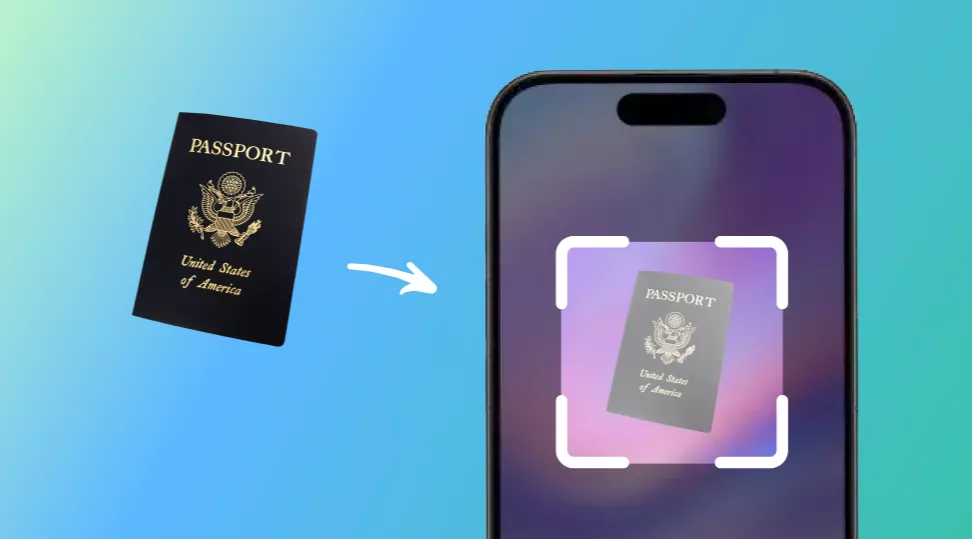
By the way, if you‘re looking for an AI-powered document scanner, NomoStar is a strong choice. It’s designed as a minimalist AI PDF scanner and translator, capable of converting scans of IDs, passports, and receipts into flawless digital copies. A standout feature is its instant translation for 12 languages. Whether you need to organize personal files or digitize business documents, NomoStar offers a clutter‑free path to turn physical papers into a clean, searchable digital library.
Reviews for vFlat Scan
Review 1: "Excellent Scanner App. The vFlat Scan App. supports scanning documents and includes a feature to hide visible fingers in scans when holding books or documents," as read on the Play Store.
Review 2: "This app has been a great tool for helping me catch up on reading my physical books. The scans are fast, high-quality, and always arranged in the correct order. All over, a fantastic app," as read on the App Store.
The Negatives
Review 1: "The application is generally good, though it does add artifacts to the scanned pages, which can make the edges appear black," as read on the Play Store.
Review 2: "The free version barely straightens book pages at all. Even after upgrading, scanning books fails to produce acceptable results a good chunk of the time," as read on the App Store.
vFlat Scan FAQ
What should I do if the scan results are unclear?
If the scan results are unclear, lighting is the first thing to check. Move to a spot with natural light coming in from the side rather than directly above. After you have a better-lit shot, use the Deblur tool in the editing panel of vFlat Scan to sharpen edges.
How do I maintain the correct order when batch scanning?
Within vFlat Scan PDF Scanner, enable Auto Scan before you start and scan the pages in order from front to back. vFlat adds each captured page to the document in the exact sequence it was shot. Once the scanning is done, open the document view and check the page sequence.
What is the recommendation for selecting file export formats?
The format you pick should match what you plan to do with the file. Use PDF when sharing, printing, or archiving a document, since it keeps the layout intact and opens on any device. You should choose Word when you need to edit the text after scanning, especially after running OCR to extract the content.
Conclusion
vFlat Scan covers the full scanning workflow without asking you to create an account or tolerate ads. The AI page flattening makes it reliable for books in a way that most other free scanner apps are not.
OCR, note removal, and signature placement are all available on the free tier without any catch. To handle the rest of the PDF handling task, we recommend that you download UPDF and purchase its premium version.
Windows • macOS • iOS • Android 100% secure




 Enid Brown
 Enrica Taylor

 Lizzy Lozano