 UPDF
UPDF
 UPDF for Windows
 UPDF for Mac
 UPDF for iPhone/iPad
 UPDF for Android
 UPDF AI Online
 UPDF Sign
 Edit PDF
 Annotate PDF
 Create PDF
 PDF Form
 Edit links
 Convert PDF
 OCR
OCR PDF to Word
 PDF to Image
 PDF to Excel
 Organize PDF
 Merge PDF
 Split PDF
 Crop PDF
 Rotate PDF
 Protect PDF
 Sign PDF
 Redact PDF
 Sanitize PDF
 Remove Security
 Read PDF
 UPDF Cloud
 Compress PDF
 Print PDF
 Batch Process
 About UPDF AI
 UPDF AI Solutions
 AI User Guide
 FAQ about UPDF AI
 Summarize PDF
 Translate PDF
 Chat with PDF
 Chat with AI
 Chat with image
 PDF to Mind Map
 Explain PDF
 PDF AI Tools
 Image AI Tools
 AI Chat Tools
 AI Writing Tools
 AI Study Tools
 AI Working Tools
 Other AI Tools
 AI Bookmark Generation
 AI Bookmark Summary
 AI Watermark Generation
 AI Background Generation
 AI Sticker Generation
 AI Stamp Generation
 AI Editing Suite
 UPDF Copilot
 AI Page Management
 AI Semantic Search
 PDF to Word
 PDF to Excel
 PDF to PowerPoint
 Enterprise Solution
 Enterprise Sign
 Enterprise AI
 Enterprise Plan
 Enterprise User Guide
 Enterprise Webinar
 Banking
 Healthcare
 Insurance
 Legal
Legal Manufacturing
 Government
 Education Solution
 Customer Stories
 User Guide
 UPDF Tricks
 FAQs
FAQs UPDF Reviews
 Download Center
 Blog
Blog Newsroom
 Tech Spec
 Updates
 UPDF vs. Adobe Acrobat
 UPDF vs. Foxit
 UPDF vs. PDF Expert

Have you tired of manually adding each chapter to the bookmark list? The AutoBookmark plug-in for Adobe Acrobat can automate this after you install Evermap’s add-on on a compatible Acrobat version.
But if pay around $269 to use its professional version is a bit expensive for you, and don't want to add more plugins on one tool, then the all-in-one UPDF’s AI-powered bookmarking is a smarter choice. It uses AI to instantly understand your document structure and generate bookmarks in one click—at a fraction of the cost.
We will also compare the AutoBookmark plug-in with UPDF’s AI solution and provide detailed guides for each.
Windows • macOS • iOS • Android 100% secure
What is the AutoBookmark Plugin?
The AutoBookmark plug-in is an advanced extension for Adobe Acrobat and Acrobat Professional. It is designed to create and edit all the navigational elements in a PDF, including bookmarks, links, tables of contents, and text highlights. With the AutoBookmark professional plugin, these elements can be quickly added across one or more PDFs.
When and How to Use the AutoBookmark Plugin?
The AutoBookmark plugin for Adobe Acrobat can save a lot of manual work in many scenarios. Common use cases include:
- Structured PDF: If a PDF uses clearly formatted headings (chapters), the AutoBookmark plugin can scan those styles and auto-generate a hierarchical bookmark tree.
- Existing TOC: When a document has a printed table of contents, the plug-in can convert the desired TOC entries into clickable bookmarks, linking each entry to its relevant page.
- Multiple Documents: In the Professional edition, AutoBookmark supports batch or “binder” mode. Using this mode, you can apply the same bookmark rules across all PDFs or create a unified set of bookmarks linking a collection of files.
- Keyword Indexing: Provide a list of keywords or text patterns, and AutoBookmark will bookmark every matching word or phrase throughout the document.
- Import from Text: You can also import bookmarks from a text control file. While doing so, you can define titles and hierarchy in a CSV/TXT file, and AutoBookmark will insert them into the PDF.
To apply the AutoBookmark plugin within Acrobat, follow these steps:
1. After opening Adobe, open the PDF and navigate through the pages until you reach the one that displays the main chapter title. After that, highlight the text of that top-level heading.
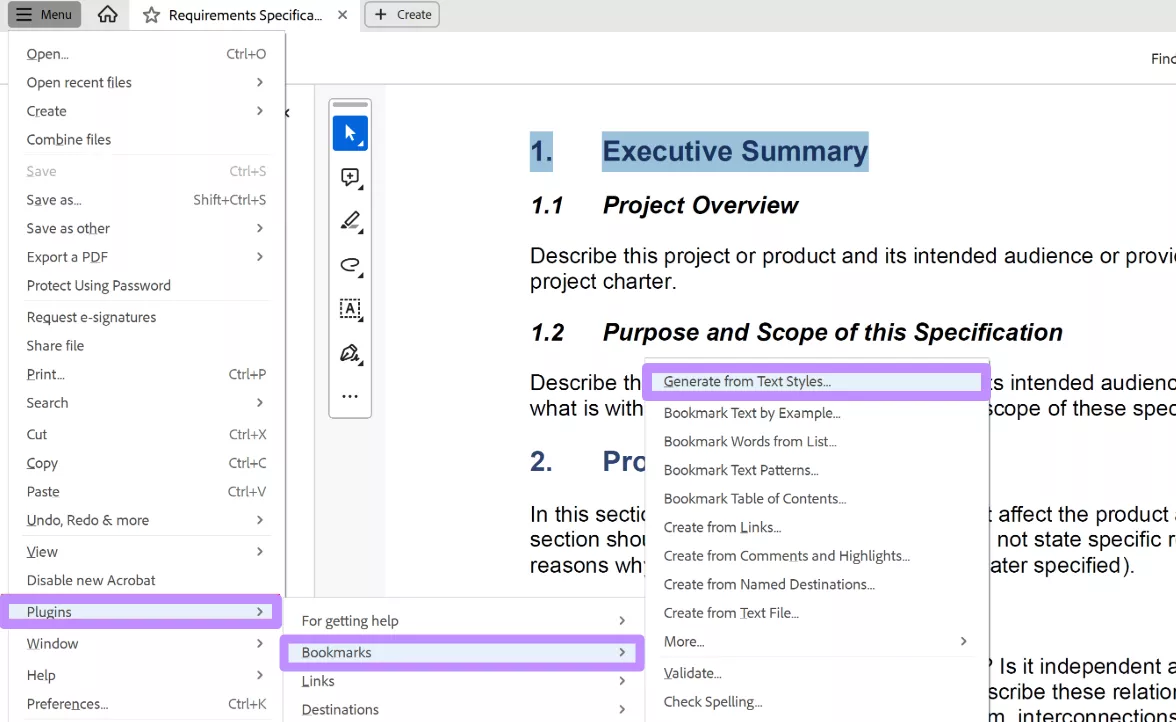
2. From the main Acrobat menu, go to the Menu tab and hover over Plugins. Within the new list, tap Bookmarks and click on the Generate from Text Styles option.
3. Within the Generate Bookmarks from Text Style window, adjust the Settings and tap Add to proceed.
4. Now, click OK to apply bookmark settings for the top-level heading. The bookmark style for this level is automatically taken from the text that is currently selected on the page.
5. Finally, go back to the previous screen and tap OK to bookmark the current document. Then, preview the result within the Bookmarks window on the right of your screen.
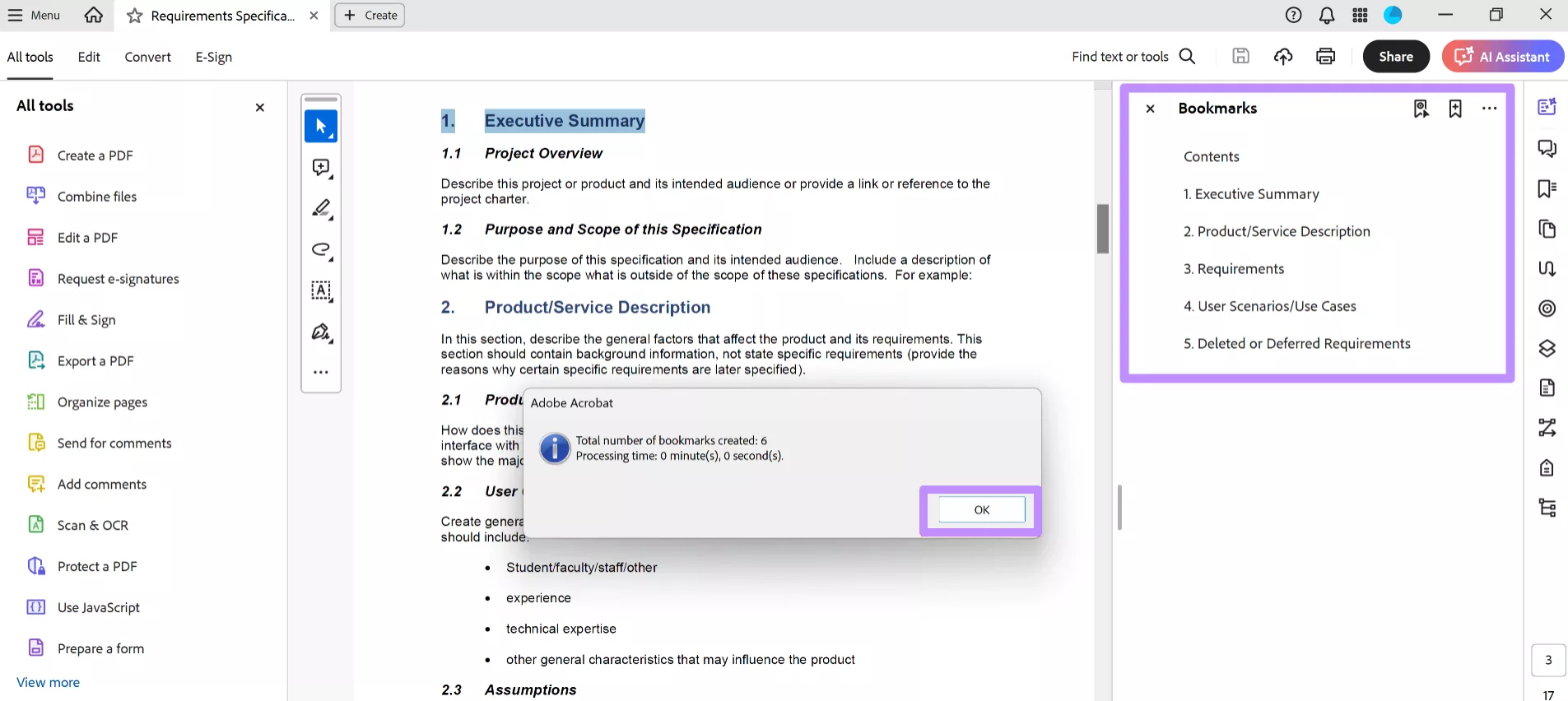
6. You can even add the second-level bookmarks by selecting the subheadings within the main headings. Then, follow the same process to add the bookmarks and review the results.
Is the AutoBookmark Plugin Free?
AutoBookmark is not free software, as it only has a 30-day trial. Once the trial ends, you must purchase a license from Evermap’s platform. Apart from the following single-user plans, Evermap also offers higher-cost multi-user licenses (ranging from $799 to $4999 based on the number of added users).
The Professional edition adds batch processing and extra features. In short, the plug-in is a paid add-on to Acrobat, with no free tier beyond the trial. See the pricing table below for details:
| Plug-in Edition | Price (USD) |
| AutoBookmark Standard (single-user) | $219 |
| AutoBookmark Professional (single-user) | $269 |
Pros and Cons
Because AutoBookmark is an Acrobat plug-in, it requires a licensed Acrobat on Windows, and its processing is rule-based (no AI). Here are the key pros and cons:
Pros:
- The AutoBookmark professional plugin automates the creation of bookmarks and a table of contents from document structure.
- It handles bookmarks, links, named destinations, and more in one tool.
- The interface is designed to be easy for both advanced users and beginners.
- The Professional edition can apply bookmark rules to many files at once, saving time on large projects.
Cons:
- It only works within Adobe Acrobat(Standard or Pro on Windows), as Acrobat Reader is not supported.
- The plug-in adds a $269 one-time cost (for Professional) on top of Acrobat’s price.
- All bookmarks are generated by fixed rules and templates, as Evermap explicitly states it has no AI.
- It offers many options and windows, which can have a steep learning curve for new users.
Instead of a plug-in, one can use UPDF, which is a standalone PDF editor with an AI-powered bookmark agent. It adds bookmarks automatically and runs on multiple devices.
Windows • macOS • iOS • Android 100% secure
Tested AutoBookmark Plugin Alternative - UPDF
For those looking beyond Acrobat plugins, UPDF offers a modern approach. It’s an all-in-one PDF editor that adds a built-in AI Agent to auto-bookmark documents with one click. Unlike the AutoBookmark plugin in Adobe, UPDF doesn’t require Acrobat or manual configuration.
In the latest version, UPDF introduced its AI Agent for automatic bookmarking. It also includes standard PDF tools like editing, annotation, OCR, and conversion. Below, we explore why UPDF is a strong alternative and how to use its AI bookmark feature.
Why UPDF?
- AI Bookmarking: UPDF’s AI Agent can instantly scan a PDF and auto-generate a hierarchical bookmark tree with one click.
- AI Bookmark Summarization: This tool can even summarize existing bookmarks to help users understand document sections and key topics without reading the entire PDF.
- Bookmark Correction: If bookmarks are incorrect or poorly structured, it will reorganize the structure and replace the existing bookmarks.
- Cross-Platform Support: UPDF runs on Windows, Mac, iOS, and Android to help you edit PDFs on desktop or mobile without OS restrictions.
Price Comparison
Go through the table below to see how UPDF helps you save some extra money. If you want unlimited access to AI, then buying a paid plan of AI Assistant with UPDF Pro for unlimited use is necessary; it will be cheaper than Adobe Acrobat Pro ($239.88 per year) with AutoBookmark Plugin.
| Product | License Type | Price (USD) |
| AutoBookmark Standard (single-user) | Perpetual | $219 |
| AutoBookmark Professional (single-user) | Perpetual | $269 |
| UPDF Pro (Lifetime)+ AI Assistant | Perpetual (One-time) + Annual | $148.99 |
Windows • macOS • iOS • Android 100% secure
How to Use UPDF to Auto-Bookmark PDFs?
To auto-bookmark a PDF using UPDF, follow these steps:
1. Start the process by downloading and launching UPDF on your computer. Now, tap on the Open File button to import the file to which you want to add bookmarks.
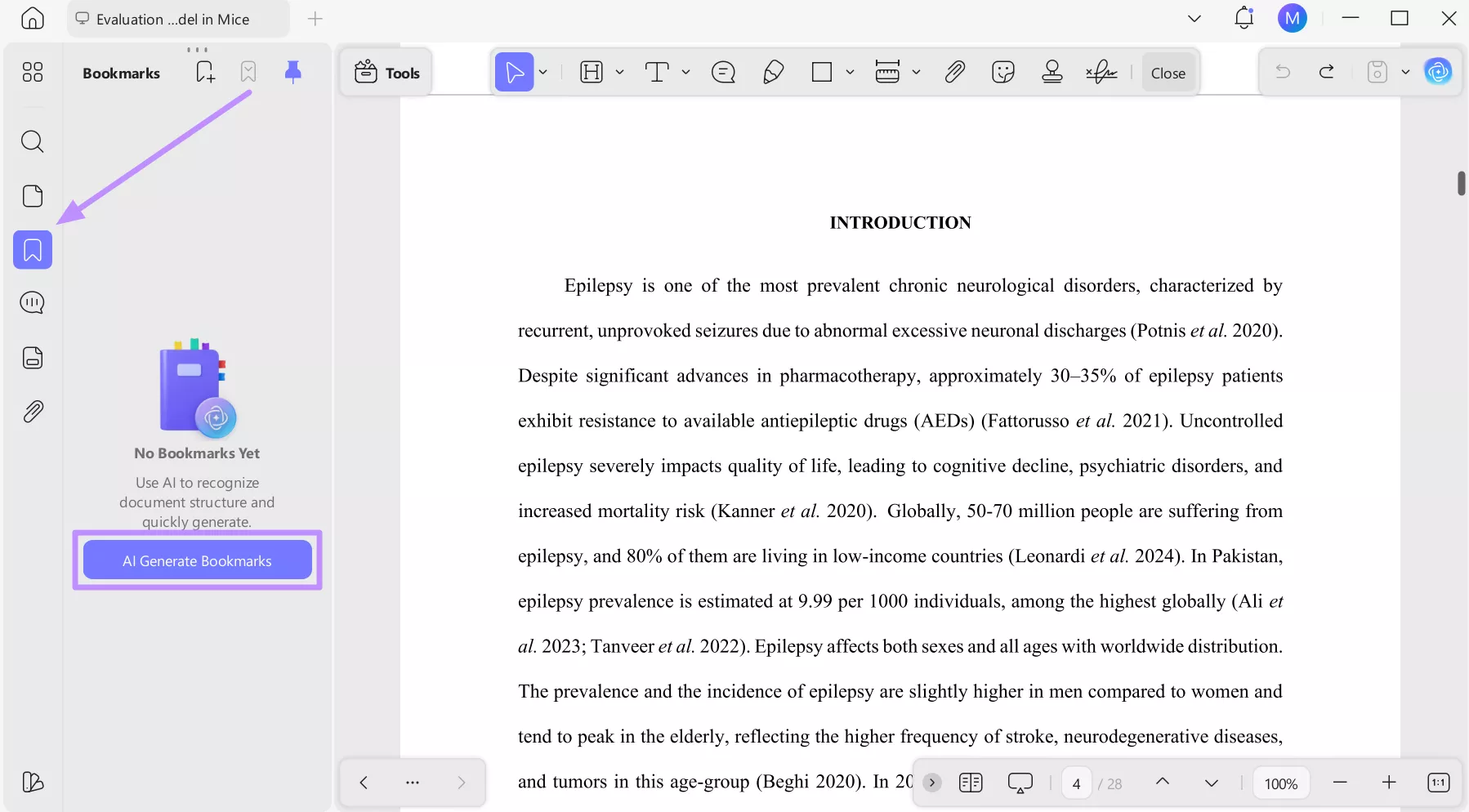
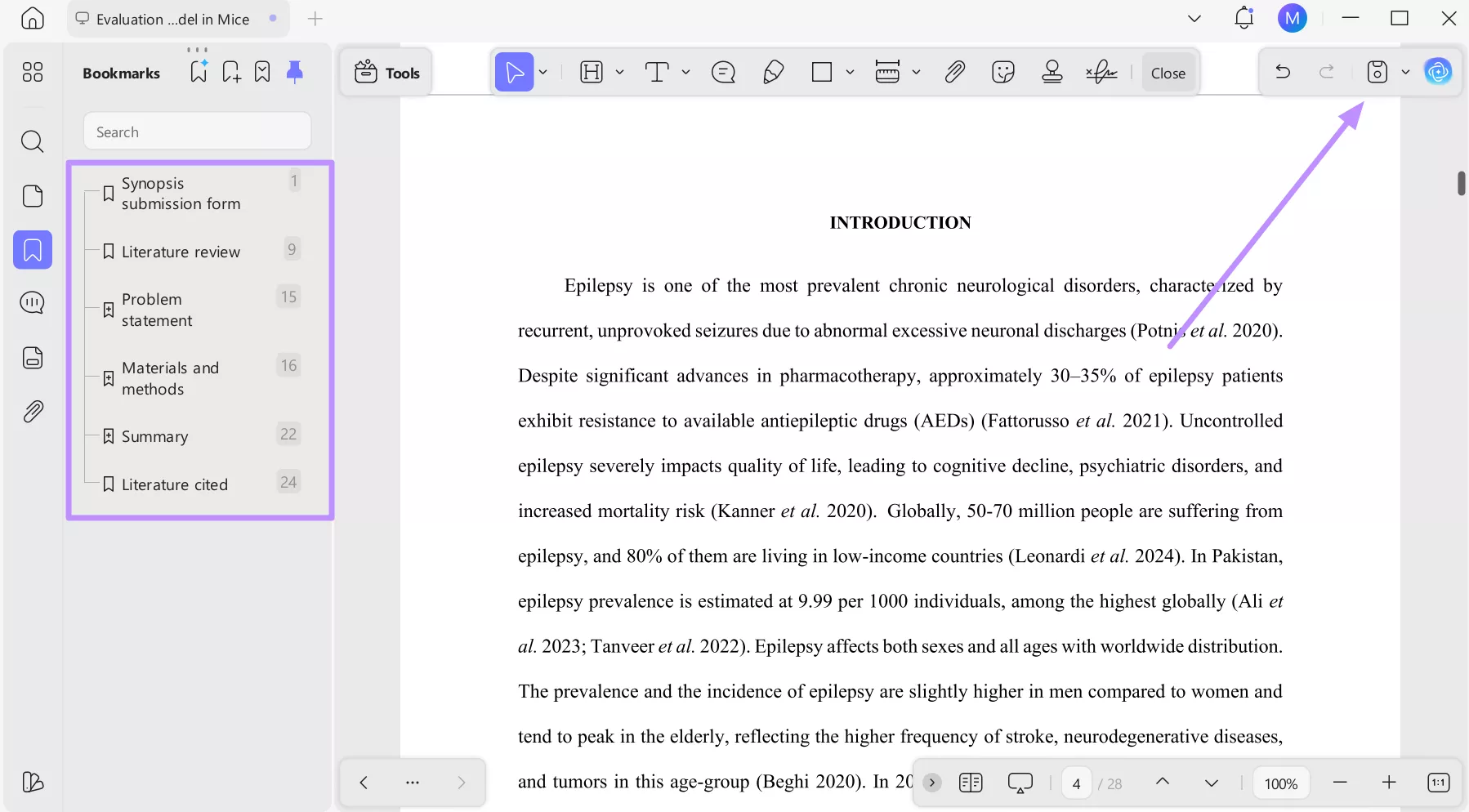
2. Moving forward, click the Bookmark icon on the left side of your screen and then press the AI Generate Bookmarks button.
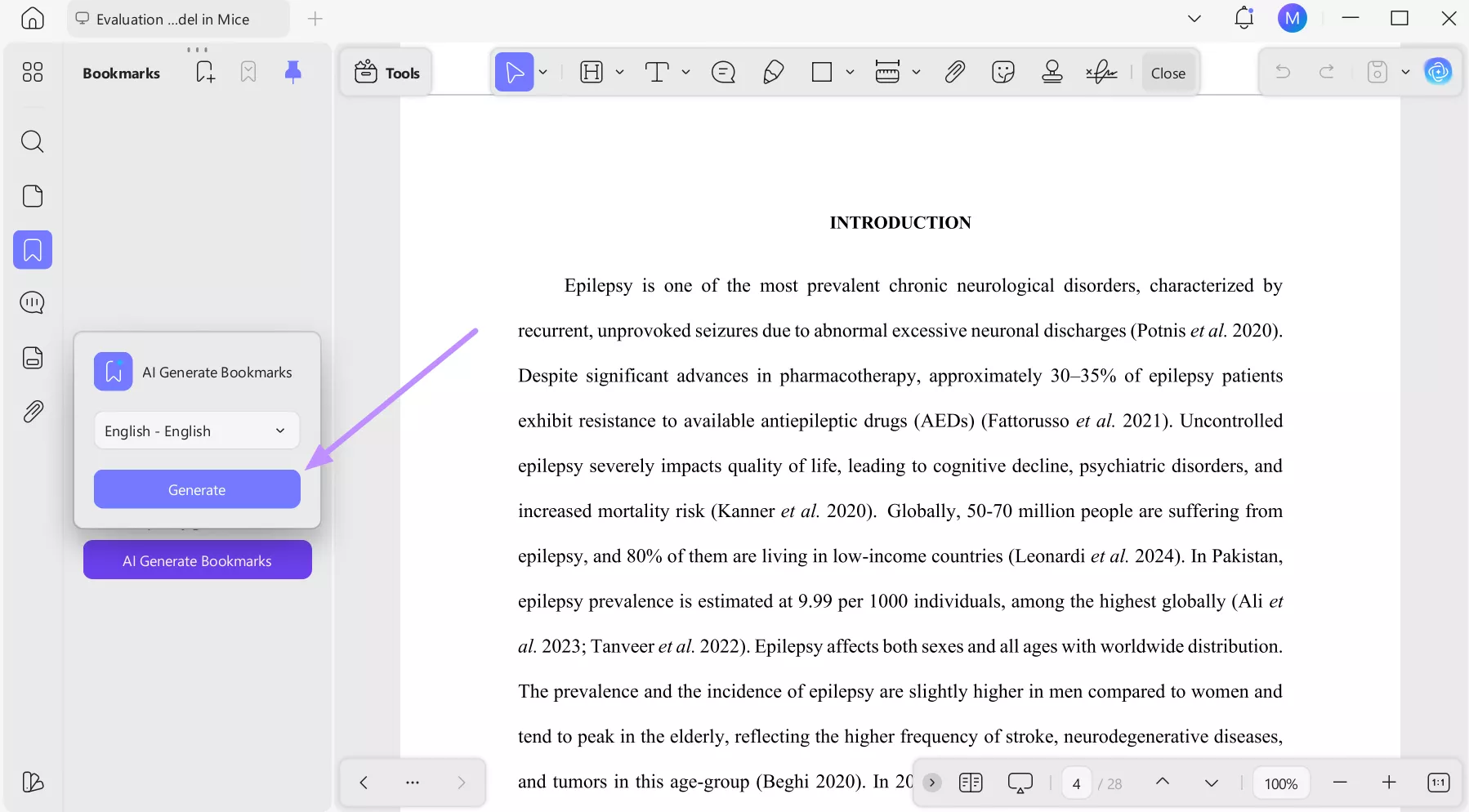
3. Once you access the AI Generate Bookmarks menu, pick the target language and hit Generate to proceed. It supports 26 languages!
4. After running the AI, you will see the PDF’s headings arranged in the left pane as clickable bookmarks. UPDF automatically uses font sizes and layout to detect section titles. Finally, tap the Save icon to keep the bookmarks.
The Bottom Line
In summary, Evermap’s AutoBookmark plug-in is a powerful Acrobat add-on. It can generate bookmarks from headings, tables of contents, keywords, or external lists. However, the tool requires a licensed version of Acrobat and relies on rule-based processing rather than AI.
Modern AI-powered tools configure rules or styles after analyzing document structure automatically and generate bookmarks. This is where UPDF - AutoBookmark without Plugin stands out, thanks to its built-in AI Agent for creating or regenerating bookmarks.
Windows • macOS • iOS • Android 100% secure





 Lizzy Lozano
 Grace Curry

 Enrica Taylor