UPDF
UPDF
 UPDF for Windows
 UPDF for Mac
 UPDF for iPhone/iPad
 UPDF for Android
 Nomostar
 UPDF AI Online
 UPDF Sign
 IvyCraft
 Edit PDF
 Annotate PDF
 Create PDF
 PDF Form
 Edit links
 Convert PDF
 OCR
OCR PDF to Word
 PDF to Image
 PDF to Excel
 Organize PDF
 Merge PDF
 Split PDF
 Crop PDF
 Rotate PDF
 Protect PDF
 Sign PDF
 Redact PDF
 Sanitize PDF
 Remove Security
 Read PDF
 UPDF Cloud
 Compress PDF
 Print PDF
 Batch Process
 About UPDF AI
 UPDF AI Solutions
 AI User Guide
 FAQ about UPDF AI
 Summarize PDF
 Translate PDF
 Chat with PDF
 Chat with AI
 Chat with image
 PDF to Mind Map
 Explain PDF
 PDF AI Tools
 Image AI Tools
 AI Chat Tools
 AI Writing Tools
 AI Study Tools
 AI Working Tools
 Other AI Tools
 AI Bookmark Generation
 AI Bookmark Summary
 AI Watermark Generation
 AI Background Generation
 AI Sticker Generation
 AI Stamp Generation
 AI Editing Suite
 UPDF Copilot
 AI Page Management
 AI Semantic Search
 PDF to Word
 PDF to Excel
 PDF to PowerPoint
 Enterprise Solution
 Enterprise Sign
 Enterprise AI
 Enterprise Plan
 Enterprise User Guide
 Enterprise Webinar
 IT
IT Education
 Construction
 Financial Service
 Healthcare
 Insurance
 Legal
Legal Manufacturing
 Government
 Researchers & PhDs
 Solopreneurs & Freelancers
 Lawyers & Legal Professionals
 Real Estate Agents & Brokers
 Education Solution
 Customer Stories
 User Guide
 UPDF Tricks
 FAQs
FAQs UPDF Reviews
 Download Center
 Blog
Blog Newsroom
 Tech Spec
 Updates
 UPDF vs. Adobe Acrobat
 UPDF vs. Foxit
 UPDF vs. PDF Expert

Splitting a PDF seems straightforward until you need to process large volumes of files. For example, you may have PDFs that contain multiple certificates, invoices, or contracts that must be distributed as separate documents. Or, you might be working with scanned PDFs or digital libraries where each section needs its own file.
In these cases, manually separating pages from every PDF can be exhausting, especially when you're handling hundreds of documents. Dedicated PDF splitting tools make this easier. This guide explains the most effective ways to automatically separate PDF pages into separate files across different use cases.
Part 1: Are You About to Separate PDF pages into Separate Files?
Before choosing a method to split a PDF, you will need to identify your exact requirement. This can help you avoid unnecessary work and select the most effective solution for your situation.
The examples below address different use cases for separating multi-page PDFs. Identify the one that matches your needs, even if your profession is different.
Working with a Single Multi-Page PDF
If you want to separate a single PDF into multiple separate files, the following scenarios may apply to your situation.
Scenario 1: Expense Reimbursement for Splitting Multiple Invoices
Many organizations scan all their receipts and invoices into a single PDF for convenience. However, most expense reimbursement platforms require individual files per transaction. If every page in your PDF represents a separate invoice or receipt, you need a tool to split PDF pages into separate files.
Scenario 2: Extracting Specific Pages from Scanned Documents
If you have scanned a book or research report, you will end up with a very large PDF containing hundreds of pages. In most cases, you will only need specific sections, such as a chapter, diagrams, or a few reference pages, from the file. Instead of saving or sharing the complete file, you can extract only the required pages for easier access and organization.
Scenario 3: Dividing E-books or Reports into Sections
If you’re working with e-books, manuals, or training materials, you may want to split a PDF into logical sections instead of individual pages. For example, you may want one file for Chapter 1 and another for Chapter 2. In this case, you will need a tool that allows you to separate PDF pages into individual files by custom page ranges.
Working with Multiple PDFs at Once
The previous scenarios apply to splitting a single PDF. However, sometimes, you may need to separate hundreds of PDFs at the same time. In such cases, you will need a tool to batch-split multiple PDFs at once.
For example, you may want to perform one of the following actions.
- Split every PDF in a folder into separate single-page files.
- Extract the same pages or chapters from multiple PDFs at once.
- Divide several PDFs into predefined page ranges, such as pages 1 to 20 and 21 to 45.
Once you identify the scenario that matches your needs, you can choose the appropriate solution in the next section.
Part 2: How to Separate PDF Pages into Separate Files
Depending on your situation, you can use the following methods to split a single PDF or batch-separate multiple PDFs at once.
Method 1. Separating A Single PDF into Separate Files
If you’re working with one PDF, you can separate PDF pages into separate files online and using dedicated software. The following chart lists free and paid tools, along with their advantages and limitations, to help you choose the right one for your needs.
| Solution Category | Recommended Tools | Core Advantages | Limitations |
| Desktop/Mobile Software | UPDF | Splits page by page, specific pages, or custom page ranges, built-in PDF editing, and AI-driven page detection, cross-platform access | Limited Free Trial, Paid |
| Desktop/Mobile Software | Adobe Acrobat | Split by page number, page ranges, selective pages. No installation; free tier for basic tasks | Expensive/Poor value for money; the advanced features are a waste of expense. |
| Online Tools | iLovePDF/Aspose | Split by page number, page ranges, and selective pages. No installation; free tier for basic tasks | File size limitation/security |
| Open Source / Command Line | PDFTK | Free; scriptable for repetitive splitting workflows | High learning curve |
Among all tools, UPDF gives you a complete solution to separate PDF pages into different files for free with a limited free trial. To learn how it works, you can read our detailed guide on how to split a PDF.
Additionally, if you are unsure which pages to split or extract, you can use UPDF's AI Page Management tool. It automatically detects OCR pages, so you can selectively extract only those pages without manually searching the entire document.
Method 2. Batch-Separate Multiple PDFs into Separate Files
If you need to split several PDFs at once, UPDF offers a simpler way to do this. If file naming is not a concern, you can merge all your PDFs into one file and then split the combined file into multiple individual PDFs at once.
However, if you don't want to spend time merging your PDFs first, you can use Adobe Acrobat to split them directly. Let's look at the steps for both of these methods.
Steps to Merge and Split PDFs with UPDF
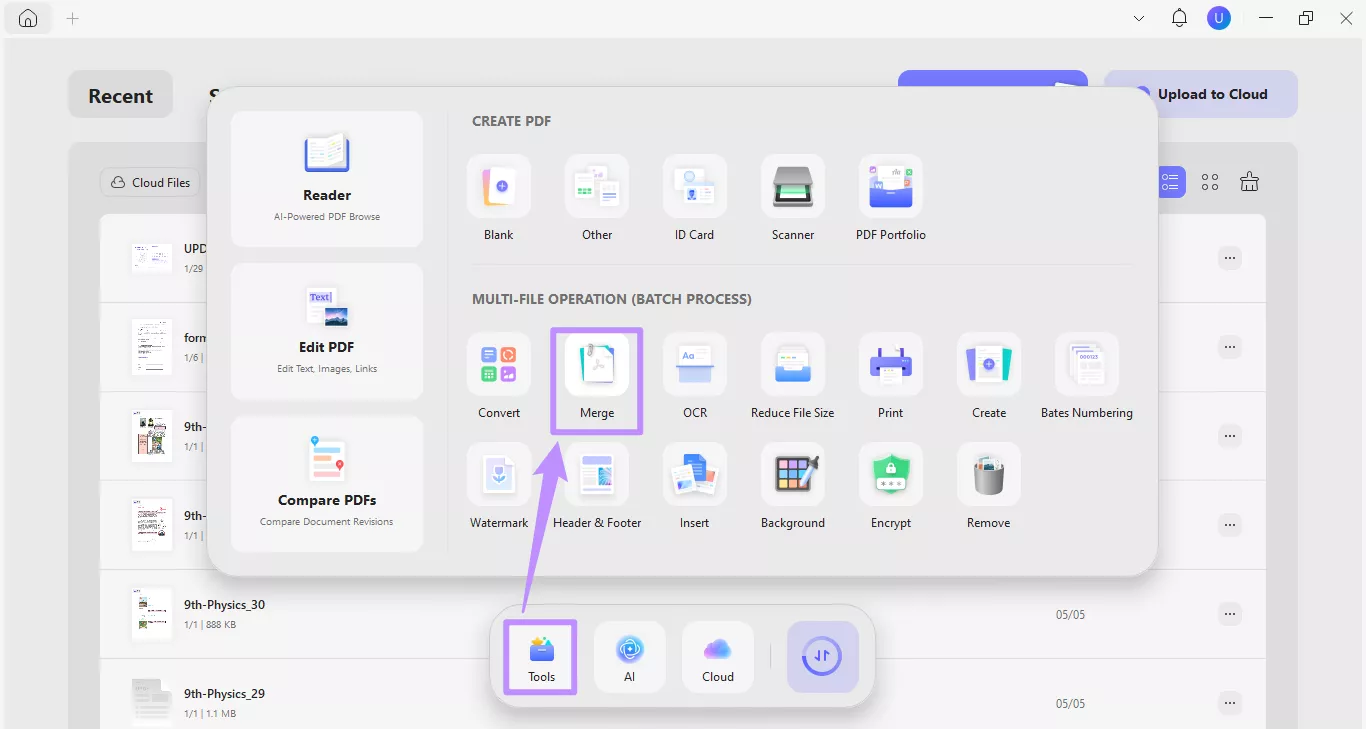
Step 1. Launch UPDF on your desktop. Click “Tools” from the bottom and select “Merge.”
Windows • macOS • iOS • Android 100% secure
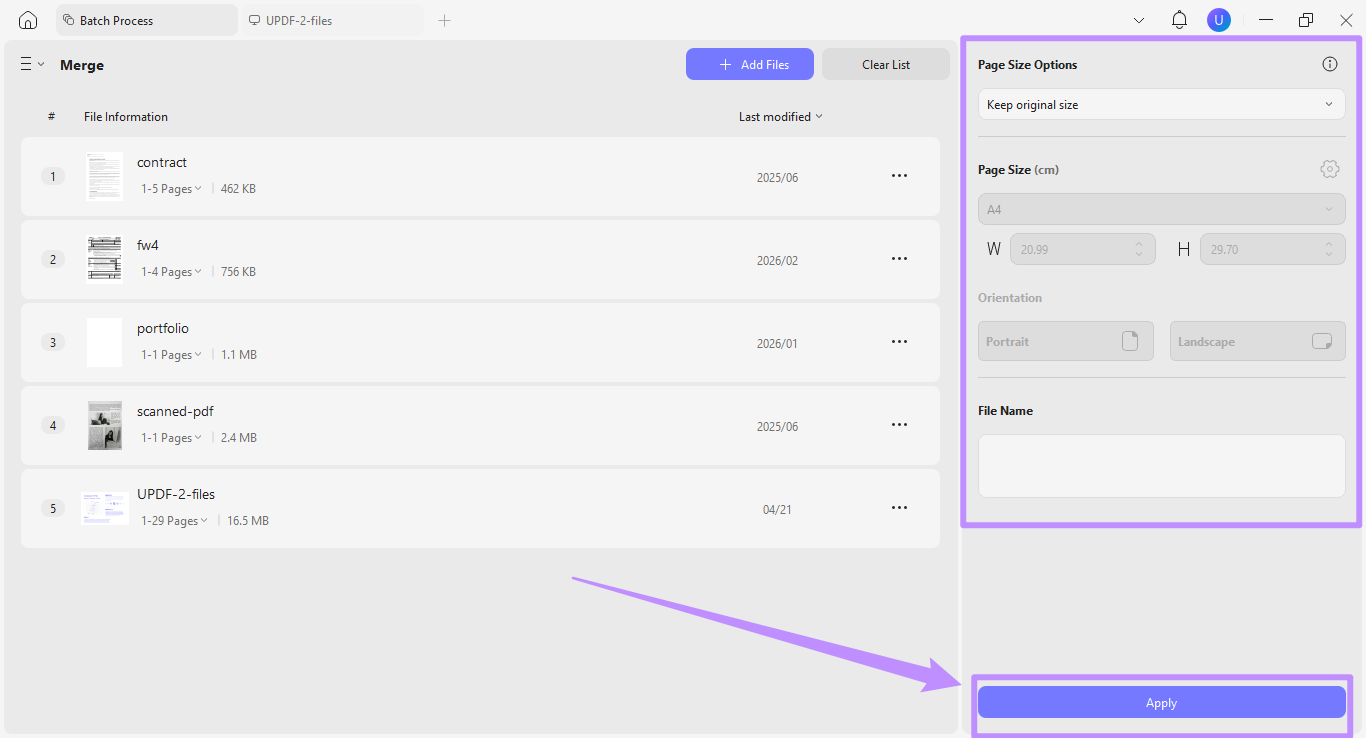
Step 2. Click “Add Files” to import several PDFs at once. Then, you can adjust page size, orientation, and file name from the right panel. Then, click “Apply” to merge all PDFs.
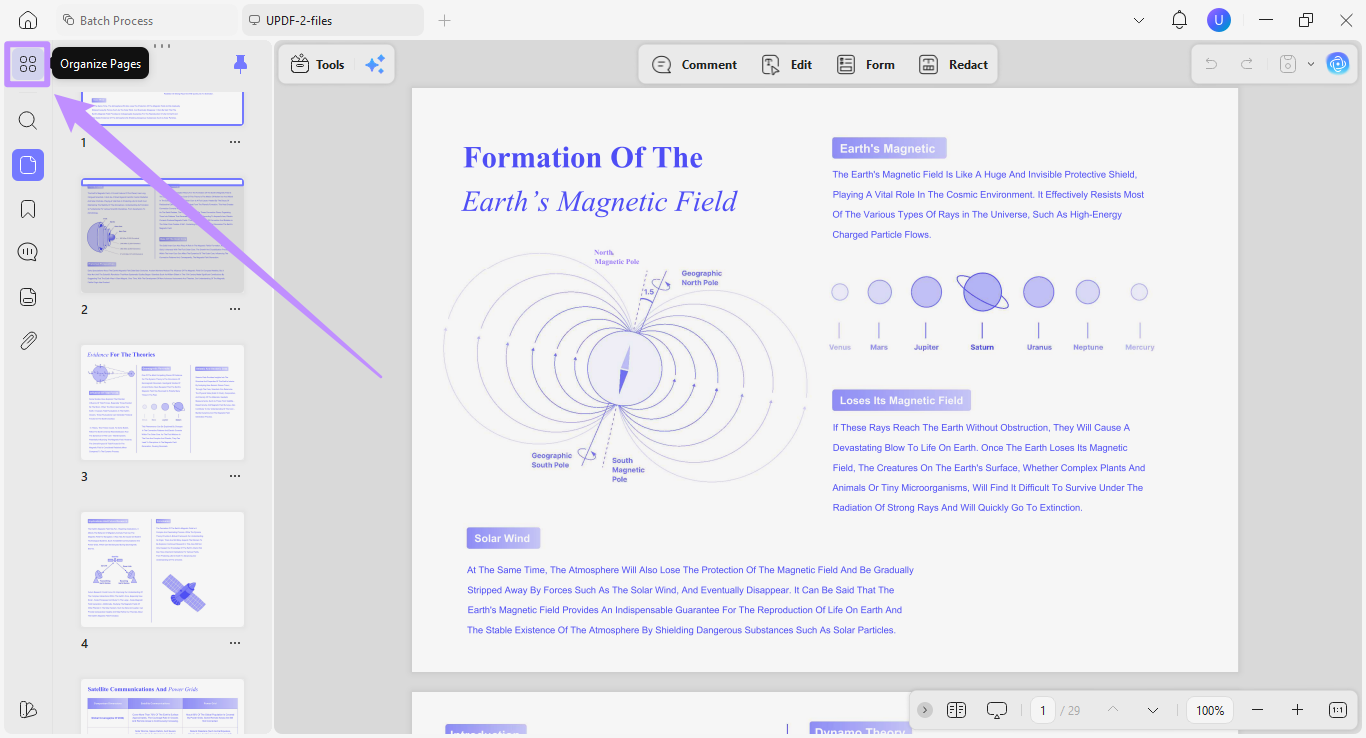
Step 3. The new PDF will automatically open in UPDF for further processing. From here, click “Organize Pages” from the left sidebar.
Step 4. Select “Split” from the top and choose how to separate PDF pages into separate files from the menu.
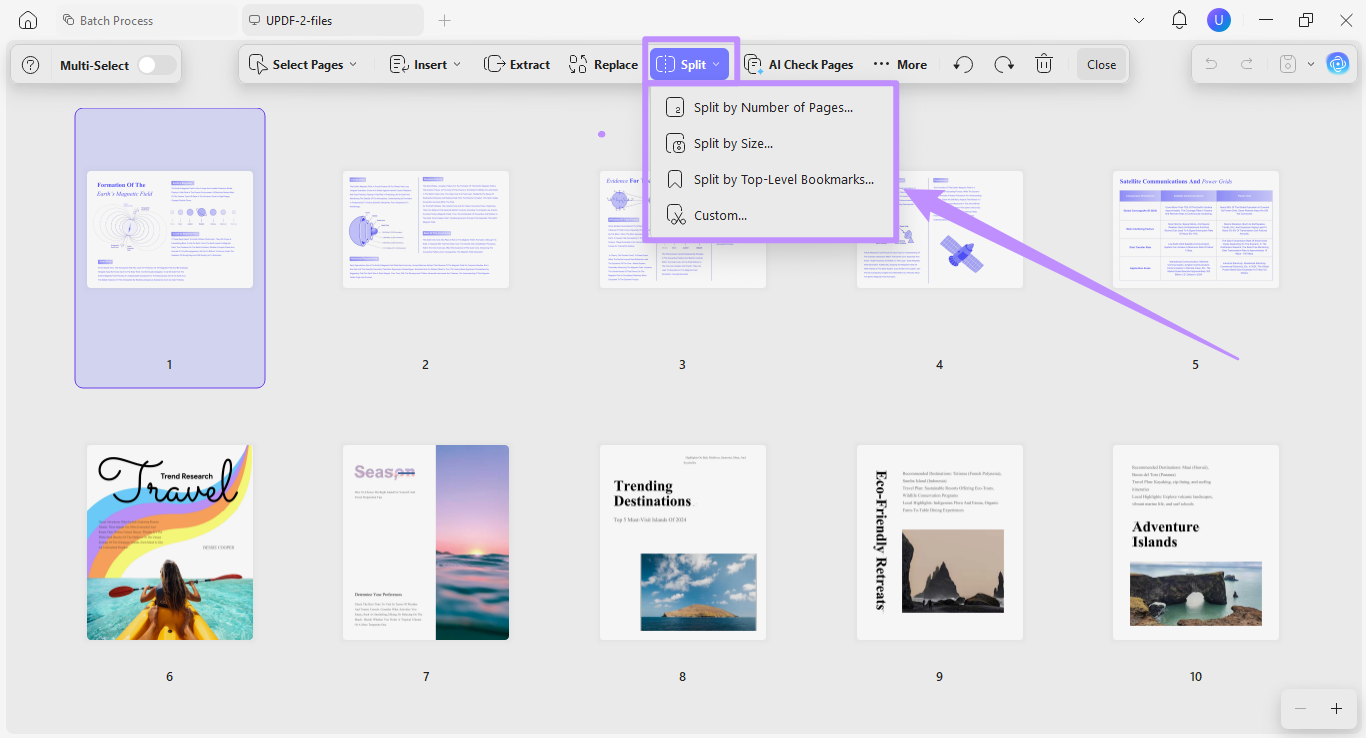
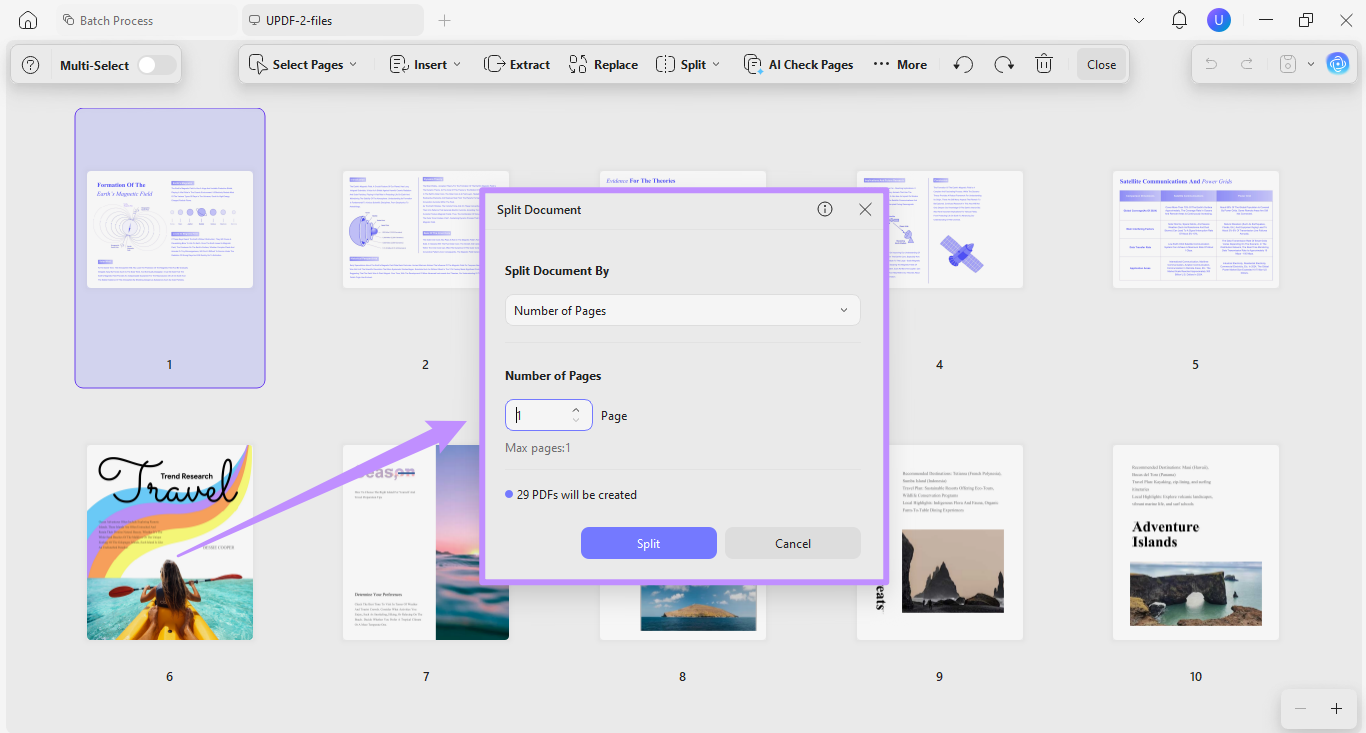
- Select “Split by Number of Pages” if you want to divide all PDF pages into standalone files or a specific page range.
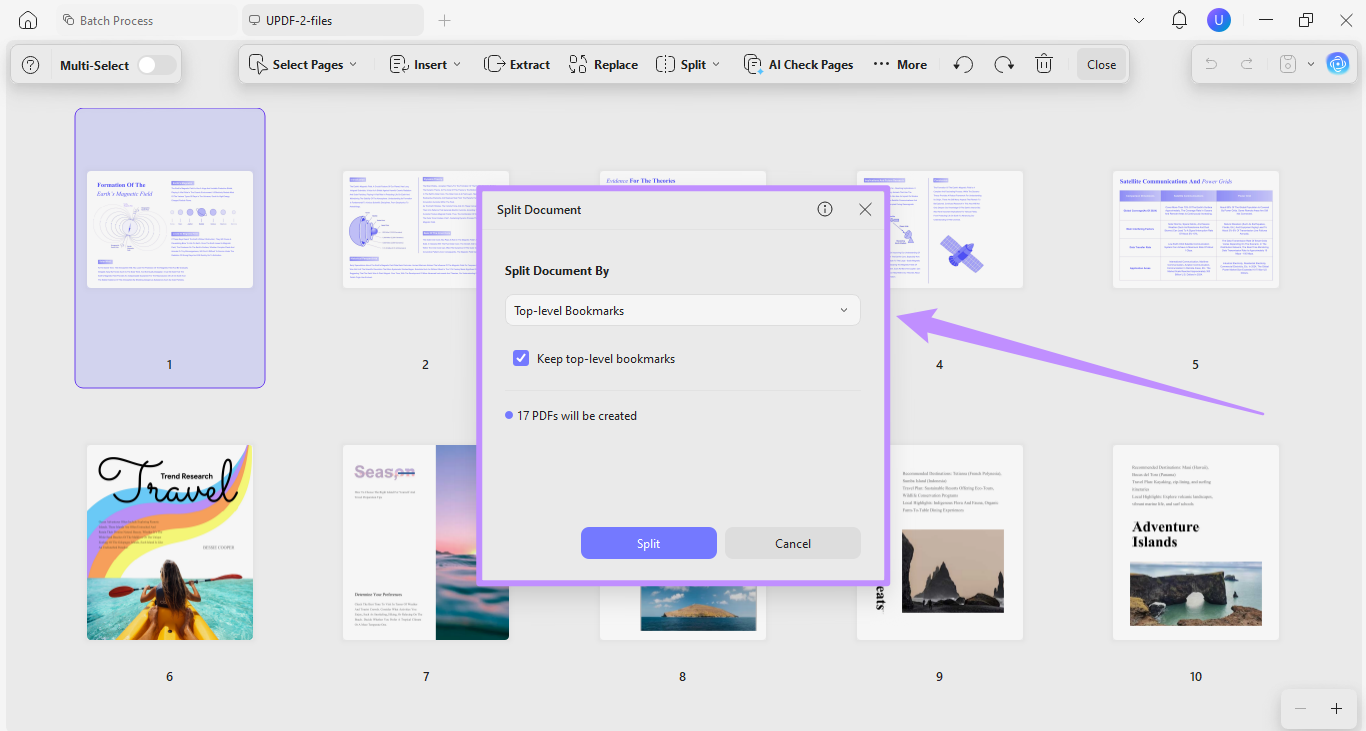
- If your document has a bookmark structure, select “Split by Top-Level Bookmarks” to divide the PDF into chapters.
- Choose “Custom” to specify different page ranges for all PDFs manually. Simply click the scissors icon to mark a point for splitting.
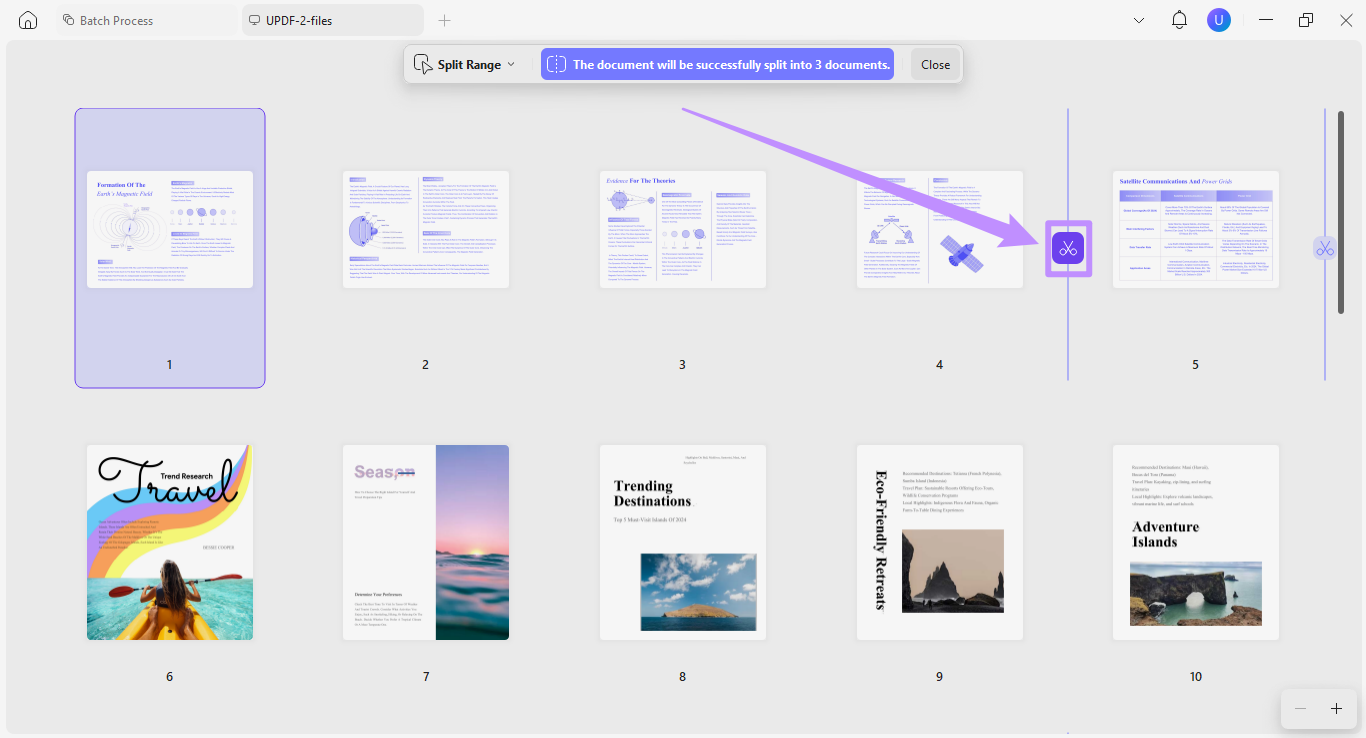
Step 5. Once you choose an option, click the “Split” button and choose a location to save your new PDFs.
Now let’s see how this works in Acorbat.
Steps to Split Multiple PDFs with Adobe Acrobat
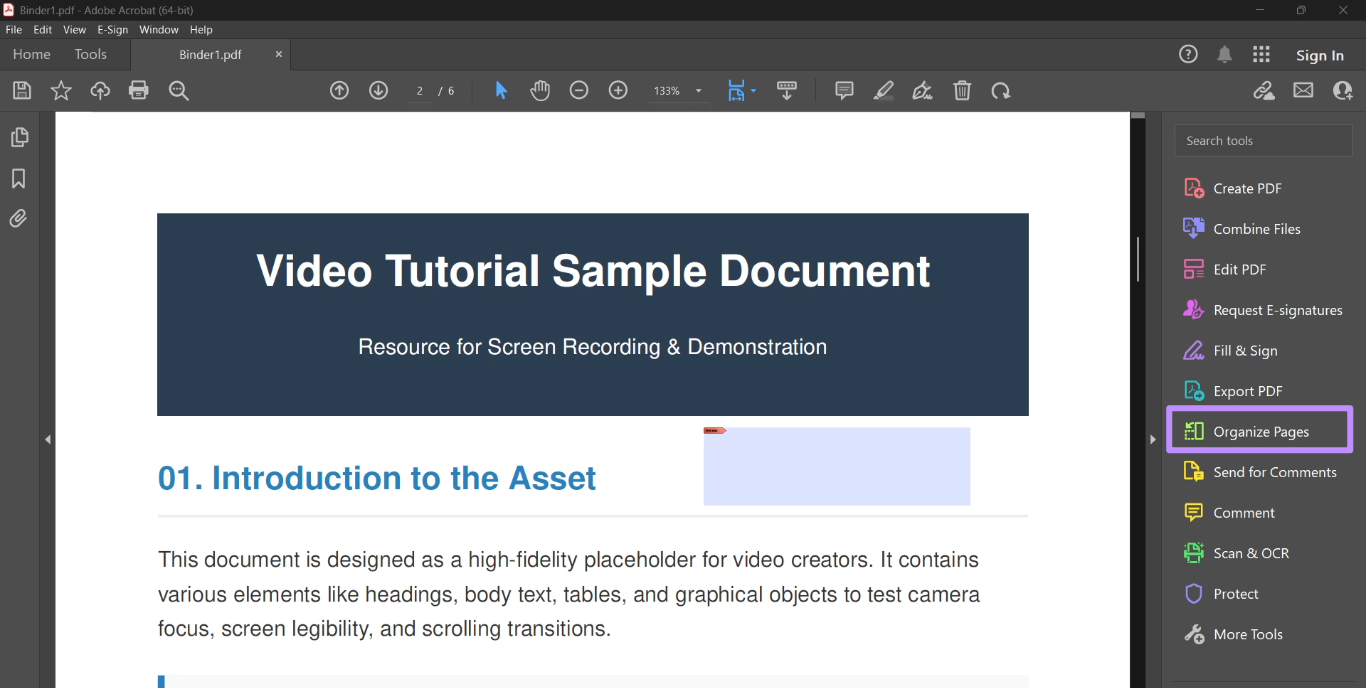
Step 1. Open your PDF in Adobe Acrobat Pro and select "Organize Pages" from the tools menu.
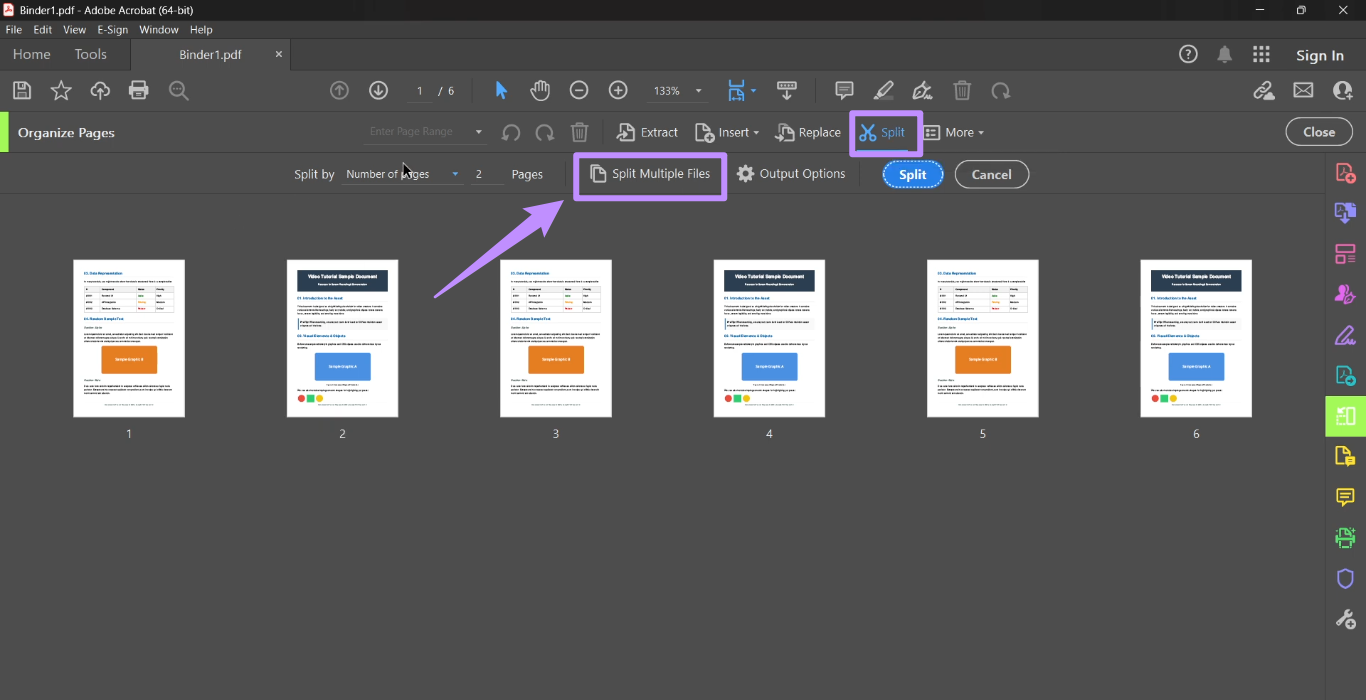
Step 2. Click the "Split" option and then select “Split multiple files.”
Step 3. Click “Add Files” at the top and add all the PDFs you want to split.
Step 4. Once the files are loaded, choose how you want to split the documents. You can choose to split by number of pages, by file size, or by top-level bookmarks.
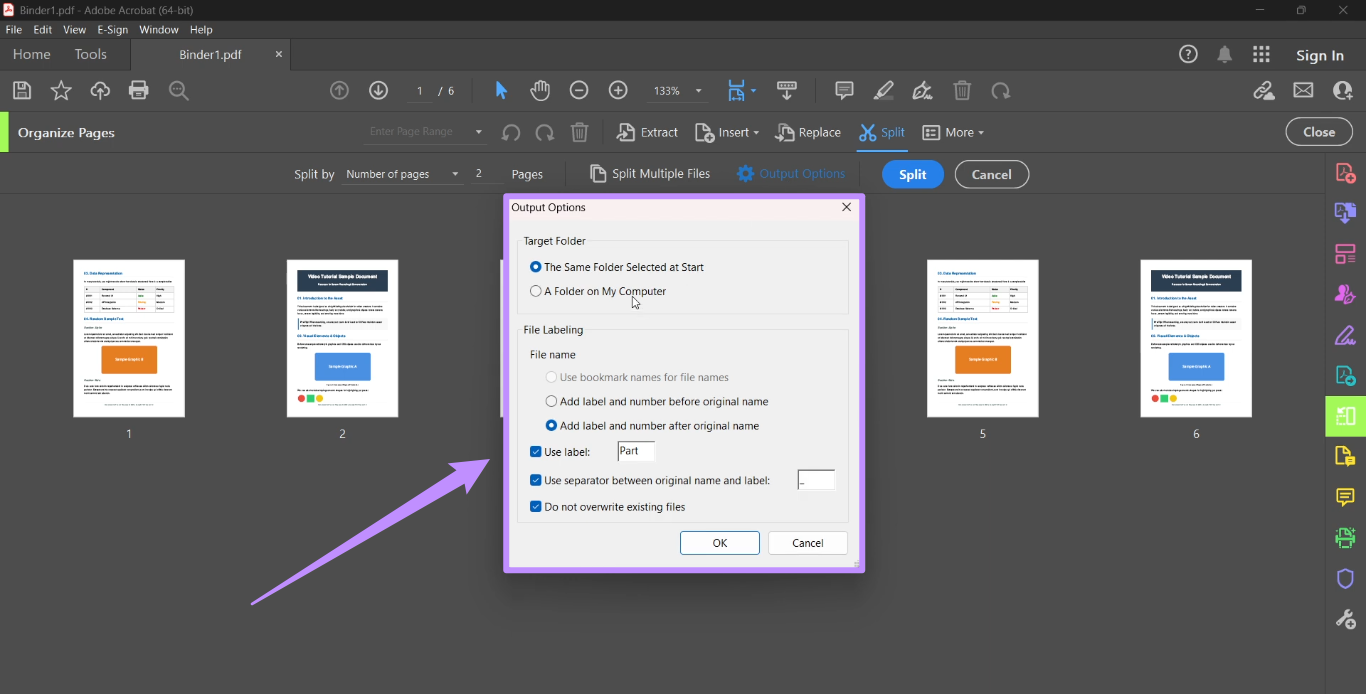
Step 5. Click "Output Options" to configure the file naming convention and choose a destination folder for the output files.
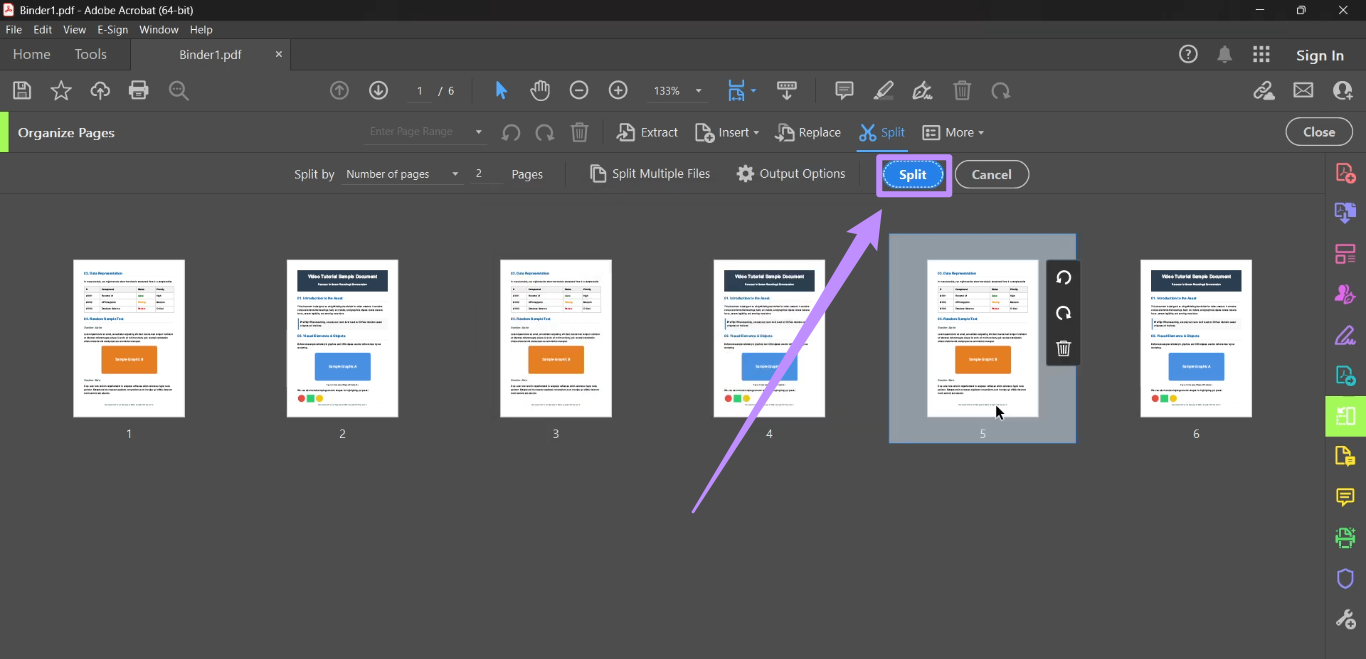
Step 6: Click "Split" and then select "Split All" to separate PDF pages into single files and save them to your chosen folder.
FAQs
Q1. What limitations do free tools and freemium versions have?
Free and freemium tools typically limit file sizes and the number of files processed per day. They also compress output quality and include restrictions on advanced features like batch splitting or custom page range selection.
Q2. How are the split PDF files named?
Most PDF tools automatically name split files in sequence using the original filename, such as “Document_1.pdf” and “Document_2.pdf.” However, tools like Adobe Acrobat allow you to create custom naming rules before splitting the document.
Q3. How do I extract only specific pages instead of all?
You can use UPDF to extract specific pages from the PDF instead of splitting the entire document. Simply hold the “CTRL” key to select multiple pages. Then click on “Extract” and choose PDF as the output format.
Q4. Can scanned PDF files be split?
Yes. Scanned PDF files can be split in the same way as standard PDFs. UPDF’s AI Page Management tool can automatically identify scanned pages in a PDF, so you can extract them selectively from the rest of the document.
Final Thoughts
When selecting a method to separate PDF pages into separate files, look for the ease of use, security, and accessibility of the tool. Free online tools are suitable for occasional, basic tasks. However, they have limitations in features and data security.
If you need more frequent or advanced work, a dedicated desktop application like UPDF is a more reliable option. Moreover, you can get started completely free. So, try to split your documents with ease.
Windows • macOS • iOS • Android 100% secure





 Lizzy Lozano
 Grace Curry
 Enid Brown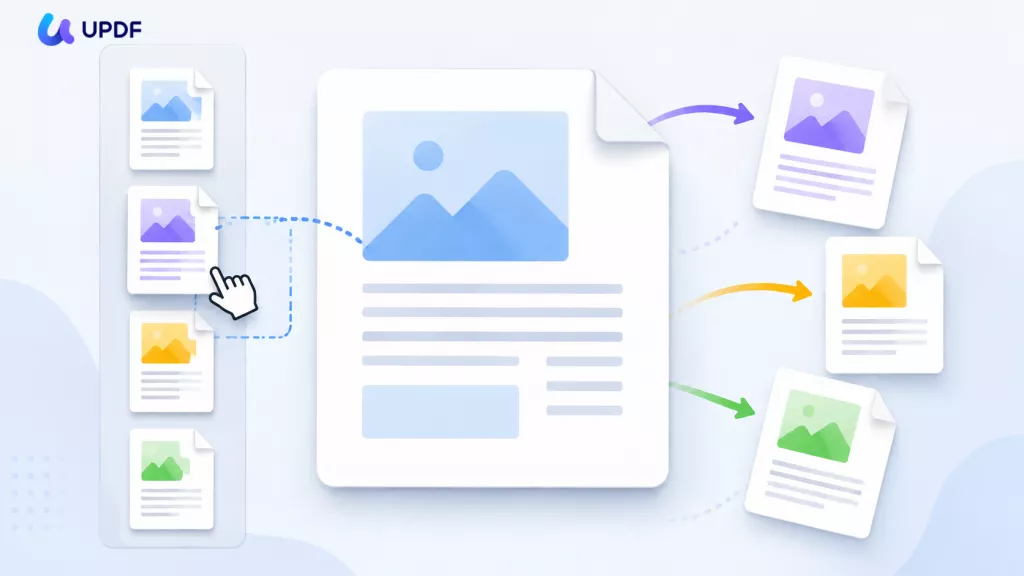
 Enrica Taylor