 UPDF
UPDF
 UPDF for Windows
 UPDF for Mac
 UPDF for iPhone/iPad
 UPDF for Android
 Nomostar
 UPDF AI Online
 UPDF Sign
 IvyCraft
 Edit PDF
 Annotate PDF
 Create PDF
 PDF Form
 Edit links
 Convert PDF
 OCR
OCR PDF to Word
 PDF to Image
 PDF to Excel
 Organize PDF
 Merge PDF
 Split PDF
 Crop PDF
 Rotate PDF
 Protect PDF
 Sign PDF
 Redact PDF
 Sanitize PDF
 Remove Security
 Read PDF
 UPDF Cloud
 Compress PDF
 Print PDF
 Batch Process
 About UPDF AI
 UPDF AI Solutions
 AI User Guide
 FAQ about UPDF AI
 Summarize PDF
 Translate PDF
 Chat with PDF
 Chat with AI
 Chat with image
 PDF to Mind Map
 Explain PDF
 PDF AI Tools
 Image AI Tools
 AI Chat Tools
 AI Writing Tools
 AI Study Tools
 AI Working Tools
 Other AI Tools
 AI Bookmark Generation
 AI Bookmark Summary
 AI Watermark Generation
 AI Background Generation
 AI Sticker Generation
 AI Stamp Generation
 AI Editing Suite
 UPDF Copilot
 AI Page Management
 AI Semantic Search
 PDF to Word
 PDF to Excel
 PDF to PowerPoint
 Enterprise Solution
 Enterprise Sign
 Enterprise AI
 Enterprise Plan
 Enterprise User Guide
 Enterprise Webinar
 IT
IT Education
 Construction
 Financial Service
 Healthcare
 Insurance
 Legal
Legal Manufacturing
 Government
 Researchers & PhDs
 Solopreneurs & Freelancers
 Lawyers & Legal Professionals
 Real Estate Agents & Brokers
 Education Solution
 Customer Stories
 User Guide
 UPDF Tricks
 FAQs
FAQs UPDF Reviews
 Download Center
 Blog
Blog Newsroom
 Tech Spec
 Updates
 UPDF vs. Adobe Acrobat
 UPDF vs. Foxit
 UPDF vs. PDF Expert

Apple Preview is a convenient free PDF tool for Mac and iPhone users. It handles reading, search, annotations, signatures, scans, and simple forms without extra software. However, many editing tools add annotations instead of changing the PDF's original content.
This difference shapes the comparison for users needing more advanced PDF editing workflows. UPDF supports existing text editing, complex forms, OCR, conversion, and complete document translation. Most readers can compare both tools through these common everyday PDF work situations:
- Reading, Markup, and Occasional Signatures: Apple Preview may already meet your needs.
- Editing Existing PDF Content: UPDF provides tools for modifying original document elements.
- Simple PDF Forms: Apple Preview offers a convenient built-in filling experience overall.
- Complex Forms with Checkboxes and Date Fields: UPDF provides broader interactive support.
- OCR, Conversion, and Regular PDF Work: UPDF supports more advanced document workflows.
Part 1. How We Compared Preview and UPDF
This comparison is based on hands-on testing rather than feature lists alone. We tested both applications across Mac and iPhone using the following setup:
- Apple Preview: Tested on a Mac running macOS 27.
- Apple Preview for iPhone: Tested on an iPhone running iOS 27.
- UPDF: Tested on both Mac and iPhone.
We used 3 document types to compare how each application handled everyday PDF tasks. These included a regular text-based PDF, a scanned PDF, and an interactive PDF form. The form contained text fields, checkboxes, and a date field for more detailed testing.
Note: The findings reflect our testing with these specific platforms, documents, and software versions. Individual features may change as Apple and UPDF release future updates.
Part 2. Apple Preview vs. UPDF at a Glance
Both tools share basic PDF features but differ significantly across more advanced document workflows. The table below highlights their main capabilities before exploring important workflow differences in detail:
| Task | Preview on Mac | Preview on iPhone | UPDF |
| View and Search PDFs | Yes | Yes | Yes |
| Highlight and Annotate | Yes | Yes | Yes |
| Add Text Boxes and Signatures | Yes | Yes | Yes |
| Edit Existing PDF Text | No | No | Yes |
| Edit Existing Images and Links | No | No | Yes |
| Manage PDF Pages | Basic tools | Basic tools | More complete tools |
| Fill Simple PDF Forms | Yes | Yes | Yes |
| Handle Complex Interactive Forms | Partially | Limited in our test | Yes |
| Scan Documents to PDF | No direct camera scanning | Yes | Yes |
| OCR and Edit Scanned Text | No complete editing workflow | No complete editing workflow | Yes |
| Translate Selected Text | Yes, where supported | Yes, where supported | Yes |
| Translate a Complete PDF | No | No | Yes |
| Convert PDF to Word or Excel | No | No | Yes |
| Work on Windows and Android | No | No | Yes |
Preview is a convenient free choice for viewing, annotating, and handling simple PDFs. If you already know that you need to edit existing text, work with interactive forms, or run OCR, UPDF is worth a look. You can try it on Mac or iPhone for free.
Windows • macOS • iOS • Android 100% secure
Part 3. Working With Regular PDFs
Most PDF tasks involve opening documents, finding information, and making simple changes or notes. Preview handles these everyday tasks well without requiring additional PDF software for most users.
What Preview Does Well
Preview covers most of the basic tasks you would expect when working with a regular PDF. You can use it to:
- Open, read, and search PDFs
- Highlight, underline, and strike through text
- Add text boxes, shapes, notes, and signatures
- Perform basic page operations
- Access files through iCloud and other Apple apps
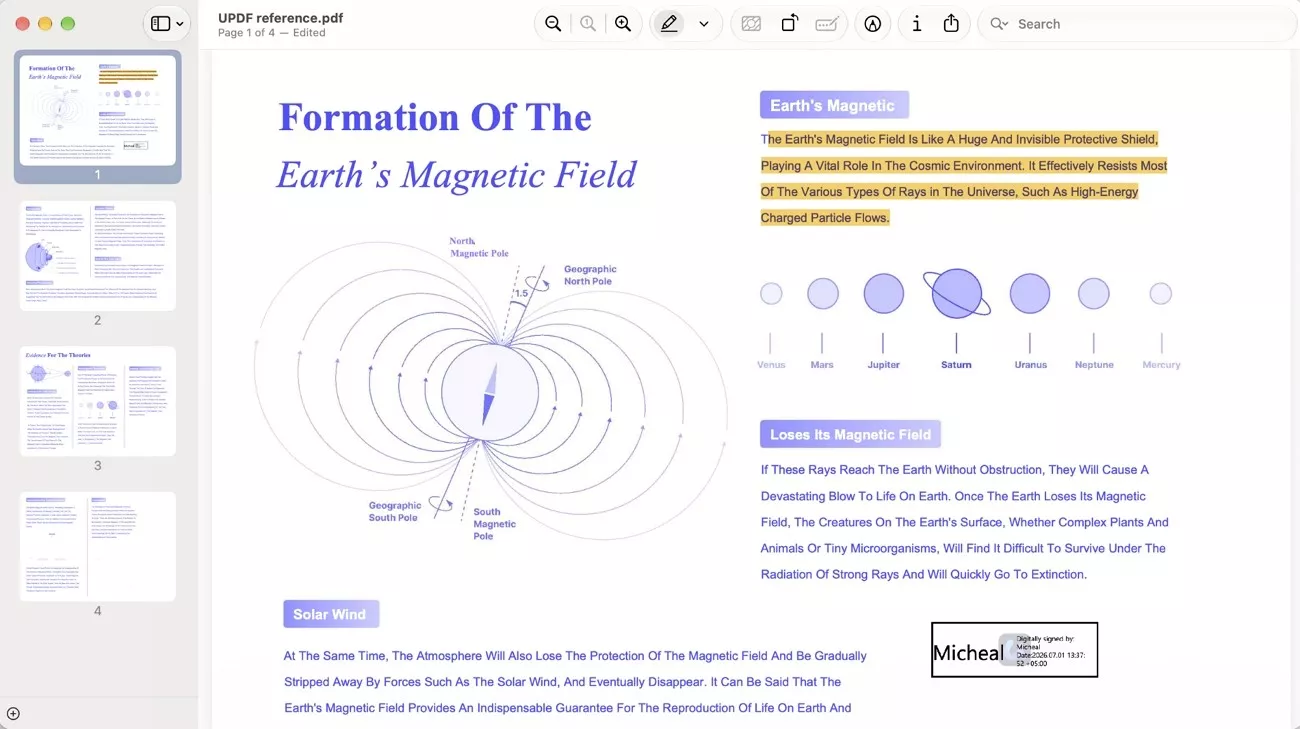
For reading and marking up a PDF, these tools are usually enough. The limitation becomes clear when you need to change something already inside the document.
For example, adding a text box in Preview does not edit the original PDF text. It adds new text over the page as an annotation, while the existing content remains unchanged.
This matters when the PDF contains something you need to fix. Preview does not let you select the original text and rewrite it directly. Instead, you have to add the correction over the existing content.
What UPDF Adds
UPDF lets you directly edit content that already exists inside the PDF document. Instead of adding corrections over existing content, you can change the original elements. With UPDF, you can:
- Modify, delete, or replace existing text
- Adjust font, size, color, and alignment
- Replace or reposition existing images
- Add or modify links
- Correct content without recreating the page
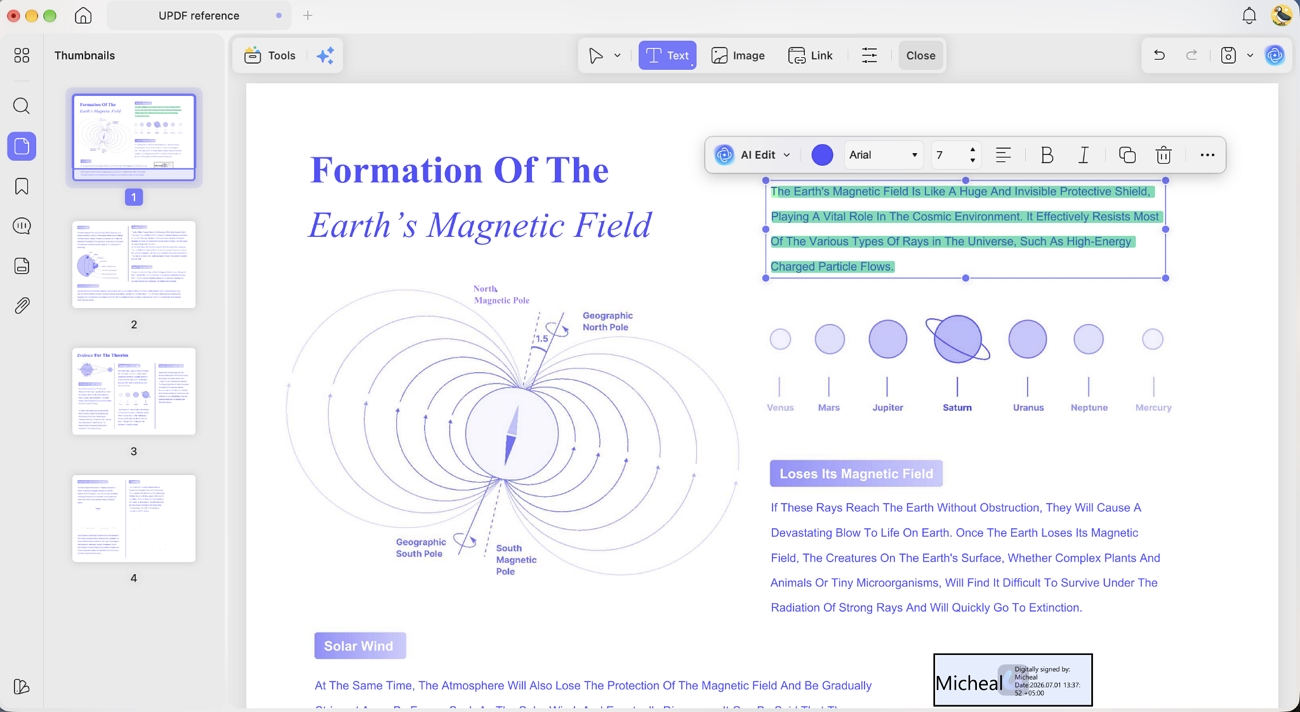
These editing features also work on mobile when changes are needed away from Mac. You can learn how to edit existing PDF text on iPhone through the detailed guide.
In Short: Preview works well for reading and marking up PDFs without bigger changes. UPDF is more suitable when you need to change content already inside documents.
Part 4. Filling Out PDF Forms
PDF forms revealed clearer differences between Preview and UPDF during our hands-on testing. How each form works depends largely on the fields built into the document itself.
Simple Forms
Preview handles straightforward forms without difficulty. It supports recognized text fields, AutoFill suggestions, and signatures, and it can place text boxes onto non-interactive forms that have no real fields at all.
For a document asking only for a name, an address, and a signature, Preview is often the quickest route. Nothing needs installing, and the completed file saves straight back to iCloud.
Complex Interactive Forms
Complex forms showed clearer limitations during our testing with Preview on iPhone. The test PDF included text fields, interactive checkboxes, and a dedicated date field. During the test, we found that:
- Some interactive checkboxes could not be selected
- The date field did not open a date picker
- Dates required handwriting or an added text box
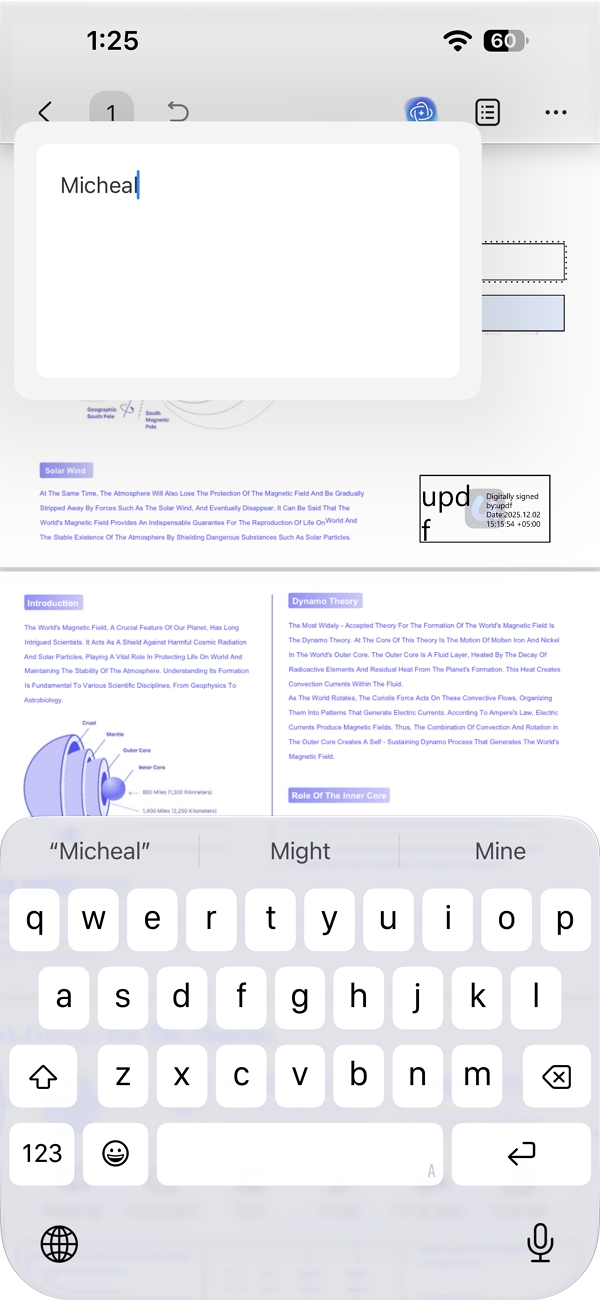
- Non-interactive forms mainly relied on annotation-style text boxes
These results may vary depending on how individual PDF form fields were created. In our iOS 27 test, Preview did not handle every checkbox and date field properly.
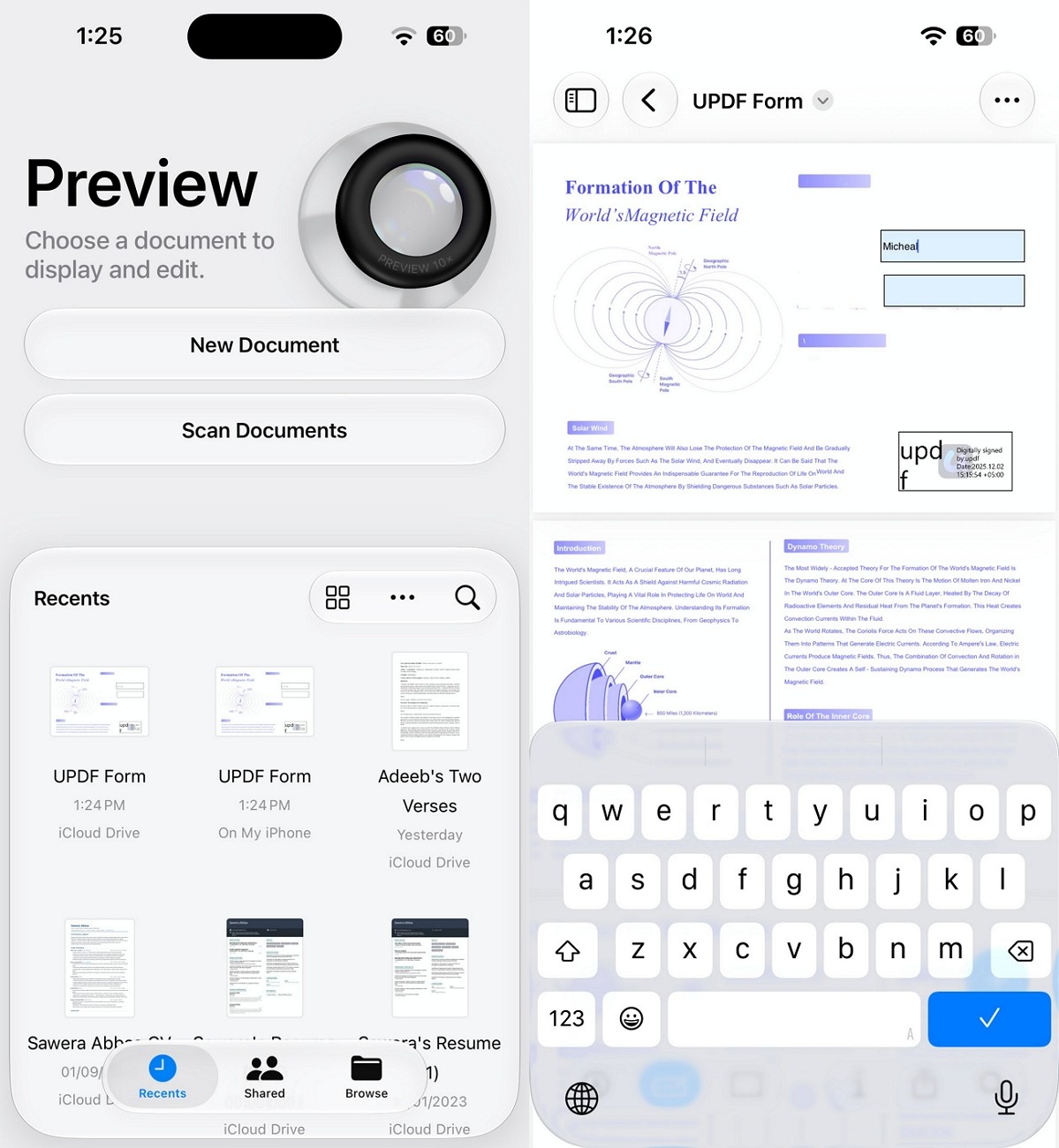
The available workarounds can also affect how the completed form works after submission. Adding text over a field may look correct without actually filling the underlying field. This can matter when another system needs to read the submitted form data.
How UPDF Handles These Forms
UPDF provides more direct support for the interactive elements used in complex PDF forms. The same form can be filled without relying on added text boxes or handwritten entries. With UPDF, you can work with:
- Text fields
- Checkboxes
- Date fields with date selection
- Signatures
- New or additional form fields
- Complex forms used regularly
UPDF can also add interactive fields to PDFs that do not already contain them. This is useful when you regularly receive flat forms that still need proper fillable fields. The guide on how to fill interactive PDF forms on iPhone explains how to create and complete these fields.
Conclusion: Preview works well for occasional simple forms with standard fields and signatures. UPDF provides more control when forms include checkboxes, dates, and multiple interactive fields.
If you only complete occasional forms, Apple Preview may already cover your basic needs. UPDF becomes more useful when complex forms and editable documents are regular requirements.
UPDF Pro currently costs $49.99 per year, while Adobe Acrobat Pro costs $239.88 annually. That puts UPDF at roughly 1/5th of Acrobat Pro's standard annual US price.
UPDF also offers a $79.99 perpetual plan for users avoiding recurring PDF subscriptions. The one-time purchase includes the core PDF tools without requiring annual Pro renewal.
Note: Prices and promotions may change. Check the official purchase pages for current pricing.
View UPDF Plans | Get UPDF Pro
Part 5. Working With Scanned PDFs
Scanning paper into a PDF is only the first step in digitizing documents properly. The bigger difference appears when you need to use the information inside those scans.
What Preview Can Do
Preview on iPhone handles the basic scanning process without requiring another application. You can scan multiple pages using the camera, then crop, rotate, and adjust them.
The finished scan can be saved as a PDF and stored through iCloud. Preview also provides an Embed Text option that makes recognized text searchable after export.
For receipts, notices, and other documents kept mainly for reference, this works well. You get a searchable digital copy without installing separate scanning or OCR software.
Where Preview Reaches Its Limit
Making text searchable does not make the scanned document itself fully editable. This becomes limiting when you need to do more with the scanned information. Preview does not provide a complete workflow for:
- Editing paragraphs recognized from the scan
- Correcting OCR results directly inside the PDF
- Converting scanned PDFs into editable Word or Excel files
- Processing scanned documents regularly
For occasional archiving, these limitations may not matter much to most users. They become more noticeable when scanned information needs editing, conversion, or repeated reuse.
What UPDF Adds
UPDF extends the workflow beyond scanning by applying OCR to scanned PDF documents. Once recognized, the content can be searched, copied, edited, converted, and used. With UPDF, you can:
- Run OCR on scanned PDFs
- Recognize text in multiple languages
- Search and copy recognized text
- Edit content after OCR
- Convert scanned PDFs to Word, Excel, and other formats
- Continue organizing and editing the PDF afterward
OCR is what turns a scanned page from an image into usable document content. See how to make a scanned PDF editable for the complete process.
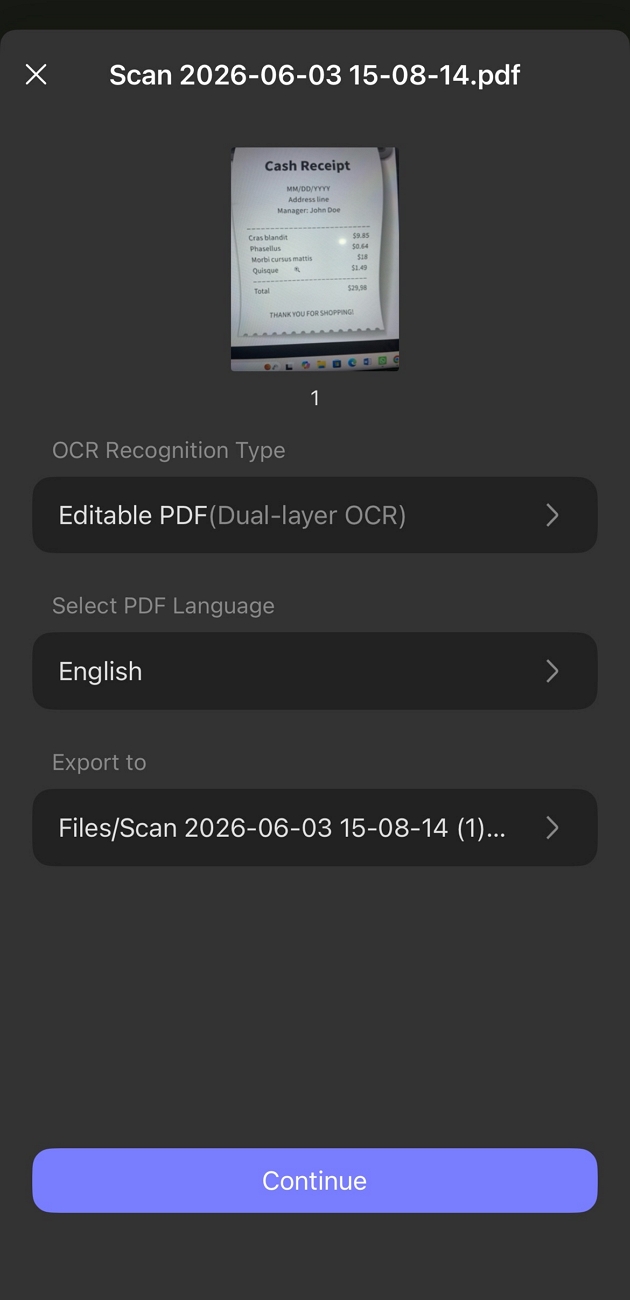
Summary: Preview works well for scanning and storing searchable copies of paper documents. UPDF goes further when scanned content needs to be edited, converted, or reused.
Part 6. Translating PDF Content
Translation becomes useful when a PDF contains information written in an unfamiliar language. Preview and UPDF both support translation, but they handle different amounts of content.
Translation in Apple Preview
Preview works well when you only need to understand a small section of text. You can translate selected text where Apple's translation features are supported.
On iPhone, Live Text can also recognize and translate text found inside images. This makes Preview useful for translating a word, sentence, or short passage quickly.
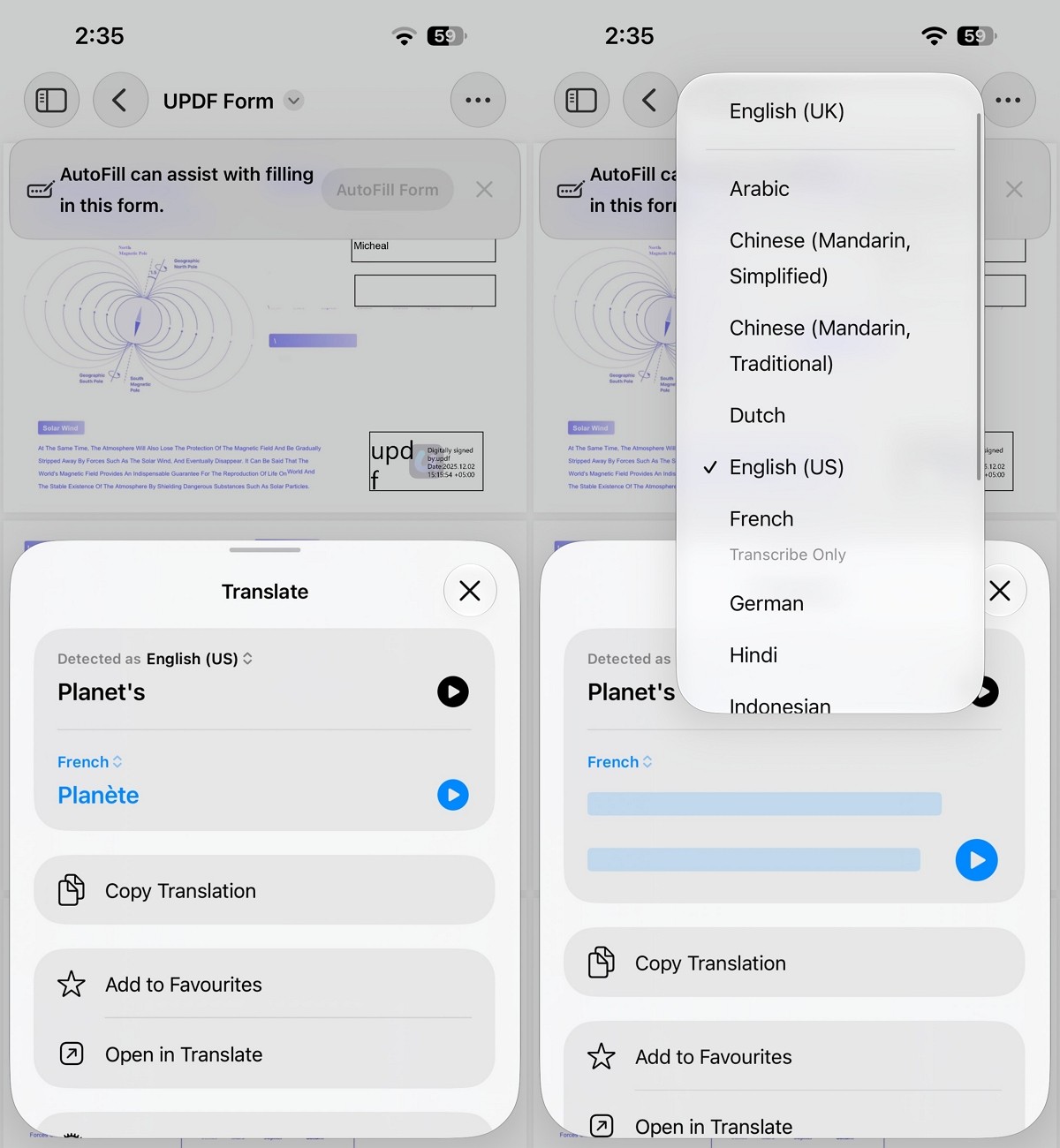
Language and regional availability can vary, so support depends on your current location. Apple explains this feature in its guide to interacting with text in an image in Preview on iPhone.
Preview, however, is not designed to translate an entire PDF while preserving its layout. That limitation becomes more important when you are working with longer documents or reports.
Translation in UPDF
UPDF extends translation beyond small selections to pages and complete PDF documents. You can translate selected text, individual pages, or the entire PDF when needed.
For complete documents, UPDF can create a translated version while retaining the original layout. This is more practical for reports, academic papers, contracts, and other longer documents.
Instead of translating separate passages individually, you can work with the document as a whole. This makes longer translated PDFs easier to read, review, and share with other people.
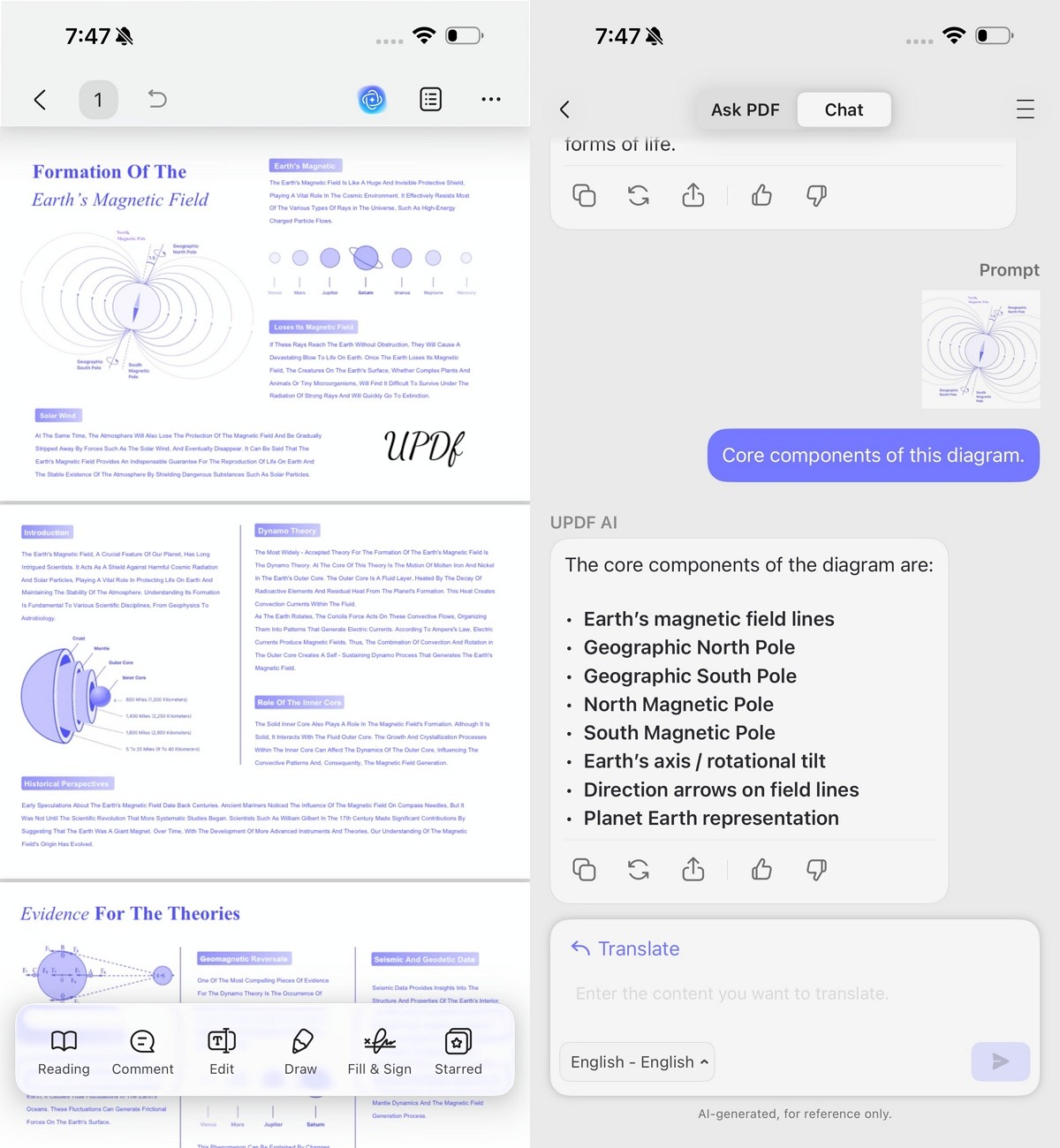
So, Preview is useful for quickly understanding a small amount of selected text. UPDF is more appropriate when users need to read or share a complete translated document.
Part 7. Managing, Exporting, and Protecting PDFs
PDF work also involves organizing pages, combining documents, exporting files, and protecting sensitive information. Preview and UPDF both cover these tasks, although their available tools differ.
Preview Supports
Preview provides practical PDF management tools for users who need occasional document editing on Apple devices. You can add, delete, move, rotate, and crop pages while keeping document organization simple and convenient. It also lets you merge PDF documents, making related files easier to combine and manage together.
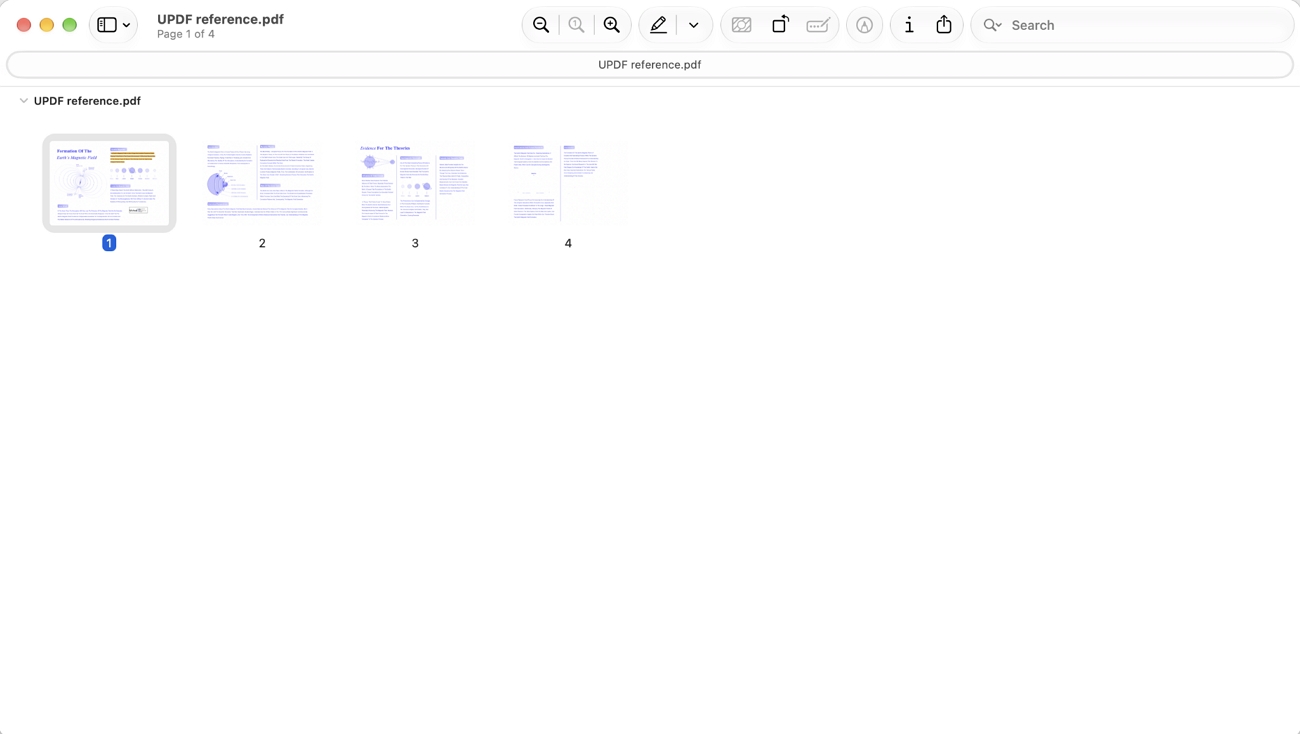
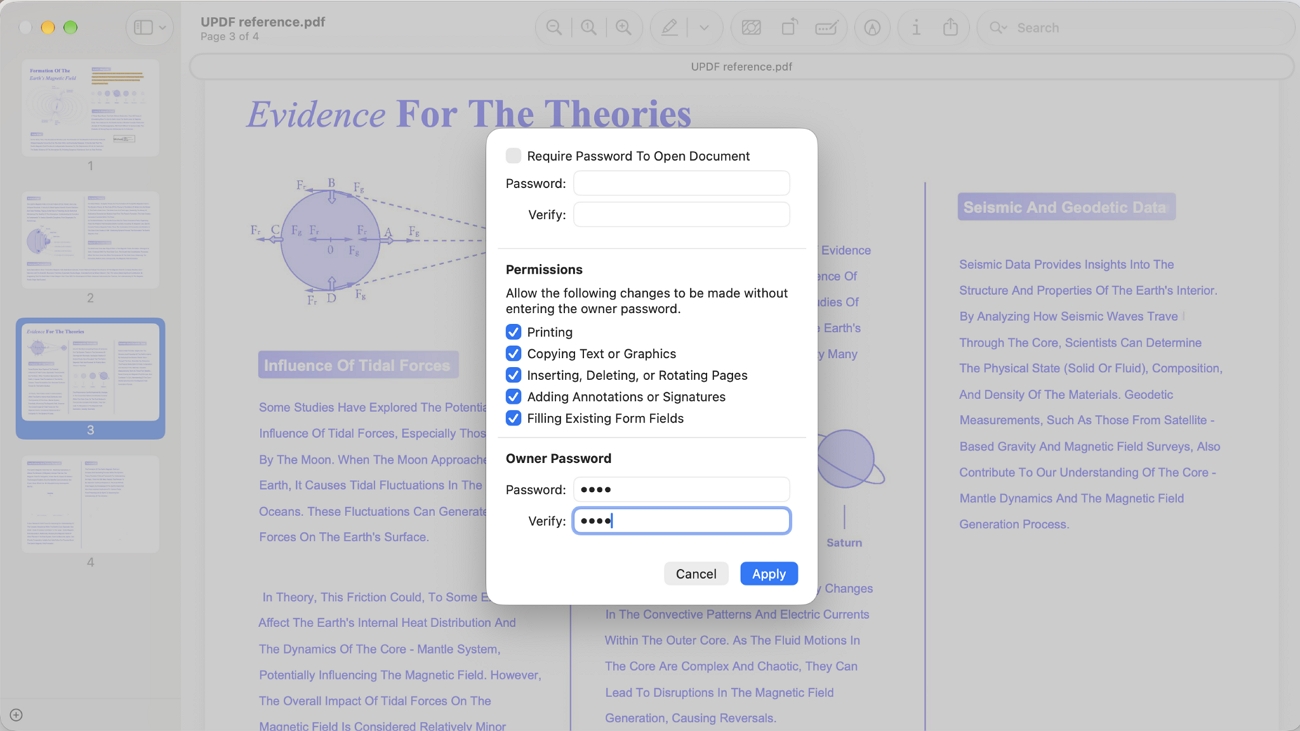
Moreover, Preview supports PDF exporting and compression, helping users create smaller files for storage or convenient sharing. You can add password protection to sensitive documents when you need greater privacy for PDF files. Files can also be shared through iCloud and other Apple apps, supporting workflows across Apple devices.
What UPDF Adds More
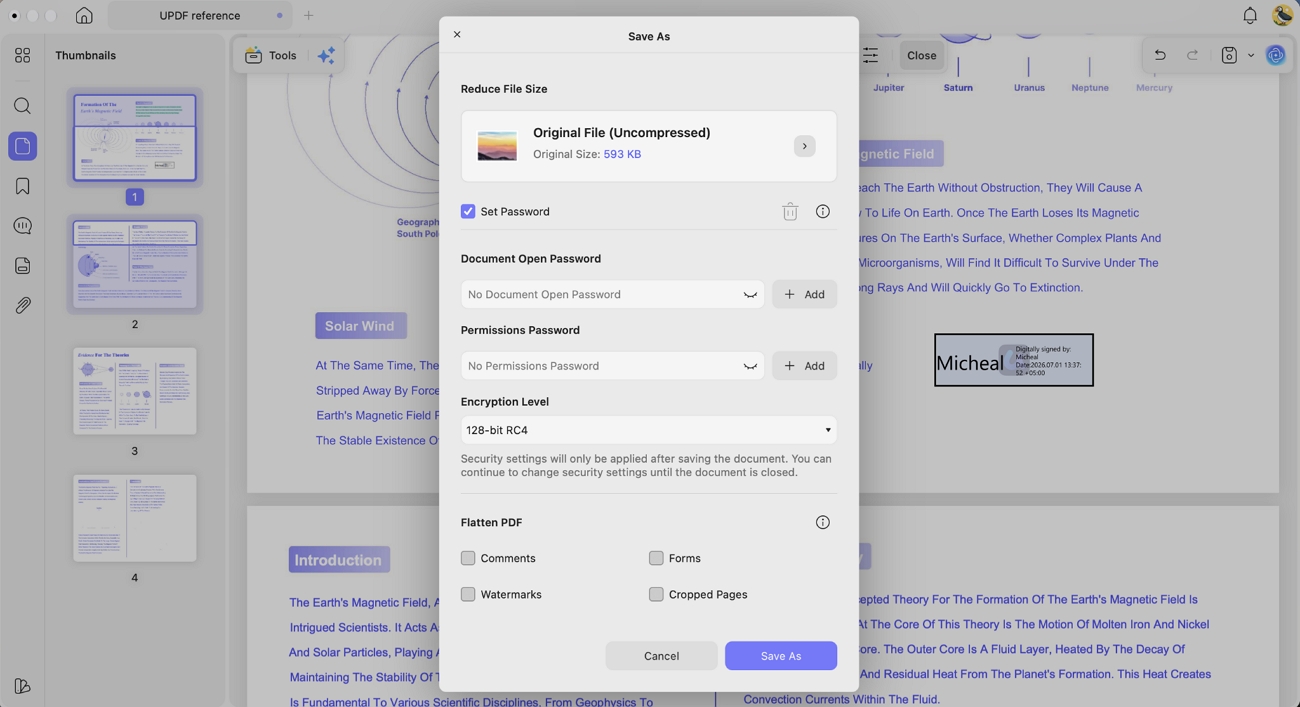
UPDF adds more options for managing, converting, and protecting PDF files across different platforms:
- Extracting and splitting pages
- More complete merging and page organization
- Converting PDFs to Office formats and images
- Permanent redaction
- Cloud workflows across Mac, Windows, iPhone, iPad, and Android
- More complete tools for regular PDF work
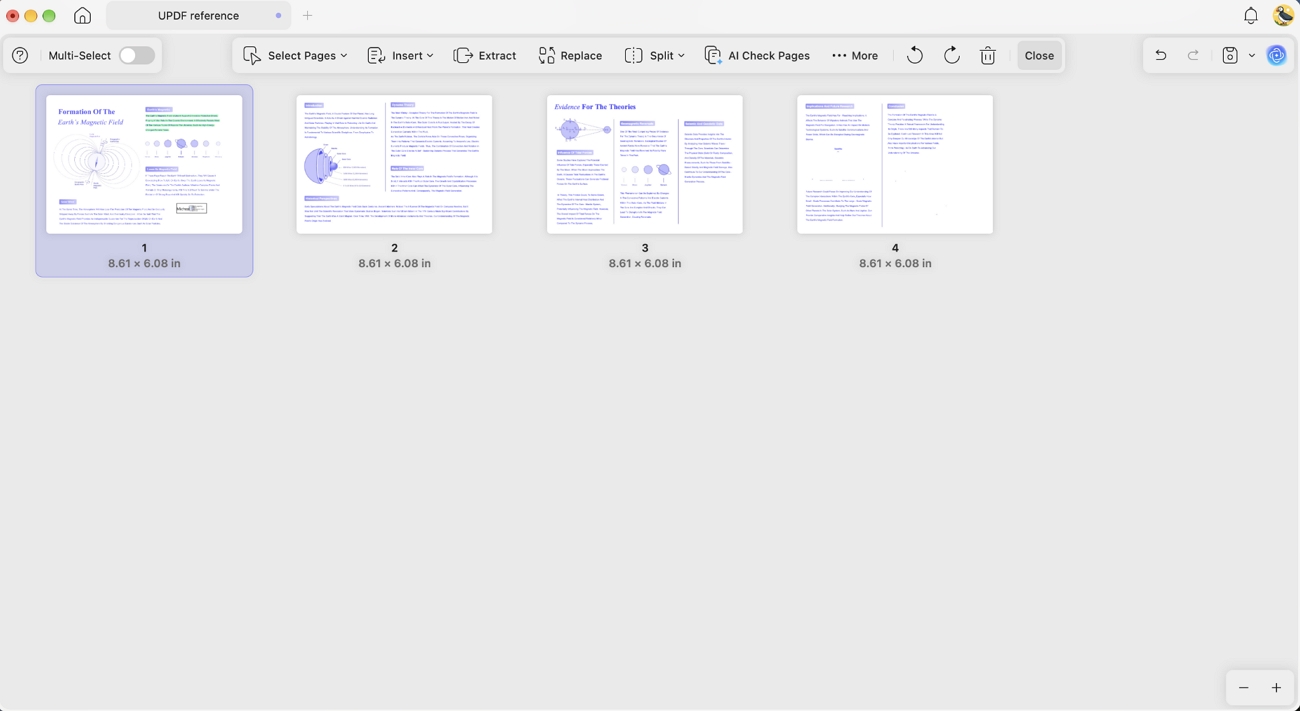
One important difference is permanent redaction. Drawing a black shape over sensitive text only hides it visually, while the original content can remain searchable or selectable. Permanent redaction removes that information from the PDF itself, which matters when sharing confidential documents.
Cross-platform coverage is the other structural difference. UPDF runs as a complete PDF editor for iPhone and iPad. The UPDF PDF editor for Mac covers the desktop side, alongside Windows and Android.
The same document and account can therefore move between devices, including outside Apple's ecosystem.
Verdict: Preview works well for occasional file management inside the Apple ecosystem. UPDF is more suitable for broader cross-platform document workflows.
Part 8. Features UPDF Provides Beyond Preview
UPDF includes several advanced PDF tools that go beyond the capabilities available in Preview:
- Direct PDF Editing: Edit original PDF text, images, and links without placing annotations over existing content.
- OCR Editing: Recognize 38 languages, edit scanned documents, and correct text after OCR processing.
- File Conversion: Convert PDFs into Word, Excel, PowerPoint, and image formats for easier reuse later.
- Advanced Forms: Create and manage interactive fields for forms requiring more than basic text entry.
- Permanent Redaction: Permanently remove sensitive information instead of simply covering content with visual annotations alone.
- Complete PDF Translation: Translate complete PDF documents while keeping their original layout easier to follow afterward.
- Cross-Platform Support: Access PDF workflows across Mac, Windows, iPhone, iPad, and Android using UPDF consistently.
Part 9. Which PDF Editor Should You Choose?
The right choice depends mainly on how often and how deeply you work with PDFs:
Choose Apple Preview If You
Apple Preview makes sense when your PDF needs are simple and mostly occasional:
- View or annotate PDFs occasionally
- Fill out simple PDF forms
- Work mainly within the Apple ecosystem
- Do not need to edit original PDF content
- Prefer a free tool already built into your device
Choose UPDF If You
UPDF fits workflows that involve more advanced PDF tasks on a regular basis:
- Edit existing PDF text, images, or links
- Complete complex interactive forms regularly
- Use OCR, conversion, or complete-document translation
- Work frequently with contracts, reports, or scanned documents
- Move between mobile and desktop while working
- Process and manage PDFs weekly or daily
Final Verdict
In conclusion, Apple Preview provides strong free PDF tools for Mac and iPhone users. It handles reading, markup, signatures, scans, and simple forms without requiring additional PDF software. Its limitations appear with original content editing, complex forms, OCR editing, conversion, and translation.
UPDF suits users who need these advanced capabilities for deeper and more frequent workflows. Choosing between them depends on whether Preview already completes your regular PDF tasks. Otherwise, try UPDF to edit, OCR, convert, translate, and manage PDFs across your devices.
Windows • macOS • iOS • Android 100% secure



 Grace Curry
 Lizzy Lozano