UPDF
UPDF
 UPDF para Windows
 UPDF para Mac
 UPDF para iPhone/iPad
 UPDF para Android
 Nomostar
 UPDF AI Online
 UPDF Sign
 IvyCraft
 Editar PDF
 Anotar PDF
 Criar PDF
 Formulário PDF
 Editar links
 Converter PDF
 OCR
OCR PDF para Word
 PDF para Imagem
 PDF para Excel
 Organizar PDF
 Mesclar PDF
 Dividir PDF
 Cortar PDF
 Girar PDF
 Proteger PDF
 Assinar PDF
 Redigir PDF
 Sanitizar PDF
 Remover Segurança
 Ler PDF
 Nuvem UPDF
 Comprimir PDF
 Imprimir PDF
 Processamento em Lote
 Sobre o UPDF AI
 Soluções UPDF AI
 Guia do Usuário de IA
 Perguntas Frequentes
 Resumir PDF
 Traduzir PDF
 Converse com o PDF
 Converse com IA
 Converse com a imagem
 PDF para Mapa Mental
 Explicar PDF
 Ferramentas de IA para PDF
 Ferramentas de IA para Imagem
 Ferramentas de Chat com IA
 Ferramentas de Escrita com IA
 Ferramentas de Estudo com IA
 Ferramentas de Trabalho com IA
 Outras Ferramentas de IA
 Geração de marcadores
 Resumo de marcadores
 Geração de marca d’água
 Geração de fundo
 Geração de adesivos
 Geração de carimbos
 Suite de Redação
 UPDF Copilot
 Gerenciamento de páginas
 Pesquisa Semântica
 PDF para Word
 PDF para Excel
 PDF para PowerPoint
 Solução Empresarial
 Sinal de empresa
 IA empresarial
 Plano Empresarial
 Guia do Usuário Corporativo
 Webinar Empresarial
 TI
TI Educação
 Construção
 Serviços Financeiros
 Saúde
Saúde Seguro
 Jurídico
 Manufatura
 Governo
 Pesquisadores e doutorandos
 Empreendedores individuais
 Advogados e escritórios
 Profissionais do mercado imobiliário
 Solução Educacional
 Histórico de Clientes
 Guia do Usuário
 Truques do UPDF
 Perguntas Frequentes
 Avaliações do UPDF
 Centro de Download
 Blog
Blog Sala de Imprensa
 Especificações Técnicas
 Atualizações
 UPDF vs. Adobe Acrobat
 UPDF vs. Foxit
 UPDF vs. PDF Expert

Formulários em PDF são documentos digitais com campos de preenchimento e de assinatura, utilizados para tarefas como a integração de clientes (onboarding). Em escritórios e serviços online, eles reduzem a necessidade de digitação manual e mantêm o layout consistente em qualquer dispositivo. Este guia explica cada tipo principal de formulário em PDF para ajudar os usuários a escolher o formato adequado para cada situação.
Além disso, aborda como criar, editar e preencher formulários em PDF passo a passo. Ao final, você saberá como evitar erros comuns e escolher ferramentas de formulário mais eficientes.
Parte 1. Quais são os tipos de formulários em PDF?
Existem diferentes tipos de formulários em PDF para diversas tarefas e níveis de controle. Conhecê-los ajuda você a escolher o formato ideal para a edição de documentos e a realização de assinaturas seguras. A tabela abaixo apresenta uma visão geral rápida de cada tipo principal de formulário PDF :
| Tipo de Formulário PDF | Finalidade Principal | Nível de Controle |
| Formulários PDF Preenchíveis | Digitação em campos prontos | Entrada de dados em nível de campo |
| Formulários PDF Interativos | Clicar, navegar, acionar ações | Campos e ações |
| Formulários PDF Editáveis | Alteração direta do conteúdo do documento | Edição completa do documento |
| Formulários PDF Não Preenchíveis | Visualização ou impressão com layout fixo | Sem edição na tela |
| Formulários PDF com Assinaturas Digitais | Captura de assinaturas verificadas | Assinatura e integridade |
Associando Formulários PDF a Funções do Dia a Dia
Diferentes equipes precisam de diferentes tipos de formulário, desde o preenchimento simples até tarefas que editam campos de formulário em PDF de forma segura. Esta seção associa funções reais de trabalho aos tipos de formulário mais adequados, para que as escolhas permaneçam práticas e focadas. Veja a tabela abaixo para identificar rapidamente qual tipo de formulário se adequa a cada situação:
| Função/Cenário | Tipos de Formulário PDF | Detalhes do Caso de Uso Típico |
| Equipe Administrativa | Preenchível | Preencher solicitações de RH, chamados de TI e formulários de solicitação de viagem |
| RH e Administração Escolar | Preenchível + Editável | Manter registros de funcionários, atualizar pacotes de integração (onboarding) e revisar folhas de exame |
| Finanças e Vendas | Preenchível + Campos com Cálculos | Elaborar orçamentos, registrar despesas, somar totais automaticamente e verificar limites básicos |
| Jurídico e Compliance | Preenchível + Assinaturas Digitais | Preparar acordos de confidencialidade (NDAs), assinar contratos e registrar aprovações internas com assinaturas seguras |
| Design e Marketing | Interativo | Compartilhar folhetos clicáveis, catálogos de produtos e guias de eventos com links |
| Registros e Arquivamento | Não Preenchível | Armazenar contratos finais, relatórios de auditoria e cartas oficiais sem alterações |
Parte 2. Qual é o Ciclo de Vida dos Formulários PDF?
Um formulário PDF começa quando as equipes criam um formulário preenchível a partir de um modelo ou de uma digitalização. Profissionais corporativos o preenchem em diferentes dispositivos e podem retornar para corrigir campos. Os dados coletados são revisados e protegidos com controles de acesso antes do arquivamento de longo prazo. Vamos explorar, a seguir, como cada etapa funciona em fluxos de trabalho e ferramentas reais:
Seção 1: Como Criar um Formulário PDF Preenchível
A criação de um formulário preenchível começa pela escolha do ponto de partida ideal. Um bom design torna o formulário fácil de ler e preencher em qualquer dispositivo.
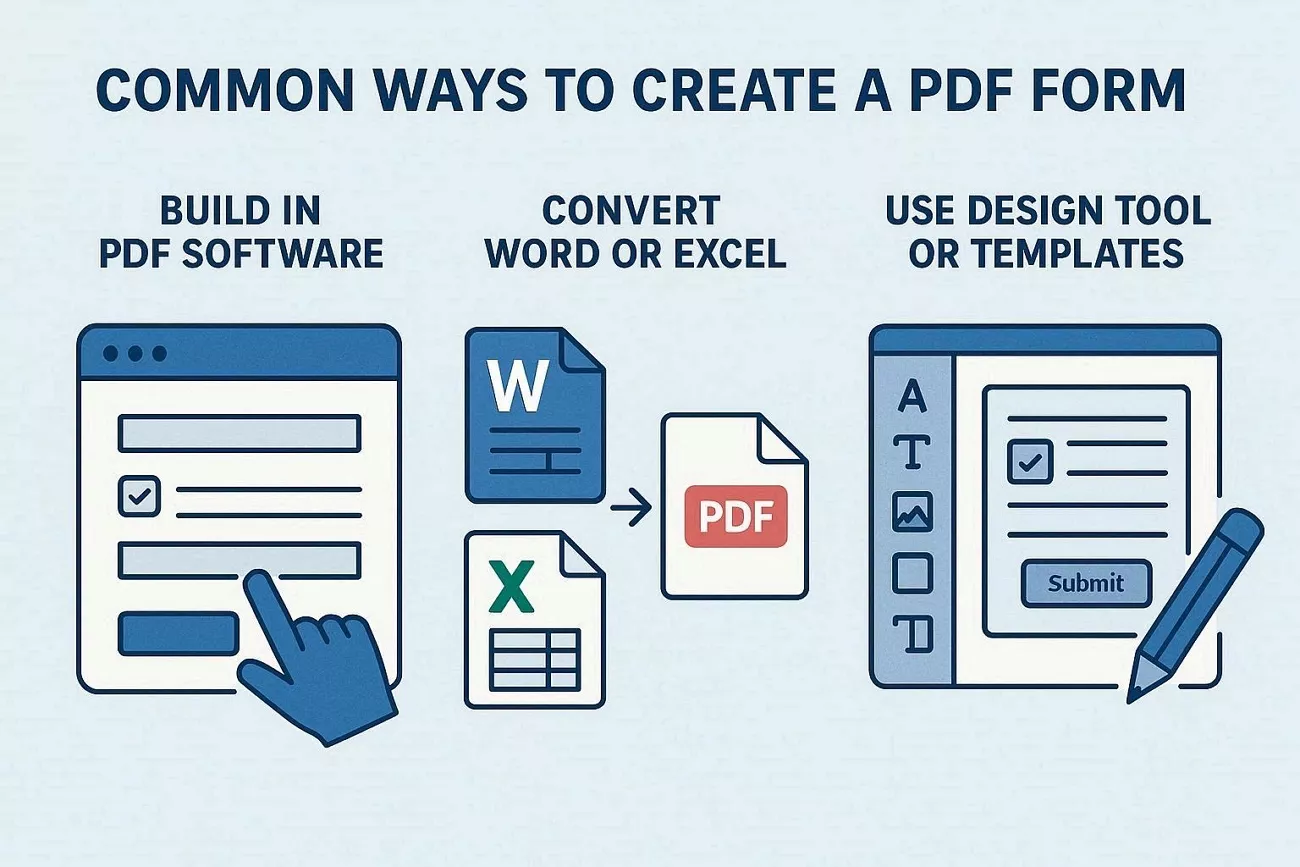
Formas Comuns de Iniciar um Formulário
Confira as opções abaixo para escolher o ponto de partida adequado ao documento em questão.
1. Criar diretamente no software de PDF
As equipes criam um formulário em branco em um editor de PDF e, em seguida, inserem os campos onde as respostas devem ser preenchidas. Essa abordagem funciona bem quando não há um arquivo existente e é necessário controle total sobre o layout.
2. Converter arquivos do Word, Excel ou Docs
Arquivos existentes do Word, Excel ou Google Docs são convertidos em PDFs; em seguida, ferramentas detectam e adicionam campos de formulário. Essa opção preserva o layout original, transformando documentos com visual de impressão em formulários clicáveis e preenchíveis.
3. Use modelos de ferramentas de design
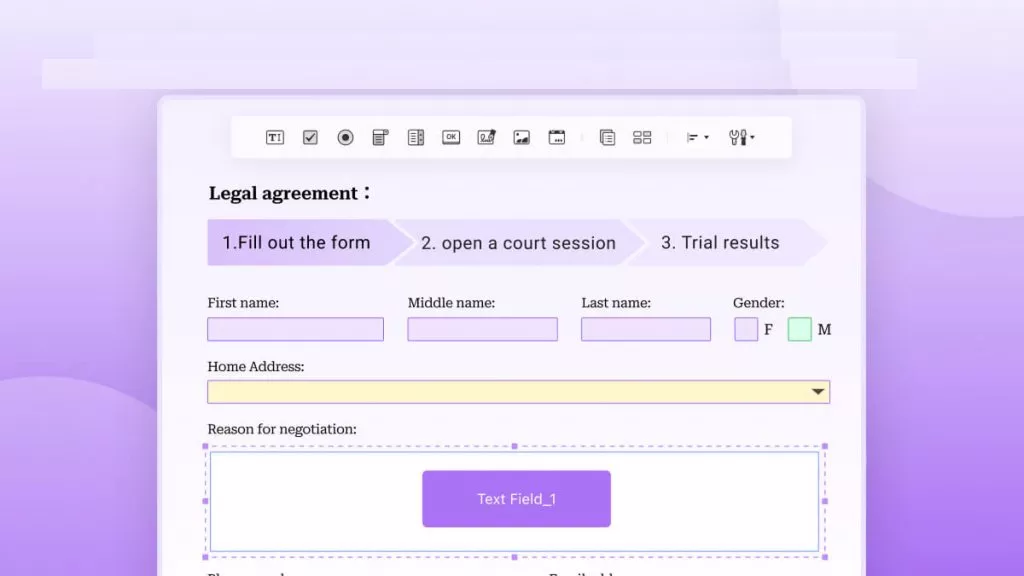
Designers criam formulários no Canva ou em sites de modelos, exportam como PDF e, depois, sobrepõem campos usando um editor. Essa abordagem é ideal para materiais que seguem a identidade visual da marca — como formulários de inscrição, checklists ou relatórios — e precisam estar em conformidade com diretrizes de estilo. Aqui estão 3 tipos de modelos de formulário que você pode baixar e editar agora mesmo!
💡 Dica de especialista – Quer criar seus próprios formulários ou transformar seu documento em um PDF preenchível em um só lugar?
UPDF permite adicionar campos de formulário, caixas de seleção e assinaturas em minutos, além de converter arquivos existentes do Word/Excel em PDFs em segundos. Você pode clicar para baixar os modelos de formulário e experimentá-los no UPDF agora mesmo!
Windows • macOS • iOS • Android Seguro 100%
Princípios fundamentais do layout de formulários
- Ordem clara dos campos: os campos seguem um padrão simples que acompanha o fluxo natural de leitura.
- Rótulos úteis: cada campo de entrada inclui um rótulo claro para informar aos usuários qual informação deve ser inserida ali.
- Tamanho adequado para dispositivos móveis: as caixas dos campos são grandes o suficiente para funcionar bem em celulares e tablets.
Melhores práticas para o design de formulários em PDF
- Mantenha os formulários concisos, focando nas perguntas principais em vez de em todos os detalhes.
- Use rótulos diretos em vez de termos vagos que possam confundir as pessoas.
- Agrupe campos relacionados para que as seções de resposta pareçam organizadas.
- Limite o número de campos obrigatórios para reduzir a frustração e ajudar mais pessoas a concluir o formulário.
- Preencha o formulário e verifique as mensagens de erro para testar o resultado final.
Estudantes que desejam instruções detalhadas podem ler o guia sobre como criar um formulário com campos preenchíveis. Essas páginas detalham cada tela, permitindo que esta seção mantenha o foco nas escolhas, na estrutura e nas boas práticas.
Seção 2: Como preencher um formulário PDF
Preencher um formulário PDF envolve trabalhar com caixas de texto e campos de assinatura. A maioria das tarefas é repetitiva: clicar em um campo, inserir informações e passar para a próxima seção. Problemas como campos bloqueados ou dados ausentes também ocorrem com frequência e exigem soluções simples e claras.
Etapas básicas para preencher um formulário
Vamos analisar as principais ações realizadas ao preencher a maioria dos formulários digitais:
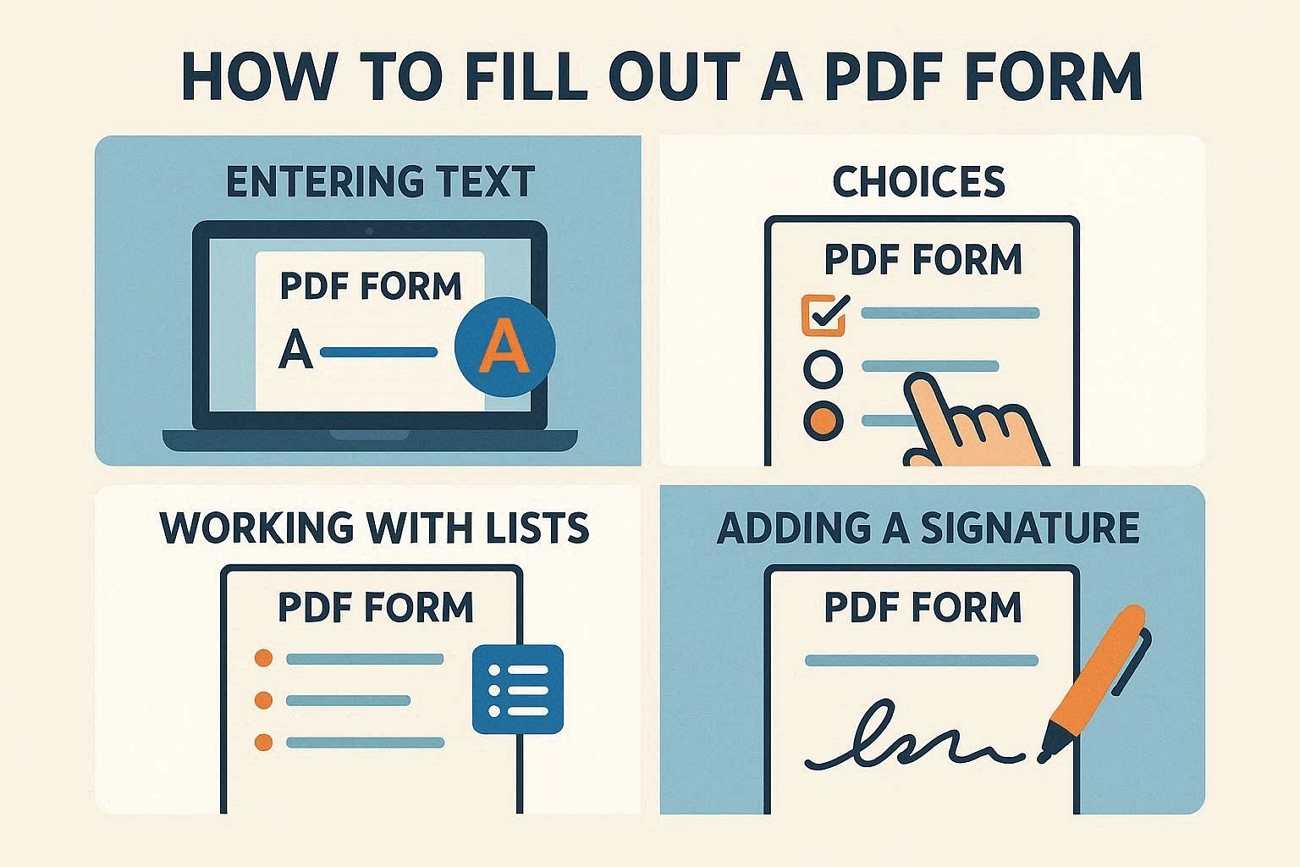
1. Inserir texto e fazer escolhas
Clique dentro de um campo de texto e digite nomes ou outros detalhes no espaço indicado. Para caixas de seleção e botões de opção (*radio buttons*), clique uma vez para selecionar ou desmarcar cada opção, conforme necessário.
2. Trabalhar com listas
Abra uma lista suspensa (*drop-down*) e escolha o item correspondente à resposta necessária. Isso mantém a consistência das respostas, o que facilita a verificação e a comparação de dados posteriormente.
3. Adicionar uma assinatura
Clique no campo de assinatura para inserir uma assinatura eletrônica (digitada ou com estilo manuscrito) no local correto. Algumas ferramentas também permitem reutilizar assinaturas salvas, agilizando aprovações recorrentes.
Problemas comuns e soluções simples
- Não é possível digitar nos campos: O formulário pode ser um PDF "achatado" (sem campos interativos); tente usar outro visualizador ou uma versão preenchível.
- As alterações não são salvas: Salve o arquivo com um nome diferente e verifique se o programa permite salvar formulários preenchidos.
- Os campos não aparecem: Tente aumentar o zoom ou abrir o arquivo em outro aplicativo de PDF para visualizar os campos.
- O formulário parece bloqueado: O arquivo pode estar protegido; é necessário obter uma cópia editável ou uma versão atualizada.
- A assinatura não é inserida: Confirme se o arquivo permite assinaturas e verifique se alguma ferramenta de assinatura necessária está faltando.
- Problemas de formatação após o preenchimento: Experimente outro aplicativo de PDF e mantenha o texto mais curto em cada campo para evitar problemas de layout.
Preenchimento de formulários em diferentes dispositivos
Muitas ferramentas agora permitem preencher formulários em computadores, na web, em tablets e em celulares seguindo etapas semelhantes. Campos de texto, listas e assinaturas funcionam da mesma maneira, apenas utilizando toques em vez de cliques do mouse. Quando os próprios campos do formulário precisarem de alterações, os usuários podem consultar nosso guia específico sobre como editar campos de formulário em PDF usando o UPDF, uma excelente opção com suporte multiplataforma (Windows/Mac/iOS/Android) e uma única conta para 4 dispositivos.
Seção 3: Como editar e gerenciar campos de formulário
Os campos de formulário controlam para onde as informações vão e como cada resposta é capturada dentro de um formulário PDF. Diferentes tipos de campos lidam com texto, opções de escolha, datas, assinaturas e até mesmo totais automáticos em cálculos. A tabela abaixo oferece uma visão geral dos tipos de campo comuns e de suas funções típicas.
| Tipo de campo de formulário | Exemplos de conteúdo típico | Exemplos de cenários comuns |
| Campos de texto | Nomes, endereços, campos de e-mail | Formulários de contato, listas de inscrição |
| Caixas de seleção (checkboxes) | Escolhas do tipo "sim" ou "não" | Caixas de concordância, listas de opções |
| Botões de opção (radio buttons) | Escolha única em um grupo pequeno | Seleção de gênero, método de entrega |
| Menus suspensos (dropdowns) | Seleções de listas predefinidas | Lista de países, lista de departamentos |
| Campos de assinatura | Assinaturas manuscritas ou digitadas | Contratos, formulários de aprovação |
| Campos de data | Datas em formatos fixos | Datas de nascimento, datas de reuniões |
| Campos de cálculo | Somas, subtotais, fórmulas simples | Totais de faturas, resumos de despesas |
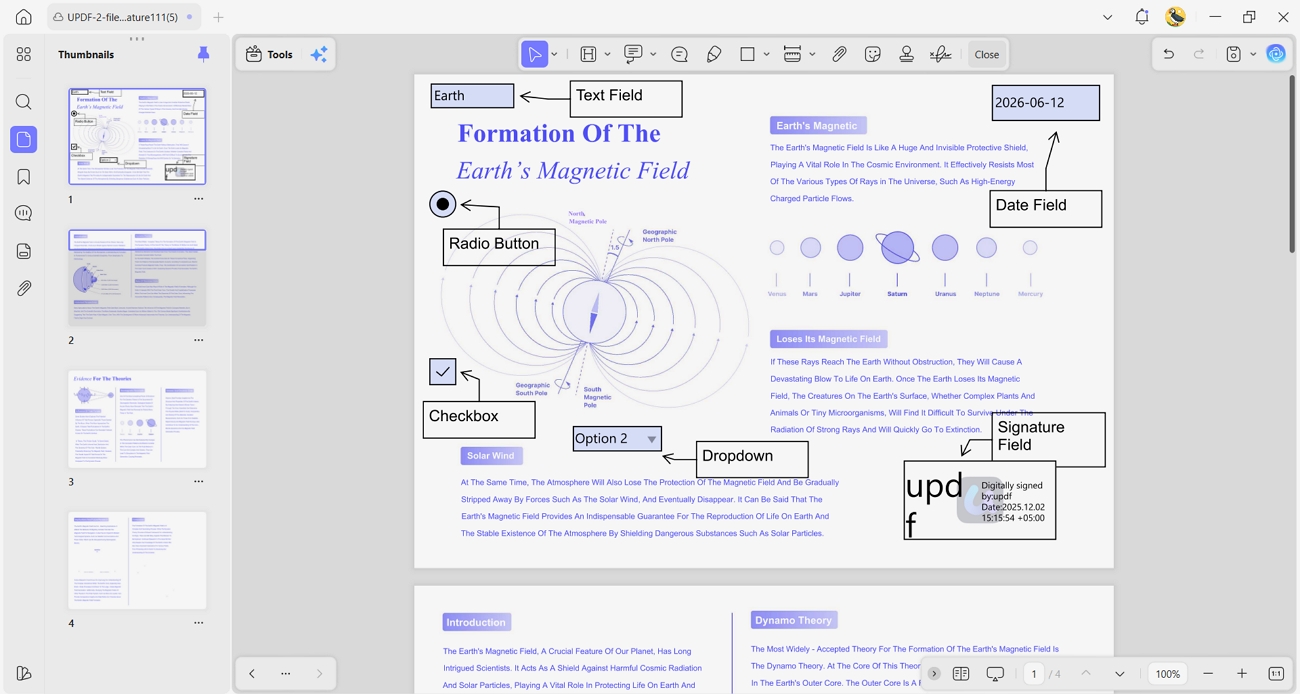
A imagem acima mostra a aparência e o funcionamento dos campos de formulário em um PDF; prepare seu formulário PDF e baixe o UPDF para começar a editar.
Windows • macOS • iOS • Android Seguro 100%
Seção 4: Como extrair e gerenciar dados de formulário
Equipes extraem dados de formulários PDF para transferir respostas para planilhas ou outros sistemas. Isso economiza tempo e reduz erros em comparação com a leitura manual de cada formulário. Dados organizados também agilizam a elaboração de relatórios e a realização de auditorias em grandes volumes de documentos.
Maneiras comuns de extrair dados de formulários
Vamos explorar os métodos comuns para extrair informações de formulários PDF.
1. Exportar como CSV ou Excel
Muitas ferramentas de PDF exportam todas as respostas de formulários para CSV ou Excel em uma única etapa. Esse arquivo pode, então, alimentar relatórios e verificações simples em ferramentas familiares.
2. Coletar respostas em um único arquivo
Algumas ferramentas mesclam vários formulários recebidos em um único arquivo de respostas. Isso mantém todas as submissões reunidas e evita a necessidade de buscar anexos individuais em longas cadeias de e-mails.
3. Usar ferramentas de dados especializadas
Plataformas avançadas leem campos e transferem dados estruturados para sistemas empresariais. Essas ferramentas são úteis quando o volume de formulários é alto ou quando os layouts mudam frequentemente entre os arquivos.
Manter os dados do formulário seguros
Dados confidenciais de formulários, como números de identificação fiscal, exigem proteção adicional. Sempre que possível, processe esses arquivos localmente em vez de enviá-los para serviços online. O processamento local reduz o risco de vazamentos e facilita o cumprimento de compromissos rigorosos de privacidade.
Para proteger verdadeiramente informações confidenciais, escolha uma solução de PDF que nunca envie seus arquivos para a nuvem. UPDF processa tudo localmente no seu computador; assim, seus números fiscais, contratos e dados pessoais permanecem sob seu controle — sem abrir mão de recursos avançados como criação de formulários, edição ou OCR.
Seção 5: Como assinar formulários PDF
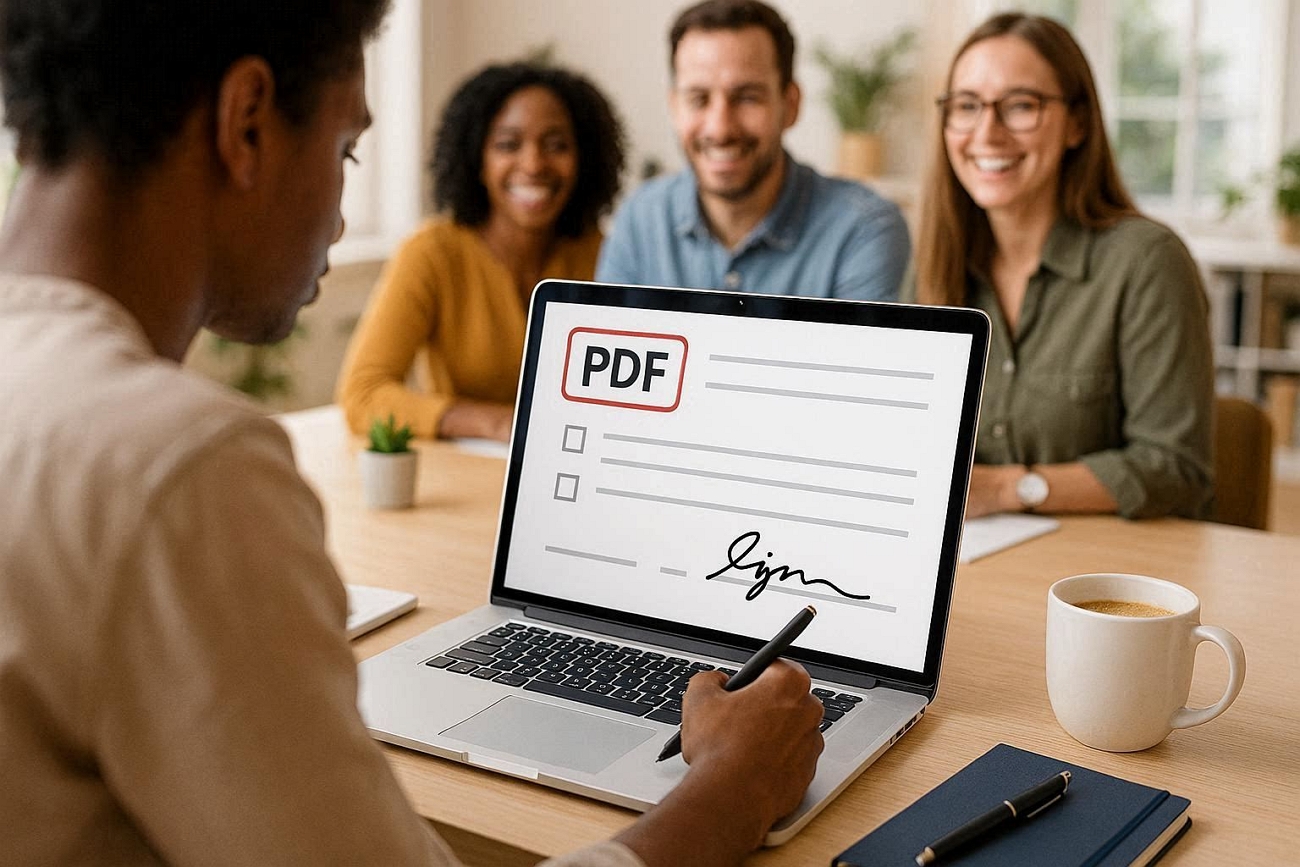
Assinaturas digitais ajudam a comprovar quem assinou um formulário PDF e protegem a integridade do documento. A criptografia controla quem pode abrir o arquivo e fazer alterações. O formato PDF/A mantém os documentos assinados legíveis e estáveis para arquivamento a longo prazo.
Padrões de conformidade
- Cumpra as regras para assinaturas eletrônicas do país em questão.
- Utilize ferramentas confiáveis que atendam a padrões reconhecidos de segurança e privacidade para fluxos de trabalho de assinatura digital.
- Mantenha registros de auditoria que mostrem quem assinou e quaisquer alterações feitas no documento.
Melhores Práticas
- Use senhas fortes e proteja sua identidade digital, evitando compartilhá-la ou armazená-la de forma insegura.
- Verifique o status de cada assinatura e os detalhes do certificado antes de aceitar um documento assinado.
- Bloqueie o documento após a assinatura final para evitar edições indesejadas ou alterações ocultas.
- Armazene arquivos assinados com segurança e faça backups utilizando sistemas seguros e aprovados.
Precisa de uma maneira mais simples? UPDF Permite assinar formulários PDF com apenas alguns cliques, sem necessidade de impressão ou digitalização. Embora os métodos acima funcionem bem para assinar um único documento para uso próprio, e se você precisar enviar um contrato para vários clientes assinarem, acompanhar o status ou definir uma ordem específica de assinatura? Fazer isso manualmente seria trabalhoso e ineficiente.
Para esses fluxos de trabalho avançados, você precisa de uma solução dedicada de assinatura eletrônica. UPDF Sign, uma plataforma integrada ao ecossistema UPDF, foi projetada especificamente para essa finalidade.
Seção 6: Como gerenciar formulários concluídos
Armazene formulários concluídos em pastas organizadas, com nomes claros e acesso restrito. Mantenha backups confiáveis de dados importantes dos formulários para evitar perdas decorrentes de falhas de hardware ou erro humano. Arquive as versões finais aprovadas para referência a longo prazo, utilizando formatos estáveis e períodos de retenção documentados. Utilize controle de versão para rastrear atualizações, evitar confusões e identificar qual cópia do arquivo é a oficial.
Seção 7: Como distribuir formulários em PDF
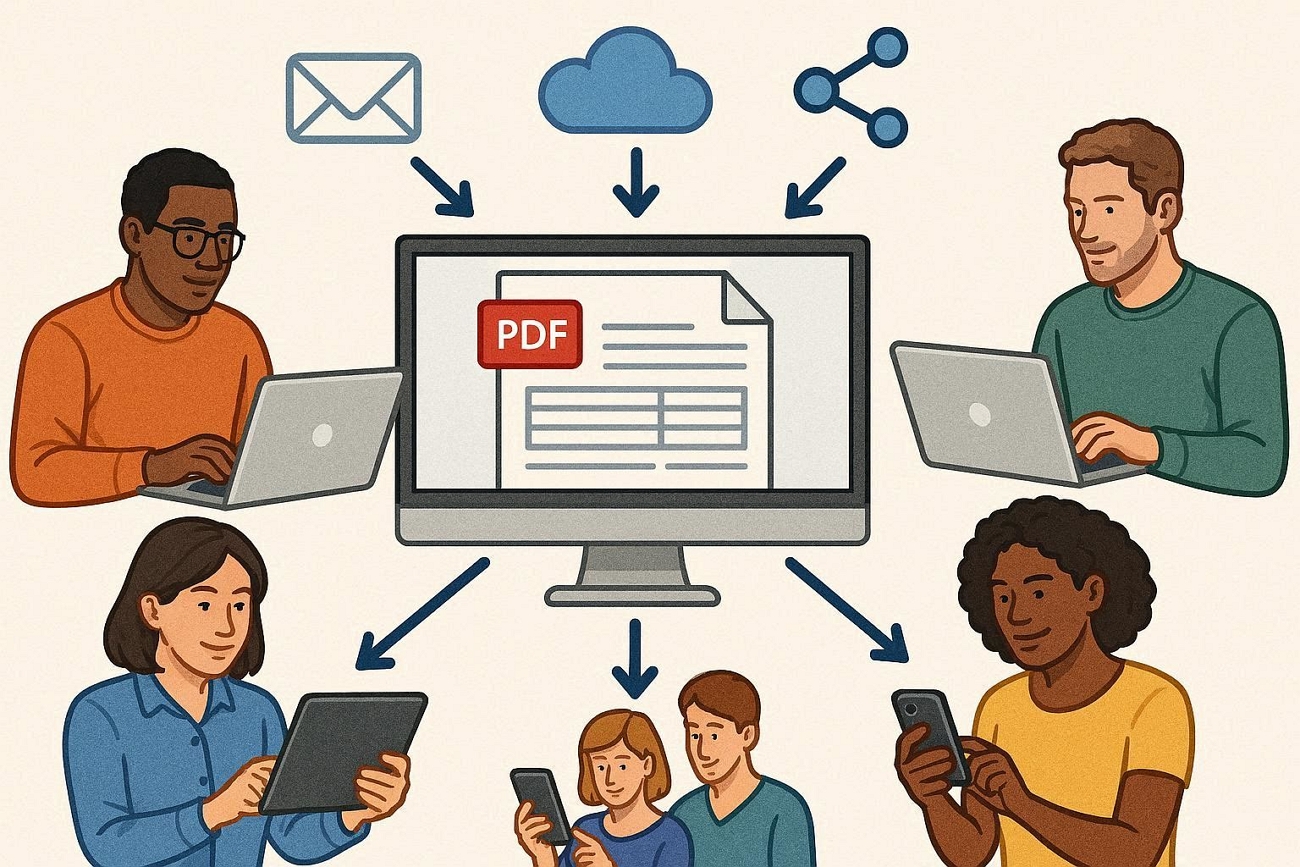
O e-mail é a opção escolhida quando uma equipe precisa de entrega direta e comunicação pessoal com os destinatários. Plataformas em nuvem são úteis quando um formulário precisa permanecer disponível ao longo do tempo ou alcançar públicos amplos e variados. Sistemas internos funcionam melhor quando os formulários precisam estar vinculados a aprovações, registros ou outros fluxos de trabalho estruturados.
Principais opções de distribuição
- O e-mail funciona bem quando o acompanhamento das respostas ocorre principalmente por meio de caixas de entrada individuais e follow-ups simples.
- O compartilhamento na nuvem é útil quando vários departamentos precisam acessar o mesmo arquivo de formulário atualizado.
- Servidores internos suportam políticas rigorosas de TI, nas quais todo o tráfego de formulários permanece dentro da infraestrutura controlada.
- Configurações híbridas combinam e-mail, nuvem e ferramentas internas para equilibrar flexibilidade e necessidades de segurança mais rigorosas.
Parte 3. Como escolher a ferramenta certa para formulários em PDF?
Diferentes ferramentas lidam com tarefas como criar novos formulários, atualizar campos, assinar documentos e exportar resultados. Algumas ferramentas focam no preenchimento rápido de formulários com uma solução simples de preenchimento de PDF para tarefas básicas do dia a dia. Outras plataformas oferecem suporte a fluxos de trabalho completos de formulários em PDF, incluindo criação, edição, assinaturas, automação e colaboração em equipe.
Principais recursos de ferramentas populares para formulários em PDF
Consulte a tabela abaixo para comparar os principais recursos e casos de uso ideais para cada opção.
| Recursos | UPDF | Adobe Acrobat Pro | Smallpdf | Jotform | PDFescape | PDFtk |
| Criar formulários | ✅ | ✅ | Limitado | ✅ | Básico | ❌ |
| Preencher formulários | ✅ | ✅ | ✅ | ✅ | ✅ | ✅ |
| Editar campos | ✅ | ✅ | Limitado | ✅ | Básico | ❌ |
| Assinar formulários | ✅ | ✅ | ✅ | ✅ | ✅ | ❌ |
| Exportação de dados | ✅ | ✅ | Limitado | ✅ | Limitado | ✅ |
| Processamento | Edições em lote | Automação avançada | Ações online simples | Fluxos de trabalho de formulários | Ferramentas básicas | Tarefas de linha de comando |
| Sistema de suporte | E-mail e central de ajuda | Suporte de nível empresarial | Ajuda online | Central de ajuda e comunidade | Suporte online | Documentação da comunidade |
| Público-alvo | Indivíduos e equipes | Empresas e usuários avançados | Indivíduos e pequenas equipes | Empresas que coletam formulários preenchidos | Usuários ocasionais e de uso leve | Usuários técnicos e de backend |
| Preços | A partir de $49.99/ano | A partir de US$ 155,88/ano | A partir de US$ 108,00/ano | A partir de US$ 408/ano | A partir de US$ 35,88/ano | Gratuito |
Após comparar essas ferramentas de PDF para processamento de formulários, o UPDF se destaca como uma escolha completa. Ele oferece suporte total a todos os recursos essenciais — incluindo criação de formulários, edição de campos, assinatura e exportação de dados — sem limitações ou funções restritas ao básico. Projetado tanto para indivíduos quanto para equipes, oferece edição em lote e um suporte ao cliente eficiente e amigável. Em comparação com outras ferramentas profissionais de alto custo, o UPDF entrega recursos completos a um preço mais acessível, sendo a melhor escolha para o gerenciamento diário de formulários em PDF.
Windows • macOS • iOS • Android Seguro 100%
Resumo rápido das opções de ferramentas
Diferentes tipos de tarefas com formulários PDF funcionam melhor com ferramentas e configurações distintas.
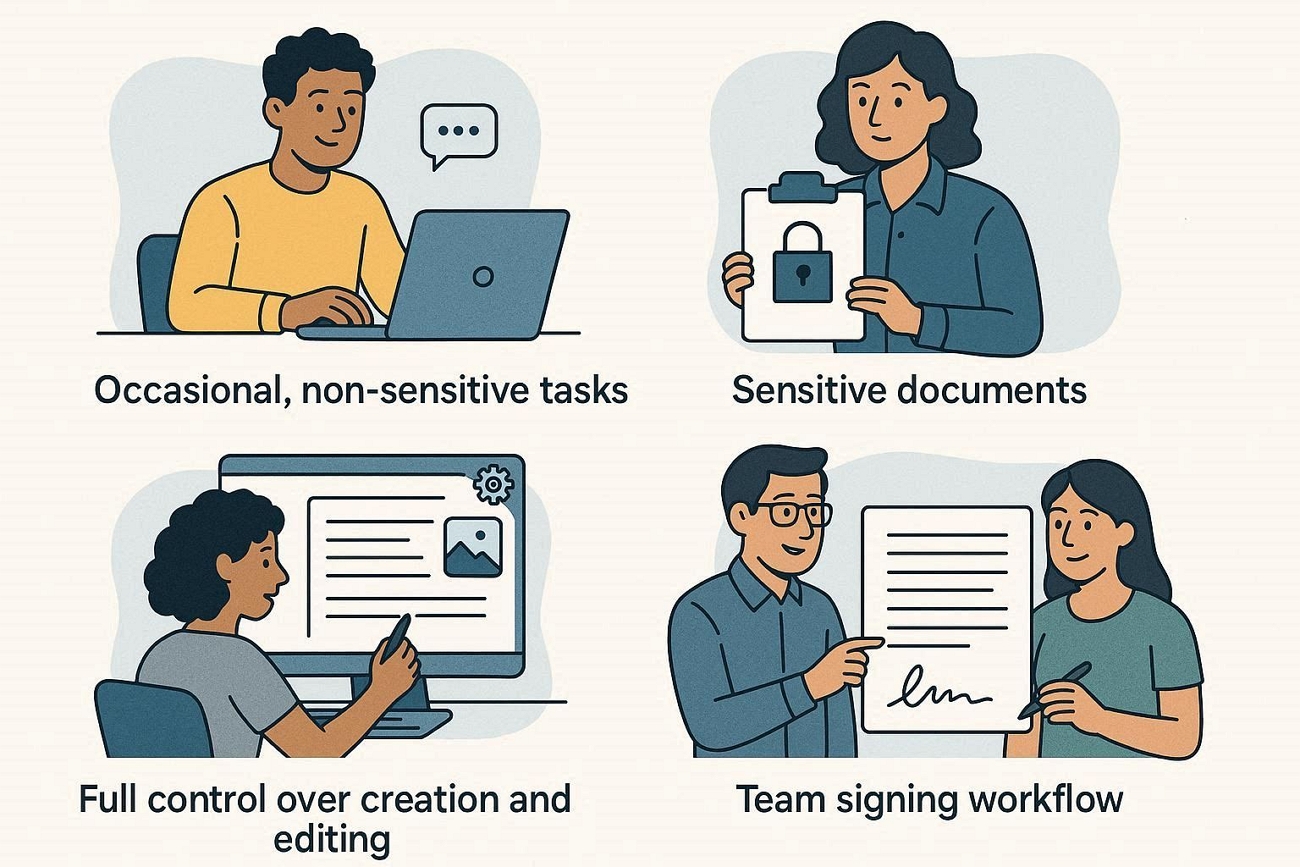
- Para tarefas ocasionais e não sigilosas: Ferramentas online ajudam em tarefas rápidas, como converter e preencher formulários PDF simples. Serviços como Smallpdf e Jotform funcionam bem quando os arquivos não são privados ou sujeitos a regulamentações rigorosas.
- Para documentos sigilosos ou uso frequente: Softwares para desktop mantêm os documentos em máquinas locais, o que é mais seguro para informações privadas e regulamentadas. Ferramentas como UPDF e Adobe Acrobat Pro são ideais para equipes que lidam com formulários e documentos diariamente.
- Para controle total sobre criação e edição: Algumas equipes precisam criar formulários complexos, alterar layouts e atualizar textos frequentemente em diversos modelos. Nesses casos, uma ferramenta poderosa de criação de formulários PDF como UPDF ou Acrobat oferece a melhor flexibilidade.
- Para fluxos de trabalho de assinatura em equipe: Organizações maiores podem precisar de recursos de roteamento, lembretes e painéis de controle para acompanhar várias assinaturas em andamento. Plataformas dedicadas de assinatura eletrônica, como o DocuSign, funcionam melhor quando integradas a pacotes de assinatura voltados para signatários individuais.
Perguntas frequentes
- Posso proteger com senha apenas os campos do formulário?
Sim, a proteção pode impedir a edição e, ao mesmo tempo, permitir que as pessoas preencham e assinem os campos existentes. Para limitar alterações, defina os campos como "somente leitura" e aplique permissões protegidas por senha.
- Como recupero dados de um formulário PDF?
Verifique se os dados do formulário foram exportados para um arquivo como FDF, XFDF ou CSV. Se houver salvamento automático ou backups, reabra essas cópias e exporte novamente as respostas do formulário.
- Posso preencher em lote várias cópias do mesmo formulário PDF?
Sim, algumas ferramentas leem linhas de uma planilha e geram um PDF preenchido para cada linha. Outros fluxos de trabalho exportam dados de um formulário e os importam para vários modelos semelhantes.
- Por que meu formulário PDF está sendo impresso em branco ou sem os dados preenchidos?
Impressões em branco geralmente ocorrem quando o visualizador ou o driver da impressora processa incorretamente as camadas interativas do formulário. Abrir o arquivo no Acrobat Reader e usar a opção "Imprimir como imagem" geralmente resolve o problema de dados ausentes.
- Como saber se um formulário PDF usa XFA dinâmico ou AcroForm estático?
Abra o formulário no Acrobat e verifique as propriedades do formulário ou mensagens que mencionem XFA ou AcroForm. Formulários XFA frequentemente apresentam falhas em navegadores e exibem avisos, enquanto os AcroForms funcionam na maioria dos visualizadores.
- Como giro um formulário PDF sem perder os campos preenchíveis?
Gire a página usando uma ferramenta de organização de páginas, em vez de girar apenas a camada de conteúdo visível. Uma abordagem segura é utilizar ferramentas como a função "Organizar Páginas" do UPDF para girar páginas mantendo os campos intactos.
Considerações Finais
Em suma, equipes modernas agora podem criar, preencher e gerenciar qualquer tipo de formulário PDF sem recorrer a soluções alternativas complicadas. Com as ferramentas certas, os formulários permanecem estruturados, seguros e fáceis de atualizar conforme as necessidades do negócio mudam. O UPDF reúne tudo isso em uma solução acessível, combinando recursos robustos de edição, formulários inteligentes e fluxos de trabalho flexíveis.
Windows • macOS • iOS • Android Seguro 100%





 Bruna Almeida