 UPDF
UPDF
 UPDF for Windows
 UPDF for Mac
 UPDF for iPhone/iPad
 UPDF for Android
 Nomostar
 UPDF AI Online
 UPDF Sign
 IvyCraft
 Edit PDF
 Annotate PDF
 Create PDF
 PDF Form
 Edit links
 Convert PDF
 OCR
OCR PDF to Word
 PDF to Image
 PDF to Excel
 Organize PDF
 Merge PDF
 Split PDF
 Crop PDF
 Rotate PDF
 Protect PDF
 Sign PDF
 Redact PDF
 Sanitize PDF
 Remove Security
 Read PDF
 UPDF Cloud
 Compress PDF
 Print PDF
 Batch Process
 About UPDF AI
 UPDF AI Solutions
 AI User Guide
 FAQ about UPDF AI
 Summarize PDF
 Translate PDF
 Chat with PDF
 Chat with AI
 Chat with image
 PDF to Mind Map
 Explain PDF
 PDF AI Tools
 Image AI Tools
 AI Chat Tools
 AI Writing Tools
 AI Study Tools
 AI Working Tools
 Other AI Tools
 AI Bookmark Generation
 AI Bookmark Summary
 AI Watermark Generation
 AI Background Generation
 AI Sticker Generation
 AI Stamp Generation
 AI Editing Suite
 UPDF Copilot
 AI Page Management
 AI Semantic Search
 PDF to Word
 PDF to Excel
 PDF to PowerPoint
 Enterprise Solution
 Enterprise Sign
 Enterprise AI
 Enterprise Plan
 Enterprise User Guide
 Enterprise Webinar
 IT
IT Education
 Construction
 Financial Service
 Healthcare
 Insurance
 Legal
Legal Manufacturing
 Government
 Researchers & PhDs
 Solopreneurs & Freelancers
 Lawyers & Legal Professionals
 Real Estate Agents & Brokers
 Education Solution
 Customer Stories
 User Guide
 UPDF Tricks
 FAQs
FAQs UPDF Reviews
 Download Center
 Blog
Blog Newsroom
 Tech Spec
 Updates
 UPDF vs. Adobe Acrobat
 UPDF vs. Foxit
 UPDF vs. PDF Expert

Quick answer:
Blank pages are not always the same problem. A truly empty separator page can be deleted at once; a nearly blank scanned page may contain a faint shadow, stamp, signature line, or form field you still need; and a page that looks blank because of a rendering issue should be checked before removal.
The reason blank pages slip in usually isn't carelessness: they come from a scanner set to duplex mode when the back of the sheet was empty, from a merge where each source file ended on an odd page, or from a Word export that carried over a stray section break. Knowing the cause matters, because a scanned blank page looks empty to you but is actually a white image — a plain "find and delete text" approach won't catch it, which is exactly why the automatic detection below is worth using first.
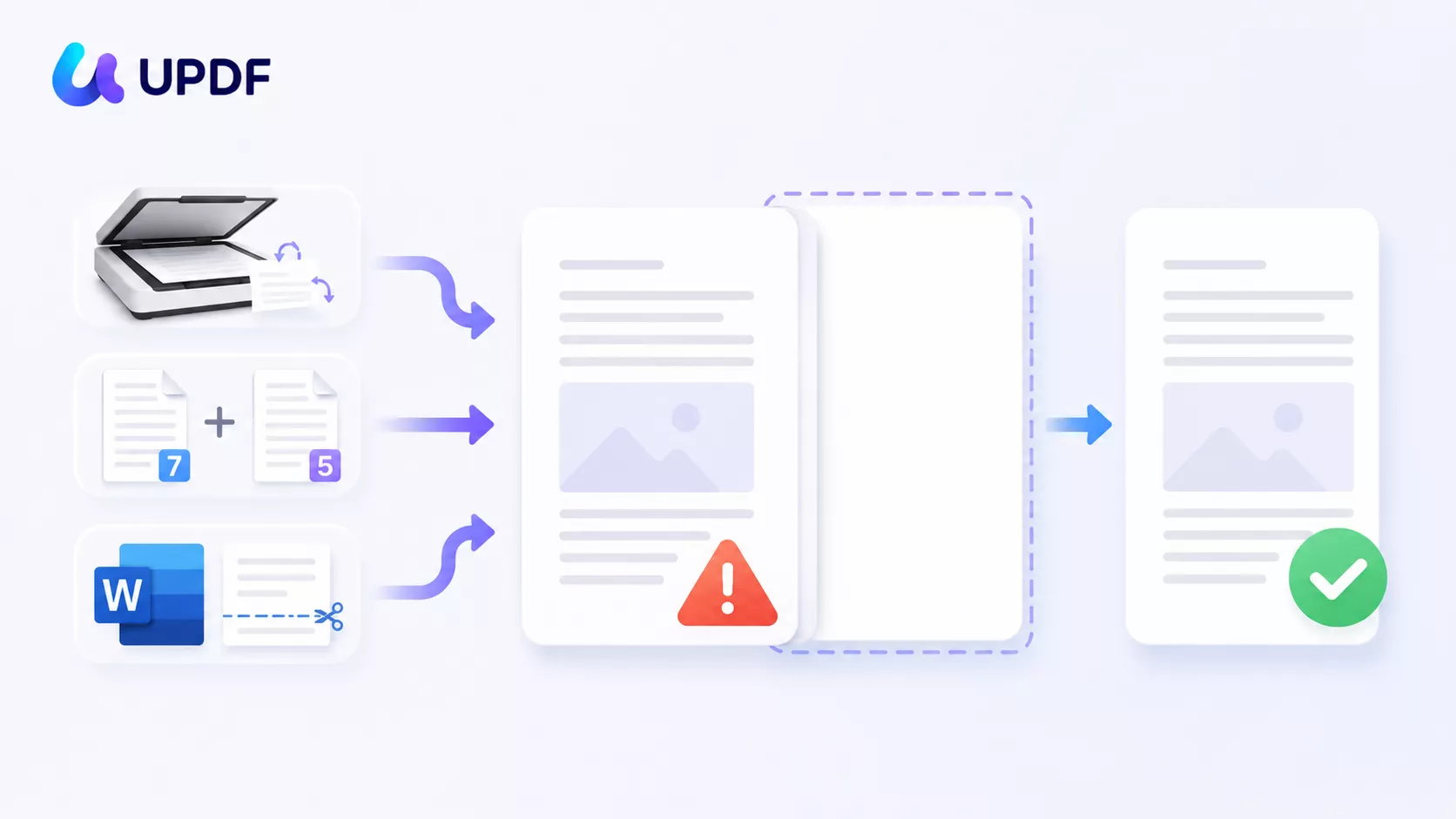
This guide covers five ways to remove blank pages from a PDF: one automatic method that scans the whole file for you, three manual desktop methods for when you want full control, and the mobile steps for iPhone, iPad, and Android. If you specifically want the Adobe Acrobat route, see our companion walkthrough on how to delete a page in Adobe Acrobat. For everything else — reordering, splitting, extracting — the organize PDF pages pillar collects it all in one place.
Part 1. Which Blank-Page Method Should You Use?
Blank-page removal isn't one job. A single stray page at the end of a report is a different task from 12 scattered blanks in a 300-page scan. Match the situation to the method before you start.
| Your situation | Method | Best for |
|---|---|---|
| Many blanks scattered through a long or scanned file | AI Check Pages (Part 2) | You don't want to hunt page by page |
| A few blanks you can already see | Thumbnail delete (Part 4) | Fast, visual, no menus |
| Blanks mixed with pages you want to keep | Organize Pages delete (Part 3) | Multi-select and batch removal |
| A blank you'd rather swap for real content | Organize Pages → Replace (Part 3) | Keeping page count and layout intact |
| Blank only at the very start or end | Print to PDF (Part 5) | A completely free route |
| Working on your phone | iOS / Android (Part 6) | Fixing a file before you send it |
Part 2. Remove Blank Pages Automatically with AI Check Pages
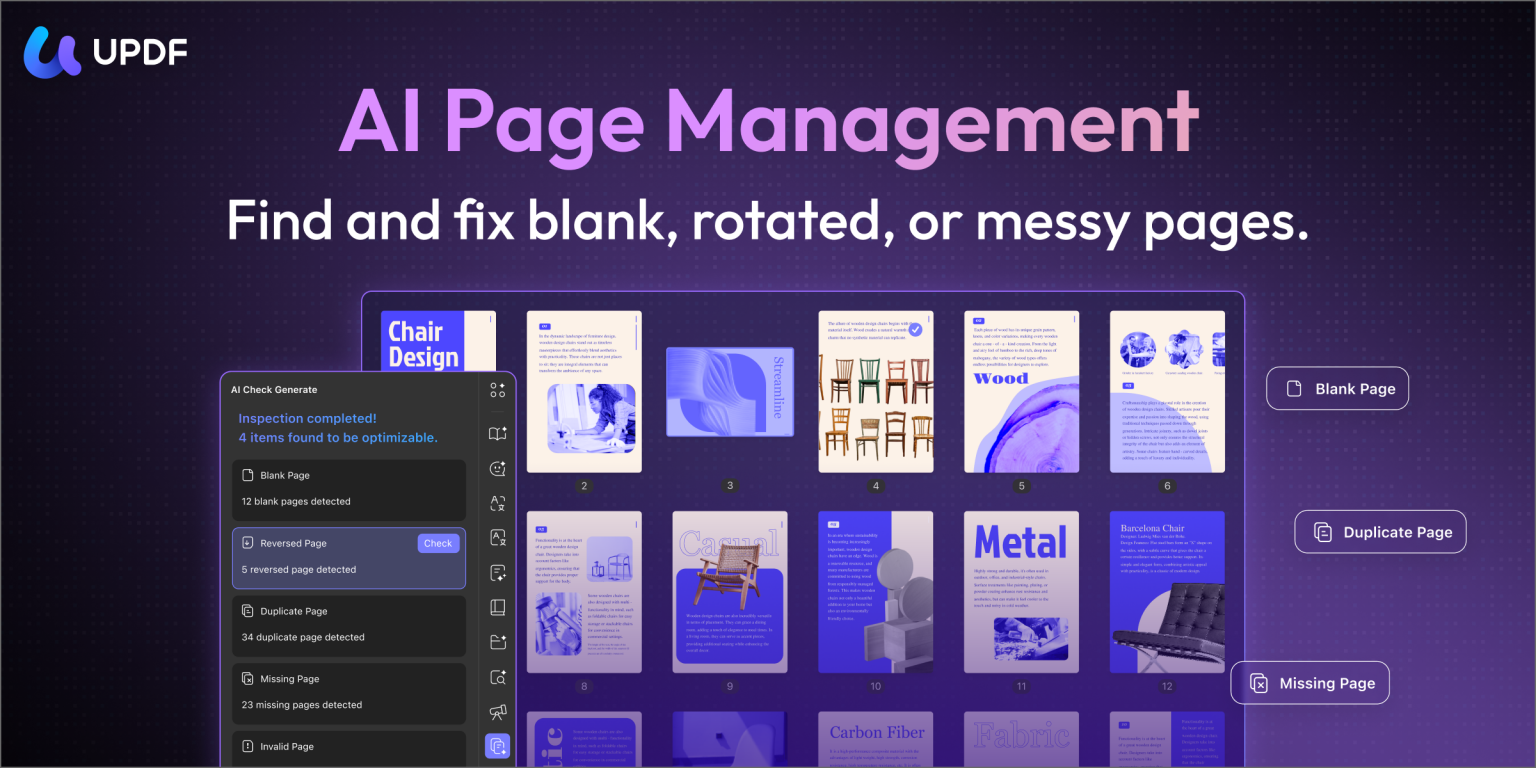
Use this method when the file is long enough that manual review becomes unreliable. UPDF's AI Check Pages feature scans the PDF and flags page issues, including blank pages, scanned pages, shadows, inverted orientation, continuity breaks, annotations, and page-size inconsistencies.
Best for:
- long scans, merged PDFs, bid documents, contracts, school packets, or office files where blank pages are easy to miss.
Not for:
- a file where "blank" pages may contain faint handwriting, stamps, or form lines you must keep. Review the flagged pages before deleting.
Step 1. Open the PDF in UPDF on Windows or Mac. If you do not have it installed yet, download UPDF for free and open the document.
Windows • macOS • iOS • Android 100% secure
Step 2. Click Organize Pages in the left sidebar.
Step 3. Click AI Check Pages in the top toolbar. UPDF scans the PDF and shows detected issues in the right-side panel.
Step 4. Open the Blank pages result and click each flagged item to preview it. Do not delete automatically if the page contains a faint seal, signature, stamp, page number, or handwritten note.
Step 5. Click the suggested Delete action for the blank pages you want to remove.
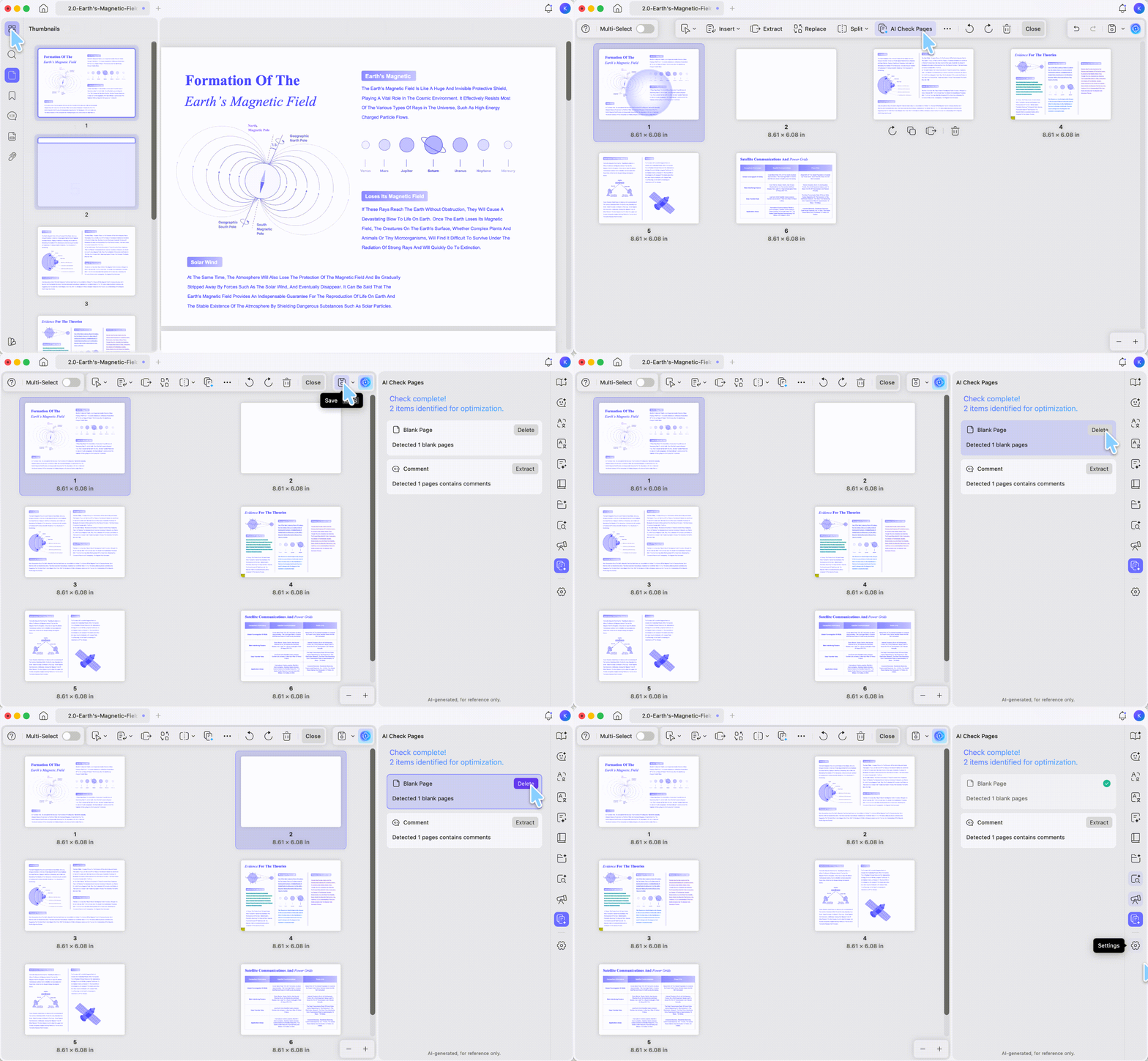
Step 6. Run AI Check Pages again. Resolved items should disappear from the list.
Step 7. Save the cleaned file. Use Save As Other if you want to keep the original scan untouched.
Download UPDF for free to try AI blank-page detection on your file — installation is free, and Pro features are available when you need export without a trial watermark or advanced tools.
Windows • macOS • iOS • Android 100% secure
Part 3. Delete or Replace Blank Pages in Organize Pages
Use this method when you can visually identify the blank pages yourself. It is the safest route for documents where some "almost blank" pages may still matter. It also gives you two choices: delete the blank page entirely, or replace it with real content while keeping the page position stable.
Best for:
- removing several known blank pages, or swapping one blank placeholder with the corrected page.
Not for:
- a 100-page scan where you are guessing by eye. That is where Part 2 is faster and less error-prone.
Option A. Delete Pages Directly
Step 1. Open the PDF in UPDF on Windows or Mac.
Step 2. Click Organize Pages in the left sidebar to open the page thumbnail grid.
Step 3. Select the blank page thumbnails. To select several pages, use multi-select in the Organize Pages workspace, or use Ctrl-click on Windows / Command-click on Mac where supported.
Step 4. Click the Delete button in the top toolbar. You can also press the keyboard Delete key after selecting pages in the Organize Pages workspace.
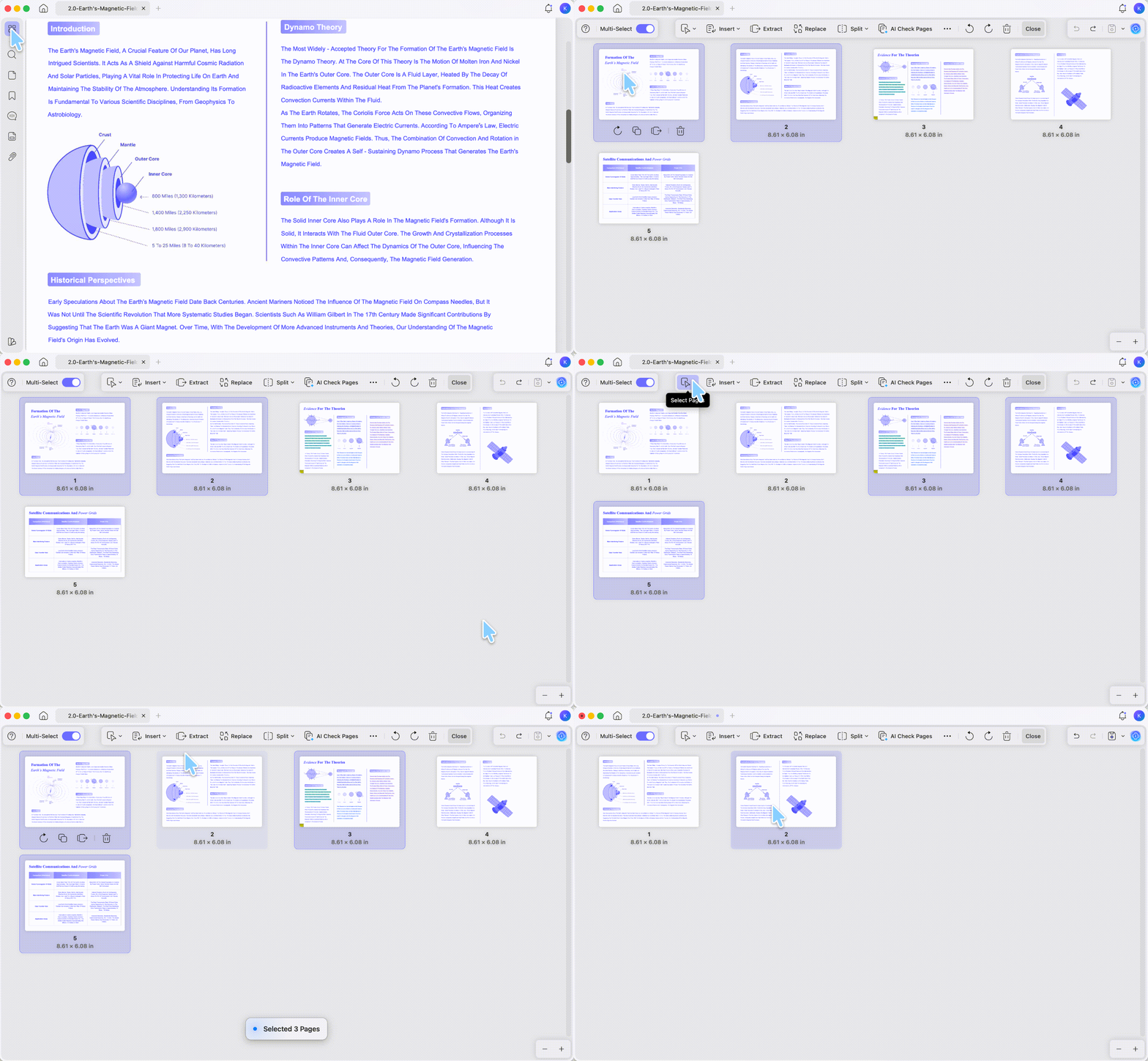
Step 5. Save the file. If this is a signed, submitted, or client-facing document, save a copy first so you can recover the original page order if you remove the wrong page.
Option B. Replace a Blank Page with Real Content
Use Replace when the blank page is a placeholder and the document should keep the same page count. For example, page 6 is blank because the scan missed a signed form, but every later page number and reference still assumes page 6 exists. For a full page-swap walkthrough, see how to replace PDF pages.
Step 1. Stay in Organize Pages and select the blank page you want to replace.
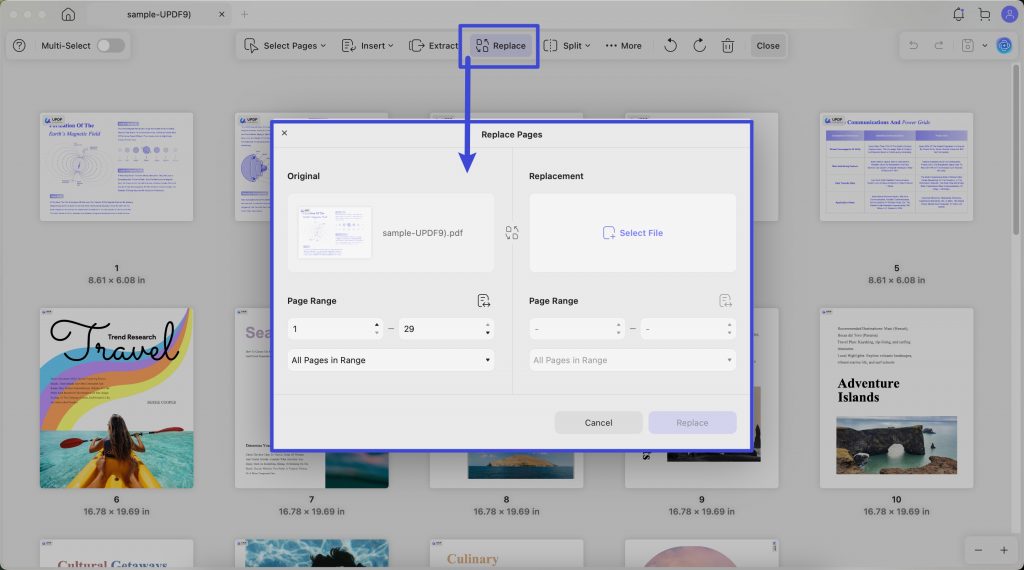
Step 2. Click Replace in the top toolbar.
Step 3. Choose the source PDF that contains the corrected page.
Step 4. In the replacement dialog, set the original page range to the blank page number and set the source page range to the page you want to insert.
Step 5. Click Replace, then save the updated file.
This section deliberately stays different from the Adobe-focused workflow. If you need Acrobat-specific desktop, online, or mobile behavior, the Adobe page deletion guide explains where Acrobat's shortcuts and mobile limitations differ.
Part 4. Delete a Visible Blank Page from the Thumbnail Rail
Use this method for a quick one-page cleanup while reading the file. You do not need to open the full page organizer if you only spotted one blank page.
Best for:
- deleting one separator page, one accidental scan, or one empty final page.
Not for:
- bulk cleanup on Mac from the thumbnail panel if you need multi-page selection. Use the full Organize Pages workspace for heavier page work.
Step 1. Open the PDF in UPDF.
Step 2. Turn on the thumbnail panel from the left side if it is not already visible.
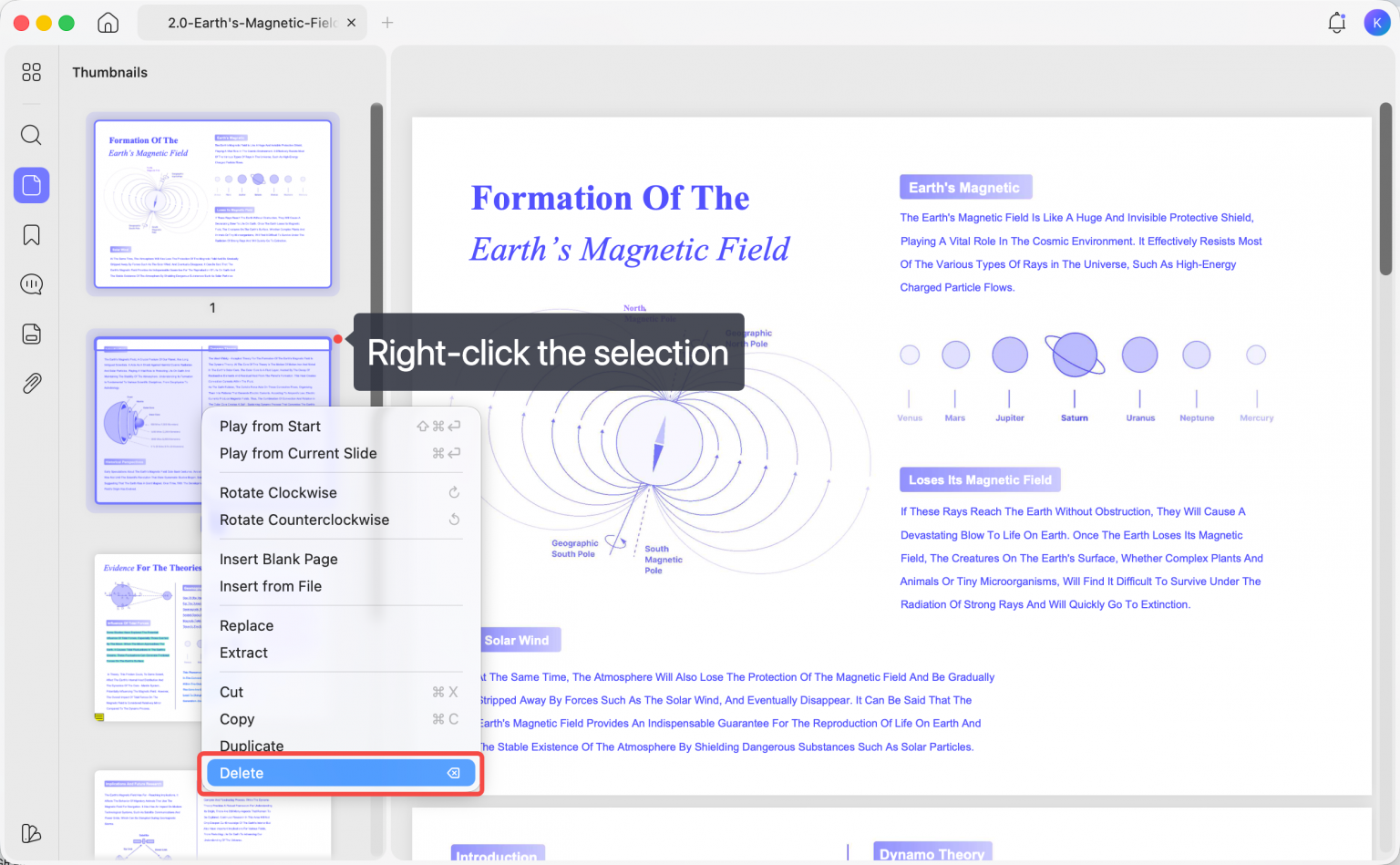
Step 3. Find the blank page thumbnail.
Step 4. Right-click the page and choose Delete, or select it and press the Delete key.
Step 5. Save the cleaned PDF.
Think of this as the "quick trim" method. For full document cleanup, the complete organize PDF pages workflow is more reliable because you can reorder, replace, extract, split, rotate, and delete pages from one workspace.
Removing blank pages is one part of tidying the file, and the remaining pages may need attention too. The video below shows the broader page-organizing workflow in UPDF.
Part 5. Remove Beginning or Ending Blank Pages with Print Range
Use this workaround when blank pages appear only at the front or back of the document. Instead of editing the original file, you print only the page range you want into a new PDF.
Best for:
- removing a blank cover scan, a blank last page, or a short run of empty pages at the beginning or end.
Not for:
- scattered blank pages throughout the file. A print range like 2-15 is clean for front/back trimming, but it becomes fragile when blanks are mixed into the middle.
Step 1. Open the PDF in UPDF.
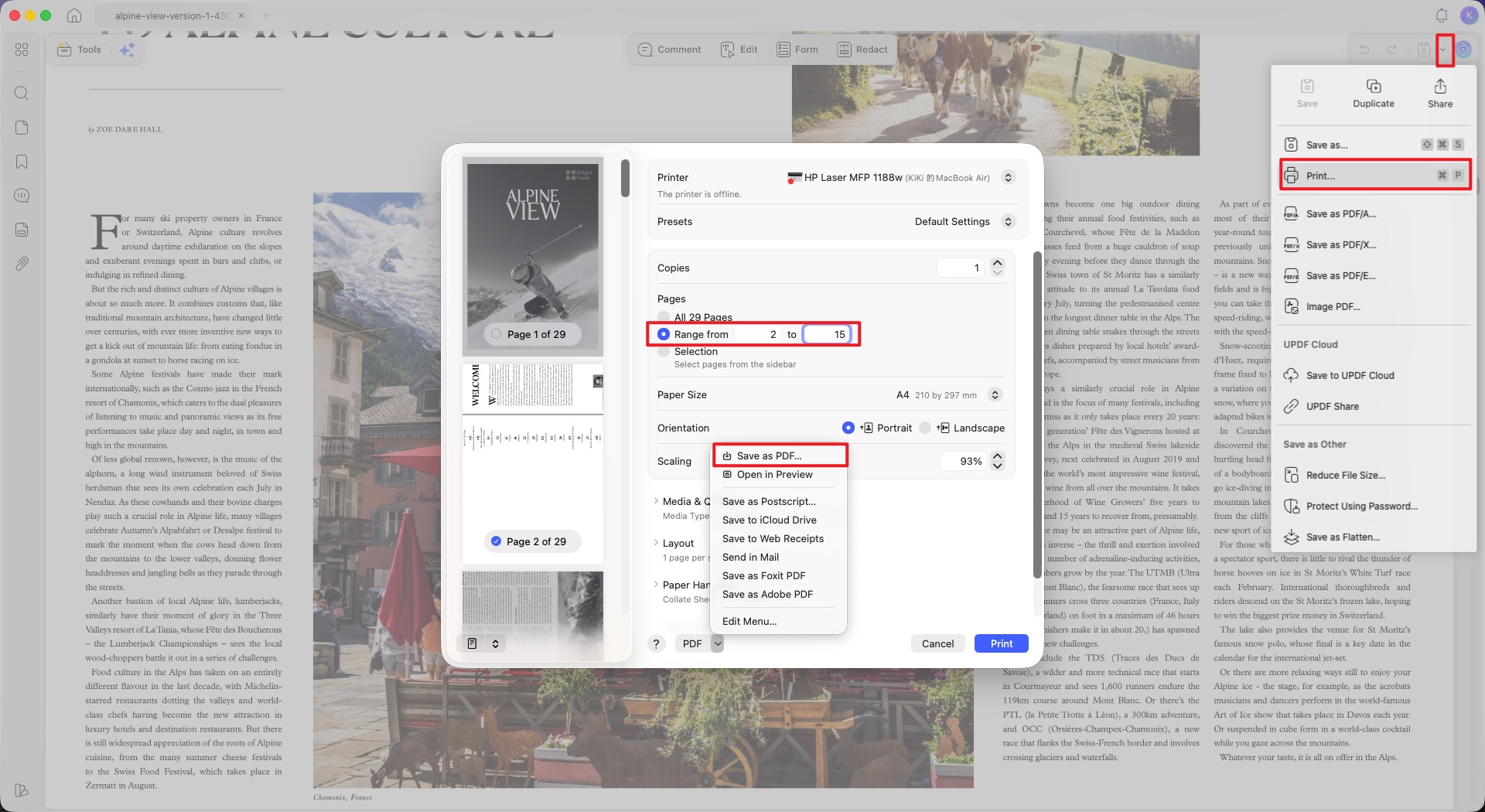
Step 2. Click the drop-down arrow next to the Save button > Print.
Step 3. In the page range field, enter only the pages you want to keep. For example, if page 1 is blank and pages 2-15 contain the real document, enter 2-15.
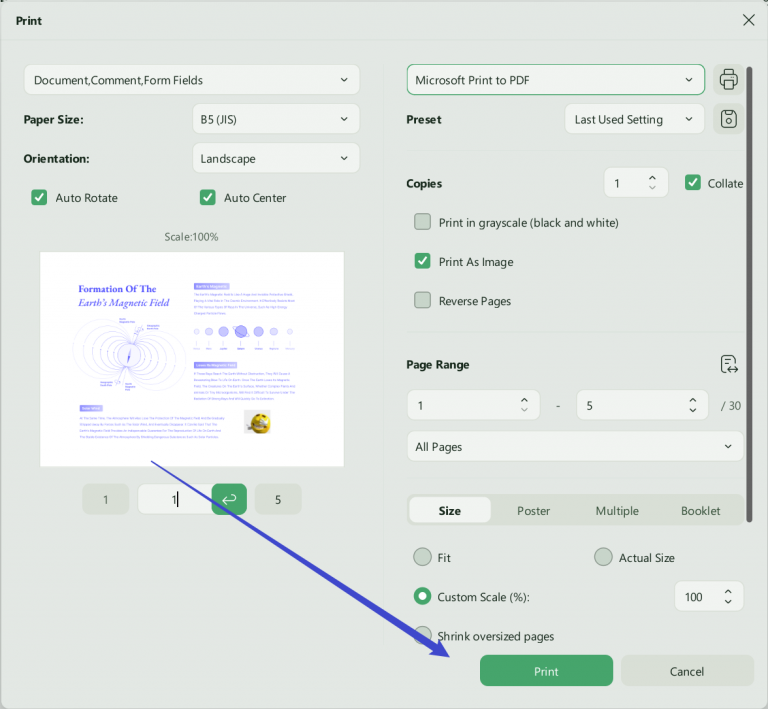
Step 4. Choose Microsoft Print to PDF or save-to-PDF option available on your system.
Step 5. Save the new PDF with a clear filename, such as Contract_without_blank_first_page.pdf.
This method creates a new file, which is useful when you want a clean output without changing the source PDF. It is not ideal for signed PDFs or files where the exact original structure must be preserved.
Part 6. Remove Blank Pages from a PDF on iPhone, iPad, or Android
Use this method when you need to clean a PDF before sending it from your phone. It is especially useful after scanning receipts, class notes, forms, or ID packets on mobile.
Best for:
- quick mobile cleanup before emailing, uploading, or sharing a PDF.
Not for:
- heavy scan-batch cleanup with many uncertain blank pages. Review long files on desktop when accuracy matters.
Step 1. Open the PDF in the UPDF mobile app on iPhone, iPad, or Android.
Step 2. Tap the page/thumbnail control in the upper-right area, then choose Organize Pages.
Step 3. Tap Select and choose the blank page thumbnails. Use Select All only if you are about to remove or act on every page; for blank-page cleanup, choose the specific blank pages.
Step 4. Tap the Delete button at the bottom.
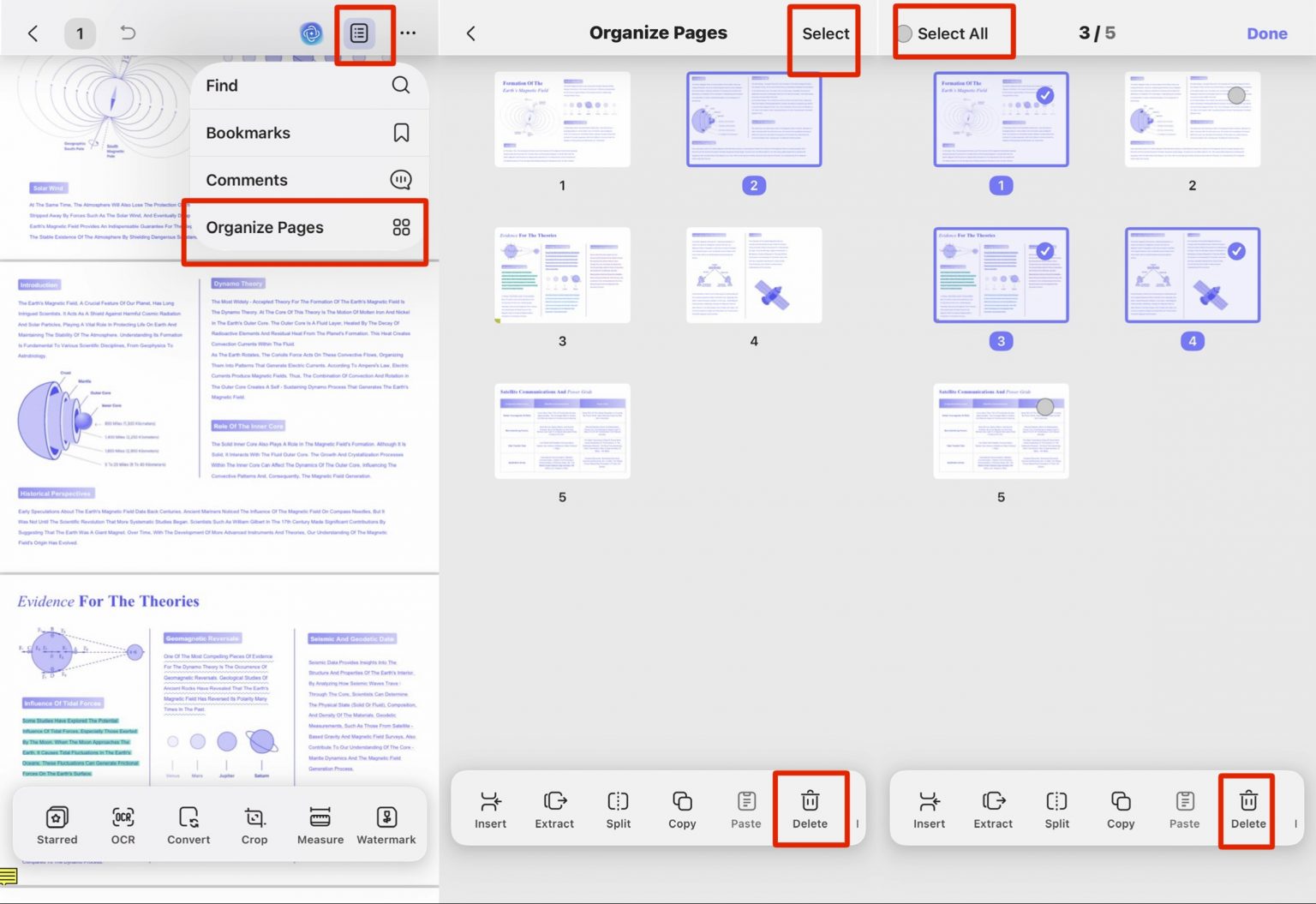
Step 5. Save the cleaned PDF. If you use UPDF Cloud, you can pick the same cleaned file back up on desktop later.
The useful mobile difference is batch selection. Instead of tapping one page at a time, you can select multiple pages before deleting, which helps when a phone scan captured several blank back sides.
Part 7. Blank Page vs. Separator Page vs. Scanned Shadow: What Is the Difference?
Most mistakes happen because these three pages look similar in thumbnails.
| Page type | What it really is | Should you delete it? |
|---|---|---|
| True blank page | No visible content and no needed structure | Usually yes |
| Separator page | Intentionally inserted to divide sections | Only if the section break is not needed |
| Scanned shadow page | A scan of an empty paper side with shadows, dots, or bleed-through | Review first; it may be a scan artifact or a real back side |
| Blank-looking form page | A page with invisible fields, page numbers, or faint marks | Do not delete until you inspect it |
In simple terms, a true blank page is empty paper. A separator page is a divider tab. A scanned shadow page is a photo of the back side of paper. Deleting all three blindly can damage the document structure.
Part 8. UPDF vs. Adobe Acrobat for Removing Blank Pages
This article is about removing blank pages in UPDF, not teaching every Acrobat route. Still, the comparison matters if you are choosing where to clean a scan.
| Task | UPDF | Adobe Acrobat |
|---|---|---|
| Delete blank pages manually | Yes, in Organize Pages and thumbnails | Yes, in Organize Pages |
| Delete pages on mobile | Yes, with page selection on iOS/Android | Yes, but Acrobat Reader mobile page selection is more limited |
| Auto-detect blank pages | Yes, with AI Check Pages | Not the same AI blank-page workflow |
| Keep files local | Desktop and mobile app workflows stay on device | Desktop/mobile stay on device; Acrobat online requires upload |
| Broader page organization | Insert, replace, reorder, extract, split, rotate, crop, remove | Strong desktop page tools, with surface differences across desktop/web/mobile |
If you already use Acrobat and only need one page removed, follow the dedicated guide on how to delete a page in Adobe Acrobat. If you want one workflow for blank-page detection, manual deletion, mobile cleanup, and other page actions, UPDF is the more direct route.
Part 9. Edge Cases: When Blank Pages Do Not Delete Cleanly
"The page looks blank, but UPDF AI Check Pages did not flag it as blank."
That page may contain tiny scan noise, hidden marks, a white image layer, or an almost invisible header or footer. Structurally, it is not empty; it only looks empty to your eyes. Zoom in before deleting it. If you confirm it is only scan dust or a separator page, delete it manually in Organize Pages.
"The Delete button is unavailable even though I selected the blank page."
The PDF may have a permissions password that blocks page organization. Page deletion changes the file structure, so compliant PDF editors may refuse it until restrictions are removed. Only remove restrictions when you own the file or are authorized to edit it.
"I removed the blank page, but my page numbers or table of contents now look wrong."
PDF page deletion removes the page object; it does not rewrite printed page numbers, table-of-contents entries, or references that were already part of the page design. If page numbers are visible text, update the source document or replace the affected pages after deletion.
"I deleted blank pages from a signed PDF, and now the signature warning appears."
Digital signatures protect the file state at signing time. Deleting pages after signing changes that state, even if the deleted page was blank. For signed files, clean blank pages before signing, or return to the unsigned original and regenerate the signed copy.
"The file is smaller, but not as small as I expected."
Deleting pages removes those page objects, but PDFs can still contain embedded fonts, images, metadata, or incremental save history. If size is the real problem after blank-page cleanup, run compression after deletion.
Part 10. FAQ About Removing Blank Pages from PDFs
1. Can I remove blank pages from a PDF for free?
Yes, you can try it for free. UPDF lets you use page organization tools in the free version, but exported files may include a trial watermark. For watermark-free export and full advanced use, upgrade to Pro.
2. Does deleting blank pages change the original PDF?
Only if you save over it. To keep the source file safe, use Save As Other or save the cleaned PDF as a copy before sharing.
3. Do page-number references need checking after blank-page deletion?
Yes. Deleting a page shifts the positions of later pages. Recheck page-number citations, an external #page=N link, and any table of contents after saving the cleaned PDF. If a blank is a placeholder that must keep its page position, replace the page instead.
Conclusion
Removing blank pages from a PDF is simple when you match the method to the file. For long scans and merged packets, use UPDF's AI Check Pages to find blank pages before you miss one. For visible blanks, use Organize Pages or the thumbnail panel. For front/back blanks, rebuild the output with a print range. On iPhone, iPad, or Android, use UPDF mobile's Organize Pages view to select and delete pages before sharing.
The safest rule is: delete true blanks, inspect almost-blank pages, and keep a copy before saving. For the full page-management workflow, including insert, replace, extract, split, rotate, and reorder, use the pillar guide on how to organize PDF pages.
Download UPDF for free to remove blank pages from your PDF — installation is free, and Pro features are available when you need export without a trial watermark or advanced tools.
Windows • macOS • iOS • Android 100% secure






 Enrica Taylor
 Enola Miller
 Delia Meyer
 Lizzy Lozano
 Grace Curry
Free vs. Pro note: