 UPDF
 UPDF for Windows
 UPDF for Mac
 UPDF for iPhone/iPad
 UPDF for Android
 Nomostar
 UPDF AI Online
 UPDF Sign
 IvyCraft
 Edit PDF
 Annotate PDF
 Create PDF
 PDF Form
 Edit links
 Convert PDF
 OCR
 PDF to Word
 PDF to Image
 PDF to Excel
 Organize PDF
 Merge PDF
 Split PDF
 Crop PDF
 Rotate PDF
 Protect PDF
 Sign PDF
 Redact PDF
 Sanitize PDF
 Remove Security
 Read PDF
 UPDF Cloud
 Compress PDF
 Print PDF
 Batch Process

 About UPDF AI
 UPDF AI Solutions
 AI User Guide
 FAQ about UPDF AI
 Summarize PDF
 Translate PDF
 Chat with PDF
 Chat with AI
 Chat with image
 PDF to Mind Map
 Explain PDF
 PDF AI Tools
 Image AI Tools
 AI Chat Tools
 AI Writing Tools
 AI Study Tools
 AI Working Tools
 Other AI Tools
 AI Bookmark Generation
 AI Bookmark Summary
 AI Watermark Generation
 AI Background Generation
 AI Sticker Generation
 AI Stamp Generation
 AI Editing Suite
 UPDF Copilot
 AI Page Management
 AI Semantic Search
 PDF to Word
 PDF to Excel
 PDF to PowerPoint
 Enterprise Solution
 Enterprise Sign
 Enterprise AI
 Enterprise Plan
 Enterprise User Guide
 Enterprise Webinar
 IT
 Education
 Construction
 Financial Service
 Healthcare
 Insurance
 Legal
 Manufacturing
 Government
 Researchers & PhDs
 Solopreneurs & Freelancers
 Lawyers & Legal Professionals
 Real Estate Agents & Brokers
 Education Solution
 Customer Stories
 User Guide
 UPDF Tricks
 FAQs
 UPDF Reviews
 Download Center
 Blog
 Newsroom
 Tech Spec
 Updates
 UPDF vs. Adobe Acrobat
 UPDF vs. Foxit
 UPDF vs. PDF Expert


Quick answer:
For adding and editing PDF text on a Mac, consider UPDF. For occasional text boxes, notes, and signatures, Apple Preview may be enough. Adobe Acrobat Pro, PDF Expert, and Nitro PDF Pro for Mac are alternatives for editing existing content. If you only need to create a PDF from another document, macOS already offers Save as PDF.
Choosing a PDF writer for Mac starts with the kind of change you need to make. Adding a text box leaves the original page content in place; editing existing text changes the document itself. A PDF printer creates a PDF from another file but does not provide those editing tools.
This comparison focuses on apps for writing on and editing PDFs. If you are looking for the separate PDFwriter for Mac printer driver, that is a different type of tool. For PDF creation alone, macOS offers Save as PDF.
Part 1. Which PDF Writer for Mac Fits Your Task?
| Tool | Best for | Existing PDF text editing | Main limitation |
|---|---|---|---|
| UPDF | Adding text and revising existing content in one app | ✅ | The free version adds trial watermarks to edited PDFs |
| Apple Preview | Occasional text boxes, notes, and signatures | ❌ | Markup does not replace existing body text |
| Adobe Acrobat Pro | Editing within an established Acrobat workflow | ✅ | Full editing requires a paid plan |
| PDF Expert | Editing and reviewing PDFs in an Apple-focused workflow | ✅ | Existing-text editing is a Premium feature |
| Nitro PDF Pro for Mac | Editing and OCR, including users moving from PDFpen | ✅ | Continued use after the trial requires a paid license |
The comparison focuses on text editing, annotation, Mac availability, and free-versus-paid limitations. It is based on official product documentation rather than a timed performance benchmark.
1. UPDF — For Adding Text and Revising Existing PDF Content
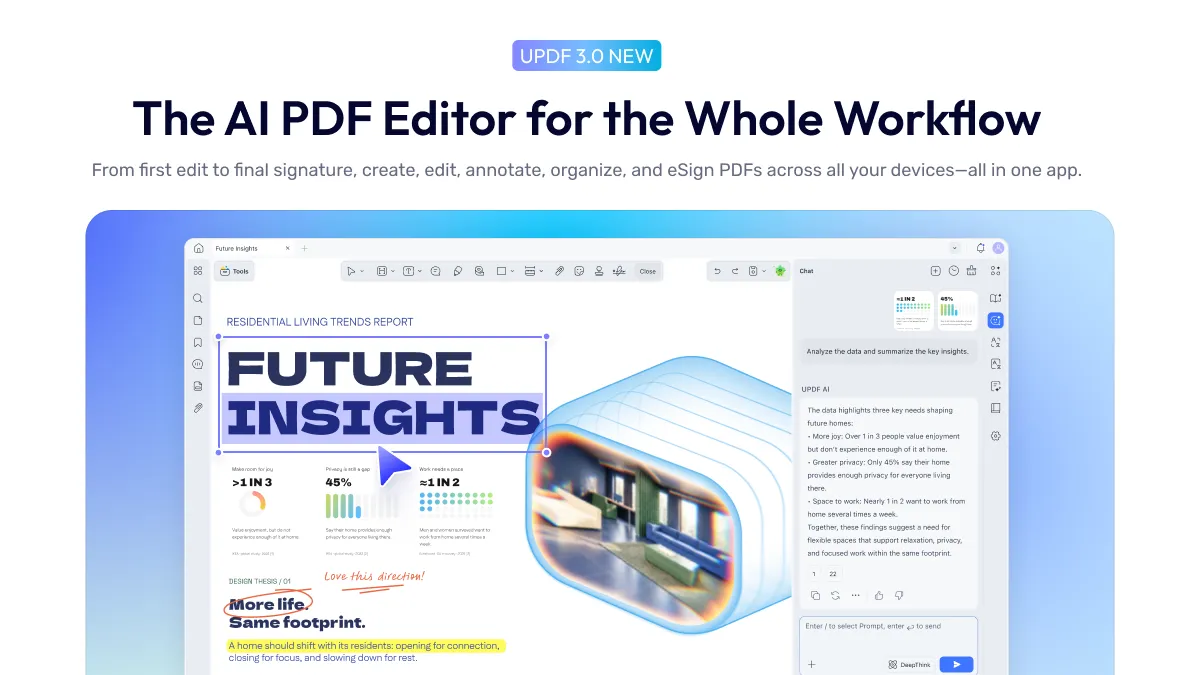
UPDF for Mac supports both writing on a PDF and editing its existing content. You can add new text, revise existing text and formatting, and work with images and links. Its annotation tools support a separate review workflow when you want to leave comments instead of changing the document.
This makes UPDF a useful option for documents that need both corrections and feedback. For example, you might revise a paragraph in a proposal, then add a comment asking a colleague to check a figure.
Best for:
- Users who regularly add text and correct existing PDF content.
Skip if:
- You only need an occasional text box or signature and want a built-in, no-cost option.
Free-version limitation: UPDF’s current pricing page lists trial watermarks for PDF editing and annotation. Check the current plan before preparing a final document for distribution.
Try UPDF with a copy of your document and check the saved result before sharing it.
Windows • macOS • iOS • Android 100% secure
Need the actual workflow? Read our guide to adding text to a PDF on Mac.
2. Apple Preview — For Free Text Boxes and Basic Markup
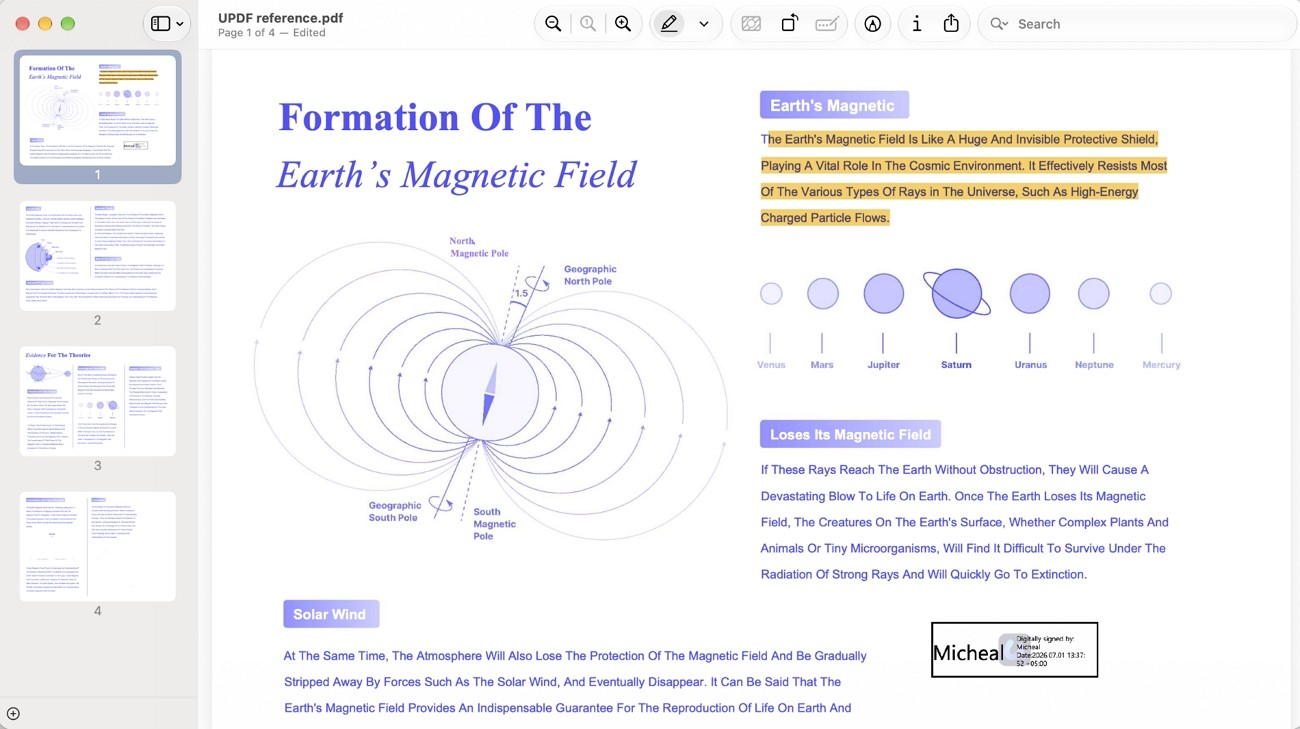
Preview is included with macOS and is a practical starting point when you need to add a note, text box, or signature to a PDF. You do not need a separate paid editor for every small addition.
Its boundary is important: Preview’s markup tools do not edit the PDF’s existing body text. Adding a text box over a sentence is not the same as changing that sentence in the document.
Best for:
- Occasional additions and feedback on an otherwise finished PDF.
Skip if:
- You need to rewrite existing paragraphs or change the original text formatting.
Cost: Included with macOS.
3. Adobe Acrobat Pro — For Established Acrobat Workflows
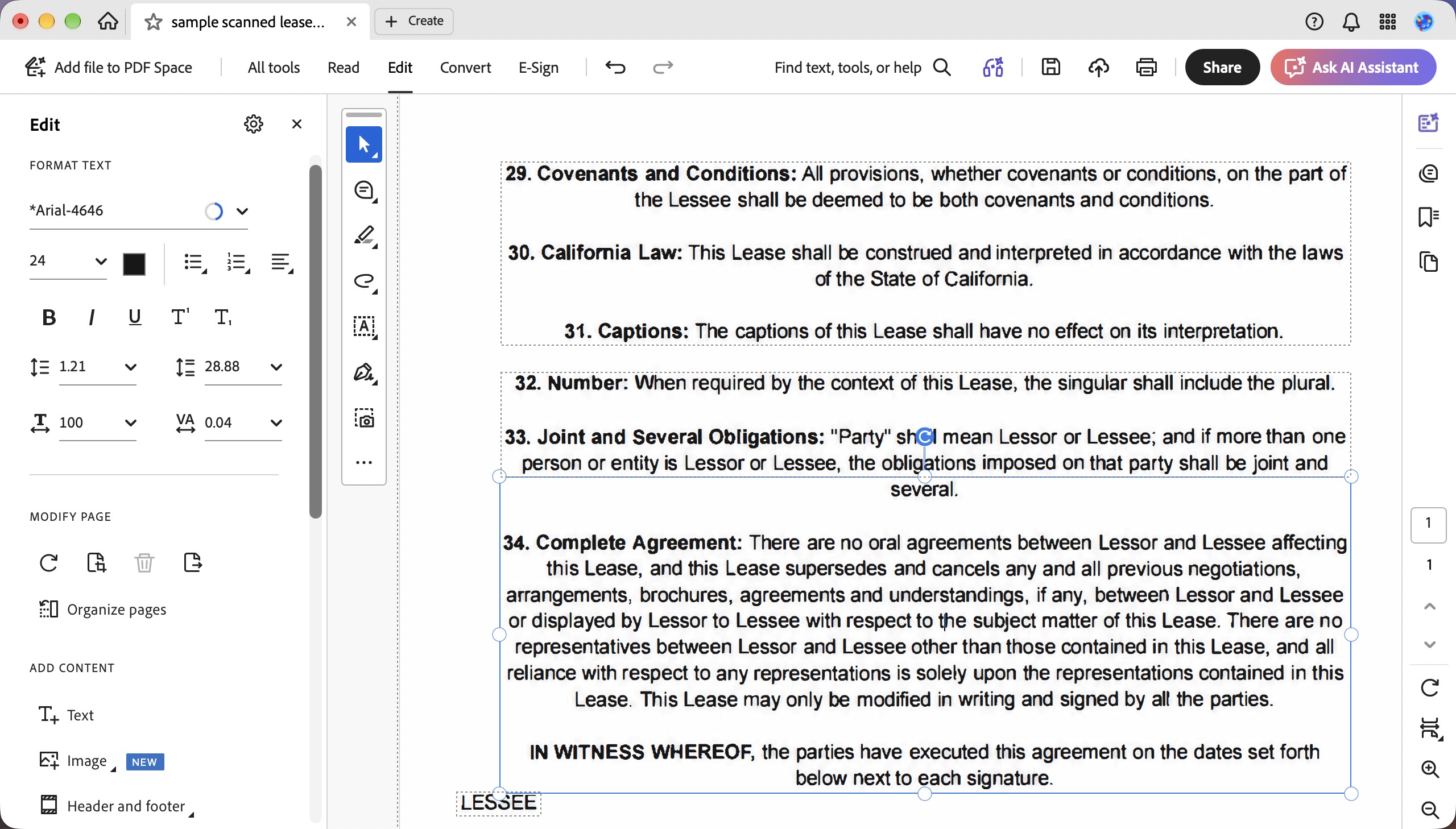
Adobe Acrobat Pro provides desktop PDF editing alongside connected services. It supports changes to existing text and images, while commenting tools let reviewers suggest revisions without rewriting the original content.
Consider it when Acrobat is already part of your organization’s document workflow. For a one-off text box or signature, first check whether a simpler tool completes the task.
Best for:
- Users who already work with Acrobat and need full PDF editing.
Skip if:
- Your only task is basic markup and you do not need a paid editing plan.
Access: Full editing is a paid capability. Check the selected Acrobat plan’s billing term and renewal conditions before subscribing.
4. PDF Expert — For PDF Editing in an Apple-Focused Workflow
PDF Expert supports editing existing PDF text, images, and links, as well as annotating documents. It remains a relevant option for Mac users who want to review a document and make corrections in the same app.
Its Premium offering includes text editing and OCR. Choose based on the features and devices covered by the plan, rather than assuming every download includes the complete editing toolset.

Best for:
- Mac users who regularly switch between reviewing PDFs and editing their content.
Skip if:
- You require a completely free solution for changing existing PDF text.
Access: Check the current Premium plan for editing features and device coverage.
5. Nitro PDF Pro for Mac — For Editing and OCR
Nitro PDF Pro for Mac is the current product to evaluate if you previously knew PDFpen or PDFpenPro. It supports PDF editing, annotation, form filling, and OCR.
For former PDFpen users, the relevant decision is whether the current Nitro app and licensing fit their workflow—not whether an old PDFpen feature list still looks competitive.

Best for:
- Users moving from PDFpen, or Mac users who need editing and OCR in one application.
Skip if:
- You only need occasional markup and do not want a paid app after the trial.
Trial: Nitro currently offers a 14-day trial. Continued access to the desktop software requires a paid plan after the trial ends.
Part 2. FAQs About PDF Writers for Mac
1. Why does the font change when I edit a PDF?
The original font may not be installed on your Mac, and an embedded font does not always allow new text to be entered in that typeface. Use an available font or install the properly licensed original font, then check line breaks and spacing before sharing.
2. Can I keep PDF comments editable after saving?
Yes, if you save a PDF with its annotations preserved. Flattening combines annotations with the page appearance and can prevent later comment editing. Keep an editable copy, and reopen the exported file in the recipient’s PDF viewer to check that the comments appear as intended.
3. What should I check before paying for a PDF writer?
Test a copy of a document you actually use. Check whether you can change the original text, whether the required fonts and layout survive saving, and whether the exported PDF has a trial watermark. Also verify Mac compatibility, the license term, and any renewal conditions.
Conclusion
Choose a PDF writer for Mac according to the change you need to make. Preview can handle simple additions and markup; UPDF, Adobe Acrobat Pro, PDF Expert, and Nitro PDF Pro for Mac provide options for editing existing content.
For regular text corrections and annotations, try UPDF with a representative document and review the exported result. If you need a broader comparison covering more than writing and text editing, explore our PDF editors for Mac comparison.
Windows • macOS • iOS • Android 100% secure




 Enola Davis