 UPDF
 UPDF for Windows
 UPDF for Mac
 UPDF for iPhone/iPad
 UPDF for Android
 Nomostar
 UPDF AI Online
 UPDF Sign
 IvyCraft
 Edit PDF
 Annotate PDF
 Create PDF
 PDF Form
 Edit links
 Convert PDF
 OCR
 PDF to Word
 PDF to Image
 PDF to Excel
 Organize PDF
 Merge PDF
 Split PDF
 Crop PDF
 Rotate PDF
 Protect PDF
 Sign PDF
 Redact PDF
 Sanitize PDF
 Remove Security
 Read PDF
 UPDF Cloud
 Compress PDF
 Print PDF
 Batch Process

 About UPDF AI
 UPDF AI Solutions
 AI User Guide
 FAQ about UPDF AI
 Summarize PDF
 Translate PDF
 Chat with PDF
 Chat with AI
 Chat with image
 PDF to Mind Map
 Explain PDF
 PDF AI Tools
 Image AI Tools
 AI Chat Tools
 AI Writing Tools
 AI Study Tools
 AI Working Tools
 Other AI Tools
 AI Bookmark Generation
 AI Bookmark Summary
 AI Watermark Generation
 AI Background Generation
 AI Sticker Generation
 AI Stamp Generation
 AI Editing Suite
 UPDF Copilot
 AI Page Management
 AI Semantic Search
 PDF to Word
 PDF to Excel
 PDF to PowerPoint
 Enterprise Solution
 Enterprise Sign
 Enterprise AI
 Enterprise Plan
 Enterprise User Guide
 Enterprise Webinar
 IT
 Education
 Construction
 Financial Service
 Healthcare
 Insurance
 Legal
 Manufacturing
 Government
 Researchers & PhDs
 Solopreneurs & Freelancers
 Lawyers & Legal Professionals
 Real Estate Agents & Brokers
 Education Solution
 Customer Stories
 User Guide
 UPDF Tricks
 FAQs
 UPDF Reviews
 Download Center
 Blog
 Newsroom
 Tech Spec
 Updates
 UPDF vs. Adobe Acrobat
 UPDF vs. Foxit
 UPDF vs. PDF Expert


Quick answer:
Choose UPDF for PDF-to-Word conversion alongside PDF editing, ABBYY FineReader PDF for scan-focused work, PDF Expert for an existing Mac PDF workflow, or PDFgear for a free conversion option. Before choosing, check OCR availability, batch support, and whether the trial actually allows Word export.
A useful PDF to Word converter for Mac should produce a document you can revise, not just a page that looks similar to the original. Scanned PDFs need text recognition, while complex tables, columns, and unusual fonts may still require cleanup after conversion.
This comparison uses current official product documentation to explain supported workflows and important limitations. It is not a controlled accuracy or speed benchmark. For instructions rather than tool selection, see our guide to converting PDF to Word on Mac.
Part 1. Compare PDF to Word Converters for Mac
| Converter | Main reason to consider it | Important selection check |
|---|---|---|
| UPDF | Word Conversion, Batch Work, and PDF Editing | Free conversion allowances and Mac OCR requirements |
| Adobe Acrobat Pro | Existing Acrobat Workflows | Paid export access and the features included in your plan |
| ABBYY FineReader PDF for Mac | Scan-Focused Conversion | Mac features differ from the Windows edition |
| PDF Expert | an Existing Mac PDF Workflow | Export access under your license |
| Foxit PDF Editor for Mac | PDF Editing and Office Export | Mac-specific features rather than Windows feature lists |
| Cisdem PDFMaster | Batch Conversion and OCR | Results with your actual scans and layouts |
| PDFgear | Free PDF-to-Word Conversion on Mac | Current Mac conversion behavior and your document requirements |
| Tungsten Power PDF for Mac | Check the Word Export Trial Restriction | Word export is excluded from the Mac trial |
| Able2Extract Professional | a Dedicated Conversion Workflow | Whether its broader conversion features justify the purchase |
| Doxillion | General Document-Format Conversion | Free-edition format restrictions |
1. UPDF — For Word Conversion, Batch Work, and PDF Editing
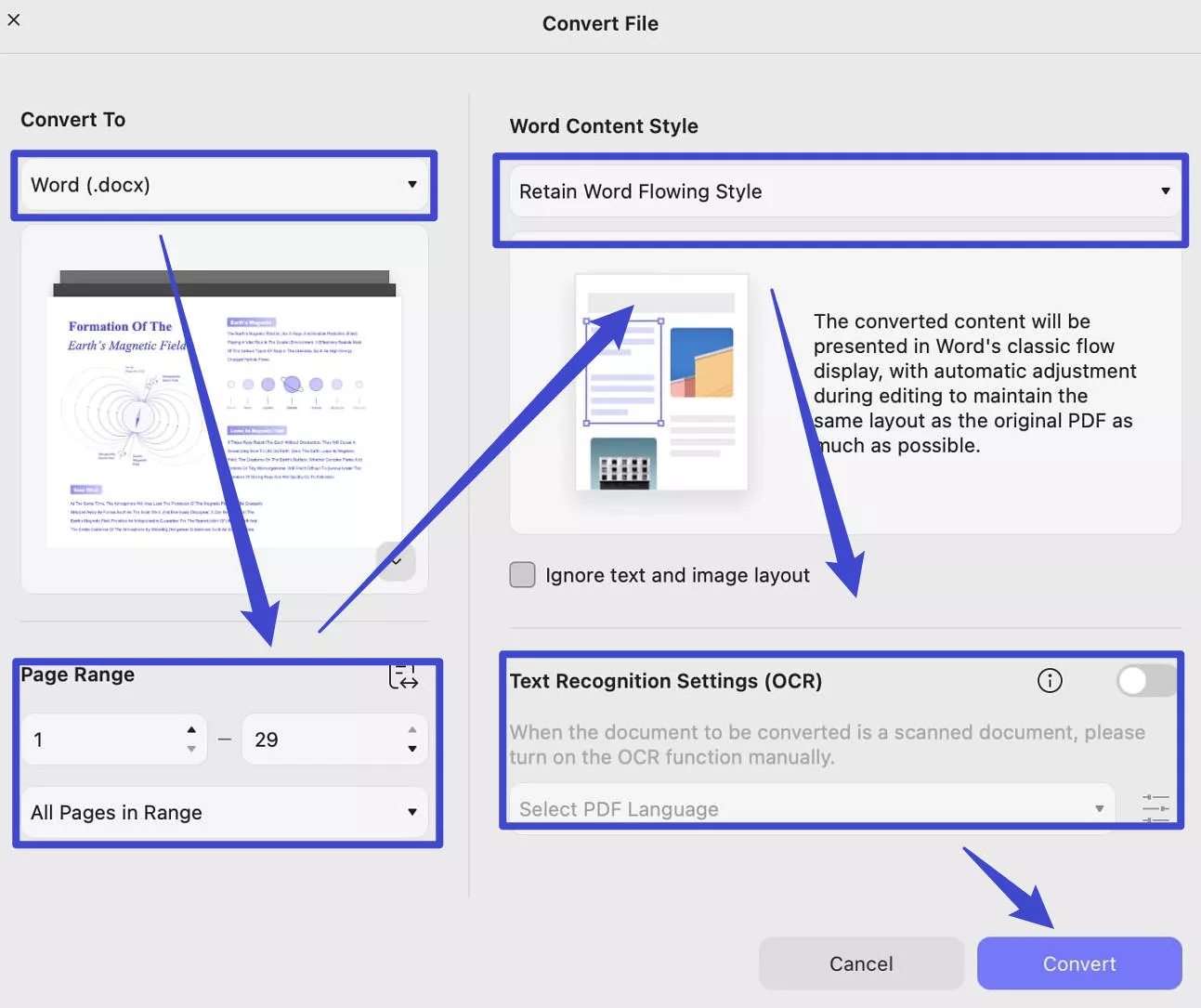
UPDF combines PDF-to-Word conversion with PDF editing in its Mac application. Its Word export options include flowing text and text-box layouts, giving you a choice between easier text revision and preserving page positioning. OCR is available for scanned content on supported Mac configurations.
UPDF is worth considering when conversion is part of a larger task, such as correcting a PDF before export or processing multiple documents. Check the resulting Word file for table structure, reading order, and font substitutions before sharing it.
Windows • macOS • iOS • Android 100% secure
Best for:
- Users who need conversion and PDF editing in the same application.
Skip if:
- You require unrestricted free conversion or your Mac configuration does not support the OCR workflow you need.
Free-access note: The current pricing table lists 2 PDF conversions per day, 2 files per batch conversion, and 5 OCR uses for free access. Check the current plan details before starting a larger project.
Try UPDF with a representative PDF to assess the Word output before processing a larger collection.
For the single-file, OCR, and batch workflows, read how to convert PDF to Word on Mac.
The following UPDF video provides an overview of conversion. Its recorded interface may differ from the current Mac version; refer to the current Mac guide for available options.
2. Adobe Acrobat Pro — For Existing Acrobat Workflows
Adobe Acrobat Pro converts PDFs into editable Word documents and supports text recognition for scanned content. It is a practical option if you already use Acrobat for reviewing and managing PDFs and want conversion within the same workflow.
Do not assume that an exported document will reproduce every layout element perfectly. Dense tables, columns, and unusual fonts should be checked in Word.
Best for:
- Individuals and teams already working in Acrobat.
Skip if:
- Your only requirement is occasional free PDF-to-Word conversion.
3. ABBYY FineReader PDF for Mac — For Scan-Focused Conversion
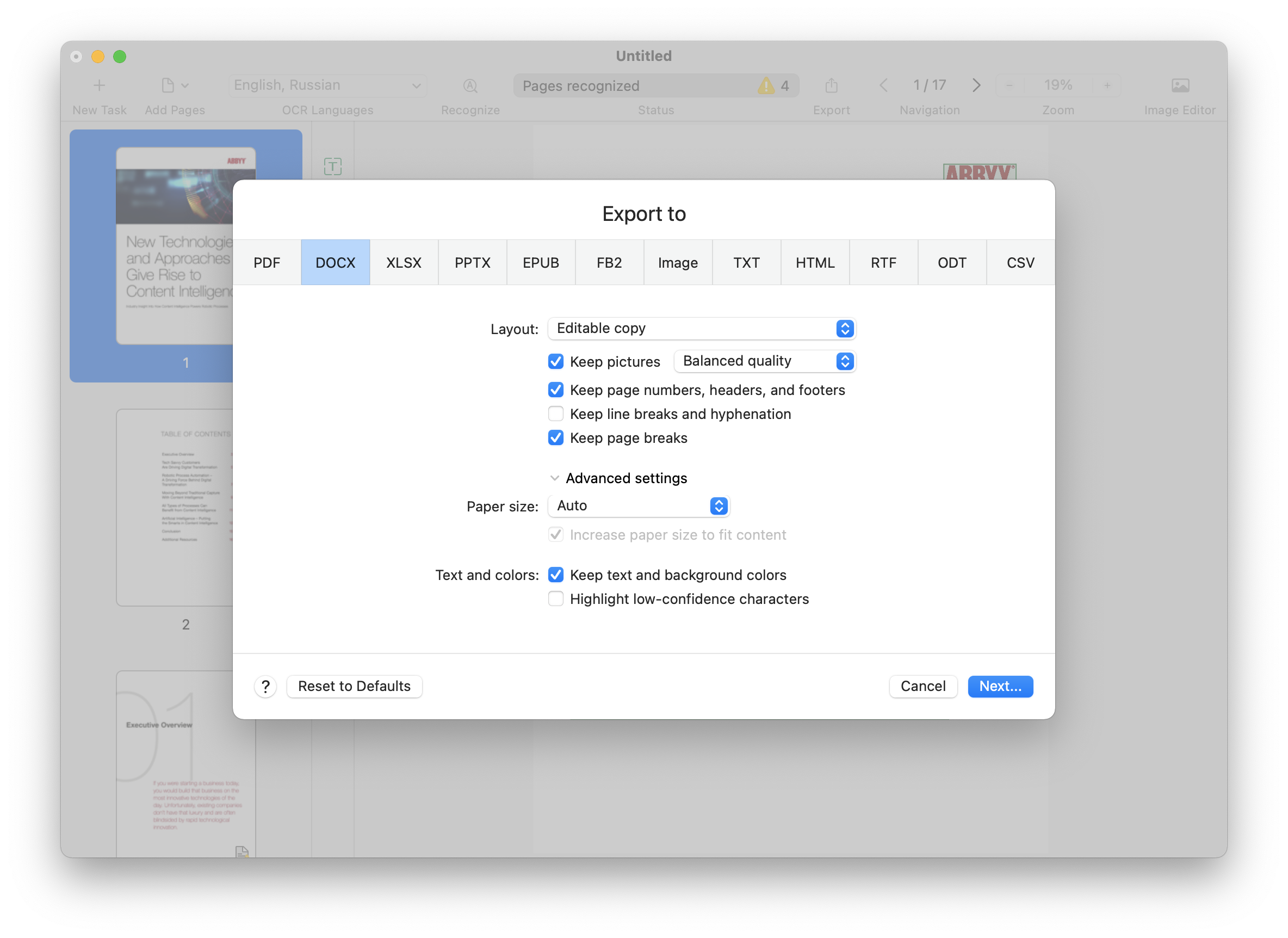
ABBYY FineReader PDF for Mac focuses on recognizing text and converting PDFs, scans, and document images into editable formats. It is a relevant shortlist option when your source files are scanned documents rather than PDFs with selectable text.
Evaluate the Mac edition on its own features. The Windows and Mac editions do not offer identical PDF editing and document-management capabilities.
Best for:
- Users whose conversion work starts with scanned pages.
Skip if:
- You need the full editing feature set advertised for the Windows edition.
4. PDF Expert — For an Existing Mac PDF Workflow
PDF Expert supports exporting PDFs to Word on Mac, alongside other export formats. It is worth considering if you already use the application to read, annotate, and manage PDFs and want to add Word conversion without changing your everyday workflow.
Confirm that your license includes the export features you need. A free download should not be treated as proof of unrestricted free conversion.
Best for:
- Mac users who already work in PDF Expert.
Skip if:
- You need a converter chosen primarily for free access rather than integration with your existing PDF workflow.
5. Foxit PDF Editor for Mac — For PDF Editing and Office Export
Foxit PDF Editor for Mac supports converting PDFs to Microsoft Office formats, including Word. It suits users who want document conversion alongside PDF editing rather than a separate conversion-only application.
Check the Mac documentation when comparing features: a capability described for the Windows edition should not automatically be assumed to work the same way on Mac.
Best for:
- Users looking for PDF editing and Word export in one application.
Skip if:
- Your decision depends on a Windows-specific feature that has not been confirmed for Mac.
6. Cisdem PDFMaster — For Batch Conversion and OCR
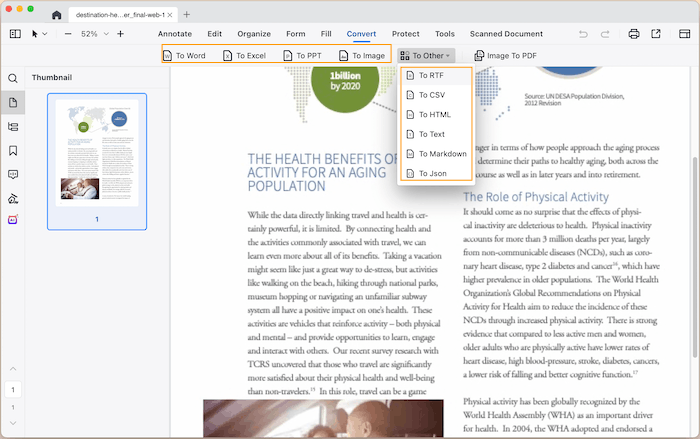
Cisdem PDFMaster for Mac combines PDF editing with conversion and OCR. Its batch tools support processing multiple files in a single workflow.
It is a relevant option when your workload includes several PDFs or scanned documents. Use representative files to assess recognition and formatting before committing to a larger batch.
Best for:
- Users comparing Mac tools for batch conversion and OCR.
Skip if:
- You need a guarantee that complex documents will require no manual formatting corrections.
7. PDFgear — For Free PDF-to-Word Conversion on Mac
PDFgear offers free PDF-to-Word conversion on Mac, and its official Mac guide also describes batch conversion. It is a useful option for users who want to try converting documents without purchasing a PDF editor first.
Assess the Mac version with your own files rather than assuming that every Windows feature or online feature is identical. Check the exported text and layout before relying on the result.

Best for:
- Users looking for a free Mac conversion option.
Skip if:
- Your workflow requires a particular processing method or deployment guarantee that you have not verified for the Mac version.
8. Tungsten Power PDF for Mac — Check the Word Export Trial Restriction
Previously associated with the Kofax brand, Tungsten Power PDF for Mac remains available as a Mac PDF application. However, its official trial page states that Word export is excluded from the 15-day trial and becomes available after purchasing a license.
This restriction matters if your main reason for downloading the trial is to evaluate PDF-to-Word output quality.
Best for:
- Users considering Power PDF within an existing Tungsten workflow.
Skip if:
- You need to test Word export in the free Mac trial before purchasing.
9. Able2Extract Professional — For a Dedicated Conversion Workflow
Able2Extract Professional remains available for Mac through Investintech’s official download page. It is worth considering if document conversion is a recurring task and you want to evaluate a dedicated conversion application.
Compare its available conversion features with your actual workload rather than selecting it solely for occasional Word export. Use the trial to check representative documents before purchasing.
Best for:
- Users evaluating dedicated document-conversion software.
Skip if:
- You only need an occasional conversion and do not need its broader toolset.
10. Doxillion — For General Document-Format Conversion
Doxillion provides document-format conversion on Mac, including PDF-related workflows. It is an option for users who regularly work with several document formats rather than needing a full PDF editor.
Its free edition is intended for home use and supports fewer formats. Confirm that your required PDF-to-Word conversion is available in the edition you plan to use.
Best for:
- Home users comparing general document converters.
Skip if:
- You need unrestricted free format support or an integrated PDF editing workspace.
Part 2. FAQs About PDF to Word Converters for Mac
1. Can I convert a password-protected PDF to Word?
You may need the document password and permission to export its contents. If conversion is restricted, ask the owner for an authorized copy or the original Word file. A converter should not be treated as a way to bypass someone else’s document permissions.
2. Will a PDF’s digital signature remain valid in the converted Word file?
No. A digital signature authenticates the signed PDF, not a newly generated Word document. A visible signature image may appear in the export, but it is not the original verifiable digital signature. Keep the signed PDF as the authoritative record.
3. Should I request the original Word document instead of converting a PDF?
Yes, when the author can share it. The original Word file is generally a better starting point for substantial revisions because conversion must reconstruct a document from the PDF’s page layout. Keep an unchanged copy of the source and confirm that you are editing the correct version.
Conclusion
Start with the type of PDF you need to convert. Scanned pages require OCR, recurring workloads benefit from batch processing, and complex layouts need careful output checks regardless of the tool.
Consider UPDF when you want Word conversion and PDF editing together, ABBYY for scan-focused work, PDF Expert for an existing Mac workflow, or PDFgear for a free option. Before purchasing, verify that the trial includes the conversion feature you intend to evaluate.
Ready to convert a file? Follow our PDF-to-Word tutorial for Mac.
Windows • macOS • iOS • Android 100% secure






 Lizzy Lozano

 Enola Miller
 Enya Moore
