UPDF
UPDF
 UPDF for Windows
 UPDF for Mac
 UPDF for iPhone/iPad
 UPDF for Android
 Nomostar
 UPDF AI Online
 UPDF Sign
 IvyCraft
 Edit PDF
 Annotate PDF
 Create PDF
 PDF Form
 Edit links
 Convert PDF
 OCR
OCR PDF to Word
 PDF to Image
 PDF to Excel
 Organize PDF
 Merge PDF
 Split PDF
 Crop PDF
 Rotate PDF
 Protect PDF
 Sign PDF
 Redact PDF
 Sanitize PDF
 Remove Security
 Read PDF
 UPDF Cloud
 Compress PDF
 Print PDF
 Batch Process
 About UPDF AI
 UPDF AI Solutions
 AI User Guide
 FAQ about UPDF AI
 Summarize PDF
 Translate PDF
 Chat with PDF
 Chat with AI
 Chat with image
 PDF to Mind Map
 Explain PDF
 PDF AI Tools
 Image AI Tools
 AI Chat Tools
 AI Writing Tools
 AI Study Tools
 AI Working Tools
 Other AI Tools
 AI Bookmark Generation
 AI Bookmark Summary
 AI Watermark Generation
 AI Background Generation
 AI Sticker Generation
 AI Stamp Generation
 AI Editing Suite
 UPDF Copilot
 AI Page Management
 AI Semantic Search
 PDF to Word
 PDF to Excel
 PDF to PowerPoint
 Enterprise Solution
 Enterprise Sign
 Enterprise AI
 Enterprise Plan
 Enterprise User Guide
 Enterprise Webinar
 IT
IT Education
 Construction
 Financial Service
 Healthcare
 Insurance
 Legal
Legal Manufacturing
 Government
 Researchers & PhDs
 Solopreneurs & Freelancers
 Lawyers & Legal Professionals
 Real Estate Agents & Brokers
 Education Solution
 Customer Stories
 User Guide
 UPDF Tricks
 FAQs
FAQs UPDF Reviews
 Download Center
 Blog
Blog Newsroom
 Tech Spec
 Updates
 UPDF vs. Adobe Acrobat
 UPDF vs. Foxit
 UPDF vs. PDF Expert

Resizing countless product photos for e-commerce or adapting visuals for various social platforms one by one is exhausting. Worse still, most users confuse two distinct image operations: altering pixel sizes and compressing files. That’s why a trustworthy bulk image resizer has become a must-have tool.
These are not the same thing, as they don't use the same tools, and mixing them up wastes time. This article clears that up and then walks you through the best tools for both jobs, so you can pick exactly what you need and get to work.
How to Choose the Right Bulk Image Resizer You Need?
Before picking a batch photo resizer, you need to know which problem you're solving. Resizing by dimensions means changing the width and height of an image, 4000px down to 800px, for example. Compressing by file size means reducing the number of bytes the file occupies on disk (3MB down to 300KB) without necessarily changing its visible dimensions at all.
The operational logic, technical principles, and tool choices for these two requirements are entirely different, as explained by this table:
| Comparison Dimension | Resize by Dimensions | Compress by File Size |
| Dimensions of Change | Width and height (pixel count) | File size (KB/MB on disk) |
| Common Units | Pixels, inches, centimeters, percentage | Kilobytes, Megabytes |
| Visual Effects | Image physically changes size; quality may shift at extremes | Appears visually identical at the same display size; quality may degrade with heavy compression |
| Typical Scenarios | Standardizing product images, social media assets, and web galleries | Reducing page load time, email attachments, and cloud storage limits |
| Core Technology | Resampling algorithms (bicubic, Lanczos) that add or remove pixels | Encoding optimization, chroma subsampling, quantization, metadata stripping |
It is important to note that batch resizing images almost always changes their file size as a side effect, as fewer pixels generally means fewer bytes. However, compressing a file does not change its pixel dimensions. Keep that distinction in mind when you pick your tool.
Best Bulk Image Resizers for 2026
The batch photo resizers below are split by what they actually do. Find the scenario that matches your need and pick the plan that fits your workflow.
Scenario 1: File Size Compression | Reducing Image Storage Size
When your images look right but your site loads slowly, the problem is file size, not dimensions. These tools are built specifically for compression.
Plan A: UPDF (Best for Professional Batch Compression)
UPDF is a full-featured document and image management tool with powerful batch processing built in. Its Batch Compress feature lets you load multiple images and compress them in a single operation without manual adjustment.
Beyond compression, UPDF handles batch conversion, combining, and encryption. This makes it a practical all-in-one tool for professionals who regularly deal with large volumes of document-based image content.
Download UPDF today to start compressing image-heavy documents in bulk and reclaim storage without sacrificing quality.
Windows • macOS • iOS • Android 100% secure
Pricing
| Plan | Price |
| Free | $0 (watermark on some exports) |
| Annual | $64.99/year |
| Perpetual | $94.99 one-time |
Steps to Batch Resize
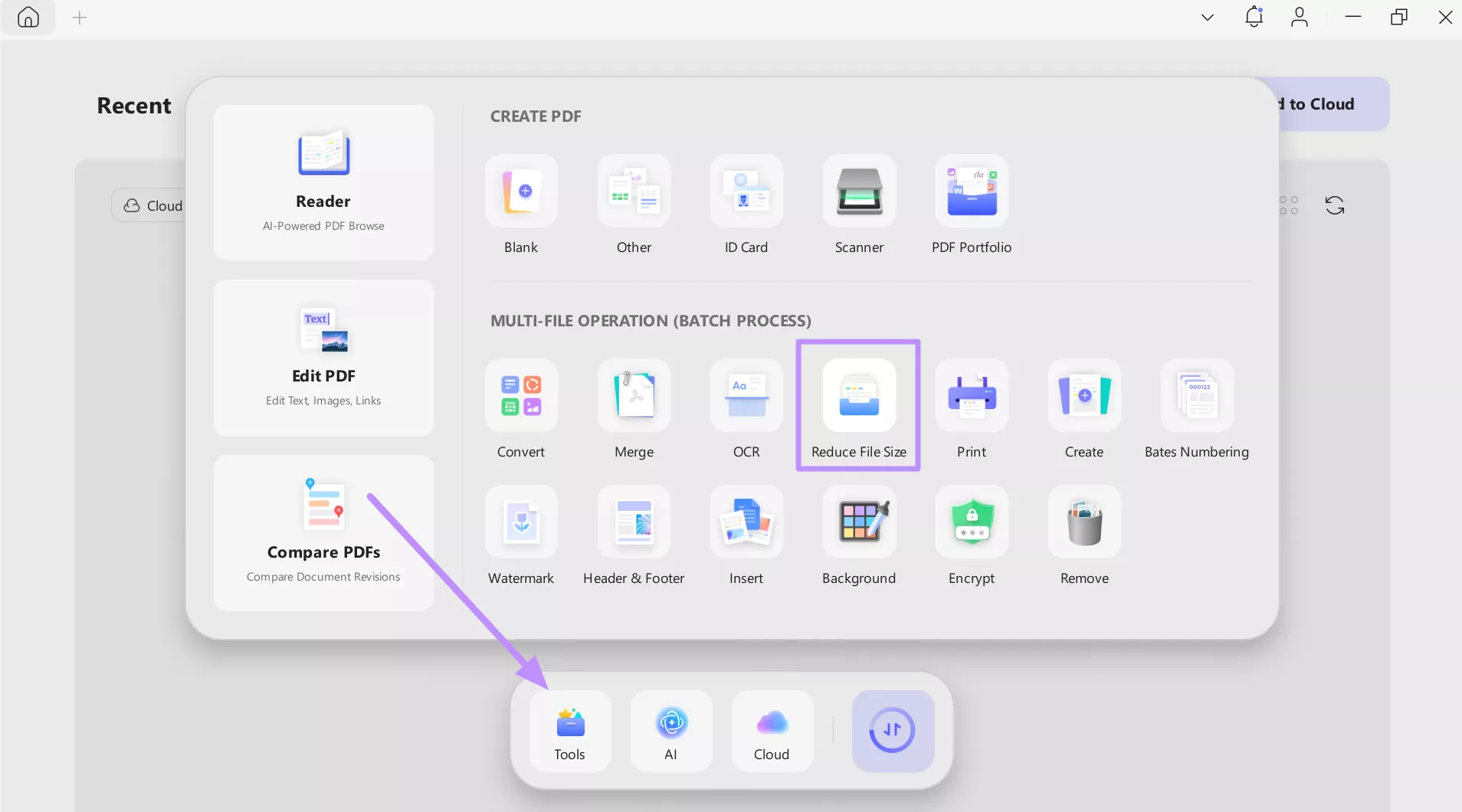
- Upon launching UPDF, tap on the Tools option from the floating bar and pick Reduce File Size from the Batch Process section.
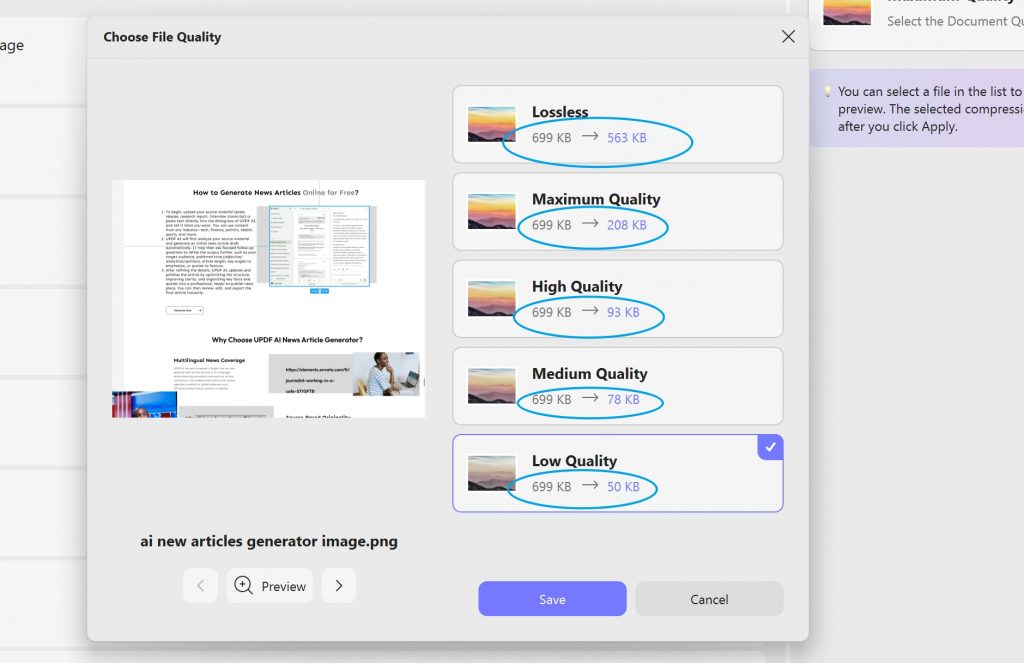
- Now, click Add Files to import the images you want to compress. Then, tap on the Downward icon under Compress to open a new window. From here, pick the desired compression level for each image and tap Save. By the way, you can "Click to calculate" to check the details.
- Finally, tap Apply and choose your output folder when prompted. UPDF compresses all queued files and saves them to your chosen location.
Please note that the format exported by this tool is PDF.
Plan B: TinyPNG (Best for Quick Web Image Compression)
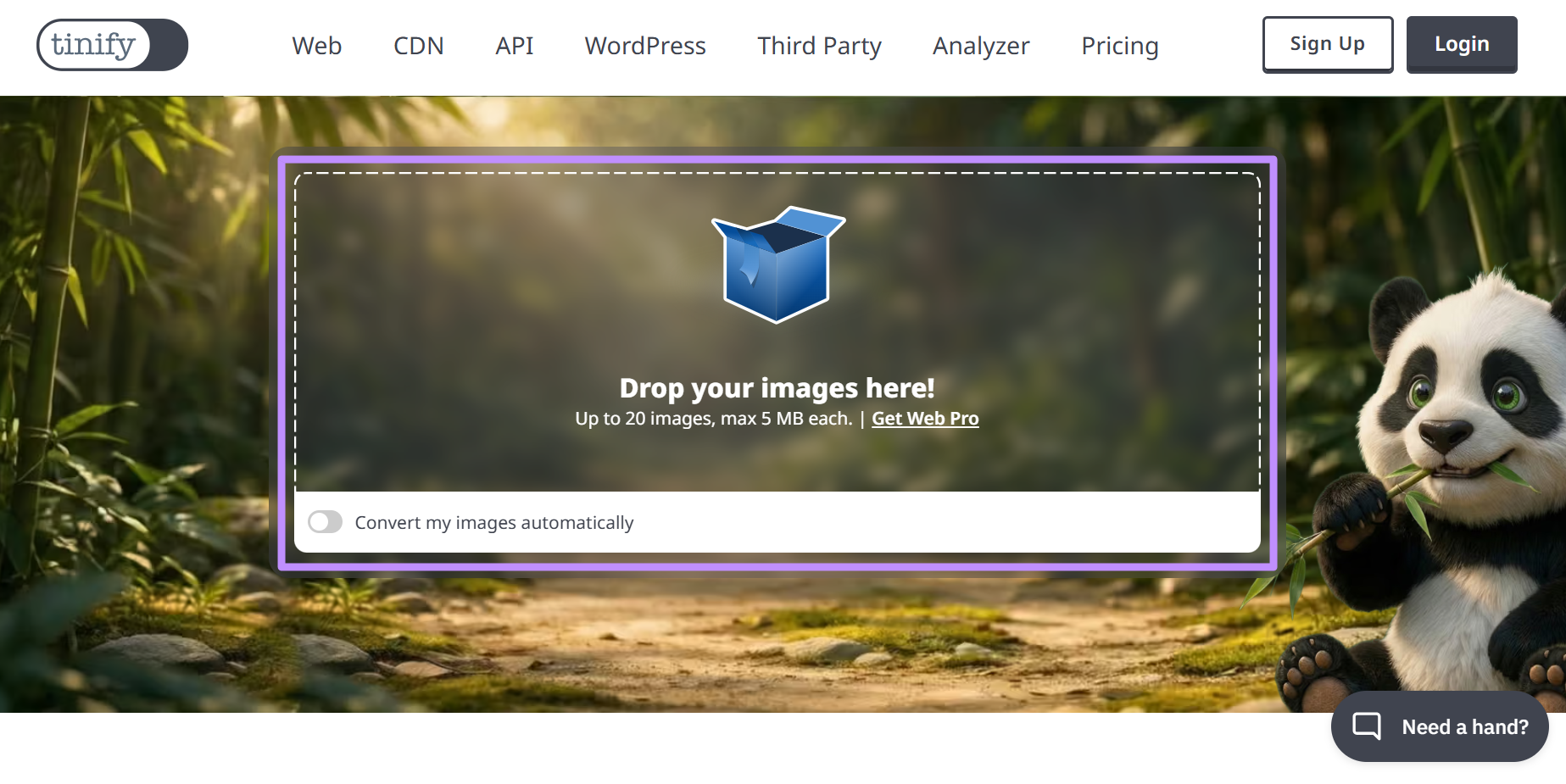
TinyPNG uses smart lossy compression to reduce PNG and JPEG file sizes by 50 to 80% while keeping images visually identical to the originals. On the free plan, you can drag and drop up to 20 images at once, and processing takes seconds.
Pricing:
| Plan | Price | Limit |
| Free | $0 | 20 images/batch, 5MB per file |
| Pro | From $3.25 per month | Unlimited images, 150MB per file, API access |
Steps to Batch Resize
- Go to tinypng.com in your browser, then tap "Drop Your Images Here" to import multiple images for batch-size reduction.
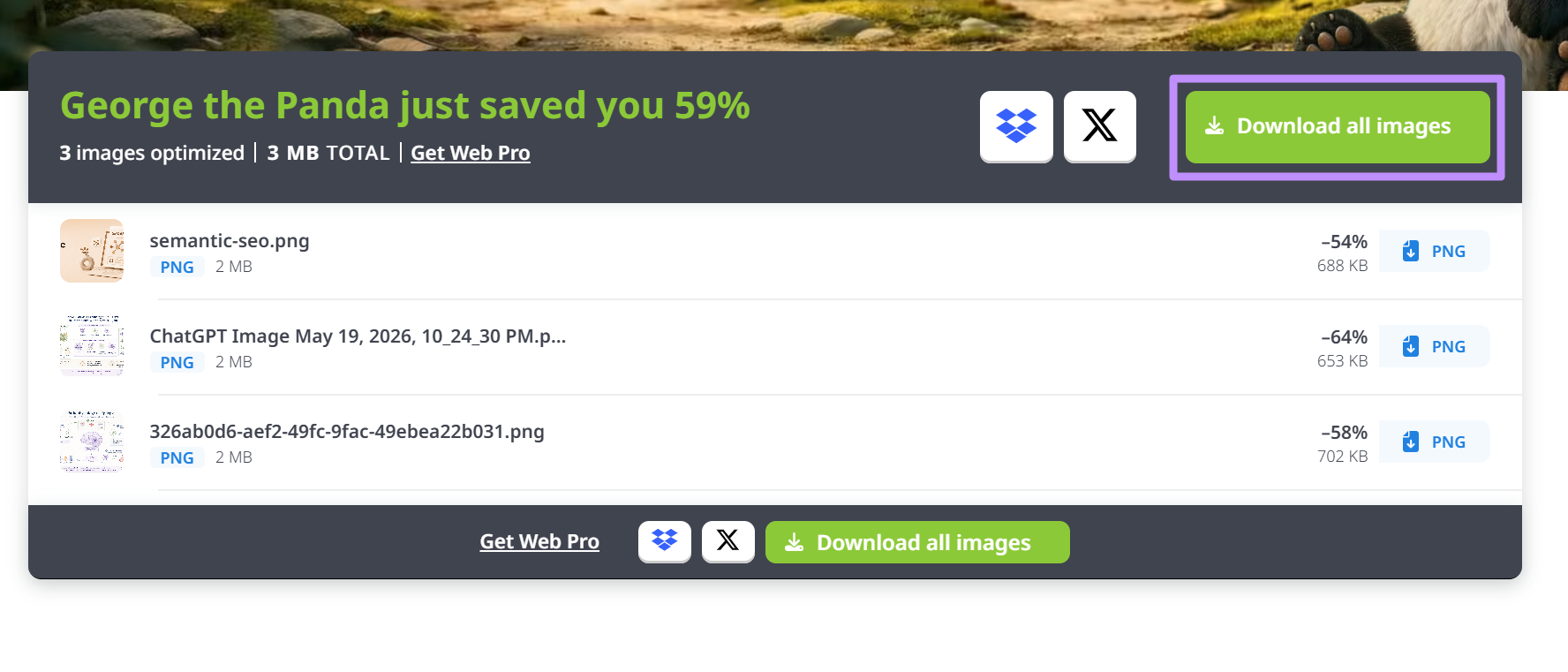
- TinyPNG compresses each image automatically, as shown by a progress indicator. Once all files are done, click Download All Images to save a ZIP of the compressed images, or download individual files separately.
Plan C: Caesium Image Compressor (Best Free Desktop Compression)
Caesium is a free desktop compressor for Windows and macOS (also available online). It supports JPEG, PNG, WebP, and TIFF, and lets you set a quality percentage or target output file size per format. It handles large batches with no file count cap and preserves your folder structure in the output.
Pricing: Free and open-source
Steps to Batch Resize
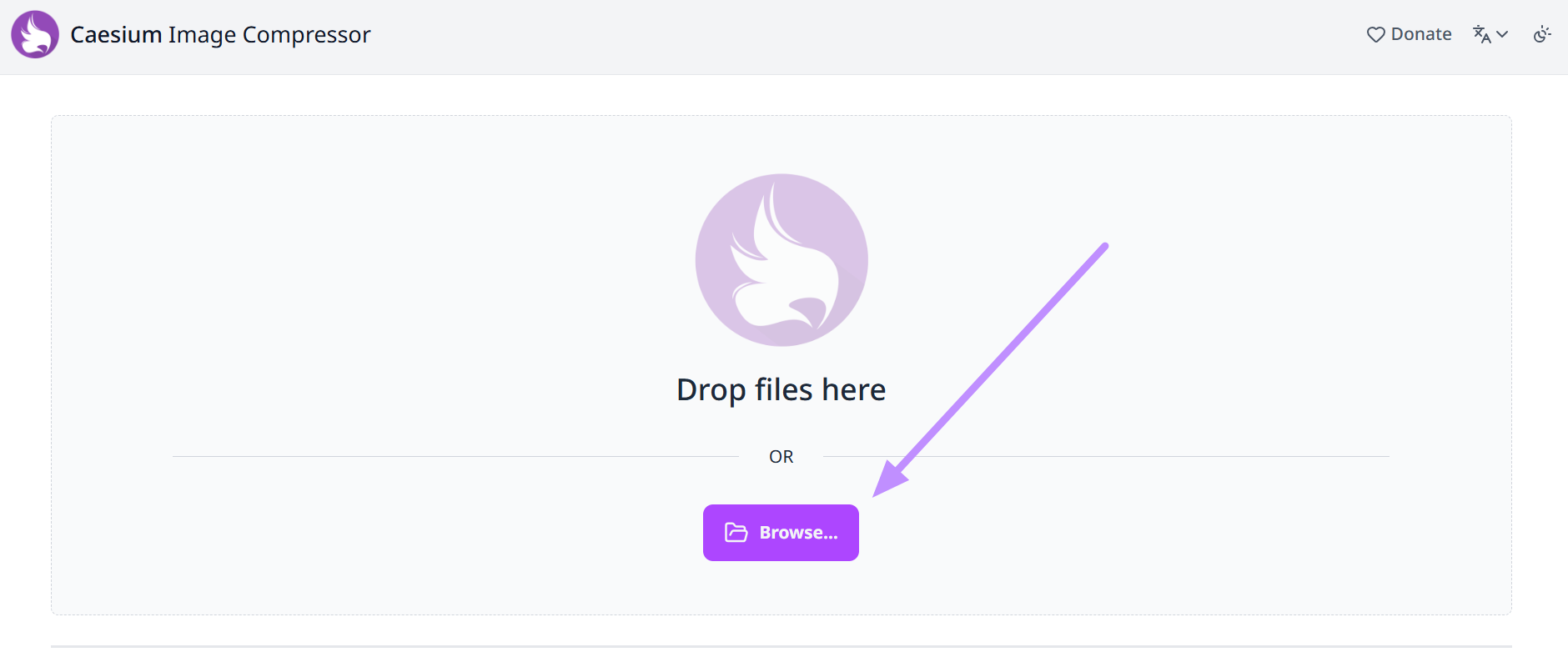
- After accessing Caesium online, tap on the Browse button to import all the images you want to resize.
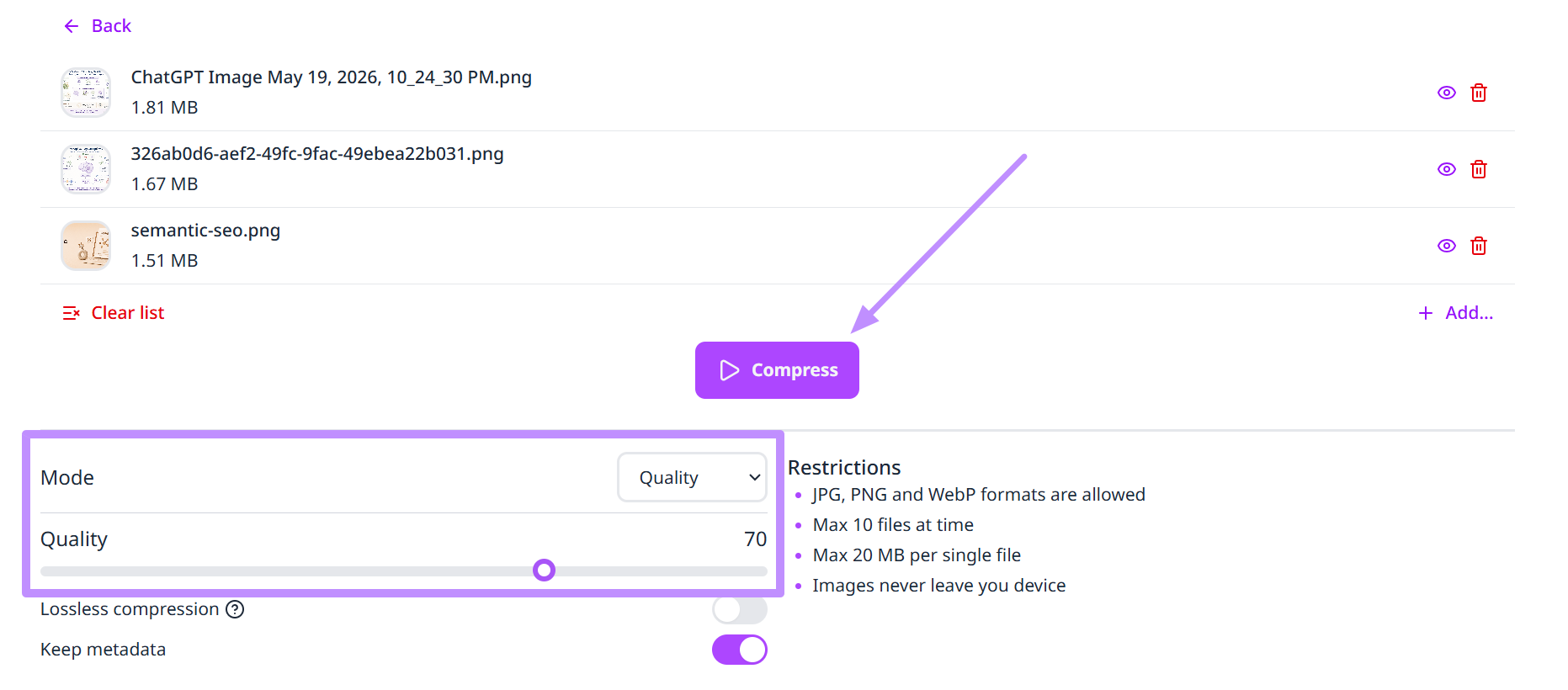
Once images are uploaded, choose the compression mode, such as Quality, and then adjust the percentage for the desired output. Finally, hit the Compress button to perform the size reduction process on this tool.
Scenario 2. Resizing | Unifying Image Pixel Dimensions
If you need to standardize image dimensions across a batch (for an online store, a CMS, or a client deliverable), these four tools cover every major use case.
Plan A: PowerToys Image Resizer (Best for Windows Users)
PowerToys Multiple Image Resizer integrates directly into Windows File Explorer as a shell extension. While using this tool, select any group of image files, and choose Resize with Image Resizer without needing any app or file import. It supports custom preset sizes in pixels, inches, centimeters, or percentages, and offers Fill, Fit, and Stretch modes.
Pricing: Free (included with Microsoft PowerToys)
Steps to Batch Resize
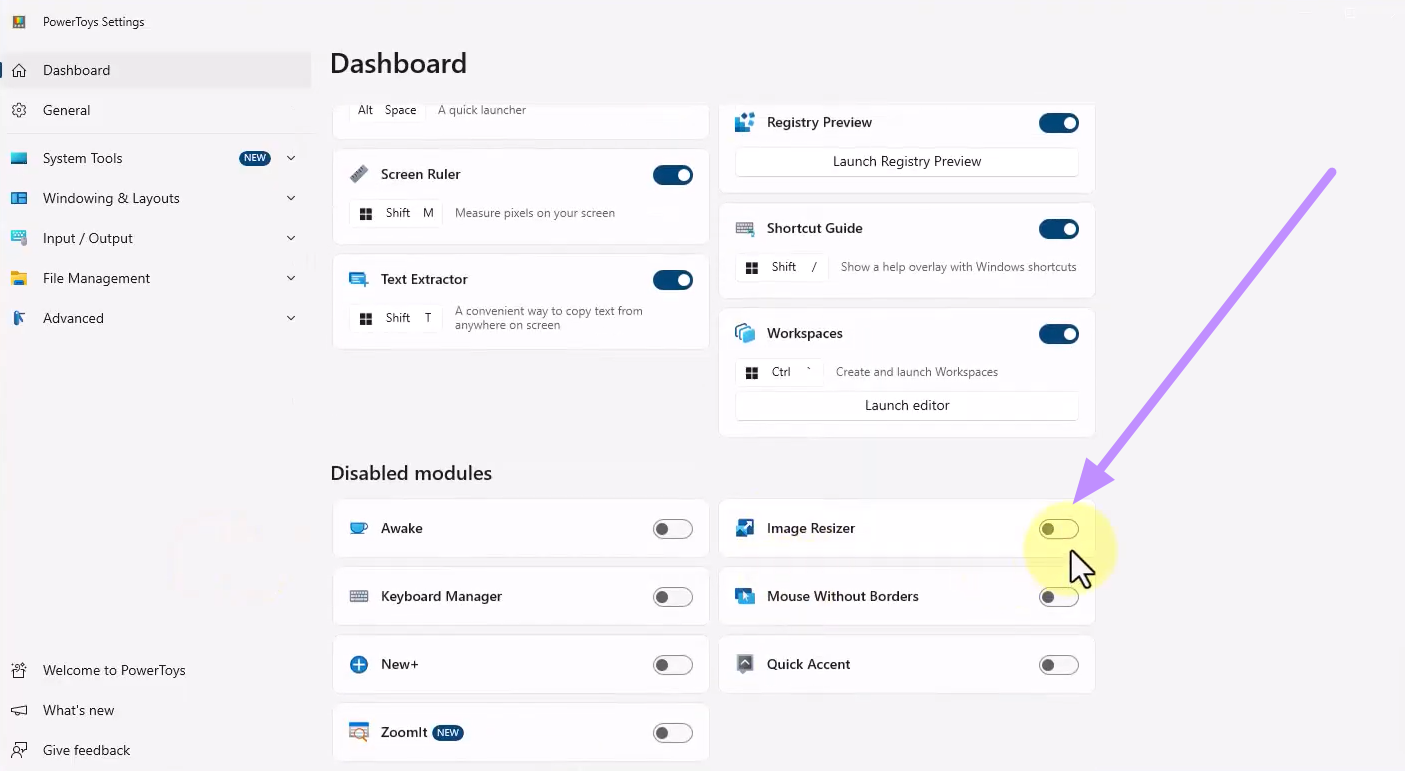
- Download and install Microsoft PowerToys from the official Microsoft website. Then, open the PowerToys settings dashboard, navigate to the Image Resizer tab, and toggle it on.
- Now, open File Explorer and browse to your images. Select all files you want to process using Ctrl + A or Ctrl + Click for specific files. Then, simply right-click the selected files and choose Resize with Image Resizer from the context menu. The resize dialog opens immediately.
- Pick a preset from the Select a size dropdown or click Custom size to enter exact pixel dimensions. Finally, click Resize to get the job done.
Plan B: Photoshop Batch Processing (Best for Professional Users)
Its Batch image resize feature gives you complete control over how images are resized at scale. You record an Action with your resize parameters, then apply it across an entire folder in one run. This batch image cropper supports every major image format, handles resolution and color profile settings, and integrates with the full editing pipeline.
A small adjustment is easier to judge when you can still see the surrounding layout. You can follow the video below for an introduction to editing PDF content in UPDF.
Pricing
| Plan | Price |
| Photography Plan (Photoshop + Lightroom) | $9.99/month |
| Photoshop Only | $22.99/month |
| Creative Cloud All Apps | $59.99/month |
Steps to Batch Resize
- Open Photoshop and load a sample image. Now, go to Window and then Actions to open the Actions panel, click Create New Action, and hit Record.
- With recording active, go to Image and then Image Size. Now, you need to enter your target dimensions and click OK.
- Moving forward, access the File menu and click Save As to save the image to your output folder in your preferred format. Finally, you need to click Stop Recording in the Actions panel to proceed.
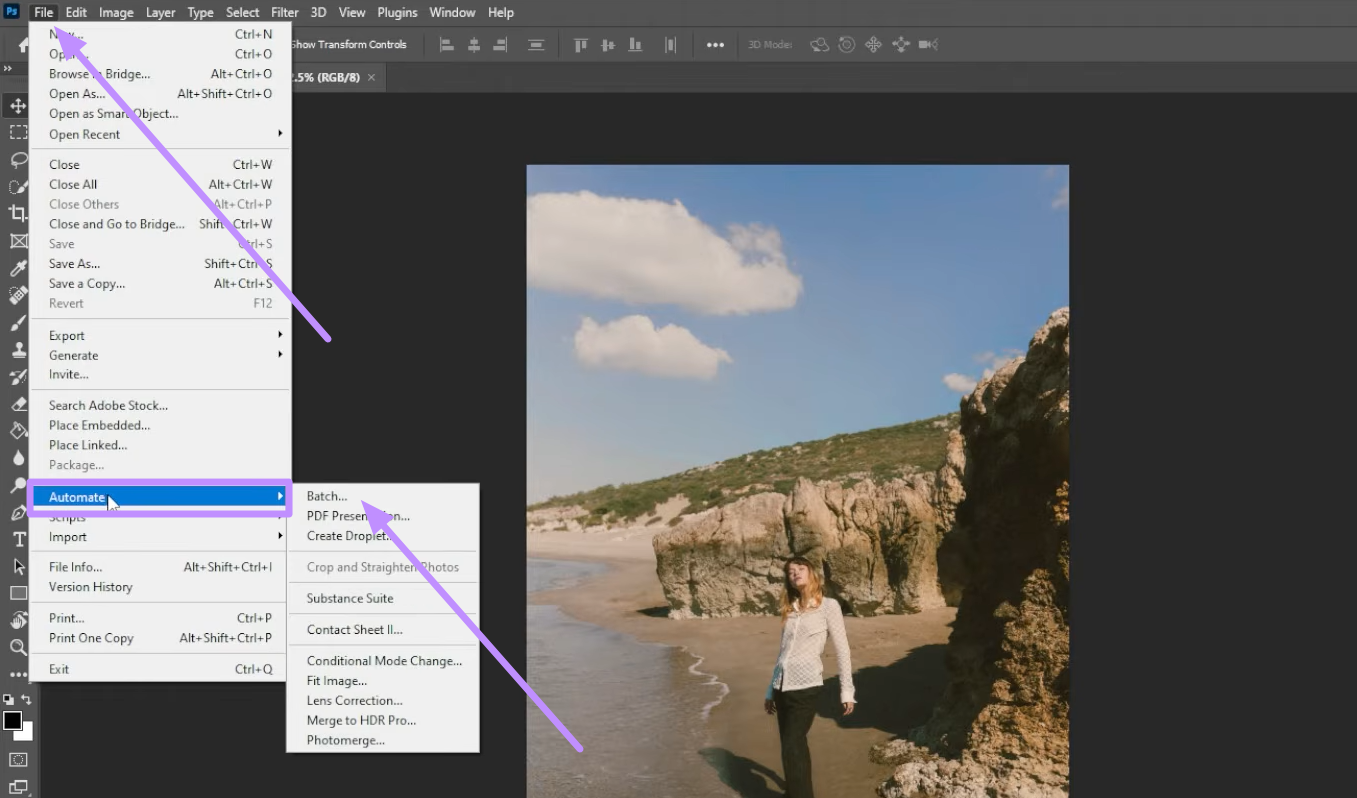
- After that, go to the File menu and choose Batch from the Automate submenu. Select your recorded action, set Source to Folder, and browse to your input folder. Under Destination, select Folder and choose your output location.
Plan C: XnConvert (Best Free Cross-Platform Option)
XnConvert is a free batch processor available for Windows, macOS, and Linux. It supports over 500 image formats and lets you chain multiple actions, including resize, crop, format, and rename. It has no file count limits and handles large batches without performance issues.
Pricing: Free for personal and non-profit use.
Steps to Batch Resize
- After opening this tool, click Add Files or Add Folder in the Input tab to load your images. Now, switch to the Actions tab and click Add Action. Moving forward, enter the Image menu and pick Resize from the categories.
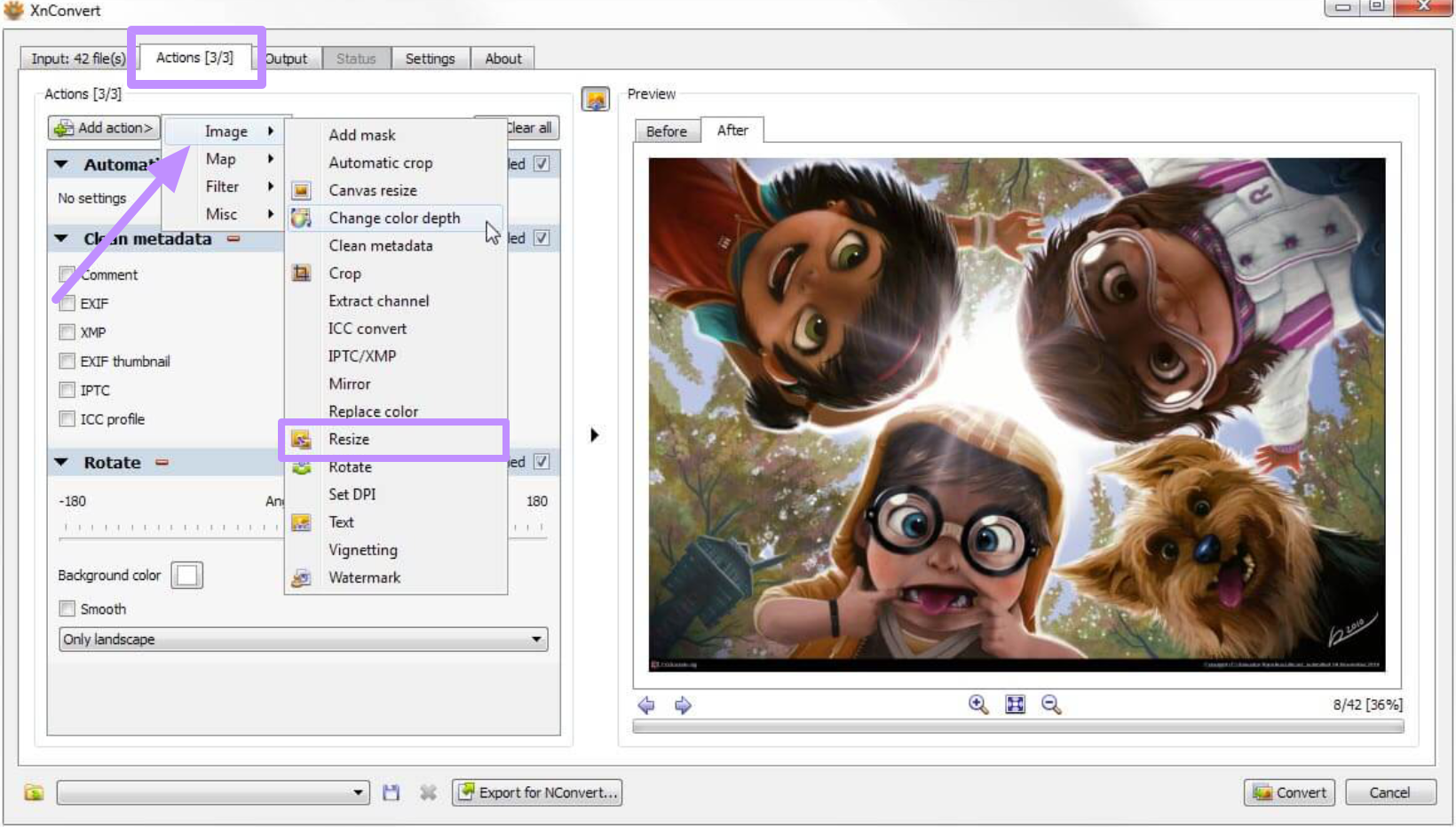
- A resize panel appears where you set target dimensions and scaling mode. Set your width, height, and unit. Then, move to the Output tab and choose a destination folder, output format, and quality settings. Finally, click Convert to save the resized image to your PC.
Plan D: Online Tools (Best for Quick Browser-Based Resizing)
For a fast batch resize without installing anything, online multiple image resizers are the most practical option. CapCut lets you upload multiple images, pick a platform-specific preset (TikTok, Instagram, YouTube), and download all outputs at once.
Photoroom is focused more on e-commerce, as it combines background removal and dimension standardization in one flow. Both suit social media managers and online sellers who prioritize speed over fine-grained control.
Pricing
| Tool | Free Plan | Paid Plan |
| CapCut | Free with watermark on some exports | Pro from $7.99/month |
| Photoroom | Free with limited exports | Pro from $9.99/month |
Steps to Batch Resize
- Open your browser and go to CapCut's online image resizer. Click Add Photo and select multiple files from your device.
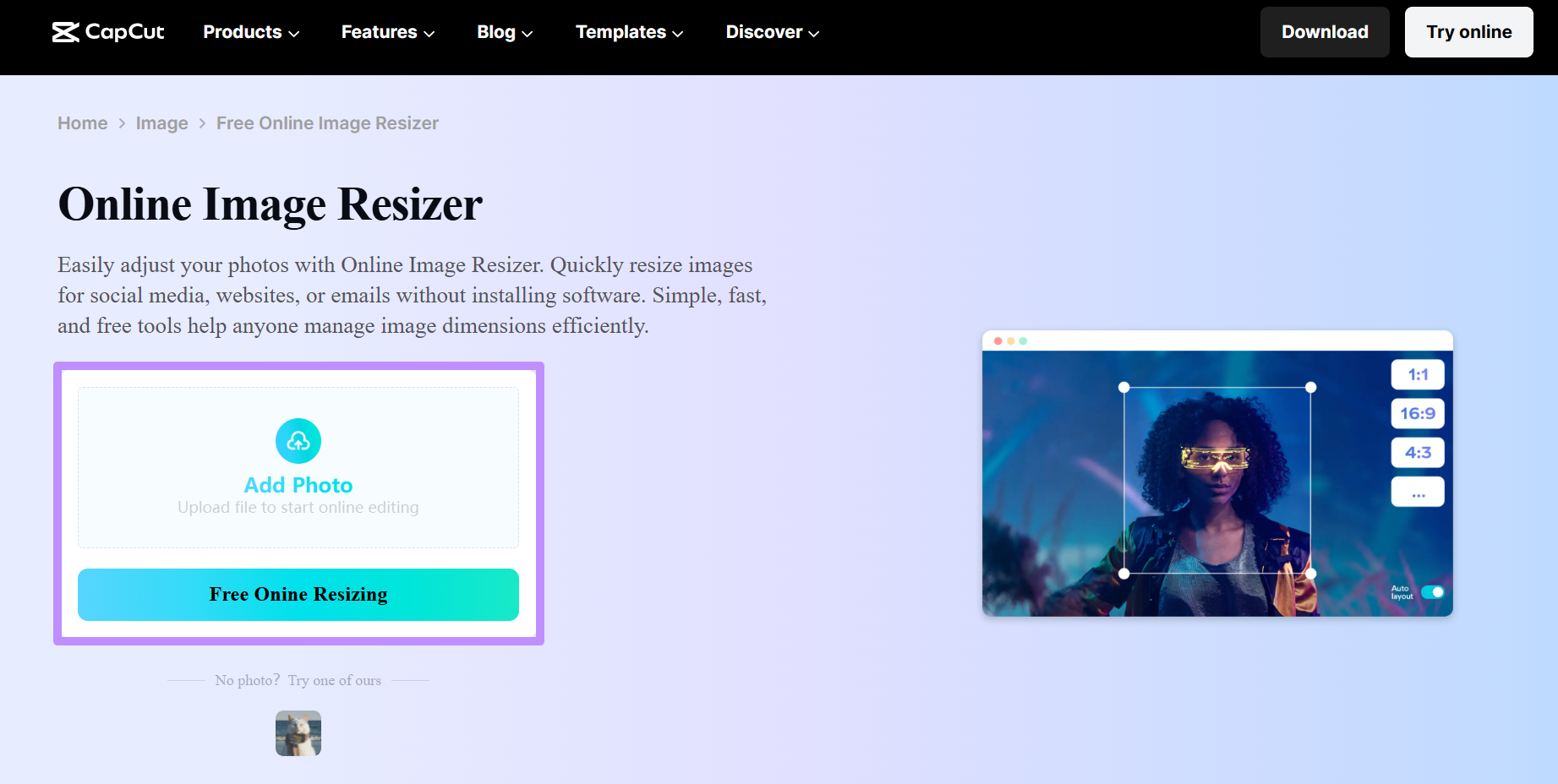
- Now, choose a platform preset from the left panel or enter custom width and height values. Finally, click Download All to save your resized images as a batch.
FAQ
What should I do if my images become blurry after resizing?
Blurriness after resizing usually comes from using a low-quality interpolation method. Avoid upscaling images beyond their original dimensions, since no algorithm generates pixel detail that wasn't there. When reducing size, try not to cut dimensions by more than 50% in a single pass if output quality is critical.
Will batch processing hundreds of images take a long time?
It depends on your CPU, source file resolution, and the tool. Desktop apps like UPDF use your local hardware directly and typically process hundreds of standard JPEGs in under a minute. Online tools are slowed down by your upload and download speed. For large batches, use a local desktop tool and close other resource-heavy applications during the run.
Can I batch process images on a mobile phone?
Yes, with more limitations than desktop tools. CapCut and Photoroom have mobile apps that support batch resizing to a degree. TinyPNG works through a mobile browser, though the free plan limits you to 20 images per session. You can also use the UPDF application to reduce the size of your images on your mobile.
Conclusion
All in all, you need to know whether you're changing dimensions or cutting file size before picking the right bulk image resizer. For pixel dimensions, PowerToys, Photoshop, and XnConvert cover Windows and cross-platform needs, respectively.
When it comes to file size reduction, UPDF offers reliable batch compression for users of all kinds. Download UPDF now and purchase its premium version to enjoy limitless file size reduction along with many other PDF management capabilities.
Windows • macOS • iOS • Android 100% secure









 Trkan Aydin
 Enrica Taylor