 UPDF
UPDF
 UPDF for Windows
 UPDF for Mac
 UPDF for iPhone/iPad
 UPDF for Android
 Nomostar
 UPDF AI Online
 UPDF Sign
 IvyCraft
 Edit PDF
 Annotate PDF
 Create PDF
 PDF Form
 Edit links
 Convert PDF
 OCR
OCR PDF to Word
 PDF to Image
 PDF to Excel
 Organize PDF
 Merge PDF
 Split PDF
 Crop PDF
 Rotate PDF
 Protect PDF
 Sign PDF
 Redact PDF
 Sanitize PDF
 Remove Security
 Read PDF
 UPDF Cloud
 Compress PDF
 Print PDF
 Batch Process
 About UPDF AI
 UPDF AI Solutions
 AI User Guide
 FAQ about UPDF AI
 Summarize PDF
 Translate PDF
 Chat with PDF
 Chat with AI
 Chat with image
 PDF to Mind Map
 Explain PDF
 PDF AI Tools
 Image AI Tools
 AI Chat Tools
 AI Writing Tools
 AI Study Tools
 AI Working Tools
 Other AI Tools
 AI Bookmark Generation
 AI Bookmark Summary
 AI Watermark Generation
 AI Background Generation
 AI Sticker Generation
 AI Stamp Generation
 AI Editing Suite
 UPDF Copilot
 AI Page Management
 AI Semantic Search
 PDF to Word
 PDF to Excel
 PDF to PowerPoint
 Enterprise Solution
 Enterprise Sign
 Enterprise AI
 Enterprise Plan
 Enterprise User Guide
 Enterprise Webinar
 IT
IT Education
 Construction
 Financial Service
 Healthcare
 Insurance
 Legal
Legal Manufacturing
 Government
 Researchers & PhDs
 Solopreneurs & Freelancers
 Lawyers & Legal Professionals
 Real Estate Agents & Brokers
 Education Solution
 Customer Stories
 User Guide
 UPDF Tricks
 FAQs
FAQs UPDF Reviews
 Download Center
 Blog
Blog Newsroom
 Tech Spec
 Updates
 UPDF vs. Adobe Acrobat
 UPDF vs. Foxit
 UPDF vs. PDF Expert

Ever tried to highlight a key line in a scanned report or reference paper, only for your cursor to freeze? When a page is a flattened image, basic readers go completely blind because there is no digital text layer underneath to select. Even when a tool works on live text, it often treats you to the "blackout bug"—pasting a dark, solid color that ruins the readability of the words beneath it.
Instead of fighting with rigid, outdated readers, you need a modern PDF highlighter that adapts to the file in front of you. Whether you are dealing with selectable text columns, locked graphic charts, or scanned faxes, UPDF bridges the gap by enabling precise baseline snapping and custom transparent area framing. To see how this workspace transforms your entire document review setup beyond basic markups, check out our comprehensive guide on how to annotate PDF, or sync your notes across all your devices under a single account.
Windows • macOS • iOS • Android 100% secure
Quick Navigation: Find Your PDF Highlighting Method
To skip the long explanations and jump straight to the exact workflow you need right now, use the matrix routing table below to locate your solution:
| What Do You Want to Do? | Recommended Feature | Platform Availability | Direct Jump Link |
|---|---|---|---|
| Highlight normal text rows accurately | Comment > Highlight Mode | Windows & Mac | Jump to Method 1 |
| Color over flat charts, images, or whitespace | Area / Rectangle Framing | Windows & Mac | Jump to Method 1 |
| Scribble notes or loop freehand over paragraphs | Freehand Highlighter / Pen | Windows, Mac, iOS, Android | Jump to Method 2 |
| Mark up documents on a smartphone or tablet screen | Long-Press / Stylus Tracking | iOS, iPadOS & Android | Jump to Method 3 |
Highlight PDF on Win & Mac: Pixel-Perfect Text & Area Highlighting
UPDF's desktop app (Win & Mac) splits highlighting into two distinct tools. One is built for geometric precision and offers pixel-aligned bands over text or a custom rectangle over anything else.
The other is built for freehand movement, a marker-and-pencil pair that behaves like a physical highlighter, which can circle a paragraph or scribble a thought in the margin. Many times, we need both for different types of documents.
Method 1: Highlight Selectable PDF Text
Best for:
- Standard PDFs that contain selectable text.
Not for:
- Scanned or image-only pages with no selectable text layer. Use the next method instead.
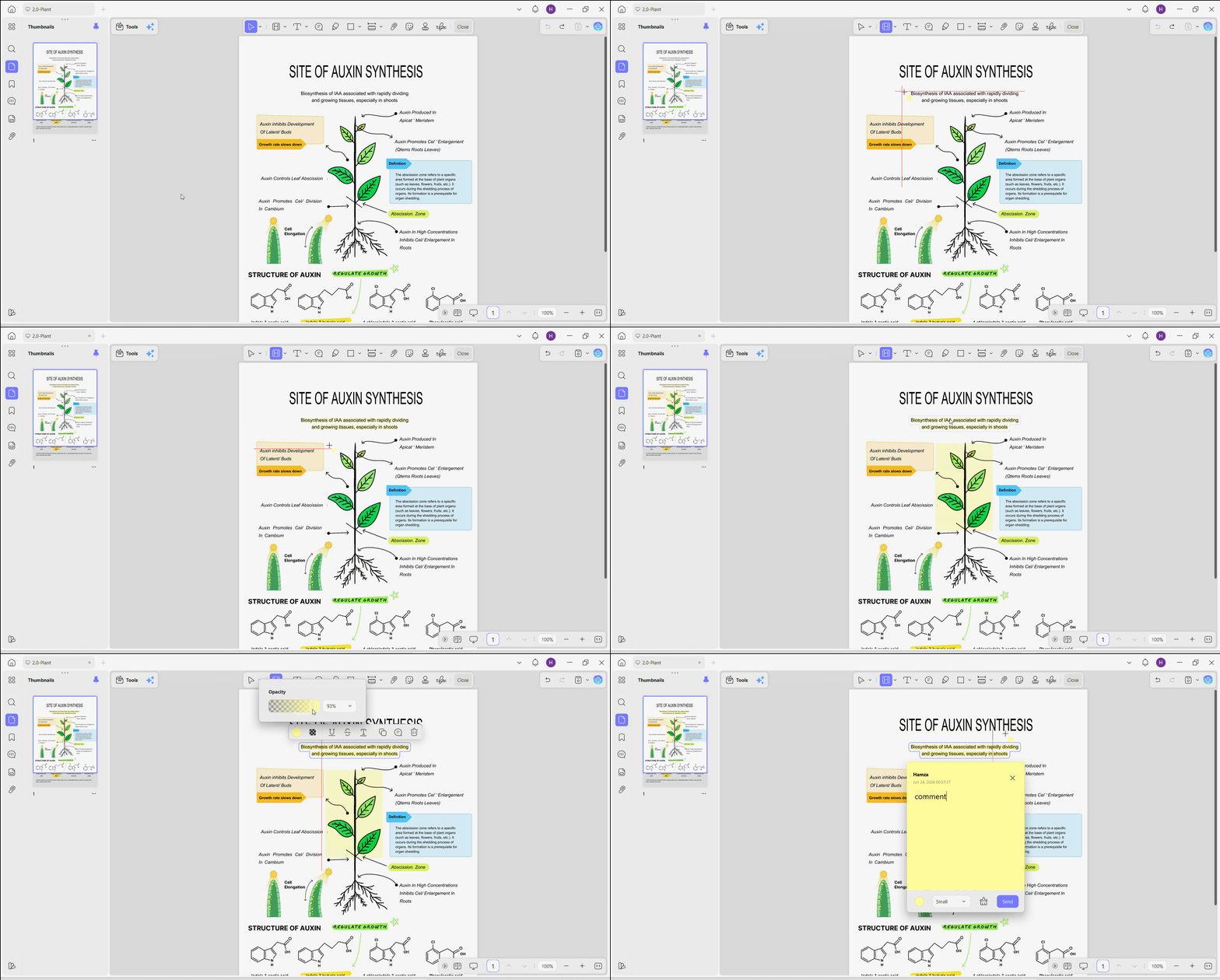
Step 1. Open the PDF with the UPDF desktop app. From the top menu, go to Comment > Highlight.
Step 2. For live text, drag the cursor across the words. UPDF snaps the highlight to the text automatically, so the box stays clean and aligned.
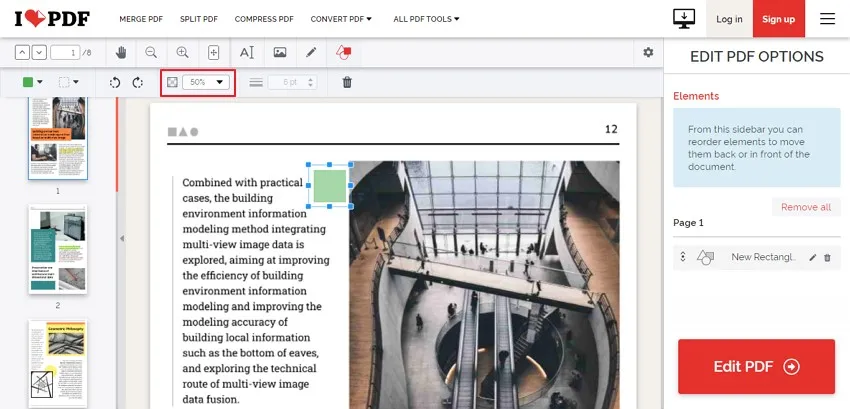
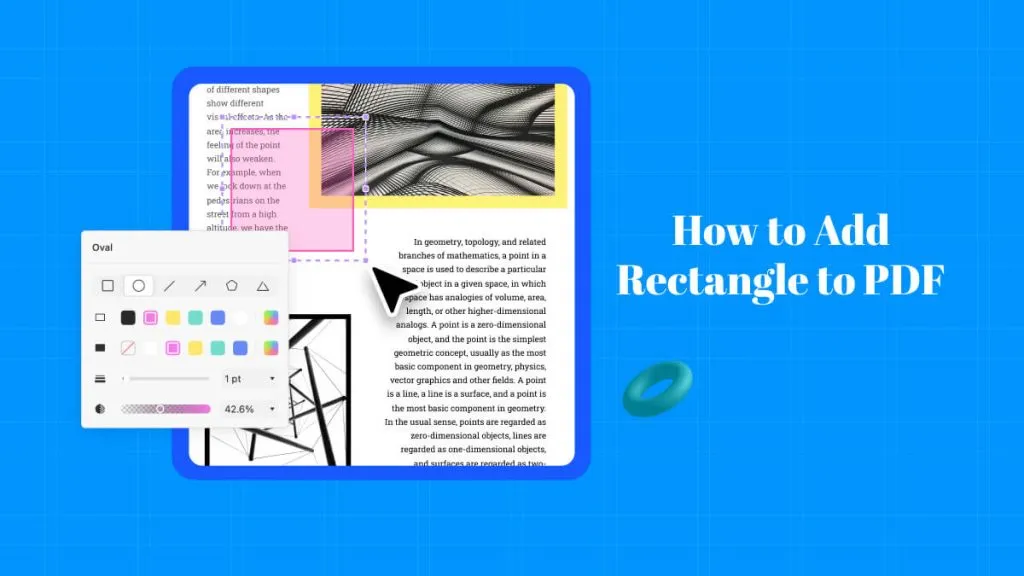
Step 3. For an image, a scanned diagram, or empty whitespace, use the same tool for geometric area marking. Click and drag a rectangle over the target area and watch UPDF place a colored frame directly over it.
Step 4. Click any existing highlight to open its floating properties panel. From here, you can adjust the Opacity slider, change colors, copy the marked text, delete the highlight, or attach a Sticky Note for more detail.
Method 2: Use the Freehand Highlighter
Best for:
- Highlighting diagrams, circling visual details, marking irregular areas, or adding stylus-style annotations.
Not for:
- Scanned or image-only pages with no selectable text layer. Use the next method instead.
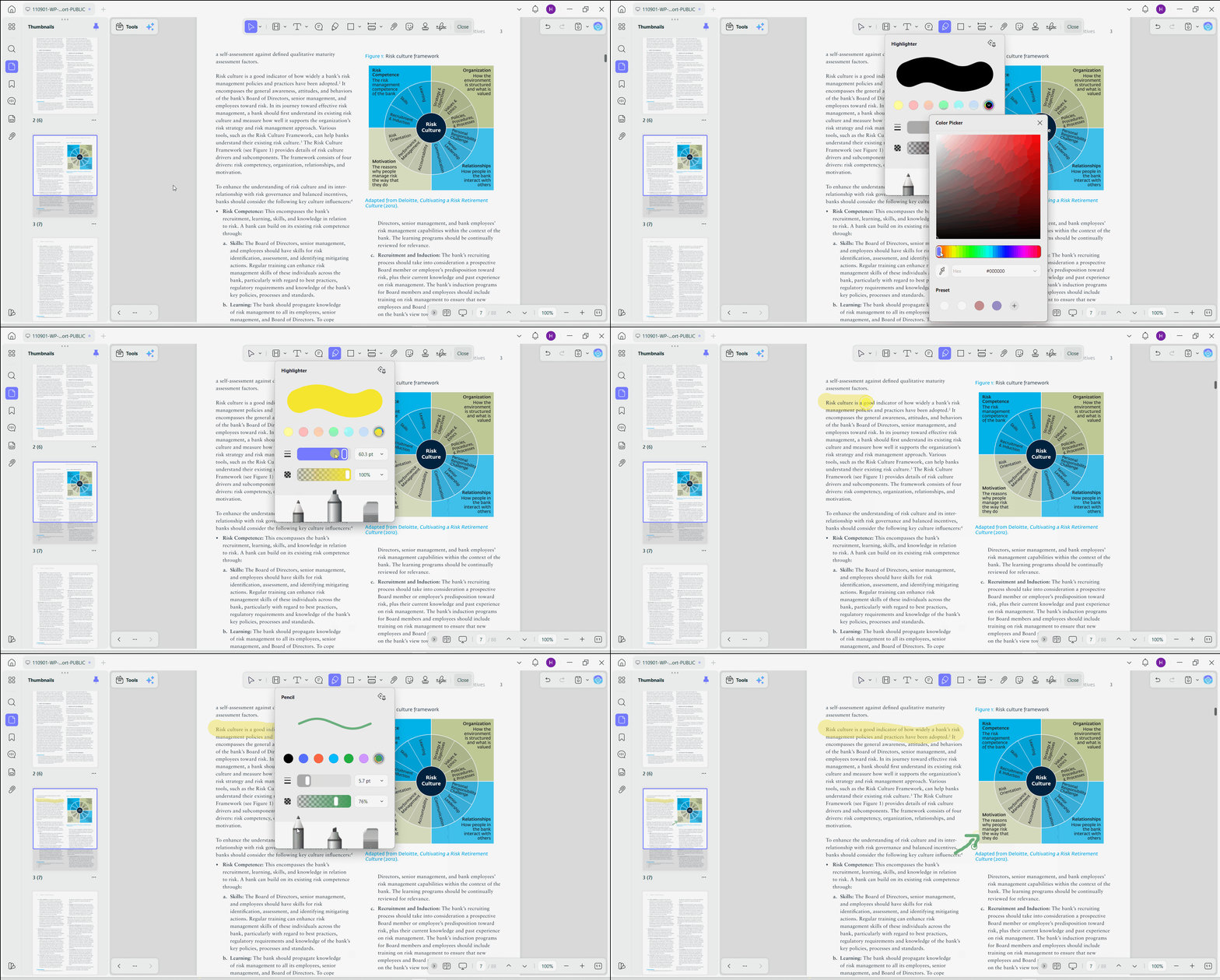
Step 1. Go to the upper toolkit and click Comment > Highlighter (pencil icon).
Step 2. Select a highlight color and adjust the opacity if necessary. Drag across the word, sentence, or paragraph you want to mark.
Step 3. To edit an existing highlight, click it and use the floating toolbar to change its color or opacity, add a note, copy it, or delete it.
Step 4. Switch to the Pen option to draw on PDF ultra-fine annotations or drafts.
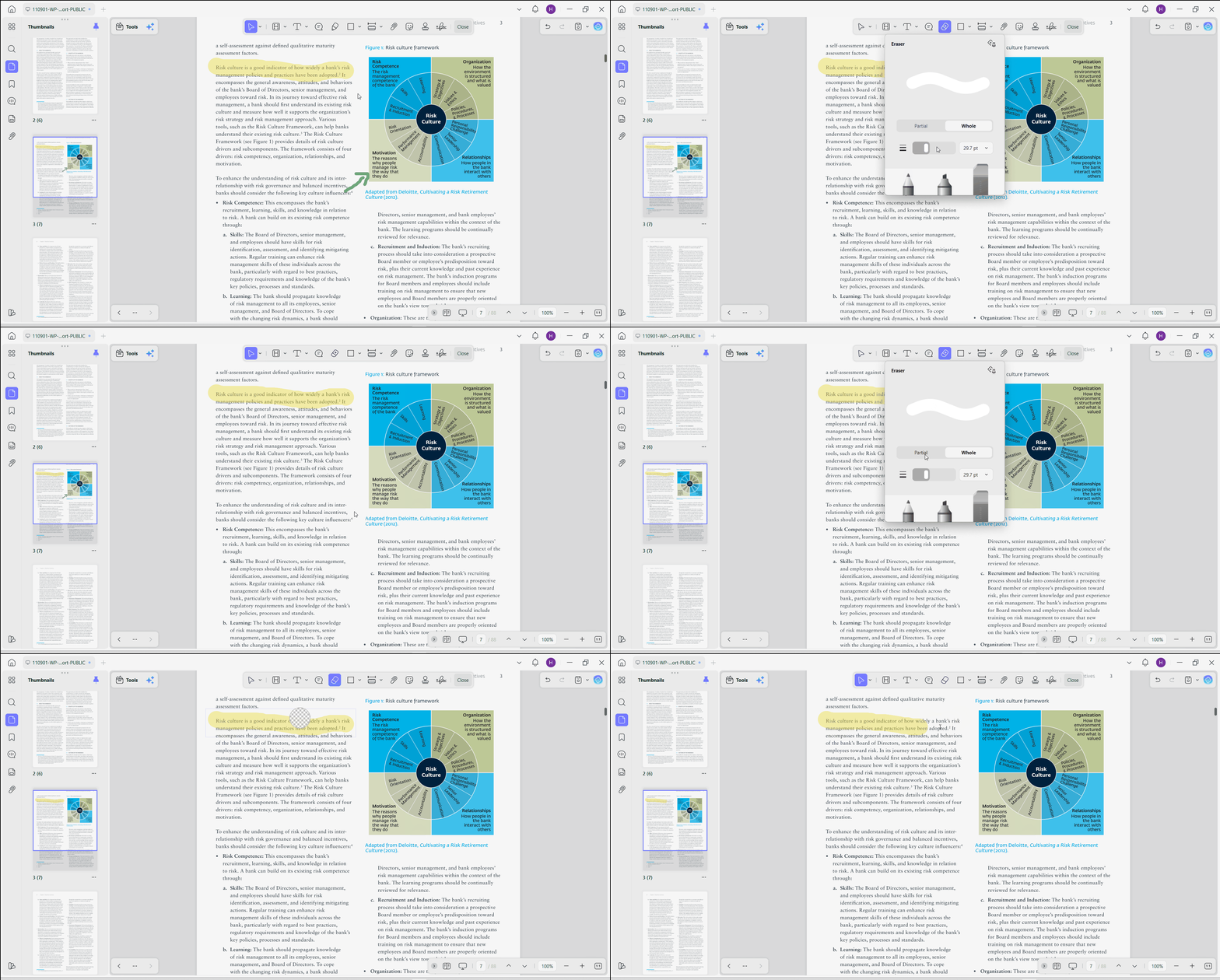
Step 5. If your lines go crooked, switch to the Eraser. It gives you two options: Partial for erasing the part you drag over, and Whole, for removing an entire mark in one tap.
Step 6. Save the PDF after checking that the highlight remains readable and does not cover the text.
Bonus Tip: Highlight Images or Scanned PDF Pages
If you cannot drag across individual words, the page is probably an image or a scanned PDF without a selectable text layer. You can still mark the relevant area, but the available method differs between Windows and Mac.
- On Mac: Select the Highlight tool, hold Shift, and drag over the image, chart, or scanned paragraph you want to mark. This creates an area highlight instead of a text-bound highlight.
- On Windows: Select the Rectangle tool from the annotation toolbar, draw it over the relevant area, and choose a light fill color with low opacity. This produces a similar visual result without hiding the content underneath.
If you need to search, copy, edit, or highlight individual words in a scanned document, run OCR first. After OCR creates a searchable text layer, return to the Highlight tool and select the required text normally.
How to Highlight a PDF on iPhone, iPad, and Android
PDF reading doesn't always happen at a desk. Sometimes, we are catching up on files during a commute or reviewing papers at a café.
UPDF offers Universal Account Access, where one single license unlocks full capabilities across Windows, Mac, iOS, and Android. The mobile app runs on the same highlighting engine as the desktop build. If you want to continue reviewing the PDF on another device, upload or save the document to UPDF Cloud while signed in to the same account. Highlights added only to a local file do not automatically appear on your other devices.So, there is no risk of your tablet showing a different set of highlights than your laptop did that morning.
The video below demonstrates UPDF's broader annotation workspace, including highlighting, comments, and drawing tools across a complete PDF review workflow.
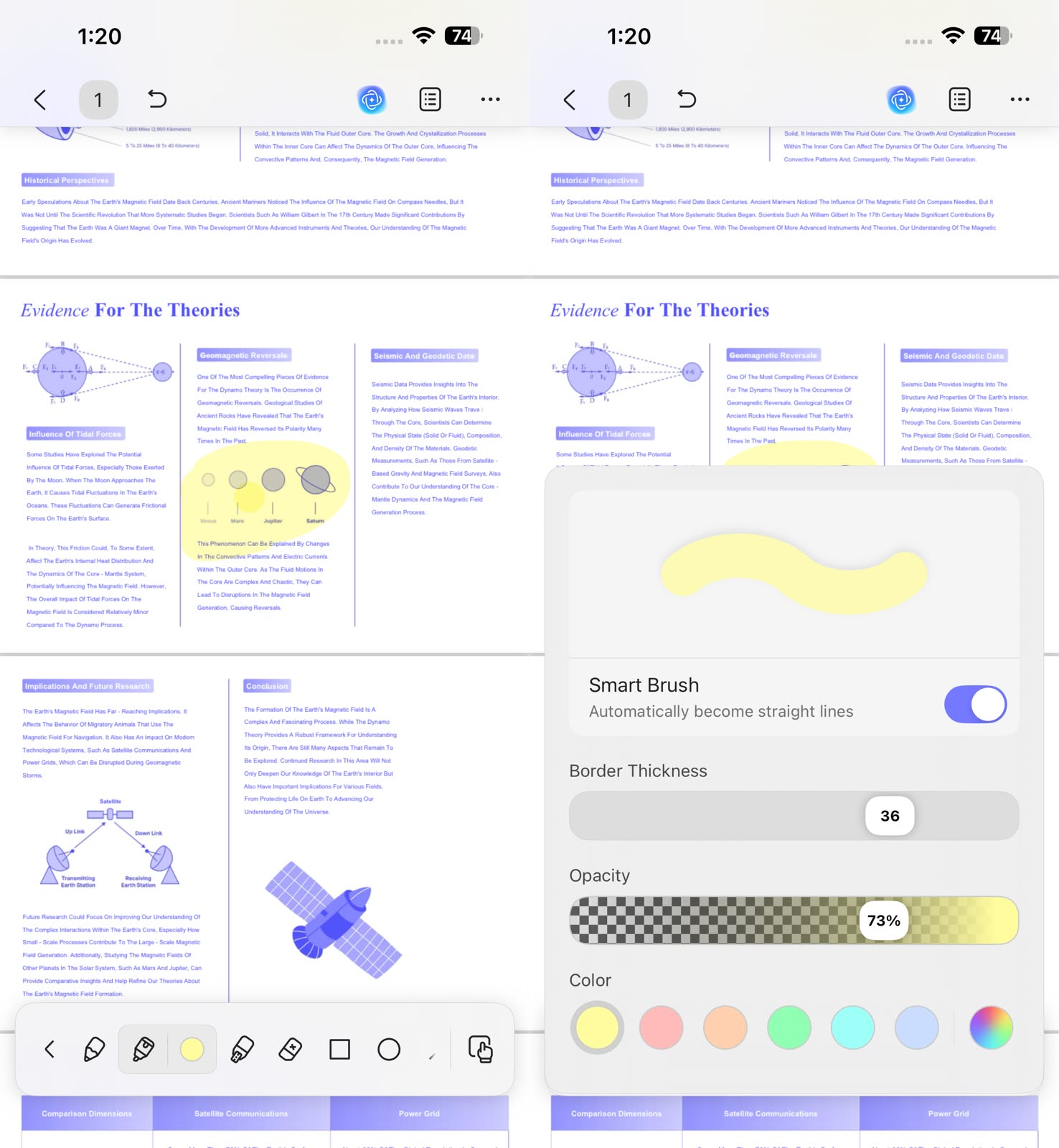
Method 3: Long-Press Touch Triggers & Stylus Freehand Drawing
Best for:
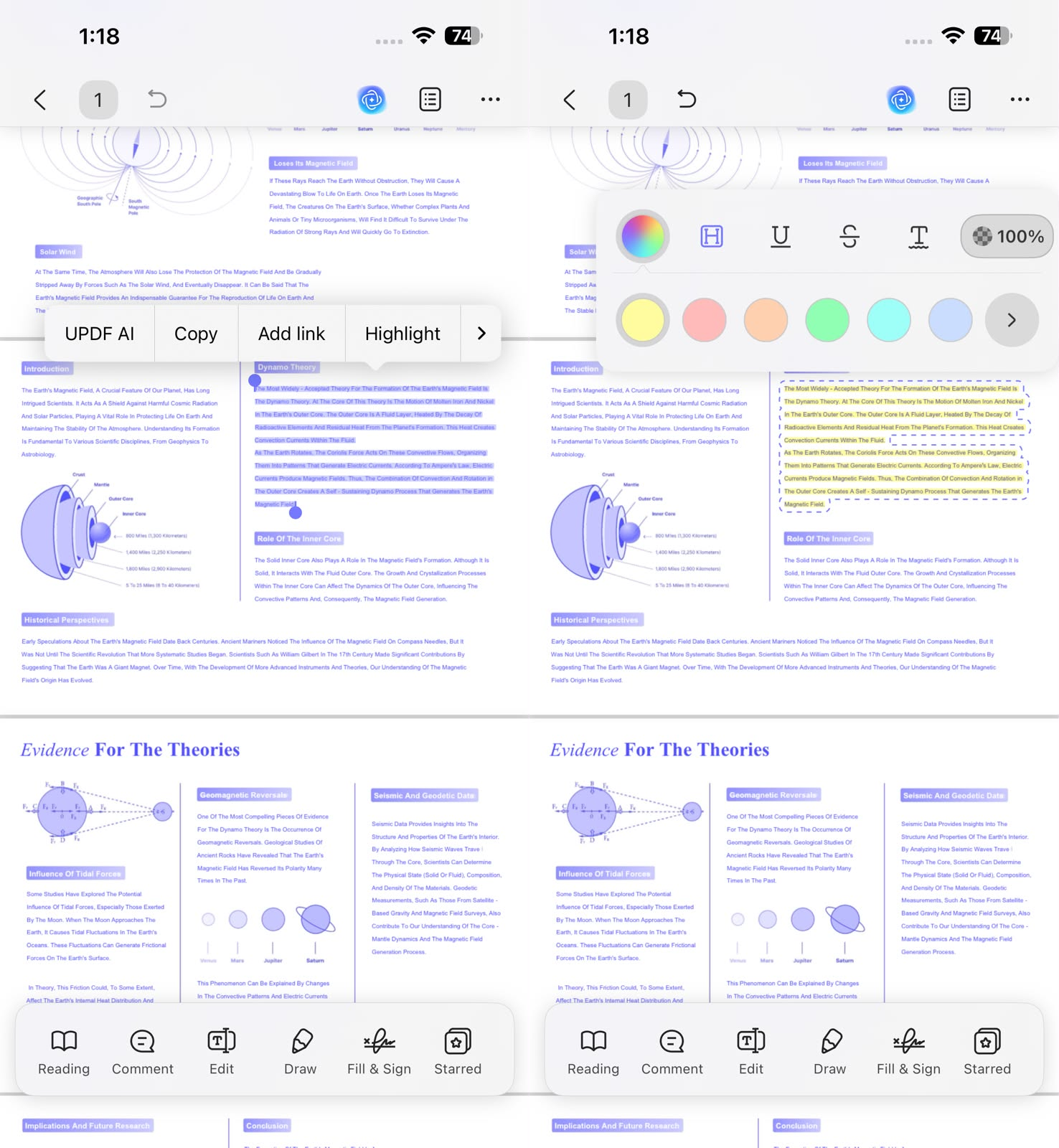
- Touch Selection (Finger): Long-press a word to bring up the selection handles, drag them to cover the text you want, then tap the Highlight icon from the pop-up shortcut bar.
- Stylus Drawing (Tablet): Open the highlighter or pencil tool from the toolbar and draw directly on the screen. Since the mobile core engine shares identical DNA with the desktop build, you can tap any markup to alter opacity, switch colors, or append note logs later.
Why UPDF Outperforms Traditional Highlighting Platforms
After highlighting PDFs with UPDF, going back to older tools becomes hard to justify. For example, if you try to highlight PDF on Adobe, the highlighter is buried a few menu layers deep inside a dense Comment panel. This makes the process slow if you just want to mark a sentence and move on.
The other option is to highlight PDF online, which solves the speed problem but trades away reliability. Most can't touch scanned pages and strip formatting on export. Some even cap how large a file you can upload.
UPDF emerges as a modern, user-centric PDF highlighter that understands users' needs. Its feature-packed annotation system combines text and area highlighting, freehand marker drawing, opacity control, support for scanned PDFs, cloud synchronization, and cross-platform licensing into a single workflow. You get the precision and flexibility that traditional PDF highlighters lack.
Expanding Beyond Simple Highlighting: Document Execution Workflows
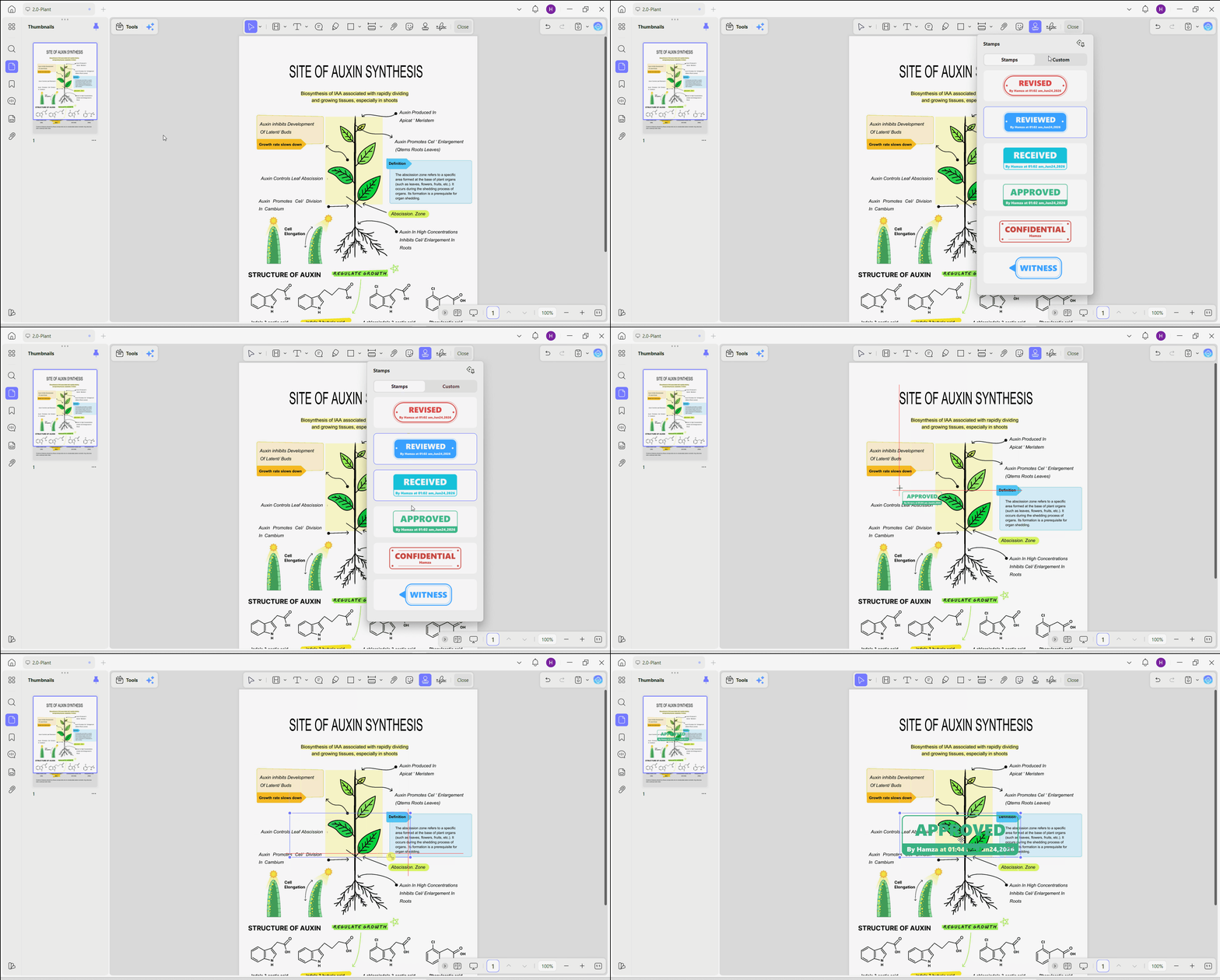
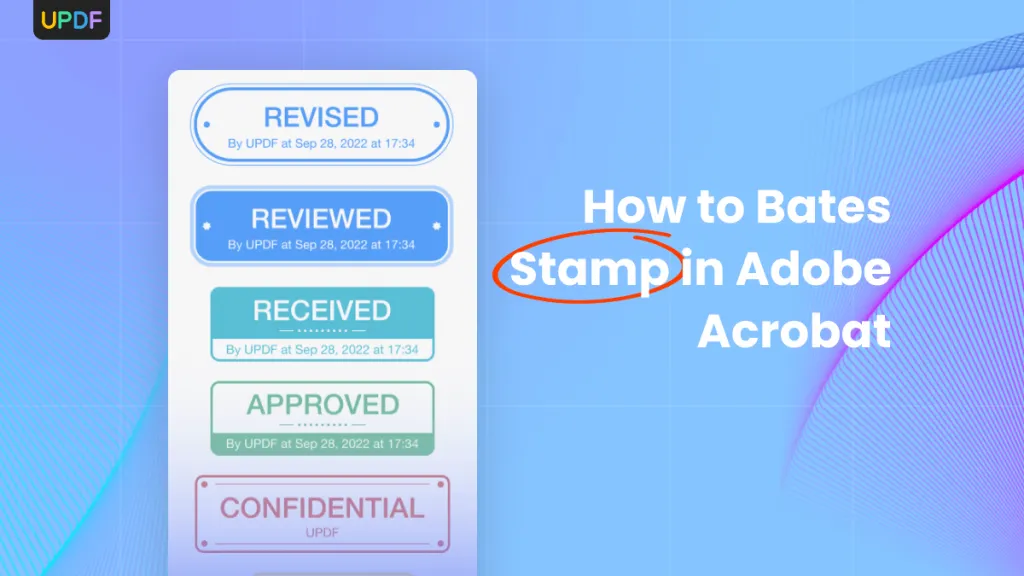
Highlighting PDF is just one part of document execution workflows. After a contract or report is marked up, it often needs a formal sign-off. UPDF is also your PDF stamp creator that lets you add a custom approval or "Reviewed" stamp directly onto the same file.
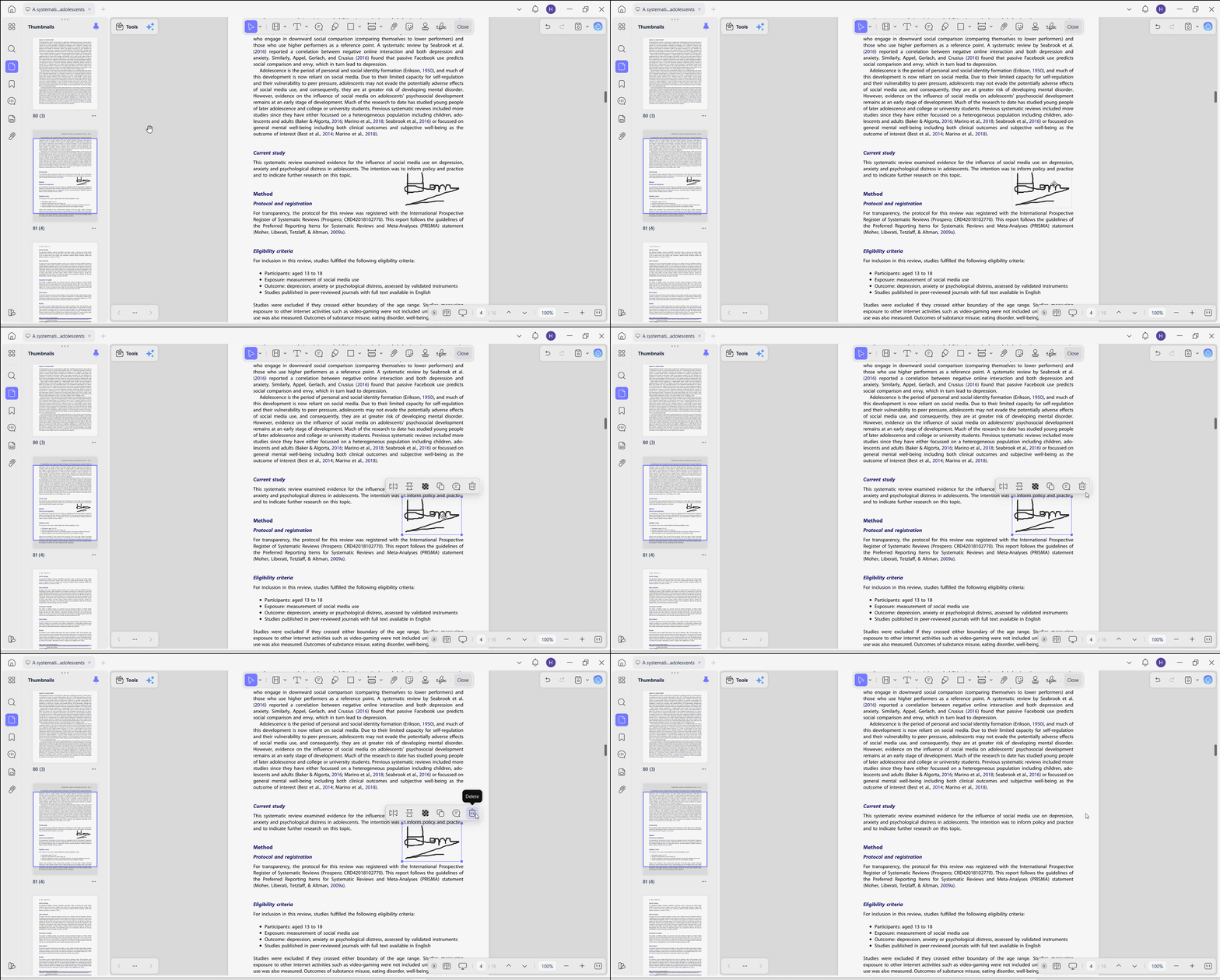
Besides that, if you are working from a secondhand or shared reference document that arrives cluttered with messy markings or someone else's old sign-off marks, UPDF is your PDF signature remover. It can detect those marks and delete them with simple clicks.
FAQs
Why can’t I highlight text in a scanned PDF?
A scanned PDF usually contains an image of the page rather than selectable text. On Mac, you can hold Shift and drag with the Highlight tool to mark an area. On Windows, use a rectangle with a light, transparent fill. If you need to highlight individual words, run OCR first to create a selectable text layer.
Can I erase only part of a freehand highlight?
Yes. Select the Eraser and choose Partial Eraser to remove only the section you drag across. Choose Whole Eraser when you want to remove the complete freehand stroke.
Do I need OCR to highlight a scanned PDF?
Not always. OCR is necessary when you want to select, search, copy, or highlight individual words. If you only need to place a visual mark over an image or scanned paragraph, you can use an area highlight on Mac or a transparent rectangle on Windows without running OCR.
Conclusion
The right way to highlight a PDF depends on whether the page contains selectable text. For a standard PDF, use the Highlight tool to mark exact words or paragraphs. For images and scanned pages, use an area highlight on Mac, a transparent rectangle on Windows, or OCR when you need word-level selection.
UPDF also provides freehand highlighting on desktop and mobile devices, making it useful for marking diagrams, handwritten notes, and irregular page areas. After adding the highlights, review their opacity, save the document, and upload it to UPDF Cloud only if you want to access the same file on another device.
Download UPDF to highlight, annotate, and review your PDF documents.
Windows • macOS • iOS • Android 100% secure





 Lizzy Lozano

 Delia Meyer
 Enid Brown
 Engelbert White
— Dr. Alex D., Researcher & Educator