 UPDF
UPDF
 UPDF for Windows
 UPDF for Mac
 UPDF for iPhone/iPad
 UPDF for Android
 Nomostar
 UPDF AI Online
 UPDF Sign
 IvyCraft
 Edit PDF
 Annotate PDF
 Create PDF
 PDF Form
 Edit links
 Convert PDF
 OCR
OCR PDF to Word
 PDF to Image
 PDF to Excel
 Organize PDF
 Merge PDF
 Split PDF
 Crop PDF
 Rotate PDF
 Protect PDF
 Sign PDF
 Redact PDF
 Sanitize PDF
 Remove Security
 Read PDF
 UPDF Cloud
 Compress PDF
 Print PDF
 Batch Process
 About UPDF AI
 UPDF AI Solutions
 AI User Guide
 FAQ about UPDF AI
 Summarize PDF
 Translate PDF
 Chat with PDF
 Chat with AI
 Chat with image
 PDF to Mind Map
 Explain PDF
 PDF AI Tools
 Image AI Tools
 AI Chat Tools
 AI Writing Tools
 AI Study Tools
 AI Working Tools
 Other AI Tools
 AI Bookmark Generation
 AI Bookmark Summary
 AI Watermark Generation
 AI Background Generation
 AI Sticker Generation
 AI Stamp Generation
 AI Editing Suite
 UPDF Copilot
 AI Page Management
 AI Semantic Search
 PDF to Word
 PDF to Excel
 PDF to PowerPoint
 Enterprise Solution
 Enterprise Sign
 Enterprise AI
 Enterprise Plan
 Enterprise User Guide
 Enterprise Webinar
 IT
IT Education
 Construction
 Financial Service
 Healthcare
 Insurance
 Legal
Legal Manufacturing
 Government
 Researchers & PhDs
 Solopreneurs & Freelancers
 Lawyers & Legal Professionals
 Real Estate Agents & Brokers
 Education Solution
 Customer Stories
 User Guide
 UPDF Tricks
 FAQs
FAQs UPDF Reviews
 Download Center
 Blog
Blog Newsroom
 Tech Spec
 Updates
 UPDF vs. Adobe Acrobat
 UPDF vs. Foxit
 UPDF vs. PDF Expert

A PDF to Word converter first uses PDF OCR to make a scanned page searchable and editable, but only some tools run OCR inside the convert panel. In the rest, you must OCR the file first and convert second — and skipping that step gives you a Word file with zero editable words.
That one-step vs. two-step split is the thing nobody tells you before you download. I ran the same scanned academic paper through five desktop apps in July 2026 and opened every output in Word. Two produced clean, editable text. One produced a Word file reading 0 words. One stacked a text layer on top of the original image so the page showed double vision. The rest landed in between.
Below is what each tool actually did — panel path, real output errors, and where each one breaks.
Part 1: Which Converter Fits Your Situation
| What you're dealing with | Tool to use | Best for |
|---|---|---|
| A scanned file you want editable in one pass | UPDF | Contracts, invoices, or a paper you need to quote and reflow |
| A scanned file on your phone or tablet | UPDF (mobile OCR toggle sits in the convert sheet) | Signing a scanned agreement away from your desk |
| A folder of scanned files, all at once | UPDF or PDF Reader Pro | Month-end batches of receipts or scanned forms |
| A folder of scanned files, with automation you'll reuse | Adobe Acrobat or Foxit PDF Editor (Action Wizard) | IT or ops teams running the same job weekly |
| A born-digital PDF with no scan involved | Any of the five | Reports exported from Word or InDesign, no OCR needed |
If your file was never scanned — it came out of Word, Excel, or a design tool — you don't need OCR at all, and every tool here converts it cleanly. OCR only matters when the page is a picture of text.
Part 2: Why Scanned PDFs Break in Word — One Step vs. Two
A scanned PDF is a photograph of a page. Word has nothing to open, so it embeds the photo and hands you an image you can't type into.
One-step tools put an OCR toggle inside the convert dialog. You pick Word, flip OCR on, choose the document language, click Convert. Recognition and conversion happen in the same pass.
Two-step tools keep OCR as a separate button elsewhere in the app. You run OCR, save the file, then convert it. Miss the first step and the conversion still "succeeds" — it just produces an uneditable image.
There's a third failure mode worth naming, because it's the one that surprises people:
Editable PDF vs. Searchable PDF vs. straight conversion — what's the difference?
- Editable PDF: recognized text replaces the scan. You can retype, reflow, and delete.
- Searchable PDF: the scan image stays on top and an invisible text layer sits underneath. Think of a sheet of clear glass laid over a photograph — the picture looks untouched, but selectable text hides beneath it. Great for searching an archive; wrong as a conversion source.
- Straight conversion (no OCR): the image goes into Word as-is. Nothing is recognized at all.
Feed a Searchable PDF into a PDF-to-Word converter and both layers travel across. In Word you get the original image and a misaligned duplicate of the text stacked on top of each other. That's exactly what happened with one tool below.
Part 3: The 5 Converters, Tested
All five were tested on macOS in July 2026 using the same one-page scanned paper. Versions are noted per tool.
1. UPDF
The OCR switch lives inside the same PDF Converter window as the output format. Turn on OCR Text Recognition, pick the document language, and click Convert. There's no separate OCR pass and no intermediate file.
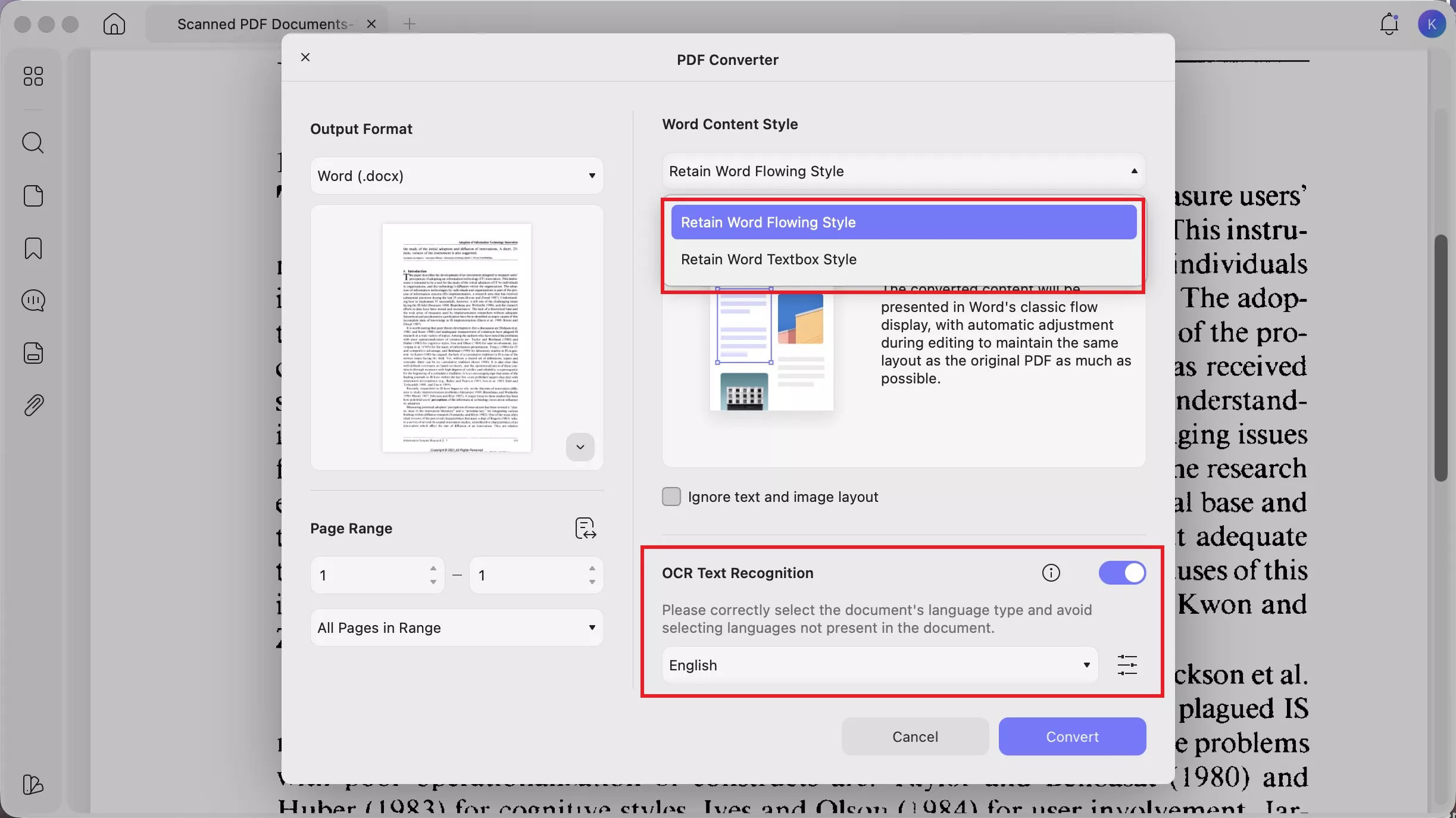
The window also carries two Word layout modes: Retain Word Flowing Style (text reflows as you edit, closest to a normal Word document) and Retain Word Textbox Style (each block locked in a text box, closest to the original page geometry). For a document you intend to rewrite, Flowing is the one you want.
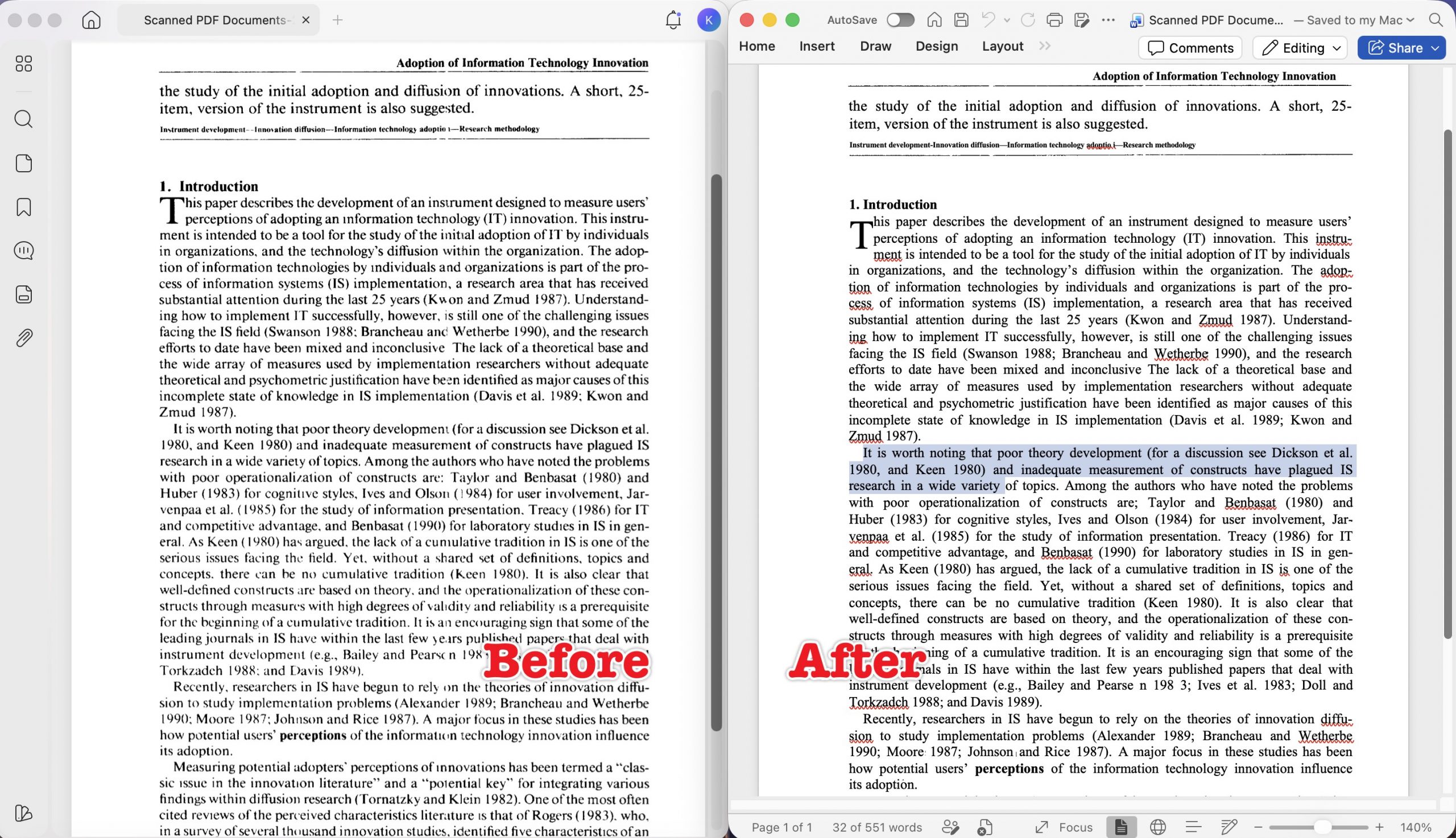
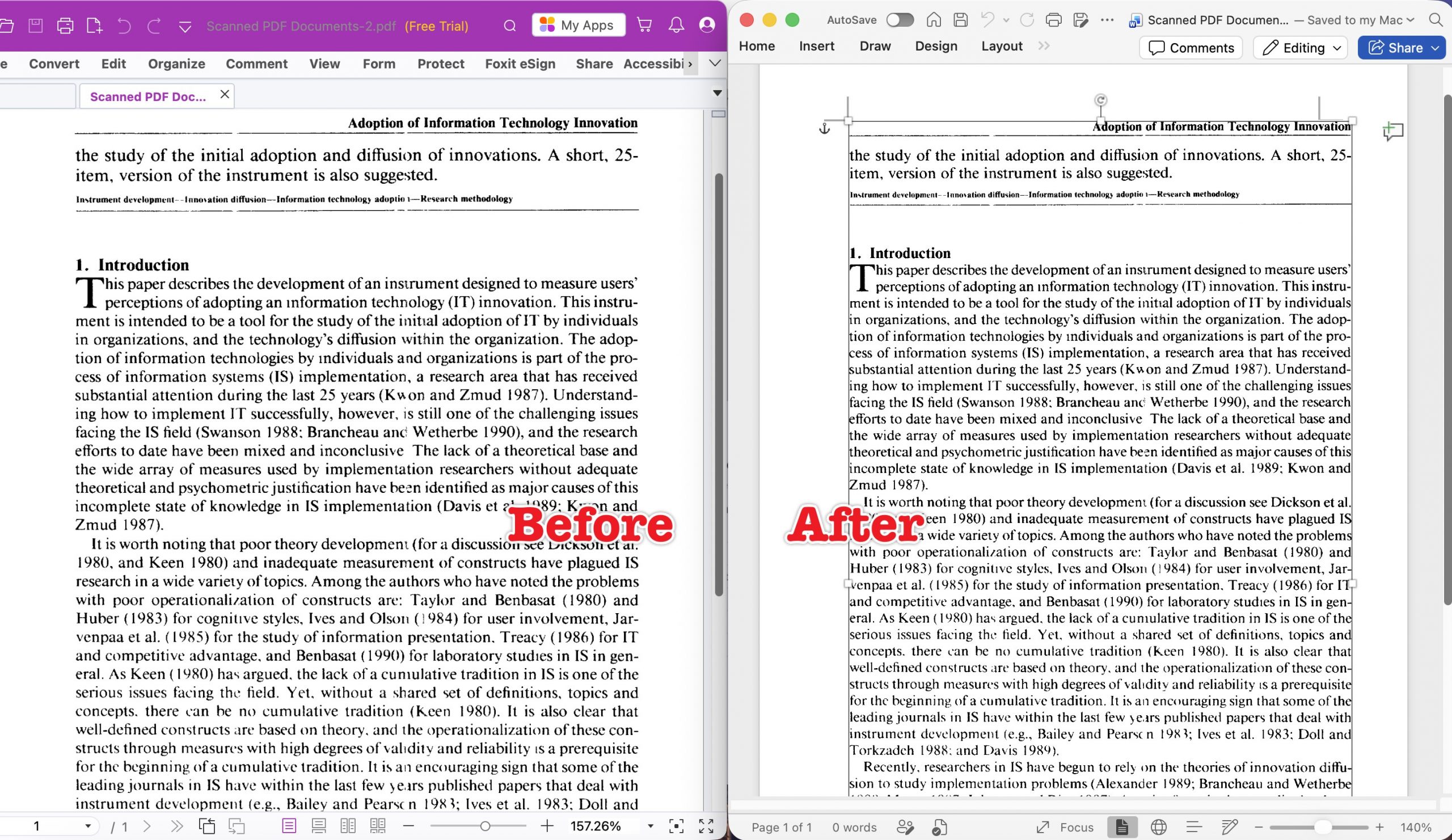
Output: The drop cap survived. Apostrophes in users' and technology's came through intact. Paragraph indents and bold runs held. Word's status bar reported real word counts and the text selected and edited normally.
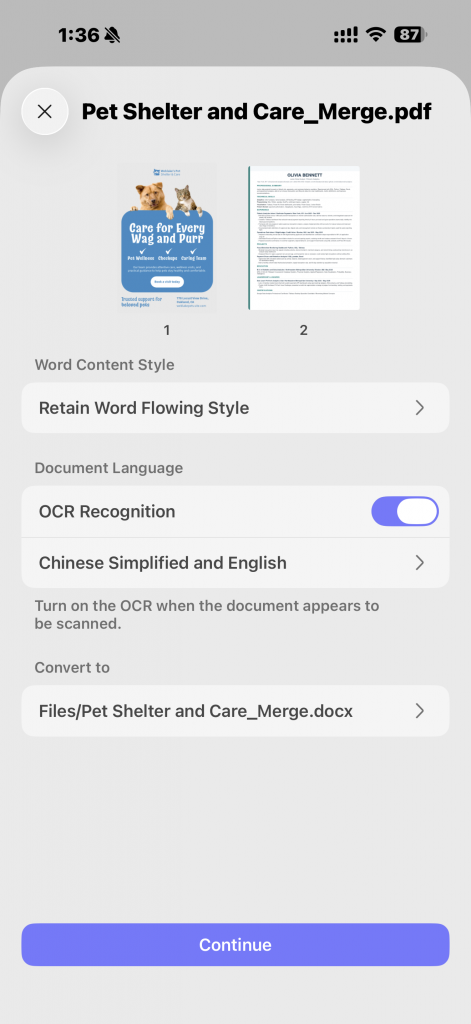
Language selection is multi-select — tick Chinese Simplified and English together and one pass handles both. You don't split a mixed-language document by language.
Mobile: The iOS and Android convert sheet carries the same OCR Recognition toggle and language picker, with an on-screen note to enable OCR when the document looks scanned. It's the same one-step flow as desktop, not a cut-down version.
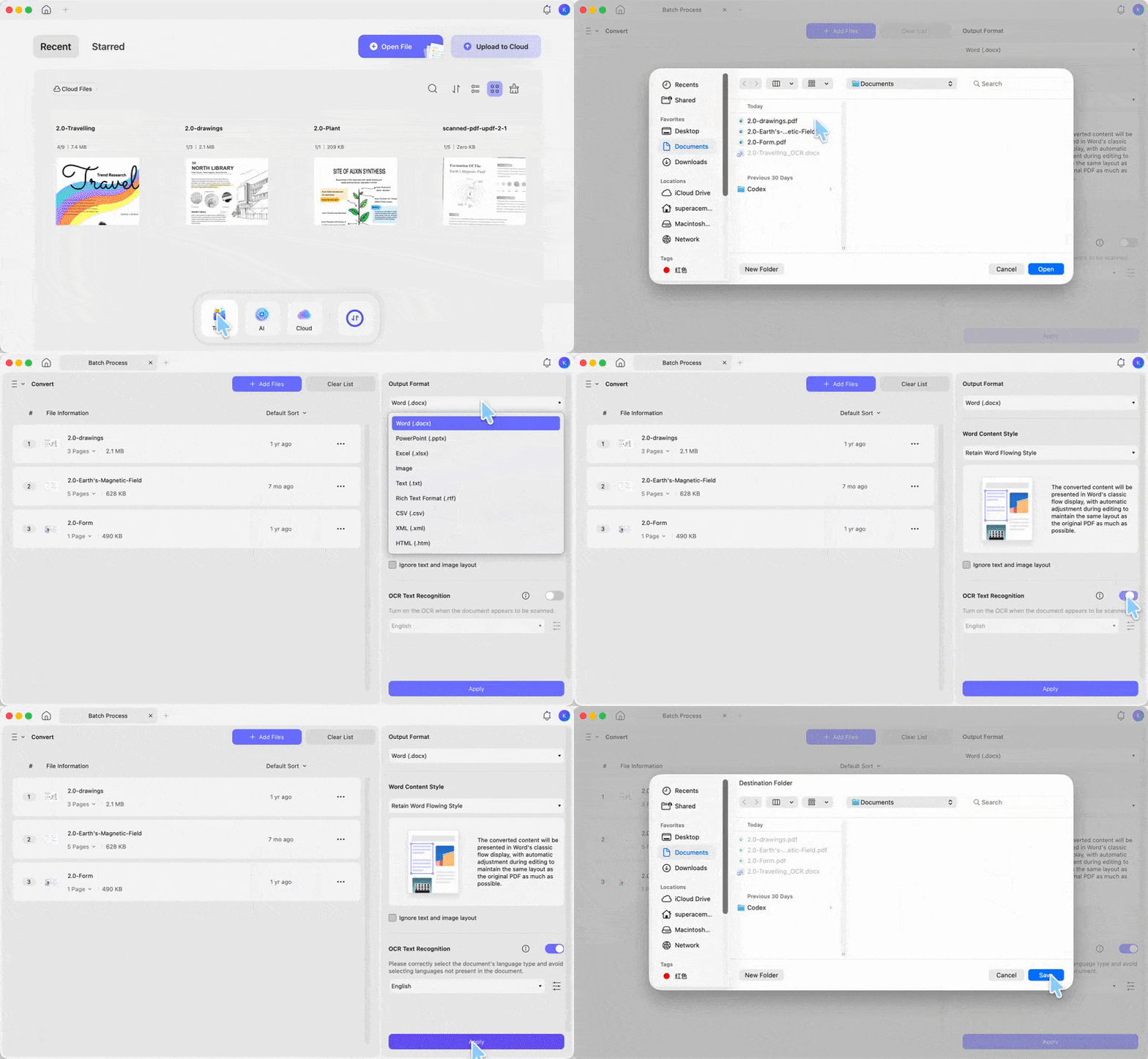
Batch: Tools on UPDF homepage → Convert. Add files, choose Word, flip OCR on, hit Apply. The OCR toggle sits in the batch panel too, so a folder of scans converts in one job.
Version: v2.5.4 desktop / v2.5.4.0641 mobile
Free access & price: The free tier converts and exports, but the output carries a trial watermark, and OCR is capped at 5 uses. Pro Individual is US$49.99/year and Pro Lifetime is US$79.99 one-time; both cover all PDF tools across two desktops and two mobile devices. Current figures are on the UPDF pricing page.
Best for:
- Scanned contracts, forms, and papers you need to actually rewrite — especially if you move between a laptop and a phone.
Not for:
- Files over 300 pages in a single OCR pass. Split the document, OCR each part, then merge.
Download UPDF for free to run a scanned page through the converter and check the output in Word before you commit — installation is free, and Pro removes the trial watermark when you're ready to export for real.
Windows • macOS • iOS • Android 100% secure
2. PDF Reader Pro
OCR Language Recognition sits inside the To Word dialog, so the desktop flow is also one-step. Two layout modes are offered — Keep Mixed Layout and Retain Page Layout — plus an Only Scanned Pages checkbox that skips recognition on pages already carrying real text. There's a Batch button in the bottom-left corner of the same dialog.
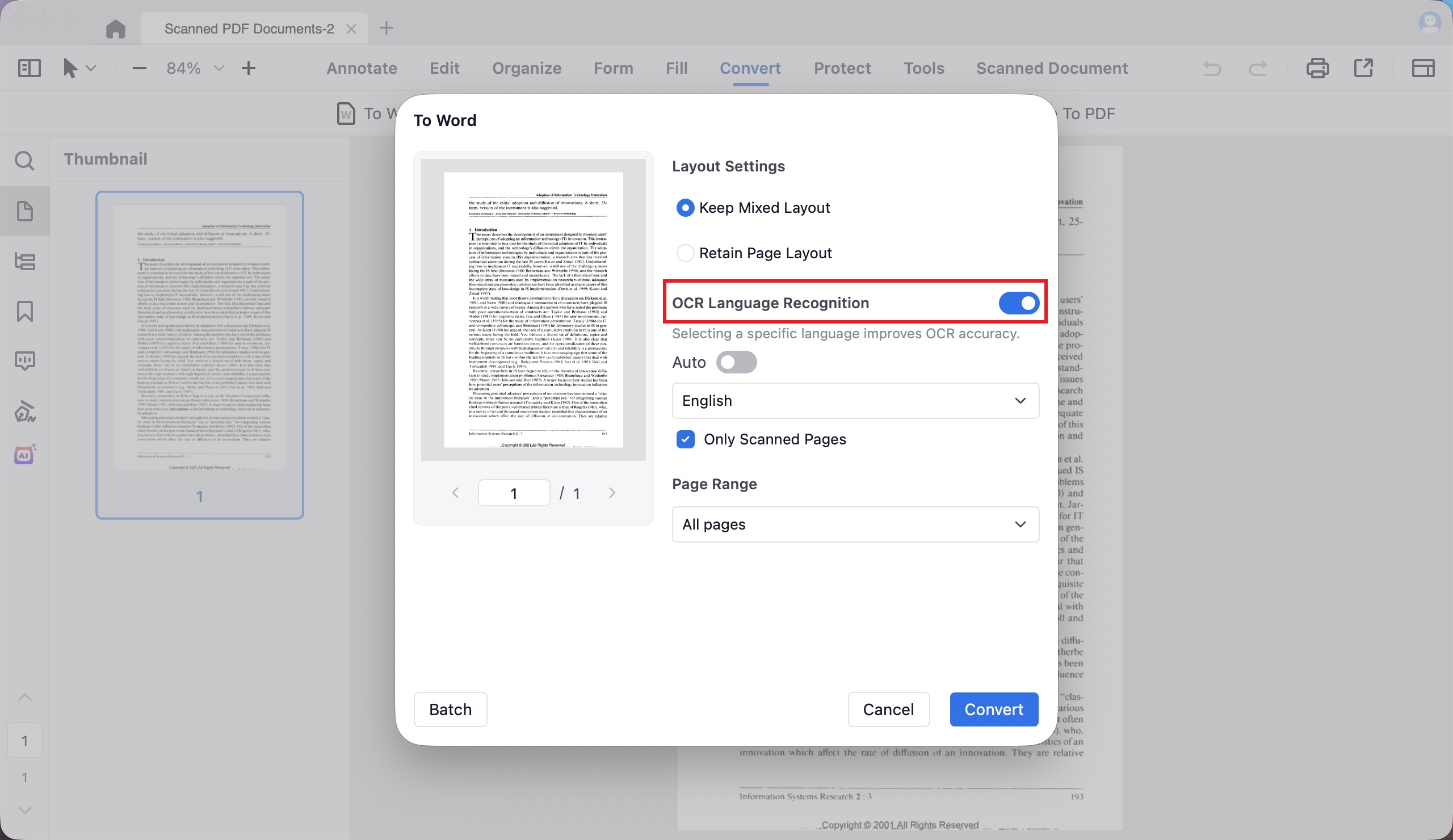
One detail worth catching: the dialog itself notes that naming a specific language improves accuracy. Leaving it on Auto is an easy way to get a worse result than the tool is capable of.
Output: Editable, but visibly rougher than UPDF on the same page. The drop cap "T" was lost and the paragraph opened as ʳ his paper. Apostrophes dropped or mutated — users' lost its mark, technology's became technolog"s. Digits slipped: (1990) came through as (199o) and (1984) as (| 984). cumulative became cuniulative, and the space vanished in Davis1989. Paragraph indents flattened to a flush-left block.
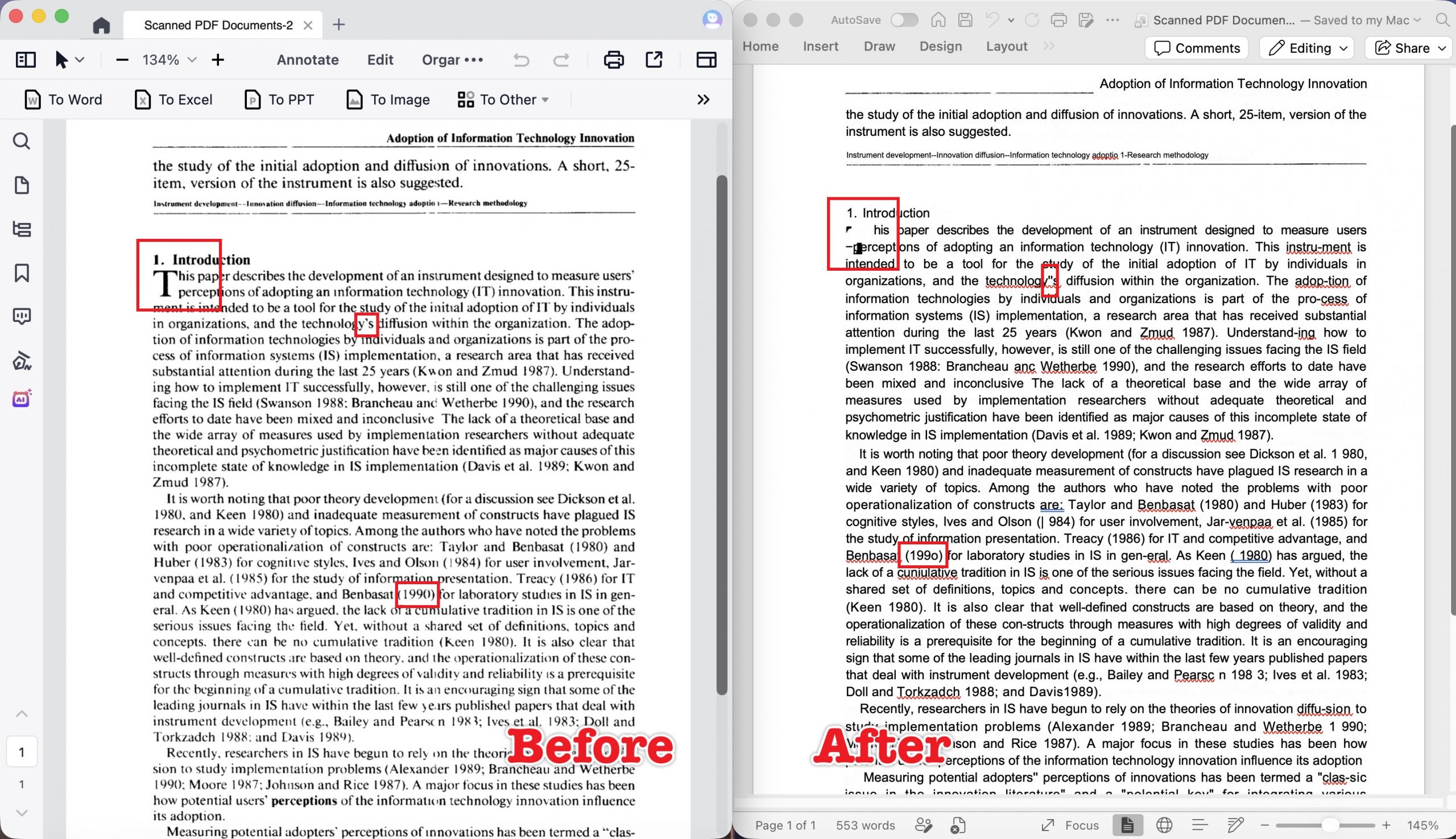
For reading and searching, fine. For a document where citation years matter, you'd be proofreading every parenthesis.
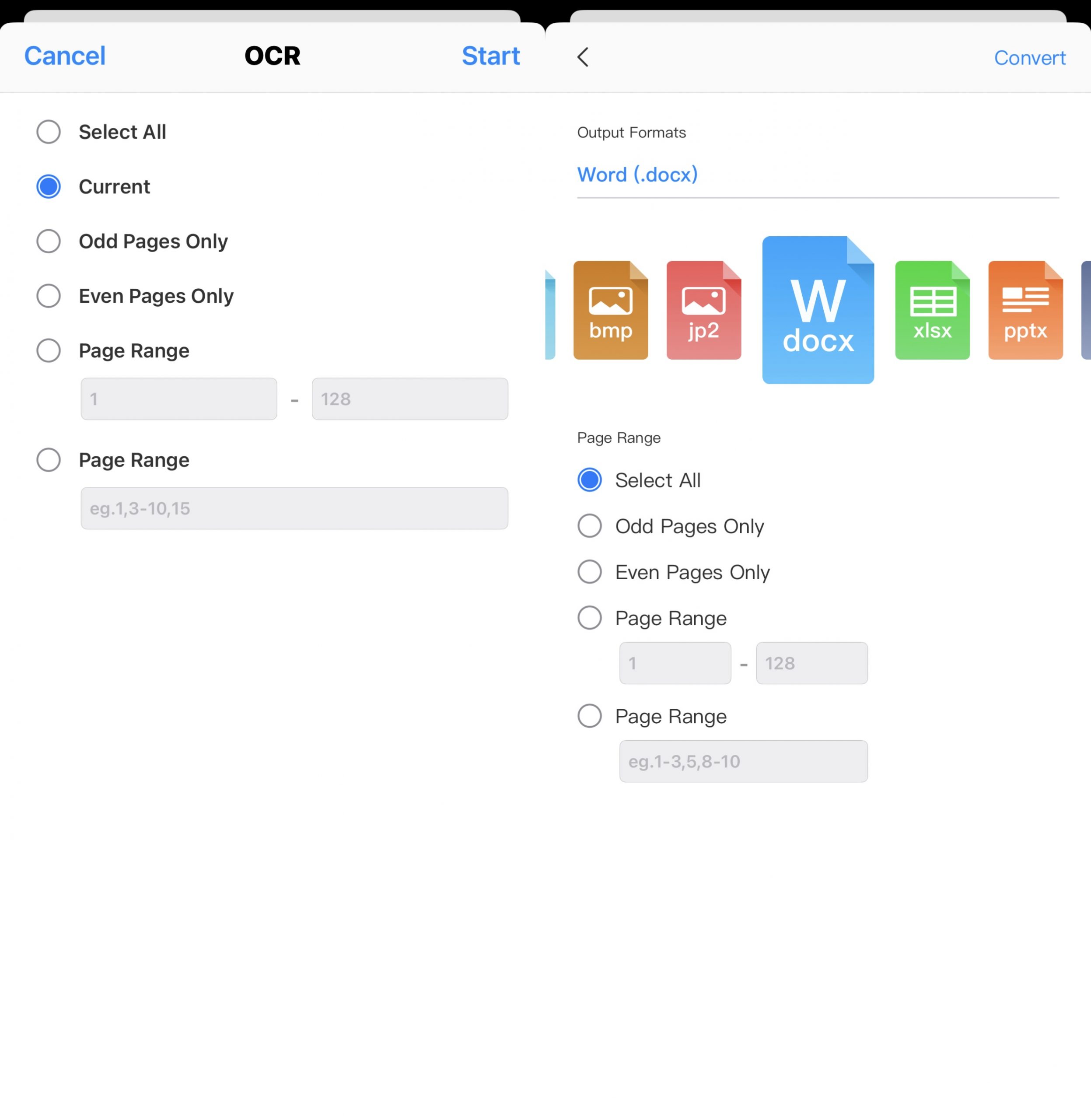
Mobile: This is where the flow changes. On iOS, OCR is its own screen — you select a page range and tap Start — and only then do you open the separate Convert sheet to pick Word. Two steps, two screens, unlike the desktop dialog.
Version: v5.3.5 desktop / v3.2.0 mobile
Best for:
- users who want an integrated desktop OCR-and-convert dialog with per-page control.
Not for:
- Anyone converting on a phone or tablet expecting the desktop's one-pass behavior, or documents where numeric accuracy is critical.
3. Adobe Acrobat
Acrobat also handles recognition inside the convert flow. The Convert panel shows a Recognized text language selector, and the Save As DOCX Settings dialog carries a Recognize text if needed checkbox with its own Set Language button. Layout is either Retain Flowing Text or Retain Page Layout.
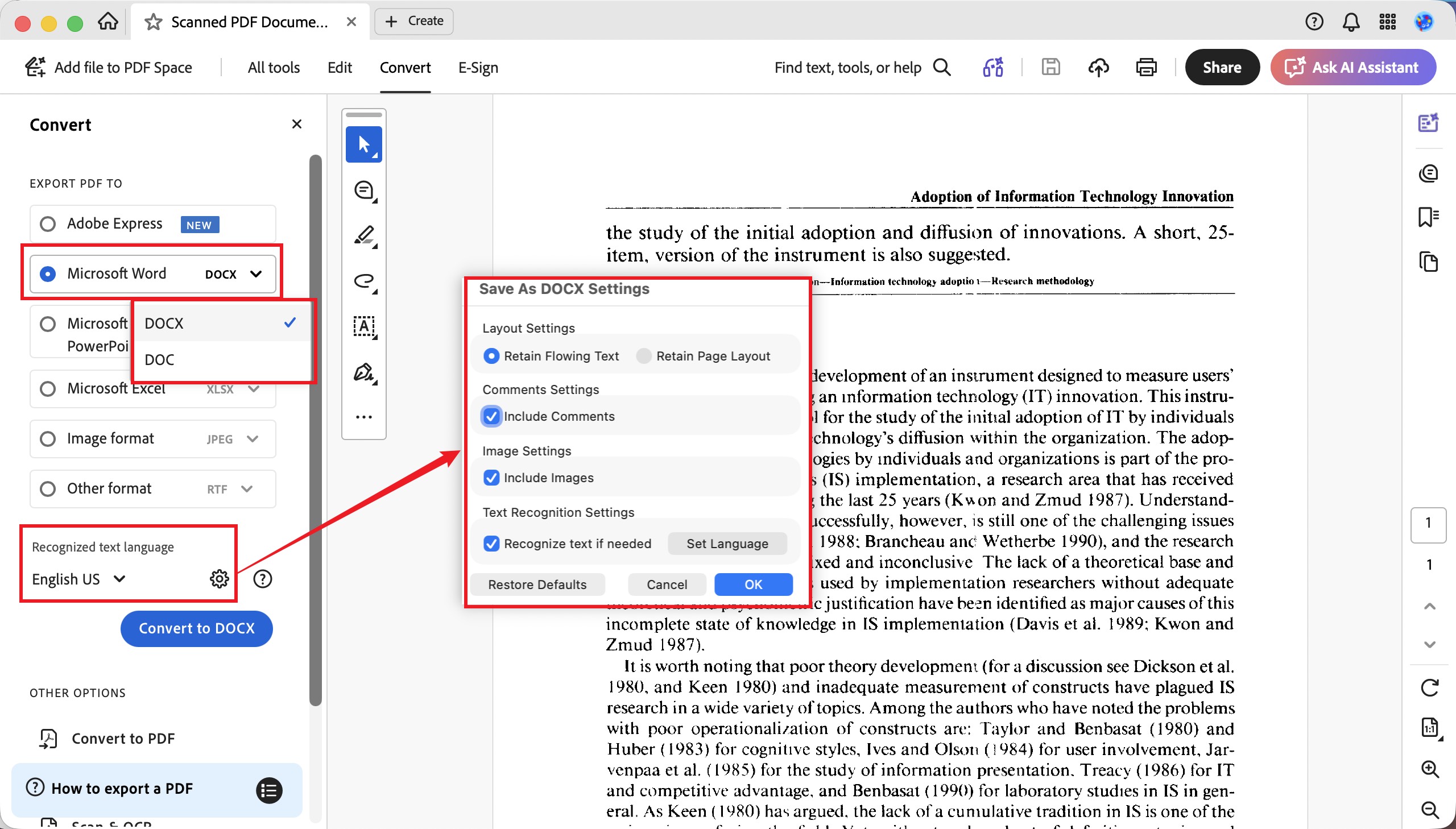
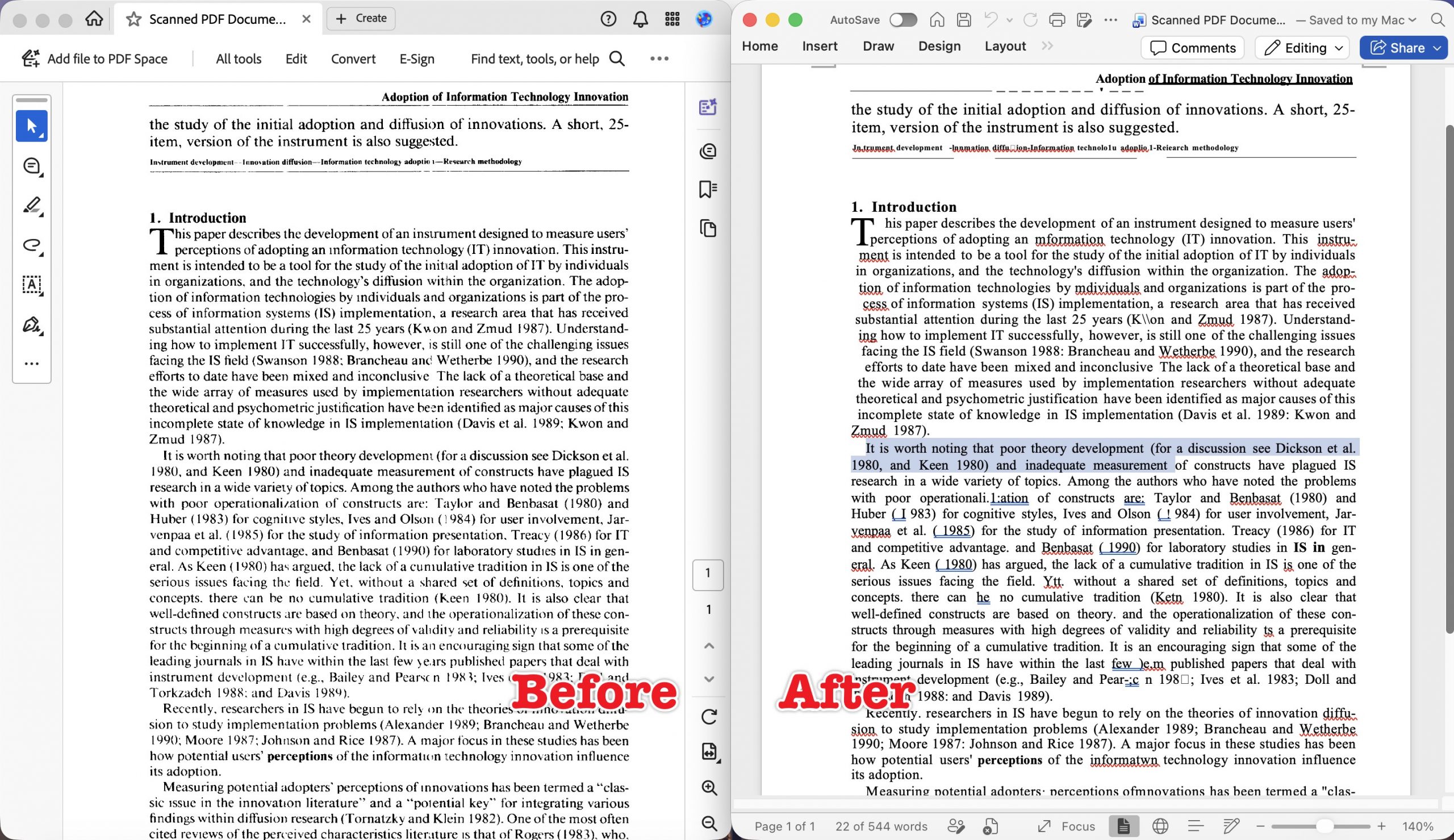
Output: Editable, with a scattering of errors concentrated in exactly the places that cost time. Letter confusion ran through the body: information became mformation in one place and informatwn in another, individuals became mdividuals, can be became can he, Yet became Ytt. Names and years took the worst of it — Kwon became K\\on, (1983) became (I983), (1984) became (!984), and operationalization came out as operationali.1:ation. The header rule broke into a dashed line and the subtitle row scrambled.
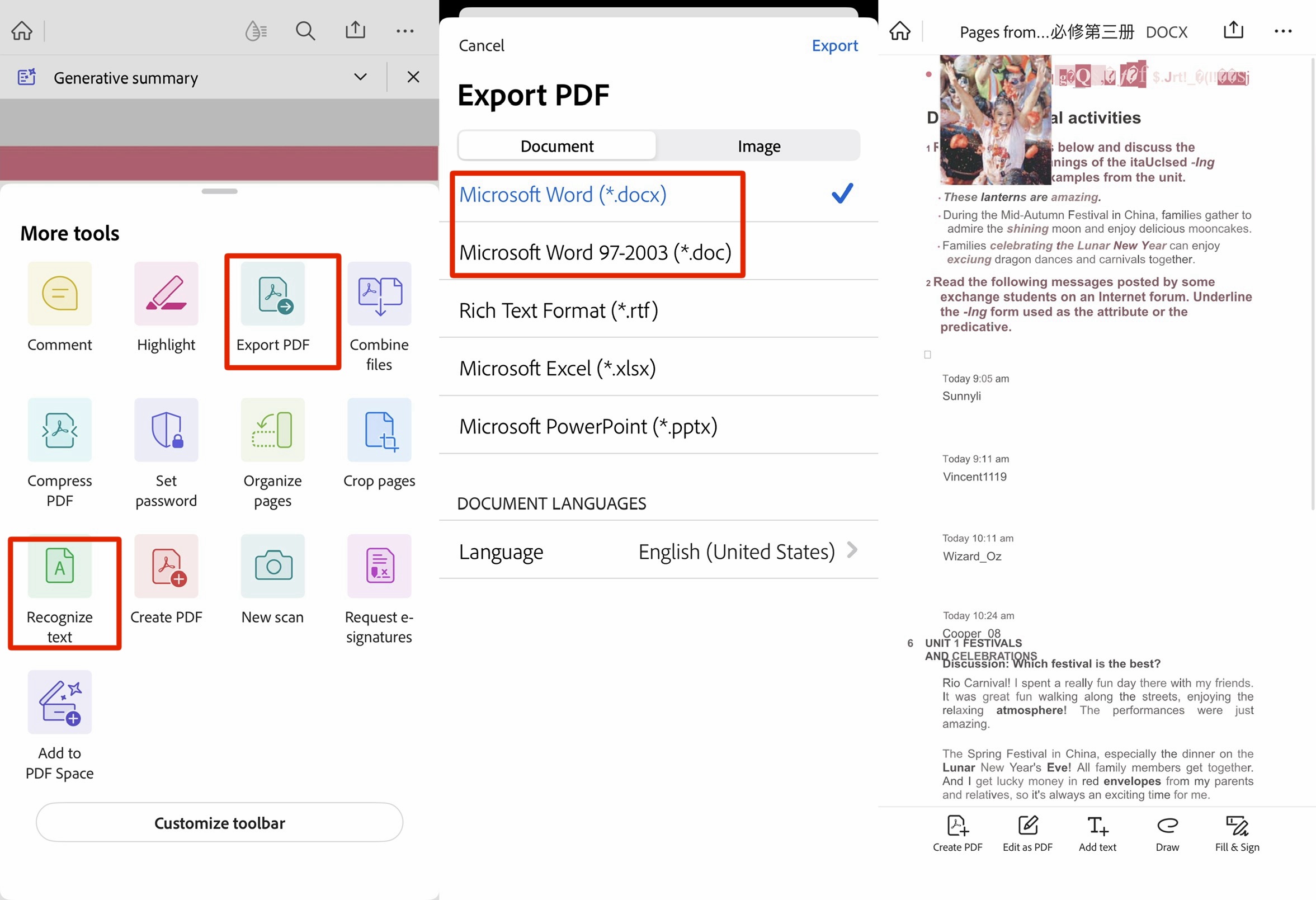
Mobile: Separate steps. Recognize text and Export PDF are two different entries in the More tools grid, and the Export sheet has no OCR switch of its own. Running OCR first and exporting second produced the worst mobile result of the group — text and images overlapping, blocks out of order, and stray characters in the header.
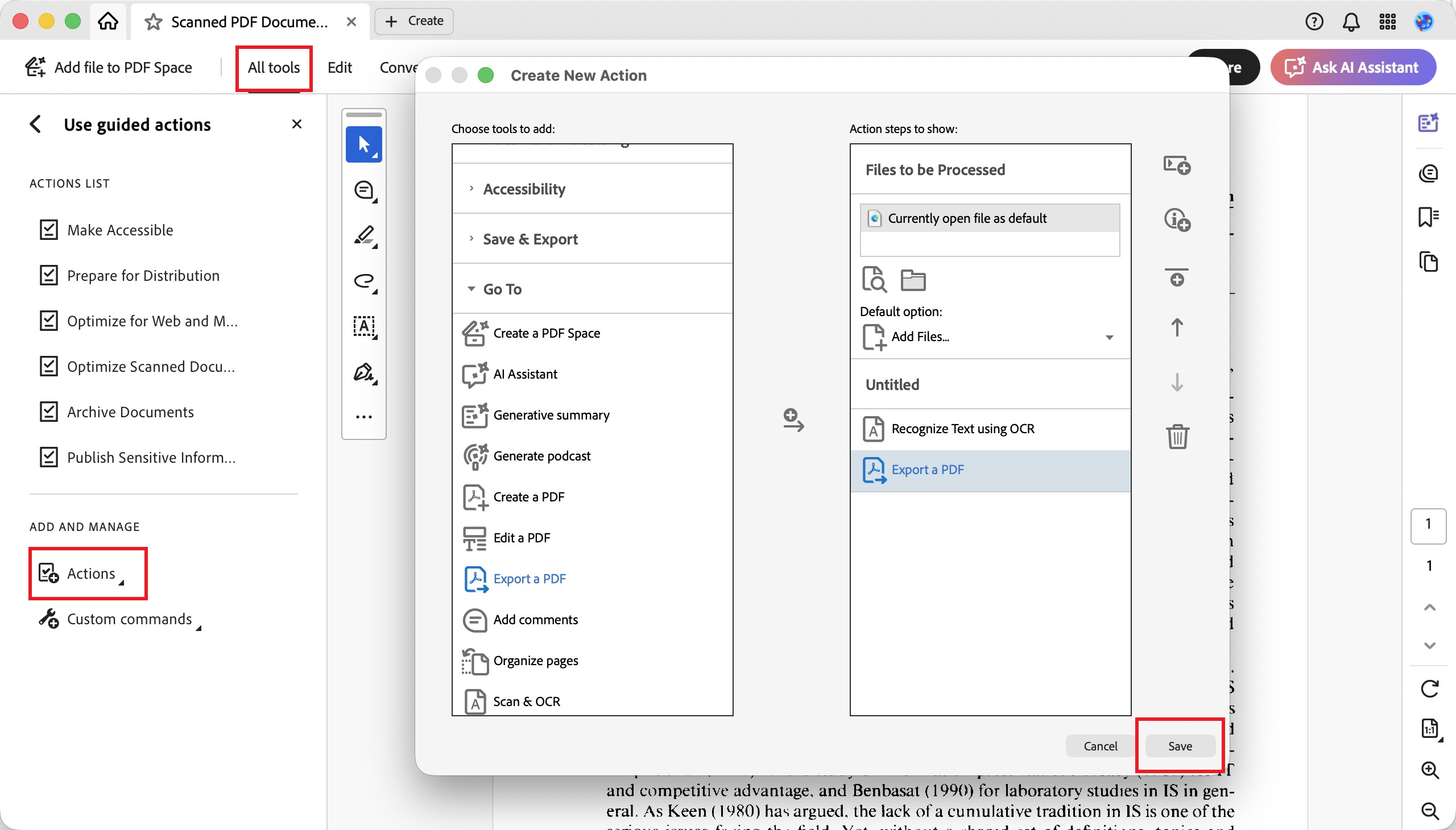
Batch: Not from the Convert panel. Acrobat routes batch conversion through Action Wizard: build a new Action, add a Save step, open Specify Settings, choose Export File(s) to Alternate Format, and select Word Document. Point it at a folder and run it. It works and it's reusable, but it's a setup task rather than a button — and it needs Acrobat Pro.
Version: v2026.001.21691 desktop / v26.06.00 mobile
Best for:
- Teams already standardized on Acrobat who will build an Action once and reuse it.
Not for:
- A quick one-off conversion on mobile or users who want a quick button for batch conversion and OCR.
4. Foxit PDF Editor
Here the flow splits. Recognize Text is a separate button sitting beside Export on the same Convert ribbon — not a setting inside the export dialog. Two steps, and nothing warns you if you skip the first.
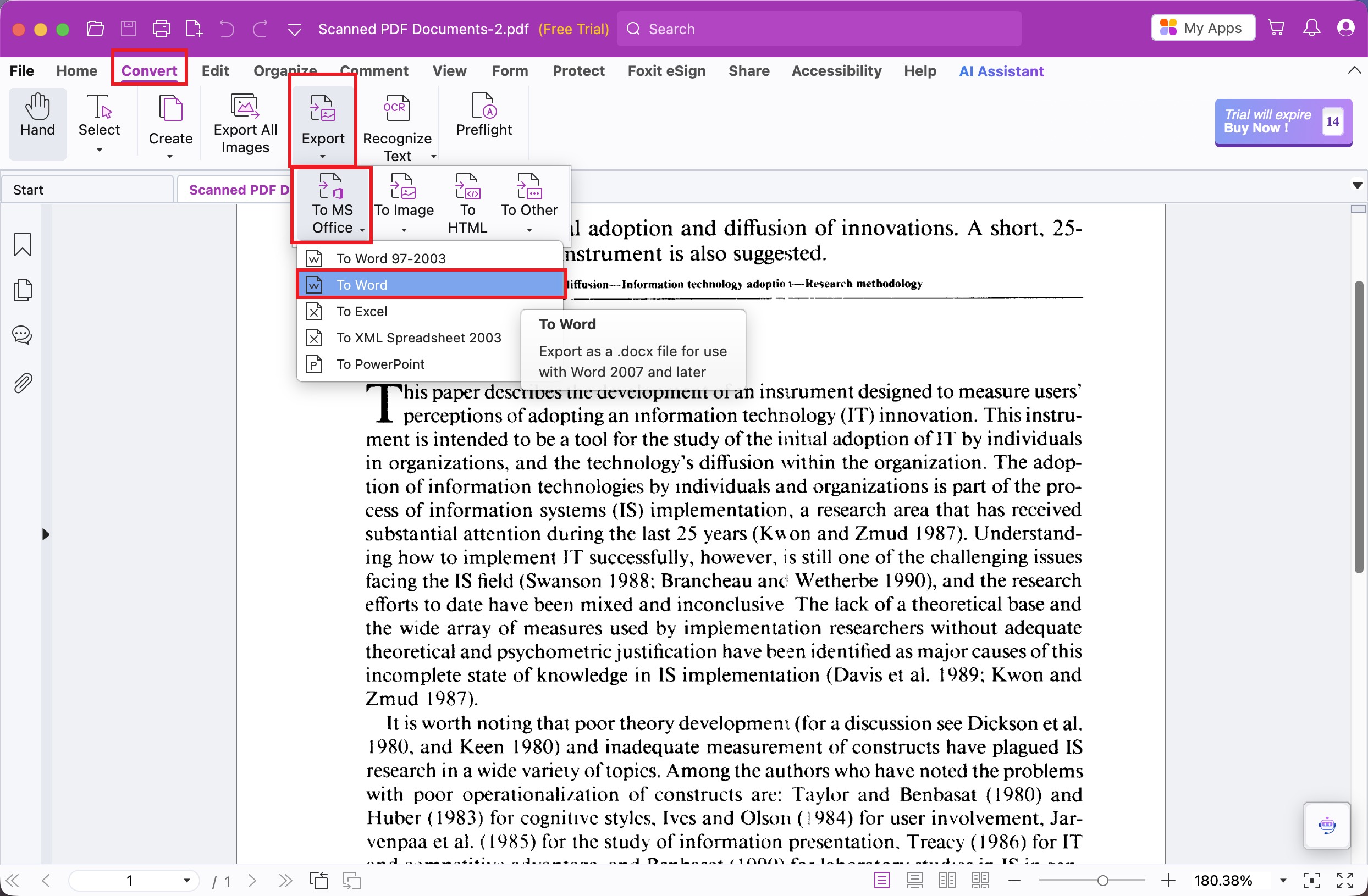
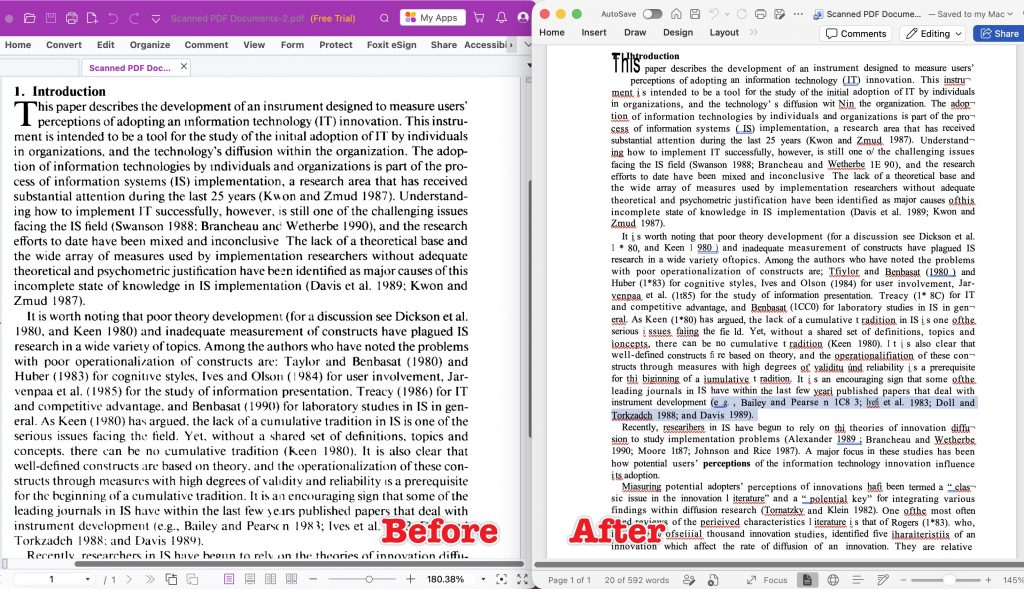
Output without OCR: Word reported 0 words. The page looked correct and was entirely uneditable — a picture of the document with a few empty text boxes floating over it.
Output after Recognize Text: Editable, but with the densest error rate in the test. The heading 1. Introduction came through as Ubtroduction and the drop cap detached into a standalone This. Citation years were hit hardest: 1990 → 1E 90, 1980 → 1 * 80, 1983 → 1*83, 1985 → 1t85, 1986 → 1* 8C, 1990 → 1CC0, 1987 → 1t87. Words fared little better — Taylor → Tfiylor, cumulative → iumulative, concepts → ioncepts, researchers → researihers, Measuring → Miasuring, characteristics → iharaiteristiis. Spaces disappeared in ofthis and oftopics, and every line-end hyphen became ¬.
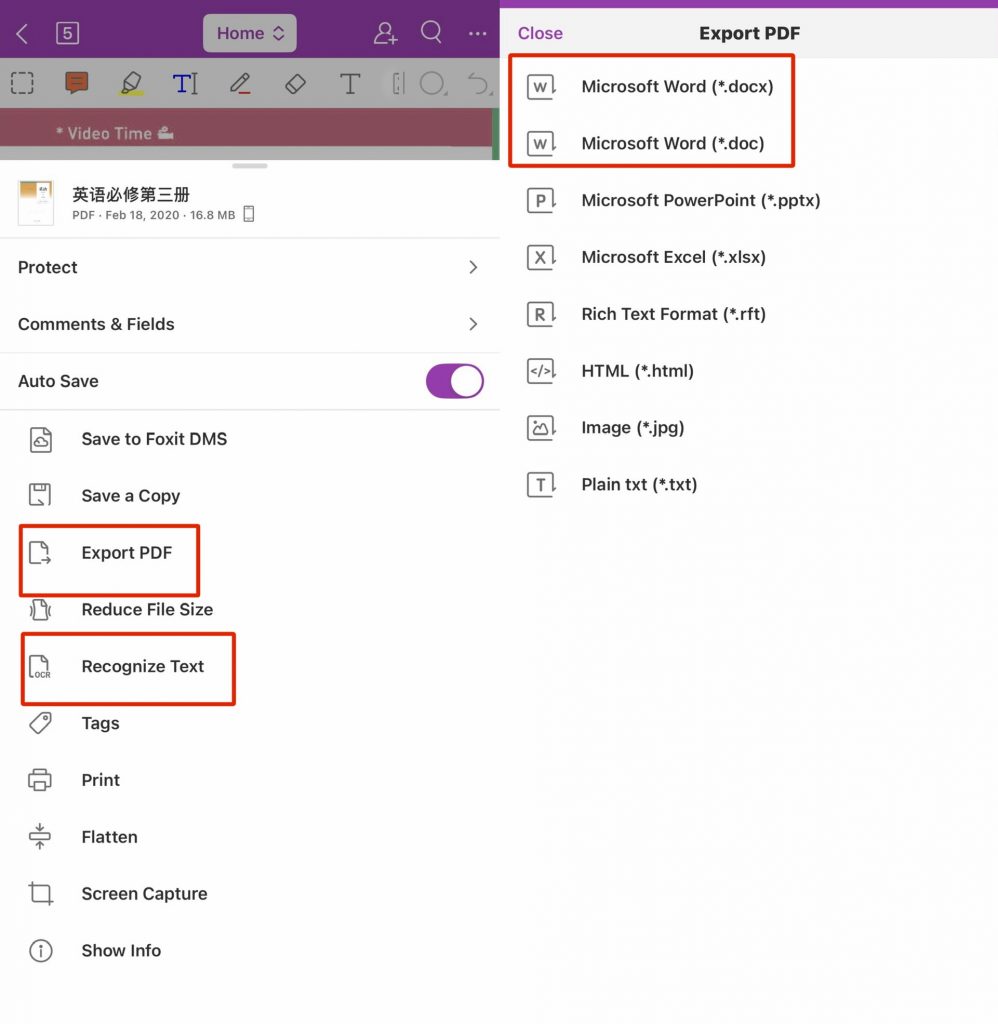
Mobile: Same split. Recognize Text and Export PDF are separate items in the document menu, and the export format list has no OCR option attached.
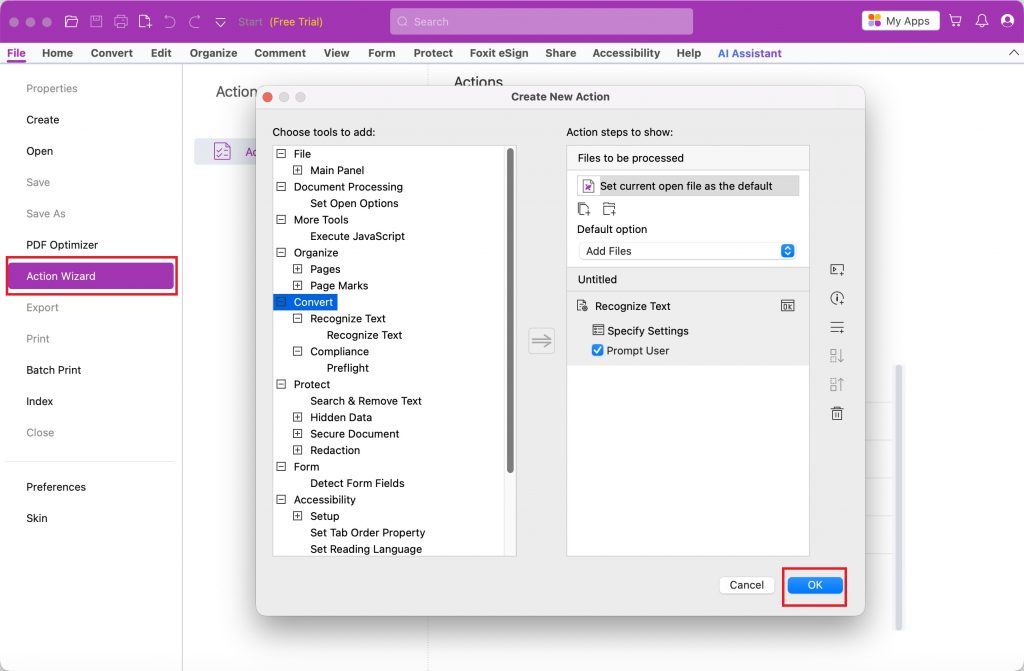
Batch: Through Action Wizard, same as Acrobat — create an Action, add the convert step, run it against a folder. Foxit positions high-volume batch processing as a desktop capability, and batching OCR specifically has long required building it as an Action step rather than toggling it in a dialog.
Version: v2026.1.2 desktop / v2026.4.3.0603 mobile
Best for:
- Existing Foxit deployments where the Action Wizard workflow is already in place.
Not for:
- Users who want a quick button for batch conversion and OCR.
5. PDFgear
PDFgear is free, which is the draw. OCR is a separate toolbar button, not part of the convert dialog. The converter itself takes multiple files with per-file page ranges, so batch conversion is straightforward. One thing to note before you load anything sensitive: starting a conversion raises a dialog stating the file will be converted online, which will take more time. Processing isn't local.
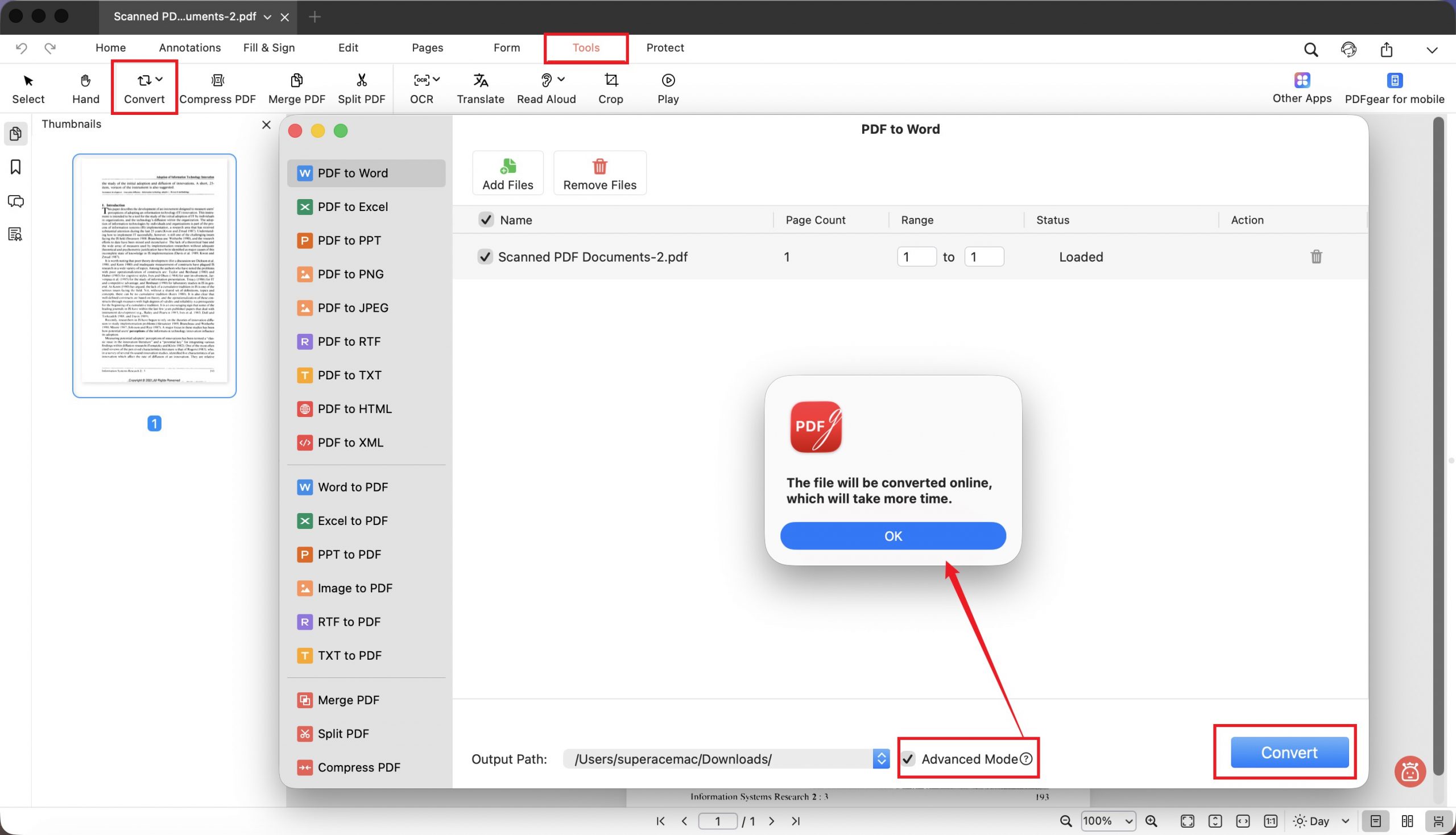
Output without OCR: Word reported 0 words — the whole page landed as a single flat image.
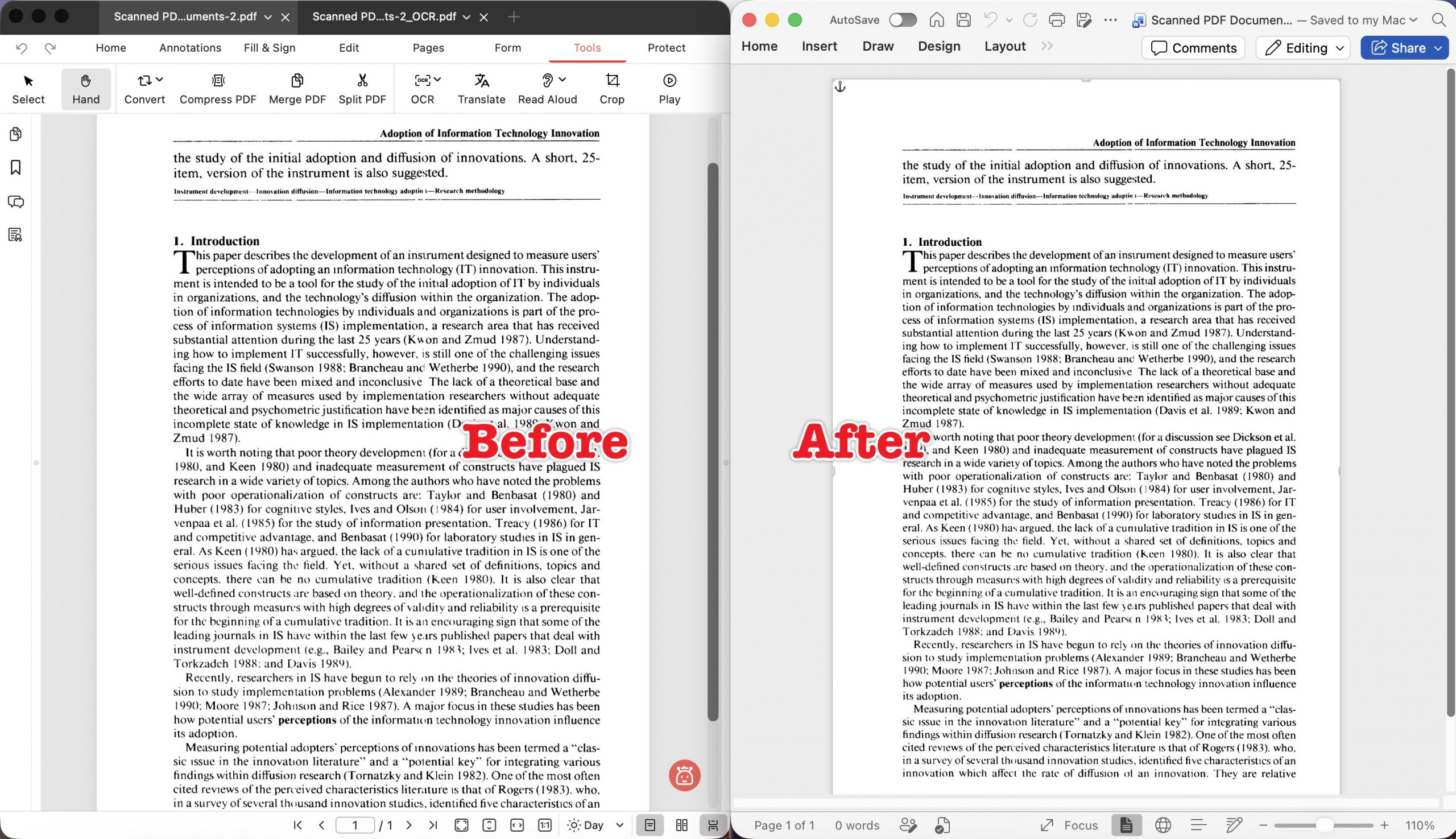
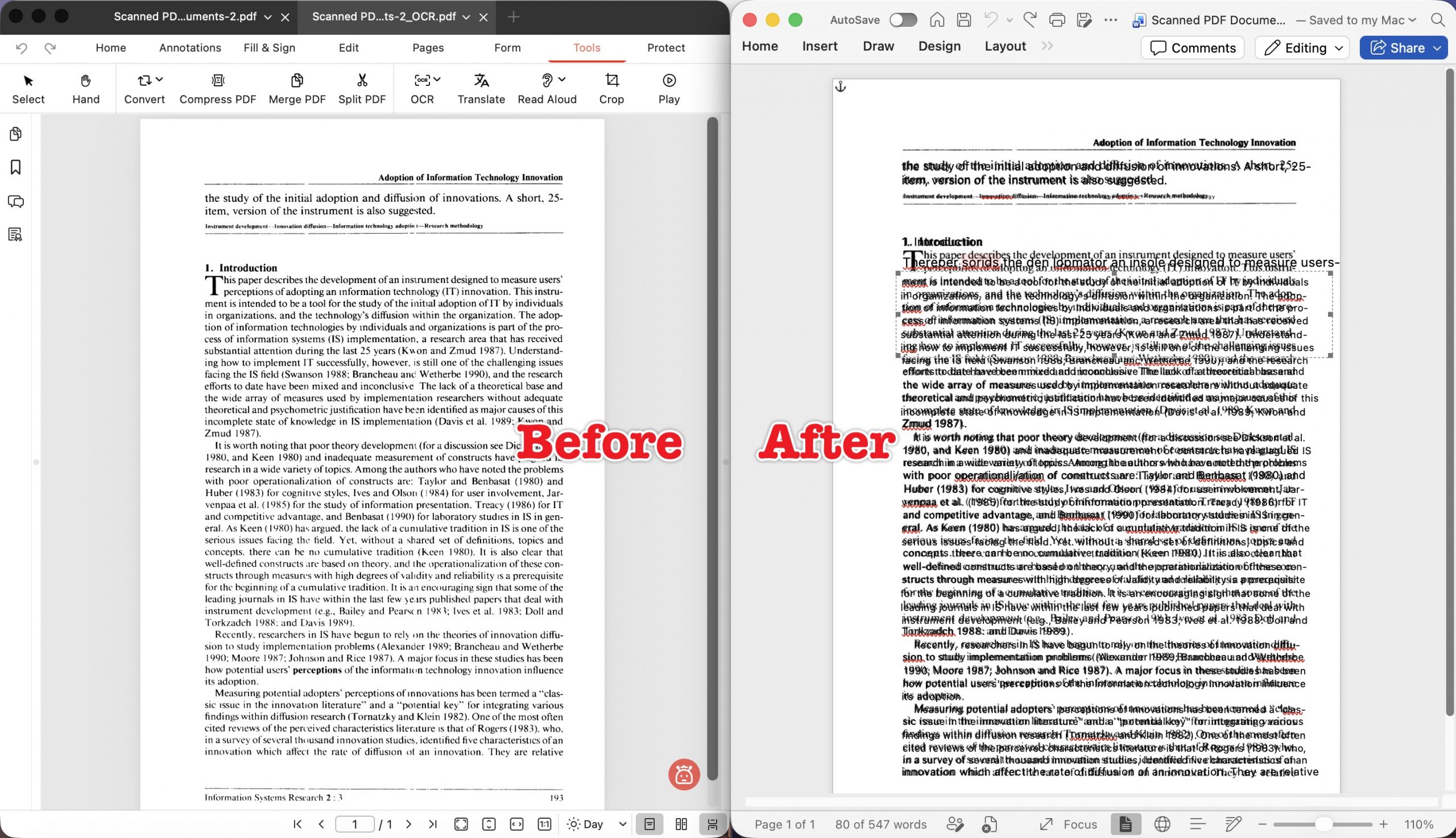
Output after OCR: This is the Searchable PDF trap from Part 2, in practice. PDFgear's OCR preserves layout by producing a searchable PDF, so the image layer and the text layer both crossed into Word and landed misaligned. The result was a page of overlapping double text, opening with the garbled line Thereber sorids the den ldpmator an insole designed to measure users-. Word counted 80 of 547 words. Deleting one layer exposes the other; it's not a document you can realistically edit.
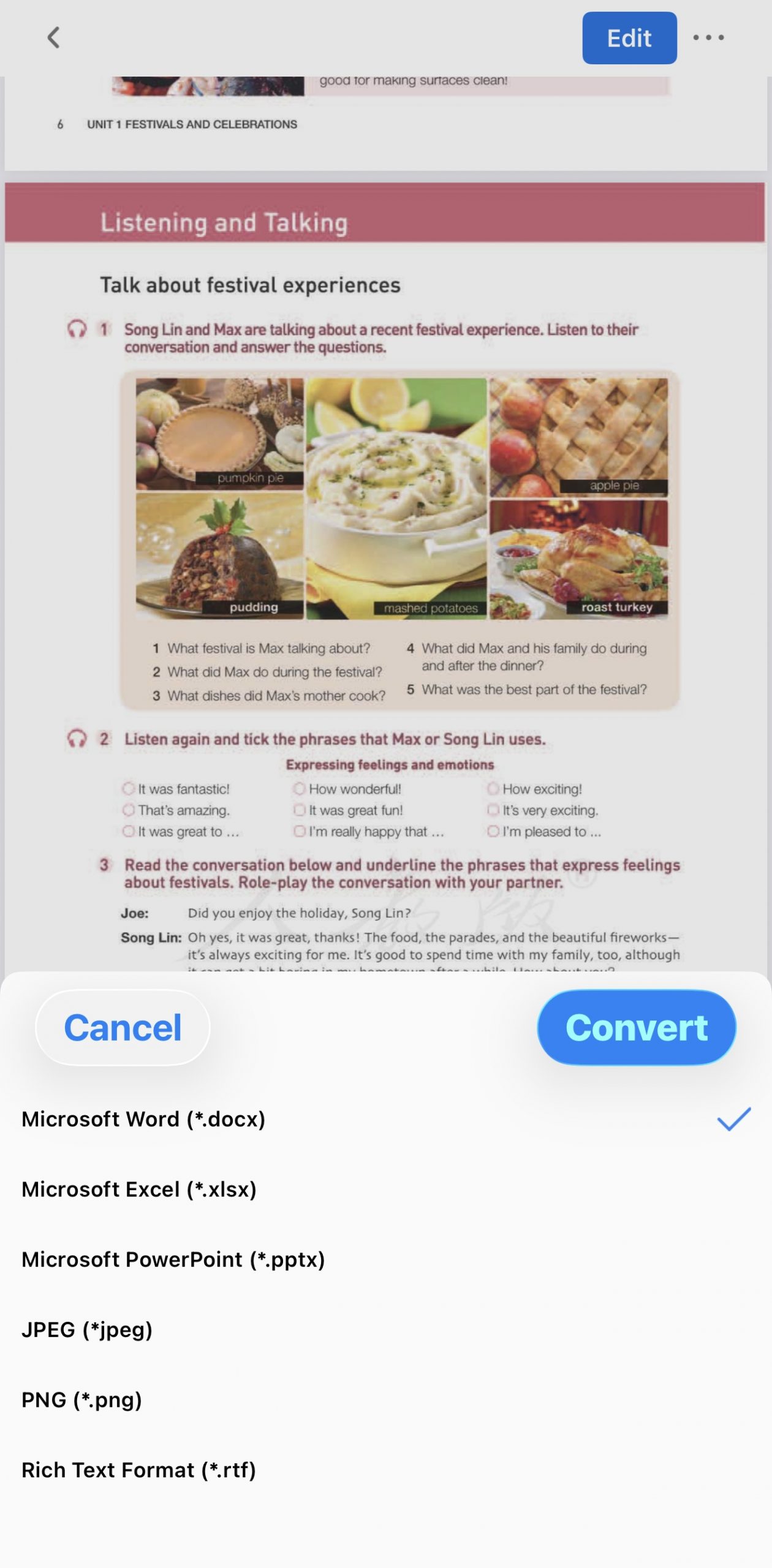
Mobile: The convert sheet lists output formats only — Word, Excel, PowerPoint, JPEG, PNG, RTF — and the app has no OCR feature at all. On a phone, a scanned PDF has no path to editable Word here. That's a missing capability, not an extra step.
Version: v2.26 desktop / v2.23 mobile
Best for:
- Free, quick conversion of born-digital PDFs that were never scanned.
Not for:
- Scanned documents in any form, anything confidential given the online processing, and mobile scanning work entirely.
Part 4: Comparison
Desktop
| Tool (version) | OCR inside convert panel | Batch convert | Batch + OCR together | Processing | Main limitation found |
|---|---|---|---|---|---|
| UPDF | ✓ | ✓ — Batch PDFs → Convert | ✓ OCR toggle in batch panel | Local | 300-page cap per OCR pass |
| PDF Reader Pro | ✓ | Yes — Batch button in dialog | ✓ | Local | Digit and apostrophe errors |
| Adobe Acrobat | ✓ | Via Action Wizard (Pro) | Requires an OCR step in the Action | Local | Name/year errors; batch needs setup |
| Foxit PDF Editor | ✗ — separate Recognize Text button | Via Action Wizard | Requires an OCR step in the Action | Local | Highest digit error rate in test |
| PDFgear | ✗ — separate OCR button | ✓ | ✗ — batch has no OCR | Local/Online (stated in-app) | OCR output is a searchable PDF; layers overlap in Word |
Mobile
| Tool (version) | OCR on mobile | OCR in the convert sheet | Scanned file → editable Word |
|---|---|---|---|
| UPDF | ✓ | ✓ — one pass | ✓ |
| PDF Reader | ✓ | ✗ — separate OCR screen first | ✓ two steps |
| Adobe Acrobat | ✓ | ✗ — separate Recognize text entry | ✓ two steps; layout scrambled in test |
| Foxit PDF Editor | ✓ | ✗ — separate Recognize Text entry | ✓ two steps |
| PDFgear | ✗ | ✗ | No path available |
Every tool here converts a born-digital PDF competently. The differences only appear once the page is a scan — which is the whole reason you searched for a converter with OCR. For a complete mobile workflow, see how to OCR a scanned PDF on iPhone or iPad.
For the full range of recognition tools beyond format conversion, including free and online options, see our guide to OCR software or watch the video tutorial below.
Windows • macOS • iOS • Android 100% secure
Part 5: Getting the Cleanest Result
Two settings account for most of the quality gap between these tools, and both are under your control.
Name the language. Recognition accuracy on a scan drops sharply if the language isn't set correctly, and picking a language the document doesn't contain hurts more than it helps. In UPDF the selector is multi-select, so a document mixing two scripts is handled in one pass rather than split into separate jobs.
Pick the right layout mode for what happens next. Flowing-text modes let paragraphs reflow when you edit — right for rewriting. Page-layout modes lock blocks into position — right for preserving how the page looked. Choosing page-layout and then trying to rewrite paragraphs is a common source of "why won't this text move" frustration.
For the full UPDF workflow across Windows, Mac, iOS, and Android — including the batch panel — the step-by-step instructions live in the How to Convert PDF Files: The Ultimate Layout Preservation Guide.
Download UPDF for free and test the language and layout settings on one page of your own scan before running the whole file — installation is free, and Pro features are there when you need watermark-free export.
Windows • macOS • iOS • Android 100% secure
Part 6: Edge Cases
"The convert button is greyed out or the file won't open." The PDF likely carries an open password or permission restrictions. Enter the password in the desktop or mobile app to unlock it first — most converters won't process a protected file, and online converters generally refuse them outright.
"The OCR ran but the Word text still won't edit." Check which recognition mode produced the file. If it was a searchable-PDF mode, the visible layer is still an image and the text is hidden beneath it. Re-run recognition in an editable mode before converting.
"My document is 400 pages and OCR fails partway." UPDF caps a single OCR pass at 300 pages. Split the file, recognize each part separately, then merge. Other tools have their own limits, usually undocumented until you hit one.
"The scan is crooked and recognition is garbage." Skewed pages wreck line detection. Deskew or straighten the pages before OCR — a page tilted a few degrees can turn clean type into the kind of character soup seen in the outputs above.
"Handwriting didn't come through." None of the five tools tested handle handwriting reliably. OCR engines here are built for printed type. Handwritten notes need a different class of tool.
Part 7: FAQ
1. Can I convert a PDF that mixes scanned and selectable pages to Word?
Yes. A mixed PDF has image-only pages alongside pages with selectable text. Choose a converter that can run OCR on the scanned pages, then open the Word file and check one page of each type. If a scanned page still behaves like a single picture, convert it again with OCR enabled.
2. Is there a free PDF to Word converter with OCR?
Yes, with real limits. UPDF's free tier includes 5 OCR uses and adds a trial watermark to exports.
3. Why do citation years come out wrong so often after OCR?
Digits have fewer distinguishing features than letters. A scanned 0 and a lowercase o, or a 1 and a vertical bar, are near-identical at low resolution — which is why years and figures need checking after any OCR conversion.
Conclusion
The five converters split on one question: does OCR run inside the convert panel, or is it a separate step you have to remember? UPDF, PDF Reader Pro, and Acrobat handle it in one desktop pass; Foxit and PDFgear don't. On mobile the gap widens — UPDF keeps the single-pass toggle, three tools split it into two screens, and PDFgear has no OCR at all.
If your work involves scanned documents regularly, UPDF's multi-select language picker and the OCR toggle in both the single-file and batch panels remove the step most likely to be skipped. Once the text is editable, the AI Editing Suite can rewrite passages in place, and AI Semantic Search surfaces synonyms alongside exact matches when you search the recognized text.
Download UPDF for free to convert a scanned page and check the Word output yourself — installation is free, and Pro features are available when you need watermark-free export.
Windows • macOS • iOS • Android 100% secure
Disclaimer
All five applications were tested on macOS in July 2026 using the versions listed in each section. OCR accuracy varies with scan resolution, page skew, typeface, and language, so results on your own documents will differ. Software features and pricing change between releases — verify current details on each vendor's official pages before purchasing.




 Delia Meyer
 Enid Brown
 Enya Moore
 Enola Davis