 UPDF
 UPDF for Windows
 UPDF for Mac
 UPDF for iPhone/iPad
 UPDF for Android
 Nomostar
 UPDF AI Online
 UPDF Sign
 IvyCraft
 Edit PDF
 Annotate PDF
 Create PDF
 PDF Form
 Edit links
 Convert PDF
 OCR
 PDF to Word
 PDF to Image
 PDF to Excel
 Organize PDF
 Merge PDF
 Split PDF
 Crop PDF
 Rotate PDF
 Protect PDF
 Sign PDF
 Redact PDF
 Sanitize PDF
 Remove Security
 Read PDF
 UPDF Cloud
 Compress PDF
 Print PDF
 Batch Process

 About UPDF AI
 UPDF AI Solutions
 AI User Guide
 FAQ about UPDF AI
 Summarize PDF
 Translate PDF
 Chat with PDF
 Chat with AI
 Chat with image
 PDF to Mind Map
 Explain PDF
 PDF AI Tools
 Image AI Tools
 AI Chat Tools
 AI Writing Tools
 AI Study Tools
 AI Working Tools
 Other AI Tools
 AI Bookmark Generation
 AI Bookmark Summary
 AI Watermark Generation
 AI Background Generation
 AI Sticker Generation
 AI Stamp Generation
 AI Editing Suite
 UPDF Copilot
 AI Page Management
 AI Semantic Search
 PDF to Word
 PDF to Excel
 PDF to PowerPoint
 Enterprise Solution
 Enterprise Sign
 Enterprise AI
 Enterprise Plan
 Enterprise User Guide
 Enterprise Webinar
 IT
 Education
 Construction
 Financial Service
 Healthcare
 Insurance
 Legal
 Manufacturing
 Government
 Researchers & PhDs
 Solopreneurs & Freelancers
 Lawyers & Legal Professionals
 Real Estate Agents & Brokers
 Education Solution
 Customer Stories
 User Guide
 UPDF Tricks
 FAQs
 UPDF Reviews
 Download Center
 Blog
 Newsroom
 Tech Spec
 Updates
 UPDF vs. Adobe Acrobat
 UPDF vs. Foxit
 UPDF vs. PDF Expert


Quick Answer:
A PDF app can open a document successfully and still fail the next task: navigating a complex drawing, keeping comments editable, or passing notes to another reader.
This article focuses on those workflow differences. For broader features and plans, see our PDF editors for Mac guide. This is a document-based evaluation guide, not a current performance benchmark. No current speed or crash ranking is established here.
Part 1. Compare the Right Type of PDF App
Editing existing page text differs from adding a text box, highlight, or note. A tool can suit document review without replacing a full editor.
| App | Best for | Skip if |
|---|---|---|
| UPDF | Editing, annotation, and PDF preparation in one workflow | You expect Mac OCR on every chip and installation source |
| Adobe Acrobat | An existing Acrobat document workflow | Built-in markup already completes the job |
| PDF Expert | Mac-focused editing and annotation | You assume equivalent Windows support |
| Preview | Built-in markup and page management | You need to rewrite existing PDF body text |
| Skim | Scientific-paper reading and research notes | You need general-purpose existing-content editing |
These are task-based starting points, not performance scores. Confirm availability in the installed Mac edition. PDF Expert’s official Mac features include editing and annotation; Skim is a reader and note-taker. For open-source options, see open-source PDF tools for Mac.
Part 2. Evaluate Large PDFs by More Than File Size
File size alone does not describe the workload. A scanned book, vector-heavy engineering drawing, and heavily annotated document can behave differently even at similar sizes.
Record the Mac model, chip, memory, macOS version, app version, and installation source. Identify samples by page count, size, content type, and checksum. Measure opening, navigation, zooming, search, saving, and reopening separately. Repeat the same procedure and report failures with their configuration.
| Sample type | Content | Checks to record |
|---|---|---|
| Text PDF | Searchable paragraphs and embedded fonts | Open, search, navigate, save |
| Scanned PDF | Image-heavy pages | Render, scroll, memory use |
| Engineering drawing | Dense vector objects | Zoom, pan, inspect details |
| Annotated PDF | Notes, highlights, shapes | Save, reopen, exchange between apps |
This table is a proposed evaluation method, not completed test results. A result from one file should not become a claim that an app always crashes or always renders faster.
Part 3. Check Annotation Appearance and Editability
A visible highlight is not proof that every annotation property survived. Check note text, author information, replies, position, appearance, and whether the receiving app can still edit the annotation.
Apple documents that Preview can save editable annotations, while printing to PDF flattens them. Flattening can preserve appearance but changes the review workflow.
Skim normally stores notes and highlights as extended attributes rather than in the PDF data. Its embedded-notes export matters when another PDF viewer will open the file.
Compare normal saves, embedded-note exports where applicable, and flattened copies as different deliverables. Test the actual receiving app, then return its saved copy to the original app and check it again.
For the application workflow, see annotating PDFs on Mac. Keep a review copy with editable comments when further discussion is required.
Part 4. Separate Editing from Review Convenience
Preview supports markup and PDF page management but does not rewrite existing PDF text. Skim’s main role is reading and note-taking. Evaluate UPDF, Acrobat, and PDF Expert with a representative document containing the text, images, fonts, and structure you need to change.
UPDF’s current FAQ limits Mac OCR to supported Apple-chip Macs using the website version. Intel Macs and the Mac App Store edition should not be presented as equivalent OCR configurations.
Interface preferences are personal. Judge whether repeated tasks are easy to find and complete; visual style does not prove rendering speed. Acrobat supports macOS display themes including Dark grey.
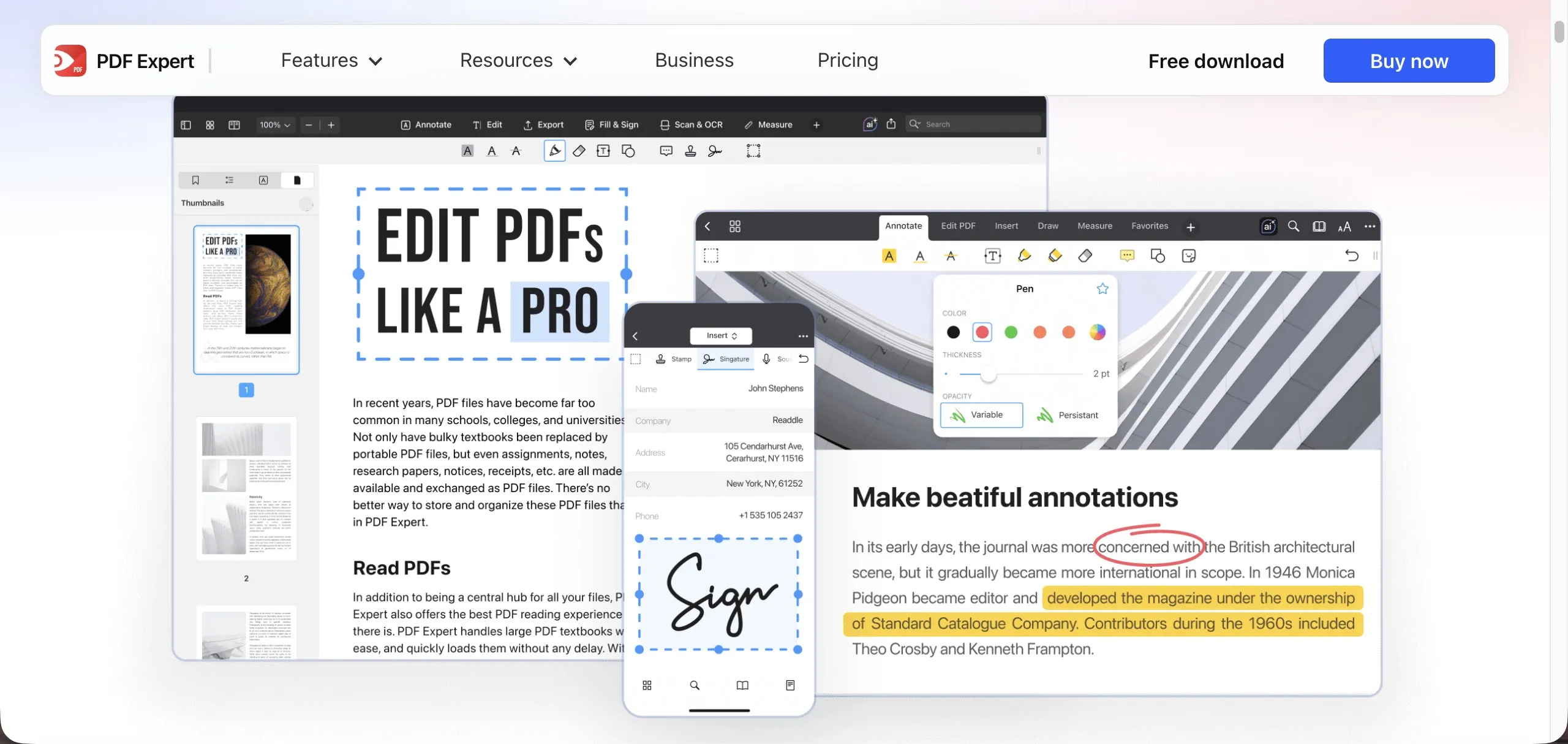
The retained video introduces PDF editing in UPDF. It does not demonstrate a large-file benchmark or cross-application annotation test.
For editing workflows rather than tool selection, explore PDF editing tools.
Part 5. Compare Plans in the Main Selection Guide
Use the Mac PDF editor comparison and vendors’ official pricing pages for current plans. Compare subscription terms, perpetual-license scope, and included features on the same basis. A lower price does not establish better large-file performance or annotation compatibility.
Part 6. FAQs
1. Does a visible signature prove that a PDF’s digital signature is valid?
No. A visible signature mark and certificate-based validation are different. Check the original PDF’s signature status and document integrity in a suitable viewer.
2. Is cropping a page enough to remove confidential information?
No. Cropping can hide content outside the visible page area without removing it. Use proper redaction for sensitive content and inspect the final file.
3. Does converting a PDF to images guarantee that its content cannot be reused?
No. Visible content can still be captured or recognized with OCR. Image conversion is not a guarantee against copying or reuse.
Conclusion
Choose the app that completes your document workflow, then verify it with representative files. Distinguish existing-content editing from markup, and visible annotations from editable comments.
Use the Mac PDF editor guide for general selection and trial options. Use versioned test results—not an old crash anecdote or universal speed claim—when large documents or annotation exchange determine the choice.
Windows • macOS • iOS • Android 100% secure


 Enola Miller
 Enrica Taylor

 Enid Brown