 UPDF
UPDF
 UPDF for Windows
 UPDF for Mac
 UPDF for iPhone/iPad
 UPDF for Android
 Nomostar
 UPDF AI Online
 UPDF Sign
 IvyCraft
 Edit PDF
 Annotate PDF
 Create PDF
 PDF Form
 Edit links
 Convert PDF
 OCR
OCR PDF to Word
 PDF to Image
 PDF to Excel
 Organize PDF
 Merge PDF
 Split PDF
 Crop PDF
 Rotate PDF
 Protect PDF
 Sign PDF
 Redact PDF
 Sanitize PDF
 Remove Security
 Read PDF
 UPDF Cloud
 Compress PDF
 Print PDF
 Batch Process
 About UPDF AI
 UPDF AI Solutions
 AI User Guide
 FAQ about UPDF AI
 Summarize PDF
 Translate PDF
 Chat with PDF
 Chat with AI
 Chat with image
 PDF to Mind Map
 Explain PDF
 PDF AI Tools
 Image AI Tools
 AI Chat Tools
 AI Writing Tools
 AI Study Tools
 AI Working Tools
 Other AI Tools
 AI Bookmark Generation
 AI Bookmark Summary
 AI Watermark Generation
 AI Background Generation
 AI Sticker Generation
 AI Stamp Generation
 AI Editing Suite
 UPDF Copilot
 AI Page Management
 AI Semantic Search
 PDF to Word
 PDF to Excel
 PDF to PowerPoint
 Enterprise Solution
 Enterprise Sign
 Enterprise AI
 Enterprise Plan
 Enterprise User Guide
 Enterprise Webinar
 IT
IT Education
 Construction
 Financial Service
 Healthcare
 Insurance
 Legal
Legal Manufacturing
 Government
 Researchers & PhDs
 Solopreneurs & Freelancers
 Lawyers & Legal Professionals
 Real Estate Agents & Brokers
 Education Solution
 Customer Stories
 User Guide
 UPDF Tricks
 FAQs
FAQs UPDF Reviews
 Download Center
 Blog
Blog Newsroom
 Tech Spec
 Updates
 UPDF vs. Adobe Acrobat
 UPDF vs. Foxit
 UPDF vs. PDF Expert

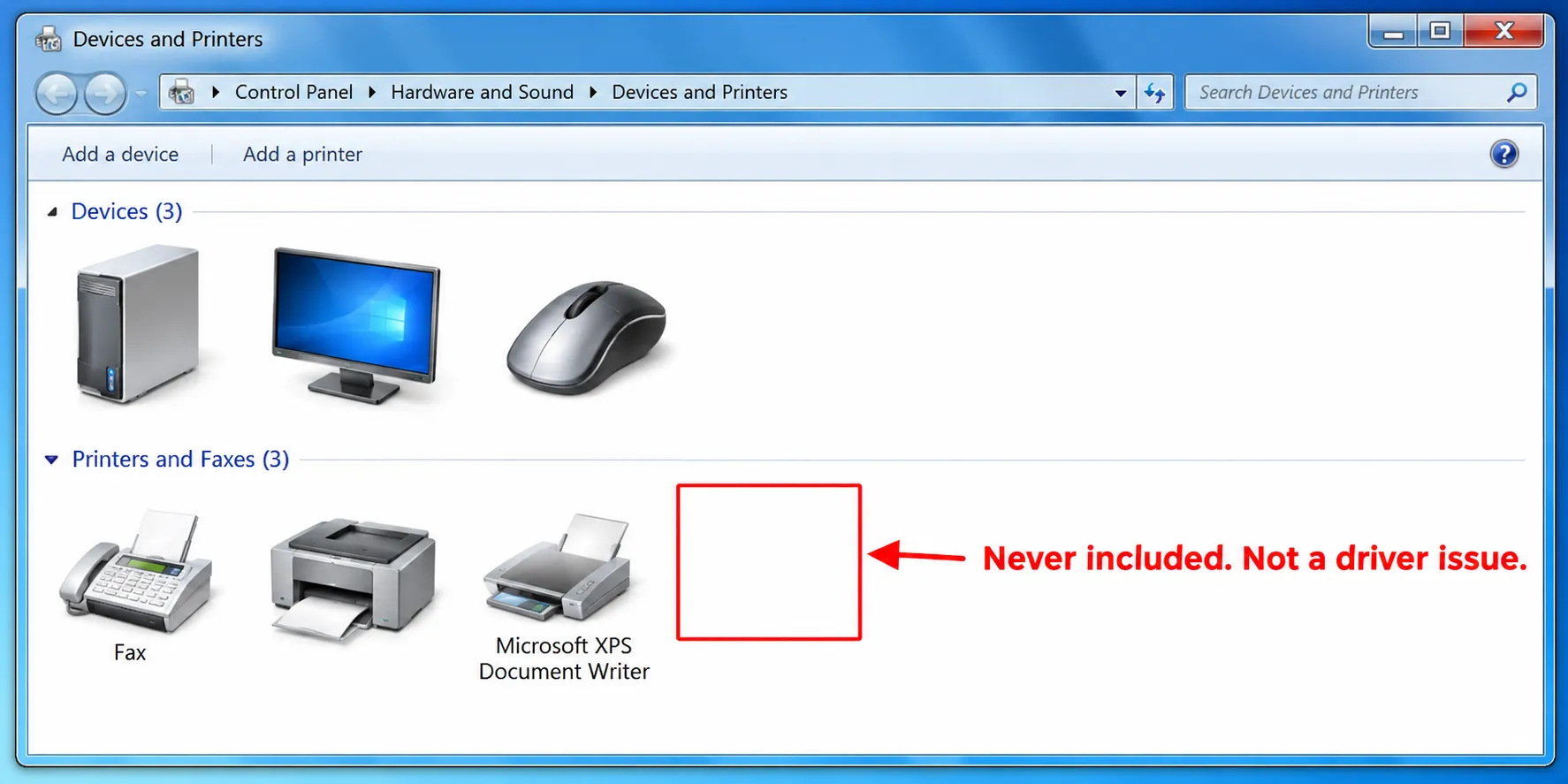
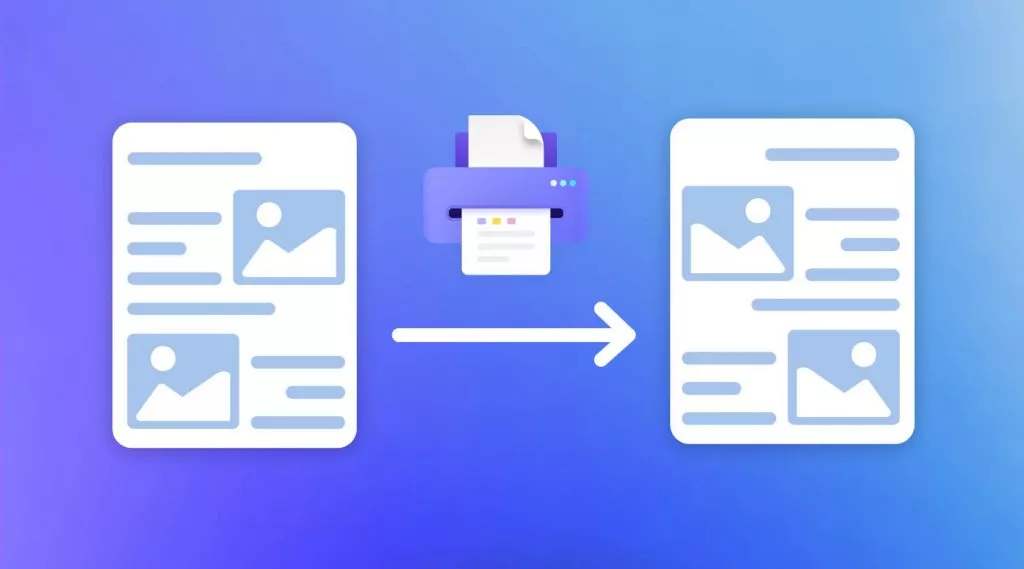
You've done this before. Ctrl+P, look for "Microsoft Print to PDF" in the printer dropdown, and it's not there. You check optionalfeatures.exe because a forum post told you to. You try adding a printer manually. Nothing.
Here's the part that ends the search: Microsoft Print to PDF was never included in Windows 7. Microsoft's own Q&A says it directly: "Microsoft Print to PDF is only available for Windows 10". The feature shipped with Windows 10. No driver download, no registry tweak, no optional feature checkbox will add it to Windows 7.
So the question stops being why isn't it here and becomes something more practical: what do I actually use to print to PDF on this machine? And once the file exists, can I actually work with it? Let's see next.
Why You Can't Add Microsoft Print to PDF to Windows 7
The confusion comes from forum answers that are written for Windows 10 users but posted in Windows 7 threads. One Microsoft Q&A exchange shows the exact pattern: a Windows 7 user is told to enable the feature through Windows Features, tries it, and gets nowhere. The accepted answer corrects the record — the feature is Windows 10-only, and the real solution is a third-party PDF printer.
That's the honest starting point. Windows 7 users who need print to PDF aren't missing a setting. They're missing a version. The only path forward is a virtual PDF printer: a driver that appears in the print dialog and writes a PDF file instead of sending the job to paper.
What You Actually Need on Windows 7: A Virtual PDF Printer
The names that show up repeatedly for Windows 7 are consistent, and they do the basic job.
CutePDF Writer is the veteran option — Microsoft's own Q&A points to it directly, and it supports Windows 7.
PDF24 is the other common answer, though some Windows 7 users report the virtual printer not appearing after installation even when the editor works.
Bullzip PDF Printer lists Windows 7 among supported systems and offers quality presets from screen viewing to prepress.
doPDF is notable because it explicitly generates searchable PDFs and doesn't rely on Ghostscript.
For the free pdf printer for windows 7 search, these are the realistic answers. Install one, select it in the print dialog, and you get a PDF.
But here's where the user experience often goes sideways — and where most guides stop talking.
The Part Nobody Warns You About: The PDF You Get May Not Be Usable
A virtual printer solves generation. It does not guarantee usability.
CutePDF Writer, for example, does not have OCR. If you print from an image-based program, the text in the resulting PDF will not be searchable — it's a picture of text, not text itself. PDF24 has a broader toolbox, but Windows 7 installation issues mean some users end up without a working printer driver at all. doPDF's searchable output is a real advantage, but searchability is only the first question. The next ones hit just as hard: Can I edit a paragraph in this file? Can I compress it enough to email? Can I get a summary of a 40-page report without reading every page as a static image?
That's the gap. The virtual printer finishes its job and hands you a file that needs another job done. On Windows 7, that second job is where most freeware stops.
Where UPDF Picks Up After the Virtual Printer
UPDF is not a virtual printer, and it doesn't compete with CutePDF or PDF24 for the act of generating a PDF from a print dialog. What it does is take the PDF that comes out of that dialog — or a scanned PDF, or a file someone sent you — and make it into something you can actually use.
Compatibility is the first practical question on Windows 7, and UPDF supports it alongside Windows 8, 10, and 11. The application runs locally, and core processing — editing, OCR, compression, conversion — works offline; AI features need an internet connection.
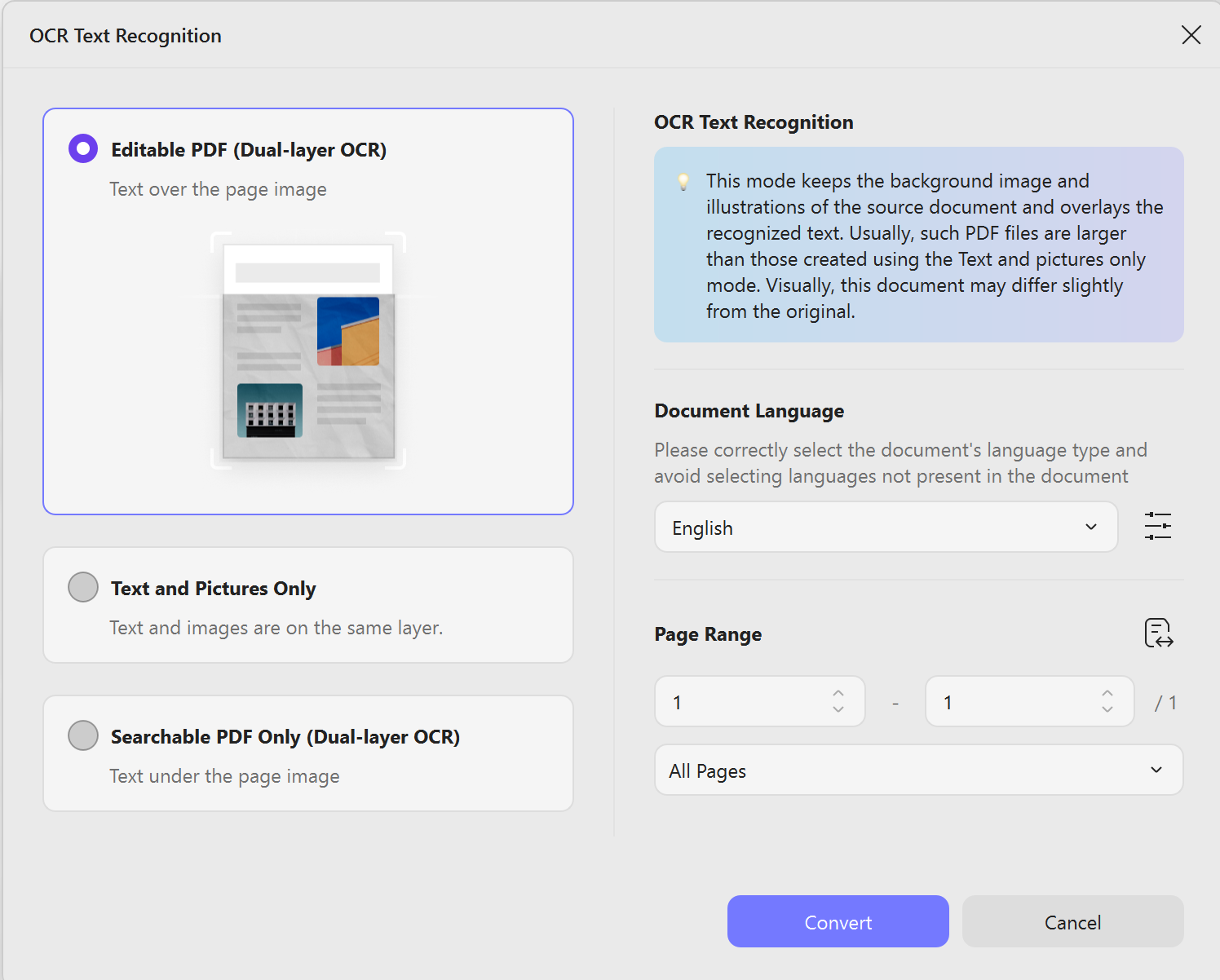
If the virtual printer gave you a PDF that's basically an image, OCR is the fix. UPDF's OCR converts scanned or image-based PDFs into searchable and editable files, with output options that match different needs: an editable PDF if you need to change text, a searchable-only PDF if you just need to find things, or text-and-images if you're extracting content elsewhere.
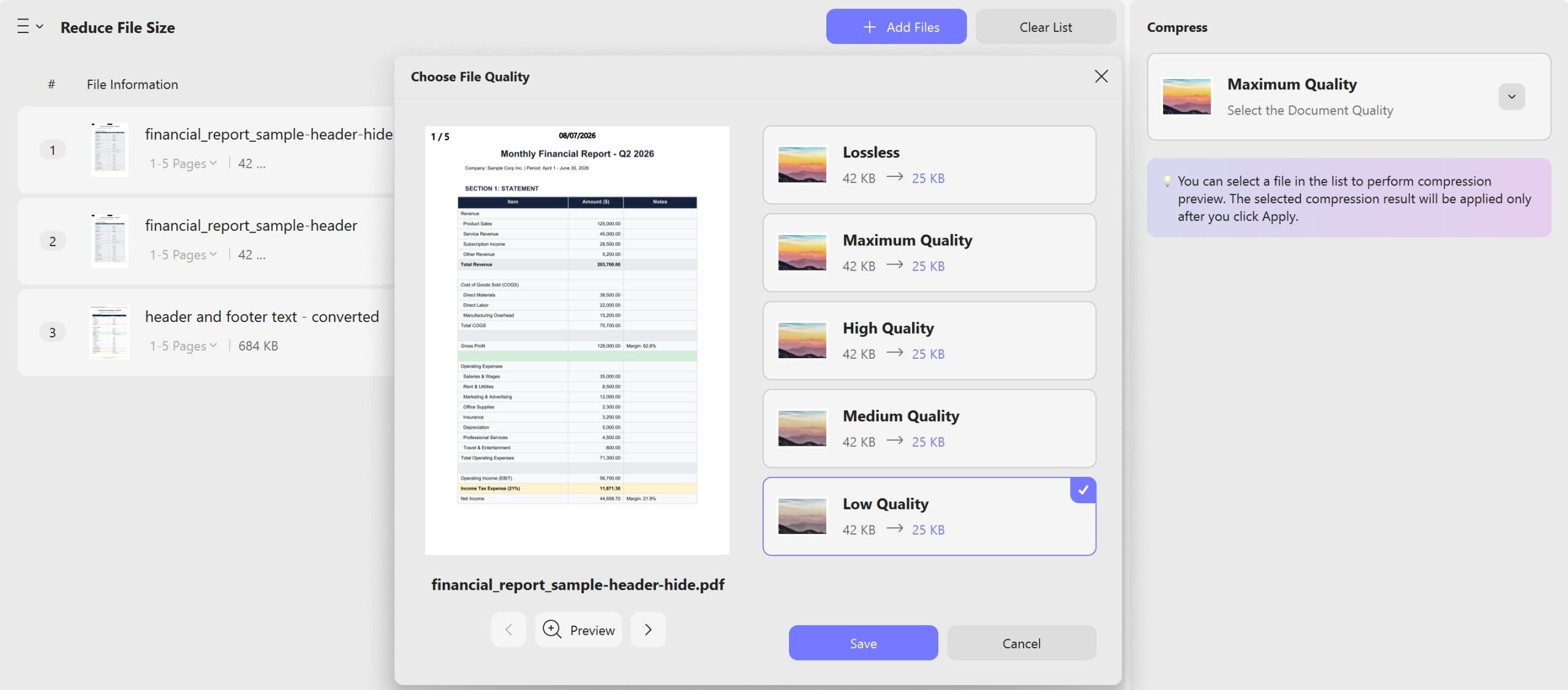
If the file is too heavy to send, compression handles it. PDFs generated from prints and scans are often large. UPDF's compression reduces file size while keeping the document readable — the difference between a file that bounces from an email server and one that goes through.
If you need to know what's inside without reading page by page, AI does the triage. A printed contract, a scanned report, a 60-page PDF generated from a desktop publishing app — UPDF AI can summarize it, generate a mind map, translate sections, and answer questions about the content. The virtual printer got you a file. The AI gets you an understanding of what's in it before you commit to a full read.
Tip: UPDF AI not supported on UPDF 1.0, you can upgrade your system to Windows 10/11 to enjoy the latest UPDF, download via the below link!
Windows • macOS • iOS • Android 100% secure
Best for:
Print to PDF with UPDF: Pros, Cons, and a Warning
Pros of pairing a Windows 7 virtual printer with UPDF:
- Two different jobs handled by two different tools — the virtual printer generates, UPDF makes the result usable
- UPDF runs on Windows 7 in this download link, so you don't need to upgrade the OS to get OCR, editing, compression, and AI processing
- OCR output modes cover real scenarios (edit vs. search vs. extract) instead of forcing one format
Cons you should know:
- UPDF does not replace the virtual printer. On Windows 7, you still need CutePDF, PDF24, Bullzip, doPDF, or a similar tool to produce the PDF from a print dialog. UPDF starts after that step.
- AI features require an internet connection. If you're working fully offline on an old machine, summarization and AI chat won't function.
So it's better to upgrade your system to Windows 10/11, and UPDF has more features and functions on Printing and scanning. Check and download the latest UPDF below.
Windows • macOS • iOS • Android 100% secure
⚠️ Warning: Windows 7 itself has been out of extended support since January 2020. A third-party tool being compatible doesn't change the security posture of the operating system. If this machine handles sensitive documents, the more meaningful fix is an OS upgrade — not a better PDF workflow. UPDF addresses the document problem, not the platform problem.
Final Words
The search print to pdf windows 7 usually ends with "install a virtual printer." That's correct, and it solves the generation problem. But generation is the beginning of a PDF's life, not the end. The file still needs to be searched, edited, compressed, and understood — and on a Windows 7 machine, those jobs are often left to whatever freeware happened to be installed.
A virtual printer gets you the file. UPDF makes the file usable.
Windows • macOS • iOS • Android 100% secure





 Enola Miller
 Enya Moore

 Lizzy Lozano

