 UPDF
UPDF
 UPDF for Windows
 UPDF for Mac
 UPDF for iPhone/iPad
 UPDF for Android
 Nomostar
 UPDF AI Online
 UPDF Sign
 IvyCraft
 Edit PDF
 Annotate PDF
 Create PDF
 PDF Form
 Edit links
 Convert PDF
 OCR
OCR PDF to Word
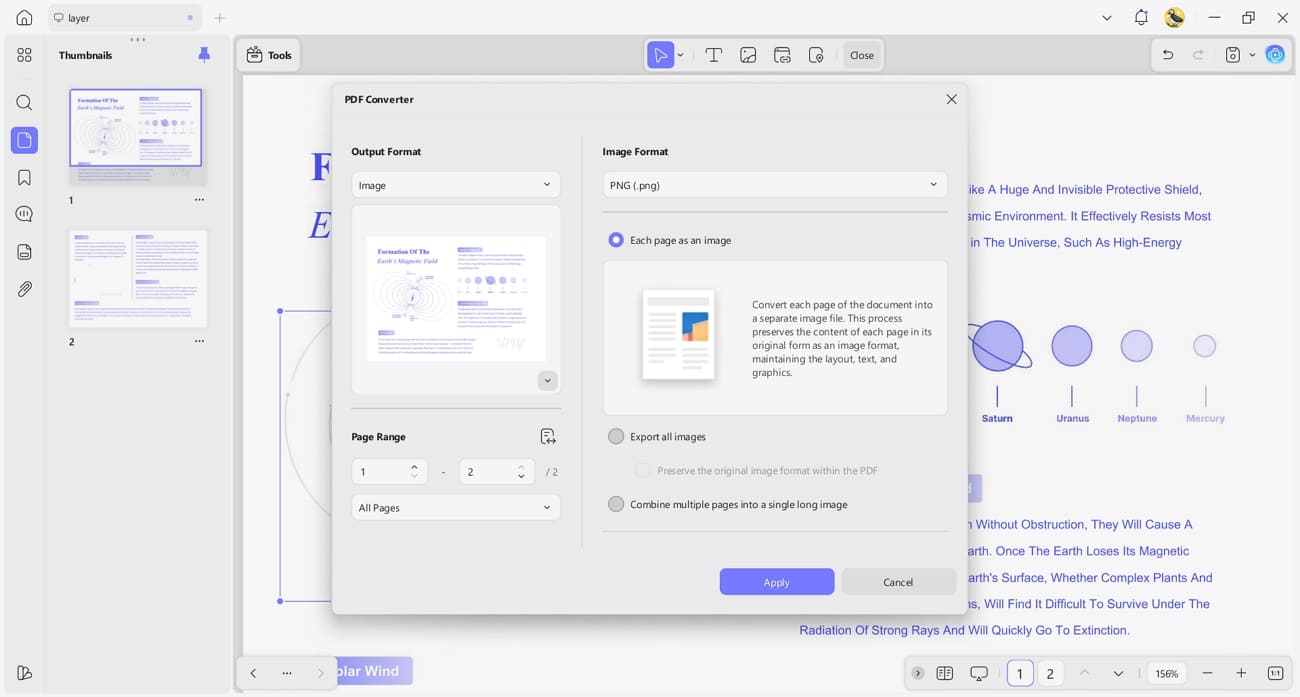
 PDF to Image
 PDF to Excel
 Organize PDF
 Merge PDF
 Split PDF
 Crop PDF
 Rotate PDF
 Protect PDF
 Sign PDF
 Redact PDF
 Sanitize PDF
 Remove Security
 Read PDF
 UPDF Cloud
 Compress PDF
 Print PDF
 Batch Process
 About UPDF AI
 UPDF AI Solutions
 AI User Guide
 FAQ about UPDF AI
 Summarize PDF
 Translate PDF
 Chat with PDF
 Chat with AI
 Chat with image
 PDF to Mind Map
 Explain PDF
 PDF AI Tools
 Image AI Tools
 AI Chat Tools
 AI Writing Tools
 AI Study Tools
 AI Working Tools
 Other AI Tools
 AI Bookmark Generation
 AI Bookmark Summary
 AI Watermark Generation
 AI Background Generation
 AI Sticker Generation
 AI Stamp Generation
 AI Editing Suite
 UPDF Copilot
 AI Page Management
 AI Semantic Search
 PDF to Word
 PDF to Excel
 PDF to PowerPoint
 Enterprise Solution
 Enterprise Sign
 Enterprise AI
 Enterprise Plan
 Enterprise User Guide
 Enterprise Webinar
 IT
IT Education
 Construction
 Financial Service
 Healthcare
 Insurance
 Legal
Legal Manufacturing
 Government
 Researchers & PhDs
 Solopreneurs & Freelancers
 Lawyers & Legal Professionals
 Real Estate Agents & Brokers
 Education Solution
 Customer Stories
 User Guide
 UPDF Tricks
 FAQs
FAQs UPDF Reviews
 Download Center
 Blog
Blog Newsroom
 Tech Spec
 Updates
 UPDF vs. Adobe Acrobat
 UPDF vs. Foxit
 UPDF vs. PDF Expert

The first time I encountered the complicated PDF files, I noticed how hidden PDF layers can create unexpected problems. Layers sometimes interfere with printing, overlap text, or contain content that shouldn’t be visible, making editing more complicated than necessary. Although layers are supposed to assist in organizing documents, they tend to confuse users and slow down the work processes.
In this article, I’ll explain how layer management works and how I remove layer from PDF files using common tools. As a bonus, I’ll also share how UPDF improves my workflow and makes working with PDFs much easier. Interested readers can click the button below to download it for free. UPDF is a powerful all-in-one PDF solution that stands alongside Adobe Acrobat.
Windows • macOS • iOS • Android 100% secure
Part 1. Why Users Want to Remove Layers from PDFs?
Layers in PDFs can create issues such as printing problems, hidden content, and overly complex files. Removing layers simplifies documents, protects sensitive information, and makes them compatible across all devices. Now, I’ll explore the main reasons users choose to delete layers in PDF files.
- Fix Printing Issues
PDF layers can cause text or images to print incorrectly, disappear, or overlap in strange ways. Removal of extra layers helps every visible element print clearly and match the on‑screen layout.
- Remove Hidden Content
Some layers contain hidden text or graphics that specialized tools or viewers can reveal. Deleting these layers keeps draft elements and confidential material from appearing to unintended readers.
- Make Files Simpler
Too many layers can make a PDF file larger, slower, and harder to handle reliably. Fewer layers create a lighter document that opens faster and feels easier to manage.
- Prevent Accidental Exposure
Layers may store private notes, internal comments, or sensitive markings not meant for general viewers. Removing such layers reduces the risk of accidentally sharing confidential information.
- Make PDFs Compatible Everywhere
Some PDF viewers and printers struggle with layered documents and may display or print them incorrectly. Files without layers usually behave more consistently and render correctly across devices and platforms.

Part 2. How To Remove Layers from PDFs?
PDF layers sometimes create problems that I need to remove to simplify or secure my documents. I usually prefer tools that make the process quick, safe, and reliable without affecting any other content. Next, I’ll share multiple methods to delete PDF layers on different devices.
Method 1. Using Adobe Acrobat
I usually use Adobe Acrobat when handling complex PDF layers, as it offers reliable features. It provides a well-defined interface that simplifies viewing and organizing layers. Now, follow the steps below with me to learn how you can delete layers in PDF files using Adobe Acrobat:
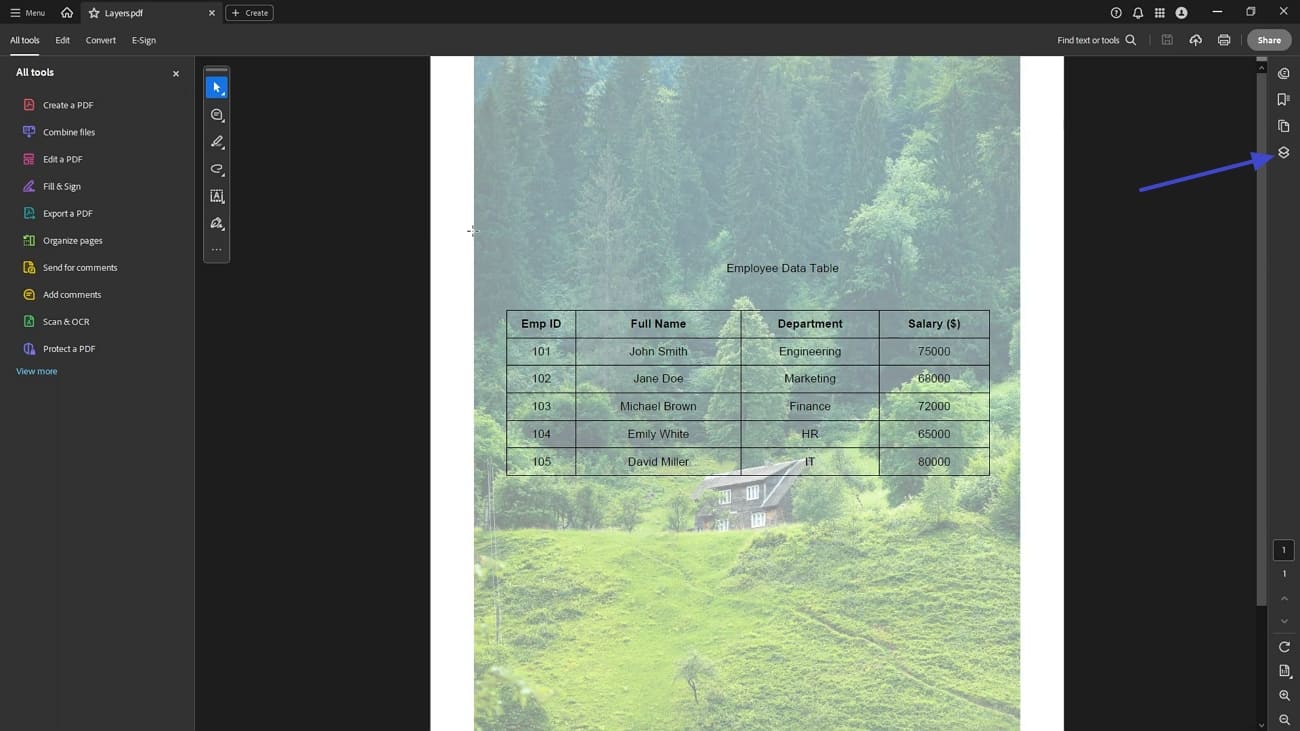
Step 1. Once you open the layered PDF in Adobe Acrobat, press the “Layers” option in the right side panel to access the “Layer Management” interface.
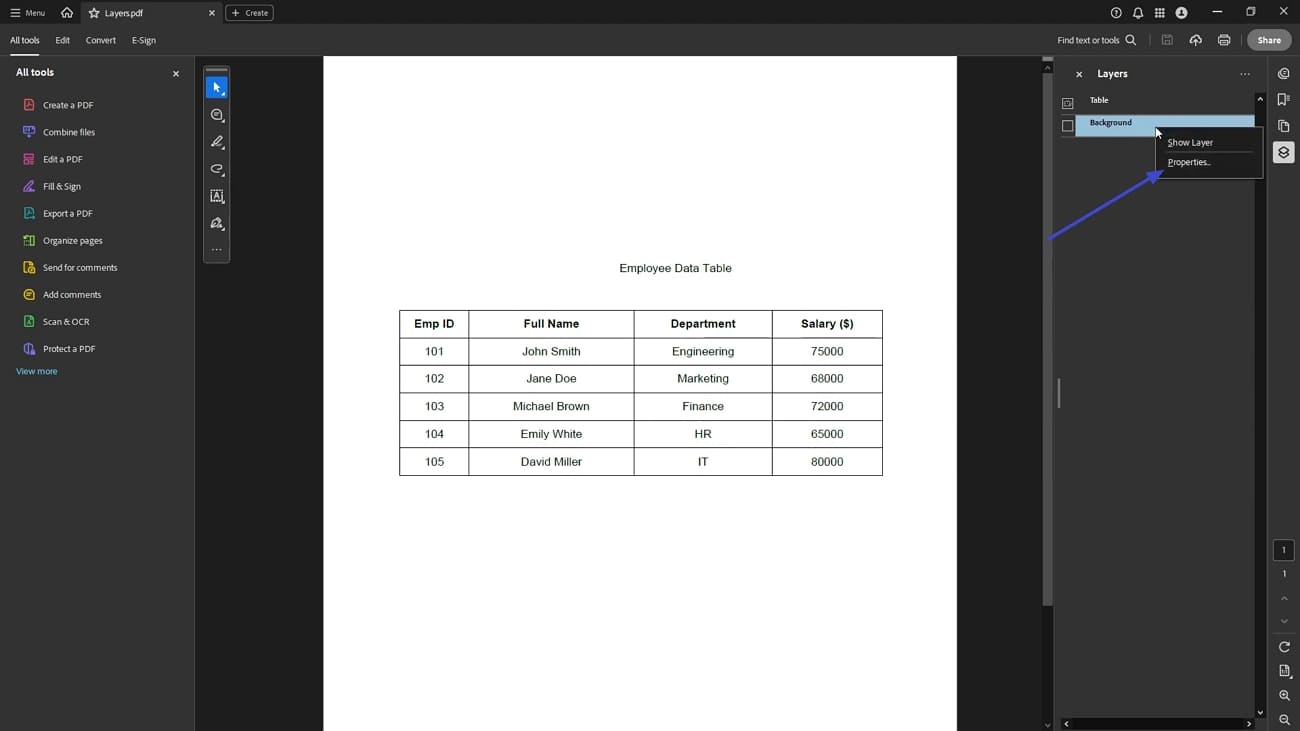
Step 2. Navigate to the layers and right-click the layers to view a context menu. Afterwards, press the “Properties” option to open the properties context window.
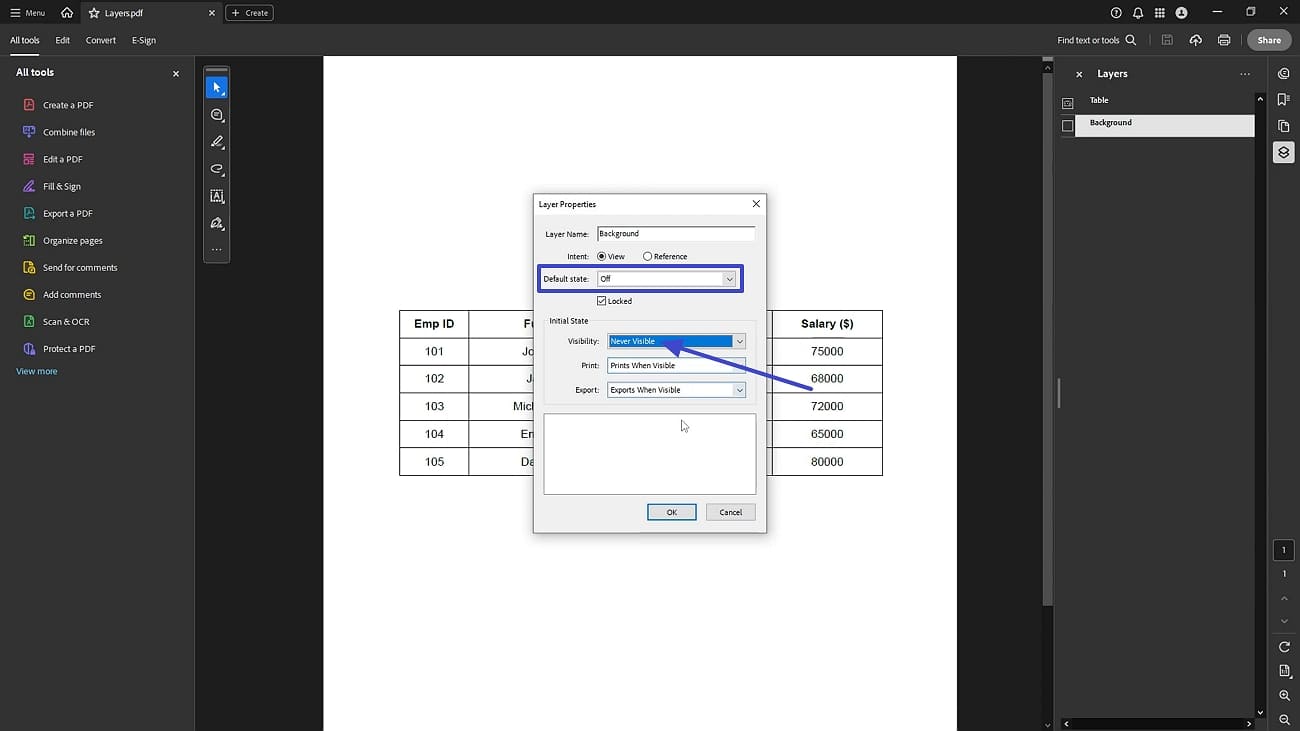
Step 3. In the “Properties” window, switch the “Default State” to off and choose the “Never Visible” option in the “Visibility” setting to remove the layered content from the PDF.
Method 2. Using an Online Tool
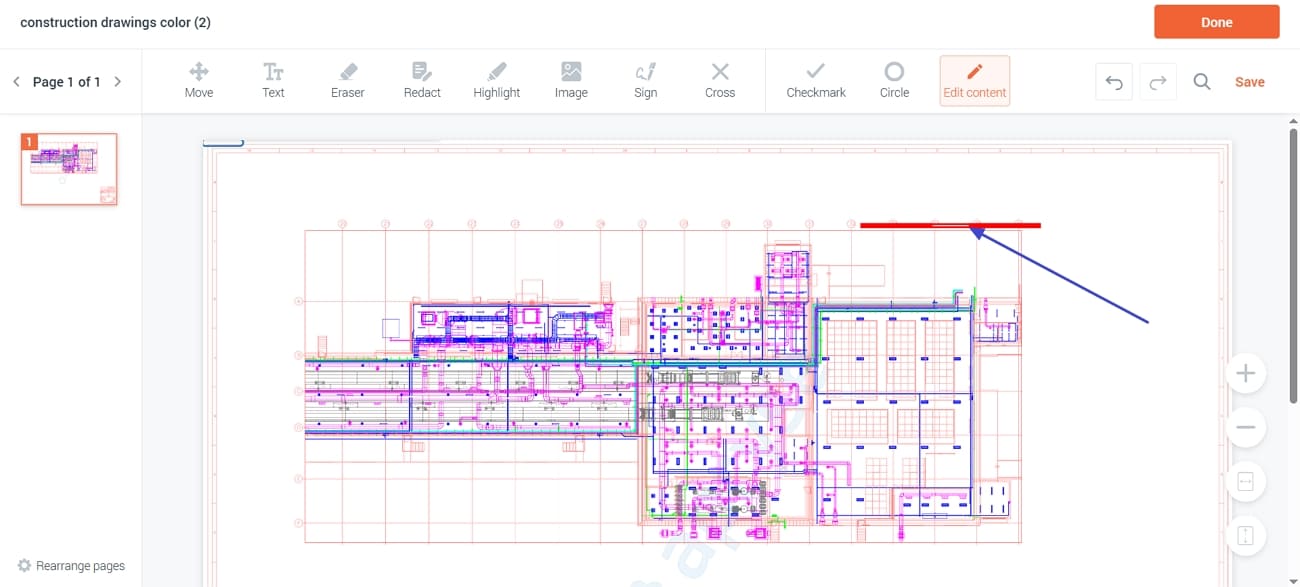
When I don’t have access to desktop software, I often use online tools to handle PDF layers. They let me manage documents quickly without installing anything on my computer. Adhere to the steps below to learn how to remove layer remove layer from PDF files with PDFQ:
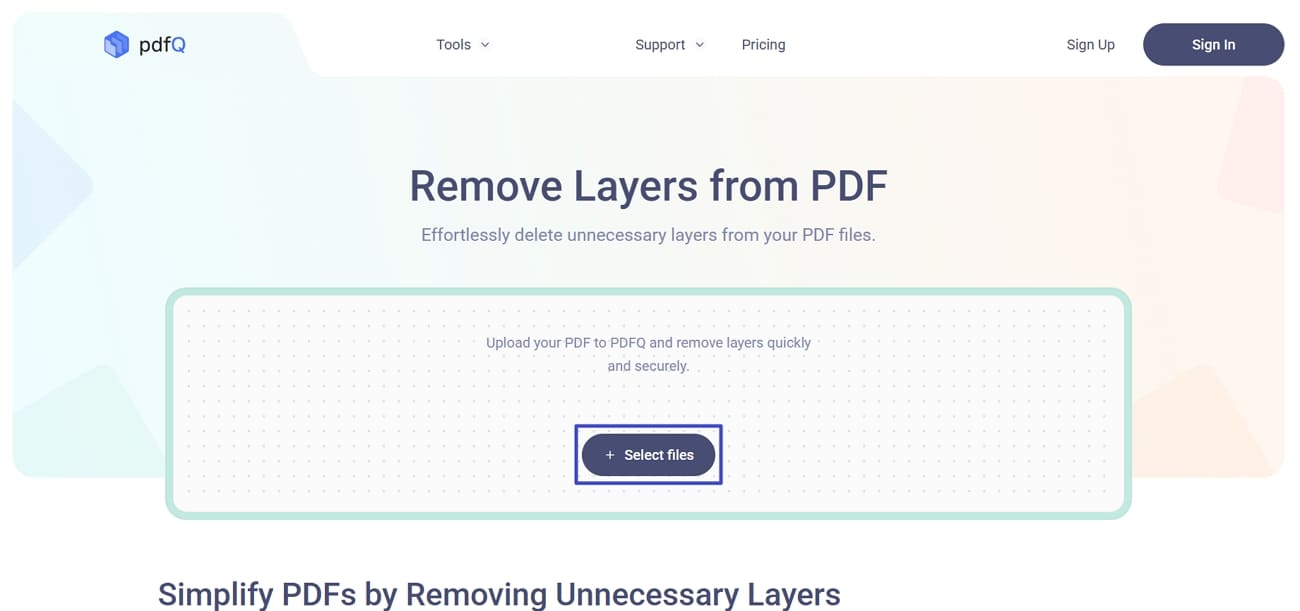
Step 1. Once reach the main interface, press the “Select Files” option to upload the layered PDF file.
Step 2. Next, choose a layer that you want to see in your PDF and press the “Delete” key on your keyboard to delete the unnecessary layer.
Method 3. Using Mobile App
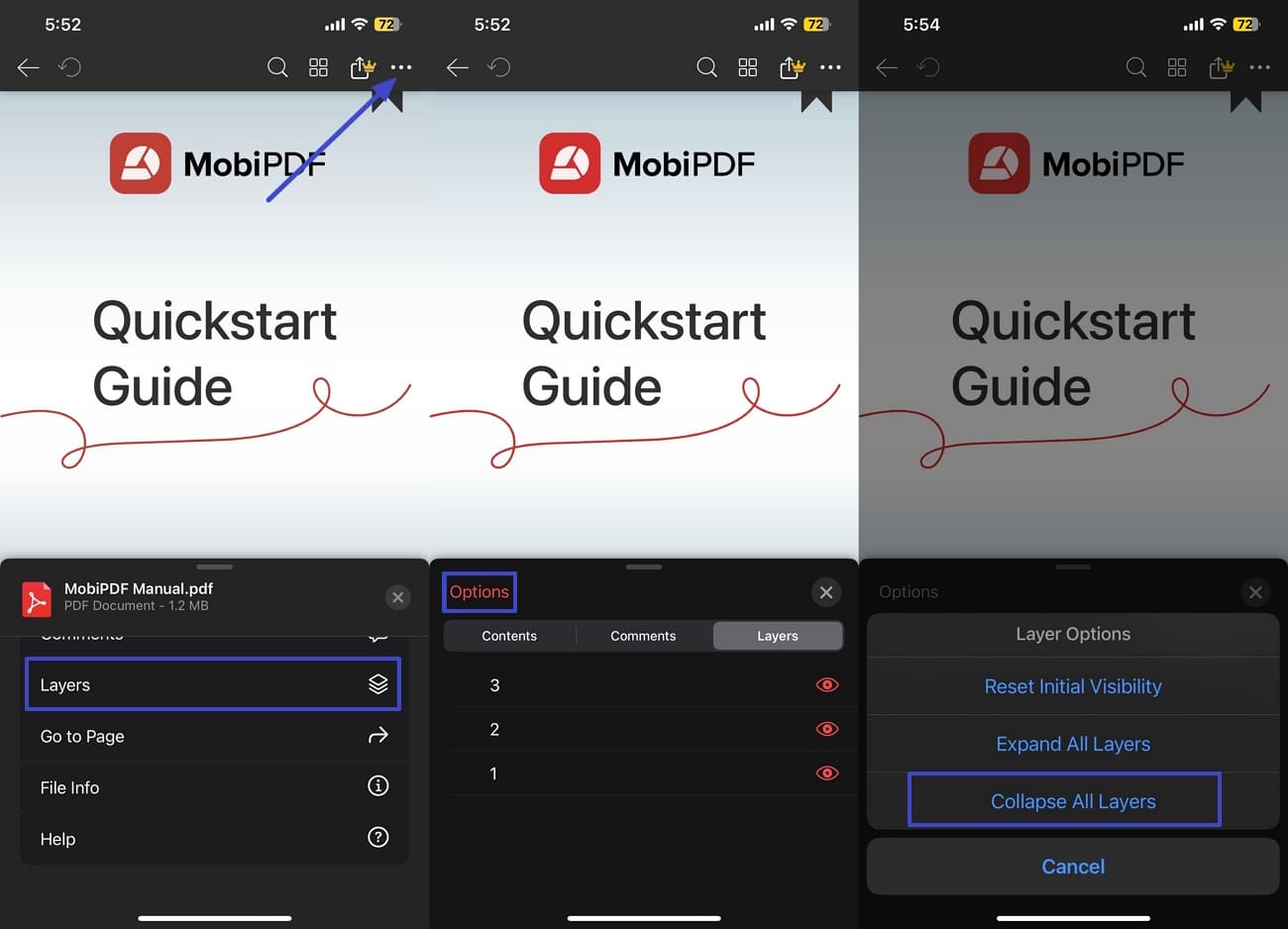
After removing layers from PDF files using online tools and desktop applications, I explored mobile apps next. I found a mobile app to manage PDF layers directly from my phone. This lets me view and adjust documents anytime, anywhere. Now, follow the guide below to see how I used to delete layers from PDF files via MobiPDF:
Instructions. First, import your PDF into MobiPDF and tap on the “Three-Dots” icon in the top right corner. Next, use the “Layers” option to proceed further. As you proceed, use the “Options” option to access the layer settings. Afterwards, tap on the “Collapse all Layers” to hide all layer details.
Part 3. What do I do When I Don’t Need to Manage Layers?
Many PDFs I work with don’t require complex layer management, and I needed a simpler way to handle them. This is where UPDF becomes a useful companion. UPDF is a comprehensive PDF solution that offers many of the features users rely on in Adobe Acrobat. With UPDF, I can focus on the overall document without worrying about individual layers.
Moreover, using UPDF in this way improves my workflow by letting me manage PDFs more quickly and consistently. Let’s explore examples of how I simplify and clean up PDF content without directly dealing with layers.
Windows • macOS • iOS • Android 100% secure
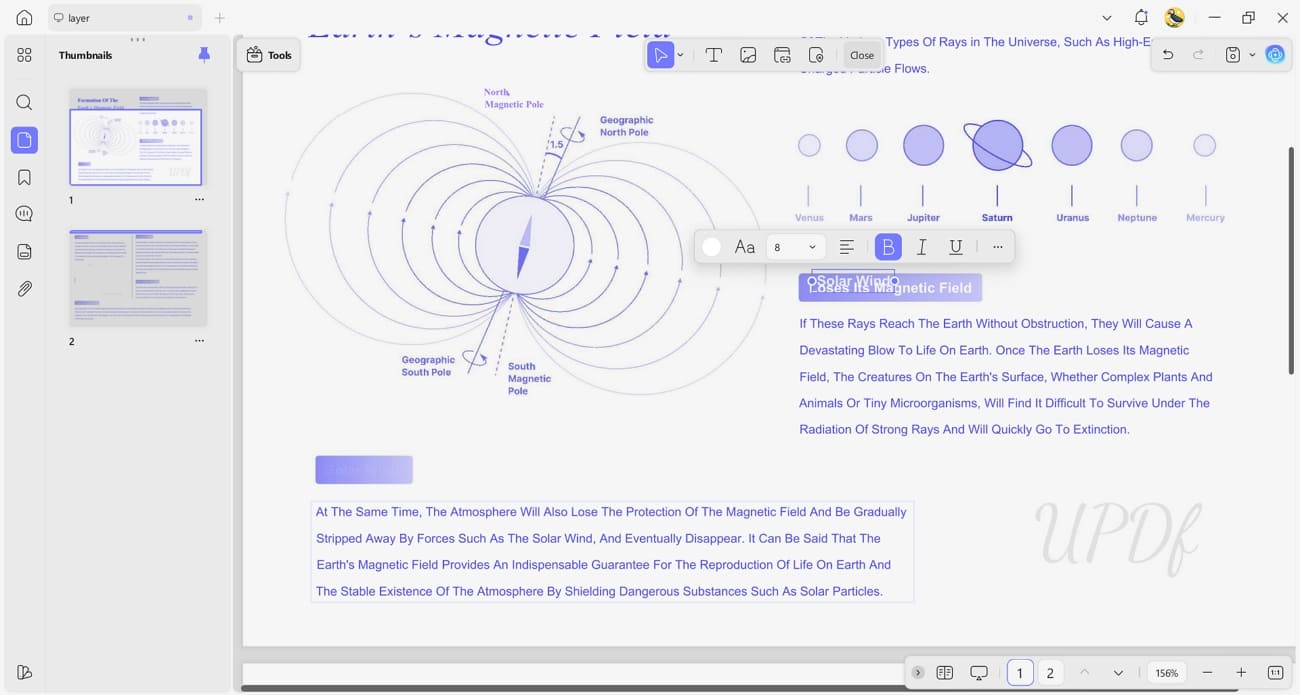
- Example 1: If I’m dealing with overlapping text or characters, I just select the unwanted text and delete it with one click. No layer panel needed.
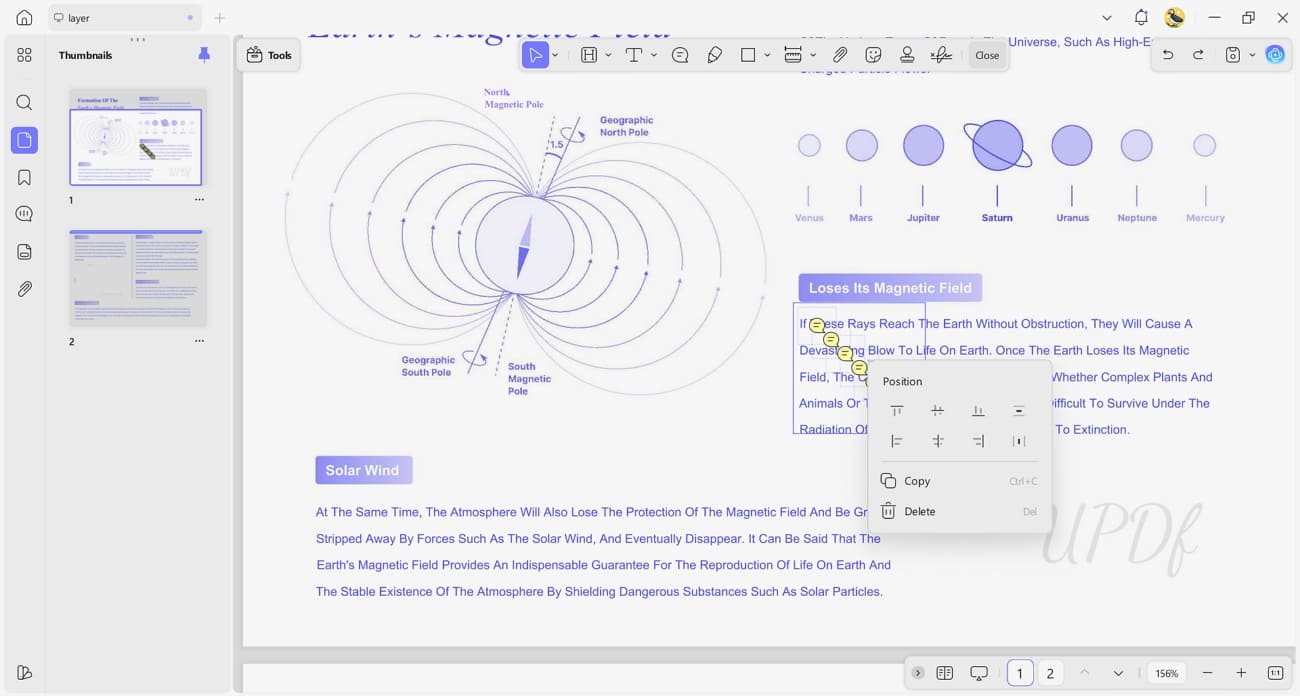
- Example 2: For annotations, I use CTRL + A or right-click and choose “Select All,” then delete them in bulk. This removes comments and markups without affecting the original text or images.
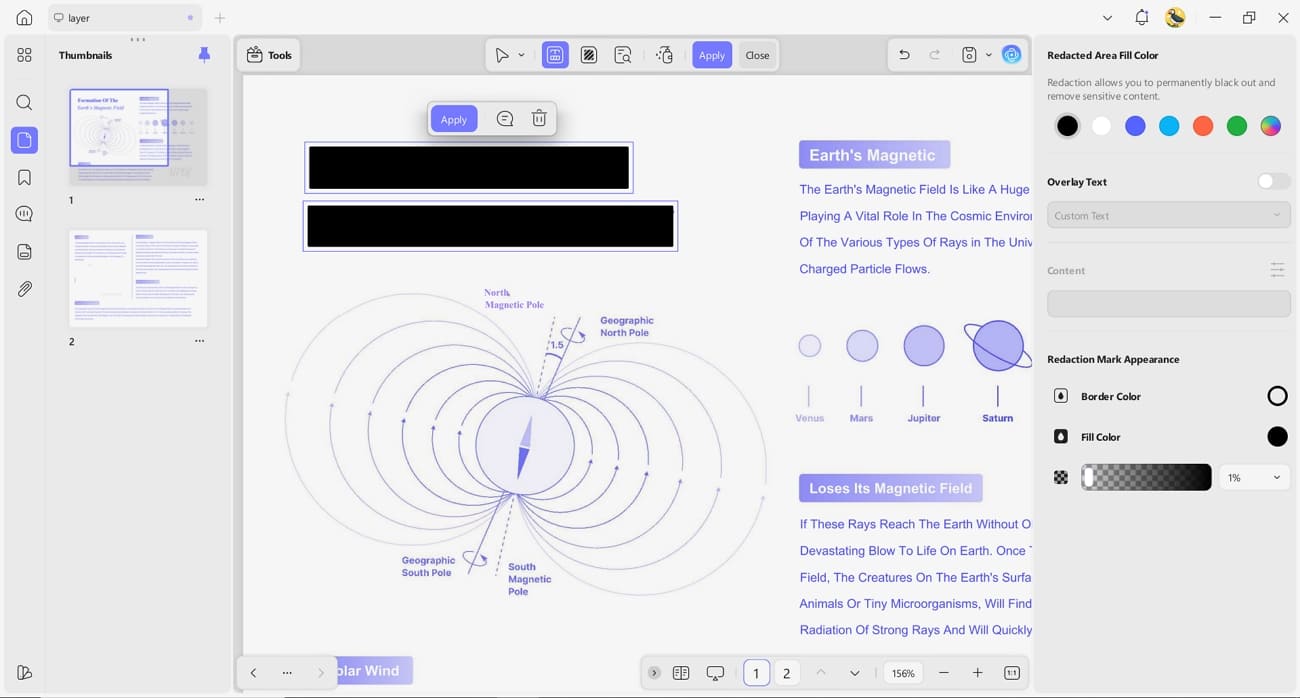
- Example 3: When handling sensitive information, I rely on UPDF’s redact text or page feature. This permanently removes content rather than hiding it, which is safer than attempting to remove a layer.
Windows • macOS • iOS • Android 100% secure
Key Features of UPDF
Having explored how UPDF helps me delete PDF layers, let’s examine the features that set it apart from other PDF tools.
1. PDF Editing: With the editing feature, I can change text easily and adjust fonts or layouts for better readability.
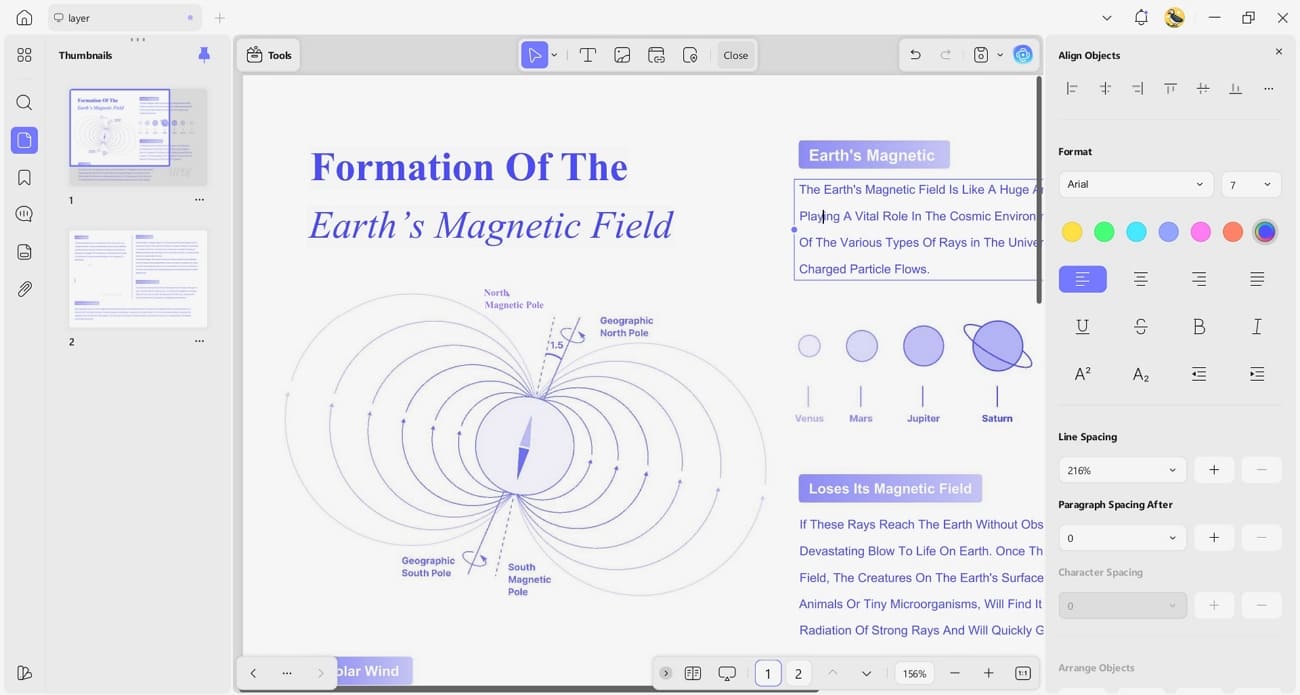
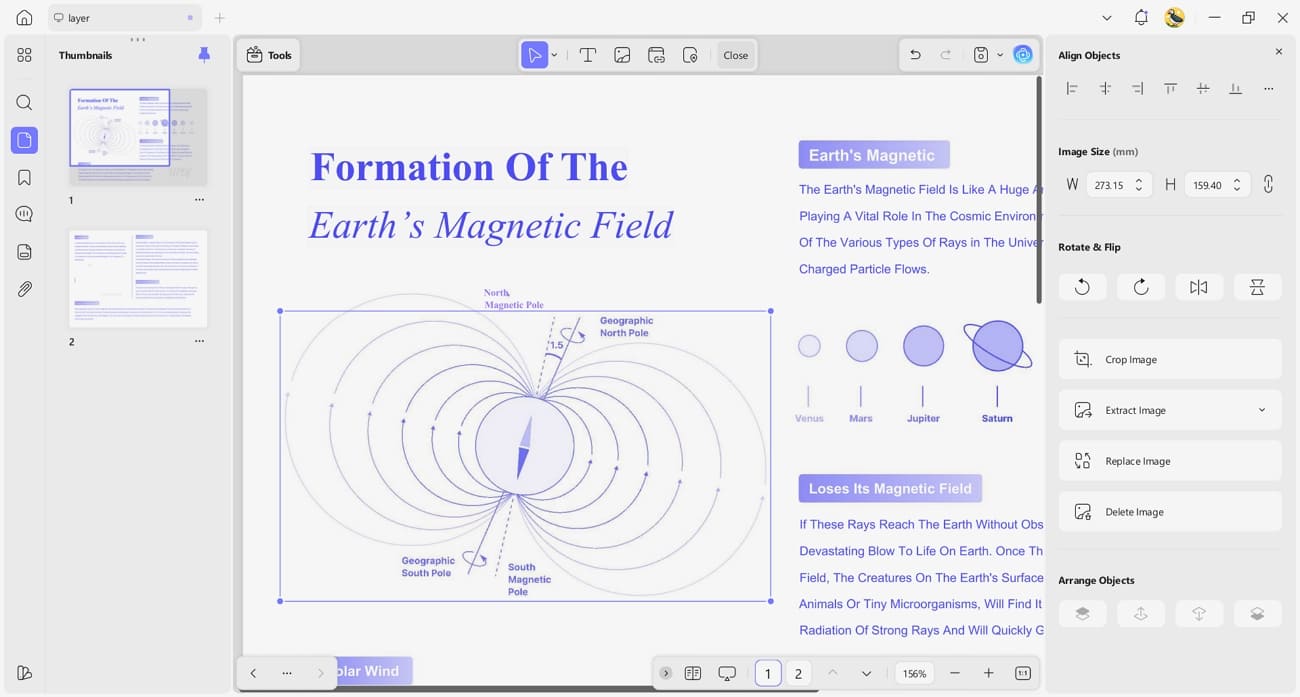
I also resize or crop images and graphics, so each page looks more professional overall.
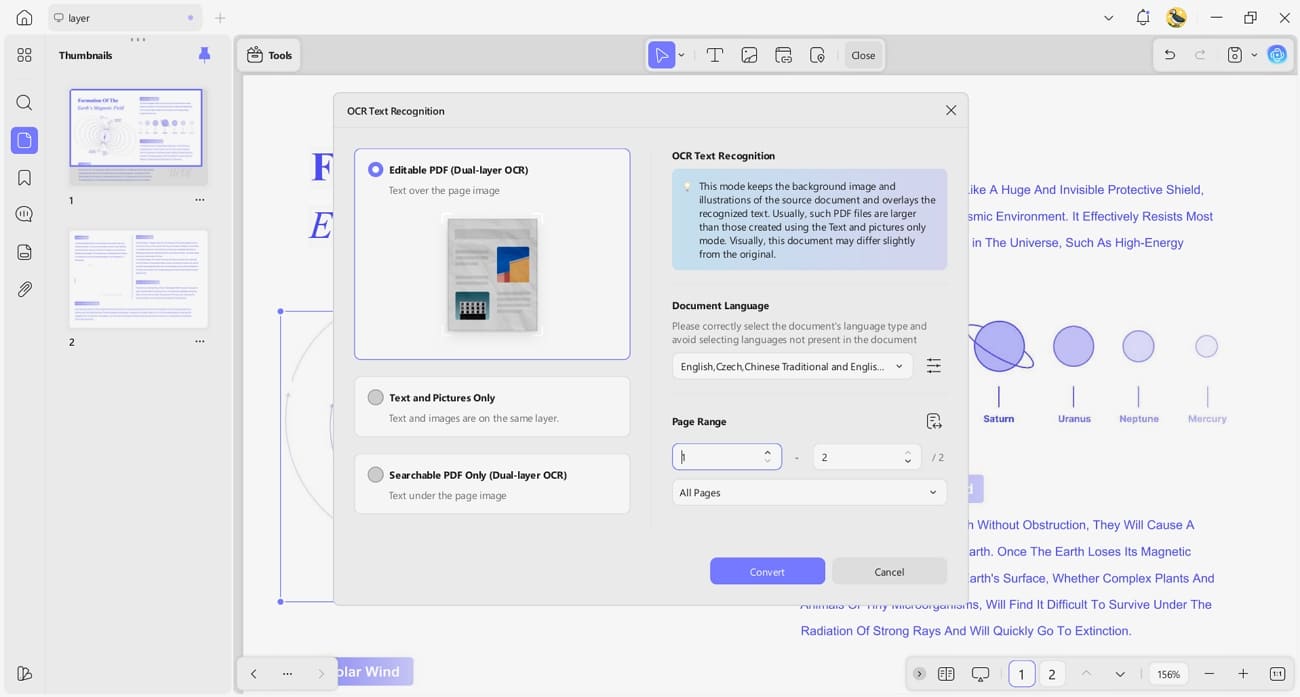
2. OCR PDFs: Through the OCR option, I turn scanned or image‑based PDFs into selectable and editable text. I rely on multiple language modes to keep complex pages accurate while important details remain clear.
3. Convert PDFs: Using the convert tools, I change PDF documents into Word, Excel, PowerPoint, and other common formats. I usually see layouts stay very close to the original, and I can return files to PDF easily.
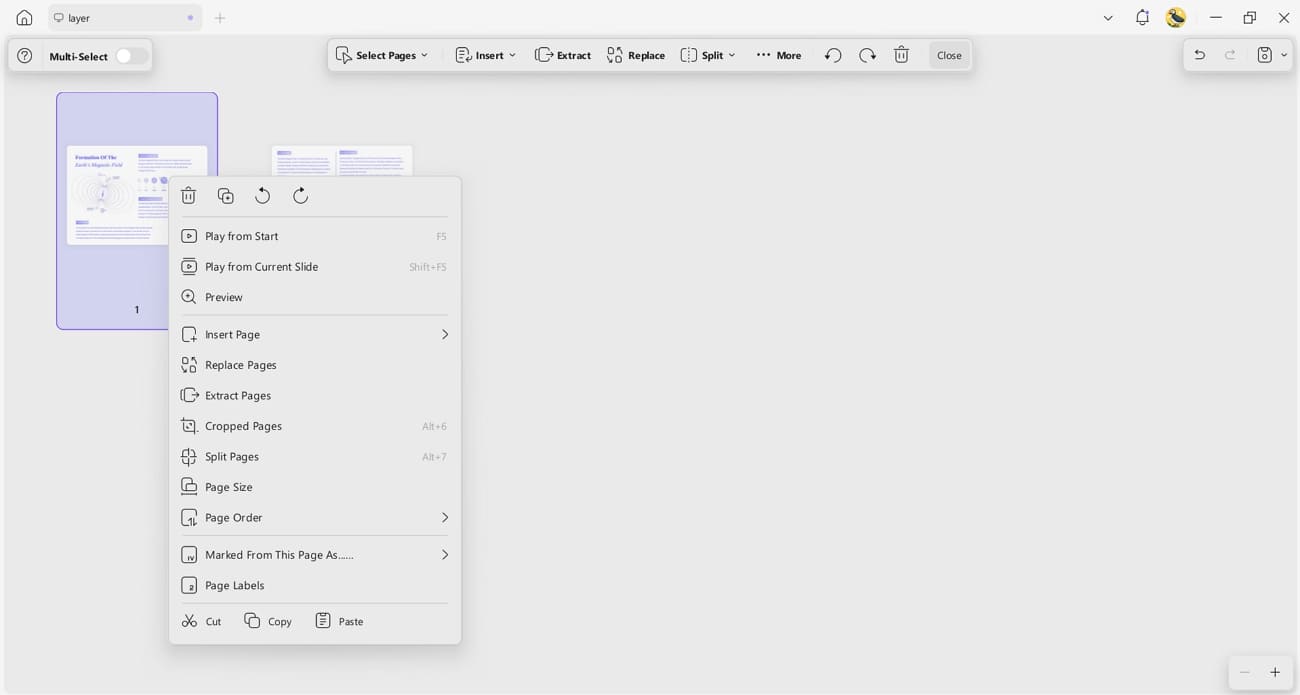
4. Organize PDFs: In the “Organize” section, pages can be merged, split, reordered, or removed to keep documents focused and tidy. Additional tools for headers, footers, and watermarks keep files clearly labeled and consistently structured.
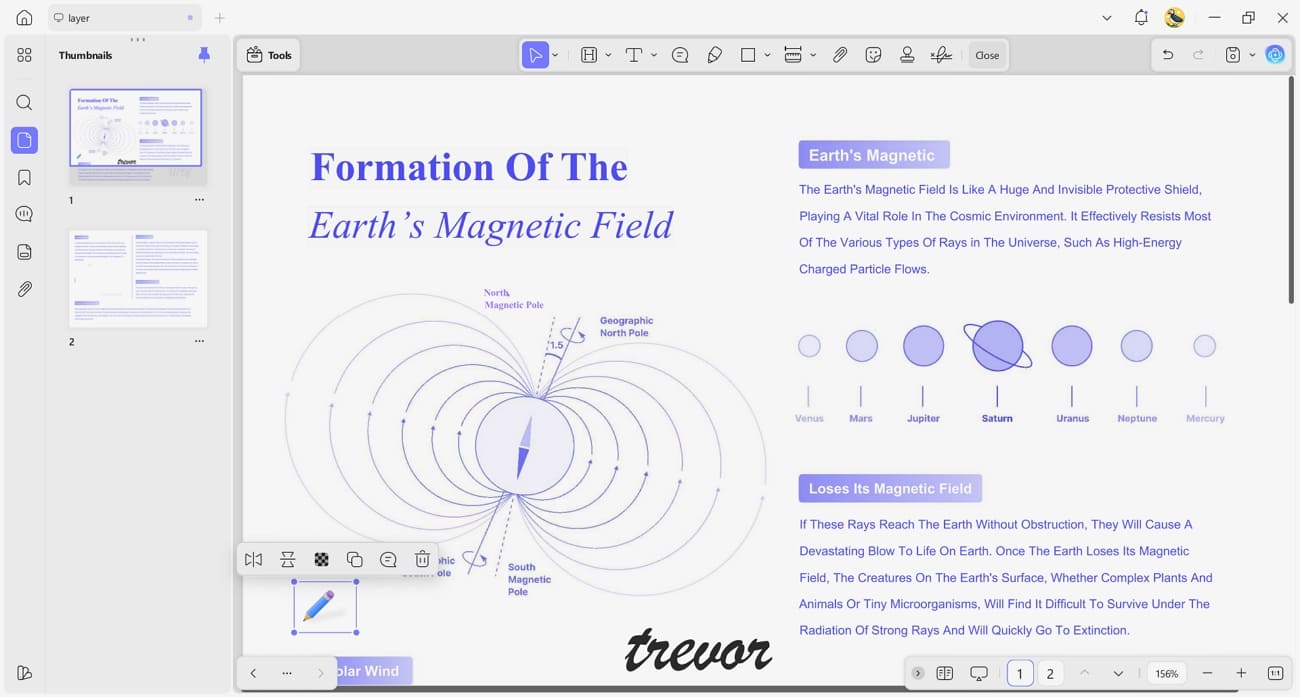
5. Annotate PDFs: With annotation tools, highlights, comments, shapes, and digital signatures appear anywhere directly on pages.
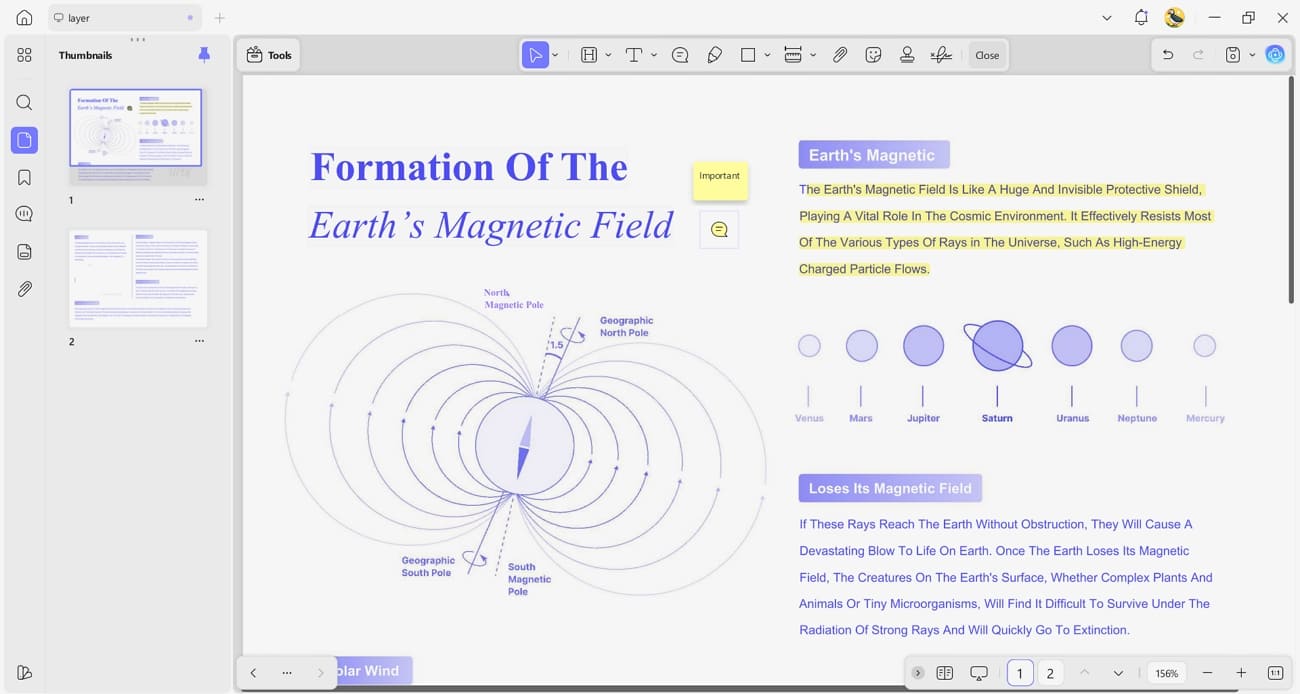
I find these markings help my team share feedback clearly while every note remains visible.
6. Device Flexibility: Across Windows, macOS, iOS, and Android, I open and edit the same files comfortably. I move work seamlessly from one device to another, so my projects never get stuck.
Compared to Adobe Acrobat, UPDF provides a more cost-effective solution, that make it ideal for budget-conscious users. With a one-time purchase, I can access UPDF on any device without worrying about recurring subscription fees. Check out the UPDF pricing page to see available plans and options.
Windows • macOS • iOS • Android 100% secure
Conclusion
In conclusion, this article explained how to remove layer from PDF files using desktop, online, and mobile tools. While traditional methods work, managing layers can still be complex and time-consuming. If you want a faster way to delete layers in PDF files, organize content, and work across all devices, UPDF is the ideal solution.
Windows • macOS • iOS • Android 100% secure






 Enrica Taylor

 Engelbert White
 Enola Miller
 Lizzy Lozano
Does anyone know of a PDF editor that can clear out such things without destroying the rest, or will I have to request it from the company that created it, or else make my own?