 UPDF
UPDF
 UPDF for Windows
 UPDF for Mac
 UPDF for iPhone/iPad
 UPDF for Android
 Nomostar
 UPDF AI Online
 UPDF Sign
 IvyCraft
 Edit PDF
 Annotate PDF
 Create PDF
 PDF Form
 Edit links
 Convert PDF
 OCR
OCR PDF to Word
 PDF to Image
 PDF to Excel
 Organize PDF
 Merge PDF
 Split PDF
 Crop PDF
 Rotate PDF
 Protect PDF
 Sign PDF
 Redact PDF
 Sanitize PDF
 Remove Security
 Read PDF
 UPDF Cloud
 Compress PDF
 Print PDF
 Batch Process
 About UPDF AI
 UPDF AI Solutions
 AI User Guide
 FAQ about UPDF AI
 Summarize PDF
 Translate PDF
 Chat with PDF
 Chat with AI
 Chat with image
 PDF to Mind Map
 Explain PDF
 PDF AI Tools
 Image AI Tools
 AI Chat Tools
 AI Writing Tools
 AI Study Tools
 AI Working Tools
 Other AI Tools
 AI Bookmark Generation
 AI Bookmark Summary
 AI Watermark Generation
 AI Background Generation
 AI Sticker Generation
 AI Stamp Generation
 AI Editing Suite
 UPDF Copilot
 AI Page Management
 AI Semantic Search
 PDF to Word
 PDF to Excel
 PDF to PowerPoint
 Enterprise Solution
 Enterprise Sign
 Enterprise AI
 Enterprise Plan
 Enterprise User Guide
 Enterprise Webinar
 Banking
 Healthcare
 Insurance
 Legal
Legal Manufacturing
 Government
 Researchers & PhDs
 Solopreneurs & Freelancers
 Lawyers & Legal Professionals
 Real Estate Agents & Brokers
 Education Solution
 Customer Stories
 User Guide
 UPDF Tricks
 FAQs
FAQs UPDF Reviews
 Download Center
 Blog
Blog Newsroom
 Tech Spec
 Updates
 UPDF vs. Adobe Acrobat
 UPDF vs. Foxit
 UPDF vs. PDF Expert

Quick Answer:
Flattening is not one universal process. A filled form may only need its fields locked into the page, while a layered design file may need print-production flattening. Converting every page to an image goes further, but removes searchable text and accessibility. The right PDF flattener preserves everything the recipient still needs and makes only the finished elements static.
Keep the editable original before starting. Most flattening operations cannot be cleanly reversed.
Part 1. Which PDF Flattener Should You Use?
| Your PDF flattening goal | Best method or tool | Result | Main limitation |
|---|---|---|---|
| Flatten forms, annotations, watermarks, or cropped areas selectively | UPDF | Selected elements become static while normal text remains searchable | Desktop workflow required |
| Flatten annotations or form fields on selected pages | Foxit PDF Editor | Chosen page content becomes part of the PDF page | Commands vary by version and platform |
| Flatten an entire file with one dedicated command | PDF Pro | Layers and interactive content are merged into a new file | Less content-category control |
| Flatten PDF layers or transparency for professional printing | Adobe Acrobat Pro | Visible layers or transparent artwork are consolidated | More specialized than ordinary form flattening |
| Flatten form fields or all content without installing software | PDFgear | Form fields become static, or complete pages become image-based | Full flattening removes searchable text |
| Create a quick static copy using built-in system tools | Print to PDF | Visible print output becomes a new PDF | Links, tags, layers, or signature validation may be lost |
What Does It Mean to Flatten a PDF?
A PDF can contain more than visible text and images. Form fields, checkboxes, comments, stamps, highlights, watermarks, optional-content layers, and transparency may sit above or alongside the base page.
A PDF flattener merges some or all of those elements into a fixed page appearance. For example, before flattening, a recipient can click a completed form field and replace the answer. After the form field is flattened, the answer remains visible but the original field no longer accepts ordinary input.
PDF flattening is commonly used to:
- Preserve completed forms before submission
- Keep annotations and stamps visible across PDF readers
- Prepare layered or transparent artwork for printing
- Prevent accidental changes to final invoices, contracts, and proofs
- Make watermarks or cropped areas part of the saved page
Flattening does not automatically encrypt a file or permanently remove confidential information. A capable editor may still add new content or alter elements that were not flattened. Use PDF password protection for access restrictions and a proper PDF redaction tool for permanent data removal.
Method 1: Flatten a PDF Selectively with UPDF
Steps to Flatten Your PDF with UPDF:
To flatten your PDF, start by downloading and installing the UPDF app on your device. Here's how to flatten a PDF:
Windows • macOS • iOS • Android 100% secure
Step 1. Open the UPDF app and click on "Open File" to upload the PDF you want to flatten.
Step 2. Once the document is open, click on "Arrow Down" in the top menu bar.
Step 3. Select "Save as Flatten."
Step 4. A pop-up window will appear, giving you several options: "Flatten Annotation and Forms," "Flatten Watermarks," and "Flatten Cropped Pages."
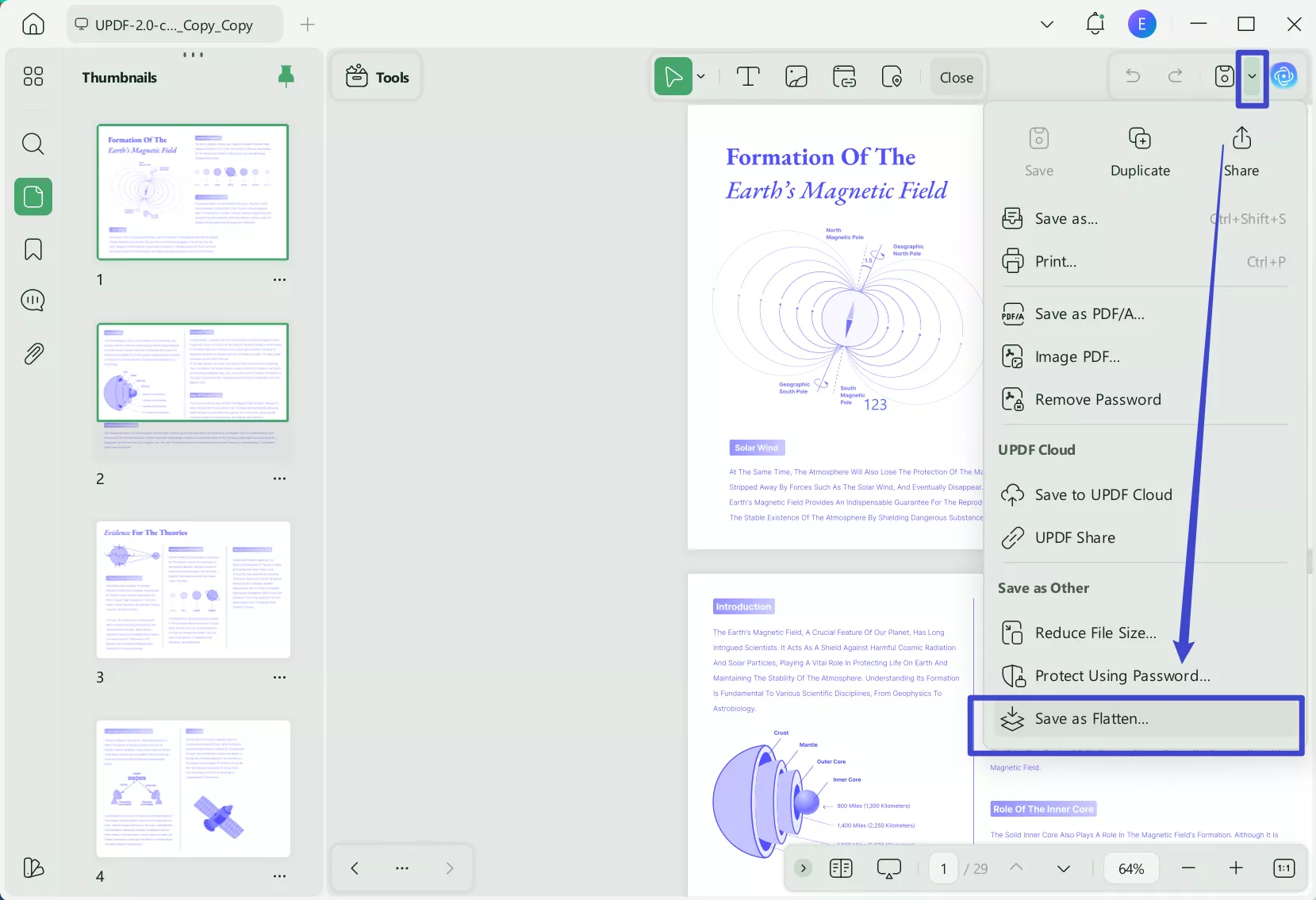
Step 5. Choose the flattening option that best suits your needs and click "Save As."
Step 6. A new PDF will be created with the selected elements flattened.
By flattening the PDF with UPDF, you ensure that your file remains secure, consistent, and ready for sharing without the risk of edits. Download UPDF today to get started!
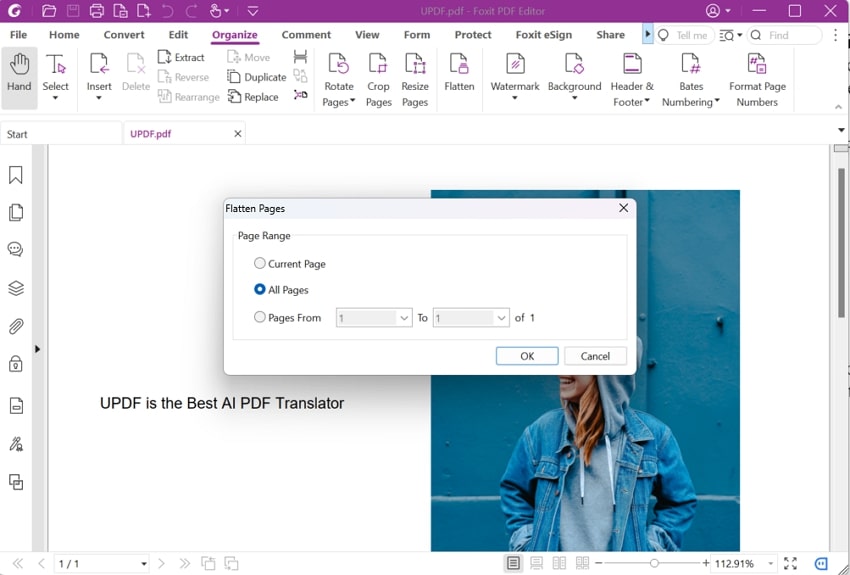
Method 2: Flatten Selected PDF Pages with Foxit PDF Editor
Using this PDF flattener, users can flatten their PDF pages easily. This tool offers you the option to flatten the current page contents, all page's contents, or select a range. So, whether you have annotations, charts, or shapes inserted in your PDF, no one will be able to delete or change them.
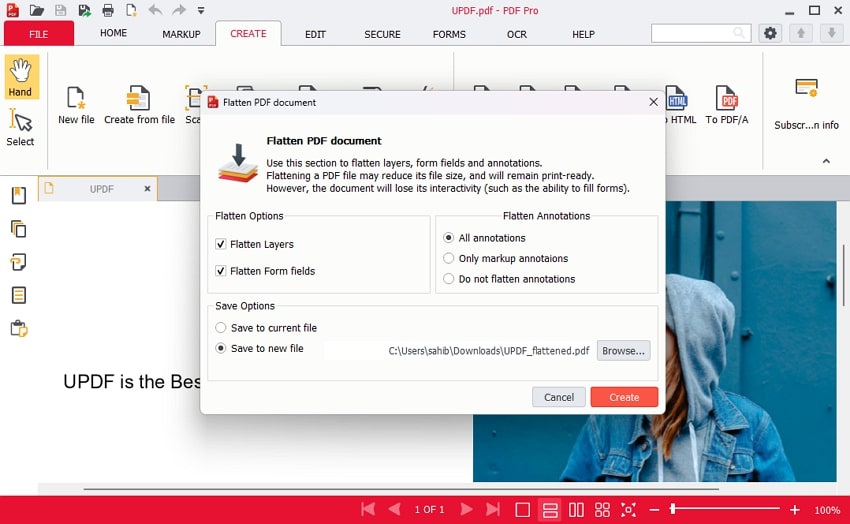
Method 3: Flatten an Entire PDF with PDF Pro
Using a PDF flattener tool can resolve many issues concerning the security of your PDFs. For that, PDF Pro offers the feature to flatten a PDF smoothly. This tool can flatten the layers and form fields within your PDFs. Also, you get the two options to flatten the annotations within your PDFs. These options include all or only flatten markup annotation.
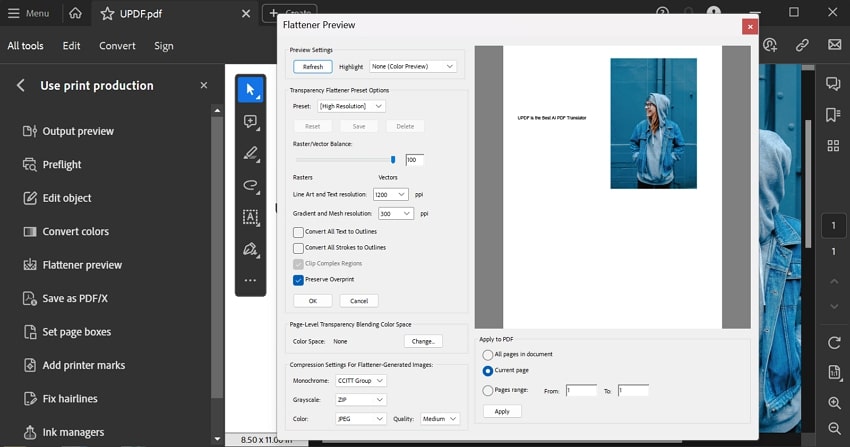
Method 4: Flatten Layers or Transparency with Adobe Acrobat Pro
The most widely used tool, Adobe Acrobat, is another PDF flattened on our list. To flatten a PDF, users can use the transparency flattener preset options and set their PDFs to high, medium, or low resolutions. You can even use the compression settings for images generated by flattening PDFs. After making the necessary changes, you can apply those changes to current pages or all pages within the PDF.
However, from the screenshot below, you will find that the user interface is very complex and you will be very confused about what you should do.
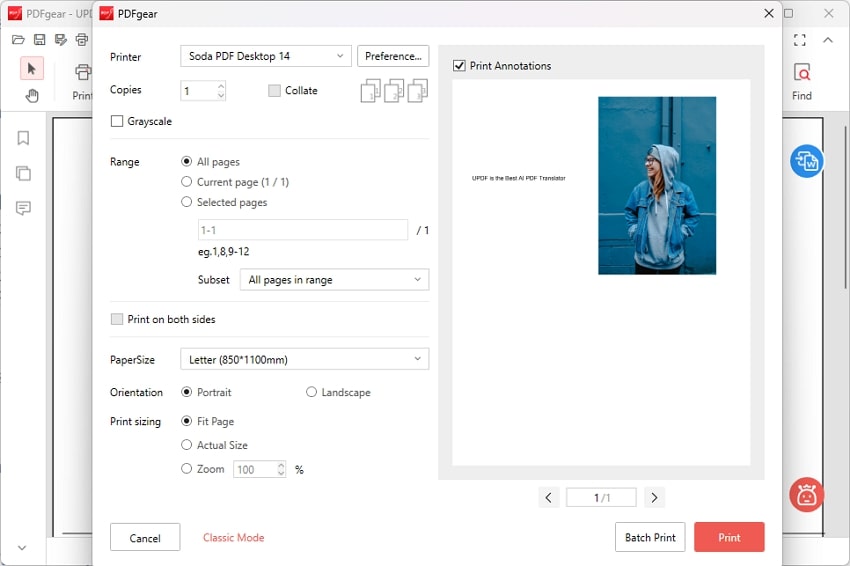
Method 5: Flatten a PDF Online for Free with PDFgear
Using the print feature of this PDF flattener, users can flatten their PDFs and avoid making any unnecessary changes to their PDFs. You can customize the print sizing suitable for your PDFs and even set the orientation accordingly. Also, choose the page ranges to select all, current, or specific pages and apply the PDF flattening changes. Then, you choose various printing options and print or save your PDF file.
If the file needs editing before flattening, a desktop workflow keeps the correction and finalization steps together. Download UPDF for free to edit the document and create a selectively flattened copy—installation is free, and Pro removes the trial watermark from exported files.
Method 6: Flatten a PDF with Print to PDF
If you don't need advanced settings and just want a quick, free solution, the "Print to PDF" method works on almost any device.
To flatten a PDF using the print method, follow these steps:
Step 1. Open the PDF file on your device in any PDF viewer, like UPDF.
Step 2. Click on the "File" button from the top menu bar then click "Print" to open the print dialogue box.
Step 3. In the print window, select "Microsoft Print to PDF" (Windows) or "Save as PDF" (Mac) as your printer.
Step 4. Adjust any necessary print settings, but make sure not to select any interactive options (like printing comments or annotations).
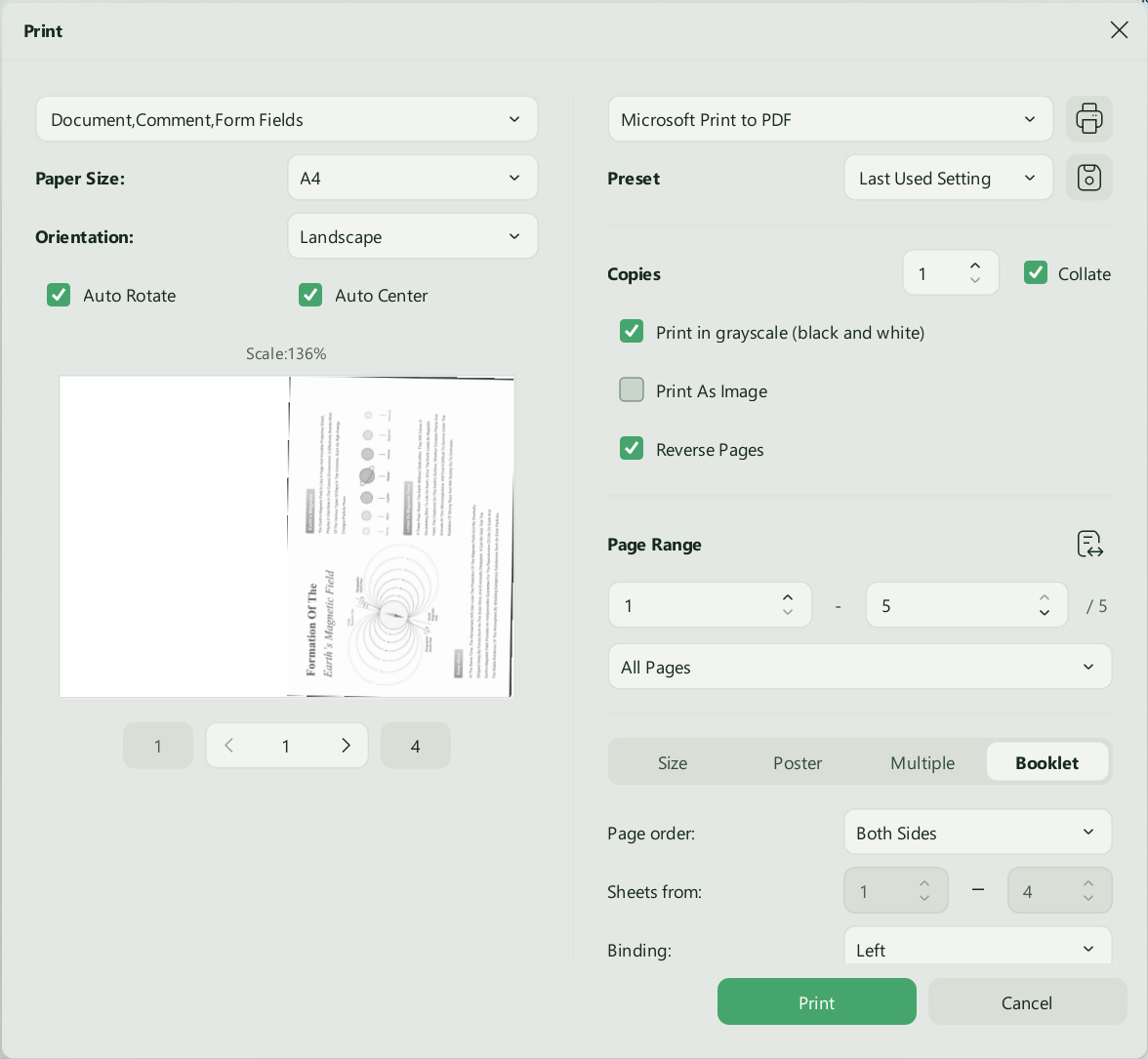
Step 5. Click "Print" and then choose a location to save your newly flattened PDF file.
PDF Flattener Comparison
| PDF flattener | Primary target | Selection control | Text remains searchable | Processing location | Key limitation |
|---|---|---|---|---|---|
| UPDF | Forms/annotations, watermarks, cropped pages | By content category | Yes | Desktop | Not encryption or redaction |
| Foxit PDF Editor | Annotations and form fields | Page or page range in supported versions | Yes | Desktop | Options vary by version/platform |
| PDF Pro | Whole document | Whole-file settings | Usually | Desktop | Limited category-level selection |
| Adobe Acrobat Pro | Layers and transparency | Advanced layer/prepress settings | Depends on operation | Desktop | Specialized and more complex |
| PDFgear | Form fields or all page content | Two modes | Yes for form-only; no for all-content | Local browser processing, according to PDFgear | Few content-category choices |
| Print to PDF | Visible print output | Page and print settings | Usually | Operating system | May discard document structure |
Which PDF Flattener Is Best?
UPDF is the strongest general option when users need to flatten common document elements selectively without sacrificing searchable text. Foxit is useful for page-range workflows. PDF Pro offers a simple whole-file command. Adobe Acrobat Pro is the better fit for optional-content layers and print transparency. PDFgear is convenient for free browser-based form or full-content flattening, while Print to PDF works as a basic fallback.
Choose based on output behavior rather than broad feature counts or subjective scores. The old source article's prices and numeric ratings have not been carried forward because they can become outdated and do not show what each flattening method actually changes.
The final copy should display as intended without losing information you still need to revise. For a visual companion, the video below focuses on editing PDF content in UPDF.
FAQs
Should I flatten a PDF or not?
You should flatten a PDF if you are sending a finished document (like a contract, resume, or invoice) and want to ensure the recipient cannot change your input. However, do not flatten the document if you still need to edit the form fields later, as this process is usually permanent.
Is a flattened PDF still editable?
No, once a PDF is flattened, the interactive elements (text boxes, radio buttons, etc.) are converted into graphical data. While you can still use a PDF editor like UPDF to add new text or images on top, you cannot revert the flattened elements back into editable form fields.
Does flattening a PDF reduce file size?
Often, yes. By removing the metadata and complex layers associated with interactive forms and annotations, the file size usually decreases, making it easier to email.
Conclusion
To flatten a PDF correctly, start with the element that must become static. UPDF is the most balanced choice for forms, annotations, watermarks, and cropped pages because users can flatten those categories selectively. Foxit adds useful page-range control, PDF Pro simplifies whole-file flattening, Adobe serves layer and print-production needs, PDFgear provides two free browser modes, and Print to PDF remains a convenient fallback.
Keep the editable original, save a separate flattened copy, and test the exact fields, annotations, layers, text, and signatures that matter. Download UPDF for free to edit, selectively flatten, and verify the final PDF on your computer—installation is free, and Pro removes the trial watermark from exported files.
Windows • macOS • iOS • Android 100% secure





 Enola Miller
 Engelbert White

 Lizzy Lozano