 UPDF
UPDF
 UPDF for Windows
 UPDF for Mac
 UPDF for iPhone/iPad
 UPDF for Android
 UPDF AI Online
 UPDF Sign
 Edit PDF
 Annotate PDF
 Create PDF
 PDF Form
 Edit links
 Convert PDF
 OCR
OCR PDF to Word
 PDF to Image
 PDF to Excel
 Organize PDF
 Merge PDF
 Split PDF
 Crop PDF
 Rotate PDF
 Protect PDF
 Sign PDF
 Redact PDF
 Sanitize PDF
 Remove Security
 Read PDF
 UPDF Cloud
 Compress PDF
 Print PDF
 Batch Process
 About UPDF AI
 UPDF AI Solutions
 AI User Guide
 FAQ about UPDF AI
 Summarize PDF
 Translate PDF
 Chat with PDF
 Chat with AI
 Chat with image
 PDF to Mind Map
 Explain PDF
 PDF AI Tools
 Image AI Tools
 AI Chat Tools
 AI Writing Tools
 AI Study Tools
 AI Working Tools
 Other AI Tools
 AI Bookmark Generation
 AI Bookmark Summary
 AI Watermark Generation
 AI Background Generation
 AI Sticker Generation
 AI Stamp Generation
 AI Editing Suite
 UPDF Copilot
 AI Page Management
 AI Semantic Search
 PDF to Word
 PDF to Excel
 PDF to PowerPoint
 Enterprise Solution
 Enterprise Sign
 Enterprise AI
 Enterprise Plan
 Enterprise User Guide
 Enterprise Webinar
 Banking
 Healthcare
 Insurance
 Legal
Legal Manufacturing
 Government
 Education Solution
 Customer Stories
 User Guide
 UPDF Tricks
 FAQs
FAQs UPDF Reviews
 Download Center
 Blog
Blog Newsroom
 Tech Spec
 Updates
 UPDF vs. Adobe Acrobat
 UPDF vs. Foxit
 UPDF vs. PDF Expert

As a remote worker, I often need to open and read PDF files when I am away from my laptop. In many cases, the easiest option is to use my smartphone.
However, most smartphones only have basic PDF viewers. These built-in apps are fine for simple reading, but they do not work well when I need to highlight important points, add notes, or review complex information.
Because of this, I started asking myself: Do I need a PDF reader on my phone?
And the answer is yes. If you are in a similar situation, this guide will explain why a PDF reader app like UPDF is useful, what benefits it offers, and which tools you can start using right away.
Windows • macOS • iOS • Android 100% secure
Part 1. What Does a PDF Reader Do?
A PDF reader is any application that allows you to open and read PDF files without changing their original fonts or the structure of the document. Unlike PDF viewers, these apps are dedicated to providing a comfortable reading experience with features like markup tools, light or dark modes, page layout options, and more.
Core Functions of a PDF Reader
Here’s a look at exactly what a PDF reader does.
- Open and view PDF files without affecting their original formatting.
- Move through pages easily with bookmarks, thumbnail view, and jumping to pages.
- Search PDF to instantly find any word or phrase without scrolling the document manually.
- Annotate and markup PDFs with highlights, underlines, add sticky notes, shapes, and freehand drawings.
- Fill out PDF forms by adding text fields, checkboxes, and digital signatures.
- Create and sign PDFs using your finger, stylus, or by uploading a saved image.
- Share PDFs via email, links, or export to other formats like Word, images, etc.
- Cloud sync PDFs across devices to access documents on a phone, tablet, or computer.
These features are unique to dedicated PDF reading apps. Built-in PDF viewers do not offer dedicated editing, annotation, or form-filling tools. They may also change the original formatting of documents. So, they're not the best option if you need a more immersive reading experience.
Part 2. Do I Need a PDF Reader on My Phone?
Yes, you will need a PDF reader on your Phone if you regularly read or process PDF documents on the go, especially if you are a student or have a physically active job that keeps you on your feet most of the time.
Let’s look at some common scenarios where a mobile PDF reader becomes essential.
- Students: Rely on PDFs for reading textbooks, lecture slides, and assignments. A PDF reader allows them to highlight key points and add notes directly from their phone.
- Professionals: A PDF reader makes it easy to review contracts and reports, add comments, and sign files without needing a computer.
- Travelers: When traveling, you can use a PDF reader app to store boarding passes, hotel reservations, and itineraries as PDFs.
- Freelancers: A mobile PDF reader helps them manage and share invoices, agreements, and client documents while on the move.
- Staying Productive: If you want to work faster even when you’re away from the office, a PDF reader helps you still handle documents professionally from your phone.
To sum up, a dedicated PDF reader allows you to:
- Work from any location.
- Process documents faster while traveling
- Keep mobile documents well-organized.
- Professionally handle documents outside the office.
- Access documents offline.
Overall, a capable PDF reader is a must-have for anyone who frequently works with documents and values staying productive.
Part 3. UPDF Mobile: The Best PDF Reader for Your Phone
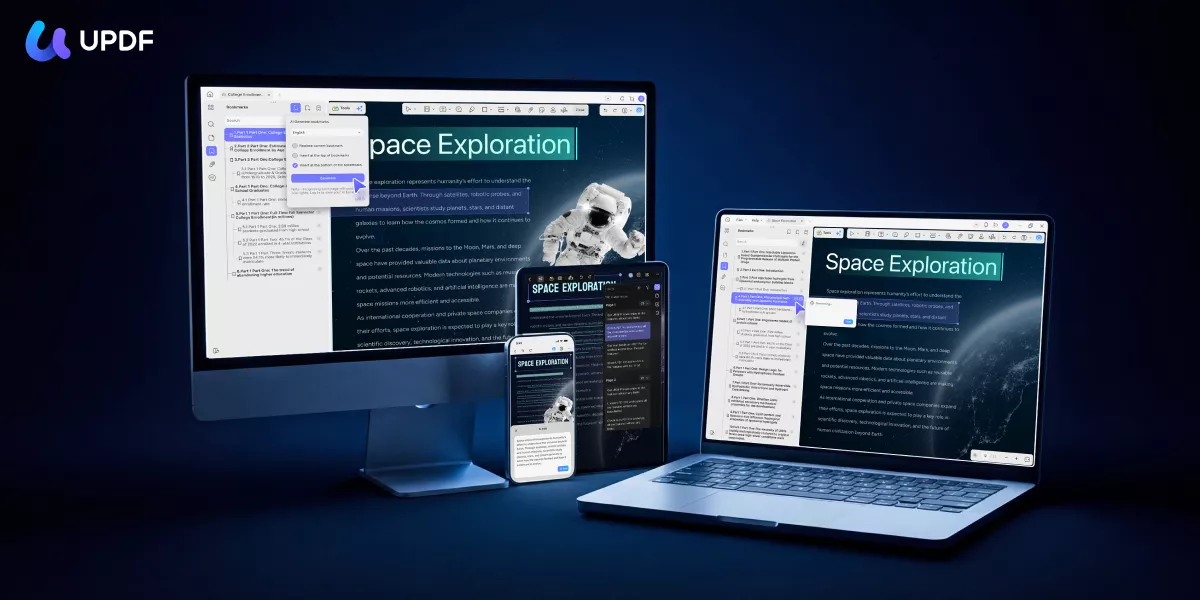
UPDF Mobile is a comprehensive PDF reader for iOS and Android that brings together powerful tools for reading, editing, and managing documents in one place. The app helps me annotate PDFs, view them in flexible layouts, add bookmarks, and jump between pages. In addition, its built-in AI assistant makes it easier to extract insights and understand complex PDFs instantly.
Windows • macOS • iOS • Android 100% secure
Key Features of UPDF for iOS and Android
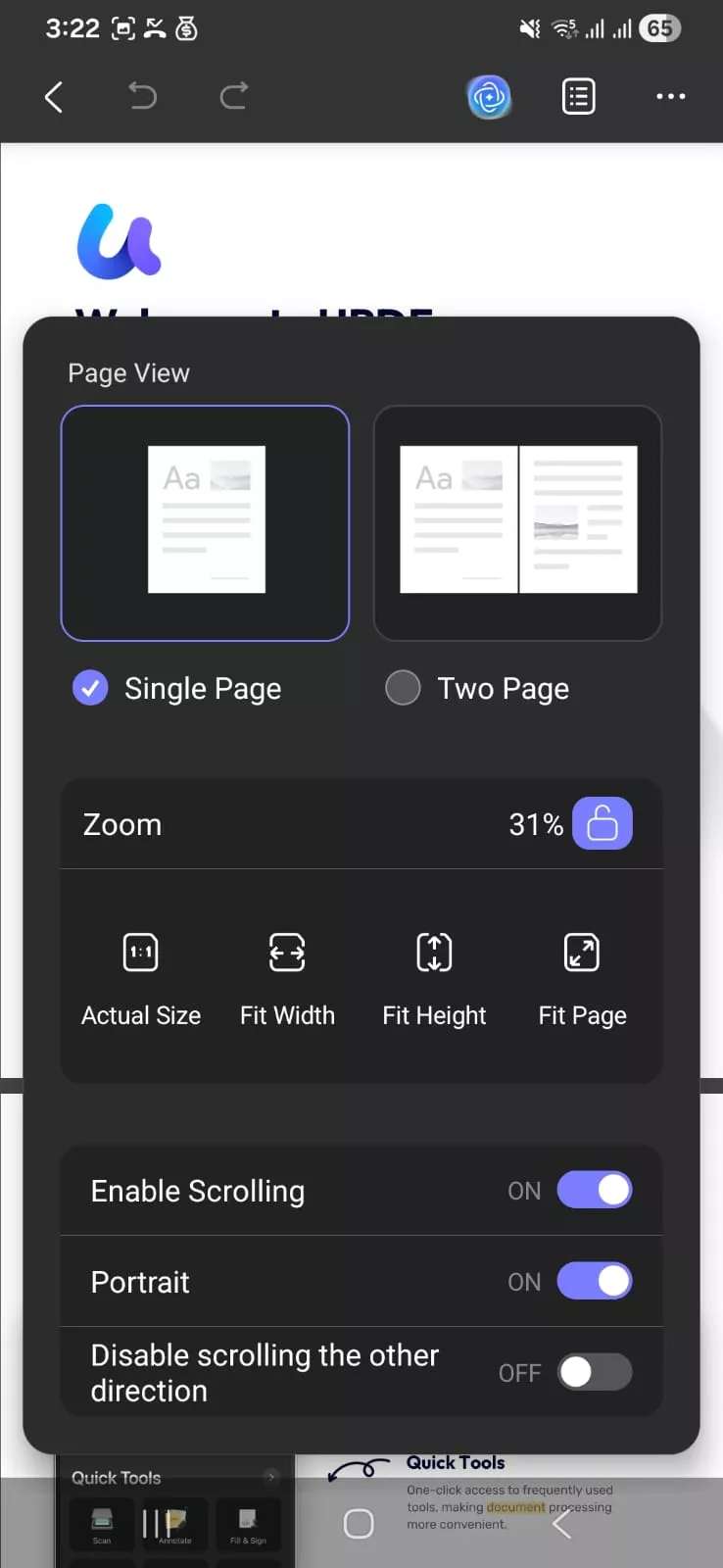
- View PDFs: Switch between single-page or two-page layouts, adjust page size, and control scrolling.
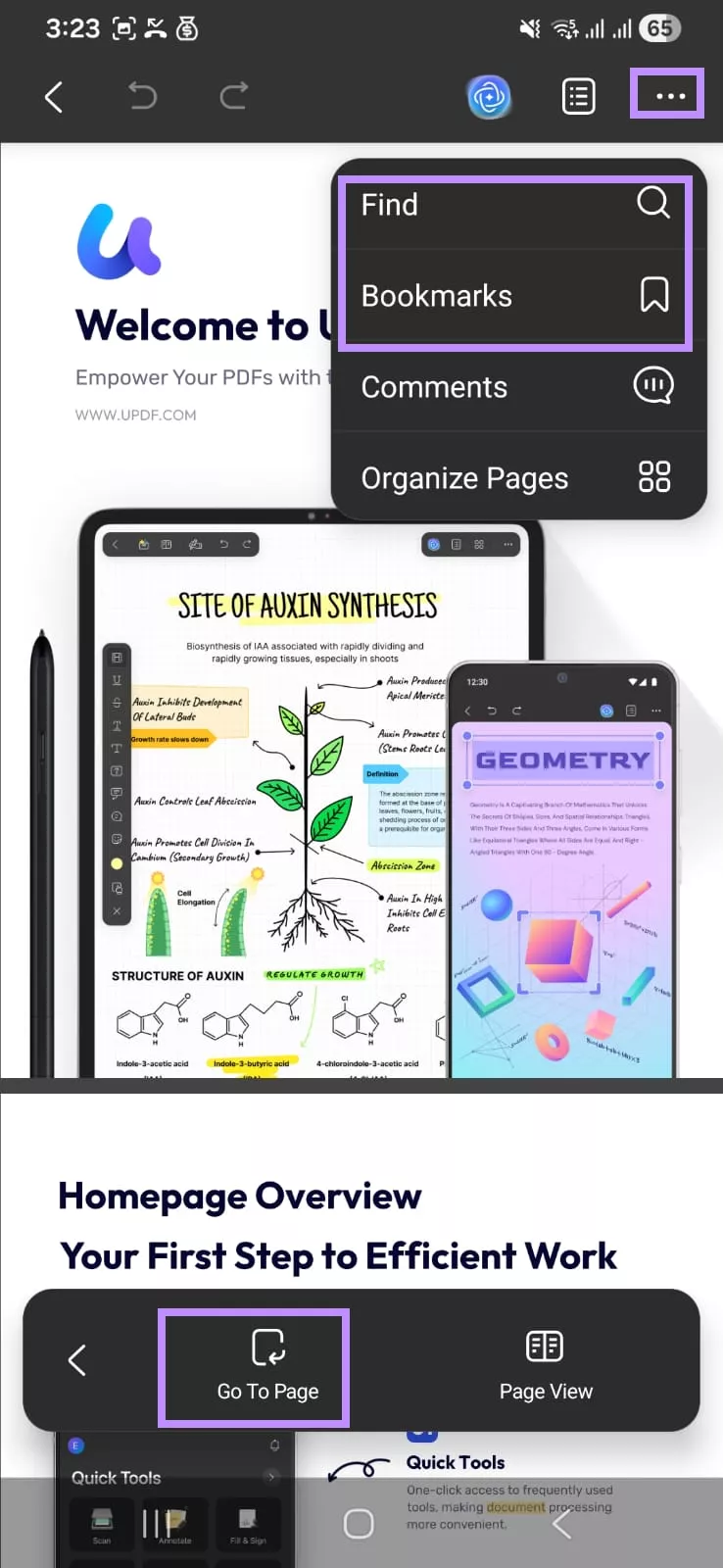
- Jump to Page: Navigate quickly using page numbers, bookmarks, or search.
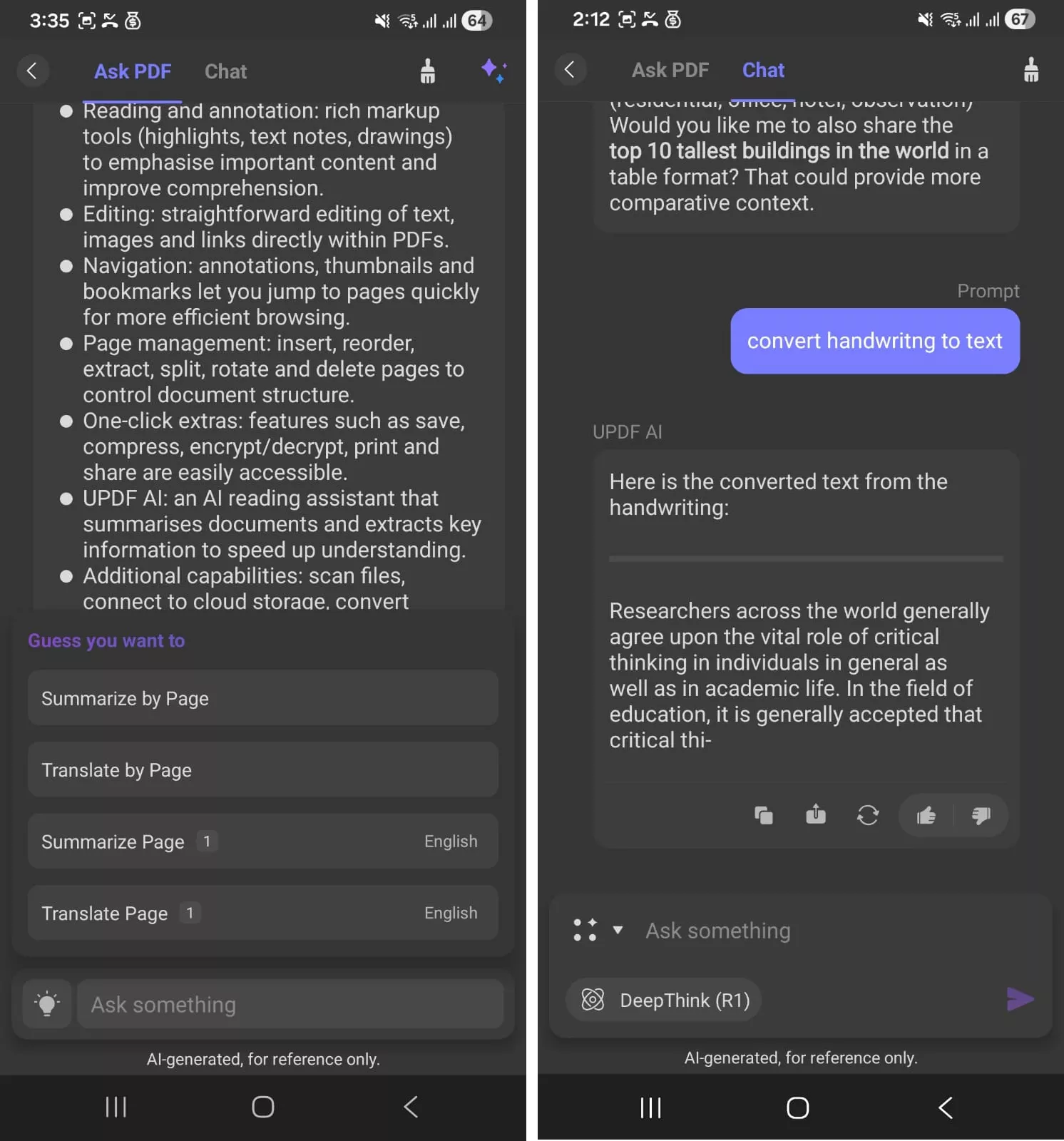
- AI Chat: Translate, summarize, ask questions about your document, or chat on any topic.
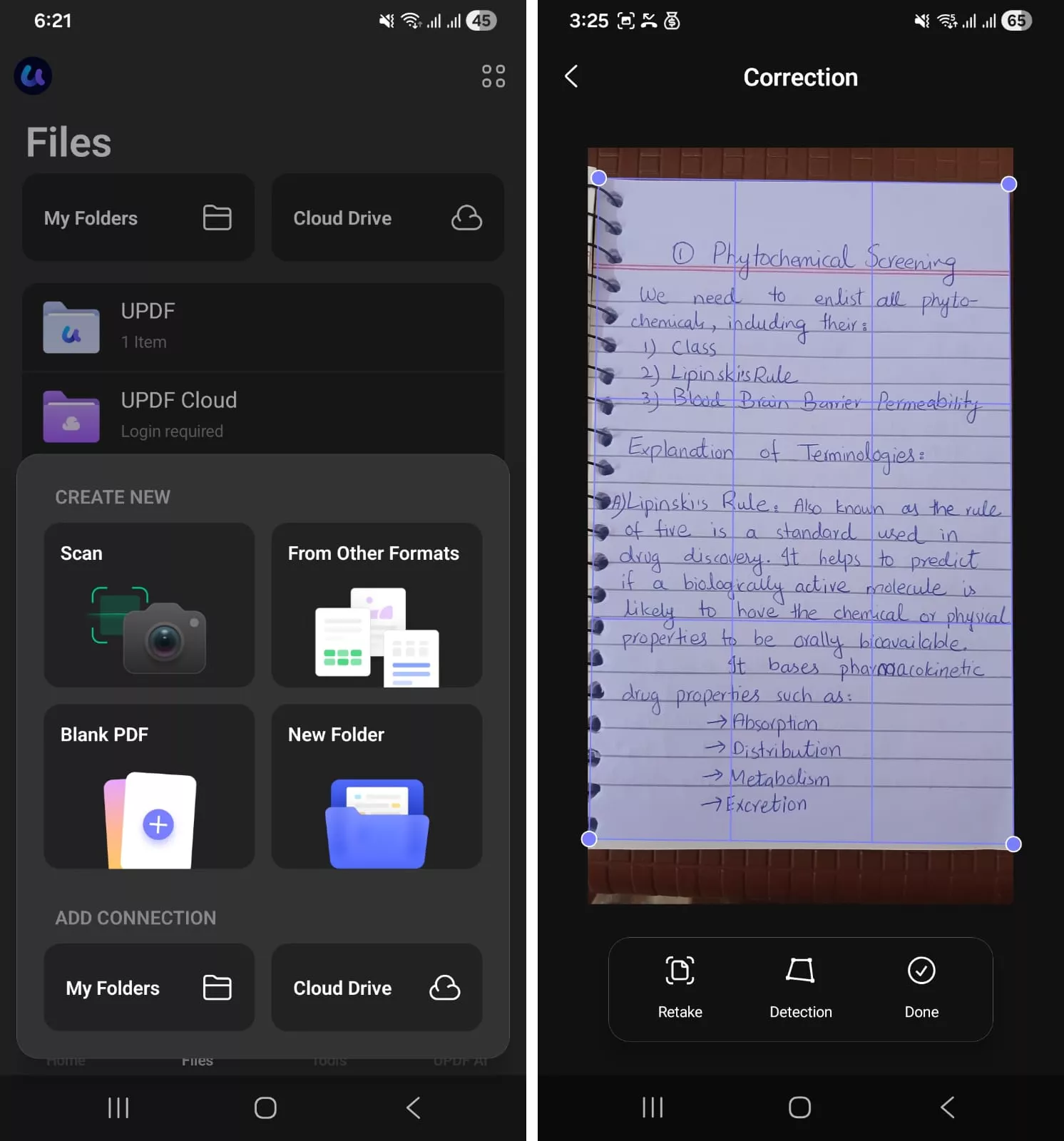
- Smart Scan to PDF: Built-in scanner tool to scan paper documents directly into PDFs.
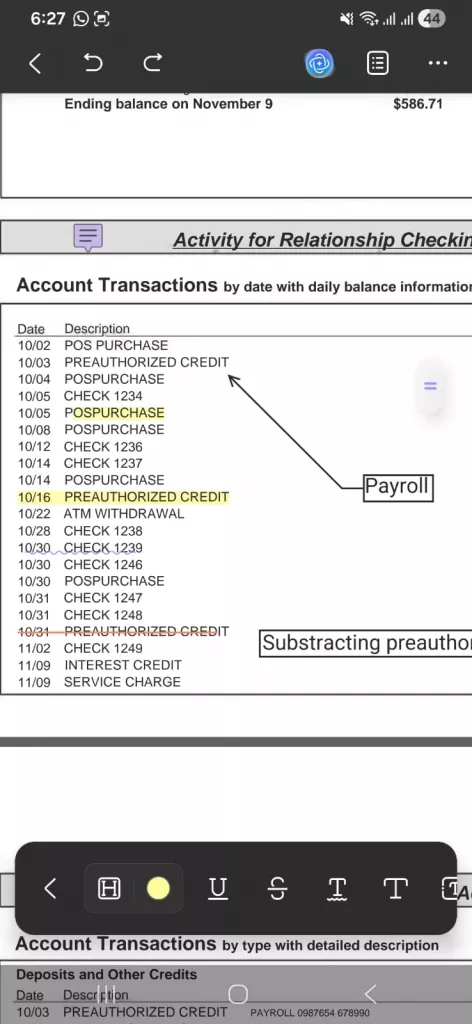
- Annotate: Highlight, underline, strikethrough, and add squiggly lines, sticky notes, and stickers.
- Fill and sign forms: Complete forms with text fields, checkboxes, dates, signatures, and stamps.
- Cloud sync: Sync files via UPDF Cloud or connect with iCloud and Dropbox.
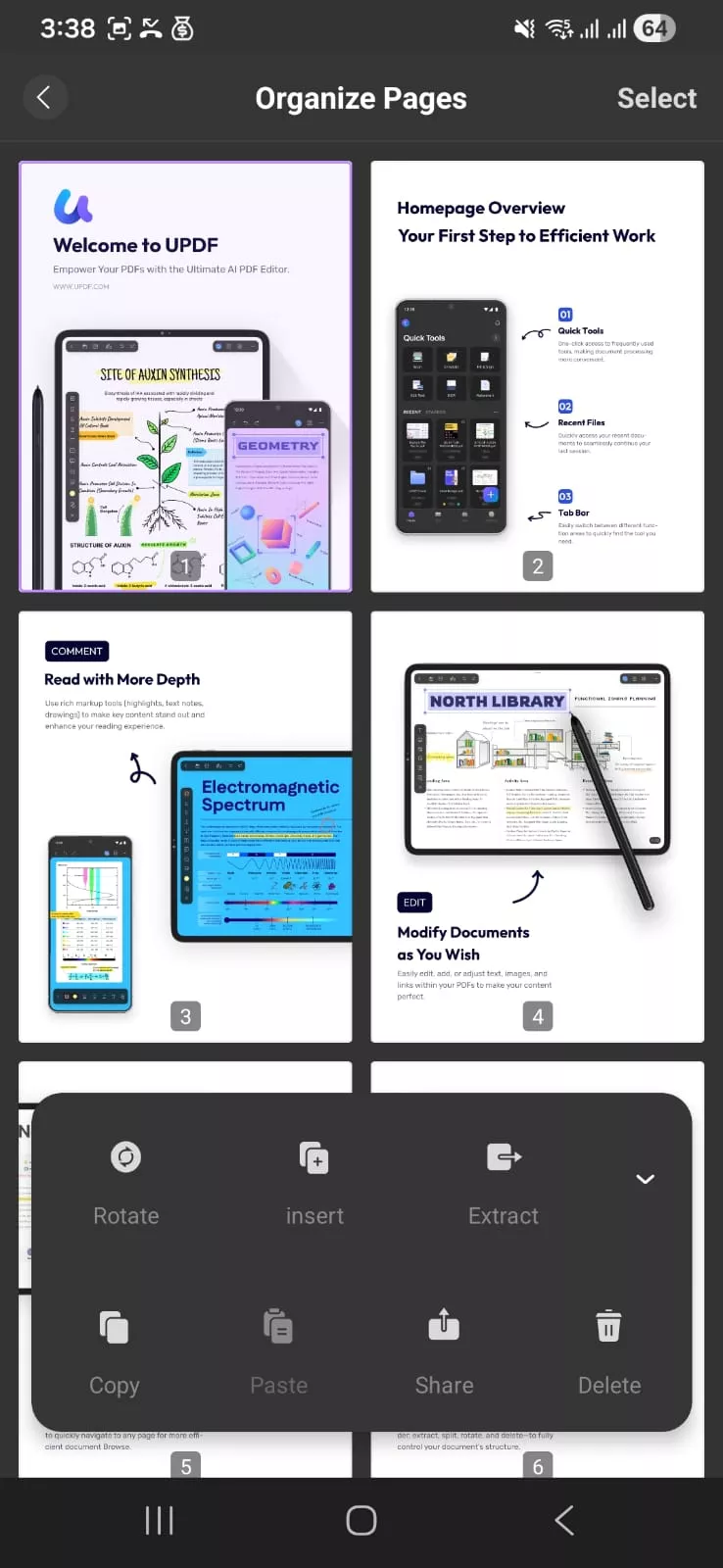
- Organize documents: Rotate, insert, extract, delete, or share PDF pages directly.
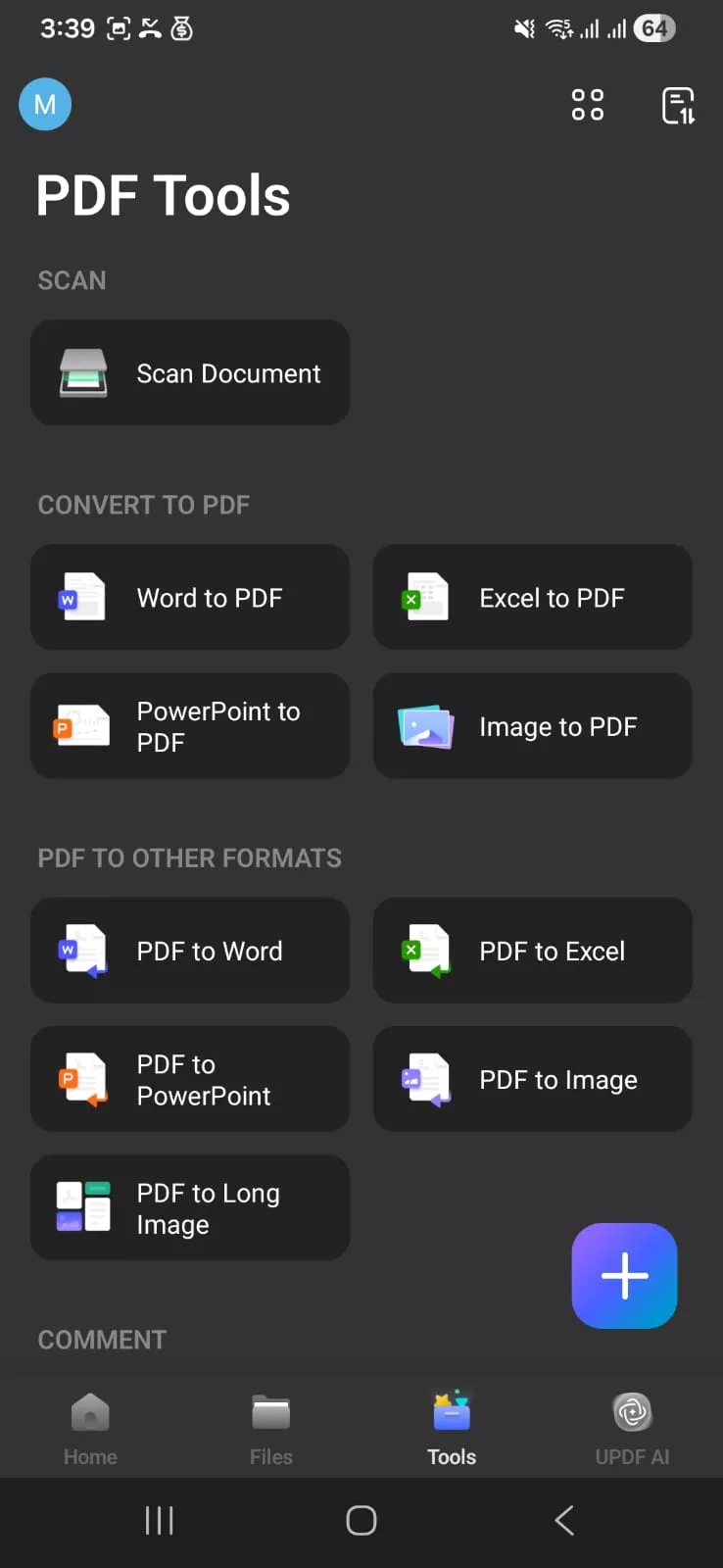
- Convert: Export PDFs into Word, Excel, PowerPoint, images, or long image formats.
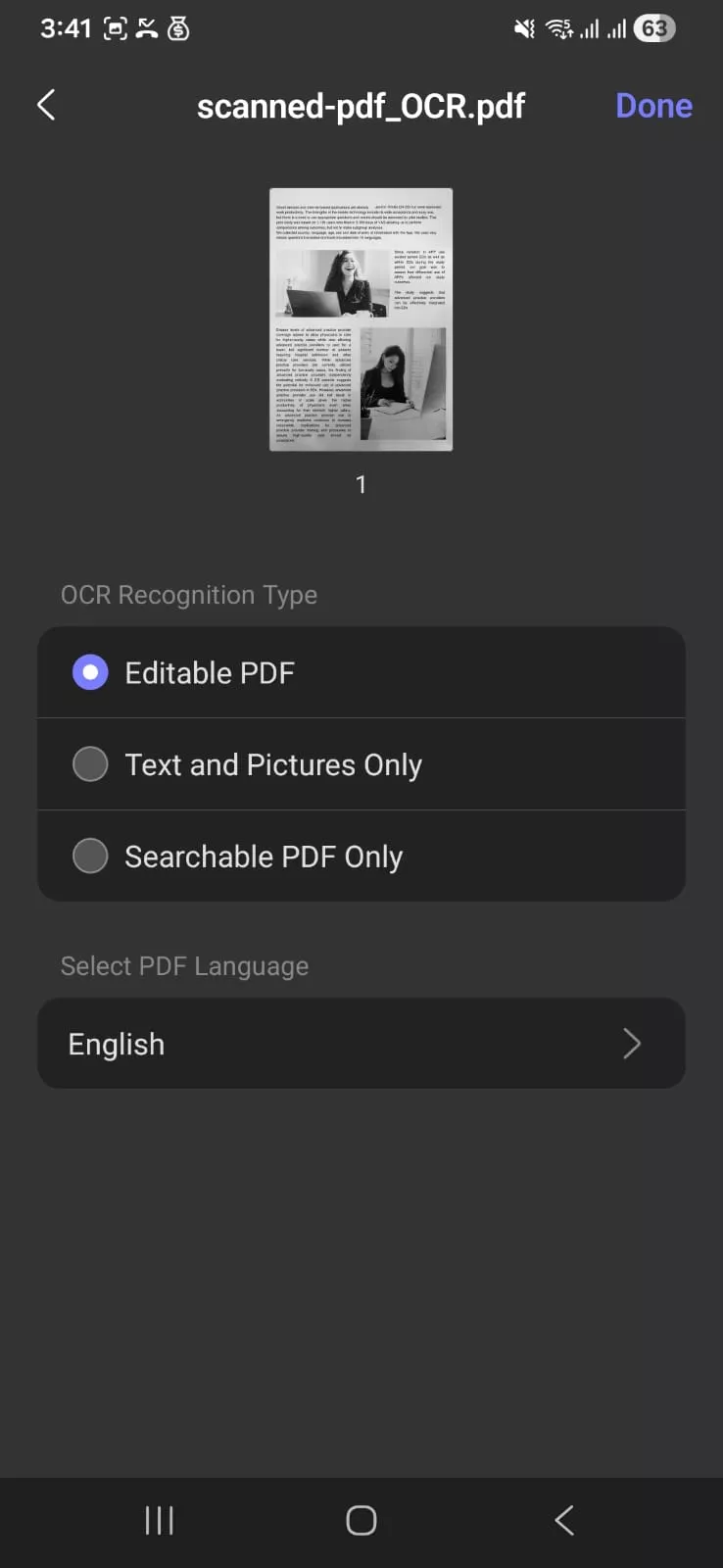
- OCR: Make scanned or image-based documents editable and searchable PDFs.
- Share easily: Send files via email, export them, or share across apps instantly
- AI-Assisted PDF Management (iOS): Generate mind maps and bookmarks, AI edit text, and perform semantic searches.
Windows • macOS • iOS • Android 100% secure
User Experience
The UPDF app is designed to work seamlessly on touchscreen devices. All the tools are arranged in clearly labeled menus, and most of these I can access easily from a single toolbar located at the bottom. In addition, I can use the standard touch gestures for iOS and Android, which makes the app blend seamlessly into my regular mobile experience.
Pricing
Free Trial: Trial watermark is added.
Premium Plans: A single UPDF license unlocks premium features across all platforms, with the following plans:
- UPDF Pro: $49.99/Year, $79.99/Lifetime
- AI Assistant: $79/Year
Best For
UPDF is an excellent PDF reader app for anyone who frequently handles PDFs on mobile and needs a complete PDF management solution in their pocket. All without paying Adobe-level subscription costs. Give it a try. You can download UPDF from the App Store or Google Play Store here.
Part 4. How to Get Started with UPDF Mobile
If you don't know how to install and use UPDF, here's a step-by-step guide to get you started.
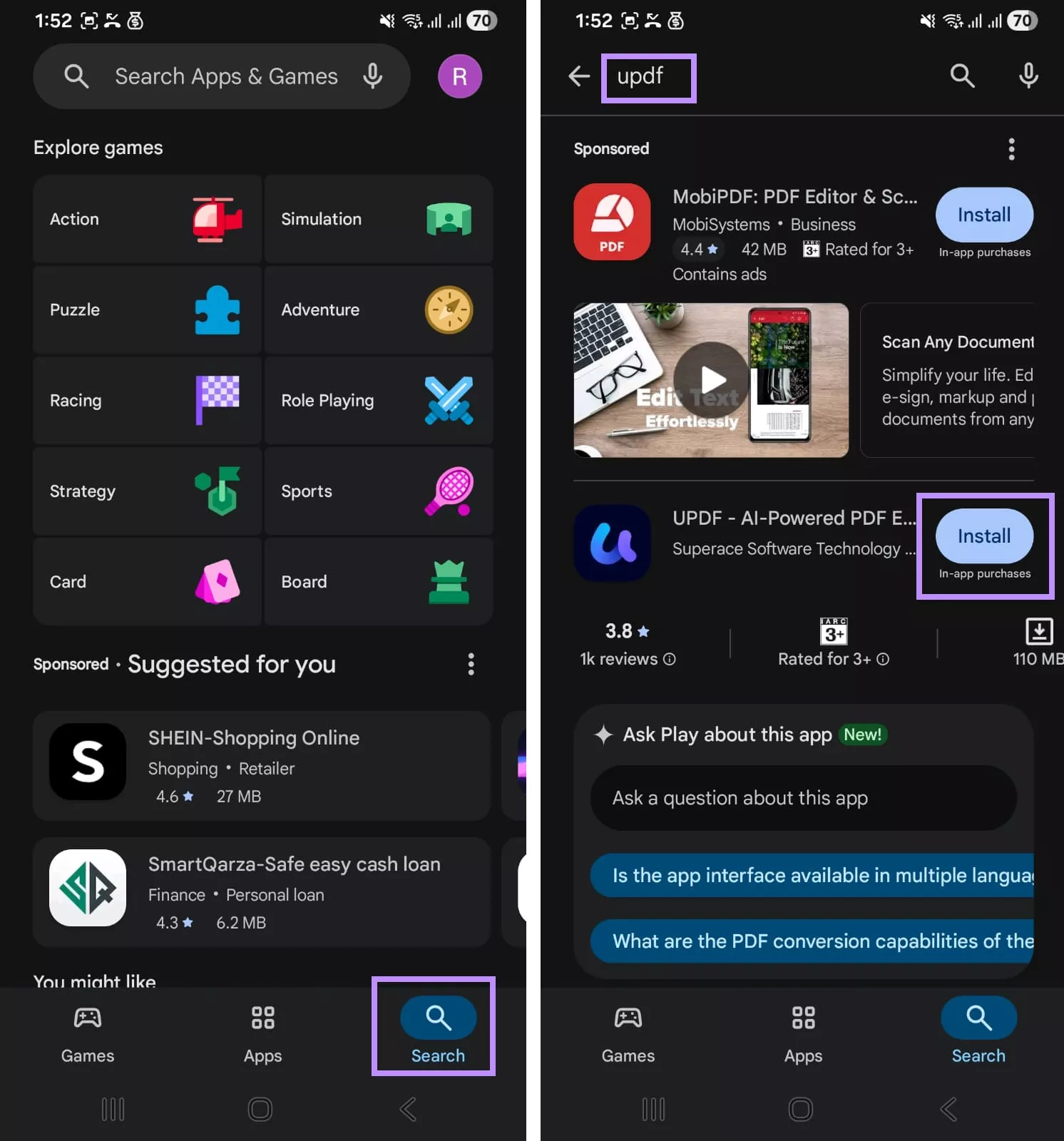
Step 1. Open App Store on iOS or Google Play on Android. Then tap the Search icon and type “UPDF” in the search bar. From the results, find UPDF and press “Install.”
Windows • macOS • iOS • Android 100% secure
Step 2. Open the app, grant necessary permissions, and agree to privacy terms and policies.
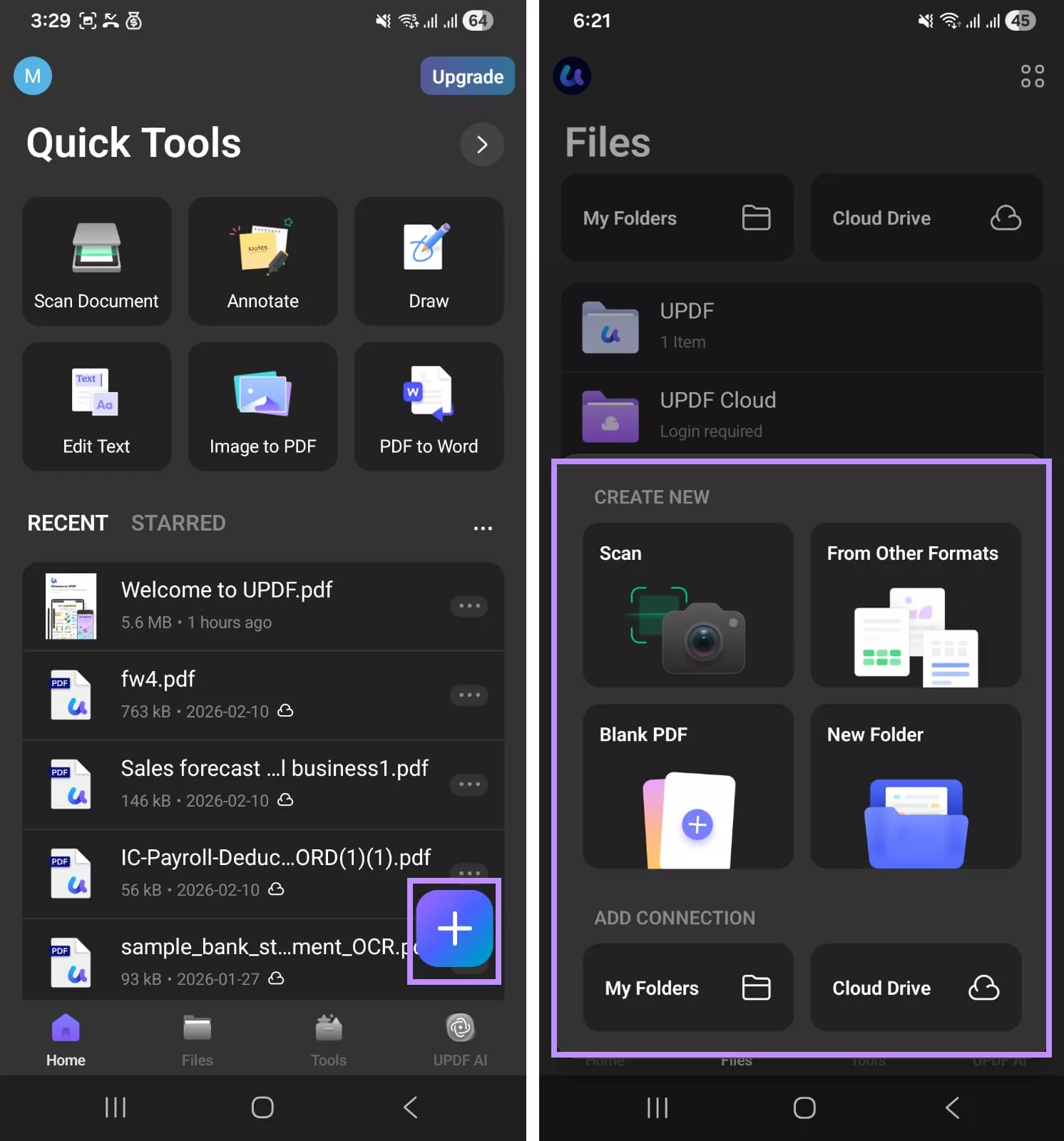
Step 3. Click the “+” button and choose to create or import a new PDF. You can scan, import from a folder or cloud storage, among other options. Then, provide the required permissions.
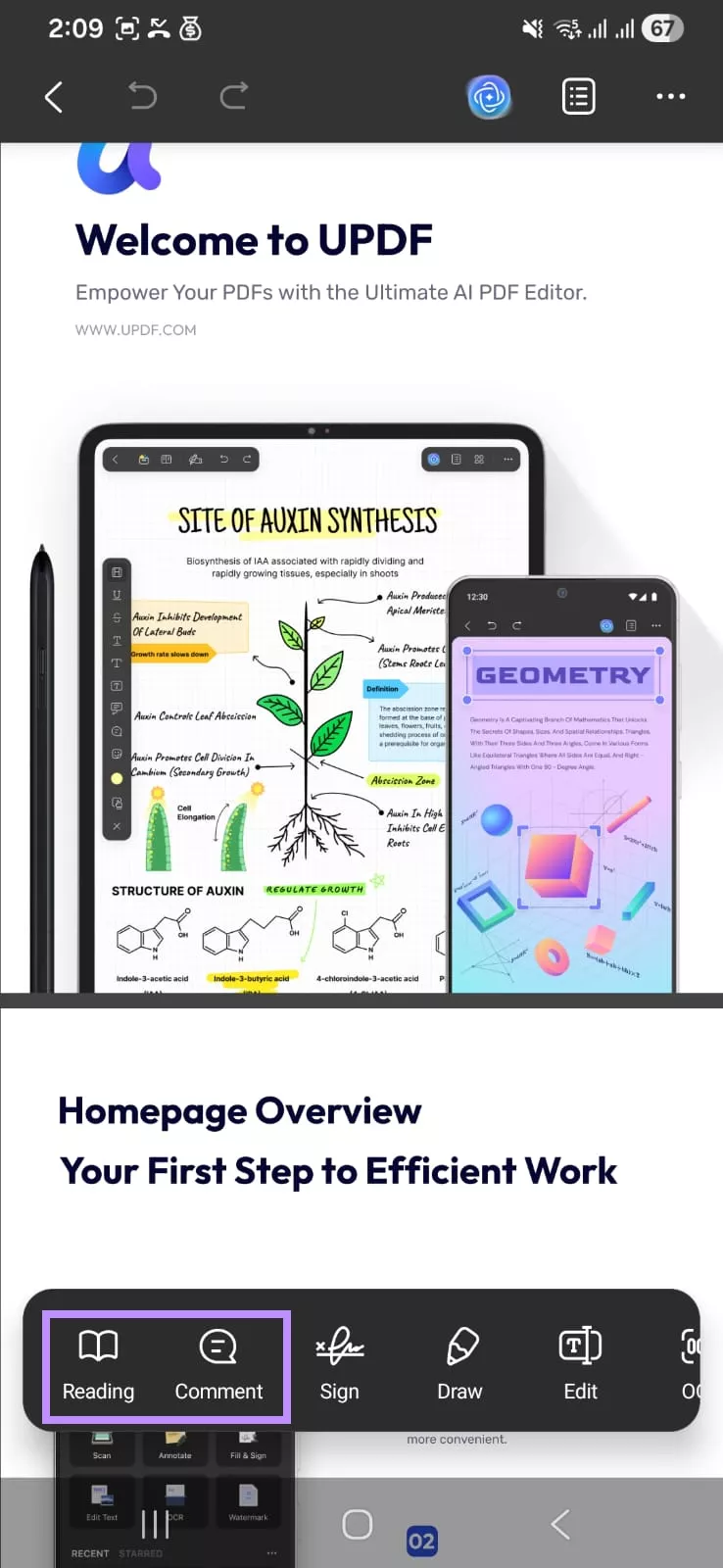
Step 4. Once your PDF is opened, tap the “Comment” option to annotate your PDF. Or select the “Reading” mode to change page layout.
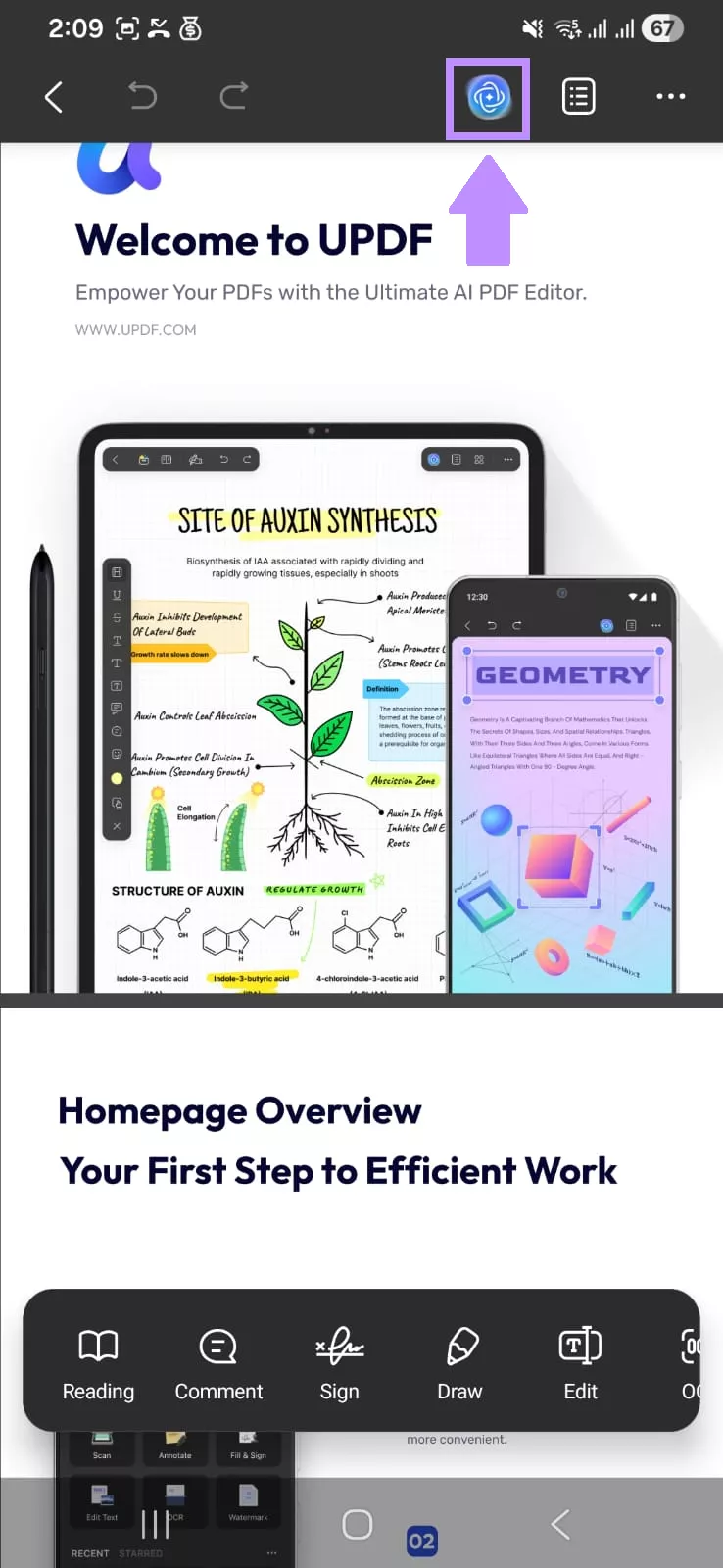
Step 5. Tap the UPDF AI icon in the top and select the “Ask PDF” or “Chat” mode to ask PDF-related questions or explore any topic.
Windows • macOS • iOS • Android 100% secure
Part 5. Comparison: Mobile PDF Reader Options
Apart from UPDF, there are many other PDF readers you can use. Let’s quickly look at how they compare so you can find the best option for your needs.
| App | Platform | AI Features | Scan to PDF | Form Filling | Cloud Sync | Pricing Plans | Rating |
| UPDF | iOS, Android, Windows, Mac | Chat, summarize, translate, explain; mindmaps + semantic search (iOS) | (built-in) | UPDF Cloud, iCloud, Dropbox | Free (watermarks), UPDF Pro: $49.99/Year, $79.99/Lifetime AI Assistant: $79/Year | 4.6/5.0 (App Store) 3.7/5.0 (Play Store) | |
| Adobe Acrobat Reader | iOS, Android, Web, Windows, Mac | only separate Add-on | Not built-in | Free (limited), Standard: $14.99/mo Pro: $19.99/mo Studio: $24.99/mo | 4.7/5.0 (App Store) 4.5/5.0 (Play Store) | ||
| Apple Books | iOS | iCloud Only | Free | 4.4/5.0 (App Store) | |||
| Google Drive | iOS, Android, Web | only Gemini AI integration for summaries, search | Drive mobile camera scan | (built-in) | Free | 4.8/5.0 (App Store) 4.4/5.0 (Play Store) | |
| PDF Expert | iOS, Mac | PDF Copilot | Not built-in | iCloud; third-party cloud via Files app | Free (limited); $79.99/yr or $139.99 lifetime | 4.7/5.0 (App Store) | |
| Xodo PDF | iOS, Android, Web, Windows | Xodo Drive, Google Drive, Dropbox, OneDrive | Free (limited), $14.99/month | 4.4/5.0 (App Store) 4.6/5.0 (Play Store) |
Among all the tools available, UPDF stands out because it offers advanced AI features for detailed reading and analysis, along with built-in cloud storage. It works across multiple devices, and you only need one account to use it everywhere. These features make it the most well-rounded choice.
Windows • macOS • iOS • Android 100% secure
Part 6. FAQs
Q1. Do I really need a separate PDF reader app on my iPhone?
Yes. That’s because the iPhone’s built-in Files app can open PDFs for basic reading, but it does not handle more advanced tasks well. If you need to annotate, sign forms, or work with scanned files, a dedicated PDF reader makes this much easier.
Q2. Can I sync my PDFs between my phone and computer?
Yes. UPDF allows you to sync PDFs across your phone and computer using its built-in cloud storage, Dropbox, and iCloud. You can start working on a document on your phone and continue on your computer seamlessly.
Q3. What does a PDF reader do on mobile that I can't do in a browser?
Browser PDF viewers do not offer offline access once you close the tab. Moreover, they offer limited annotation, form-filling, and PDF organization tools. A native PDF app loads files faster, offers more dedicated tools, and keeps sensitive documents saved locally on your device. This makes it better than a web app.
Conclusion
So, do I need a PDF reader on my phone? The short answer is yes. A PDF reader mobile app goes beyond surface-level viewing and helps you read your documents more comfortably.
UPDF is one of the most reliable apps you can use. You can view your PDFs in multiple layouts, read faster with AI, and translate and summarize content on the go. So, get started today! Download and try UPDF now!
Windows • macOS • iOS • Android 100% secure






 Enrica Taylor
 Enola Miller

