 UPDF
 UPDF for Windows
 UPDF for Mac
 UPDF for iPhone/iPad
 UPDF for Android
 Nomostar
 UPDF AI Online
 UPDF Sign
 IvyCraft
 Edit PDF
 Annotate PDF
 Create PDF
 PDF Form
 Edit links
 Convert PDF
 OCR
 PDF to Word
 PDF to Image
 PDF to Excel
 Organize PDF
 Merge PDF
 Split PDF
 Crop PDF
 Rotate PDF
 Protect PDF
 Sign PDF
 Redact PDF
 Sanitize PDF
 Remove Security
 Read PDF
 UPDF Cloud
 Compress PDF
 Print PDF
 Batch Process
 About UPDF AI
 UPDF AI Solutions
 AI User Guide
 FAQ about UPDF AI
 Summarize PDF
 Translate PDF
 Chat with PDF
 Chat with AI
 Chat with image
 PDF to Mind Map
 Explain PDF
 PDF AI Tools
 Image AI Tools
 AI Chat Tools
 AI Writing Tools
 AI Study Tools
 AI Working Tools
 Other AI Tools
 AI Bookmark Generation
 AI Bookmark Summary
 AI Watermark Generation
 AI Background Generation
 AI Sticker Generation
 AI Stamp Generation
 AI Editing Suite
 UPDF Copilot
 AI Page Management
 AI Semantic Search
 PDF to Word
 PDF to Excel
 PDF to PowerPoint
 Enterprise Solution
 Enterprise Sign
 Enterprise AI
 Enterprise Plan
 Enterprise User Guide
 Enterprise Webinar
 IT
 Education
 Construction
 Financial Service
 Healthcare
 Insurance
 Legal
 Manufacturing
 Government
 Researchers & PhDs
 Solopreneurs & Freelancers
 Lawyers & Legal Professionals
 Real Estate Agents & Brokers
 Education Solution
 Customer Stories
 User Guide
 UPDF Tricks
 FAQs
 UPDF Reviews
 Download Center
 Blog
 Newsroom
 Tech Spec
 Updates
 UPDF vs. Adobe Acrobat
 UPDF vs. Foxit
 UPDF vs. PDF Expert


Quick Answer:
The best note-taking app for Mac depends on where your notes begin. Capturing a quick idea, linking research notes, reviewing handwritten notebooks, and commenting on a PDF are different tasks.
This comparison focuses on five options with distinct strengths. We compare their organization, device support, free access, and practical limitations so you can choose an app that fits your workflow.
Part 1. 5 Best Note-Taking Apps for Mac
Start by deciding whether you need a standalone note collection or comments attached to a source document. The recommendations below reflect those different tasks rather than a single winner for everyone.
1. UPDF — Best for Taking Notes Directly on PDFs
UPDF for Mac fits a document-centered workflow: reading a paper, reviewing lecture slides, or adding feedback to a report. Highlights, underlines, squiggly underlines, sticky notes, text boxes, callouts, and drawing tools keep your comments beside the relevant PDF content.
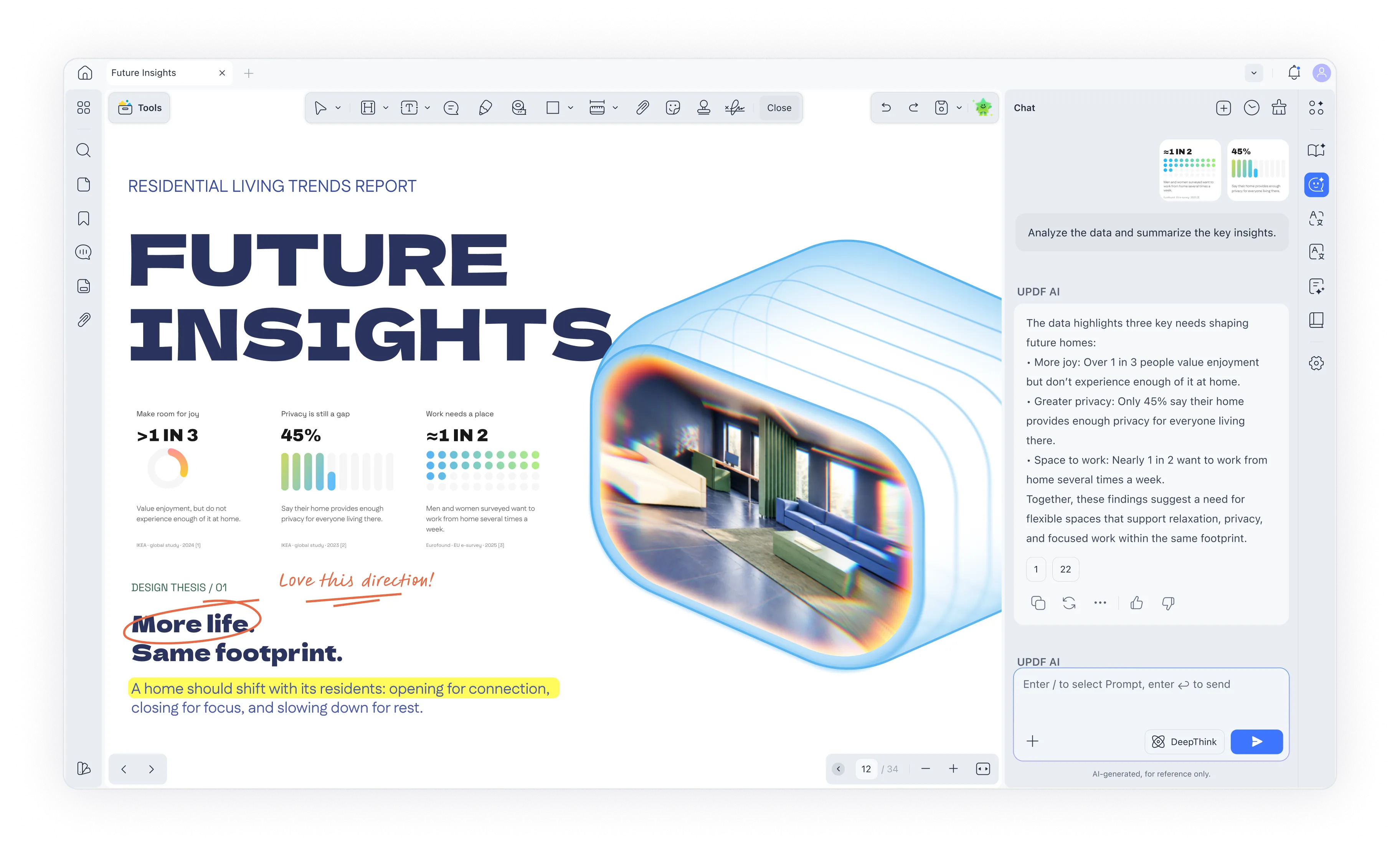
PDF editing, page organization, and conversion are useful when the source document also needs changes. For scanned material, OCR can make text searchable; on Mac, this currently requires an Apple silicon device and the version downloaded from the UPDF website. Intel Macs and the Mac App Store version do not support OCR.
Best for:
- Students, researchers, and reviewers whose notes refer to specific PDF pages.
Skip if:
- Your main goal is a collection of standalone notes organized through Markdown files and backlinks.
Free access: Installation is free. Saved output from a free account carries a trial watermark; Pro removes it. Check AI access separately from PDF tool access in the current UPDF plans.
Try UPDF with a representative paper or slide deck. Installation is free, and Pro removes the trial watermark.
Windows • macOS • iOS • Android 100% secure
For the workflow, see how to add notes to a PDF. Watch the video below for an overview of UPDF.
2. Apple Notes — Best Free Starting Point for Everyday Notes
Apple Notes is a practical starting point for quick ideas, meeting notes, checklists, and reference material. Folders, tags, and Smart Folders help organize a growing collection without requiring a separate paid note-taking subscription.
Notes can contain images, PDFs, and scanned documents. Its Markup tools also let you annotate supported attachments, so basic PDF comments do not always require another app.
Best for:
- Mac users who want everyday notes alongside their other Apple devices.
Skip if:
- Your workflow depends on a folder of portable Markdown files or extensive third-party plugins.
Cost: The app is included with Apple devices. Additional iCloud storage, if needed, is a separate expense.
3. Bear — Best for Focused Markdown Notes on Apple Devices
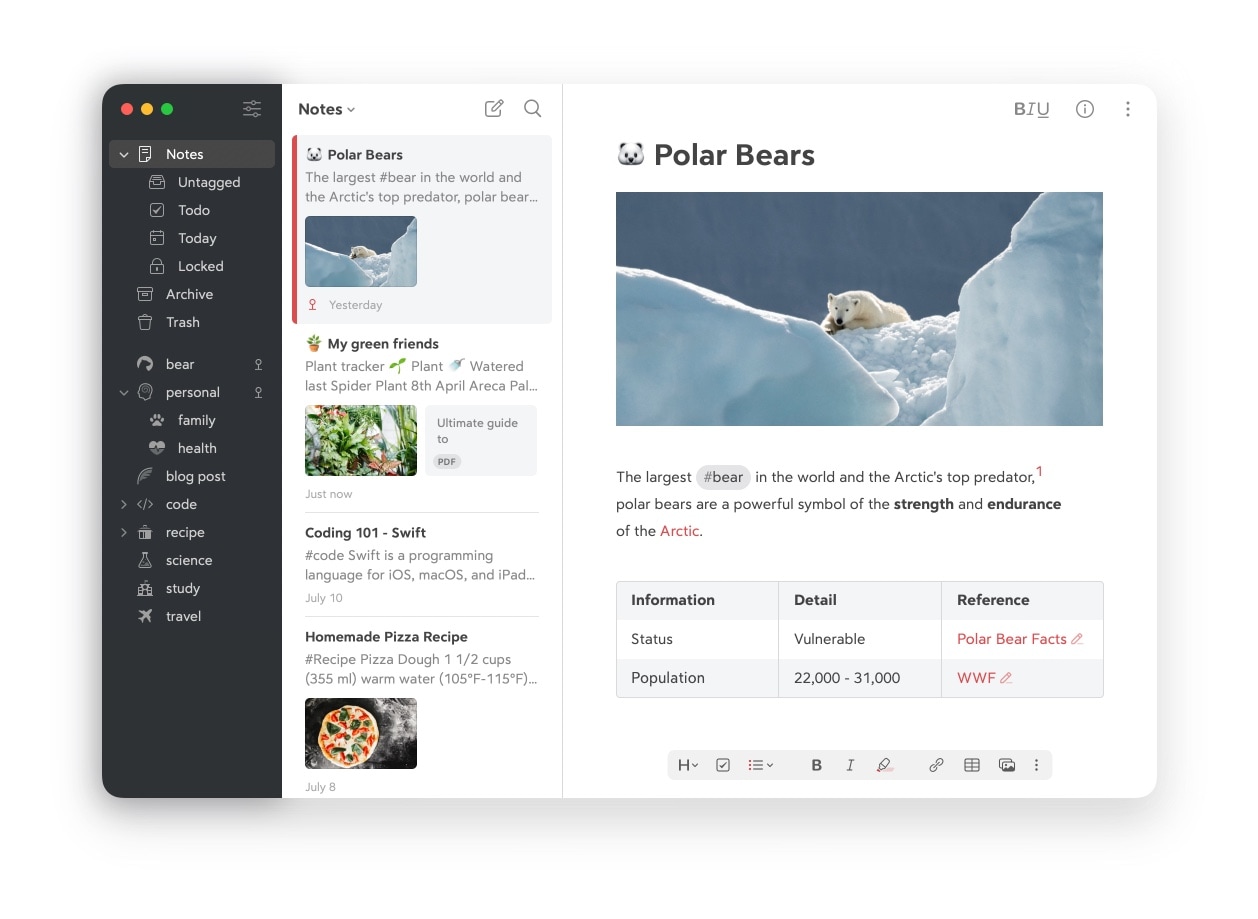
Bear combines Markdown writing with tags, nested tags, and links between notes. It suits lecture summaries, reading notes, and drafts that you want to organize without building a larger workspace.
The free version supports local notes and exports such as TXT and Markdown. Bear Pro adds iCloud sync, individual-note encryption, and exports including PDF, HTML, DOCX, and JPG.
Best for:
- People who prefer writing and organizing text on Mac, iPhone, and iPad.
Skip if:
- You need project databases or a shared workspace as your main organizing system.
Pricing update: As of November 20, 2026, Bear lists Pro at US$2.99/month or US$29.99/year.
4. Goodnotes — Best for an iPad-and-Mac Notebook Workflow
Goodnotes is a useful fit when you create handwritten notebooks on an iPad and review or continue working with them on your Mac. It supports notebook organization, PDF annotation, and search across typed and supported handwritten content.
Its handwriting appeal should be understood in the context of an iPad and compatible Apple Pencil. A MacBook alone does not provide the same pen-input experience.

Best for:
- Students and professionals who already use an iPad for handwritten notes.
Skip if:
- You only use a Mac and mainly want quick typed notes.
Free access: Up to three files, a 5MB import limit, and watermarked exports. Paid options expand these limits. The current US pricing lists Essential at US$11.99/year and Pro at US$35.99/year; an Apple-only Special Edition is also available as a one-time purchase. Check the current plan comparison for device and sync requirements. Prices and availability may vary by region.
5. Obsidian — Best for Local Notes and Connected Ideas
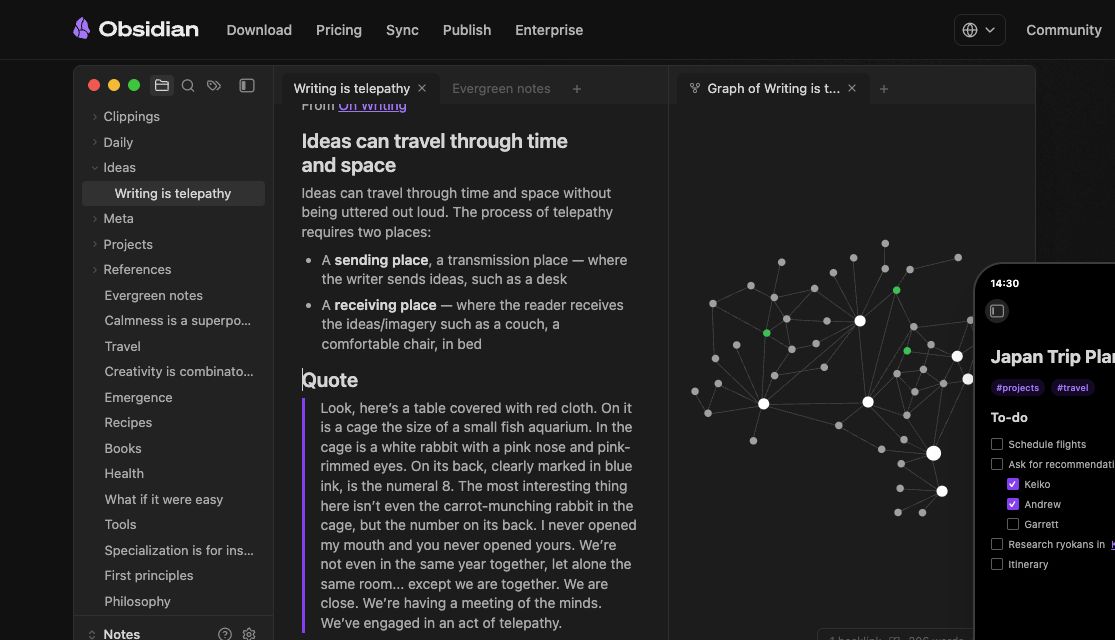
Obsidian stores notes as Markdown files in a local folder called a vault. Links, backlinks, and graph views help connect ideas across reading notes, projects, and long-term research.
It suits people who want access to their underlying files and control over how their collection is organized. Plugins can extend the app, although choosing and maintaining them adds setup work.
Best for:
- Researchers, writers, and students building a collection of connected notes.
Skip if:
- You want a ready-made shared workspace with minimal configuration.
Cost: The core app is free, including for work. Optional Obsidian Sync starts at US$4 per user per month billed annually, or US$5 billed monthly. Local note-taking does not require that subscription. See Obsidian pricing.
Part 2. What Should You Compare Before Choosing a Mac Notes App?
Compare the workflow before comparing feature counts:
- Where notes live: Decide whether you need standalone notes, a notebook library, or comments attached to PDF pages.
- Organization: Compare folders, tags, backlinks, and search against the way you actually retrieve information.
- Device fit: Check whether your workflow depends on Mac alone, Apple devices together, or other operating systems.
- Offline access and sync: Local access, cloud synchronization, and backup are different capabilities.
- Export and cost: Check whether your preferred export format, sync service, or watermark-free output requires payment.
| App | Best fit | Main limitation to check |
|---|---|---|
| UPDF | Notes attached to PDF pages | Trial watermark and Mac OCR eligibility |
| Apple Notes | Everyday Apple-device notes | Fit for portable Markdown workflows |
| Bear | Focused Markdown writing | Pro requirements and announced price change |
| Goodnotes | iPad handwriting with Mac access | Free limits and plan-specific sync |
| Obsidian | Local files and connected ideas | Setup effort and optional sync cost |
If your shortlist centers on PDF reading and comments, compare the workflow in our Mac PDF annotation guide. Try UPDF on a typical document before committing; installation is free, and Pro removes the trial watermark.
Windows • macOS • iOS • Android 100% secure
Part 3. FAQs about Note-Taking Apps for Mac
1. Can I move my existing notes without losing their structure?
Test a small sample before migrating your entire collection. Check attachments, internal links, tags, and formatting in the destination app. Keep an export or backup of the original library until you have verified the result.
2. Should I check AI-generated study notes against the source?
Yes. Treat an AI summary as a draft and check names, figures, quotations, and conclusions against the original material. Keep source references with your notes so you can revisit the context.
Conclusion
Choose the app that matches the material you work with. Apple Notes is a useful starting point for everyday capture, Bear suits focused writing, Obsidian connects a collection of local notes, and Goodnotes fits an iPad-and-Mac notebook workflow.
When your work starts with lecture slides, research papers, or reports in PDF format, UPDF keeps highlights and comments beside the source content. Try it with a representative document and check the free-version limits before choosing a plan. For tablet-based alternatives, see our PDF note-taking apps for iPad and iPhone.
Try UPDF for PDF-centered notes. Installation is free, and Pro removes the trial watermark.
Windows • macOS • iOS • Android 100% secure






 Enid Brown
 Enola Davis