 UPDF
UPDF
 UPDF for Windows
 UPDF for Mac
 UPDF for iPhone/iPad
 UPDF for Android
 Nomostar
 UPDF AI Online
 UPDF Sign
 IvyCraft
 Edit PDF
 Annotate PDF
 Create PDF
 PDF Form
 Edit links
 Convert PDF
 OCR
OCR PDF to Word
 PDF to Image
 PDF to Excel
 Organize PDF
 Merge PDF
 Split PDF
 Crop PDF
 Rotate PDF
 Protect PDF
 Sign PDF
 Redact PDF
 Sanitize PDF
 Remove Security
 Read PDF
 UPDF Cloud
 Compress PDF
 Print PDF
 Batch Process
 About UPDF AI
 UPDF AI Solutions
 AI User Guide
 FAQ about UPDF AI
 Summarize PDF
 Translate PDF
 Chat with PDF
 Chat with AI
 Chat with image
 PDF to Mind Map
 Explain PDF
 PDF AI Tools
 Image AI Tools
 AI Chat Tools
 AI Writing Tools
 AI Study Tools
 AI Working Tools
 Other AI Tools
 AI Bookmark Generation
 AI Bookmark Summary
 AI Watermark Generation
 AI Background Generation
 AI Sticker Generation
 AI Stamp Generation
 AI Editing Suite
 UPDF Copilot
 AI Page Management
 AI Semantic Search
 PDF to Word
 PDF to Excel
 PDF to PowerPoint
 Enterprise Solution
 Enterprise Sign
 Enterprise AI
 Enterprise Plan
 Enterprise User Guide
 Enterprise Webinar
 IT
IT Education
 Construction
 Financial Service
 Healthcare
 Insurance
 Legal
Legal Manufacturing
 Government
 Researchers & PhDs
 Solopreneurs & Freelancers
 Lawyers & Legal Professionals
 Real Estate Agents & Brokers
 Education Solution
 Customer Stories
 User Guide
 UPDF Tricks
 FAQs
FAQs UPDF Reviews
 Download Center
 Blog
Blog Newsroom
 Tech Spec
 Updates
 UPDF vs. Adobe Acrobat
 UPDF vs. Foxit
 UPDF vs. PDF Expert

You receive an urgent contract or a study guide, open it up, and get ready to work. But when you try to highlight a key sentence, the tool is grayed out. You try to copy a paragraph to paste into your notes, and nothing happens. You hit Ctrl + P to print it, only to find the print icon is completely disabled.
This is the classic "read-only" trap. As users on Reddit’s r/pdf community have pointed out, getting a document with strict editing and printing blocks is incredibly disruptive to daily work.
Before we dive into the solutions, let's clear up one crucial detail. What kind of password lock are you facing?
- An Document Open Password: If the file prompts you for a password the second you double-click it (and you can't even see the content), you need to remove password from pdf first.
- Permissions/Owner Restrictions: If you can read the document easily but cannot copy, edit, comment, or print it, you are dealing with a permission lock.
This guide will focus entirely on how to remove restrictions from pdf files so you can work on them freely again.
Method 1: Remove PDF Restrictions Offline (When You Know the Password)
If you are the owner of the document or have been given the authorization password by a colleague, removing these barriers is incredibly simple.
Using a local, secure desktop application like UPDF is the most reliable way to strip these limitations. Unlike web browsers, it won't freeze on large files and handles complex layouts perfectly. It also allows you to manage security in reverse—making it easy to lock PDF from editing when you need to secure your own work.
🎬 Prefer a quick visual walkthrough? Watch our 1-minute video guide below to see exactly how to strip permissions from your PDF in real-time, or follow the detailed step-by-step instructions right after.
Step-by-Step with UPDF:
1. Open the File: launch UPDF and open your restricted PDF document.
Windows • macOS • iOS • Android 100% secure
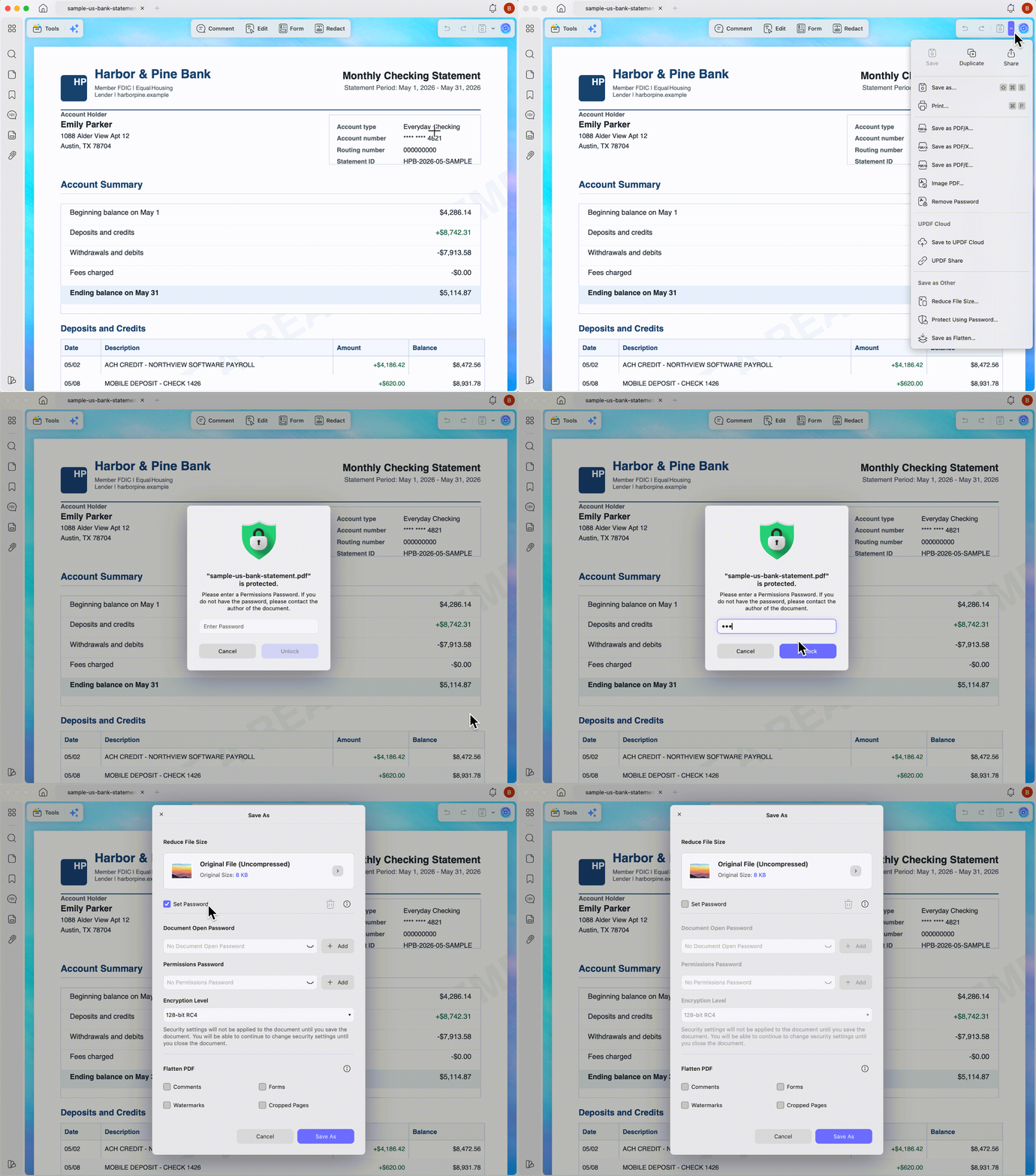
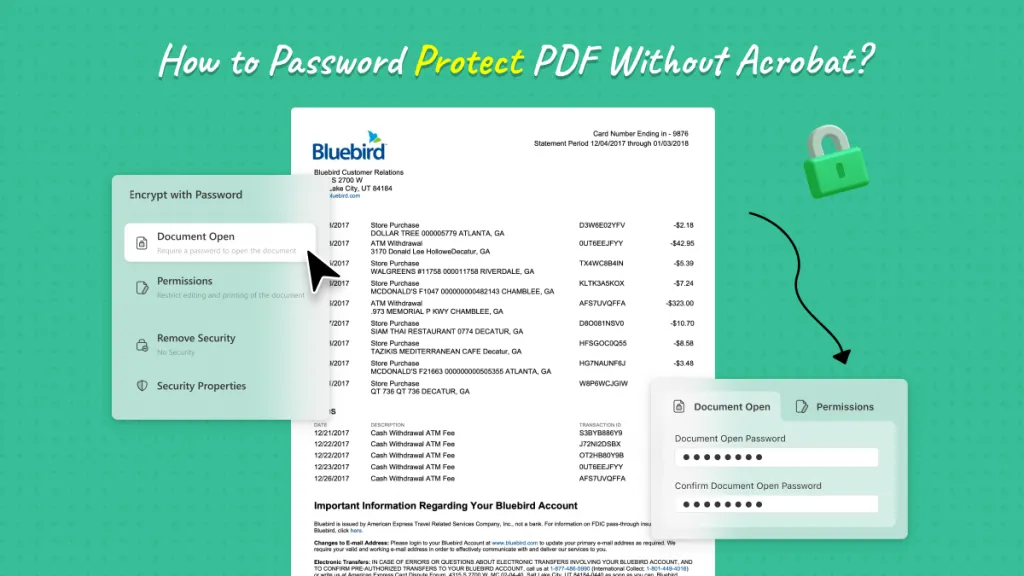
2. Access Security Settings: On the right-side panel, look for the Save as other icon (the small "v"-shaped dropdown arrow directly next to the Save button). Click it and select Protect Using Password.
3. Enter the Permissions Password: Input your existing restriction password to unlock the settings.
4. Remove the Restriction Checkbox: A security settings dialog box will appear. Because this document is already protected, you will see that the checkbox next to Set Password (under the Permissions section) is checked. Uncheck this box.
5. Save as a New Document: Click the Save As button in the bottom right corner of the window. Choose a folder on your computer to save the document.
⚠️ Important Note:
To apply these changes, you must save the decrypted document as a brand-new file. This prevents your original, restricted backup from being accidentally overwritten or corrupted.
Once saved, open your new file. You will find that editing, copying, annotating, and printing are fully restored.
Pro Tip: Granular Security Control with UPDF
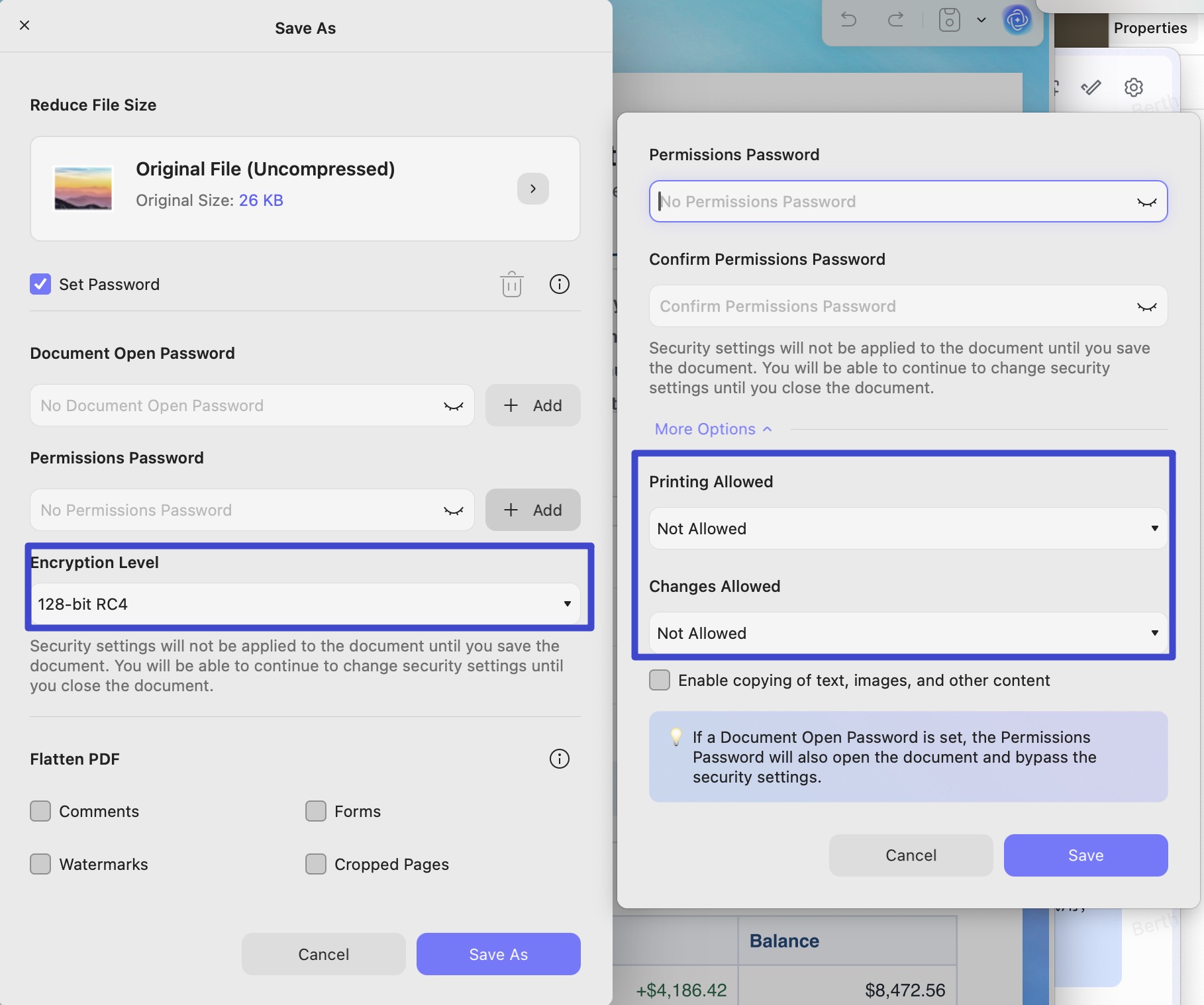
Encryption Standards: Choose from 128-bit RC4, 128-bit AES, or military-grade 256-bit AES encryption.
Print Permissions: Set printing to "Not Allowed," restrict it to "Low Resolution (150 dpi)" to protect high-quality designs, or allow "High Resolution."
Changes Allowed: Fine-tune exactly what recipients can do. You can restrict all modifications or selectively allow:
- Inserting, deleting, and rotating pages
- Filling in form fields and signing existing signature fields
- Commenting, filling in form fields, and signing
- Any changes except extracting pages
Method 2: Use an Online PDF Restriction Remover (No Password Needed)
What if a former colleague sent you a file years ago, or you are dealing with an open-source research paper and have no way of getting the permissions password?
In these situations, you can use online web utilities to bypass the permissions. These tools essentially rebuild the PDF file structure from scratch, dropping the password metadata in the process.
Option A: iLovePDF (Unlock PDF)
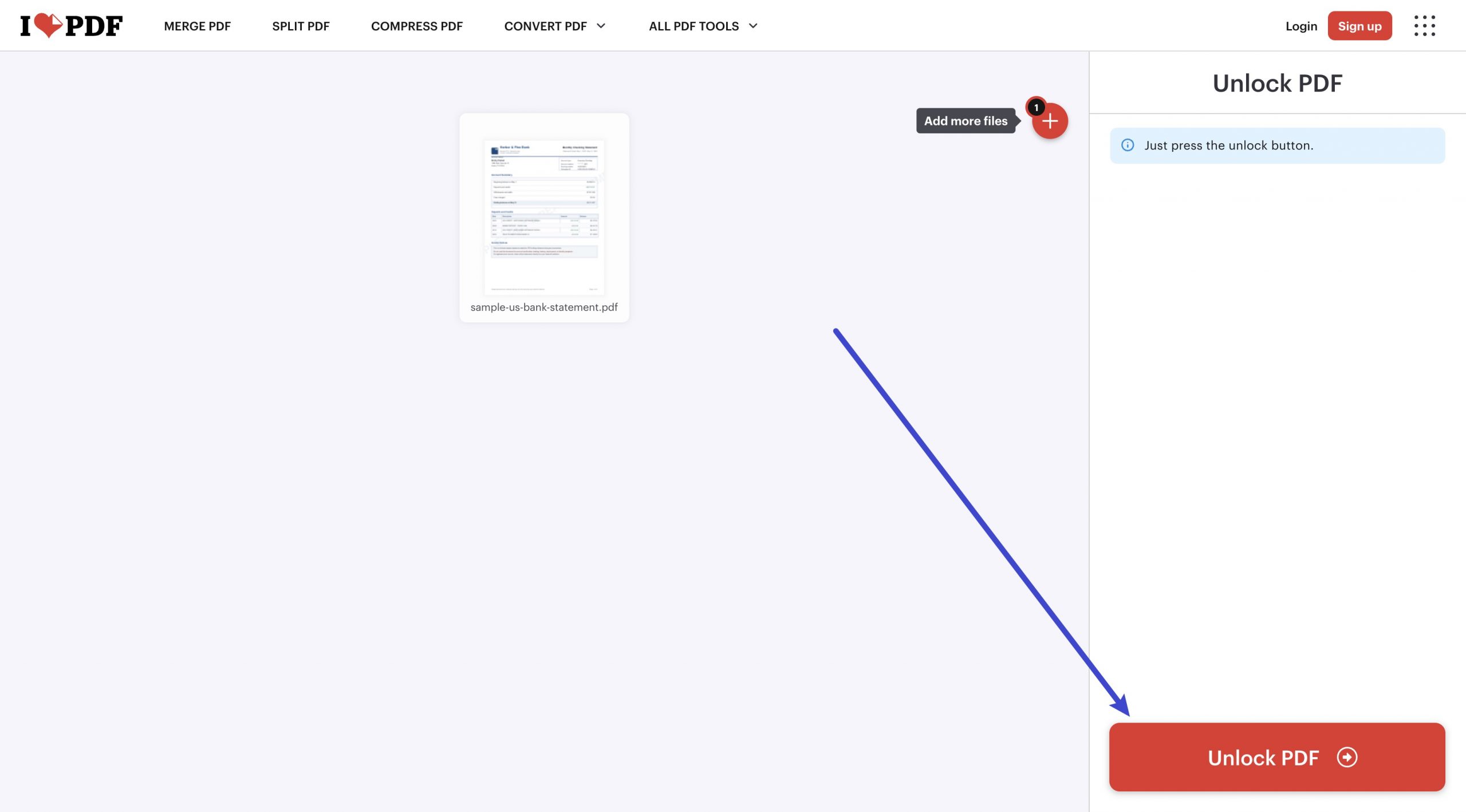
- Go to the iLovePDF Unlock tool.
- Upload your restricted document.
- Click the Unlock PDF button.
- Wait for the decryption to finish, then download your unlocked document to a local folder.
Option B: Online2PDF
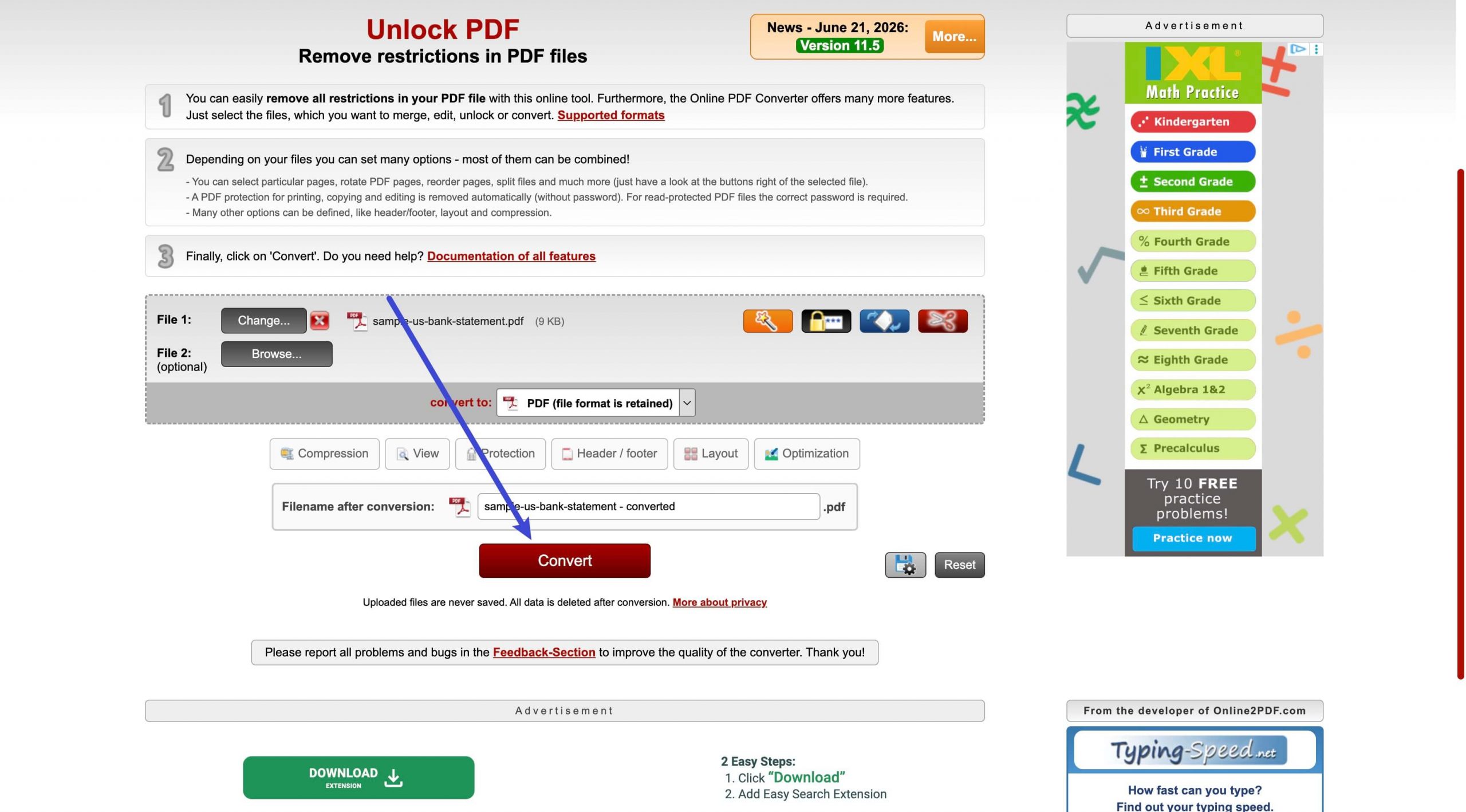
- Navigate to the Online2PDF restriction remover page.
- Click Select files and upload your locked PDF.
- Click Convert. The platform will automatically strip the restrictions and download the new version to your browser's default download location.
🚨 The Trade-Offs: Privacy, Redactions, and Formatting Risks
- The Privacy Hazard: Online tools require you to upload your files to external cloud servers. If your document contains sensitive client data, financial ledgers, or personal ID numbers, uploading them to the web is a major security risk. Even if you have previously tried to redact PDF files or blur PDF elements to hide private information locally, third-party web servers might still cache the original unredacted database layers.
- Failed Decryption on Deep Encryption: If a document has been secured using advanced modern encryption standards, basic online platforms will fail and display an error.
- Formatting Damage: The web-rebuilding process often strips custom system fonts, misaligns tables, and ruins document formatting.
Advanced Scenarios: Extracting Pages & Managing Redactions
Once you have unlocked your document, you may need to perform other complex actions.
For instance, if you are working with a large, unlocked file but only need a few pages for a presentation, you can learn how to extract a PDF with password protections removed. This allows you to split important pages into separate files without triggering security blocks.
Furthermore, if you are preparing a public document and realize that previously blacked-out legal texts need to be restored, you can use UPDF to remove redaction from PDF layouts safely, ensuring full editorial control over your content.
Frequently Asked Questions
How do I remove permissions from a PDF online for free?
You can use free web platforms like iLovePDF or Online2PDF. However, keep in mind that these tools require you to upload your files to their cloud servers, which presents potential security and data privacy risks.
Can you bypass PDF print protection without a password?
Yes, online restriction removers can often strip print blocks. Alternatively, opening the PDF in a web browser like Chrome and choosing "Print to PDF" sometimes bypasses basic, low-level print restrictions, though this method frequently compromises formatting quality.
Is it safe to use a web-based PDF restriction remover?
For non-sensitive public documents, online tools are perfectly fine. For legal contracts, business reports, or files containing personal data, it is always safer to use a local, offline tool like UPDF to prevent data leaks.
Conclusion: Balancing Convenience and Security
Removing restrictions from your PDF files doesn't have to be a headache. If you are in a rush with a non-sensitive file and don't have the password, online platforms like iLovePDF offer a quick fix.
However, for professional environments where data security and visual quality are critical, an offline tool is always the best choice. Once you have cleared your document's restrictions, we highly recommend taking a moment to learn how to protect PDF files correctly. This ensures that when you send your own documents out, they are protected exactly the way you want.
Ready to manage your PDF permissions with total privacy and zero hassle? Download UPDF today and take full control of your document workflows.
Windows • macOS • iOS • Android 100% secure



 Enola Miller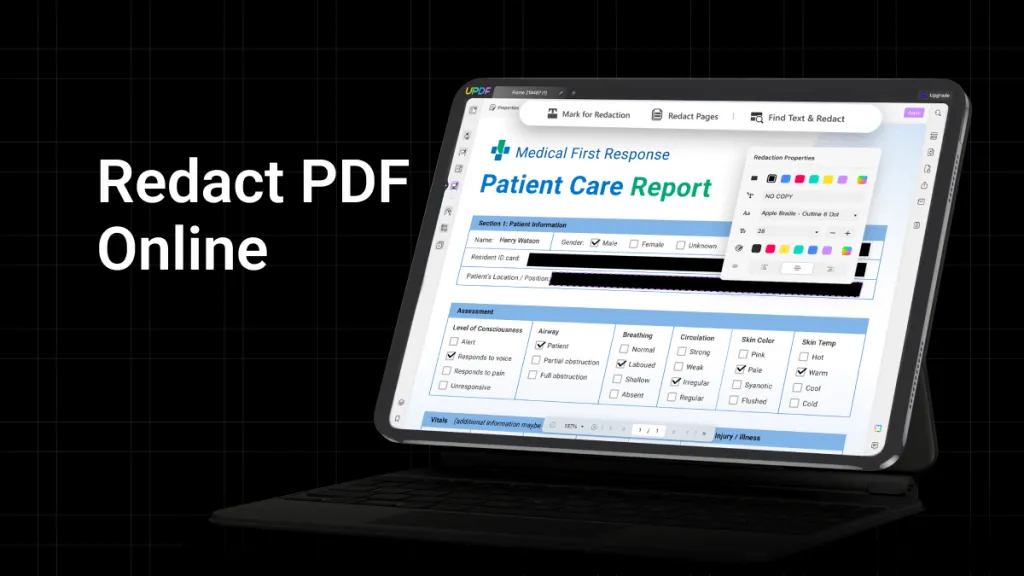
 franck Petit