UPDF
UPDF
 UPDF for Windows
 UPDF for Mac
 UPDF for iPhone/iPad
 UPDF for Android
 Nomostar
 UPDF AI Online
 UPDF Sign
 IvyCraft
 Edit PDF
 Annotate PDF
 Create PDF
 PDF Form
 Edit links
 Convert PDF
 OCR
OCR PDF to Word
 PDF to Image
 PDF to Excel
 Organize PDF
 Merge PDF
 Split PDF
 Crop PDF
 Rotate PDF
 Protect PDF
 Sign PDF
 Redact PDF
 Sanitize PDF
 Remove Security
 Read PDF
 UPDF Cloud
 Compress PDF
 Print PDF
 Batch Process
 About UPDF AI
 UPDF AI Solutions
 AI User Guide
 FAQ about UPDF AI
 Summarize PDF
 Translate PDF
 Chat with PDF
 Chat with AI
 Chat with image
 PDF to Mind Map
 Explain PDF
 PDF AI Tools
 Image AI Tools
 AI Chat Tools
 AI Writing Tools
 AI Study Tools
 AI Working Tools
 Other AI Tools
 AI Bookmark Generation
 AI Bookmark Summary
 AI Watermark Generation
 AI Background Generation
 AI Sticker Generation
 AI Stamp Generation
 AI Editing Suite
 UPDF Copilot
 AI Page Management
 AI Semantic Search
 PDF to Word
 PDF to Excel
 PDF to PowerPoint
 Enterprise Solution
 Enterprise Sign
 Enterprise AI
 Enterprise Plan
 Enterprise User Guide
 Enterprise Webinar
 IT
IT Education
 Construction
 Financial Service
 Healthcare
 Insurance
 Legal
Legal Manufacturing
 Government
 Researchers & PhDs
 Solopreneurs & Freelancers
 Lawyers & Legal Professionals
 Real Estate Agents & Brokers
 Education Solution
 Customer Stories
 User Guide
 UPDF Tricks
 FAQs
FAQs UPDF Reviews
 Download Center
 Blog
Blog Newsroom
 Tech Spec
 Updates
 UPDF vs. Adobe Acrobat
 UPDF vs. Foxit
 UPDF vs. PDF Expert

Your last day was Friday. On Sunday night, you're on the couch with three things to sort out:
- A severance agreement you don't fully understand
- The interview question "So, why did you leave?"
- A LinkedIn post about your next chapter that you keep rewriting
So you open ChatGPT. You upload the severance PDF and ask what it means. You paste in the Slack thread where your manager "restructured" your role and ask how to talk about it without sounding bitter.
It's genuinely useful. It's also the moment most people hand over their former employer's names, numbers, and internal details without thinking twice.
Most People Are Already Doing This
You're not alone. LayerX Security's Enterprise AI and SaaS Data Security Report 2025 found that 77% of employees paste data into generative AI tools. It also found that 82% of those pastes come from personal accounts that sit outside company control.
That's at work, with IT watching. After you've left, there's no IT team, no policy reminder, and no one asking whether that file should leave your laptop.
"Deleted" Doesn't Always Mean Gone
Many people assume that deleting a chat erases it. In 2025, that assumption was tested in public.
During The New York Times v. OpenAI copyright case, a federal court ordered OpenAI to preserve ChatGPT output logs, including chats users had deleted. That broad order ended in October 2025, but logs already preserved under it remained available to the case.
The point isn't that your chat will end up in a courtroom. It's that what happens to your data after you hit delete depends on things you don't control: the provider's policy, your plan, your settings, and sometimes a judge.
What's Actually Risky to Paste
The details that matter usually look harmless:
- Your severance agreement. Many include confidentiality clauses, and the document itself may be something you agreed not to share.
- Emails and Slack screenshots. These show coworkers' names, client names, and internal channel names.
- Performance reviews. These include your manager's name, salary figures, and internal project names.
- Old work files you kept "for your portfolio." These may contain material covered by your NDA or trade-secret law.
None of this means you can't get AI's help. It means you should strip out the specifics first.
The 30-Second Rule Before You Paste
- Company name → "my previous employer"
- People's names → "my manager," "a coworker"
- Client and project names → "a large retail client," "an internal tool"
- Exact numbers → "a mid-six-figure budget"
For plain text, find-and-replace does the job. PDFs and screenshots are where people get caught out.
Why a Black Box Isn't Enough
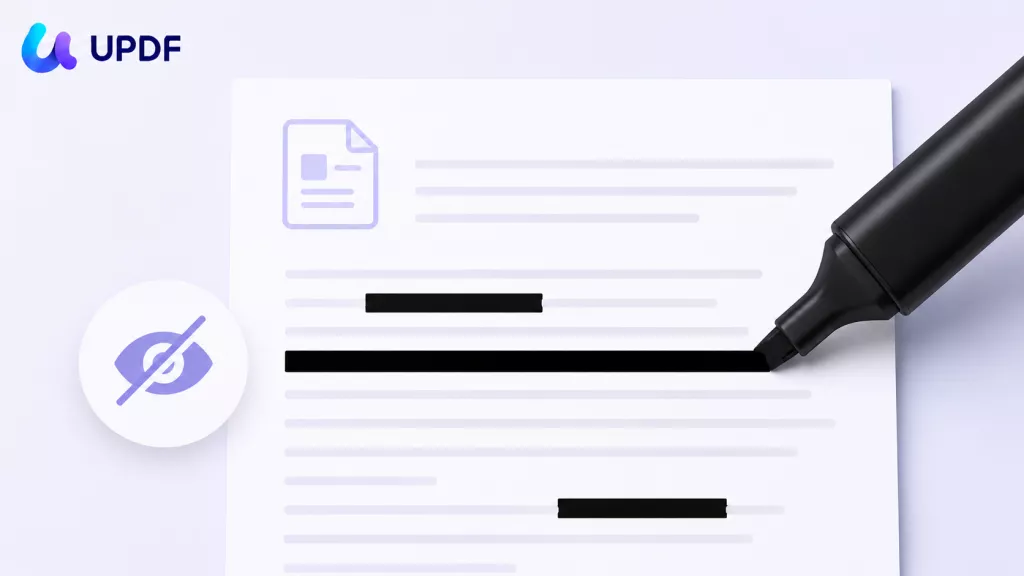
Drawing a black rectangle over a PDF only changes how the page looks. Anyone can move or delete the box, and the text is still underneath. Even without touching the box, copying the page's text can bring the "hidden" name right back.
This is how real redaction failures happen, including in court filings. The fix is to remove the data itself, not just cover it.
I use UPDF, a advanced PDF editor that processes files on your own computer, so nothing needs to be uploaded first. There are two ways to do this.
Windows • macOS • iOS • Android 100% secure
Method 1: Redact (Deletes the Text Itself)
This is the best option for text-based PDFs, such as a severance agreement, an offer letter, or a performance review.
- Open the PDF in UPDF, go to Tools, and select Redact.
- Drag over the names, figures, or sections you want removed.
- Click Apply, then use Save As to keep it separate from the original.
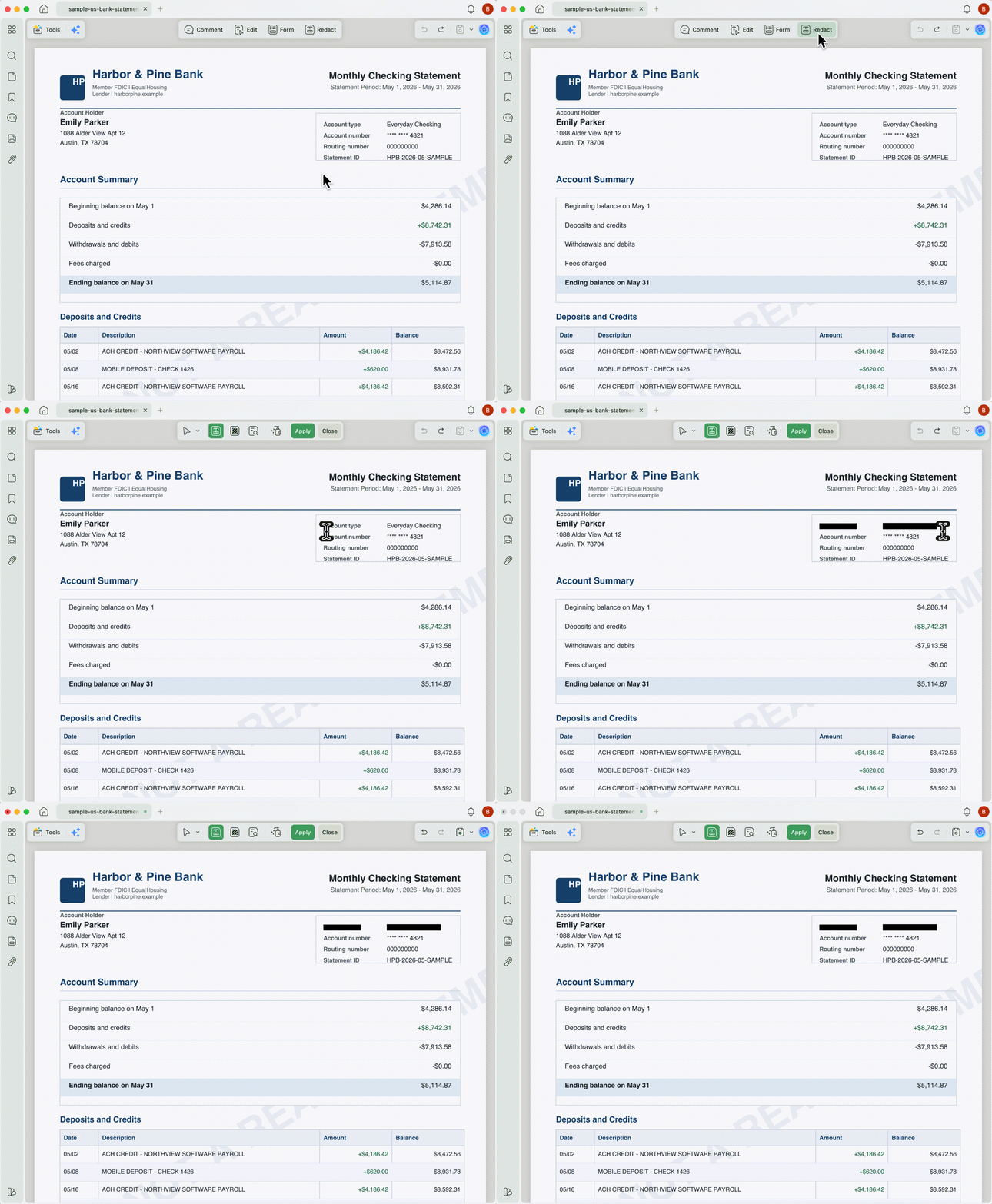
After you apply redaction, the text under the mark is permanently deleted. Copying the text, searching it, or moving things around won't bring it back.
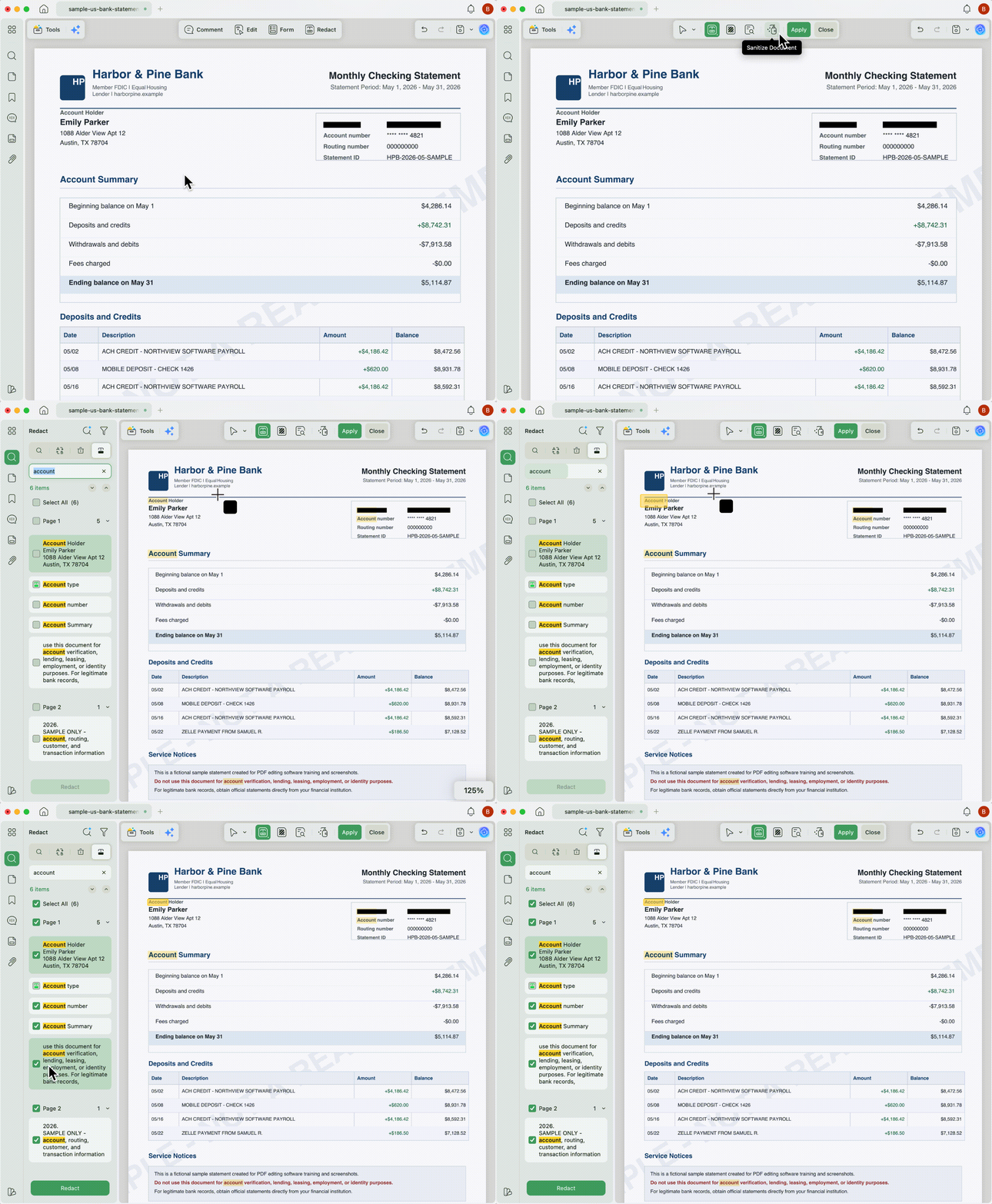
If your former employer's name appears 40 times, use Search & Redact. Type the name once, and every match can be redacted in one pass.
Method 2: Cover with Shapes or Stickers, Then Flatten
This is the best option for screenshots, such as Slack threads, emails, or org charts.
- Drag the screenshot onto the UPDF desktop window. It's converted to a PDF automatically.
- Cover names, profile photos, emails, and channel names with a rectangle or a sticker from the Comment tools.
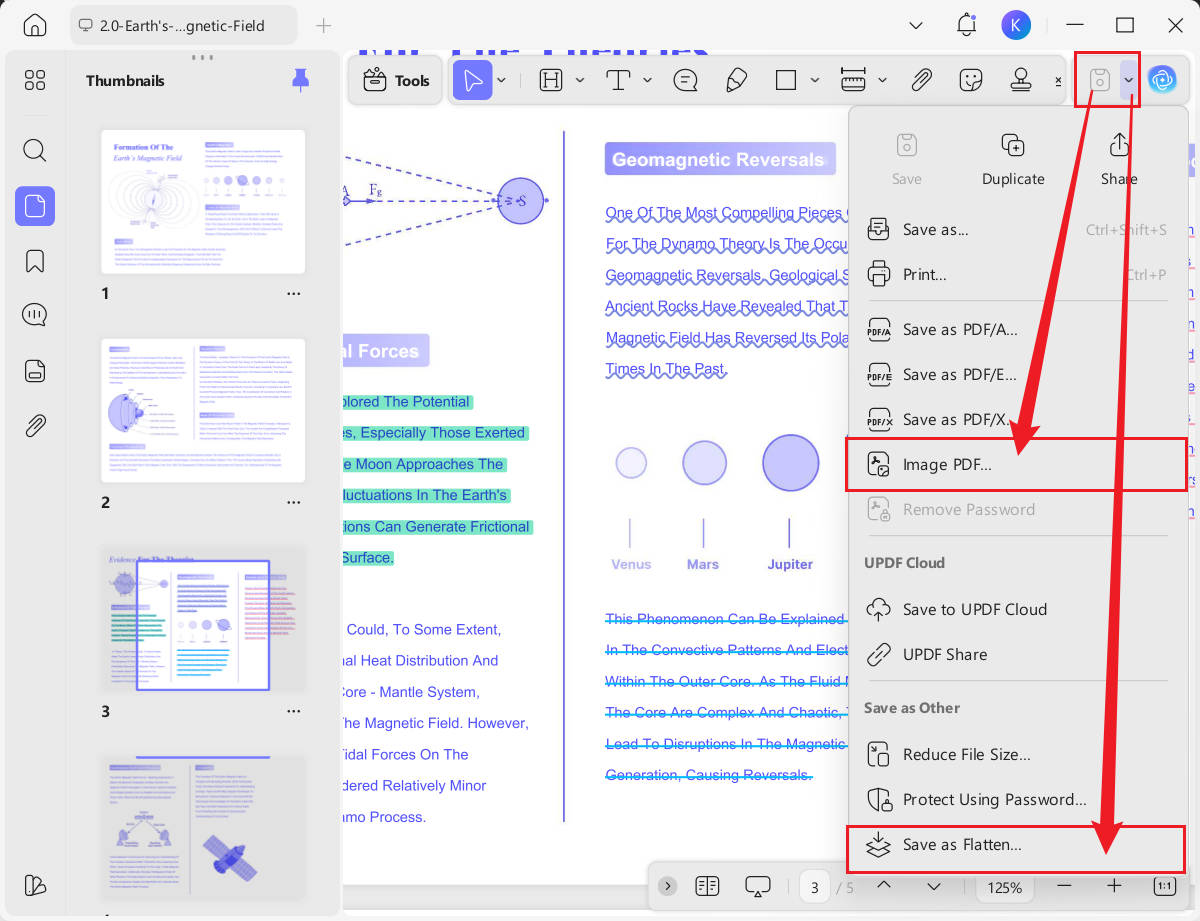
- Click the arrow next to Save, choose Save as Flatten, check Flatten Annotations and Forms, and save.
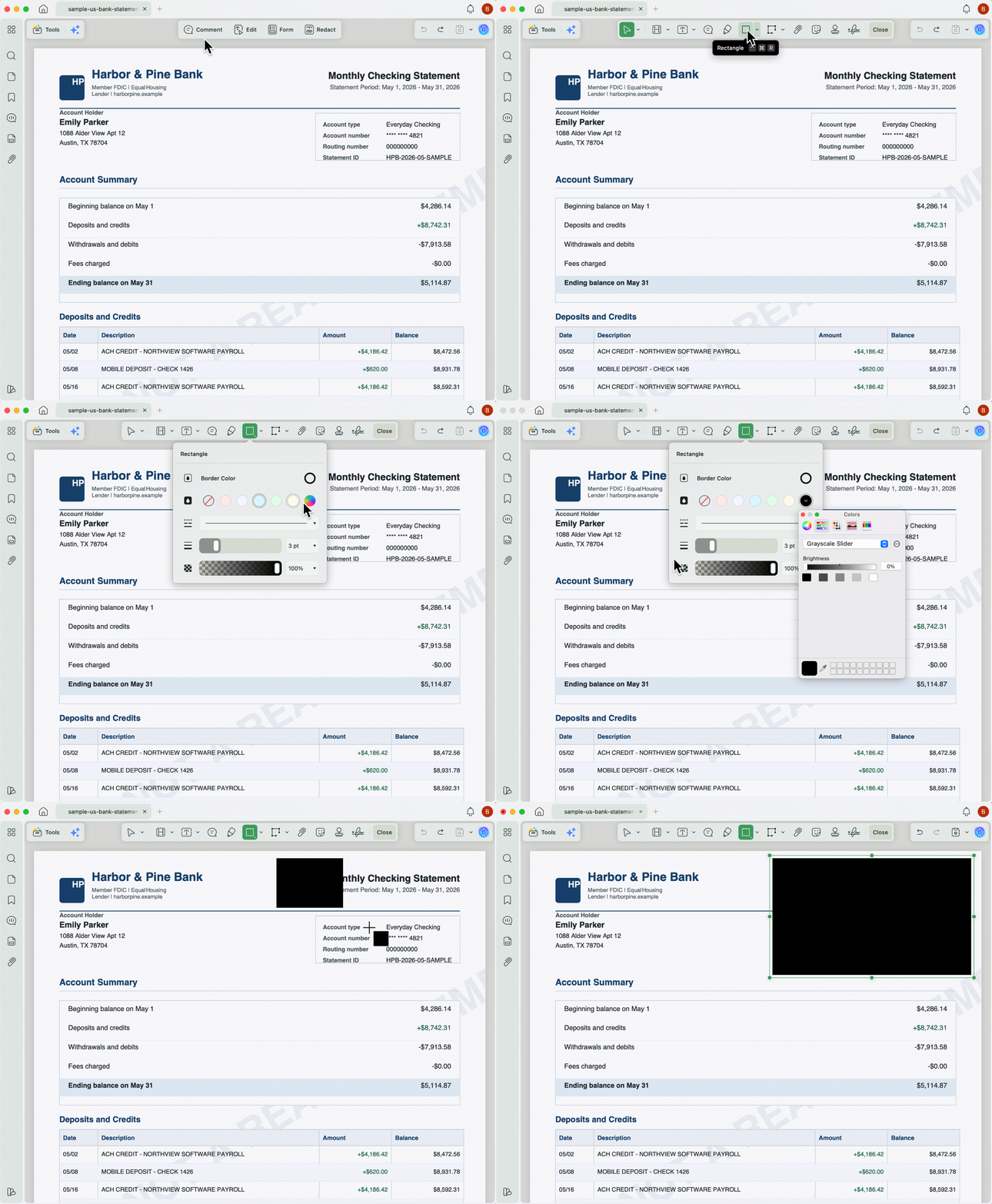
Flattening turns the shapes and stickers into part of the page instead of movable annotations. Nobody can click them, move them, or delete them to see what's underneath.
One caveat: if your PDF has selectable text, flattening covers that text visually, but the text data may still be there underneath. For text-based PDFs, use Method 1, or after flattening, save the file again as an Image PDF from the Save menu. That turns each page into an image, so no text data remains.
Windows • macOS • iOS • Android 100% secure
Who Should Do This
- Anyone asking AI to explain a severance package or exit paperwork
- Job seekers using AI to prep for "Why did you leave?" or to rewrite a résumé
- Anyone drafting a LinkedIn post, Glassdoor review, or blog post about leaving a job
The Bottom Line
A lawyer or a therapist owes you confidentiality. An AI service gives you a privacy policy. Those are not the same kind of protection.
So use AI to think it through, just not with the real names left in. A quick redaction before you paste lets you move on from your old job without leaving a trail behind you.
Download UPDF for free → Available for Windows, Mac, iOS, and Android.
Windows • macOS • iOS • Android 100% secure
Note: You can try redaction and flattening in UPDF's free version, but files saved from the free version include a trial watermark.To export clean, watermark-free files, upgrade to UPDF Pro.
Sources:
- LayerX Security, Enterprise AI and SaaS Data Security Report 2025
- Engadget, OpenAI no longer has to preserve all of its ChatGPT data, with some exceptions (on the termination of the preservation order in The New York Times v. OpenAI, October 9, 2025)



 Delia Meyer
 Enrica Taylor
 Enola Miller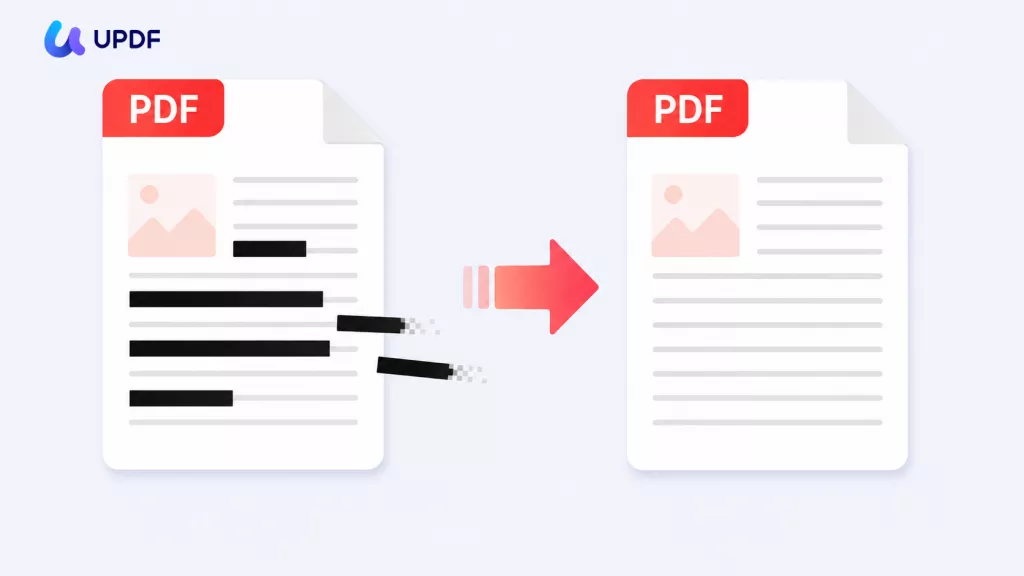
 Lizzy Lozano